
Cron for File Transfers, Without the Surprises
The script is finished. You have run it five times from your terminal and it works flawlessly: connects, uploads, logs, exits clean. You add one line to a crontab, go home, and the next morning the partner is asking where their files are. The log shows nothing. The script that cannot fail apparently never even started — or started and died in a way it never did for you.
Nothing is haunted. Cron is one of the simplest, most reliable programs on a Linux system. It is a daemon that wakes every minute, compares the time against a table, and runs what matches. Every "cron mystery" comes from a short list of knowable differences between the world cron runs jobs in and the world you test in. There is a different environment, a different shell, a different notion of where output goes.
This article decodes crontab syntax properly, then walks the classic traps one by one. It finishes with the procedure that prevents nearly all of them: testing a job the way cron will actually run it. It is the scheduling chapter of our Bash & Cron transfer automation series. It assumes the kind of well-shaped script built in the fundamentals article.
Crontab Syntax, Decoded Once
A crontab (cron table) is the list of schedules and commands cron consults. Each user account can have one — edit yours with crontab -e, list it with crontab -l. Each line is five time fields followed by the command:
# +---------- minute        (0-59)
# | +-------- hour          (0-23)
# | | +------ day of month  (1-31)
# | | | +---- month         (1-12)
# | | | | +-- day of week   (0-7; 0 and 7 are both Sunday)
# | | | | |
 30 2 * * *    /usr/local/bin/push-orders.sh
 */15 * * * *  /usr/local/bin/poll-inbox.sh
 0 6 * * 1-5   /usr/local/bin/morning-report.sh
 45 22 1 * *   /usr/local/bin/monthly-archive.sh
Reading the examples: an asterisk means "every value," so the first line runs at 02:30 every day. */15 is a step — every fifteenth minute, so on the hour, quarter past, half past, quarter to. 1-5 is a range — Monday through Friday at 06:00. And the last line runs at 22:45 on the first of every month. Comma-separated lists work too: 0 6,18 * * * is six in the morning and six in the evening.
One genuine oddity deserves a warning, because it looks like it should work and does not. When you restrict both day-of-month and day-of-week, cron treats them as either/or, not both. 0 2 13 * 5 does not mean "Friday the 13th" — it fires on the 13th of every month and on every Friday. If you need "first Monday of the month" logic, schedule more broadly and let the script itself check the date and exit quietly when it is the wrong day.
Besides personal crontabs there are system locations: /etc/crontab and drop-in files under /etc/cron.d/. These have one extra field — the user account to run as — between the time fields and the command. That difference bites in both directions. Paste a system-format line into a personal crontab and the username gets executed as a command. Paste a personal-format line into /etc/cron.d/ and the first word of your command is misread as a username. For transfer jobs, the tidy options are the service account's own crontab, or a file in /etc/cron.d/ naming that account explicitly. The latter keeps the schedule in configuration management and out of any human's personal crontab. Either way, changes take effect on save; cron notices modified tables by itself, and there is no daemon to restart.
The Environment Cron Does Not Give You
Here is the single biggest source of "works by hand, fails from cron." When you log in, your shell runs profile and rc files that build a rich environment. You get an extended PATH, your locale, an SSH agent holding unlocked keys, aliases, all of it. Cron does none of that. It starts your job with a nearly empty environment: typically HOME, LOGNAME, a SHELL of /bin/sh, and a PATH of just /usr/bin:/bin. No profile has run. No agent exists. No terminal is attached.
The diagram below shows the same script facing its two possible worlds — everything in the right-hand column is something your manual test quietly assumed.
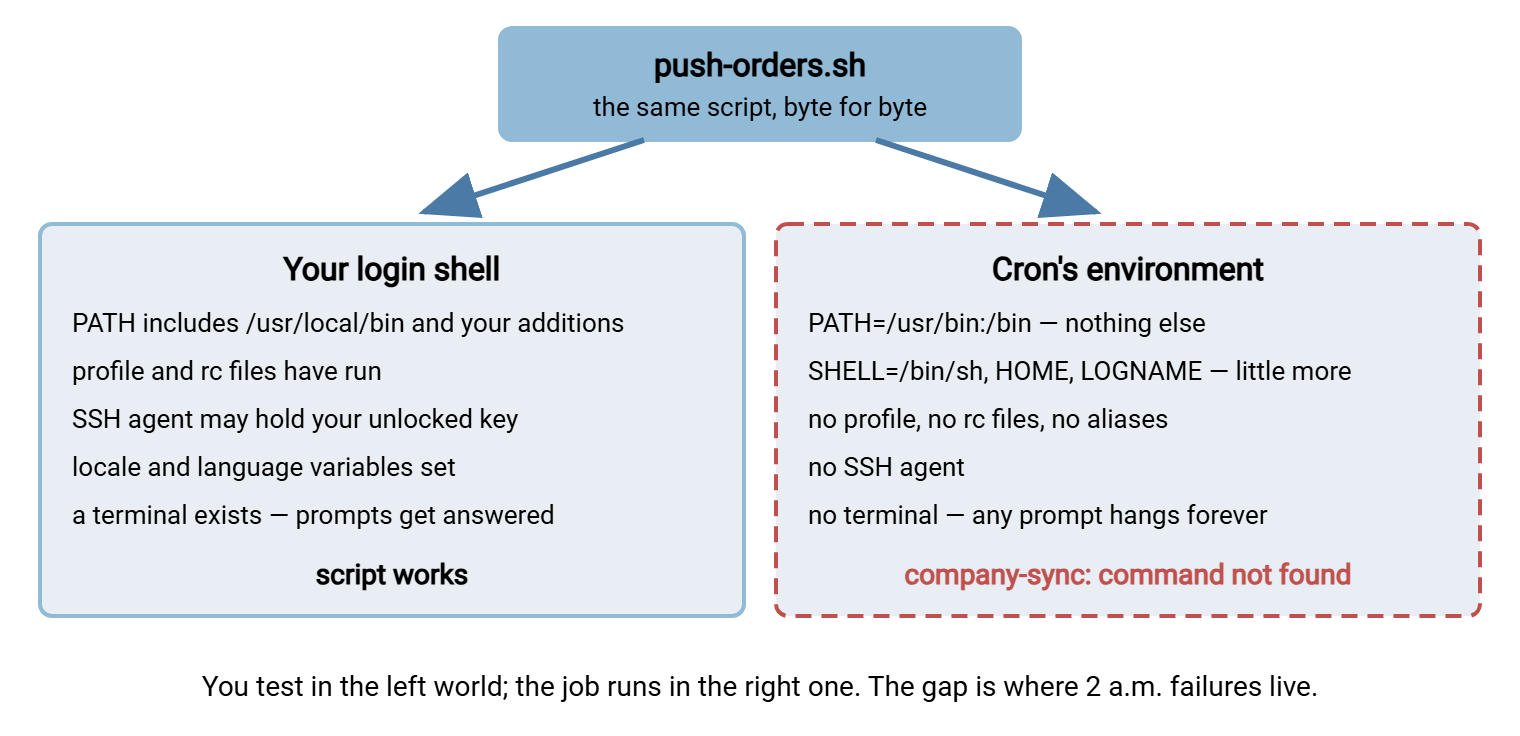
Everything in the next section is a consequence of that gap, which is why the testing procedure at the end of this article is built entirely around closing it.
The Classic Traps, One by One
Trap one: the short PATH. Your script calls a helper installed in /usr/local/bin, or a tool from an add-on package living outside /usr/bin. From your shell it resolves; from cron's PATH it does not, and the job dies with command not found. Two clean fixes: call every non-standard binary by absolute path (the habit the fundamentals article recommends anyway), or set PATH explicitly at the top of the script. You can also declare PATH=... at the top of the crontab itself. But note that crontab variable lines are plain text, not shell. You cannot write PATH=$PATH:/opt/tool/bin, because nothing expands $PATH there.
Trap two: the shell is sh, not bash. Cron hands the command line in the crontab to /bin/sh unless told otherwise. Your script is safe — its shebang chooses bash when the file itself runs — but bash-only syntax written directly in the crontab line breaks. The robust convention: keep crontab lines trivial. One absolute path to a script, arguments, a redirection. All cleverness lives in the script, where it can be tested and version-controlled.
Trap three: the working directory. Cron starts jobs in the account's home directory. A script that says ./export/orders.csv or writes log.txt quietly operates on files in /home/xfer — or fails outright. Absolute paths for every file, every time; a transfer job should not care where it was started from.
Trap four: the percent sign. In a crontab command, % is special: cron converts the first unescaped % into "end of command," and feeds everything after it to the command as input. The classic victim embeds a date format: run.sh --tag $(date +%F) silently becomes a broken half-command. Escape it as \% — $(date +\%F) — or better, move date logic into the script, where % means nothing unusual.
Trap five: nobody is there to answer. With no terminal attached, anything that asks a question — a password prompt, a host-key confirmation, a passphrase — does not fail. It waits forever, holding locks and connections while it waits. Unattended transfer jobs must be built so every question is answered in advance and any surprise question becomes an immediate error. That discipline, batch mode, and known-hosts seeding are the subject of our non-interactive SFTP guide.
Trap six: the schedule assumes a duration. An every-fifteen-minutes job works until the night the transfer takes seventeen minutes, and then two copies run at once, competing for the same files. Cron itself offers no protection — it fires on time regardless of what is still running. The fix is a lock, and it is important enough to be the next article in this series.
Where Cron Output Goes: The Mail Nobody Reads
When a cron job prints anything — stdout or stderr — cron collects it and mails it to the local user account. Or it mails it to whatever address the MAILTO variable in the crontab names. On a machine with working mail delivery, that can be a feature. On the typical server, local mail goes nowhere anyone looks. The output piles up in a spool file, or vanishes because no mail system is installed at all. The result is the worst of both worlds — your job has been printing error messages for three weeks into a mailbox nobody knew existed.
For transfer jobs, adopt three rules. First, the script owns its logging: it writes its own timestamped log file, deliberately, as designed in the logging patterns article. The script does not rely on cron catching whatever falls out. Second, the crontab line adds a safety net for the failures that happen before the script's own logging starts — script missing, permission denied, interpreter not found:
17 2 * * * /usr/local/bin/push-orders.sh >>/var/log/transfer/push-orders.cron.log 2>&1
That appends both output streams to a catch-all file, so even a job that dies on line zero leaves a note. Third, keep successful runs quiet. A script that prints nothing on success and something on failure makes any output meaningful. That turns cron's mail (where mail does work) and the catch-all log into signals instead of noise.
Never end a transfer job's crontab line with >/dev/null 2>&1. It is the traditional way to stop cron mail, and it works by throwing away exactly the evidence you will want during an incident. Redirect to a log file instead — disk is cheaper than a lost morning of guessing.
Independent of your job's own output, cron records each execution attempt in the system log — depending on the distribution, in /var/log/cron, /var/log/syslog, or the journal. When you are unsure whether a job even fired, that log is the arbiter. An entry there with no entry in your script's log means the job started and died before its first log line.
Scheduling Well: Staggering, Clock Changes, and Missed Runs
Cron will run whatever you ask, whenever you ask. A little scheduling craft prevents self-inflicted congestion:
- Avoid the obvious minutes. Half the world schedules at
0 0,0 2, and0 3, so servers and partner endpoints see load spikes on those boundaries. Pick unremarkable minutes — 17, 43 — and your job stops competing with everyone else's. - Stagger jobs that share a destination. Ten servers all pushing to one SFTP endpoint at 02:00 is a small denial-of-service you run against yourself nightly. Spread them minutes apart, and leave headroom between a job's worst-case duration and the next job that depends on its output.
- Respect the haunted hour. Cron follows local time, and where daylight-saving changes apply, one night a year an hour repeats and one night an hour does not exist. Jobs scheduled inside that shifting window can run twice or not at all. Schedule critical transfers outside it, or run servers on UTC and sidestep the whole question.
- Know that plain cron does not catch up. If the machine is down or asleep at 02:17, that run simply never happens — cron keeps no queue of missed work. Machines that are not always on can use anacron or the system's daily job directories, which run "roughly daily" work after boot instead of at a fixed hour. For always-on servers, the honest answer is monitoring: a check that notices the absence of an expected run or an expected file. No crontab can provide that check by itself. That is the territory of our transfer job monitoring series.
Test It the Way Cron Runs It
Every trap above shares one root cause: the environment you tested in was not the environment the job runs in. So do not test in yours — recreate cron's. This procedure takes fifteen minutes and catches nearly everything before the first scheduled night.
- See what cron actually provides. Install a one-minute throwaway entry that snapshots the environment, let it fire once, then remove it:
* * * * * /usr/bin/env > /home/xfer/cron-env.txt
The file it leaves behind is the complete, unglamorous truth about what your job will inherit. - Re-run your script inside that truth.
env -istarts a command with an empty environment, to which you add back only what the snapshot showed:env -i HOME="/home/xfer" LOGNAME="xfer" SHELL="/bin/sh" PATH="/usr/bin:/bin" \ /bin/sh -c '/usr/local/bin/push-orders.sh'Note the deliberate/bin/sh -c: that is how cron invokes the line, so this test also catches bashisms that leaked into your crontab command. Missing tools, agent dependencies, and relative paths all surface right here, at your keyboard, with you watching. - Test as the job's account, not as yourself. Wrap the same command in
sudo -u xfer. File permissions, key readability, and home-directory assumptions differ per account, and this is the step that finds out. - Dress-rehearse under cron itself. Install the real crontab line — the exact command, redirection and all — but with a temporary every-minute schedule. Watch two or three runs land in the log, verify the files actually arrive at the destination, then change the schedule to the real one. The only thing this final step changes is the time fields, which is exactly the kind of last-minute edit that cannot break anything.
- Check the first real night both ways. Next morning, confirm the run in your log and confirm the files at the destination. "The log says success" and "the files are there" are two different claims, and a healthy job is one where you have seen both.
Remember: a transfer job is not "done" when the script works in your terminal. It is done when it has run from cron, as the service account, on schedule, and the files provably arrived. Everything between those two points is this procedure.
The Other Half of the Estate
Most estates are mixed, and the discipline in this article has a Windows twin. There is no cron on Windows. Its native scheduler is Task Scheduler, with its own environment quirks and its own version of every trap above. The comparison is worth reading in our scheduled jobs series. Where the Windows side of your estate needs scheduled transfers without hand-written scripting, Sysax FTP Automation takes a different route to the same destination. It offers transfer tasks built with a wizard, scheduled runs, folder monitoring, and email notifications. That is the mail-nobody-reads problem solved by design rather than by redirection.
And when your cron job's destination is a Windows server you also operate, remember the far end keeps records too. A transfer server such as Sysax Multi Server — SFTP, FTPS, FTP, and HTTPS, running as a Windows service — writes activity logs of every session and transfer. It writes them to file and to a database. When you are debugging "did the 02:17 job even connect," matching your client-side log against the server's activity log answers the question from both directions at once.
A Boring Schedule Is the Goal
Cron rewards a specific mindset: assume nothing from the environment, write everything down, and rehearse in the real conditions. Decode the five fields, keep crontab lines trivial, and give every job absolute paths. Route output to a log you will actually read, pick quiet minutes, and run the true-to-cron test before the first scheduled night. Do that, and cron becomes what it has been for decades on healthy systems: the most boring, dependable component in the whole pipeline.
Two directions from here. If your job runs on any schedule faster than its slowest possible run, go straight to lock files and overlap prevention — it is the failure mode this article deliberately deferred. And since an unattended job is only as good as its trail, the logging patterns article turns the catch-all redirect used here into logs that answer questions on their own.
Frequently Asked Questions
Why does my script work when I run it but fail under cron?
Do I need to restart anything after editing a crontab?
What does */5 in a crontab mean?
How do I find out whether cron ran my job at all?
Why did the part of my command after a % sign disappear?
Will cron run a job it missed while the server was down?
From the Sysax team: we build secure file transfer software for Windows. Sysax Multi Server is an FTP, FTPS, SFTP, and HTTPS server. Sysax FTP Automation handles scheduled, scripted transfers. Free trials are on the download page.