
Lock Files and Overlap Prevention in Scheduled Scripts
A transfer job that takes forty minutes runs happily every hour for months. Then comes the slow night — a partner uploads a quarter's worth of corrections, or the WAN link degrades — and tonight's run takes eighty minutes. Cron does not know and would not care. At the top of the next hour it starts a second copy of the same script. Now two processes are moving the same files at the same time. Nothing about either process is broken. The combination is the problem.
Overlapping runs produce some of the strangest incidents in file transfer: duplicated deliveries, half-transferred files that "nobody" touched, archives containing the same data twice, logs that seem to contradict themselves. And the traditional defense — a hand-rolled lock file — has failure modes almost as bad as the disease. Those include the quietly catastrophic one where a crashed run leaves its lock behind and the job never runs again.
This article, part of our Bash & Cron transfer automation series, shows how overlap happens, why naive locks betray you, and how to use flock — the tool that gets locking genuinely right. The article includes a worked retrofit of a real script from unprotected to overlap-safe.
How Overlap Happens (and Why Cron Won't Save You)
Cron schedules by the clock and only by the clock. It keeps no record of whether the previous run of a job is still going. "Start at minute zero" means exactly that, regardless of what is already running. So the rule is mechanical: any job whose worst-case duration can exceed its schedule interval will eventually overlap itself. Not "might" — will, on the exact night when volumes are highest and stakes are largest, because big volume is what makes runs slow.
The clock is not the only path to a collision, either. An administrator re-runs a job by hand to "catch up," seconds before cron fires the real one. A crontab edit leaves the old entry and the new one both live. A second server, set up as a copy of the first during a migration, still carries the same crontab. Locking defends against all of these at once, because it guards the resource rather than the schedule.
The diagram below shows the basic mechanism on a timeline. It shows an hourly job, one slow run, and the twenty minutes where two copies operate on the same files. Then it shows the same night again, with a lock in place.
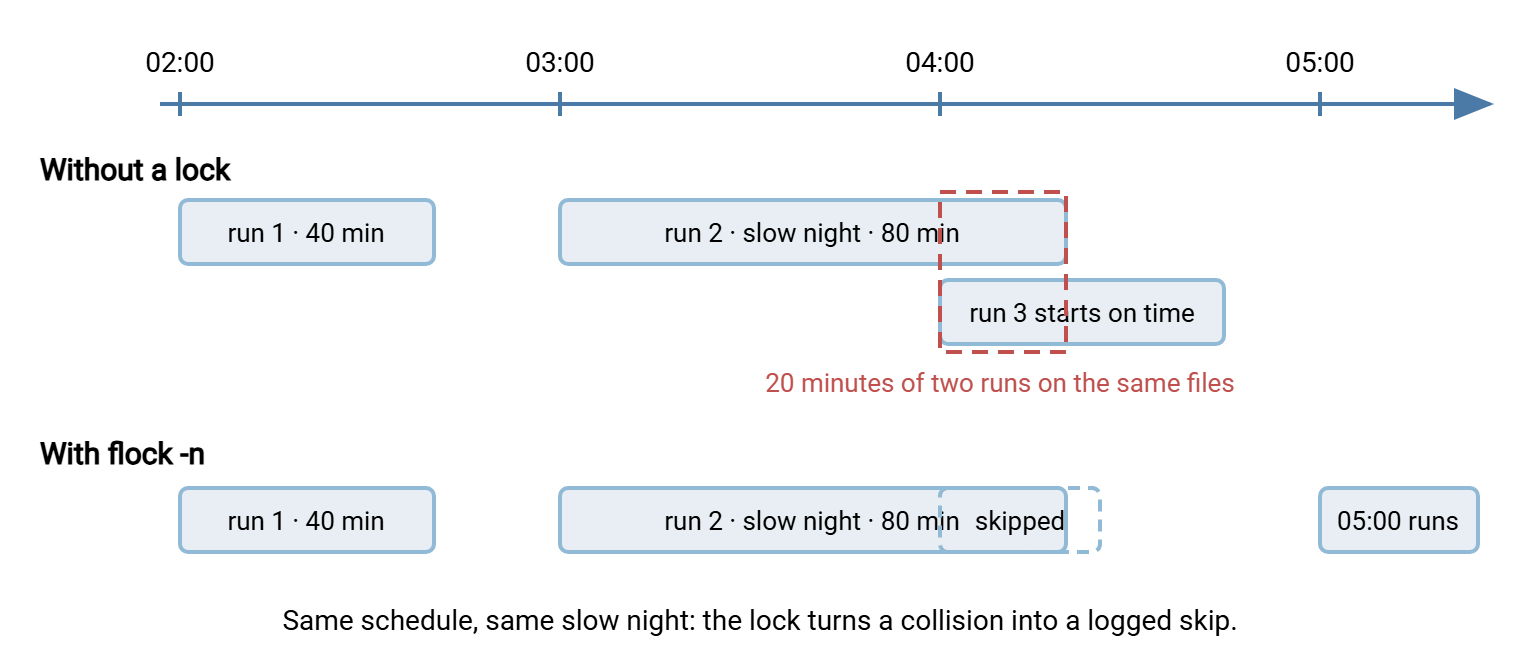
What Two Copies of One Job Do to Each Other
It is worth spelling out the damage, because none of it looks like "overlap" when you meet it in a ticket:
- Duplicate deliveries. Both runs list the same source directory, both see the same files, both upload them. The partner receives everything twice, and whether that is an annoyance or a doubled payment batch depends entirely on what is in the files. (Why duplicates are so costly downstream, and how receivers defend, is the theme of our duplicate detection and idempotency series.)
- Files processed mid-write. Run A is still downloading into a staging directory when run B decides that directory is ready and starts processing it. Half-written files enter the pipeline. This is the scheduled-job version of the race described in our partial-file safety series, inflicted on yourself.
- Collisions on shared names. Both runs write the same temp file, the same "latest" symlink, the same archive name — each corrupting the other's work in ways that neither run's log can explain alone.
- Moved-file errors. One run archives or deletes a file the other is mid-transfer on, producing "file not found" and partial-transfer errors that investigation will show "cannot happen."
- Pressure on the remote end. Two simultaneous sessions from one service account can trip per-account connection limits. They also double the load on the very night the server is already slow. That slows both runs further, inviting a third into the pile-up.
The Naive Lock File, and Why It Betrays You
The intuitive fix is a lock file: create a marker when the job starts, check for it at startup, remove it at the end. In script form:
# fragile -- shown so you can recognize it, not copy it
if [ -f /tmp/pull-invoices.lock ]; then
    exit 0
fi
touch /tmp/pull-invoices.lock
# ... do the transfer ...
rm /tmp/pull-invoices.lock
This has two flaws, one subtle and one brutal. The subtle one is the race. Between the moment process A checks for the file and the moment it creates it, process B can perform its own check. Both see "no lock," both proceed. The window is milliseconds, but scheduled jobs are precisely the things that start at the same instant.
The brutal flaw is the stale lock. If the script crashes, is killed, or the server reboots between touch and rm, the lock file survives with no process behind it. Every future run sees it and exits — silently, forever, until a human notices the job "stopped working weeks ago." A defense against running twice became a guarantee of running zero times. Refinements like writing the process ID into the file and checking whether that process still exists help. But they inherit the same race and add a new one. Process IDs get reused, so the check can match some unrelated process and conclude the lock is live.
The honest conclusion: do not hand-roll locking. The kernel already does it properly, and flock is the doorway.
flock: Let the Kernel Hold the Lock
flock is a small standard utility around the kernel's advisory file locking. "Advisory" means it only restrains programs that ask — which is fine, because the only contenders here are copies of your own script, and they all ask. The property that changes everything: the lock belongs to an open file descriptor held by a process. When that process ends — cleanly, by crash, or by kill -9 — the kernel closes its descriptors and releases the lock automatically. Stale locks are not handled well by flock; they are impossible by construction.
The simplest correct pattern needs no script changes at all — wrap the job right in the crontab:
17 * * * * /usr/bin/flock -n /var/lock/xfer/pull-invoices.lock /usr/local/bin/pull-invoices.sh >>/var/log/transfer/pull-invoices.cron.log 2>&1
Here flock opens the named lock file, tries to take an exclusive lock, and — holding it — runs the command. The lock releases when the command exits. -n means non-blocking. If the lock is already held, give up immediately instead of waiting, exiting with status 1. A different code can be chosen with -E if you prefer a busy skip to look like success to the scheduler.
The pattern with more control puts the lock inside the script, using a file descriptor — one of the numbered handles a process holds on open files. Descriptors 0, 1, and 2 are stdin, stdout, and stderr; any other small number is free, and 9 is a common convention:
readonly LOCK_FILE="/var/lock/xfer/pull-invoices.lock"

exec 9>"$LOCK_FILE"          # open fd 9 onto the lock file, for the script's whole life
if ! flock -n 9; then        # try to lock fd 9 without waiting
    log "lock held by an earlier run; skipping this cycle"
    exit 0
fi
Read it gently: exec 9>"$LOCK_FILE" opens descriptor 9 for writing onto the lock file and keeps it open for the remainder of the script. exec with only a redirection applies that redirection to the script itself. flock -n 9 then asks the kernel for an exclusive lock on that open descriptor. Succeed, and the script owns the lock until it exits, however it exits. Fail, and you are in the if branch with a chance to log before leaving. Nothing is ever written to the file; it exists purely to be locked, and its content stays empty.
The flags worth knowing: -n means fail-fast, as above. -w 300 means wait up to 300 seconds for the lock, then fail. No flag at all means wait indefinitely. -x means exclusive (the default) versus -s shared, which transfer jobs rarely need. One inherited-descriptor caveat: child processes get copies of open descriptors. So a process your script launches into the background and leaves running keeps the lock held after the script exits. Transfer scripts should not leave background children behind anyway; if one legitimately must, start it with the descriptor closed: some-daemon 9>&-.
Remember: the lock file is not the lock. The kernel's lock on the open descriptor is the lock; the file is just its name. That is why deleting the file is never needed, why its lingering existence blocks nothing, and why a crashed run can never leave the job wedged the way naive lock files do.
Skip, Wait, or Alarm: Choosing the Collision Behavior
flock settles whether two runs can coexist. You still choose what the loser does, and the choice depends on the job:
| Policy | flock form | Fits | Watch out for |
|---|---|---|---|
| Skip this run | flock -n |
Frequent polling jobs — the next cycle comes soon and will pick up the work | Silent skips hiding a job that never finishes; always log the skip |
| Wait, with a limit | flock -w 300 |
Once-a-day batches where every run matters and a short delay is fine | Timeout reached means something is wrong — treat it as an error, not a skip |
| Wait forever | flock (no flag) |
Rarely right for cron jobs | Runs queue up invisibly behind a stuck one, then all fire in a burst |
Two refinements make either sensible policy production-grade. First, decide what a skip means to your scheduler. exit 0 keeps things quiet, which is correct when an occasional skip is expected. But then count skips, because three in a row means the job's duration has outgrown its schedule and someone should know. A skipped 04:00 run is unremarkable; a job that has been skipping since Tuesday is an outage wearing camouflage. Absence-of-success alerting — the freshness check — is exactly what our job monitoring series builds. Second, for the wait-with-limit policy, log the wait itself. "Waited 240s for lock" appearing nightly is your early warning that runs are stretching, long before the timeout starts failing.
Stale Locks, Reboots, and Where the Lock File Lives
The classic stale-lock questions all have short answers with flock. A crashed run? The kernel released its lock the moment the process died; the next run proceeds. A reboot mid-run? Kernel locks do not survive reboots, so nothing is held. The lock file may still exist on disk and that is fine, because existence is not the lock. Conventionally locks live under /var/lock or /run/lock, which on a modern Linux distribution are memory-backed and start each boot empty — tidy, though not required for correctness.
Two placement rules do matter. Local disk only: flock's guarantees are between processes on one kernel. On network filesystems, lock behavior depends on the filesystem, its mount options, and the server on the other end. That is a stack of "usually" that a safety mechanism should not stand on. Keep lock files on a local path even when the data lives on a share. A directory the service account can write: have root create something like /var/lock/xfer/ owned by the transfer account once, and let every job lock inside it. Avoid predictable lock names in a world-writable place like /tmp, where any local user could create the file first with unhelpful permissions. That is the same reasoning the hardening article applies to temp files generally.
The one problem flock honestly cannot solve is two machines. Each kernel manages its own locks, so a job that can fire from two servers needs coordination elsewhere. Run it from only one (the right answer far more often than it sounds), or claim work atomically at the shared destination. For instance, rename a remote file into a per-runner staging area, so each file can be claimed exactly once no matter who arrives first.
A Worked Retrofit: Making a Real Job Overlap-Safe
Here is a genuine before-and-after. The before is a fifteen-minute polling job, healthy-looking and completely unprotected:
#!/usr/bin/env bash
set -euo pipefail
# pull-invoices.sh -- collect new invoices from the partner server
rsync -e "ssh -i /etc/transfer/keys/invoices_ed25519 -o IdentitiesOnly=yes" \
      --remove-source-files \
      "invoices@files.partner.example:outbox/" /data/incoming/invoices/
/usr/local/bin/process-invoices /data/incoming/invoices
(The --remove-source-files flag makes rsync a move rather than a copy — collected files disappear from the partner's outbox; our rsync flags guide covers it properly.) The incident that motivates the retrofit is easy to script. Month-end brings a large batch. The 10:00 run is still downloading at 10:15, the next run starts, and both feed process-invoices. That posts a batch of invoices twice, including some files the second run caught half-downloaded. The retrofit:
#!/usr/bin/env bash
set -euo pipefail
# pull-invoices.sh -- collect new invoices from the partner server (overlap-safe)

readonly JOB_NAME="pull-invoices"
readonly LOCK_FILE="/var/lock/xfer/${JOB_NAME}.lock"
readonly LOG_FILE="/var/log/transfer/${JOB_NAME}.log"

log() {
    printf '%s %s[%d]: %s\n' "$(date '+%b %d %H:%M:%S')" "$JOB_NAME" "$$" "$*" >> "$LOG_FILE"
}

# ---- take the lock before touching anything --------------------------
exec 9>"$LOCK_FILE"
if ! flock -n 9; then
    log "lock held by an earlier run; skipping this cycle"
    exit 0
fi
log "lock acquired; run starting"

rsync -e "ssh -i /etc/transfer/keys/invoices_ed25519 -o IdentitiesOnly=yes" \
      --remove-source-files \
      "invoices@files.partner.example:outbox/" /data/incoming/invoices/ >> "$LOG_FILE" 2>&1

/usr/local/bin/process-invoices /data/incoming/invoices >> "$LOG_FILE" 2>&1

log "run finished ok"
Four decisions in the retrofit are worth naming. The lock is taken before any side effects — before the first byte moves — because a lock acquired halfway down protects only half the job. The lock's scope covers both the transfer and the processing step. They form one unit that must never interleave with another run, and the lock guards that unit, not just the network part. Both outcomes at the lock — acquired and skipped — write a log line, so the record explains quiet cycles instead of leaving gaps. And the log format includes the process ID ($$), so if two runs ever do share a log — during the retrofit window, say — their lines are distinguishable. That format comes from the logging patterns article.
Seeing Overlap From the Server Side
Client-side locks protect one machine's runs from each other. But the transfer server's own records are how you notice the overlaps you did not predict — the forgotten second server, the colleague's manual run. The signature is two simultaneous sessions from the same service account, doing suspiciously similar work. If the far end of your flow is a Windows-hosted endpoint running Sysax Multi Server, its activity logging records every session and transfer to file and to a database. That makes the check a query rather than an investigation: filter by the account, look for overlapping session windows. The same logs, incidentally, are how you verify a skipped run really was covered by the previous one still working — the server saw one long session, not a gap.
On the Windows half of a mixed estate, where these transfer jobs are built as scheduled tasks in Sysax FTP Automation rather than hand-written scripts, the same design questions from this article still apply. What should happen when a run is due while the previous one is busy? Those questions are simply answered in a task's configuration rather than in bash. The thinking transfers even where the syntax does not.
Locking Is Two Lines, Once You Trust It
Strip away the theory and the practice is small: open a descriptor on a lock file, ask flock for the lock, and choose skip-or-wait for the loser. The kernel guarantees the part hand-rolled locks always got wrong — release on death. The log lines around the lock turn collisions from mysteries into one-line entries. Every scheduled transfer script that can possibly overrun its interval should carry those lines; most others should too, as insurance against the manual-run collision nobody schedules.
From here, a natural companion is Error Handling in Bash. Traps and cleanup interact closely with locks, since both are about what happens when a run ends abnormally. Another is the cron article if you arrived here with a schedule that fires faster than its job can run. The overlap problem is one entry in a longer checklist, and the hardening article holds the rest.
Frequently Asked Questions
Do I need to delete the lock file when my script finishes?
The lock file still exists from yesterday — is my job blocked?
What happens to the lock if the server reboots mid-run?
Can I use flock to stop the same job running on two different servers?
Should a skipped run exit 0 or with an error?
Why file descriptor 9? Is the number special?
From the Sysax team: we build secure file transfer software for Windows. Sysax Multi Server is an FTP, FTPS, SFTP, and HTTPS server. Sysax FTP Automation handles scheduled, scripted transfers. Free trials are on the download page.