
SCP's Limitations: What It Can't Do and When That Matters
Ask an administrator to name a file-copy command and most will say scp before they finish hearing the question. It is everywhere, it is encrypted, and for a quick one-file copy it is close to perfect. But scp earns its keep by being simple, and that simplicity has a price list. Most people discover the items on it one outage at a time. There is the 40 GB transfer that died at 97 percent and had to restart from zero. There is the filename with a space that produced a baffling error. There is the two-server copy that demanded credentials nobody expected.
This article is the price list in advance. We will walk through what scp genuinely cannot do — no resume, no remote file management, hazardous quoting, strange remote-to-remote behavior. We will explain why each gap exists and name the tool that covers it. The goal is not to talk you out of scp; it is to let you choose it with open eyes. This piece is part of our SCP & SSH Copying series and pairs naturally with how SCP works, which explains the machinery behind these limits.
One Design Decision, Every Limitation
All of scp's gaps trace back to a single ancestral choice. As covered in the companion explainer, classic scp is not a file-transfer service. It is a small program that your SSH login runs on the far side, streaming files to its twin on your side. Its protocol has a vocabulary of roughly five messages. These are "here is a file," "here is a directory," "leave the directory," "here are timestamps," and "something went wrong."
That vocabulary has no words for list, seek, rename, delete, or continue from byte 31,204,882. A tool cannot offer features its protocol cannot express. The remote copy is launched as a command line through the remote user's shell. So everything you type after the colon is subject to shell interpretation on the far side. That is the root of the quoting hazards we will get to shortly.
Modern scp implementations complicate the story in one welcome way: many now speak SFTP under the hood while keeping the classic command line. That quietly fixes some hazards (the shell leaves the conversation) but not others — the command's own interface still offers no resume and no file management. Keep that split in mind throughout: some limits belong to the old wire protocol, others to the scp command itself, and the command's limits survive the transport change.
No Resume: The Limit That Hurts Most
Here is the scenario that converts people. You are copying a large database dump — say 40 GB — across a WAN link to a disaster-recovery site. Ninety minutes in, at 97 percent, the VPN hiccups. The connection drops. You run the same scp command again and watch it start at 0 percent, because scp has no concept of picking up where it left off. Every interruption costs you everything transferred so far.
The reason is structural. Classic SCP streams each file from its first byte to its last; the receiving side's only options are "acknowledge" or "abort." There is no message that says "I already have the first 38 GB — start from there." Resuming requires random access — the ability to read or write starting at an arbitrary offset. The protocol simply has no such request. And note the fine print from earlier. Even when a modern scp uses SFTP (whose reads and writes do carry offsets) as its transport, the scp command exposes no resume option. The capability exists one layer down, but the tool's interface never grew a handle for it.
Do the arithmetic before trusting a big transfer to scp. On a link that averages one interruption every two hours, a copy that needs three hours will fail more often than it succeeds. Each failure wastes the whole attempt. The workarounds are mature and nearby:
- sftp can resume: its
regetandreputcommands continue a partial download or upload from where it stopped. Our SFTP series covers the tool in depth. - rsync resumes and verifies: with
--partialit keeps the interrupted piece and continues on the next run. Its checksum machinery confirms the result matches the source. See the rsync & delta transfer series. - Split the file as a last resort: breaking a huge file into chunks and copying them individually turns one fatal interruption into one lost chunk. It is clumsy, which is the point — the better tools exist.
One related trap: an interrupted scp does not clean up after itself. The half-written file stays at the destination, correct in name and wrong in content. If another process watches that directory and consumes files as they appear, it can happily ingest the truncated version. Whenever a consumer waits on the far side, deliver to a temporary name and rename into place afterward. As the next section shows, scp cannot complete that pattern on its own.
Rule of thumb: size times fragility decides the tool. A file big enough that restarting from zero would ruin your afternoon, traveling over any link you do not fully trust, should move by rsync or sftp — not scp.
Copy-Only: No Remote File Management
The second gap surprises people who arrive from graphical transfer clients. scp can put files onto a remote machine and pull files off one, and that is the entire feature list. It cannot:
- List a remote directory to see what is there.
- Rename or move a remote file.
- Delete a remote file.
- Create a directory except as a side effect of a recursive copy.
- Change permissions or ownership on something already copied.
In practice, admins paper over this with ssh itself, sandwiching the copy between remote commands:
$ ssh web01 'ls -l /var/www/releases'          # look before you copy
$ scp release.tgz web01:/var/www/releases/release.tgz.part
$ ssh web01 'mv /var/www/releases/release.tgz.part /var/www/releases/release.tgz'
That three-step sandwich works fine when the remote account has a full shell. But it fails exactly where file transfer gets serious: restricted accounts. A hardened server often gives transfer-only accounts no shell at all, precisely so they cannot run arbitrary commands. On such a server, classic scp (which is itself a command run through the shell path) may be blocked outright. Your ssh host 'mv ...' tricks certainly are. The sftp vocabulary — list, rename, delete, mkdir, chmod — works within transfer-only restrictions, which is one more reason locked-down environments standardize on it.
The upload-then-rename point deserves one extra beat, because it is a reliability pattern, not a convenience. A safe way to deliver a file that another process consumes is to upload under a temporary name, then rename it into place. Rename is atomic on the same filesystem, so the consumer never sees a half-written file. scp cannot perform the rename half of that pattern. If your delivery workflow needs it, scp alone is the wrong tool for the job.
Quoting and Wildcard Hazards
Now the limitation that produces the most confused help-desk tickets. With classic scp, the path you type after the colon is not delivered to the far side as inert text. It becomes part of a command line that the remote user's shell interprets. Two shells touch what you typed: your local one first, then the remote one. Each consumes a layer of quoting.
The classic demonstration is a filename with a space. Suppose the remote file is literally named quarterly report.pdf:
$ scp web01:/data/quarterly report.pdf .
scp: /data/quarterly: No such file or directory
scp: report.pdf: No such file or directory
The remote shell split the name at the space and hunted for two files. Quoting once, locally, is not enough — the local shell strips those quotes before scp ever runs. Classic scp needs quoting twice, one layer per shell:
$ scp 'web01:/data/quarterly\ report.pdf' .        # escape inside quotes
$ scp 'web01:"/data/quarterly report.pdf"' .       # or quotes inside quotes
Wildcards ride the same mechanism. scp 'web01:/var/log/app/*.log' . works in classic scp because the remote shell expands the star. That is useful, but it also means the expansion obeys the remote account's shell, its hidden-file rules, and its locale. You control none of those from your keyboard. Forget the quotes and your local shell tries to expand the star against your local disk first. That typically produces "no matches" errors or, worse, silently substitutes local filenames.
Modern scp-over-SFTP changes this landscape: filenames travel as data, the remote shell is out of the loop, and the client itself expands wildcards through directory listings. Double-quoting tricks written for classic scp can behave differently there. And shell substitutions embedded in remote paths (backticks, $(...)) stop working entirely. That occasionally breaks an ancient script that depended on them. When one same command misbehaves across two machines, suspect this transition first.
Safe habits: always single-quote any remote path that contains a wildcard, space, or special character. Prefer dead-simple remote filenames for anything scripted. And when a name gets genuinely weird, sidestep the problem with sftp, which never lets a shell touch the path.
Remote-to-Remote Copies: The Detour You Didn't Expect
scp accepts two remote endpoints in one command, and it looks wonderfully convenient:
$ scp alex@old-server:/etc/app/app.conf alex@new-server:/etc/app/
The surprise is in who connects to whom. By default, your machine instructs the first remote host to open its own connection to the second. That has two consequences people rarely anticipate. First, reachability: old-server must be able to reach new-server over the network directly — and in segmented networks it often cannot. Second, credentials: old-server must authenticate to new-server as you. That means your keys exist on old-server (they should not, as our bastion article explains), or agent forwarding is in play. Or the attempt simply fails with a prompt in a place no prompt can be answered.
The fix is the -3 flag, which routes the copy through your machine. It opens one connection to each server, using your local credentials for both, and relays the stream. The diagram shows both shapes.
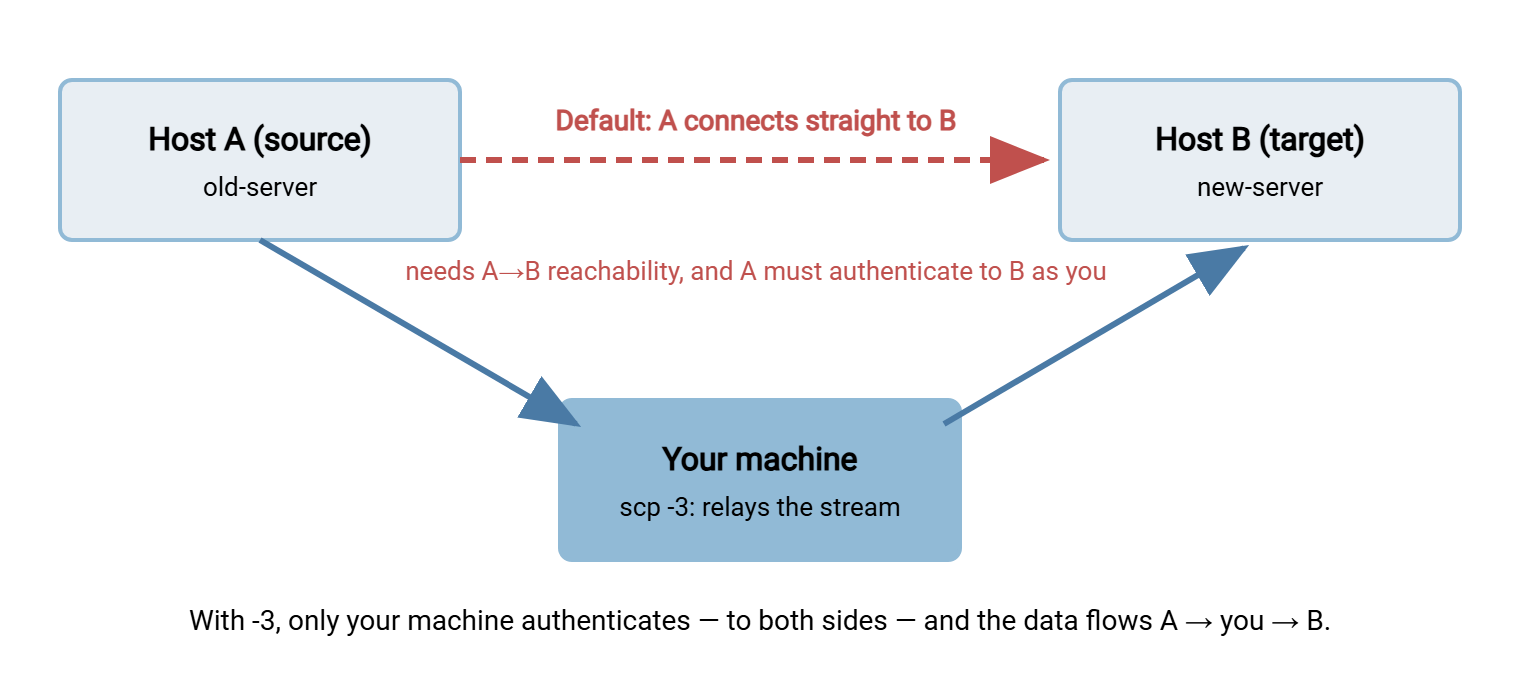
The tradeoff is bandwidth: with -3 the data crosses your connection twice, down from A and up to B. For a config file, irrelevant; for half a terabyte over a home link, decisive. When both servers live in the same data center and can reach each other, the honest fast path is often to SSH into one of them. You then run the copy from there, where the transfer stays on the fast local network.
The Quieter Limits
A handful of smaller gaps round out the list. None is dramatic; each has ended someone's afternoon.
- Whole files, every time. scp has no delta transfer: change one line in a 2 GB file and scp re-sends 2 GB. Repeated copies of mostly-unchanged data are rsync's home turf — see our rsync series for how it moves only the changes.
- Symbolic links are followed, not copied. A recursive
scp -rcopies the file a symlink points to, not the link itself. Trees that use symlinks heavily (release directories with acurrentpointer, for instance) arrive subtly wrong — sometimes enormously bigger, occasionally in an endless loop. - No filters. There is no exclude option; scp -r takes the whole tree, node_modules, cache directories and all. Filtering means tar with excludes, rsync, or copying a curated staging directory.
- Attribute preservation is shallow.
-ppreserves timestamps and permission bits, but ownership only transfers when the receiving side runs with the privilege to set it. Richer metadata (ACLs, extended attributes) does not ride along at all. - Coarse error reporting. For scripts, scp's exit status is close to binary: success or "something failed." Which file of forty failed, and why, takes log parsing to discover — thin soil for building reliable automation.
The integrity point earns a closing word, because it is subtler than it looks. Encryption on the wire guarantees the bytes were not altered in transit. But scp performs no end-to-end verification that the file that landed matches the file that left. A full disk, a truncated stream, or the interrupted-transfer trap above can all leave a wrong file behind with no protest. When a copy genuinely matters, verify it yourself by comparing checksums on both sides:
$ sha256sum dump.sql                          # on the source machine
$ ssh backup01 'sha256sum /data/dump.sql'     # on the destination
# identical output = identical file
rsync builds an equivalent check into the transfer itself, one more reason it graduates from scp for anything repeated or important.
When scp's Simplicity Is Exactly Right
After that list, the honest counterweight: for a huge share of daily work, none of these limits matters. In those cases, scp's virtues — ubiquity, zero setup, one obvious syntax — win outright. scp is the right tool when:
- The file is small and the moment is now. A config file, a certificate, a log snippet, a hotfix script. If a retry costs three seconds, resume is irrelevant.
- The path is boring. Known filename, no spaces, no wildcards, trusted machines on a stable network.
- It is a one-off. No schedule, no repetition, no other process depending on delivery.
The limits start to matter exactly when those conditions fail. That means files measured in gigabytes, links that flap, filenames you do not control, copies that repeat on a schedule, or delivery another system depends on. That last case deserves emphasis. An scp one-liner in a cron job has no resume and no retry logic beyond what you script. It has no delivery confirmation and no alerting when the far side is down. The 2 a.m. failure simply vanishes until someone misses the file. That is the point where teams move up: to rsync or batch sftp with wrapper scripts. Or, on Windows, they move to a purpose-built tool like Sysax FTP Automation. It schedules transfers over SFTP, FTPS, or FTP with retry, error handling, and folder monitoring built in rather than bolted on. Choosing among all of these paths is the subject of choosing your copy tool.
Wrap-Up: Choose It With Open Eyes
scp is a superb pocketknife and a poor crane. It cannot resume, so keep it away from big files on fragile links. It cannot list, rename, or delete, so it cannot implement safe delivery patterns alone. Its classic form lets a remote shell parse your paths, so quote hard and prefer boring filenames. Its remote-to-remote mode surprises, so remember -3. None of this is a flaw in your usage — it is the shape of a tool built decades ago to do one small thing safely, still doing exactly that.
From here, a natural next read is the scp command, mastered for the flags and one-liners that make the good cases effortless. Another is scp vs sftp vs rsync for the decision framework. Read how SCP works if you want the protocol story behind every limit on this page.
Frequently Asked Questions
Can scp resume an interrupted transfer?
Why does scp fail on filenames with spaces?
What does the scp -3 option do?
Can scp delete, rename, or list remote files?
Is scp a bad choice for very large files?
Do modern scp versions fix these limitations?
From the Sysax team: we build secure file transfer software for Windows. Sysax Multi Server is an FTP, FTPS, SFTP, and HTTPS server. Sysax FTP Automation handles scheduled, scripted transfers. Free trials are on the download page.