
SSH Config as a Transfer Accelerator
Watch an experienced administrator copy files and you will notice something odd: their commands are shorter than yours. There is no -P 2222, no -i ~/.ssh/special_key, no user@host.long.internal.domain — just scp file db:. Somehow it connects to the right machine, on the right port, as the right user, with the right key, through the right bastion. The secret is not memory. It is a plain text file: ~/.ssh/config.
The SSH client configuration file is usually taught as a convenience for logins. This article treats it as what it also is: a transfer accelerator. Because scp, sftp, and rsync-over-SSH all read the same file, every line you add improves every tool at once. You get shorter commands, faster repeated copies through connection reuse, and long transfers that stop dying to idle timeouts. We will build the file piece by piece, then hand you a complete commented example to steal. This is part of our SCP & SSH Copying series.
One File, Every Tool
The file lives at ~/.ssh/config — your home directory, .ssh folder, a file named config with no extension. It does not exist by default; create it as a plain text file. On current Windows systems, which include the OpenSSH client tools, the same file lives under your user profile at %USERPROFILE%\.ssh\config with identical syntax. So everything on this page works from PowerShell too. A system-wide file (/etc/ssh/ssh_config) supplies machine-wide defaults, but your personal file is where the craft happens. Keep its permissions private (chmod 600 ~/.ssh/config on Unix-like systems) — SSH is picky about world-readable configuration, and rightly so.
The format is blocks of settings under Host headings:
Host web01
    HostName web01.prod.example.com
    User alex
    Port 22
Mind the two similar words, because they do different jobs. Host is the pattern — the name you will type at the command line, matched against your input. HostName is the truth — the real address SSH actually connects to. That split is what makes aliases possible: the pattern can be a two-letter nickname while the truth is a forty-character fully qualified name in another data center.
One rule governs everything and trips everyone once: first match wins, per option. SSH reads the file top to bottom, and once an option gets a value from a matching block, later blocks cannot change it. The practical consequence: put your specific hosts at the top and your catch-all Host * defaults at the bottom. A Host * block at the top would lock in defaults before your per-host blocks are even read.
And the payoff multiplier, worth restating: this file is read by ssh, scp, and sftp, and rsync inherits it too because rsync runs ssh underneath. Configure once, accelerate four tools.
Trick One: Host Aliases
The entry-level trick with the best effort-to-reward ratio. Compare life before and after:
# before
scp -P 2222 -i ~/.ssh/legacy_key report.csv svc_reports@lgcy-app-03.dc2.example.net:/data/in/

# after (with the config block below in place)
scp report.csv legacy:/data/in/

Host legacy
    HostName lgcy-app-03.dc2.example.net
    Port 2222
    User svc_reports
    IdentityFile ~/.ssh/legacy_key
    IdentitiesOnly yes
An alias is not just typing saved. It is a mistake surface removed: nobody fat-fingers the port, and nobody copies to the production host when they meant staging. When the server's address changes, you fix one line instead of hunting through shell histories and scripts. Aliases also take wildcards — a pattern like Host *.lab.example.com applies one block of settings to a whole fleet. A single block can serve several names (Host db db01 database) so your whole team's habits all land on the same machine.
Two boundary notes keep expectations honest. The file is personal. Scripts that run as another account (a service user, a scheduler) read that account's ~/.ssh/config, not yours. So aliases used in automation must exist where the automation runs. And graphical SFTP clients generally keep their own site lists rather than reading this file. The config accelerates the command-line family, which is exactly the audience of this series.
Trick Two: Per-Host Users, Ports, and Keys
The three settings inside that block do the daily lifting. User ends the era of forgetting user@ (and of accidentally connecting as your laptop username). Port ends the -P-versus--p confusion between scp and ssh, because neither flag is needed anymore. IdentityFile pins the right key to the right machine — essential once you hold separate keys for production, personal, and vendor systems.
The fourth line, IdentitiesOnly yes, prevents a genuinely confusing failure. When your SSH agent (the background process holding your unlocked keys) carries several keys, the client offers them one after another until something works. Servers count each offer as a failed login attempt. Hold enough keys and the server slams the door with Too many authentication failures before your correct key ever gets its turn. IdentitiesOnly yes tells the client to offer only the key this block names. If you carry more than two keys, put it in every host block that has an IdentityFile.
Trick Three: Connection Multiplexing
Here is the trick that changes how transfers feel. Normally, every scp command pays full price: a TCP connection, the cryptographic handshake, authentication. That is noticeable overhead per command, painful in a loop of twenty copies, worse over a high-latency WAN where each handshake takes seconds.
Connection multiplexing makes the first connection to a host open a master that stays alive. Every later ssh, scp, or sftp to the same host rides inside it as a lightweight channel. That skips TCP setup, key exchange, and authentication entirely. Follow-up commands start in milliseconds.
The diagram shows the shape: many tool invocations, one authenticated pipe.
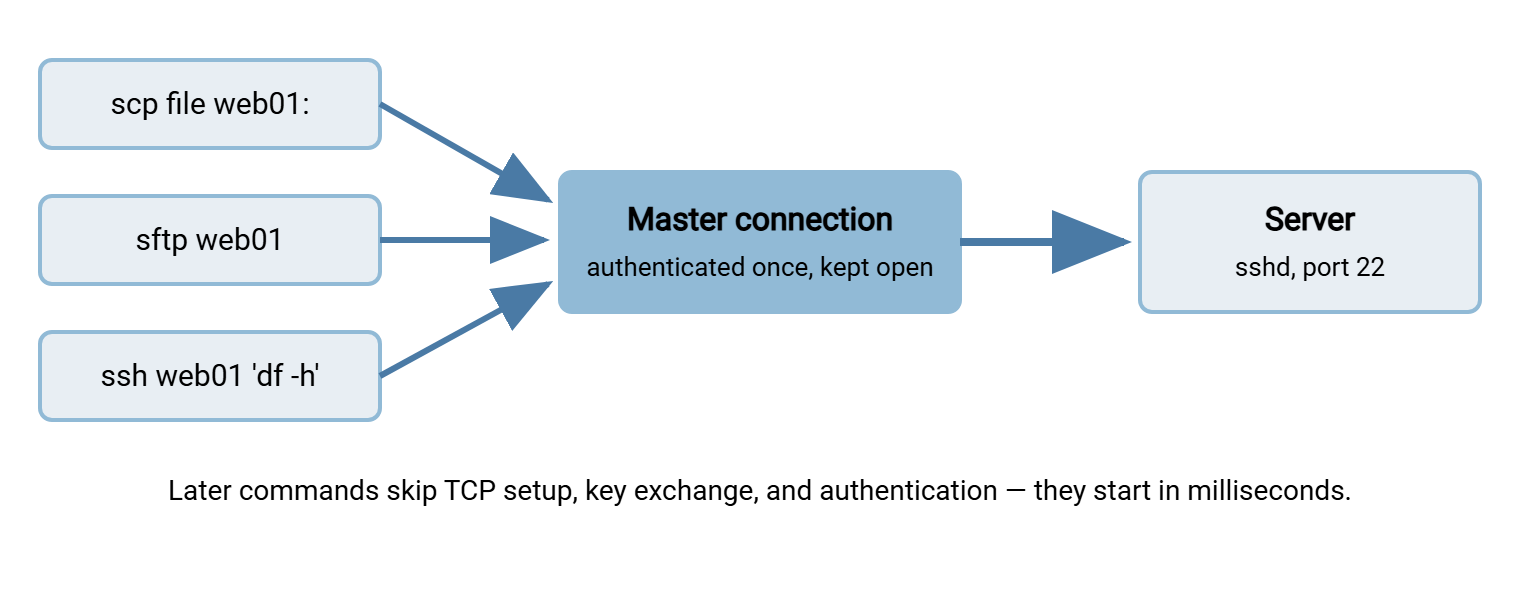
Three lines turn it on for a host (or for Host *):
    ControlMaster auto
    ControlPath ~/.ssh/sockets/%C
    ControlPersist 10m
ControlMaster auto means "use an existing master if one is up, otherwise become one." ControlPath names the local socket file commands use to find the master. The %C token hashes host, port, and user into a short unique name. Create the ~/.ssh/sockets directory once, and keep it on a local disk, never a network share. ControlPersist 10m keeps the master alive ten minutes after the last command ends, so a sequence of copies keeps reusing it even with thinking pauses in between.
The honest caveats. A wedged master can make connections to that one host misbehave until you clear it. The command ssh -O exit web01 shuts one down cleanly, and ssh -O check web01 asks whether one is running. All channels share the master's fate: kill it and every transfer inside dies with it. And a master opened before a network change (VPN up or down, for instance) can hold a stale route to the host until it expires. None of this outweighs the win; all of it is worth knowing before the first weird Tuesday.
What the win looks like in numbers
Picture a deploy script that pushes thirty small files to a server across a WAN where each fresh SSH handshake takes two seconds. Without multiplexing, the script pays that toll thirty times — a full minute of pure ceremony wrapped around perhaps four seconds of actual data. With a warm master, invocation one pays the toll and invocations two through thirty start near-instantly; the same script finishes in well under ten seconds. You can measure your own version of this in one minute:
time scp small.txt web01:/tmp/     # run twice: first opens the master,
time scp small.txt web01:/tmp/     # second rides it — compare the totals
The deeper fix for "many small files in one command" is a different technique entirely — streaming them as one archive. But for many small commands, multiplexing is the lever, and it also makes interactive work feel telepathic. Tab-completion helpers, editors with remote plugins, and repeated ssh host 'some check' loops all ride the same warm pipe.
Trick Four: Keepalives for Long Transfers
The scene: an sftp session sits open while you take lunch, or a multi-hour copy runs over a VPN. On return you find Connection reset or a transfer frozen mid-file. The usual culprit is not the server but the middle of the network. Firewalls, NAT gateways, and VPN concentrators track every connection in a state table, and entries that look idle get evicted — often after minutes. An SSH connection with nothing to say looks exactly like a dead one from the middle.
The fix is to make the connection politely chatty at the protocol level:
    ServerAliveInterval 60
    ServerAliveCountMax 3
ServerAliveInterval 60 sends a tiny encrypted are-you-there message through the tunnel after sixty quiet seconds — enough traffic to keep state tables warm. ServerAliveCountMax 3 declares the connection dead after three unanswered probes, so a genuinely broken link fails in about three minutes instead of hanging a script forever. (The similarly named TCPKeepAlive operates below the encryption and is both less useful through NAT and spoofable; the ServerAlive pair is the one that earns its place.) These two lines belong in your Host * defaults — they cost nothing on healthy fast networks and quietly save every long transfer on fragile ones.
Server administrators have a mirror-image pair (ClientAliveInterval and ClientAliveCountMax in the SSH daemon's configuration) that probes in the other direction. When you control both ends, setting keepalives on the server protects even the clients who never read this article. When you control only your side, the client-side pair above is sufficient for your own sessions.
Small Settings That Pay Rent
Compression yes— per-host, for text-heavy transfers over slow WAN links; leave it off for fast LANs and already-compressed data, where it just burns CPU. Fits naturally on the specific hosts you reach over thin pipes.ConnectTimeout 10— caps how long a connection attempt waits. Without it, a dead host can stall a script for minutes of TCP patience.BatchMode yesis for scripted/scheduled jobs (set via-oor a dedicated alias block rather than globally). Any situation needing a human answer becomes an immediate error instead of an invisible hang at 2 a.m.AddKeysToAgent yes— the first use of a passphrase-protected key loads it into your agent, so one passphrase entry covers the rest of the day's copies.StrictHostKeyChecking accept-newis a considered middle ground for automation. Connections to brand-new hosts record the key and proceed. But a changed key on a known host still fails loudly (the case that signals real trouble). Interactive users should keep the default ask-first behavior; never useno, which waves through changed keys too.LogLevel ERROR— on hosts used by scheduled jobs, silences banner and warning chatter so your cron mail contains only lines that mean something. Pair it with-qon the command for fully clean logs.
None of these is glamorous, and that is the point. Each removes one specific way a transfer wastes time or fails confusingly. A config file is where such removals become permanent instead of remembered.
Remember: settings compose across blocks — a connection to legacy takes its port and key from the Host legacy block and the keepalives from Host *. Specific hosts first, defaults last, and let composition do the work.
The Commented Config to Steal
Here is the whole article as one working file. Adjust names, delete what you do not need, and keep the section order — specific hosts above, defaults below.
# ~/.ssh/config — transfer-tuned. Specific hosts FIRST, Host * defaults LAST.

# --- everyday production web box: short name, right user, pinned key
Host web01
    HostName web01.prod.example.com
    User alex
    IdentityFile ~/.ssh/prod_ed25519
    IdentitiesOnly yes

# --- legacy appliance: odd port, dedicated key, slow WAN link
Host legacy
    HostName lgcy-app-03.dc2.example.net
    Port 2222
    User svc_reports
    IdentityFile ~/.ssh/legacy_key
    IdentitiesOnly yes
    Compression yes              # text feeds over a thin pipe

# --- bastion, and everything behind it (see the bastion article)
Host bastion
    HostName bastion.example.com
    User alex
Host app-* db-*
    ProxyJump bastion            # scp/sftp/rsync to internal hosts, one hop, no agent forwarding

# --- defaults for every connection: keepalives, reuse, sane failure
Host *
    ServerAliveInterval 60       # ping through the tunnel after 60 idle seconds
    ServerAliveCountMax 3        # declare dead after 3 misses (~3 minutes)
    ControlMaster auto           # reuse one authenticated connection per host
    ControlPath ~/.ssh/sockets/%C   # mkdir ~/.ssh/sockets once; local disk only
    ControlPersist 10m           # keep the master warm between commands
    AddKeysToAgent yes           # first passphrase entry lasts the session
    ConnectTimeout 10            # scripts fail fast instead of hanging
Adopt it incrementally: aliases today, keepalives tomorrow, multiplexing when you next find yourself running scp in a loop. Each piece stands alone, and a syntax check is as simple as ssh -G web01. That prints the final computed settings for a host so you can see exactly what won the first-match race. The app-* ProxyJump stanza is a preview of the jump-host patterns covered properly in copying through bastions.
When Config Tricks Stop Being Enough
Everything above accelerates a person at a keyboard. It shortens commands, reuses connections, and hardens long sessions — but the file is per-user, per-machine, and it schedules nothing, retries nothing, and alerts no one. A transfer may stop being "something you run" and become "something the business expects to happen" — nightly feeds, partner deliveries, watched folders. At that point, the accelerator model runs out of road, and bolting cron, lock files, and email onto shell scripts rebuilds a scheduler badly. That handoff point is what Sysax FTP Automation is for on Windows. Transfers over SFTP, FTPS, or FTP are defined as scheduled jobs with folder monitoring, retries, and error handling. That is the operational wrapper your ssh config was never meant to be. The decision framework for that graduation lives in choosing your copy tool.
Wrap-Up
Five minutes in ~/.ssh/config buys years of shorter commands. Aliases give hosts names you can type, and per-host users, ports, and keys make flags disappear. Multiplexing makes repeated copies start instantly, and keepalives let long transfers survive quiet middles. One file, first match wins, specific before general — that is the whole discipline.
A last habit worth forming: keep the file under some kind of version history, even if that is just a dated backup copy before each edit. Your ssh config quietly becomes a map of every system you touch and how. It is exactly the kind of file you want to be able to restore in minutes when a laptop dies. It is exactly the file a future teammate will thank you for being able to read.
From here, the scp command, mastered gives you the one-liners your new aliases will shorten. The article copying through bastions builds on the ProxyJump stanza to move files into networks you cannot reach directly.
Frequently Asked Questions
Do scp, sftp, and rsync really use my ~/.ssh/config?
Where does the SSH config file live on Windows?
Why do I get "Too many authentication failures"?
Is ControlMaster multiplexing safe to leave on all the time?
What exactly do ServerAliveInterval and ServerAliveCountMax do?
How can I see what settings SSH will actually use for a host?
From the Sysax team: we build secure file transfer software for Windows. Sysax Multi Server is an FTP, FTPS, SFTP, and HTTPS server. Sysax FTP Automation handles scheduled, scripted transfers. Free trials are on the download page.