
Host Keys and known_hosts in Automated Transfers
Most of this series is about proving your identity to a server. This article is about the opposite question, the one unattended jobs get wrong most often. How does your transfer script know the machine it just connected to is really your server — and not something impersonating it? Encryption alone does not answer that. An encrypted session with the wrong endpoint is just a private conversation with an attacker.
SSH answers it with the host key — a key pair that belongs to the server itself — and a client-side memory file called known_hosts. Between them they give every scripted transfer a tripwire. If the machine answering at your server's address ever stops being your server, the connection fails loudly instead of proceeding quietly. That tripwire, though, is exactly what frustrated admins disable when it fires at 2 a.m. Usually they use a one-line option that silences it forever. This article exists so you never need that line.
You will learn what a host key actually is and how to handle the first connection properly. You will learn what the dreaded "REMOTE HOST IDENTIFICATION HAS CHANGED" warning means, and the deliberate way to respond. You will also learn the pinning patterns that make unattended jobs both safe and non-fragile. It is part of our SSH Key Management series, and it mirrors the server-side story told in distributing and controlling authorized_keys.
Every SSH Session Verifies Two Identities
An SSH connection — and therefore every SFTP or SCP transfer — contains two identity checks running in opposite directions. The server verifies the client: that is your user key, checked against the account's authorized_keys list. And the client verifies the server: the server presents its host key, and the client compares it against the entry remembered in known_hosts. Same cryptography, opposite directions, two different files — and administrators who know one half often barely know the other exists.
The diagram below shows the symmetry. Each side holds a private key and proves possession of it; each side checks the other against a trust list it keeps locally.
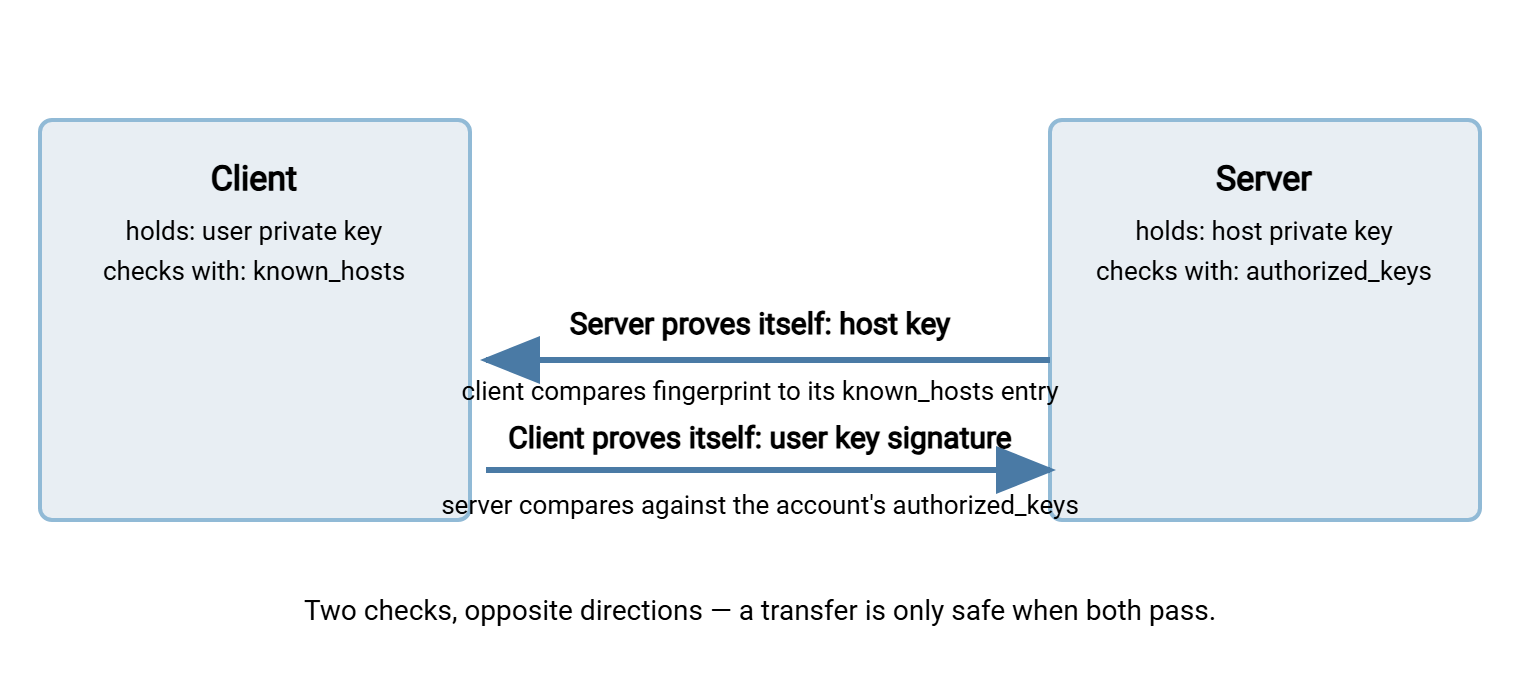
Crucially, the server check happens first, before any authentication is attempted — which is the right order. Your client should refuse to present credentials to a machine that has not proven who it is.
What a Host Key Is
A host key is an ordinary SSH key pair whose owner is a machine rather than a person. It is generated automatically when the SSH service is installed. On OpenSSH servers it lives as a small family of files in /etc/ssh/ — ssh_host_ed25519_key, ssh_host_rsa_key, and so on. There is one pair per supported key type. The client and server agree on one type during connection, so all of them represent the same identity. The private halves stay on the server, readable only by root; the public halves are what every connecting client sees. A Windows SFTP server has the same thing under different management. Sysax Multi Server, for example, presents its host key to every connecting SSH2 client. Its fingerprint is what your partners should be verifying when they first connect to you.
As with user keys, the practical handle on a host key is its fingerprint — the short hash that names it. On the server itself, you can print the fingerprint directly from the public file:
$ ssh-keygen -lf /etc/ssh/ssh_host_ed25519_key.pub
256 SHA256:mN4rT8kX2wQe6yUb0cPa9sLdJ3fHzV7oGi1EqM5tRk8 root@sftp01 (ED25519)
Run that command on the server console, or through your management channel, not over the connection you are trying to verify. It is the source of truth that every verification in this article traces back to. Publish it wherever your team and partners will look: the runbook, the onboarding document, the ticket that provisions access.
Why does any of this matter when the session is encrypted anyway? Because encryption only guarantees that nobody else can read the conversation — it says nothing about who is on the other end. A machine sitting between your client and the real server (a man-in-the-middle) can offer your client its own host key. It can hold one encrypted session with you and another with the real server. Then it can read every file and credential passing through while both ends see a working connection. The host-key check is what makes that trick fail: the impostor cannot present the real server's key. So the fingerprint mismatch stops the session before your client sends anything. Identity first, then encryption — each is worthless without the other.
The First Connection: A Trust Decision, Done Deliberately
The first time a client connects to a server it has never seen, there is no known_hosts entry to compare against. So the client asks a human:
The authenticity of host 'sftp.example.com (203.0.113.10)' can't be established.
ED25519 key fingerprint is SHA256:mN4rT8kX2wQe6yUb0cPa9sLdJ3fHzV7oGi1EqM5tRk8.
This key is not known by any other names.
Are you sure you want to continue connecting (yes/no/[fingerprint])?
This pattern is called trust on first use: whatever you accept now becomes the remembered identity that all future connections are checked against. Which means the entire security of the scheme depends on this one moment being done properly. And "properly" is simple: compare the displayed fingerprint against one you obtained out of band. That means through a channel other than this connection. Get it from the server's own console with the ssh-keygen -lf command above, or from your runbook. Get it from the partner's onboarding document or over the phone with their engineer. If they match, answer yes. Newer clients even let you paste the expected fingerprint at the prompt as the answer, which both verifies and accepts in one motion. If they do not match, stop — you are talking to the wrong machine, and nothing else about the session can fix that.
Answering yes appends a line to ~/.ssh/known_hosts, and the question never appears again for that server — unless the key changes. That is the subject of the section after next.
Inside known_hosts
The file itself is plain text, one remembered identity per line: the server's name or address, the key type, and the public key. The fingerprint is derivable from the line at any time. Three practicalities catch people:
- Entries are keyed by exact name. The hostname, its short alias, and its raw IP address are three different entries. Connect by a name you have not used before and you will be asked to verify again. That is correct behavior, not a bug. Non-standard ports get bracketed entries like
[sftp.example.com]:2222. - Lines may be hashed. Many systems enable an option that stores hostnames as hashes, so you cannot find a server by eyeballing the file. Use the tools instead.
- There is a system-wide file too. Alongside each user's file,
/etc/ssh/ssh_known_hostsholds entries for all users on the machine. It is the natural home for pinned entries that every job account should share.
The two management commands worth memorizing — find and remove:
$ ssh-keygen -F sftp.example.com          # is this host remembered? prints its entry
$ ssh-keygen -R sftp.example.com          # remove the entry (a backup copy is kept)
And one reconnaissance tool with an honest caveat: ssh-keyscan fetches a server's current host keys over the network. That is handy for previewing a fingerprint before connecting — ssh-keyscan sftp.example.com | ssh-keygen -lf - — and for pre-populating pinned files during provisioning. But a scan is itself a network conversation with whoever answered. So keyscan output is only trustworthy after you have compared it against the out-of-band fingerprint. Piping ssh-keyscan straight into known_hosts without that comparison just automates trust-on-first-use, deciding nothing.
When the Host Key Changes: The Warning You Must Not Blunt
Eventually, a connection that has worked for years greets you with this instead:
@@@@@@@@@@@@@@@@@@@@@@@@@@@@@@@@@@@@@@@@@@@@@@@@@@@@@@@@@@@
@    WARNING: REMOTE HOST IDENTIFICATION HAS CHANGED!     @
@@@@@@@@@@@@@@@@@@@@@@@@@@@@@@@@@@@@@@@@@@@@@@@@@@@@@@@@@@@
IT IS POSSIBLE THAT SOMEONE IS DOING SOMETHING NASTY!
Someone could be eavesdropping on you right now (man-in-the-middle attack)!
It is also possible that a host key has just been changed.
The fingerprint for the ED25519 key sent by the remote host is
SHA256:pQ7wE2rYt9uX4kZa1sVd8fBn5cMj0oLhK6gTi3NxWm4.
Offending ED25519 key in /home/svc-batch/.ssh/known_hosts:12
Host key verification failed.
In an unattended job this surfaces as a sudden hard failure. The causes come in a rough order of likelihood. The server may have been rebuilt or restored and generated fresh host keys. The name may now point at different hardware — a migration, failover, or a load balancer distributing across machines with different keys. A partner may have replaced their server without telling you. Or something between you and the server is intercepting the connection — the case the warning exists for. The client cannot tell these apart. Only a human with out-of-band knowledge can, and that is the entire response procedure:
- Do not silence the warning. Confirm the change with the server's owner through a separate channel: did you rebuild, migrate, or rotate keys? For your own servers that is a question to your team or change log; for partners, a message to their technical contact. This step is the security control — skipping it converts the tripwire into decoration.
- Obtain the new fingerprint from them, out of band, exactly as on a first connection.
- Remove the stale entry:
ssh-keygen -R sftp.example.com(repeat for the IP or alternate names if the job uses them). - Reconnect interactively, compare, and accept. The displayed fingerprint must match the one from step 2. Update every pinned file your jobs use (next section), then re-run the job and confirm success.
Never do this: setting StrictHostKeyChecking=no (or clicking "always accept") to make the warning go away does not fix anything. It permanently disables server verification for that job. So every future connection will happily authenticate to any machine at that address, forever. The one-line "fix" is precisely the man-in-the-middle scenario, pre-approved. Handle changes deliberately or not at all.
There is a server-side half of this etiquette. When you replace your own transfer server's hardware, you can preserve its identity by migrating the host key files in /etc/ssh/. Move them to the replacement through your secure admin channel. Host keys are machine identity. Moving them with the machine's role is the sanctioned exception to "private keys never move." When a key change is genuinely unavoidable (rebuild, suspected compromise), announce it to every client and partner in advance, fingerprint included. That makes their step 1 a lookup instead of an investigation. Host-key changes on a schedule your partners never heard about train them to click through warnings — the opposite of security.
Pinning Patterns for Unattended Jobs
Interactive users can read prompts; scheduled jobs cannot. The goal for automation is a configuration that fails fast and loud on identity problems, and never asks a question. Three settings deliver it:
BatchMode=yes— tells OpenSSH tools this session has no human: never prompt for anything; fail instead. Every scriptedsftp/scp/sshinvocation should carry it.StrictHostKeyChecking=yes— refuse unknown and changed hosts outright. The variantaccept-newauto-accepts never-seen hosts but still refuses changed ones. It is defensible only in controlled provisioning flows where first contact happens on a trusted network. Steady-state jobs should run strict.UserKnownHostsFile=/path— point the job at its own pinned file containing exactly the entries it needs. Populate it at provisioning time from verified fingerprints. The job's trust is now explicit, reviewable, and immune to whatever accumulates in a personalknown_hosts.
Put together, a pinned unattended fetch looks like this:
sftp -o BatchMode=yes \
     -o StrictHostKeyChecking=yes \
     -o UserKnownHostsFile=/etc/transfer/known_hosts.acme \
     -i ~/.ssh/nightly-report \
     transfer-acme@sftp.example.com
These options belong in the job's SSH client configuration rather than repeated on every command line. Per-host Host blocks are the tidy home for them, as laid out in SSH config for transfers. Graphical and Windows automation clients implement the same model with different furniture. The client caches the server's host key when a connection profile is first created and alerts on mismatch afterward. Treat profile creation as the first-connection moment. Verify the fingerprint then, against the server documentation or the partner's word, before the schedule takes over. In a scheduling tool such as Sysax FTP Automation, that setup-time verification is the human moment. The unattended runs that follow ride on the decision you made there. The broader discipline of designing jobs that fail loudly and recover cleanly is covered in SFTP automation.
Reading the Situations at a Glance
| What you see | Likely meaning | Right response |
|---|---|---|
| Authenticity prompt on first connection | Normal trust-on-first-use moment | Compare against the out-of-band fingerprint, then accept |
| Prompt for a server you use daily | New name, alias, IP, or port for the same machine — a fresh entry is needed | Verify once as a first connection under the new name |
| IDENTIFICATION CHANGED warning right after a known rebuild or migration | Expected key change | Confirm with the change record, get the new fingerprint, ssh-keygen -R, re-verify, update pinned files |
| IDENTIFICATION CHANGED warning out of nowhere | Unannounced server work — or interception | Stop the job; contact the server owner out of band; accept nothing until explained |
| Warning only from some networks or paths | Different machines answering the same name (load balancer, split DNS) — or a path-specific interception | Investigate with the server owner; pin all legitimate keys for the name if the setup is intentional |
The Version to Take Away
Every transfer session runs two identity checks. The server checks your key against authorized_keys, and your client checks the server's host key against known_hosts. The client-side half rests on one deliberate moment: verifying a fingerprint out of band on first contact. It also rests on one deliberate procedure when a key changes. Confirm with the owner, remove the stale entry with ssh-keygen -R, re-verify, and update the pins. Automation gets the strict treatment: BatchMode, strict checking, and a per-job pinned file. That way, identity problems stop the job instead of being waved through. And the one thing this article asks you never to do: disable checking to make a warning disappear. The warning is the security.
Continue the series with key rotation and the key inventory. It covers the user-key half of change management, including announcing your own host-key changes like a good neighbor. Read retiring keys and offboarding for the day servers and partners leave the picture entirely.
Frequently Asked Questions
What does "REMOTE HOST IDENTIFICATION HAS CHANGED" actually mean?
Is it ever okay to set StrictHostKeyChecking=no?
Are host keys technically different from user keys?
Why am I asked to verify a server I already trust, just because I used its IP?
What is ssh-keyscan for, and is it safe to use?
How do my partners verify my transfer server?
From the Sysax team: we build secure file transfer software for Windows. Sysax Multi Server is an FTP, FTPS, SFTP, and HTTPS server. Sysax FTP Automation handles scheduled, scripted transfers. Free trials are on the download page.