
Active vs Passive FTP, Explained Until It Finally Sticks
Every administrator who works with FTP eventually runs into the same mystery: the login works, and the password is accepted. Then the moment you try to list a directory or transfer a file, everything hangs. The cause, far more often than not, is a mismatch between active mode and passive mode — the two ways FTP can move your data. Plenty of people memorize the fix ("just switch it to passive") without ever quite understanding what the two modes actually do.
This article is the full explanation. By the end you will know exactly who connects to whom in each mode and why two modes exist at all. You will know why firewalls get along with one better than the other and how to recognize each mode in the wild. Nothing here requires prior networking depth — every term is explained as we go. This is part of our Active vs Passive FTP series, and it is the foundation the other articles build on.
One FTP Session, Two Separate Connections
The single most important fact about FTP — the fact that makes everything else make sense — is that an FTP session is not one network connection. It is two.
The first is the control connection. This is the long-lived conversation between your FTP client and the server. It carries commands and responses: your username and password, "change directory," "list files," "I want to download this." The control connection is established when you connect, normally to port 21 on the server. It stays open for your whole session. If you have ever read an FTP session log, the lines you saw — USER, PASS, 230 Login successful — all traveled over the control connection.
The second is the data connection. This one carries the actual payload: file contents when you upload or download, and also directory listings. That surprises people — even a simple file list travels on the data connection. That is why a broken data connection makes directory listings hang, not just transfers. Unlike the control connection, the data connection is temporary. A fresh one is created for each transfer or listing, used once, and closed.
A useful analogy: the control connection is a phone call with a warehouse, and the data connection is the delivery truck. You stay on the phone the whole time giving instructions. But every order you place is delivered by a separate truck that drives out, drops off the goods, and leaves. The phone call and the trucks travel on different roads.
The diagram below shows the two connections side by side: the persistent control connection on port 21, and the short-lived data connection that carries files and listings.
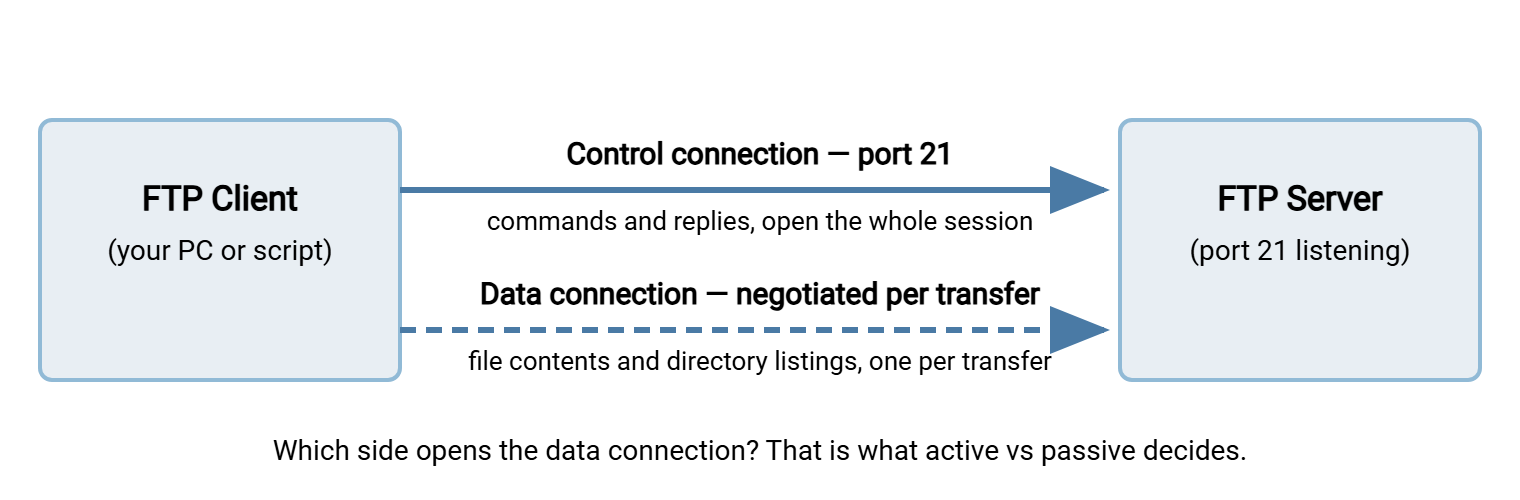
Here is the crucial question the two modes answer: who opens the data connection? The control connection is always opened by the client — that part never changes. But the data connection can be opened in either direction, and that single difference is the entire distinction between active and passive mode.
Active Mode, Step by Step
Active mode is the original behavior, the way FTP worked from its earliest days. In active mode, the server opens the data connection back to the client. The sequence looks like this:
- The client connects to the server on
port 21and logs in. This is the control connection, same as always. - When a transfer or listing is needed, the client picks an unused port on its own machine (a "high port," typically somewhere above 1023). It starts listening on it — like opening a loading dock and waiting.
- The client sends the server a
PORTcommand over the control connection. The command contains the client's own IP address and that listening port number: effectively, "call me back at this address." - The server then opens a brand-new connection from its data port — traditionally
port 20— to the address and port the client provided. - The file or listing flows over that server-initiated connection, and the connection closes when the transfer finishes.
Notice what happened in step 4: the roles reversed. The machine that was the server suddenly behaves like a client, dialing out. And the machine that was the client behaves like a server, accepting an incoming connection. The mode is called "active" because the server takes the active role in creating the data connection.
The diagram below shows the active-mode flow, including the step where things usually go wrong on modern networks.
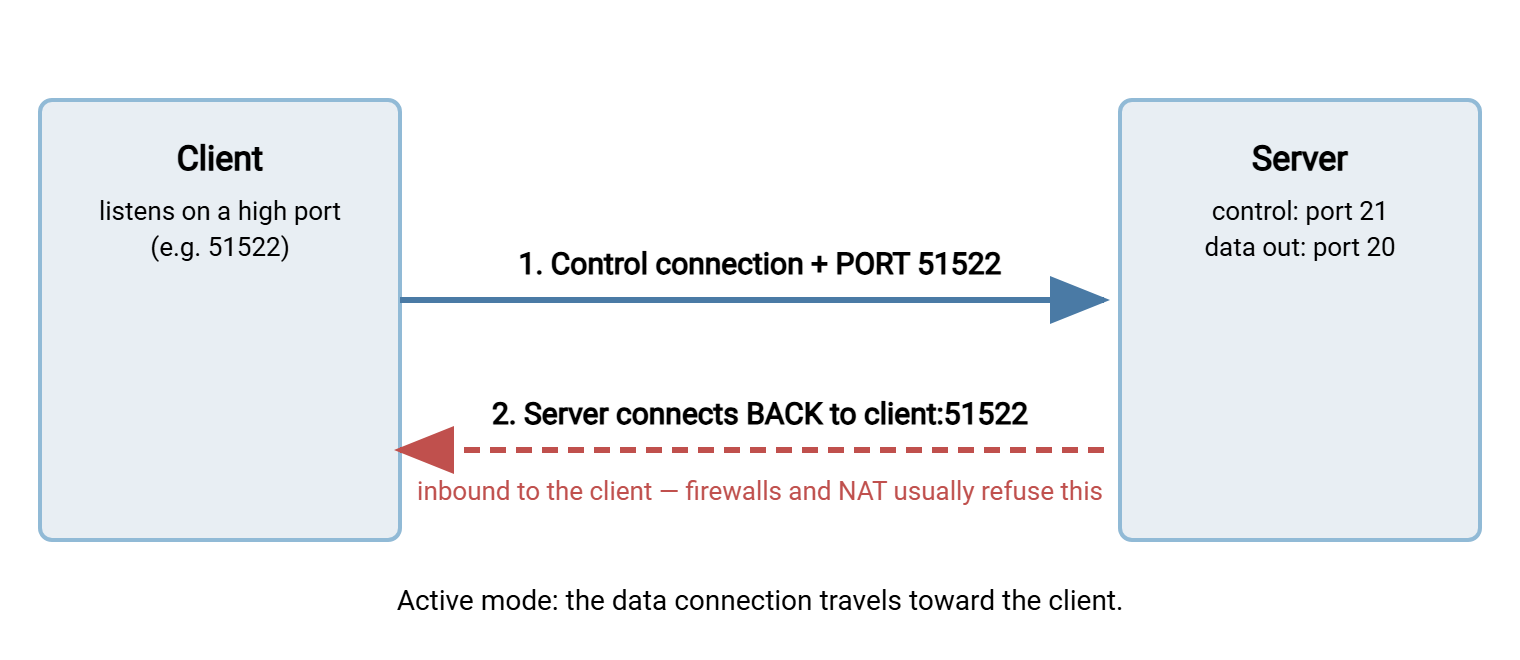
On the open, trusting networks where FTP was born, this worked fine. On modern networks it is a problem, because almost every client sits behind a firewall, a home router, or a corporate NAT device. From their point of view, step 4 is an unsolicited inbound connection from the internet. Unsolicited inbound connections are precisely what firewalls exist to refuse. The full story of that collision is in our companion article, why firewalls block active FTP.
Passive Mode, Step by Step
Passive mode exists to solve exactly that problem. In passive mode, the client opens both connections, and the server never dials out at all. The sequence:
- The client connects to
port 21and logs in — identical to before. - When a transfer or listing is needed, the client sends the
PASVcommand, which means: "don't call me — tell me where to call you." - The server picks an unused high port on its own side (from its configured passive port range). It starts listening on it and replies with its IP address and that port number.
- The client opens a second connection to that port on the server.
- The file or listing flows over that client-initiated connection, which closes when the transfer finishes.
The mode is called "passive" because the server stays passive — it waits to be contacted on both connections. Every connection now travels in the same direction: outbound from the client, inbound to the server. That direction is exactly what firewalls tolerate best. A client-side firewall almost always permits outbound connections. The server side only needs its known ports — 21 plus the passive range — opened deliberately by its administrator.
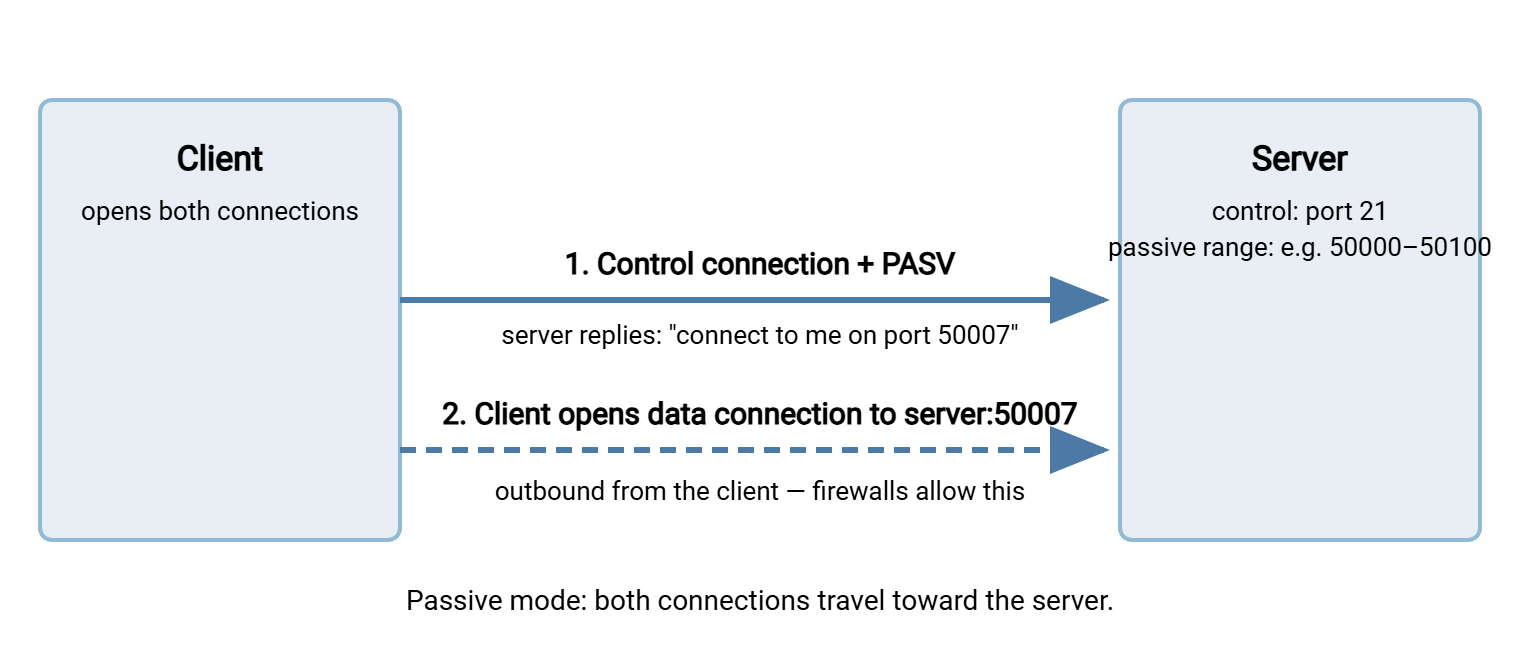
There is one catch on the server side. Because clients will now be connecting to those high ports, the server's firewall must allow the passive range. The server must also announce the correct public IP address when it sits behind NAT. Getting that right is a ten-minute job when you know the steps — we walk through it in configuring passive port ranges properly.
Why Are There Two Modes at All?
The short answer: FTP is older than the modern internet's defenses. The protocol was designed in an era when the network was a small academic neighborhood. Machines had public addresses, firewalls barely existed, and a server connecting back to a client was a perfectly reasonable design. Active mode is simply that original design.
Then the internet grew hostile, and two inventions changed the rules. Firewalls began refusing unsolicited inbound connections as a matter of policy. NAT means network address translation — the technique that lets a whole office or household share one public IP address. It made client machines unreachable from outside even in principle. The address a client puts in its PORT command is frequently a private address like 192.168.1.50. That address is meaningless to a server on the internet. Active mode's callback stopped working for most clients on most networks.
Passive mode was added to the protocol so that FTP could survive in that world. Rather than replace active mode, the standard kept both. That is why every client and server since speaks both, and why the two modes still coexist decades later. Modern extensions later refined the negotiation further with the EPRT and EPSV commands, mainly for IPv6. Those are covered in our guide to the four data-connection commands.
Which Mode Should You Use?
For almost everyone, in almost every situation: passive mode. It is the default in modern FTP clients and browsers for a reason — it works across firewalls and NAT without asking anything of the client's network. When someone asks why their FTP "worked from home but not from the office," mode is the first suspect. Corporate networks are stricter about inbound connections, and active mode depends on them.
Active mode still has a few legitimate niches, and it helps to know them so its existence makes sense:
- Server-side restrictions: occasionally a server's own firewall policy cannot open a passive port range, so the burden shifts to clients that can accept active connections. This is rare and usually a sign the server setup deserves attention.
- Very old devices and appliances: some embedded systems and legacy lab equipment speak active mode only. Containing them on an isolated network segment is the usual compromise.
- Controlled internal networks: inside a data center with no NAT and permissive east-west rules, active mode works fine — there is just rarely a reason to prefer it.
Rule of thumb: passive mode by default, everywhere. Choose active mode only when a specific device or policy forces it, and document that exception so the next administrator doesn't rediscover it during an outage.
If you run the server side of the conversation, the practical takeaway is to support passive mode properly. Define a passive port range, open it on the firewall, and set the external address. A Windows server product like Sysax Multi Server exposes these as ordinary settings. You choose the passive range and the announced IP in the configuration interface rather than editing config files. The server supports both modes so legacy active-only clients still work while everyone else uses passive.
How to Tell Which Mode You're Using
Every FTP client has a way to see and set the mode; the trick is knowing where to look and what the evidence looks like.
Reading a session log
The session log settles the question instantly. Look for which command precedes each transfer:
Status:   Connected to ftp.example.com
Command:  USER alex
Response: 331 Password required
Command:  PASS ********
Response: 230 Login successful
Command:  PASV
Response: 227 Entering Passive Mode (203,0,113,10,195,87)
Command:  LIST
Response: 150 Opening data connection
Response: 226 Transfer complete
A PASV (or EPSV) before the transfer means passive mode; a PORT (or EPRT) means active mode. That six-number reply to PASV is the server's address and port. The first four numbers are the IP, and the last two encode the port. Multiply the fifth by 256 and add the sixth — here, 195 × 256 + 87 = port 50007. Being able to decode that line by eye is a small superpower when you troubleshoot. Our article on diagnosing FTP mode failures uses it constantly.
Where the setting lives
- Graphical clients: look in connection or transfer settings for "transfer mode," "connection mode," or a passive checkbox. Most default to passive.
- Windows command-line ftp.exe: a special case worth knowing — it speaks active mode only, which is why it mysteriously hangs on
lsthrough firewalls. It is a fine login tester and a poor transfer tool on modern networks. - Scripts and automation: scripted transfers should set the mode explicitly rather than inherit a default. In a scheduled-transfer tool such as Sysax FTP Automation, the connection profile records the mode once. Every unattended run uses it consistently. That is exactly what you want for a job that runs at 2 a.m. without a human watching.
What Mode Problems Look Like in Real Life
Once you know the two modes, a whole family of everyday FTP mysteries becomes easy to read. Three scenarios you will almost certainly meet:
- "It worked from home, but not from the office." The client is set to active mode. The home router happened to tolerate the server's callback (some consumer routers quietly assist FTP). But the office firewall refuses inbound connections, as corporate firewalls should. Switching the client to passive mode makes the problem disappear — and nobody at the office needs to change anything.
- "Login works, then it hangs at LIST." The control connection is healthy, so authentication succeeds. The hang begins the instant a data connection is needed — remember, even a directory listing rides the data connection. One side is waiting for a connection that the network never allowed through. The session eventually dies with a timeout or a
425 Can't open data connectionerror. - "Passive mode fails too — the client says it's connecting to 192.168.1.5." This one is the server's fault: it sits behind NAT and is announcing its private address in the
PASVreply. The client obediently tries to connect to an address that only exists inside the server's own network. The fix is a server-side setting — announce the public IP — covered in the passive range configuration guide.
Notice the pattern in all three: login always works. Mode problems never stop the control connection — they sabotage the data connection that comes after. Any FTP failure that begins after a successful login should make you think "data connection" first. The systematic version of that instinct is our mode-failure diagnosis guide.
Switching Modes When You Need To
Changing modes is a client-side decision, and it takes seconds once you know where the switch lives:
- In graphical clients, the setting is usually under connection, transfer, or site-specific options, labeled "transfer mode" or "passive mode." Set it per site rather than globally when you can — that keeps a documented exception (one stubborn active-only device) from changing behavior everywhere else.
- In scripts, pass the mode explicitly. Most scripting libraries and command-line tools accept a passive flag or option. Making it explicit means the script behaves the same on every machine it runs from, regardless of local defaults.
- In scheduled transfer jobs, store the mode in the connection profile alongside host and credentials, so every run — attended or not — negotiates the same way. This is one of those small settings that turns out to matter enormously for unattended reliability.
Server-side, there is nothing to "switch": a well-configured server simply supports both. It answers PORT with active behavior and PASV with passive behavior, and lets each client choose. Your job as the server's administrator is only to make passive mode work — range, firewall, external address — so that the mode every modern client prefers is the mode that succeeds.
Quick Reference: Active vs Passive at a Glance
| Question | Active mode | Passive mode |
|---|---|---|
| Who opens the data connection? | Server → client | Client → server |
| Command on the wire | PORT / EPRT |
PASV / EPSV |
| Server data port | 20 (traditionally) | High port from the passive range |
| Works through client NAT/firewall? | Usually not | Yes |
| What the server side must configure | Outbound from port 20 allowed | Passive range + external IP + firewall rules |
| Sensible default? | Only for documented exceptions | Yes — use this |
The Version to Tell a Colleague
If someone stops you in the hallway and asks for the one-minute version, it is this: FTP uses two connections — one for commands, one for data. The only difference between the modes is who opens the data connection. In active mode the server connects back to the client, which modern firewalls refuse. In passive mode the client opens both connections, which firewalls happily allow. That is why "switch it to passive" fixes so many broken FTP sessions, and why passive is the default everywhere today.
From here, the natural next steps in this series are why firewalls block active FTP for the network-side depth, and configuring passive port ranges for the server-side fix. For the basics of the ports themselves, our blog post What port is FTP? is a quick companion read.
Frequently Asked Questions
Is passive mode more secure than active mode?
Why does my FTP client log in fine but hang when listing files?
Does passive mode still use port 21?
What is a passive port range?
Which mode do web browsers and modern clients use by default?
Can a server support both modes at the same time?
From the Sysax team: we build secure file transfer software for Windows. Sysax Multi Server is an FTP, FTPS, SFTP, and HTTPS server. Sysax FTP Automation handles scheduled, scripted transfers. Free trials are on the download page.