
Diagnosing FTP Mode Failures from Logs and Captures
You connected. The username and password were accepted. Then, at the first directory listing or file transfer, everything stopped. The result was a long hang, a cryptic 425 Can't open data connection, or a transfer that "finished" and left behind an empty file. If that sequence sounds familiar, you have met the classic FTP mode failure. This article is the field guide to finding exactly where it broke.
The good news: mode failures are unusually diagnosable. The client writes down everything it says and hears, the errors follow recognizable patterns, and free built-in tools can confirm any suspicion in a minute. By the end of this guide you will be able to read a session log and decode the strange six-number replies. You will be able to prove the cause before you change a single setting. This article is part of our Active vs Passive FTP series, and no prior troubleshooting experience is assumed.
The Golden Rule: Login Always Works
Every FTP session is really two network connections, and that fact is the master key to diagnosis. The control connection is the long-lived conversation where commands and replies travel: login, change-directory, download requests. The data connection is a separate, temporary connection created fresh for each transfer. It carries the actual file contents — and directory listings too, which surprises many people. Active and passive are simply the two ways of creating that second connection. If the two-connection design is new to you, start with our plain-language explanation of active and passive FTP — this article builds on it.
Here is the golden rule. Mode problems live entirely in the data connection, and the data connection is not needed until the first listing or transfer. So when a failure is mode-related, login always works. The client reaches the server, the password is accepted, the log shows 230 Login successful — and only then does the session fall apart. The reverse is just as useful: if the failure happens before or during login, the mode is innocent — look at DNS, credentials, or encryption instead. We cover those look-alikes near the end.
Remember: a successful login followed by a failed listing or transfer points at the data connection. A failed login points anywhere else. This single distinction sorts most FTP problems before you open a single tool.
The Signature Symptoms, Cataloged
Mode failures present in a small number of recognizable ways. Learn these six and you will often recognize the incident from the first sentence of the support ticket:
| Symptom | What you see | First suspicion |
|---|---|---|
Hang at LIST or dir |
Login fine, then nothing at "retrieving directory listing" | Data connection cannot be established |
| Error 425 | 425 Can't open data connection |
Data connection never created — mode, NAT, or firewall |
| Error 426 | 426 Connection closed; transfer aborted |
Data connection opened, then cut mid-transfer |
| Zero-byte transfers | A destination file exists but holds 0 bytes | Transfer accepted, but the data connection carried nothing |
| Long silence, then failure | A minute or two of nothing, then a timeout | A firewall silently discarding packets instead of refusing |
| Works on network A, fails on network B | Same client, same server, different building | Active mode meeting a stricter firewall policy |
A few of these deserve a closer look. The difference between 425 and 426 matters more than it seems. 425 means the data connection never came into existence, so think modes, addresses, and firewall rules. 426 means it existed and then died. That points instead at idle timeouts, proxies, or load balancers cutting a long transfer. This family is covered in FTP through load balancers and proxies. The three-digit reply codes follow a system worth learning; our FTP Protocol series explains how to read them.
Zero-byte files are the same failure in disguise. On an upload, the server accepts the transfer command and creates the destination file entry immediately. When the data connection then fails, no bytes ever arrive, and an empty file is left behind. A job that quietly deposits 0-byte files every night has a data connection problem, not a disk problem.
Timing is evidence too. An instant "connection refused" means something actively said no — a closed port or a rejecting firewall. A long silence followed by a timeout means packets are being silently discarded, which is how most corporate firewalls behave. And works-here-fails-there is almost a diagnosis by itself: client and server did not change, the network between them did. Usually it is a client in active mode meeting one network that tolerates the server's callback and one that refuses it.
Reading the Client Session Log
Turn on verbose logging first
Verbose logging (sometimes called debug logging) makes the client show every command sent and every reply received instead of a friendly summary. Every serious client has it: look for a message pane or a setting named "log," "debug," or "verbose". The Windows command-line client takes a -d switch that echoes the conversation. You have the right level of detail when you can see USER, PASS, and numbered replies like 230 scrolling past. Without it you are diagnosing blind; with it, the session narrates its own failure.
Find the mode: PORT or PASV
Look at the command sent just before the listing or transfer. A PORT command means active mode: the client told the server "connect back to me at this address." A PASV command means passive mode: the client asked "where should I connect to you?" Modern clients may use the newer equivalents EPRT and EPSV, which do the same jobs. An EPSV reply (code 229) states the port plainly between vertical bars, no arithmetic needed. Either way, you now know which side was supposed to open the data connection, and therefore which direction to investigate.
Decode the 227 reply: the multiply-by-256 trick
The reply to PASV is the single most informative line in the log, and it looks like gibberish until someone shows you the trick. Here is a healthy one:
Command:  PASV
Response: 227 Entering Passive Mode (203,0,113,10,196,54)
The six numbers are an address and a port. The first four are the server's IP address, read with dots instead of commas: 203.0.113.10. The last two encode the port: multiply the fifth by 256 and add the sixth. Here that is 196 × 256 = 50176, plus 54, giving port 50230. The reply says: "open your data connection to 203.0.113.10, port 50230." Now a second worked example:
Response: 227 Entering Passive Mode (192,168,1,20,78,32)
The arithmetic works the same way: 78 × 256 = 19968, plus 32, giving port 20000. But the address should have stopped you before you finished multiplying — which brings us to the most common passive-mode defect in existence.
The private-address red flag
Certain address ranges are private: they begin with 10., with 192.168., or with 172.16. through 172.31. Private addresses only mean something inside their own local network. They live behind NAT (network address translation — the technique that lets a whole office share one public address). No machine on the internet can reach them. If you dialed a public address and the 227 reply announces a private one, the server is misconfigured. It is announcing its internal address instead of its public one. Your client will loyally try to connect to an address that does not exist from where it stands, and fail every time.
Gotcha: always compare the IP in the 227 reply with the address you actually connected to. A mismatch — especially a private address — is the number one passive-mode failure, and it is entirely a server-side configuration problem. No client setting will fix it.
From Symptom to Cause: The Decision Tree
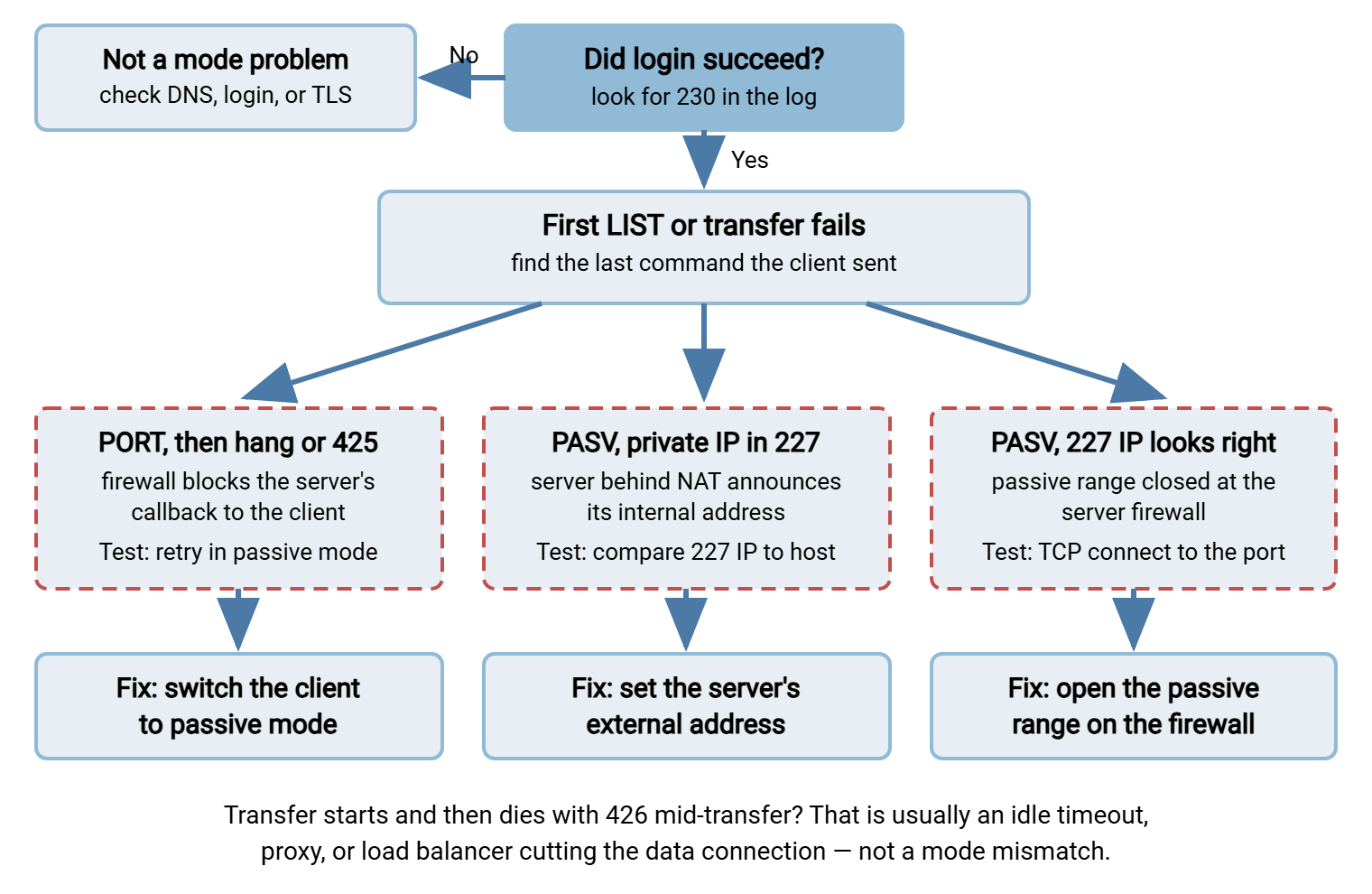
With the log open and the 227 decoded, diagnosis becomes a short walk. Work through the questions in order:
- Did login succeed? Look for
230in the log.- No: stop — this is not a mode problem. Check DNS, credentials, and TLS (see the look-alikes section below).
- Yes: continue — find the last command before the failure.
- Symptom:
PORT(orEPRT), then a hang or 425.- Likely cause: a firewall or NAT device on the client's side blocks the server's callback — or the client announced a private address.
- Confirming test: switch the client to passive mode and retry. If it works, confirmed. Thirty seconds; always try it first.
- Symptom:
PASV, and the227reply contains a private IP.- Likely cause: the server is behind NAT and announcing its internal address.
- Confirming test: compare the
227address with the host you dialed; if the announced one is private, confirmed. The fix is the server's external-address setting.
- Symptom:
PASV, the227IP looks right, but the connection is refused or times out.- Likely cause: the passive port range is not open on the server's firewall — or the server is not listening on that port.
- Confirming test: a plain TCP connect to the advertised IP and port (worked example below). Port 21 reachable but the data port not — that is the confirmation.
- Symptom: the transfer starts, bytes flow, then 426.
- Likely cause: not a mode mismatch — an idle timeout, proxy, or load balancer is cutting the established data connection.
- Confirming test: check whether failures track transfer duration or size, and review any middleboxes in the path.
The flowchart below shows the same logic as a picture: the login check first, then a three-way branch based on what the log shows. The branches are a blocked PORT callback, a private address in the 227 reply, or a closed passive range. Each has its confirming test and fix.
Three Worked Examples, Log by Log
Theory becomes skill by walking through real sessions. Here are the three failures you will meet most often — the log excerpt, the reading, and the fix.
Example 1: Active-mode client behind an office firewall
A user reports that FTP "worked at home but hangs at the office." The verbose log shows:
Status:   Connected to ftp.example.com
Command:  USER alex
Response: 331 Password required
Command:  PASS ********
Response: 230 Login successful
Command:  PORT 10,1,4,88,200,21
Response: 200 PORT command successful
Command:  LIST
Response: 150 Opening data connection
          (nothing for roughly two minutes)
Response: 425 Can't open data connection
Read it with the golden rule: login succeeded, so the control connection is healthy. The last command is PORT — active mode. Decode it like a 227: the client asked the server to call back at 10.1.4.88, port 200 × 256 + 21 = 51221. Two things doom that callback. The office firewall refuses unsolicited inbound connections, exactly as it should. And 10.1.4.88 is a private address that means nothing to a server on the internet. The long silence before the 425 is the server's connection attempts being silently discarded. The full story of this collision is in why firewalls block active FTP.
The fix: switch the client to passive mode and watch the same listing succeed. Nothing on the office network needs to change — which is exactly why passive is the default answer.
Example 2: Passive server behind NAT announcing a 10.x address
Passive mode fails too, sometimes. A client connects to ftp.example.com — which resolves to 203.0.113.25 — and logs:
Command:  PASV
Response: 227 Entering Passive Mode (10,0,0,15,196,10)
Status:   Connecting to 10.0.0.15:50186 ...
Error:    Connection attempt timed out
Command:  PASV
Response: 227 Entering Passive Mode (10,0,0,15,196,11)
Status:   Connecting to 10.0.0.15:50187 ...
Error:    Connection attempt timed out
Error:    Failed to retrieve directory listing
The arithmetic checks out — 196 × 256 + 10 is port 50186, and the retry got 50187 — but the address is the tell. The client dialed 203.0.113.25, and the server answered "connect to 10.0.0.15": a private address from inside the server's own network. The server sits behind NAT and is announcing its internal address. The retries are hopeless — each new PASV hands out the same unreachable address with a new port.
The fix is on the server: set the external (public) address it should announce in 227 replies, and define the passive range while you are there. Both settings, and the matching firewall work, are walked through in configuring passive port ranges properly. If you only control the client, send that article to whoever runs the server — until then, the server is broken for everyone outside its network.
Example 3: Passive range not open on the server firewall
The subtlest of the three, because the log looks almost perfect:
Command:  PASV
Response: 227 Entering Passive Mode (203,0,113,25,196,80)
Status:   Connecting to 203.0.113.25:50256 ...
Error:    Connection refused
Response: 425 Can't open data connection
The 227 announces the correct public address, and 196 × 256 + 80 decodes to port 50256 — a sensible high port. Yet the connection is refused. The classic cause: the server picked a port from its passive range. But that range was never opened on the server's firewall, so the firewall rejects the client. Confirm it with a plain TCP connect test to the exact advertised address and port:
C:\> telnet 203.0.113.25 50256
Could not open connection to the host, on port 50256: Connect failed

PS C:\> Test-NetConnection 203.0.113.25 -Port 50256
WARNING: TCP connect to 203.0.113.25:50256 failed
TcpTestSucceeded : False
Run the same test against port 21 and it succeeds — the server greets you with its banner. Host reachable, control port open, data port closed: that combination is the confirmation. The fix: open the configured passive range on the server's firewall (and any NAT device in front of it). The passive range guide covers choosing a sensible range and keeping server and firewall in agreement.
Simple Tools That Answer Big Questions
None of this needs specialist software. Four everyday tools cover nearly every case, in roughly this order of reach.
The client debug log
Always first, because it is already there. The verbose log gives you the mode, the addresses, the ports, and the exact moment of failure — most diagnoses end here. For unattended transfers, the job log plays the same role. A scheduled-transfer tool such as Sysax FTP Automation keeps a log of each scheduled run and can retry failed transfers automatically. This helps diagnosis twice over. The log shows the failing session you were not awake to watch. The retry pattern separates a one-off blip (fails once, succeeds on retry) from a real mode problem (fails identically every time).
netstat: what is connected right now
netstat is a built-in command that lists your machine's network connections and listening ports. Run netstat -an (-a for all, -n for plain numbers) during a stuck session and read the connection states. A client stuck in passive mode might show:
C:\> netstat -an | findstr 203.0.113.25
TCP   192.168.1.50:52114   203.0.113.25:21      ESTABLISHED
TCP   192.168.1.50:52117   203.0.113.25:50256   SYN_SENT
ESTABLISHED is a working connection — there is the healthy control connection to port 21. SYN_SENT means "I asked to connect and nobody has answered" — there is the data connection dying in real time. On the server, netstat answers the mirror question: after a 227 is sent, the advertised port should show LISTENING. If it does, the server did its part, and the blame moves to the firewall between you.
The plain TCP connect test
The test used in Example 3 is worth generalizing. Anything that can attempt a TCP connection to an IP and port can test a data port. That includes telnet, PowerShell's Test-NetConnection, or any equivalent. Test port 21 first to prove the host is reachable at all, then the advertised data port. Instant refusal, silent timeout, or success each tell you something different, and the whole test takes seconds.
When to reach for a packet capture
A packet capture records the raw network traffic in and out of a machine. It is the court of final appeal — needed only when the logs disagree or you suspect something in the middle is interfering. The beginner-level reading is easier than its reputation. Capture during a failing session and filter on port 21. Plain FTP's control connection is unencrypted text, so the capture shows the same PASV and 227 lines as the client log. If the two differ, a firewall's application-layer gateway is editing the conversation. The gateway is a "helper" that rewrites FTP commands in transit. Then watch the data port. The client sends a SYN, TCP's opening "can we talk?" packet. A SYN-ACK back is a healthy connection, a RST is an active refusal, and silence with repeated SYNs is a silent drop. One caveat: over FTPS the control connection is encrypted, so a capture cannot show the commands — which is when the server's own records become essential.
The view from the server side
Everything so far reads the client's half of the story. If you run the server, its logs give you the other half: what the server believed it announced, and whether a data connection ever arrived after the 227. A Windows server such as Sysax Multi Server includes activity logging. That lets you put the server's record of a session next to the client's log and see at once which side the failure lives on.
When It Is Not a Mode Problem
Some FTP failures wear similar clothes but involve no modes at all. Ruling them out takes a minute:
- Authentication failures. The log shows
530 Login incorrector repeated password prompts — all before any data connection is attempted. Fix the account, not the mode. - TLS and FTPS issues. Errors mentioning
AUTH TLS, certificates, or handshakes mean the encrypted variant of FTP is failing to negotiate. This is a different layer with its own diagnosis, covered in our FTPS series. (One overlap: FTPS still has data connections, so a genuine mode problem can hide beneath a working TLS setup.) - Permission and quota errors. Replies like
550 Permission deniedor552 Exceeded storage allocationarrive over a working data path. The server received the request and refused it for file-system reasons. The error talks about files and space, not connections. - DNS failures. "Could not resolve hostname" appears before the control connection even exists. If the client cannot find the server, no mode was involved.
Two quick questions sort every case. When did it fail? Before login: not mode. At the first listing or transfer, with connection language: mode territory. After data was flowing, with file language: not mode. What words does the error use? Connection words — "can't open," "refused," "timed out" — point at the data connection. File words — "denied," "not found," "allocation" — point at accounts and permissions. Certificate words point at TLS.
Quick discriminator: mode failures talk about connections and happen at the first listing or transfer after a clean login. Everything else fails at a different moment or complains about a different noun.
The Step-by-Step Diagnosis Checklist
The whole method in one copyable list. Work top to bottom and stop at the first step that finds the fault:
FTP MODE FAILURE CHECKLIST
 1. Turn on verbose/debug logging and reproduce the failure.
 2. Login succeeded (230)? If not, stop: check DNS, credentials, TLS.
 3. Find the last command before the failure: PORT/EPRT or PASV/EPSV.
 4. PORT (active)? Switch the client to passive mode and retry.
 5. PASV? Decode the 227 reply: IP = first four numbers,
    port = (fifth x 256) + sixth.
 6. 227 IP private (10., 192.168., 172.16-31.) or not the address
    you dialed? Fix the server's external-address setting.
 7. 227 IP correct? TCP-connect to it (telnet / Test-NetConnection).
    Port 21 open but data port closed = firewall range not open.
 8. On the server: netstat shows the port LISTENING? Check the
    server's activity log for the session.
 9. Starts, then 426 mid-transfer? Idle timeout, proxy, or load
    balancer - not the mode.
10. Works on one network only? Compare firewall policies; set the
    client to passive on both.
11. Still stuck? Packet capture on port 21 and the data port; look
    for SYN packets that get no answer.
12. Document the cause and the fix for the next admin.
Wrap-Up: Let the Log Do the Talking
Mode failures feel mysterious right up until you read the session log, and never again afterward. The method is short: confirm login worked, find PORT or PASV, decode the 227, and let the symptom — instant refusal, silent timeout, private address — name the culprit. A TCP connect test or a glance at netstat turns suspicion into proof. The fix is almost always one of three settings: the client's mode, the server's external address, or the firewall's passive range.
To go deeper on the causes behind the symptoms, read why firewalls block active FTP for the network-side story, and configuring passive port ranges for the server-side fixes this article kept pointing at. If the fundamentals could use one more pass, the two modes explained is the place to start.
Frequently Asked Questions
What does FTP error 425 "Can't open data connection" mean?
Why does my FTP client log in fine but hang when listing files?
How do I work out the port number in a 227 passive reply?
What is the difference between FTP errors 425 and 426?
Do I need a packet capture to diagnose FTP mode failures?
From the Sysax team: we build secure file transfer software for Windows. Sysax Multi Server is an FTP, FTPS, SFTP, and HTTPS server. Sysax FTP Automation handles scheduled, scripted transfers. Free trials are on the download page.