
Why Firewalls Block Active FTP (and What to Do About It)
Sooner or later, every administrator inherits this ticket: "FTP is broken. It logs in fine, then hangs the moment we list a directory. The firewall must be blocking it." The network team investigates and closes it with "firewall is working as designed." The uncomfortable truth: both sides are right. The firewall is blocking the session — and it is supposed to.
The collision is between a protocol design and a security model. Active mode FTP asks the server to open a connection back to the client — a callback. Nearly everything between a modern client and the internet is built to refuse exactly that kind of connection. The blocking is not a bug to be fixed; it is deliberate policy meeting a protocol that predates the policy.
This article takes the collision apart piece by piece. It explains what a stateful firewall actually does and why NAT makes the client's advertised address meaningless. It covers how the FTP "helpers" hidden inside routers quietly paper over the problem (and then break things in new ways). It shows what the failures look like in a session log, and the fixes — ranked from real cure to last resort. It is part of our Active vs Passive FTP series, and no prior firewall knowledge is assumed.
A Sixty-Second Recap: Two Connections and a Callback
FTP never uses just one network connection. The control connection is the long-lived conversation the client opens to port 21 on the server. It carries commands and replies — login, change directory, "send me that file." The data connection is a separate, short-lived connection created for each transfer, and it carries the actual payload: file contents and directory listings alike. If those two connections are new to you, read our full active vs passive explainer first; everything here builds on it.
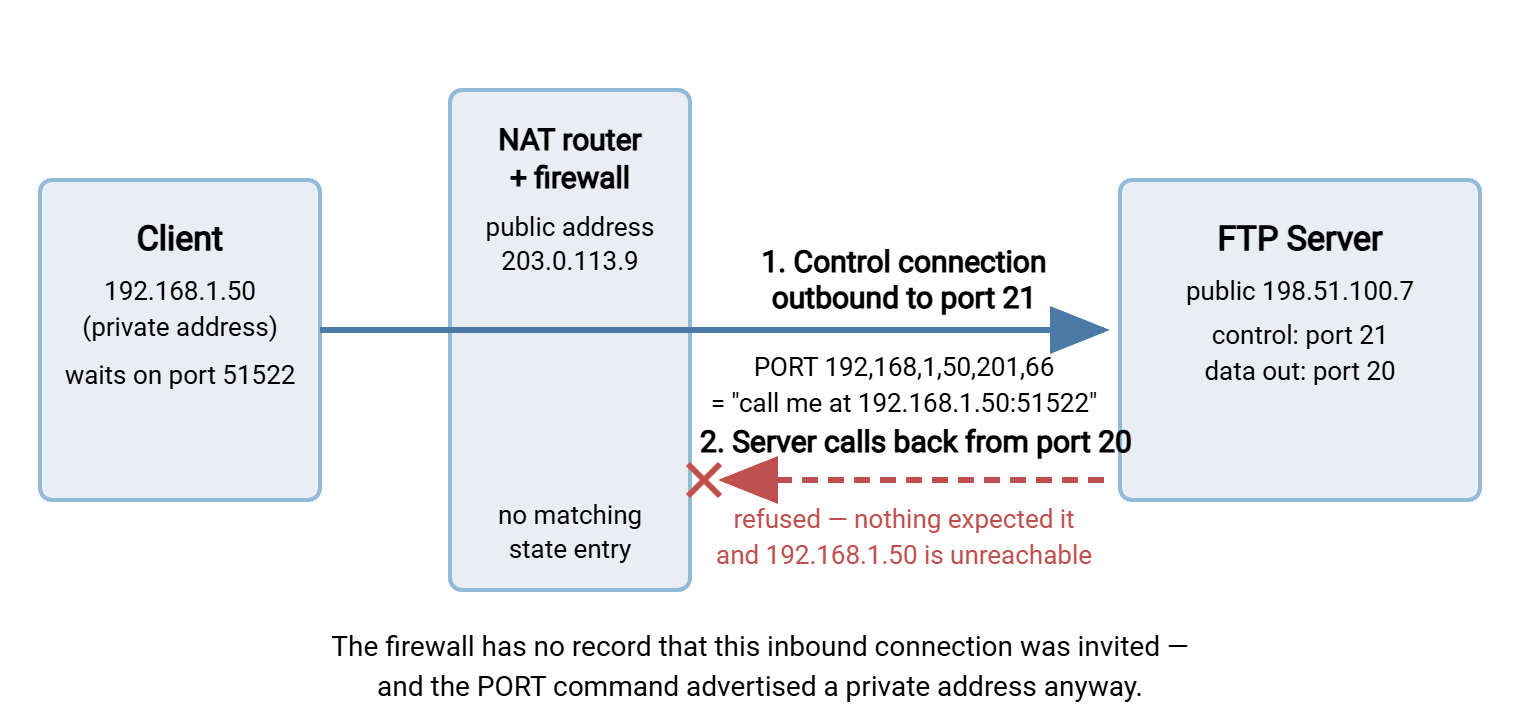
The part that matters here is how active mode sets up the data connection. The client picks an unused high-numbered port and starts listening on it. It sends the server a PORT command over the control connection: "call me back at 192.168.1.50, port 51522." The server then opens a brand-new connection from its data port — traditionally port 20 — back to the client. The roles reverse: the server dials out, and the client answers.
Now read that callback the way the client's firewall reads it. A machine on the internet is opening a fresh, unannounced connection inbound to a workstation on the protected network. The firewall does not speak FTP, so it cannot know an invitation went out over the control connection. It sees a stranger dialing in — and refusing strangers is its purpose. Two separate mechanisms, state tracking and address translation, each independently kill the callback.
What "Stateful" Means, and Why the Firewall Says No
A stateful firewall is a firewall that remembers conversations. Every time a machine behind it opens an outbound connection, the firewall writes an entry in its state table — a running list of who is talking to whom. The entry records the addresses and ports of both ends, something like 192.168.1.50:51013 to 198.51.100.7:21, established. From then on, any packet that belongs to that recorded conversation is allowed through in either direction. A packet that matches no entry gets the default treatment, and the default is deny.
An analogy that holds up well: the firewall is a receptionist with a visitor log. When you place an outbound call, the receptionist notes it down, and everything that arrives as part of that call is waved through. Replies are expected. But a stranger who simply shows up at the front desk unannounced, insisting that someone inside asked to see them? Turned away. "Stateful" just means the receptionist keeps the log. Older "stateless" packet filters judged every packet in isolation and could not tell a reply from an intrusion. State tracking is what lets a modern firewall allow answers without allowing strangers.
Trace an active FTP session through that logic. The control connection is opened outbound by the client, so it creates a state entry and works perfectly — which is why login always succeeds. But the data connection the server opens in response to PORT is a completely new connection: different ports, opposite direction. It matches nothing in the state table. The firewall cannot know it is related to the control connection. Discovering that would require reading and understanding the FTP commands inside the session — which a plain stateful firewall does not do. No entry, no invitation, no entry granted.
One more distinction worth learning, because it shapes the symptoms: firewalls say no in two dialects. Most silently drop the packets — the server's connection attempt disappears into a void, the server retries, and both ends wait until a timeout expires. Some instead reject, sending back an active refusal that produces an immediate "connection refused" error. A long hang points to a drop; an instant failure points to a reject. Either way the firewall is healthy. It is correctly refusing an inbound connection that nothing told it to expect.
NAT: The Client Advertises an Address That Does Not Exist Outside
Even with no firewall rules at all, active mode usually fails anyway — because of NAT. NAT (network address translation) is the technique that lets a whole office or household share one public IP address. The machines inside use private addresses — the familiar 192.168.x.x and 10.x.x.x ranges — which are valid only inside the local network. Internet routers will not carry traffic toward a private address. Millions of unrelated networks all contain a 192.168.1.50, and there would be no way to pick the right one.
The NAT router bridges the two worlds. When an inside machine sends a packet out, the router rewrites the packet's source address. It replaces the private address with the router's own public one. It records the swap in a translation table so replies can be forwarded back to the right inside machine. Think of a company mailroom: the whole building shares one street address, and desk numbers mean nothing to the outside world. The mailroom keeps a list of who sent what so incoming replies reach the right desk.
Here is the trap that catches FTP. The PORT command carries the client's address as text inside the message — in the application payload, not in the packet headers. NAT rewrites headers; it does not read your conversations. So the command passes through unmodified, and the server is politely instructed to call back 192.168.1.50 — an address that means nothing on the internet. The server either fails to connect at all or, worse, reaches some unrelated machine that happens to use that address on the server's own local network. It is the mailroom problem in reverse: the client wrote "deliver directly to desk 214" on the order form and never mentioned the building.
And the failure is doubled. Even if the advertised address were somehow correct, the callback would still arrive at the NAT router as a brand-new inbound connection. The translation table has no entry for it. The router would not know which of forty inside machines should receive it, so it discards it. Behind NAT, active mode fails twice over: the wrong address is advertised, and there is no path inward even for the right one.
The diagram below puts the whole failure in one picture. The client's control connection passes out through the NAT router and firewall without trouble. But the server's callback data connection dies at the firewall. No state entry expects it, and the address the PORT command advertised was private to begin with.
FTP Helpers and ALGs: The Invisible Fix That Breaks Things
If active mode is this thoroughly broken behind NAT and stateful firewalls, how has it kept working on so many networks? Because the network gear started cheating on FTP's behalf. An application-layer gateway (ALG) is a component of a router or firewall that understands just enough FTP to intervene in the conversation. The same feature goes by "FTP helper," "FTP inspection," or "fixup" depending on the vendor.
An FTP ALG watches traffic to port 21, reads the commands flowing past, and takes two liberties. First, when it sees a PORT command advertising a private address, it rewrites the address inside the payload to the router's public one. The very thing we just said NAT does not do, an ALG does. Second, it pre-opens a pinhole: a narrow, temporary permission for the one specific inbound connection the command predicts. So the server's callback is allowed through and forwarded to the right inside machine. Server-side firewalls play the mirror-image trick, reading PASV replies and opening the advertised data port just in time. When it works, it is invisible: active FTP behaves as if the firewall and NAT were not there. This is the answer to the eternal mystery of "it works from home" — consumer routers ship with the helper switched on.
"When it works" is the catch. ALGs fail in ways that are maddening precisely because nobody remembers the helper exists:
- Mangled rewrites. The rewritten command usually differs in length from the original, so the device must also quietly patch the TCP stream to hide its edit. Devices get this wrong often enough to have created a recognizable genre of bug: control connections that corrupt mid-session, listings that die for some addresses and not others.
- Rewrites you did not ask for. You configure the server to announce its correct public address. An inspection device in the path rewrites the reply anyway — sometimes back to a private address, sometimes to something plainly wrong. When a session log shows an address that nobody configured anywhere, an ALG rewrote it in flight.
- Blindness off port 21. Most helpers watch the standard control port only. Move FTP to a nonstandard port and the safety net silently vanishes — one reason "we changed the port" sometimes breaks more than it fixes.
- Blindness under encryption. The helper's entire trick depends on reading the control channel. Encrypt that channel — which is precisely what FTPS does when it wraps FTP in TLS — and the helper cannot rewrite what it cannot read. It also cannot open pinholes for a data connection it never saw negotiated. This is why FTP so often "breaks" on the day encryption is switched on. Nothing broke: a silent crutch was removed, and the configuration underneath had never actually been correct.
- Confusion over modern commands. Helpers written for the classic
PORTandPASVmay ignore or mishandle the newerEPRTandEPSVforms. Our guide to the four data-connection commands shows what each one puts on the wire.
So when should the helper be on? On a client-side network that must keep a legacy active-only device working through NAT, it is doing a real job — leave it alone. Everywhere else, prefer explicit configuration over inspection magic. On the server side especially, a deliberately chosen passive port range with static firewall rules beats a helper that opens ports dynamically. The explicit setup keeps working when you add encryption and cannot mangle anything. It is visible in the configuration where the next administrator can find it. If you run FTPS anywhere in the path, the helper is dead weight at best and a saboteur at worst.
Gotcha: if FTP had always worked and failed the week the control channel was encrypted — or a session log shows an IP address you never configured — suspect an FTP ALG before anything else. Its fingerprints are rewritten addresses and firewall openings that no written rule accounts for.
A Symptom Gallery: How Blocked Active FTP Presents
Blocked active FTP has a small repertoire of symptoms, and once you can recognize them the diagnosis takes minutes instead of hours. The classic session log looks like this:
Command:  PORT 192,168,1,50,201,66
Response: 200 PORT command successful
Command:  LIST
Response: 150 Opening ASCII mode data connection
          (long silence — the server is dialing an address it cannot reach)
Response: 425 Can't open data connection
Read the sequence. The last two numbers of the PORT command encode the client's listening port — 201 × 256 + 66 = 51522 — and the first four are its private address. The server accepted the command (it has no way to test the address at that point). It announced with 150 that it was opening the data connection. Then everything stopped: its callback was dying in transit. How the session ends tells you a little more. A 425 means the data connection could never be opened. A 426 means it opened and was then cut mid-transfer — often a helper misbehaving or a state timeout in the middle of the path. No error at all, just an endless hang, means something dropped the packets silently and both ends are still waiting.
The everyday presentations map straight onto that mechanism:
| Symptom | What is actually happening | First move |
|---|---|---|
Login works, hangs at LIST |
The callback is being silently dropped; both ends are waiting | Switch the client to passive mode |
425 Can't open data connection |
The server's callback never got through, or was actively refused | Check the log for PORT; switch to passive |
426 — transfer aborted midway |
The data connection opened, then something in the path cut it | Suspect an ALG or idle timeout in the middle |
| Instant "connection refused" vs. long timeout | Reject vs. drop — a refusal fails fast, a silent drop hangs | Note which one you see; it identifies the blocker's style |
| Works on one network, fails on another | One network has an FTP helper rescuing active mode; the other refuses it | Switch to passive; do not chase the "broken" network |
All of these share one signature: login always succeeds. The control connection is ordinary outbound traffic and passes every check; only the data connection dies. Any FTP failure that begins after a successful login is a data-connection problem until proven otherwise. When quick recognition is not enough, diagnosing FTP mode failures turns this instinct into a systematic, log-driven method.
The Fixes, Ranked
Everything above is the disease; here are the treatments, in the order you should reach for them. The first is the cure. Each one after it is progressively more of an accommodation, with costs to match.
1. Switch the client to passive mode — the real fix
In passive mode the client opens both connections, so every packet crosses the client's firewall and NAT in the friendly outbound direction. The state table gets its entries, the translation table gets its mappings, and no address inside the payload matters to the client's network at all. Nothing on that network needs to change — no rules, no pinholes, no helpers. That is why "switch it to passive" is the single most effective sentence in FTP support.
- Graphical clients: the switch lives in connection or transfer settings, usually labeled "passive mode" or "transfer mode." Most modern clients already default to passive; set it per site so any documented exception stays contained.
- Windows ftp.exe: the built-in command-line client speaks active mode only — there is no setting to flip. Use it to test logins if you like, but run real transfers through a client that supports passive.
- Scripts and libraries: pass the passive option explicitly rather than trusting defaults, so the script behaves identically on every machine it runs from.
- Scheduled jobs: unattended transfers should carry the mode in their stored connection settings. In a scheduled-transfer tool such as Sysax FTP Automation, the connection profile records the mode once. Every run negotiates it the same way. That is exactly what you want for a job that fires at 2 a.m. from whatever network it happens to live on.
2. Make passive mode work properly on the server
Passive mode does not delete the firewall problem — it relocates it to the server side. That is exactly where you want it: one machine, one administrator, one known set of ports, instead of a thousand unpredictable client networks. Three things must be true. The server needs a defined passive port range to hand out. The firewall in front of the server must allow inbound connections to that range. And if the server itself sits behind NAT, it must announce its public address in PASV replies rather than its private one. Failing to do so recreates this article's entire problem in mirror image. The end-to-end walkthrough is in configuring passive port ranges.
On Windows, a server product like Sysax Multi Server exposes the passive range and the announced external address as ordinary settings in its configuration interface. That turns this step from firewall archaeology into deliberate configuration. Do it properly even if things seem to work without it. The moment the control channel is encrypted with FTPS, no helper can compensate for a missing range, and only the explicit setup survives.
3. Contain the legacy devices that only speak active
Some equipment cannot be switched: aging lab instruments, embedded controllers, appliances with an FTP client burned into their firmware. For these, change the network instead of the device. Put the device and the server it talks to on the same network segment, with no NAT and no stateful filtering between them. Then active mode works the way it did on the trusting networks it was designed for. If they cannot share a segment, give the pair a dedicated path: one narrow, specific rule between two known addresses. The principle is to shrink the network the callback must cross to almost nothing, rather than loosening the perimeter for everyone. And write the exception down where the next administrator will find it.
4. Last resort: teach the firewalls to tolerate active mode
When a client absolutely must run active mode across a real firewall, you can accommodate it — with eyes open. On the server side, make sure the firewall allows the server's outbound connections with a source port of 20. Permissive egress policies allow this already, but strict ones do not, and the server cannot place its callback without it. On the client side, add a pinhole permitting inbound connections from the server's address to the client's high ports. Make it narrower if the client software can pin its active data ports to a fixed range, which many clients allow.
Now the honest downsides. This work must be repeated on every network every such client ever uses. It opens standing inbound doors into client networks, which is the exact opposite of the direction security policy should move. It does nothing about the NAT payload problem, so behind NAT you additionally depend on an ALG to rewrite the advertised address. That is the same device category that causes the failures described above. And this workaround breaks silently the day the server's address changes. If you find yourself doing this for more than one device, go back to fix number one.
Remember: passive mode is the fix. Everything below it on this list is scaffolding around a callback that modern networks are right to refuse. Build the scaffolding when you must, label it clearly, and plan the retirement of whatever forced you to build it.
The Short Version to Take Away
Firewalls block active FTP because active FTP behaves exactly like the traffic firewalls exist to stop: an outside machine opening an uninvited connection to an inside one. Stateful filtering refuses the callback because no state entry expects it. NAT dooms it even earlier, because the PORT command advertises a private address the server cannot reach. And the ALGs that quietly rescue active mode on many networks go blind the moment the control channel is encrypted, and misfire often enough to cause outages of their own. None of this is worth fighting. The durable answer is passive mode on every client, and a properly published passive range on the server.
There are three good next steps in the series. The guide to diagnosing FTP mode failures turns this article's understanding into a repeatable troubleshooting method. The guide to configuring passive port ranges walks the server-side setup end to end. If you want the foundations underneath all of it — commands, replies, ports, and sessions — start with our FTP protocol series.
Frequently Asked Questions
Why does my FTP client log in fine but hang or fail when listing files?
Is my firewall broken or misconfigured if it blocks active FTP?
What is an FTP ALG, and should I turn it off?
Why does active FTP work from home but fail from the office?
Why did FTP stop working the day we enabled FTPS encryption?
From the Sysax team: we build secure file transfer software for Windows. Sysax Multi Server is an FTP, FTPS, SFTP, and HTTPS server. Sysax FTP Automation handles scheduled, scripted transfers. Free trials are on the download page.