
rsync Flags That Matter — and the Ones That Bite
rsync accepts well over a hundred options. Nobody knows all of them, and nobody needs to. What every administrator needs is a working vocabulary of perhaps fifteen — understood, not memorized — because the standard failure mode with rsync is not ignorance. It is copying a flag soup from a forum post, half of which does nothing for your situation and one of which quietly deletes files.
This article is the vocabulary lesson. We will unpack what -a actually bundles and decode the trailing-slash rule that fills forums with grief. We will treat --delete with the respect a loaded tool deserves and untangle include/exclude ordering. We will finish with a safe-defaults recipe you can adapt to almost any job. This article assumes you know roughly what rsync is for. If the delta-transfer machinery underneath is still fuzzy, start with how the rsync algorithm works in our rsync & Delta Transfer series and come back.
What -a Really Bundles (and What It Leaves Out)
Nearly every rsync command you will ever see starts with -a, for archive mode. It is not one behavior — it is a bundle, exactly equivalent to typing -rlptgoD. Worth unpacking once in your life, letter by letter:
-r— recursive. Descend into directories. Without it, rsync copies only the files you name and skips folders entirely.-l— links. Copy symbolic links as links, rather than ignoring them or following them into their targets. The destination gets a symlink pointing at the same path.-p— permissions. Reproduce each file's Unix permission bits (therwxr-x---mode) on the destination.-t— times. Preserve each file's modification time. This one is quietly load-bearing — more on it in a moment.-g— group and-o— owner. Preserve which group and user own each file. Setting arbitrary ownership requires root (or equivalent) on the receiving side; as a normal user, these silently fall back to your own ownership.-D— devices and specials. Recreate device nodes and special files such as sockets and FIFOs. Only meaningful for system-level copies, and also root-only.
In plain terms: -a means "copy the tree and keep it looking like itself" — structure, links, timestamps, ownership, permissions. That is the right default for backups and mirrors of Unix filesystems, which is why everyone uses it reflexively.
Just as important is what -a does not include, because people assume otherwise:
- No
-H: hard links between files inside your tree are not detected; the destination gets independent copies. Add-Hif your data relies on them (it costs memory and time). - No
-Aor-X: POSIX ACLs and extended attributes are not copied — plain permission bits only. - No
-z: archive mode does not compress anything in transit. - No
--delete:-anever removes anything from the destination. Deletion is always an explicit, separate decision — as it should be.
Why -t Is the Quiet Hero of the Bundle
Of the seven letters, -t deserves special attention because it is the one whose absence causes mysterious slowness rather than an error. rsync decides which files to transfer using the quick check: a file is presumed unchanged if its size and modification time match on both sides. Preserved mtimes are what make that comparison meaningful.
Skip -t, and every file lands on the destination stamped with the copy time instead of the source's mtime. On the next run, no destination mtime matches its source, and the quick check fails for everything. So rsync re-examines — and with some option combinations re-copies — the entire tree, every single run. The classic symptom is "rsync copies everything every time," and the classic cause is a habit of running rsync -rv instead of -a. (Filesystems with coarse timestamp resolution cause the same symptom for a different reason — see the cross-platform gotchas article for the --modify-window fix.)
Remember: rsync's default definition of "changed" is size or modification time differs. It does not read file contents to decide what to transfer unless you ask with --checksum. Preserving times with -t (or -a) is what keeps that cheap comparison honest from run to run.
The Trailing Slash: One Character, Two Meanings
Here is the rule that has launched a thousand forum threads. On the source path, a trailing slash changes what gets copied:
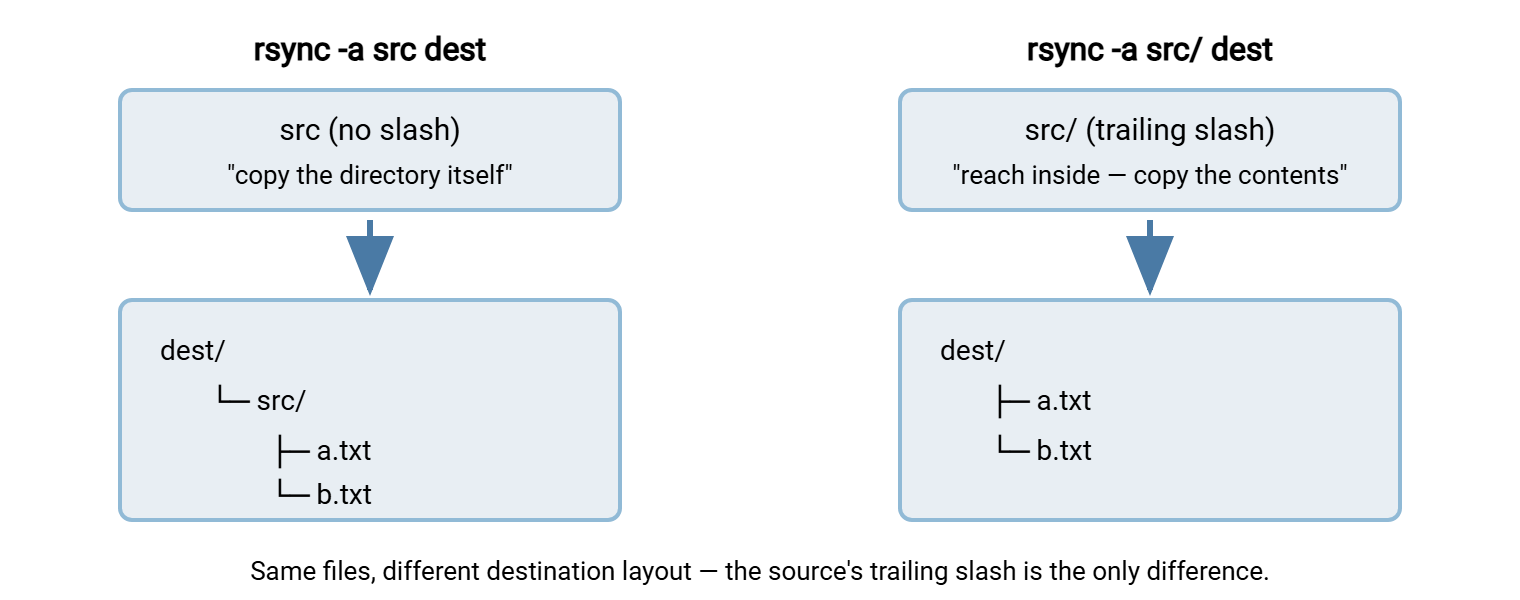
rsync -a src dest— copies the directory itself: you end up withdest/src/…rsync -a src/ dest— copies the contents of the directory: you end up withdest/…
The mnemonic that makes it stick: the slash means "reach inside." Without the slash you are handing rsync the folder as an object; with the slash you are handing it whatever is inside the folder. On the destination path, a trailing slash changes nothing — the rule is entirely about the source.
The diagram below shows the same command run both ways, and the two different trees that result.
Why this matters more than a cosmetic nesting difference: many rsync jobs run repeatedly, and some include --delete. Get the slash wrong on a mirror job and the destination layout no longer corresponds to what the job expects. At best you double-nest into dest/src/src/… confusion. At worst a --delete run decides the "extra" tree at the destination doesn't belong there. Two habits neutralize the trap. Be deliberate about the slash every time you compose a command (beware shell tab-completion, which appends one for you). Preview with a dry run before the first real execution of any new job. Our dry runs and verification article turns that technique into a checklist.
--delete: Necessary, Powerful, and Ready to Ruin Your Day
By default, rsync only adds and updates. Files that exist on the destination but not on the source are left alone — which means a plain -a job produces an accumulating copy, not a true mirror. Renamed and removed source files linger at the destination forever. To make the destination genuinely match the source, you add --delete, which removes destination files that no longer exist on the source side.
Three facts define its safe use:
- It only ever deletes on the destination. The source is never touched. Whatever horror stories you have heard, they are about destinations.
- It deletes relative to what the source claims to contain. This is the danger zone. Suppose the source path is wrong — a typo, a missing trailing slash, or worst of all an unmounted or empty source directory. In that case, rsync faithfully concludes that the correct contents of the destination is "nothing much" and deletes accordingly. An external drive that failed to mount plus a nightly
--deletemirror is the canonical self-inflicted data loss. - It only applies to directories being synced — it rides along with a recursive transfer; it is not a general-purpose cleanup command.
Treat every --delete job as armed, and give it guardrails:
# Always preview first: -n is --dry-run, -i itemizes what would happen
rsync -avin --delete /data/projects/ backup@host:/srv/mirror/projects/

# Guardrail 1: refuse to mass-delete (abort past a sane threshold)
rsync -avi --delete --max-delete=50 /data/projects/ backup@host:/srv/mirror/projects/

# Guardrail 2: move deletions aside instead of destroying them
rsync -avi --delete --backup --backup-dir=/srv/mirror/.trash/ \
      /data/projects/ backup@host:/srv/mirror/projects/

# Guardrail 3 (in scripts): verify the source is really there first
mountpoint -q /data || exit 1
The --max-delete=50 line means: if this run would delete more than fifty files, stop — a tripwire against the empty-source disaster. The --backup-dir variant demotes "deleted" to "moved into a dated holding area you can prune later." Timing variants exist too — --delete-during (the usual default behavior), --delete-delay, and --delete-after, which postpone removals until the transfer has succeeded. The after/delay forms are kinder to mirrors that might be interrupted mid-run.
Include and Exclude: First Match Wins
Real jobs rarely want the whole tree. Caches, .git directories, editor droppings, and log spools usually stay home. rsync's filter system is powerful and has exactly one rule you must internalize: patterns are checked in the order given, and the first one that matches a file decides its fate. Nothing later gets a vote.
# Skip caches and VCS metadata anywhere in the tree
rsync -av --exclude='.git/' --exclude='node_modules/' --exclude='*.tmp' src/ dest/

# Anchored: exclude only the top-level logs dir, not every dir named logs
rsync -av --exclude='/logs/' src/ dest/

# The classic "only this file type" pattern — order is everything:
rsync -av --include='*/' --include='*.conf' --exclude='*' /etc/ backup/etc/
That last one reads like a riddle until you apply first-match-wins. Directories match */ and are allowed in (so rsync can descend). The .conf files match the second rule and are copied. Everything else falls through to --exclude='*' and is skipped. Reverse the order — --exclude='*' first — and the first rule swallows everything: an empty transfer, no error, no warning. Two more details bite. A pattern starting with / is anchored to the top of the transfer. The pattern logs/ alone matches a directory of that name at any depth. And a trailing / on a pattern makes it match directories only. For elaborate rule sets, --filter and per-directory .rsync-filter files exist, but the three patterns above cover most working life.
One relationship worth knowing: excluded files are, by default, also protected from deletion on a --delete run. Rsync won't delete what it was told not to look at (the --delete-excluded flag exists precisely to override that mercy, deliberately).
The Rest of the Working Vocabulary
The flags below round out the set worth knowing cold. Each earns its place in recurring jobs:
| Flag | What it does | When it matters |
|---|---|---|
-n / --dry-run |
Analyze and report, change nothing | Before the first run of anything, always before --delete |
-i / --itemize-changes |
Per-file code showing exactly what changed and why | Reading dry runs; auditing what a job did |
-z |
Compress data in flight | Slow links and compressible data; useless for media/archives |
-P |
Bundles --partial (keep interrupted files for resume) and --progress |
Big files over unreliable links; interactive runs |
--stats |
End-of-run report: files examined, literal vs matched data, speedup | Measuring whether delta transfer is paying off |
-H |
Preserve hard links within the transferred tree | System backups, snapshot trees, package mirrors |
-x |
Stay on one filesystem; don't descend into other mounts | Backing up / without dragging in /proc, NFS mounts, etc. |
--bwlimit |
Cap transfer bandwidth | Sharing a WAN link with people who need it |
-c / --checksum |
Decide "changed" by hashing full contents, not size+mtime | Occasional integrity audits — far too slow for routine runs |
The Ones That Bite
A short bestiary of flags whose names promise more than they deliver, or deliver more than they promise:
-u/--updateskips any destination file newer than its source counterpart. Sounds protective; in a mirror it means destination-side edits silently survive forever and your "mirror" quietly diverges. Use it only when the destination is legitimately also edited.--inplacerewrites destination files directly instead of building a temp file and renaming. It helps with huge files on tight disks, but an interrupted run leaves a corrupt half-written file where a good old one used to be. The option also undermines hard-link snapshot schemes (see mirroring patterns). Know why you want it before you type it.--ignore-existingnever updates a file that already exists at the destination, however stale. Fine for "top up the archive" jobs; poison for mirrors.--appendassumes files only ever grow and sends just the tail. Aimed at logs; corrupts anything that was edited in the middle. Its safer sibling--append-verifyat least checks the existing part — still a specialist's flag.-W/--whole-fileswitches delta transfer off. Correct on fast LANs (and the default for local copies); an accidental paste of it turns your WAN job back into full copies.-aitself bites in one scenario: pushing to filesystems or servers that cannot represent Unix owners and permissions, where-o -g -pproduce a wall of errors. The fix is covered in cross-platform gotchas.
A Safe-Defaults Recipe You Can Reuse
Here is a compact sequence that embodies everything above. It suits the common case — mirroring a directory tree to another machine — and degrades gracefully when you trim it:
# Step 1 — PREVIEW. Nothing changes; read the itemized plan.
rsync -avin --delete --exclude='.git/' --exclude='*.tmp' \
      /data/site/ deploy@web01:/var/www/site/

# Step 2 — RUN, with tripwire and safety net.
rsync -avi  --delete --max-delete=100 \
      --backup --backup-dir=.rsync-trash \
      --exclude='.git/' --exclude='*.tmp' \
      /data/site/ deploy@web01:/var/www/site/

# Step 3 — VERIFY. Re-run the preview: a converged mirror prints nothing.
rsync -avin --delete --exclude='.git/' --exclude='*.tmp' \
      /data/site/ deploy@web01:/var/www/site/
Adapt by subtraction: drop --delete (and its guardrails) for accumulating copies. Drop the excludes if you truly want everything. Add -z when the link is slow and the data compressible. The three-step shape — preview, run, verify — is the part to keep, and it transplants directly into scheduled jobs. Those can use cron on Unix systems, or on Windows a scheduler built for transfers such as Sysax FTP Automation. In that scheduler, the run/verify/alert cycle becomes configuration instead of shell scripting.
Reading a Command You Inherited
Sooner or later you inherit a cron job containing someone else's flag soup, and the skill that matters is reading it before you trust it. Take this specimen, typical of what turns up in handover documents:
rsync -avzHu --inplace --delete-excluded --exclude='cache/' /srv/app node2:/srv/app
Decode it letter by letter and the questions write themselves. -avzH — faithful archive copy, verbose, compressed in flight, hard links preserved: reasonable. -u — destination files that are newer get skipped: is someone editing on node2, or is this hiding a past mistake? --inplace — files are rewritten in place: what happens if this dies mid-run on a file the application is serving? --delete-excluded — the destination's cache/ directory is actively deleted every run, not merely ignored: is that intentional cache-busting or an accident nobody noticed? And the source has no trailing slash, so this populates /srv/app/app/ — unless the job has "worked" for years precisely because of that nesting. None of these are necessarily wrong; all of them are decisions, and every decision in an inherited command deserves to be re-made deliberately. A dry run with -i answers most of the questions in thirty seconds.
The Version to Tell a Colleague
The short course: -a means "copy the tree faithfully" and bundles -rlptgoD — recursion, symlinks, permissions, times, group, owner, devices. It includes no compression and never deletes. The trailing slash on the source means "reach inside": src/ copies contents, src copies the directory itself. --delete makes true mirrors by removing destination files missing from the source. That makes it exactly as dangerous as your source path is wrong. So preview with -n, cap with --max-delete, and soften with --backup-dir. Filters are first-match-wins. Everything else is refinement.
From here, the flags meet reality in mirroring and one-way sync patterns. The preview-and-verify discipline gets its full treatment in dry runs and verification — the article to read before your first production --delete.
Frequently Asked Questions
Does rsync -a delete files on the destination?
What does the trailing slash on the source path actually do?
Why does my rsync job re-copy everything on every run?
Does -a compress data during transfer?
Why did my include/exclude rules copy nothing at all?
Is there a safe way to test a command that includes --delete?
From the Sysax team: we build secure file transfer software for Windows. Sysax Multi Server is an FTP, FTPS, SFTP, and HTTPS server. Sysax FTP Automation handles scheduled, scripted transfers. Free trials are on the download page.