
Attachment Security: Malware, Spoofed Files, and a Safe-Handling Policy
"I think I just opened something." Six words, said quietly, from a desk in accounts at five to five on the last day of the month. Ask anyone who has worked a serious security incident how it started. The answer is very often that sentence, or the silence where it should have been. Not a foolish somebody opened the file; a busy one did, doing their job. They opened what looked exactly like the invoices and resumes and shipping notices they open all day. Attachments remain the most reliable way to put hostile code in front of a human being. Email is the one channel where outsiders are allowed, even expected, to hand your users files.
The good news is that attachment risk is one of the most understandable problems in security. The dangerous file types are known. The disguises are cataloged. The safe-handling habits fit on an index card. And the response when something does get opened is a sequence you can rehearse. None of it requires scaring anyone. Fear actively damages the one defense that matters most, which is a user who reports quickly instead of hiding a mistake. Those six quiet words are the defense working.
This article, part of our Email Attachments series, gives you the working set. It covers which file types deserve which treatment, how spoofed files dress up, and what preview really protects against. It explains how to coach users without a syllable of condescension. It includes a paste-ready incident playbook for the day someone opens the wrong thing. Email will go on letting strangers hand your people files; that is its job, and this is how you live with it.
Why Attachments Are the Attacker's Favorite Door
Every network perimeter shares one deliberate gap: mail comes in. Firewalls refuse unsolicited connections, but email is solicited by definition — your organization publishes addresses precisely so strangers can write to them. An attachment rides that welcome straight through the perimeter and arrives somewhere no firewall can help. It lands in front of a person with the authority to run it. The firewall did its job; the job did not include this.
That is why attachment attacks are really two attacks stapled together. The technical half is the file — a program, a script, a document carrying active content. The human half is the story that makes opening it feel routine. It could be an invoice during month-end close or a resume to the recruiter actually hiring. It could be a delivery notice in shipping season or a "revised contract" replying to a genuine thread. The story is targeted at workload, not stupidity. On a calm Tuesday morning almost everyone spots the fake; at 4:55 on deadline day, almost anyone can miss it. Design your defenses for the 4:55 version of your users, because attackers do.
It helps to know what the attacker is actually buying with that click, because it explains the urgency of the response playbook later. Sometimes the payload is the whole crime — ransomware that begins encrypting whatever the user can reach. More often the click buys a foothold: a quiet program that phones out and harvests credentials. It lets a human operator explore your network at leisure, often for days, before anything visible happens. That gap between the click and the damage is your response window. It is why "reported within five minutes" matters more than any other fact about an incident.
You are not defending alone. As we saw in the journey of an attachment, security gateways decode, unpack, and even detonate suspicious files before delivery. They remove enormous amounts of hostile mail. But scanners match knowledge, and attackers manufacture novelty; some fraction always arrives. The human layer is not "the weakest link" — it is the last layer, and it deserves the same engineering attention as the others.
Risky File Types, Ranked
File types are not equally dangerous, and policy should say so plainly. A workable ranking, from "block outright" down to "relax":
| Category | Examples | Why it is risky | Sensible handling |
|---|---|---|---|
| Programs and scripts | .exe .scr .js .vbs .bat .cmd |
Opening one runs arbitrary code immediately — the file is the attack | Block at the gateway, no exceptions by email; provide a sanctioned channel instead |
| Shortcuts and disk images | .lnk .iso .img .vhd |
Wrappers that smuggle or launch executables while dodging some safeguards | Block; legitimate uses for emailing these are vanishingly rare |
| Macro-enabled documents | .docm .xlsm and kin |
Documents that carry embedded programs (macros) which run when the user clicks Enable Content | Quarantine or flag from external senders; disable macros from the internet by policy |
| Encrypted archives | password-protected .zip .7z |
Scanners cannot see inside — attackers use the password (helpfully included in the email) as a cloak | Quarantine or strip by policy; treat "password in the same message" as a red flag in itself |
| Ordinary archives | plain .zip .7z |
As dangerous as whatever is inside; also used to bury bad files under depth | Allow, with the gateway unpacking and scanning contents to full depth |
| Everyday documents | .pdf .docx .xlsx |
Mostly benign, but can carry exploit code for viewer bugs or lure links inside the document | Allow, scanned; keep viewers patched; treat unexpected ones with the three checks below |
| Images and plain text | .jpg .png .txt |
Lowest practical risk in normal use | Allow, scanned |
Two footnotes make this table trustworthy. First, a good gateway identifies files by content, not name. It reads the internal structure, so renaming payload.exe to report.txt fools nobody worth fooling. Second, the blocked categories need a legitimate outlet: engineers really do exchange executables and admins really do ship disk images. Provide that outlet deliberately — a managed transfer server, covered below — or users will invent their own. They are inventive; that is why you hired them.
Disguises: Double Extensions and Other Costumes
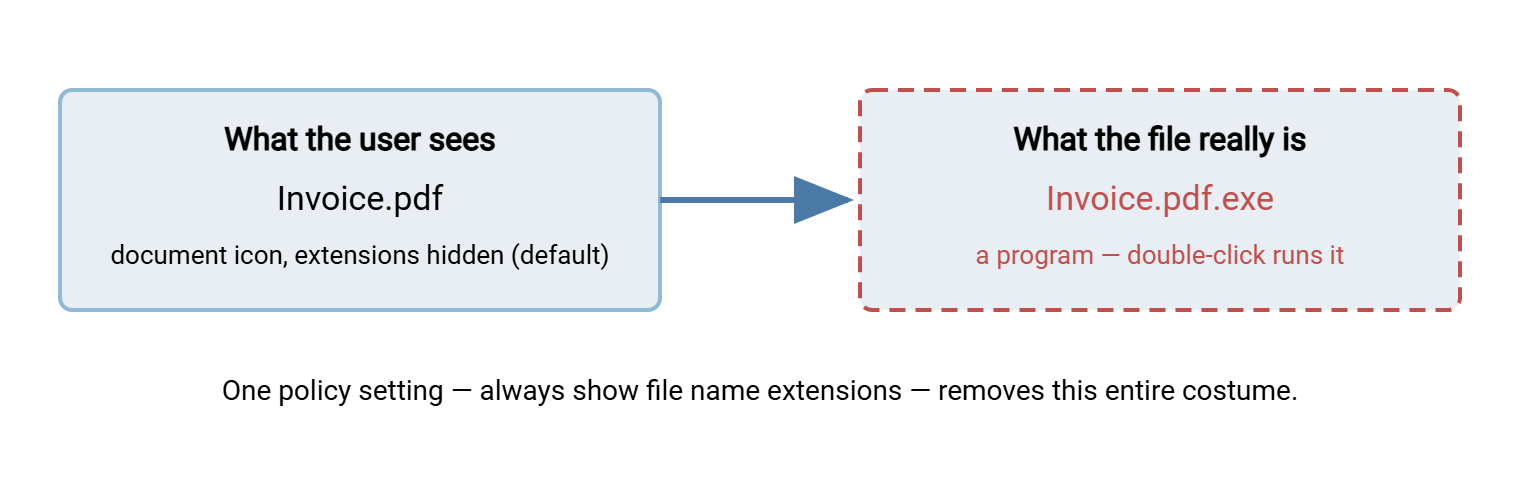
Attackers know users check file types, so they costume the file. The classic trick exploits a default setting: Windows hides file extensions it recognizes. A file actually named Invoice.pdf.exe therefore displays as Invoice.pdf — the double extension disguise. The user sees a document; the operating system sees a program; only one of them decides what happens on double-click. The diagram below shows the costume and the reality side by side.
The rest of the wardrobe follows the same logic of borrowed trust:
- Forged icons. A program can carry any icon it likes, including a perfect copy of a document icon. Icons are decoration, not identification.
- Trusted-name senders. The display name says a colleague; the underlying address says otherwise. Clients that show only display names do the attacker's work for them.
- Hijacked threads. The most convincing costume of all: mail sent from a genuinely compromised mailbox, arriving as a reply inside a real conversation, attachment included. Every familiarity signal is authentic except the file. This is why coaching must center on expectation ("was I expecting this file?") rather than recognition ("do I know this sender?").
- Name games. Long runs of spaces before the real extension, and special characters that reverse how a name displays, both aim to push the truth out of view.
The countermeasures are refreshingly cheap. Enforce extension display by policy on every machine, and prefer mail clients that reveal the real sender address. Teach the one honest rule — when a file surprises you, the sender's familiarity is not evidence. The default that hides extensions was chosen for tidiness, which the attacker appreciates.
Preview vs Open: What Is Actually Safer
Users ask a fair question: is it safe to look at an attachment? The distinction that matters starts with previewing. This means the mail client renders a picture of the file in a pane, without launching its native application. By contrast, opening means handing the file to the program that owns it, with all that program's power.
Preview is meaningfully safer. The preview renderer does not run macros, does not execute programs, and typically draws a simplified version of the document. It is the right way to answer "what is this?" It is not, however, a guarantee. Rendering software has had exploitable bugs, which is one reason preview panes for suspicious mail are sometimes disabled in hardened environments. Safer, not safe: state the distinction honestly, because users trust guidance that admits its edges.
When neither preview nor instinct settles the question, the tiebreaker is out-of-band verification. Confirm with the apparent sender through a channel the attacker does not control. Call the number you already have for them, or message them on the internal chat system. Never verify by replying to the email itself, since a hijacked thread answers replies with the attacker's voice. Thirty seconds of verification is cheaper than any step of the incident playbook below. Users who see IT doing it themselves learn that checking is normal, not paranoid. I still call, every time, and nobody has ever minded.
Opening adds the real hazards, and one button deserves special infamy. Modern document applications open email-borne files in a protected view — a read-only sandbox where active content cannot run. They then offer an Enable Editing / Enable Content button. That button is the detonator for the entire macro-malware genre: the document is inert until the user disarms the safety personally. Instructions inside the document itself prompt them ("content blurred for security — click Enable to view"). The coaching rule is short enough to stick. Preview to identify; open if expected. Never click Enable Content on anything that arrived by email unless you verified it with the sender by another channel.
Coaching Users Without Condescension
Security awareness fails in the delivery far more often than in the content, and the failure mode is tone. Users have sat through training that treats them as the problem; they respond by tuning out, or worse, by hiding mistakes. The corrective is genuine respect, expressed in mechanics, not just manner:
- Say the true thing first: these attacks are built by professionals to beat busy people. Anyone — including the IT team — can be caught on the wrong afternoon. This is not flattery; it is threat modeling, and users can tell the difference.
- Teach three checks, not thirty: Was I expecting this file? Does the real address — not the display name — match who this claims to be? Is it pushing urgency or secrecy? Three questions survive a deadline; a laminated page of heuristics does not.
- Make reporting one click and one minute. A report button in the mail client, or a short memorable address, with a same-day human acknowledgment. Every step you add to reporting is a report you will not get.
- Praise reports loudly, including false alarms. A false alarm is a user paying attention. The phrase that builds the culture: "good catch — keep them coming."
- Never punish the person who clicked. Not formally, not by mockery, not by a "wall of shame." Punishment does not reduce clicking; it reduces reporting, which converts ten-minute incidents into three-week ones. The click is an event; the silence afterward is the catastrophe.
- If you run practice simulations, run them as practice. The point of a fire drill is rehearsal, not catching people walking slowly. Debrief kindly, share aggregate results, and watch the metric that matters: report rate rising, and time-to-first-report falling.
Remember: your single most valuable security metric is how fast a worried user tells you. Every choice in coaching, tone, and policy should be tested against one question. Does this make someone more likely, or less likely, to report within five minutes?
The "Someone Opened It" Incident Playbook
Eventually the call comes: "I think I just opened something bad." The next hour goes vastly better if the steps already exist on paper. Here is a playbook to paste into your runbook and adapt to your tooling and obligations. Rehearse it once a year, the way you would a restore:
WHEN A USER OPENS A SUSPICIOUS ATTACHMENT

 1. THANK THEM, note the exact time. Reporting fast is the win;
    say so out loud. Calm tone from the first sentence.
 2. ISOLATE the machine: disconnect network / disable Wi-Fi.
    Leave it powered ON unless your policy says otherwise --
    powering off can destroy evidence in memory.
 3. PRESERVE the email: note sender address, subject, file name.
    Do not forward the attachment around; use your mail system's
    admin tools to retrieve it safely.
 4. FROM A DIFFERENT DEVICE: change the user's passwords and
    revoke active sessions. Assume credentials typed after the
    open are burned.
 5. CHECK THE MAILBOX for attacker changes: new forwarding
    rules, unfamiliar sent items, altered recovery settings.
 6. CONTAIN THE MACHINE per policy: full scan at minimum;
    reimage if anything executed. When in doubt, reimage.
 7. SEARCH THE MAIL SYSTEM for the same message delivered to
    others; quarantine every copy before more clicks happen.
 8. BLOCK the sender, domain, and any addresses or links from
    the message at the gateway.
 9. WATCH for follow-on: unusual outbound traffic or logins
    from that account and machine over the following days.
10. NOTIFY per your obligations -- management, and, where data
    was exposed, whoever your compliance rules require.
11. DEBRIEF blame-free within a week: what made the lure
    convincing, which control failed, what changes. Update
    this playbook with what you learned.
Notice how much of the playbook's speed depends on the culture section above it. Steps 1 through 4 only happen quickly if the user calls immediately. The user only calls immediately if reporting has always been safe. Blame-free response is not a kindness bolted onto security — it is a control, as real as the gateway.
Acme ran the playbook for real one month-end. A clerk in accounts payable opened an "overdue invoice" document and saw the blurred-content prompt asking her to enable editing. She closed it instead and called the help desk within four minutes, apologizing the whole way through. The help desk thanked her, pulled the network cable, and had her change her password from a colleague's machine. Meanwhile, a second analyst searched the mail system and found the same message in six other inboxes, all unopened. Every copy was quarantined before a second click could happen, and the mailbox showed no new forwarding rules. The machine was reimaged that afternoon on principle. The debrief the following week changed exactly one thing: the report button moved from a submenu to the toolbar.
Policy That Helps Instead of Nags
Write the safe-handling policy last, after the mechanics and culture exist, and keep it to one page. It needs five sections. The first covers which attachment types the gateway blocks (the table above, condensed). The second covers the three checks for unexpected attachments. The third explains how to report, in one step. The fourth explains what happens next when someone reports (spoiler: thanks, not trouble). The fifth covers — critically — the sanctioned channel for legitimate files that email refuses or mishandles. A policy that only says no is a policy with a workaround attached.
That last section is what separates a policy users follow from a policy they route around. Engineers will need to receive an executable from a vendor. A partner will need to send a giant archive. Finance will need to move files too sensitive for the mailbox-copies problem described in why email falls short. Give those needs a first-class home: a managed file transfer server with per-user authentication and activity logging. A Windows deployment of Sysax Multi Server serves this role, with recipients downloading over HTTPS in a plain browser. That way, the blocked path and the approved path appear in the same sentence of your policy. Pair that channel with the honest small-file rules in when attachments are fine, and the rollout craft in weaning users off attachments. Then the policy stops being a list of noes.
The Calm Summary
Attachments are the attacker's favorite door because email is the one door left open on purpose. The defense is layered and none of it is exotic. Block the file types with no business traveling by mail, and unpack and scan the rest. Strip the costumes by showing extensions and real sender addresses. Teach three checks and a one-click report. Treat Enable Content as the detonator it is, and rehearse the eleven steps for the day a click gets through. Above all, protect the reporting reflex. A user who tells you within five minutes has handed you a small incident. A user who is afraid to tell you has handed you a large one, later. The six quiet words at the top are what a small incident sounds like.
Frequently Asked Questions
Can just reading an email infect a computer?
Which attachment types should we block outright?
Why do attackers password-protect their zip attachments?
Is the preview pane safe to use?
Should users be disciplined for clicking a malicious attachment?
What is the Enable Content button and why does it matter?
From the Sysax team: we build secure file transfer software for Windows. Sysax Multi Server is an FTP, FTPS, SFTP, and HTTPS server. Sysax FTP Automation handles scheduled, scripted transfers. Free trials are on the download page.