
Attachment Size Limits: Where They Come From and Why They Vary
"It says the file was too big. It is 19 megabytes. The limit is 25. I checked." The ticket arrives about forty minutes after the user hit Send, and every word of it is true. The client accepted the file, the progress bar completed, and some minutes later a robot-worded message announced that delivery had failed. The user's questions are entirely fair: what is the limit, who set it, and why did a file that fit still bounce?
The honest answers are more interesting than the folklore. There is no such thing as "the" attachment limit. There is a chain of independent limits enforced by different systems along the message's path, and the smallest one wins. Worse, the file that travels is not the file on disk: email encoding inflates it by roughly a third. So users are always playing against a limit both smaller and less visible than they think. Every hop has its own idea of too big, and none of them publish it.
This article, part of our Email Attachments series, maps every place a size limit can live. It explains the encoding growth in plain terms. It teaches you to read a bounce message the way a mechanic reads an engine noise. By the end, "it bounced" tickets should take you minutes, and you will know exactly what advice to give users before they hit Send. The user in that ticket did nothing wrong; the file grew on the way out.
There Is No Single Limit — There Is a Chain of Them
A message with an attachment passes through a series of systems. Each one is entitled to its own opinion about how big is too big. Walking the path from sender to recipient, the checkpoints are:
- The sending client. Mail programs and webmail interfaces often enforce their own attachment cap before anything touches the network. This is the friendliest limit, because it fails instantly, at the moment of attaching, with a clear message.
- The sending mail server. Your own mail system enforces a maximum message size on everything it accepts for delivery. Exceed it and the message is refused at submission — another fast, local failure.
- Security gateways and relays. Many organizations route mail through one or more gateways. These servers scan messages for malware and policy violations before passing them on. Each gateway has its own size ceiling, partly because scanning a message means holding and unpacking the whole thing in memory. There may be gateways on the sending side, the receiving side, or both.
- The receiving mail server. The recipient's system enforces its own maximum on what it will accept from the outside world. This is usually the limit that produces the classic delayed bounce, because it is the first checkpoint the sender's organization does not control.
- The recipient's mailbox. Even an accepted message can fail at the last step if the recipient's mailbox has a per-message cap or is simply out of storage quota.
Engrave the rule that falls out of this chain somewhere visible: the smallest limit along the path wins, and you can only see your own. Your organization might allow generously sized messages while a partner's gateway allows far less. Nothing warns the sender in advance, because no system in the chain knows the limits of the others. None of them has ever asked. The diagram below shows the chain as a row of gates, each with its own opening.
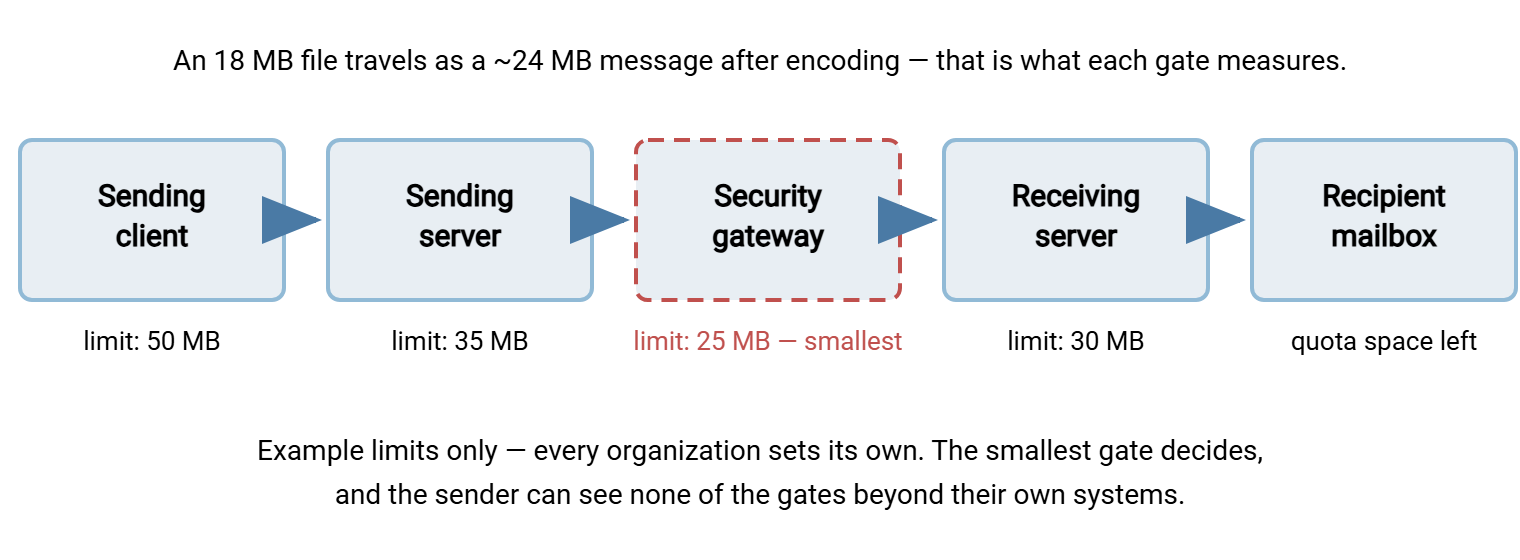
Where do the actual numbers sit? Publicly reachable mail systems commonly enforce ceilings somewhere around the tens of megabytes, with internal systems sometimes configured more generously. Resist the urge to memorize specific numbers: they are configuration choices, they differ between organizations, and they change, usually the week after you memorize them. What does not change is the chain structure and the arithmetic below.
Meridian Parts learned the fourth-hop lesson with a quarterly report. Finance sent it to a distributor on a Thursday afternoon. It cleared the client, the sending server, and Meridian's own gateway without a murmur. Then it met the distributor's gateway, which had a smaller ceiling than the three before it. The gateway did send a bounce, but it came back by a route that Meridian's spam filter classified as backscatter. So the non-delivery report sat in quarantine with the junk, and nobody in finance ever saw it. The report was discovered missing on Monday, when the distributor asked where it was. Meridian now sends quarterly reports as links, and the mail team reviews the quarantine for non-delivery reports from partners they correspond with.
Why the File Grows in Transit
The file grows before it goes anywhere, and this is the part that turns a merely annoying system into a genuinely confusing one. Email was designed, from its earliest days, to carry plain text. Everything that travels in a message — including your spreadsheet, your PDF, your zip file — must first be translated into safe, ordinary text characters. The standard translation is called base64, and the idea is short. Take the file three bytes at a time, and represent each three-byte group as four text characters. Three becomes four. Every part of the file gets one third bigger, before it has traveled anywhere.
On top of that four-thirds growth, the encoded text is broken into short lines (mail systems expect lines of modest length). The message also carries structural headers describing the attachment. Together these add a little more. A practical rule of thumb: the message form of a file is about 1.35 to 1.4 times the size of the file on disk. The arithmetic looks like this:
file on disk:                18.0 MB
after base64 (x 4/3):        24.0 MB
line breaks + headers:       ~0.4 MB
message size on the wire:    ~24.4 MB   --> fits through a 25 MB gate, barely

same math for a 19 MB file:  ~25.8 MB   --> bounces at the same gate

safe-file-size rule of thumb:  limit / 1.4
  (a 25 MB message limit means files up to ~17-18 MB are safe)
One related trap deserves its own sentence: limits apply to the whole message, not to each attachment. Three 8 MB documents attached to the same email make one 24 MB payload — call it 33 MB after encoding. The message bounces even though every individual file looks modest. Users who have learned "keep attachments under about 15 MB" get caught by this constantly. The rule they memorized is per file and the gate measures per message. The gate does not count attachments; it weighs the envelope.
This is also why users swear, truthfully, that their file was under the limit. It was — on disk. The gates along the path never see the file on disk; they see the encoded message. The encoded message is the one that must fit. When you explain the one-third growth to users, the mystery bounces of the past suddenly make sense to them. The explanation costs you two sentences: email converts files to text for the trip, and the text version is about a third bigger.
Remember: divide any advertised message limit by 1.4 to get the real maximum file size. The limit is measured against the encoded message, not against the file the user attached.
What "It Bounced" Really Means
A bounce is formally a non-delivery report (NDR): an automatic message from a mail server explaining that it could not deliver what you sent. Users forward these to the help desk with the subject line "???", but an NDR is not noise. It is a diagnostic, written by the exact machine that refused the message, usually stating its reason. Reading it carefully is the fastest troubleshooting step available. A typical size-related bounce contains a fragment like this:
Delivery has failed to these recipients or groups:

  pat@partner.example

  Remote server returned:
  552 5.3.4 Message size exceeds fixed maximum message size
Three details in that fragment repay attention:
- Who said no. "Remote server returned" tells you the refusal came from the recipient's side, not yours. If your own server refuses, the failure typically happens immediately at Send, and the wording says so.
- The number 552. Mail servers answer every request with a three-digit reply code; codes starting with 5 mean "permanent failure — do not retry." A
552specifically signals that the message exceeded a storage or size allocation. Retrying the identical message is pointless, which is precisely what the code is telling you. - The enhanced code. The dotted number after it refines the story. The code
5.3.4means the message is too big for the receiving system — a hard ceiling an administrator configured. If you see5.2.3instead, the message exceeded a limit on the individual mailbox — the recipient's own cap or quota. Same symptom for the user, different fix for you.
Timing carries information too. An immediate failure, at the moment of sending, means a local checkpoint refused — client or your own server. A bounce within minutes means a remote gate refused on first contact. A bounce hours later, often mentioning that delivery was retried, means the message sat in a queue. A temporary problem (a full mailbox, an unreachable server) failed to clear. I read the timestamp before I read the reason. Where the failure happened in time tells you where it happened in the chain. The chain's full geography, including the scanning stops, is mapped in our companion article on the journey of an attachment.
Why Limits Vary So Much Between Organizations
Users reasonably ask why these limits exist at all, and why one partner accepts a file another refuses. The variation is not arbitrary; each organization is balancing real costs, and different organizations weigh them differently.
Storage multiplies. As we showed in why email is a poor file transfer system, one attachment becomes a copy in every recipient mailbox. It becomes a copy on every synced device, and in every backup of all of the above. A mail administrator who raises the message limit is really multiplying the growth rate of the most expensive storage in the building. Conservative limits are how mail systems defend their disks.
Scanning is heavy. Security gateways do not glance at messages; they buffer the entire message, decode the attachments, unpack archives, and inspect what they find. Memory and processing scale with message size. A gateway that cheerfully accepted enormous messages would need to be sized — and paid for — accordingly. Capping size keeps scanning fast for the overwhelming majority of normal mail.
Queues must stay healthy. Mail servers move thousands of small messages efficiently. A handful of huge messages occupy disproportionate bandwidth and queue time, and a retry storm involving large messages can degrade delivery for everyone. Limits protect the many small messages from the few large ones.
History lingers. Some limits were set years ago, under older constraints, and survive because nothing forced a review. When a partner's limit seems inexplicably tight, it may just be old. There is rarely malice in a message size limit — only accumulated caution. Nobody remembers who set it, and the setting is not telling.
The practical consequence: never design a business process around the assumption that a given file size will fit. The partner's limit is invisible, subject to change without notice, and enforced by machines with no sense of urgency about your Friday deadline.
Finding and Setting the Limits You Control
On your own side of the fence, size limits are ordinary configuration, and they hide in several places that interact. A quick inventory:
| Layer | Who sets it | Symptom when exceeded |
|---|---|---|
| Mail client / webmail attachment cap | Client defaults, sometimes admin policy | Refused at the moment of attaching, clear message |
| Sending server message limit | Your mail administrator | Instant rejection at Send, local error text |
| Gateway / relay policy | Mail or security team (either side) | Bounce citing a policy or size rule, sometimes quarantine |
| Receiving server limit | Recipient's mail administrator | Bounce with 552 / 5.3.4 from the remote server |
| Mailbox cap or quota | Recipient's admin, per user or per plan | Bounce with 5.2.3 or "mailbox full," sometimes delayed |
Two habits make this inventory useful. First, keep your own limits consistent. If the client allows more than the server accepts, users get late failures instead of early ones, which is the worst experience available. Second, keep them documented where users look — the help desk portal, the new-starter guide. Phrase the limits in file terms, not message terms. Say "attachments up to about X are reliable" after you have done the divide-by-1.4 arithmetic for them.
Finally, verify rather than assume. Limits accumulate in mail systems the way firewall rules accumulate everywhere else, and the documented value is not always the enforced value. Ours disagreed for two years before anyone tested. Spend ten minutes with a test mailbox and a set of graduated dummy files — comfortably under, just under, just over your believed limit. That tells you what your own chain actually does, including whether the failure arrives early and plainly or late and cryptically. Do the same test toward any partner your business depends on, once, before a deadline depends on it.
What to Tell Users Before They Hit Send
Users do not want a lecture on reply codes; they want a rule that works. This is the guidance that holds up, phrased for a help page:
- Small files — up to a few megabytes: attach freely. This is what email is for, and our companion piece on when attachments are fine says so without embarrassment.
- Medium files — roughly five to fifteen megabytes: usually fine, occasionally bouncy, especially to external partners whose limits you cannot see. Expect the occasional failure and do not build deadlines on top of it.
- Large files — beyond that: stop fighting the medium. Somewhere in the tens of megabytes, some gate on some path will refuse. The failure will arrive after the user believes the file was sent. Use a transfer link instead.
Notice what compression does and does not buy in each band. Zipping helps text-heavy files — logs, exports, old-format documents — sometimes dramatically. It does almost nothing for photos, video, audio, and modern office formats, which are already compressed internally. And no amount of zipping changes the one-third encoding growth, because encoding happens after compression. Splitting an archive into numbered parts technically works and practically generates a help desk ticket per part. The recipient needs every piece, in order, intact, and one bounce ruins the set.
When the File Is Simply Too Big, Send a Link Instead
Every path through this article converges on the same exit. Past a certain size, the answer is not a cleverer attachment — it is not an attachment. The file stays on a server; the recipient gets a short message containing a link. The download happens over HTTPS, the same encrypted web connection used for banking, in the browser the recipient already has. Size ceilings vanish, and the one-third growth becomes irrelevant. The transfer gains properties email never had: one copy, an access log, and the ability to revoke. The row of gates is still there; the file just stops walking through it.
Standing up that capability is less work than it sounds. A Windows file transfer server such as Sysax Multi Server serves files over HTTPS through a web interface. Recipients click, authenticate, and download with nothing to install. The server also offers SFTP and FTPS for partners who prefer those protocols. Our HTTP and HTTPS file transfer series covers how browser-based transfer works under the hood. The human side — getting users to reach for the link instead of the paperclip — is the subject of weaning users off attachments.
The Version to Keep in Your Head
Attachment size limits are a chain, not a number. Client, sending server, gateways, receiving server, and mailbox each enforce their own ceiling. The smallest one wins, and you can only ever see your own links in the chain. The file grows by roughly a third in transit because email converts it to text. So the real file budget is the limit divided by 1.4. A bounce is a diagnostic worth reading: who refused, the reply code, and the timing locate the failure precisely. And when a file will not fit — or will not fit reliably — the durable fix is a link to a managed server, not a heavier attachment.
From here, follow the message through its scanning stops in the journey of an attachment. Or step back to the structural argument in why email falls short as a file transfer system.
Frequently Asked Questions
Why did my attachment bounce when it was under the size limit?
What is a safe attachment size that will almost always get through?
What does the 552 code in a bounce message mean?
Does zipping a file let it get past the limit?
Why does a partner organization accept smaller attachments than we do?
Can our mail admin just raise the limit for everyone?
From the Sysax team: we build secure file transfer software for Windows. Sysax Multi Server is an FTP, FTPS, SFTP, and HTTPS server. Sysax FTP Automation handles scheduled, scripted transfers. Free trials are on the download page.