
Certificates for FTPS: Issuance, Validation, and the Errors in Between
Ask anyone who runs an FTPS server what generates the most support traffic, and the answer is rarely encryption itself — it is certificates. "The server's certificate is not trusted." "The certificate name does not match." "The certificate has expired." Each of these messages stops a transfer cold, and each has a precise cause. Each gets mis-fixed daily by the worst button in file transfer: Accept anyway.
This article gives you the working model behind those messages. You will learn what a certificate actually proves and how the chain of trust is built from root to server. You will learn why name matching fails even when "the certificate is fine." You will learn how to choose between a public authority, an internal authority, and self-signing. You will also learn how to decode the five errors that account for nearly every certificate ticket. It is part of our FTPS In Depth series. If you have not yet read how TLS wraps FTP, know simply that the certificate is presented during the TLS handshake. That is the key-agreement ceremony at the start of every FTPS connection. Everything here applies at that moment.
What a Certificate Actually Does
A server certificate is a small signed document with three essential contents. It has a name (or list of names) such as ftp.example.com and a public key that belongs to the server. It also has a signature from a certificate authority (CA) — an organization whose job is vouching for identities. During the TLS handshake, the server hands this document to the client, and the client runs three checks before agreeing to continue:
- Is the signature trustworthy? The client follows the certificate's signature up a chain until it reaches an authority it already trusts (more on that chain next). A certificate signed by nobody the client recognizes fails here.
- Does the name match? The hostname the user typed into the client must appear among the names the certificate covers. A perfectly valid certificate for the wrong name fails here.
- Is it currently valid? Certificates carry a not-before and not-after date. Outside that window, the check fails — and so does the connection, for every client, everywhere, at once.
A passport is the honest analogy. It is issued by an authority the border officer already trusts, it names a specific person, and it expires. The officer does not know you; they trust the document because they trust its issuer, and only after confirming the name and the dates. Your FTPS client is that officer, on every single connection.
Why so much ceremony? Because encryption without identity is a trap. TLS can build an unreadable tunnel to anyone — including an attacker impersonating your server on a hijacked network path. The certificate is what guarantees the tunnel terminates at the machine you intended. Skip the check and you have privacy from everyone except the one party attacking you.
The Chain: Root, Intermediate, Leaf
Certificates almost never come signed directly by a trusted authority. Instead there is a chain, usually three links long:
- The root certificate belongs to the certificate authority itself. Roots are pre-installed in the trust store — the list of trusted authorities that ships with operating systems and some applications. Roots are guarded jealously and used rarely.
- The intermediate certificate is a working authority signed by the root. CAs do day-to-day signing with intermediates so the root's key can stay locked away.
- The leaf certificate (also called the server or end-entity certificate) is yours — the one naming
ftp.example.com, signed by the intermediate.
The client's job is to connect your leaf to a root it holds. The diagram below shows where each piece lives and what the server is responsible for sending.
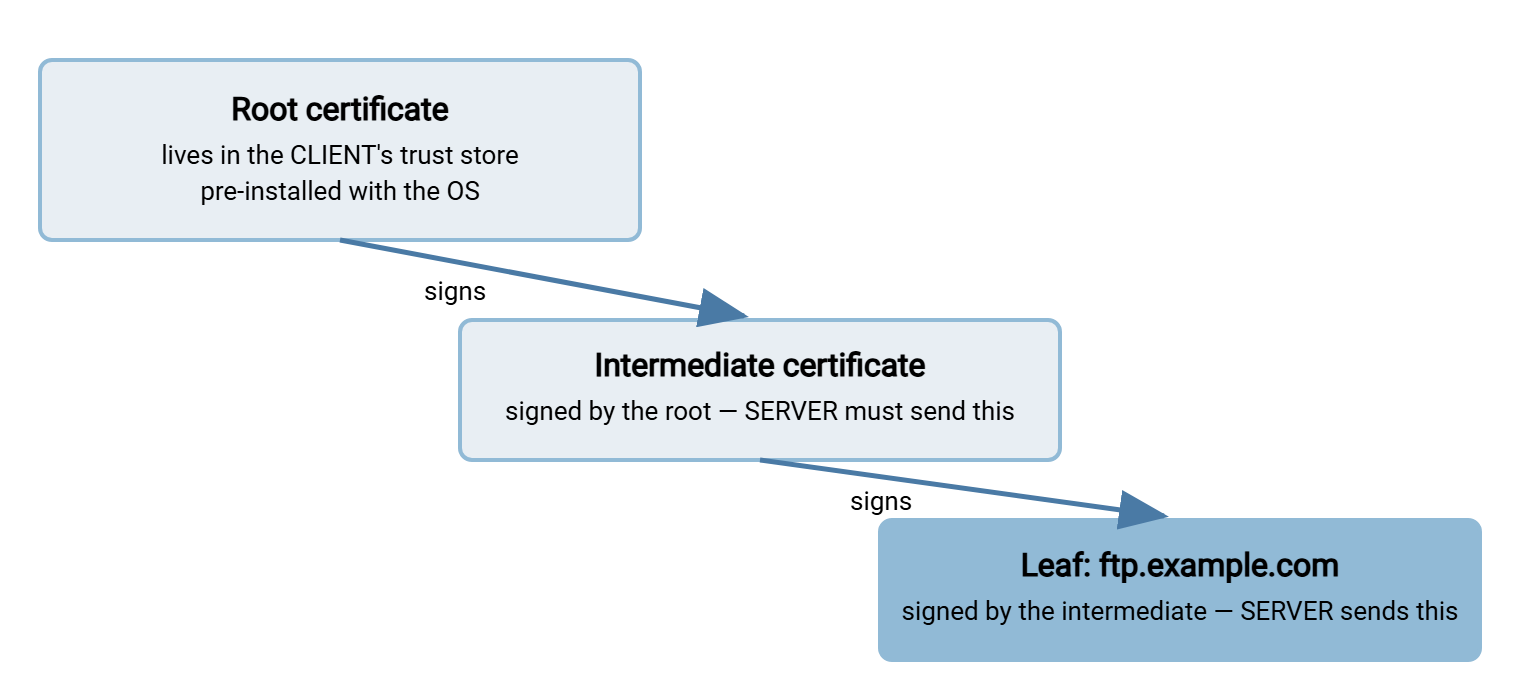
The practical rule hiding in that picture: your server must present the leaf and the intermediate. The client supplies only the root. Install the leaf alone — the single most common certificate mistake — and the client receives a certificate signed by an intermediate it has never seen. The client cannot check that intermediate, so it reports an unknown or untrusted issuer. The cruel part is that some software papers over the gap by fetching missing intermediates from the internet. So the broken chain works in one tool and fails in another. Web browsers often rescue you; FTPS clients, especially scripted ones, usually do not. Always install and test the full chain.
Name Matching: The Check That Fails While Everything Is Valid
The second check trips people because it depends not on the certificate alone but on how the client connected. Certificates list the hostnames they cover in a field called the subject alternative name (SAN). Modern clients check that list and nothing else (the older "common name" field survives only as a legacy fallback). The rules worth knowing:
- The match is against what the user typed. A certificate for
ftp.example.comfails if the client connects tofiles.example.com— even when both names point at the same machine. - Wildcards cover one label only.
*.example.commatchesftp.example.combut notexample.comand notftp.eu.example.com. - IP addresses are not hostnames. Connecting to
203.0.113.10fails name matching unless the certificate explicitly lists that IP address as a SAN entry. Most public authorities will not issue those. Partner documents that give only an IP practically guarantee certificate warnings. Publish a DNS name and certify that. - One certificate can carry many SAN entries, so a server reachable under several names can cover them all with one certificate.
When you write connection documents for partners, this is why the hostname you publish must be exactly the name in the certificate. The client compatibility article includes a template that records it.
Where Certificates Come From: Three Paths
Issuance is a choice among three sources, and the right answer depends on who your clients are.
| Path | Trusted by clients? | Cost & effort | Best for |
|---|---|---|---|
| Public CA (commercial or free automated issuance) | Yes — root already in every trust store | Low cost or free; requires proving control of the DNS name; regular renewals | Anything partner-facing or internet-facing |
| Internal (private) CA | Only after you distribute your root to every client machine | Free to issue; real work to operate the CA and push the root out | Fleets of internal servers in a managed environment |
| Self-signed | No — every client must accept or pin it deliberately | Free, instant, no outside dependency | Labs, testing, and small fixed partner setups with fingerprint exchange |
The decision logic is short. If strangers or partner companies connect to you, use a public CA. Their clients already trust it, and nobody has to click through warnings. If the server is internal and your machines are centrally managed, an internal CA gives you free certificates. The cost is running the authority and distributing its root. Self-signed is legitimate for a lab, a test bench, or a single fixed partner — but only when done honestly, which deserves its own section.
Self-Signed, Done Honestly
A self-signed certificate is a leaf that vouches for itself: no chain, no authority, just a name and a key signed with that same key. Clients rightly refuse it by default, because anyone — including an attacker — can mint one claiming to be your server. The warning dialog is not an error; it is the system working.
The honest way to use one relies on the certificate's fingerprint — a short cryptographic hash (a digest such as SHA-256) that uniquely identifies exactly one certificate. The workflow:
- Generate the certificate on the server and compute its fingerprint.
- Send the fingerprint to the client's operator through a different channel than the connection itself — the phone, a signed email, the partner portal.
- The person connecting compares the fingerprint their client displays against the one you sent. If they match, they accept — and the client pins that certificate, trusting exactly it from then on.
Verified this way, a self-signed certificate provides real security. What corrodes it is habit: users who see warnings routinely stop reading them. A workforce trained to click Accept will click it just as cheerfully for an attacker's certificate. Reserve self-signing for setups small enough that verification actually happens. Expect extra coordination at renewal, when the fingerprint changes and every pinned client must be updated by hand.
Remember: every "accept this certificate?" prompt is asking a security question your users cannot answer by intuition. If your servers routinely present certificates that trigger warnings, you are training people to ignore the only alarm TLS has. Spending an afternoon on a properly chained certificate is cheaper than un-training that habit.
Installing It on the Server
However issued, the server ends up needing three things: the leaf certificate, the intermediate(s), and the private key. The private key is the secret half of the key pair, generated on your server and never sent to anyone, CA included. On Windows these are commonly bundled into a single password-protected PFX (PKCS #12) file for import. Guard that file and its password like a credential, because whoever holds the private key can impersonate your server.
The mechanics vary by product but rarely exceed a few clicks. In Sysax Multi Server, certificate configuration is part of the server settings. You point the server at the certificate it should present for FTPS (and HTTPS) connections. The same certificate then protects every session the server accepts. Whatever software you run, the non-negotiable final step is the same: verify from the outside. Use a real client on a machine that has no special trust installed, before a partner does it for you.
The Five Classic Certificate Errors, Decoded
Different clients word them differently, but nearly every certificate failure you will ever see is one of these five. The habit to build: read which check failed, because each points to a different fix.
1. "Untrusted certificate" / "unable to get local issuer certificate"
The chain check failed: the client could not connect your leaf to a root it trusts. Two causes dominate. Either the server presents the leaf without its intermediate — fix by installing the full chain. Or the certificate comes from an internal CA whose root was never installed on this client machine — fix by distributing the root. The tell for a missing intermediate: some clients work (they fetched or cached it) while others fail against the same server.
2. "Certificate name does not match host"
The name check failed: the client connected to a hostname (or IP) the certificate does not cover. Fix by connecting to the exact name in the certificate, or by reissuing the certificate with the missing name added as a SAN entry. Frequent triggers: partners connecting by IP address, internal shortcuts like ftp01 instead of the full name, and wildcard certificates asked to cover two levels.
3. "Certificate has expired" (or "not yet valid")
The date check failed. Usually the certificate genuinely expired — renewal discipline below — but check one more thing before renewing in a panic: the client's clock. A machine with a wildly wrong date fails date checks against perfectly valid certificates. "Not yet valid" errors are almost always a clock problem, commonly on appliances that lost time sync.
4. "Self-signed certificate in chain"
The client met a certificate that vouches for itself. If you expected a self-signed deployment, this is the prompt for the fingerprint ritual described above — verify, then pin. If you did not expect it, stop. Either the server was set up with a placeholder certificate that was never replaced, or something between you and the server is intercepting the connection. Verify out-of-band before accepting anything.
5. "Certificate revoked" or "weak signature algorithm"
The certificate is intact but disqualified. Its authority published a revocation for it, or it uses parameters modern clients refuse, such as an obsolete hash algorithm or an undersized key. Both mean reissue. Revocation checks also fail silently by network. A client that cannot reach the CA's revocation service may error or may skip the check. That is another reason identical servers behave differently from different networks.
Verifying From the Outside
The openssl command-line tool shows you exactly what any client will see. Three commands cover the routine checks — run them from a machine outside your network when possible, substituting your host:
# 1. Show the certificate chain your explicit-FTPS server presents on port 21
openssl s_client -connect ftp.example.com:21 -starttls ftp -showcerts

# 2. Check the names and validity dates of the presented certificate
openssl s_client -connect ftp.example.com:21 -starttls ftp 2>/dev/null \
  | openssl x509 -noout -subject -dates -ext subjectAltName

# 3. Print the SHA-256 fingerprint (for pinning or partner verification)
openssl s_client -connect ftp.example.com:21 -starttls ftp 2>/dev/null \
  | openssl x509 -noout -fingerprint -sha256
In the first command's output, look for the chain: you should see your leaf and the intermediate listed. You should also see a final line reporting a verification result of OK or an error code naming which check failed. For an implicit-mode listener, drop -starttls ftp and connect to port 990 instead — the explicit vs implicit article explains that distinction. These same probes, run before a partner's first connection attempt, catch chain and name problems while they are still your private business.
Renewal: The Outage You Can Schedule
Certificate expiry is the rare failure that announces its exact date in advance and still causes outages, because the date lives in a file nobody looks at. Treat renewal as an operational process, not an event:
- Monitor expiry with anything that nags. That could be a monitoring check, a shared calendar entry at 30 and 7 days out, or even command 2 above run on a schedule. Never rely on memory.
- Renew early and test with the outside-view commands before and after swapping the certificate.
- Warn pinned partners. Anyone who pinned your certificate or its fingerprint — common with self-signed setups and cautious automation — will break the moment you rotate. Send the new fingerprint ahead of the change.
- Sweep your own unattended jobs. Scheduled transfers verify certificates too, and a renewal at the far end can stop a nightly job that has run quietly for ages. In a scheduling tool such as Sysax FTP Automation, that appears as a connection failure in the task log with a certificate message. After any partner's renewal, expect to re-verify what their server now presents.
The Version to Tell a Colleague
A certificate is the server's passport: a named public key vouched for by an authority, checked on every connection for trust, name, and dates. The server must present its leaf plus the intermediate; the client supplies the trusted root. Most errors decode in one line. Untrusted issuer means a broken chain or undistributed root. Name mismatch means you connected by a name the certificate does not cover. Expired means renewal (or a bad clock). Self-signed means verify the fingerprint or walk away. Revoked or weak means reissue. And Accept anyway is not a fix; it is the off switch for the only identity check FTPS has.
From here, hardening FTPS covers the key sizes and protocol settings that keep the certificate's promises meaningful. The client compatibility matrix maps how different client types behave when a certificate check fails — from strict refusal to the dangerous silent accept.
Frequently Asked Questions
Do I have to pay for an FTPS certificate?
Can my FTPS server use the same certificate as my website?
Why do some machines accept my certificate while others reject it?
What exactly is a certificate fingerprint?
Will an expired certificate actually stop my transfers?
Can partners just connect to my IP address instead of a hostname?
From the Sysax team: we build secure file transfer software for Windows. Sysax Multi Server is an FTP, FTPS, SFTP, and HTTPS server. Sysax FTP Automation handles scheduled, scripted transfers. Free trials are on the download page.