
Real PowerShell Transfer Job Patterns: A Nightly Job You Can Copy
There is a wide gap between the snippets that teach a technique and the script you would actually trust with a production file feed. The snippet uploads a file. The production job also has to decide what to do when there are no files and write a log a stranger can read. It has to stop the transcript even when the transfer throws and hand Task Scheduler an exit code that means something. Most tutorials never cross that gap, which is why so many real-world jobs are snippets wearing a scheduled task as a trench coat.
This article crosses it. We build a complete nightly upload job as a single template you can copy and adapt. It includes a configuration block, logging function, transcript, try/catch/finally structure, and meaningful exit codes. Then we wire it to Task Scheduler correctly and walk through the variations for downloads, partial failures, and retries. The template assumes the pieces from earlier in our PowerShell Automation series. These include file selection from the file-operations article and the SFTP wrapper from the SFTP scripting article. They also include a credential or key set up per the credentials article.
The Anatomy of a Job That Survives
Every durable transfer job, whatever it moves, has the same skeleton. Configuration is at the top, and observability starts before any work. The work itself is inside a try block, with failure handling in catch and guaranteed cleanup in finally. A single exit point reports one honest number to the scheduler. The diagram shows the flow, including the two paths every run takes to the same bottom line:
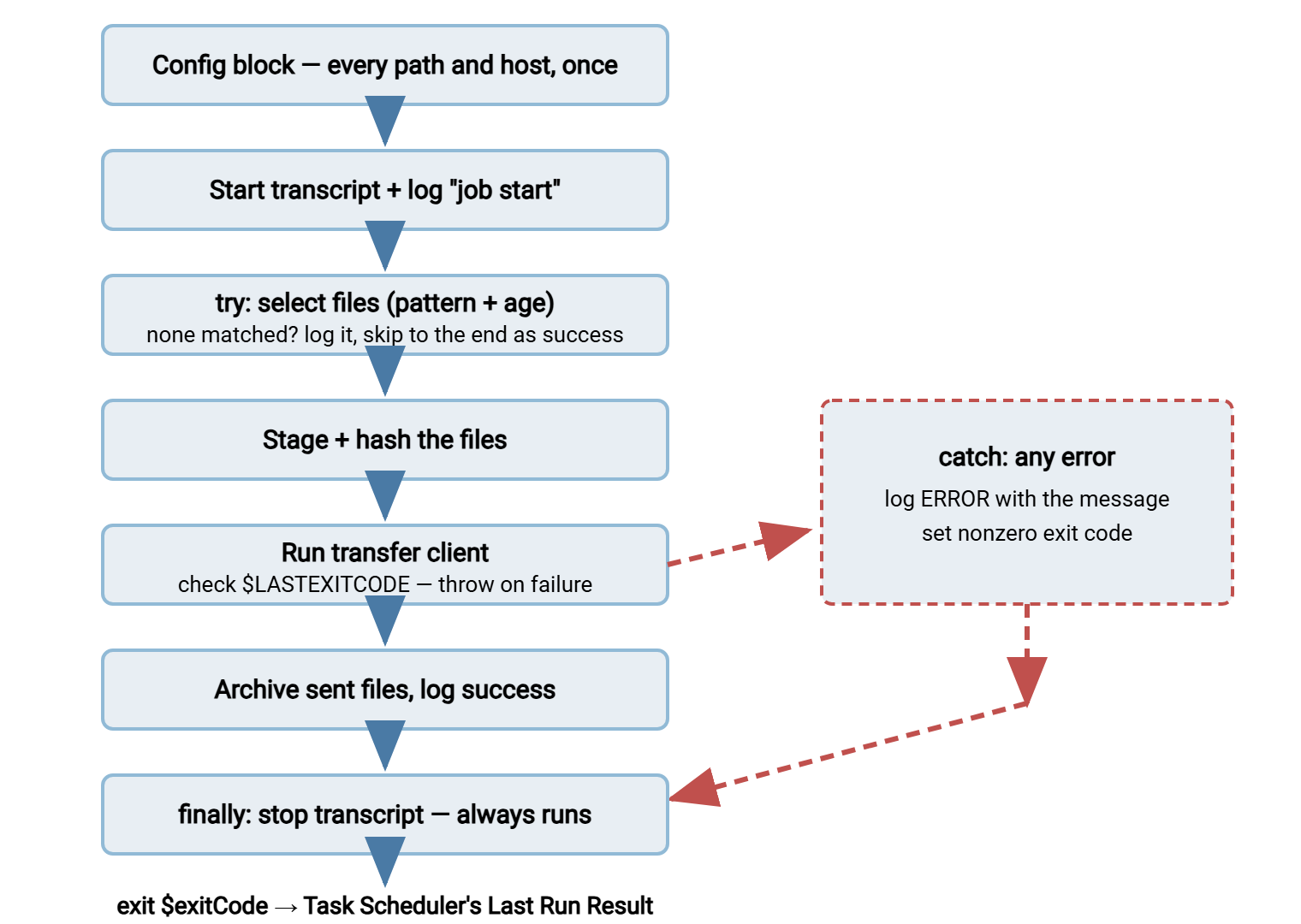
Three design decisions in that picture do most of the work. Config lives in one block so operators change values without reading logic. Observability starts before the first risky operation so even a failure in step one leaves evidence. And both the success path and the failure path converge on one exit statement. So there is exactly one place where the job's verdict is decided — no scattered exit calls to disagree with each other.
Before the Template: The Conventions It Assumes
A job template is only half the pattern; the other half is a predictable home for it. The template below assumes a deliberately boring layout. It has a D:\jobs root containing the scripts themselves. A secure subfolder holds the key and known-hosts file with NTFS access restricted to the service account and administrators. The account can write to a logs subfolder. There is one script per job, named for what it does (nightly-upload.ps1, not script2-final.ps1). Each script is self-contained enough that a stranger can open it and understand the whole flow. Suppose every job on every server follows the same layout. An on-call admin who has never seen this particular job still knows exactly where its log, its key, and its config live. That familiarity, multiplied across incidents, is worth more than any clever feature.
The template also assumes the groundwork from earlier articles is done. The service account exists and is least-privileged. The SSH key pair is generated and the private key readable only by that account. The server's host key is recorded in a job-owned known-hosts file. If any of that is missing, start with the credentials article — the template will fail fast without it, which is by design.
The Complete Template
Here is the whole job. It uploads the day's export files over SFTP by driving the OpenSSH client, using the key, known-hosts file, and no-prompt options built earlier in the series. Copy it, change the config block, and you have a defensible nightly job:
<#  nightly-upload.ps1
    Stages daily export files and uploads them over SFTP.
    Runs from Task Scheduler as DOMAIN\svc-transfer.
    Exit codes: 0 = success (including nothing to send)
                1 = unexpected error
                2 = environment/config problem
                3 = transfer failed
#>

# ---------- configuration: the only section operators edit ----------
$SourceDir  = 'D:\exports'
$StageDir   = 'D:\staging'
$ArchiveDir = 'D:\archive'
$Pattern    = 'report_*.csv'
$MinAgeMin  = 10
$SftpHost   = 'sftp.example.com'
$SftpUser   = 'transfer'
$KeyPath    = 'D:\jobs\secure\transfer_key'
$KnownHosts = 'D:\jobs\secure\known_hosts'
$RemoteDir  = '/inbox'
$LogPath    = 'D:\jobs\logs\nightly-upload.log'
$TransPath  = "D:\jobs\logs\transcript_$(Get-Date -Format 'yyyyMMdd').txt"

# ---------- logging ----------
function Write-Log {
    param([string]$Message, [string]$Level = 'INFO')
    $line = "{0} [{1}] {2}" -f (Get-Date -Format 'MMM dd HH:mm:ss'), $Level, $Message
    Add-Content -Path $LogPath -Value $line
    Write-Output $line   # also reaches console and transcript
}

# ---------- run ----------
$exitCode = 0
Start-Transcript -Path $TransPath -Append | Out-Null
try {
    Write-Log "job start: $Pattern from $SourceDir to $SftpHost$RemoteDir"

    if (-not (Test-Path $SourceDir -PathType Container)) {
        $exitCode = 2
        throw "source folder missing: $SourceDir"
    }
    New-Item -Path $StageDir -ItemType Directory -Force | Out-Null

    $cutoff = (Get-Date).AddMinutes(-$MinAgeMin)
    $files = @(Get-ChildItem -Path $SourceDir -Filter $Pattern -File |
        Where-Object { $_.LastWriteTime -lt $cutoff })
    Write-Log "matched $($files.Count) file(s)"

    if ($files.Count -gt 0) {
        foreach ($f in $files) {
            Copy-Item -Path $f.FullName -Destination $StageDir
            $hash = Get-FileHash -Path $f.FullName -Algorithm SHA256
            Write-Log "staged $($f.Name) size=$($f.Length) sha256=$($hash.Hash)"
        }

        $batch = @("cd $RemoteDir")
        foreach ($f in $files) { $batch += "put `"$StageDir\$($f.Name)`"" }
        $batch += 'bye'
        $batchFile = Join-Path $env:TEMP "upload_$PID.batch"
        Set-Content -Path $batchFile -Value $batch -Encoding ascii

        $output = & sftp -b $batchFile -i $KeyPath `
            -o 'BatchMode=yes' -o "UserKnownHostsFile=$KnownHosts" `
            "$SftpUser@$SftpHost" 2>&1
        Remove-Item -Path $batchFile -ErrorAction SilentlyContinue
        if ($LASTEXITCODE -ne 0) {
            $exitCode = 3
            throw "sftp exit code $LASTEXITCODE : $output"
        }

        $dest = Join-Path $ArchiveDir (Get-Date -Format 'yyyyMMdd')
        New-Item -Path $dest -ItemType Directory -Force | Out-Null
        foreach ($f in $files) {
            Move-Item -Path $f.FullName -Destination $dest -Force
            Remove-Item -Path (Join-Path $StageDir $f.Name) -ErrorAction SilentlyContinue
        }
        Write-Log "job success: sent $($files.Count) file(s)"
    }
    else {
        Write-Log 'nothing to send - treating as success'
    }
}
catch {
    if ($exitCode -eq 0) { $exitCode = 1 }
    Write-Log "job FAILED: $($_.Exception.Message)" 'ERROR'
}
finally {
    Stop-Transcript | Out-Null
}
exit $exitCode
Why the Template Is Built This Way
The config block is boring on purpose. Every value someone might ever change — paths, host, pattern, age window — sits at the top with nothing computed in between. When the export folder moves next year, the fix is one line in one obvious place, made by someone who never has to understand the try block.
The logging function writes twice. Add-Content appends the curated line to the job's log file. Write-Output sends the same line to the output stream, where the transcript — and anything else capturing the run — picks it up. Timestamps use a month-day-time format so every line answers "when," and each line states one event with its evidence: counts, sizes, hashes, exit codes. That style is what makes a log answer questions at 3 a.m.; the deeper craft is in the error-handling and logging article.
The transcript is the flight recorder. The log holds what the job chose to say. Start-Transcript records everything that hit the console — including the raw error text from the SFTP client that the log line summarized. Stopping it in finally matters because finally runs on both the success and failure paths, and — usefully — even when the script leaves via exit. One flight recorder per run, always closed properly.
Exit codes are decided in one place, meaningfully. The variable $exitCode starts at 0. Specific failures set a specific code before throwing (2 for a missing environment, 3 for a failed transfer). The catch block only applies the generic 1 when nothing more specific was set. The final line — exit $exitCode — is the single door out, and its number lands in Task Scheduler's Last Run Result. There, a monitoring system can distinguish "the folder was missing" from "the partner's server refused us." That distinction is the difference between paging the Windows admin and emailing the partner.
"Nothing to send" is an explicit decision. This template treats an empty match as success, loudly logged — right for jobs where files are occasional. For a feed where the daily file must exist, silence is a failure: give that condition its own exit code and alert on it. Missing-file detection is a monitoring discipline of its own, covered in our transfer job monitoring series.
Remember: the wrapping is not bureaucracy — it is the job. The transfer itself is five lines. Everything else exists so that when something eventually fails (and it will), the failure is visible, diagnosable, and correctly classified without anyone reconstructing history from memory.
Reading a Run: What the Log Should Look Like
Before trusting the template, look at what it produces. A healthy night writes a log like this — one event per line, each with its evidence:
Mar 14 02:10:03 [INFO] job start: report_*.csv from D:\exports to sftp.example.com/inbox
Mar 14 02:10:03 [INFO] matched 3 file(s)
Mar 14 02:10:04 [INFO] staged report_east.csv size=1284403 sha256=9C2E1A...
Mar 14 02:10:04 [INFO] staged report_west.csv size=1190257 sha256=44B0F7...
Mar 14 02:10:05 [INFO] staged report_north.csv size=902114 sha256=E31C88...
Mar 14 02:10:19 [INFO] job success: sent 3 file(s)
And a bad night tells you, in one line, both what broke and which class of failure it was:
Mar 15 02:10:02 [INFO] job start: report_*.csv from D:\exports to sftp.example.com/inbox
Mar 15 02:10:02 [INFO] matched 2 file(s)
Mar 15 02:10:04 [INFO] staged report_east.csv size=1301776 sha256=A0D913...
Mar 15 02:10:04 [INFO] staged report_west.csv size=1217020 sha256=7F42C5...
Mar 15 02:11:35 [ERROR] job FAILED: sftp exit code 255 : ssh: connect to host
    sftp.example.com port 22: Connection timed out
Notice what makes these lines useful: the counts say whether selection worked. The sizes and hashes give you something to compare when a partner disputes a file. The failure line carries the client's own error text — captured through that 2>&1 in the template. So nobody has to re-run the job just to see the message. Reviewing yesterday's log takes ten seconds; reconstructing yesterday without one takes a meeting.
Wiring It to Task Scheduler
A perfect script wired badly is still a broken job. The scheduled task's action should be:
Program:   powershell.exe
Arguments: -NoProfile -ExecutionPolicy Bypass -File "D:\jobs\nightly-upload.ps1"
Start in:  D:\jobs
Each piece earns its place. -NoProfile skips loading any user profile script, so the job cannot be broken by someone's console customizations. -ExecutionPolicy Bypass applies only to this process and prevents the machine's script policy from silently blocking the run. And -File — not -Command — is what makes exit codes work. With -File, the script's exit 3 becomes the powershell.exe process exit code that the scheduler records. With -Command, the mapping is unreliable and mostly collapses to 0 or 1, quietly destroying the classification you built. "Start in" gives the process a working directory so any relative path resolves predictably.
In the task's settings, run it as the dedicated service account (set up as in service account hygiene). Choose "Run whether user is logged on or not". Set "Stop the task if it runs longer than" as the backstop against a hung network call blocking tomorrow's run. Two settings deserve a conscious decision rather than a default. The setting "Run task as soon as possible after a scheduled start is missed" determines whether a reboot at the wrong moment silently skips a night. The task's own "If the task fails, restart every..." retry can either complement or fight the retry logic inside your script. Pick one layer to own retries and disable the other. Scheduler-side design — triggers, misfires, reboots — is its own topic, covered in the scheduled jobs series.
Variations You Will Need
The download job
Downloads invert one assumption: the interesting failure is usually a file that did not arrive. Structure the job to fetch into a staging folder (get lines in the batch instead of put). Verify the expected file exists locally afterward with Test-Path, and check that its size is plausible. Only then move it — same-volume, temp-name-then-rename — to where downstream systems watch. Give "expected file absent" its own exit code and treat it as seriously as a failed connection. From the business's point of view, they are the same outage.
Many files, partial failure
When one run sends many files, decide in advance what a single failure means. Abort-on-first-error (the template's behavior, inherited from the SFTP client's batch mode) is right when files form a set that must land together. Per-file independence is right when each file stands alone. In that case, loop, wrap each file's transfer in its own try/catch, collect failures, and keep going. Exit nonzero at the end if anything failed, with the log naming exactly which files need attention. The general theory of partial failure and retry lives in our retry and error handling series.
Datestamped names on the remote side
Many partners require each day's file to carry the date in its name — report_YYYYMMDD.csv — so that nothing overwrites and everything sorts. The template accommodates this with one change in the batch-building loop. Compute the token once with $stamp = Get-Date -Format 'yyyyMMdd'. Then write put lines of the form put "local.csv" /inbox/report_$stamp.csv, renaming as part of the upload. Keep the token format identical across every job that touches the feed — mixed date formats in one folder are a slow-motion incident. Designing conventions that sort, parse, and never collide is the subject of our file naming and datestamping series.
A simple retry wrapper
Transient network faults deserve one or two patient retries before the job declares failure:
$maxTries = 3
for ($try = 1; $try -le $maxTries; $try++) {
    & sftp -b $batchFile -i $KeyPath -o 'BatchMode=yes' `
        -o "UserKnownHostsFile=$KnownHosts" "$SftpUser@$SftpHost" 2>&1
    if ($LASTEXITCODE -eq 0) { break }
    Write-Log "attempt $try failed (exit $LASTEXITCODE)" 'WARN'
    if ($try -lt $maxTries) { Start-Sleep -Seconds (60 * $try) }
}
if ($LASTEXITCODE -ne 0) { $exitCode = 3; throw 'transfer failed after retries' }
The growing sleep — one minute, then two — gives a rebooting firewall or a briefly overloaded server room to recover, without hammering it. Log every attempt. A job that quietly succeeded on try three is telling you something about the network that you want to know before try three stops being enough. (This is also a place where task-based tools earn their keep — retry behavior in a Sysax FTP Automation task is a setting rather than a loop you maintain.)
Maintaining a Fleet of These
The template scales gracefully to a handful of jobs: same skeleton, different config blocks, one set of habits to review. It scales less gracefully to twenty — at that point you are maintaining a small software product, with per-job keys, logs, retries, and rotation dates. Two honest paths exist. Standardize harder on the script side: one shared template file, config separated from logic, everything in version control. Or move the routine jobs into a transfer automation tool. Sysax FTP Automation generates the equivalent of this article's whole skeleton through a wizard, with no script to maintain. That means scheduled SFTP, FTPS, or FTP tasks with folder monitoring, retry behavior, and email notification on failure. The tool's command-line client sysaxftp.exe can also serve as the transfer engine inside the template above when a partner requires FTPS. The client is called and exit-code-checked exactly like sftp. Many teams land on a mix: tooling for the routine feeds, this template where custom logic genuinely earns its keep.
Take the Skeleton, Keep the Discipline
Copy the template, but more importantly copy its commitments. These include configuration in one block, evidence before action, one exit door with honest numbers, and cleanup that runs no matter what. They include an explicit answer to "what does an empty day mean?" Those commitments transfer to every job you will ever schedule, in any language. From here, error handling and logging in PowerShell transfer scripts deepens the catch and log-format craft this template used. The article on handling credentials safely covers the secure setup the config block quietly assumed.
Frequently Asked Questions
Why does Task Scheduler show 0 even when my script failed?
-Command instead of -File, which does not reliably pass your script's exit code through to the process. Use -File and explicit exit N statements, and the number lands in Last Run Result as intended.Should "no files to send" be a success or a failure?
Does the finally block really run if the script calls exit?
exit is used inside a try, PowerShell runs the finally block before the script terminates, so the transcript still gets stopped. The template keeps a single exit $exitCode after the whole structure anyway, which is easier to reason about than exiting from inside.What is the difference between the log file and the transcript?
How do I test the job as the service account before the first night?
From the Sysax team: we build secure file transfer software for Windows. Sysax Multi Server is an FTP, FTPS, SFTP, and HTTPS server. Sysax FTP Automation handles scheduled, scripted transfers. Free trials are on the download page.