
Handling Credentials Safely in PowerShell Transfer Jobs
Somewhere in almost every organization there is a scheduled script with a line like $password = 'Winter#Warehouse9'. Nobody planned it. It was written on a deadline, it worked, and it has been quietly copied into three other scripts since. Transfer jobs are the worst offenders, because they must authenticate to something by definition. And they run unattended, so the tempting shortcut is to put the secret where the script can always find it: inside the script.
This article is the honest guide to doing better. You will learn what SecureString actually protects (less than its name implies, more than nothing). You will learn how the standard encrypted-credential-file pattern works and exactly what binds it to one account on one machine. You will learn where Windows Credential Manager fits and why key authentication beats every stored password. You will also learn about the service-account trap that makes credentials work in your console and fail at night. This article is part of our PowerShell Automation series, and it underpins every connection example in the SFTP scripting article.
Why Plaintext in a Script Is Worse Than It Looks
The threat is not primarily a movie hacker reading your code. It is breadth of casual exposure. A script is the most-shared kind of file an IT team owns. It gets copied to a second server "temporarily," and committed to version control where every future teammate can read history. It gets included in backups with different access rules than the original folder, pasted into a ticket to show a colleague the logic, and captured in transcripts. A password inside travels to every one of those places, invisibly, forever. And transfer credentials are rarely trivial. The account they unlock can often read or write business data on a partner-facing system, with the blast radius described in service account hygiene.
So the design rule for every job in this series: treat the script as public, and keep secrets somewhere the script can reach but a copy of the script cannot carry along. Everything below is a way of honoring that rule, in increasing order of strength.
SecureString, Honestly
PowerShell's native container for secrets is the SecureString — a string kept encrypted in the process's memory, using DPAPI (the Data Protection API). DPAPI is Windows' built-in encryption service that derives keys from a user account so that no application ever manages key material itself. When you run Get-Credential, the password you type lands in a SecureString inside a PSCredential object. That is a bundle of username plus secured password that connection cmdlets accept directly.
What this genuinely buys you: the password is not sitting in plain text in a variable. It does not appear when someone dumps $cred to the console, and is not trivially readable in a casual memory scrape. What it does not buy you: protection from code running as the same user. Any process in your session can ask a PSCredential for its plain contents. The expression $cred.GetNetworkCredential().Password does it in one call, and legitimately so, because the connection code eventually needs the real bytes. SecureString is a seatbelt against accidents, not a vault against attackers who are already running code as you.
The pleasant part is how cleanly PSCredential plugs into everything else. Connection cmdlets take it whole — -Credential $cred — so the password never appears in your code at all. The object flows from storage to the cmdlet without you touching its contents. When you do need the raw pieces for an external client's configuration, $cred.UserName and $cred.GetNetworkCredential().Password extract them at the last possible moment, inside the narrowest possible scope. The discipline is to keep the secret inside the object until the final handoff, and never to park it in an intermediate plain variable "just for a second."
One construction deserves special scorn: ConvertTo-SecureString 'Winter#Warehouse9' -AsPlainText -Force inside a script. The password is still plaintext in the file — it has merely been laundered through a security-sounding cmdlet on its way to use. If you see this in an inherited job, treat it exactly like a hardcoded password, because it is one.
The Standard Pattern: A DPAPI-Bound Credential File
The workhorse pattern for unattended jobs stores the credential in an encrypted file, created once, imported on every run:
# ONE TIME, at setup - prompts for the password, saves it encrypted
Get-Credential -UserName 'transfer' -Message 'SFTP account' |
    Export-Clixml -Path 'D:\jobs\secure\sftp-cred.xml'

# EVERY RUN, inside the job - no prompt, no plaintext anywhere
$cred = Import-Clixml -Path 'D:\jobs\secure\sftp-cred.xml'
Export-Clixml serializes the PSCredential to disk. Here is the crucial mechanics: the password portion is encrypted with DPAPI using keys derived from the user account doing the exporting, on the machine doing the exporting. The resulting file decrypts only for that same account on that same machine. That binding is the protection: copy the file to another server, or open it as another user, and the password portion is unreadable garbage. No key to manage, no passphrase to store — the Windows account is the key.
Now the honest limits, because this pattern is often oversold:
- Anything running as the account can decrypt it. The file is exactly as secure as the account. Malware, a malicious coworker with the account's password, or any scheduled task running under the same identity can import the credential as easily as your job does. This is why the job account should be dedicated and least-privileged — the file inherits the account's entire exposure.
- Administrators can reach it indirectly. Anyone who can become the account — reset its password, run tasks as it, or log on as it — can decrypt the file. DPAPI does not protect secrets from the machine's admins; nothing local does.
- The binding cuts both ways. Migrating the job to a new server, restoring from backup onto different hardware, or renaming the account all silently orphan the file. Rebuild it as part of any migration runbook, or the first scheduled run on the new machine fails at import or authentication.
- It stores a password that can go stale. When the remote system's password rotates, the file still decrypts perfectly — and hands your job the old password. More on rotation below.
The service-account context trap
Here is the failure that catches nearly every team once. You set up the credential file at your desk — logged on as yourself — and the export works flawlessly. That night the scheduled task runs as svc-transfer, tries to import the file, and dies. The file is bound to your account, not the job's. Everything DPAPI-based is per-account: credential files, Credential Manager entries, even the SSH client's per-profile files met in the SFTP article. The setup step must therefore run as the service account, on the job machine. Two practical ways:
- Open a console as the account.
runas /user:DOMAIN\svc-transfer powershellstarts PowerShell as the service account (it prompts for that account's password), and you run the one-timeExport-Clixmlthere. This works when the account is permitted to log on this way; many hardened service accounts are not. - Use a one-time scheduled task. Create a task that runs as the service account and executes a short bootstrap script which builds the credential and exports it. Then delete both the task and the bootstrap script. Because a task cannot answer a prompt, the bootstrap briefly contains the password in text. This is acceptable only because the bootstrap lives for minutes and is deleted immediately after the export succeeds.
Do not skip the deletion. The bootstrap script from method two is a plaintext password with a filename. Delete it the moment the credential file is verified, and check it never landed in a backup or recycle bin. A "temporary" bootstrap file that survives is worse than the hardcoded password you were trying to eliminate — it looks official and nobody remembers it exists.
Then verify like an adult: trigger the real job once, as the real account, and watch it authenticate. Testing under your own login proves nothing about the account that matters — a theme that recurs throughout scheduled job design. The whole setup, as a checklist you can paste into the job's runbook:
CREDENTIAL FILE SETUP - once per job, per machine
[ ] 1. Create/identify the dedicated service account (least privilege)
[ ] 2. Create D:\jobs\secure\ - NTFS access: service account + admins only
[ ] 3. AS THE SERVICE ACCOUNT (runas or one-time task):
       Get-Credential -UserName 'transfer' | Export-Clixml D:\jobs\secure\sftp-cred.xml
[ ] 4. Delete any bootstrap script used in step 3 - verify it is gone
[ ] 5. Trigger the real scheduled job once; confirm authentication in the log
[ ] 6. Record in the job inventory: account, file path, rotation due date
The Ladder of Protections
The diagram below arranges the options from weakest to strongest. Each step up removes a whole category of exposure; the top rung removes the reusable secret itself.
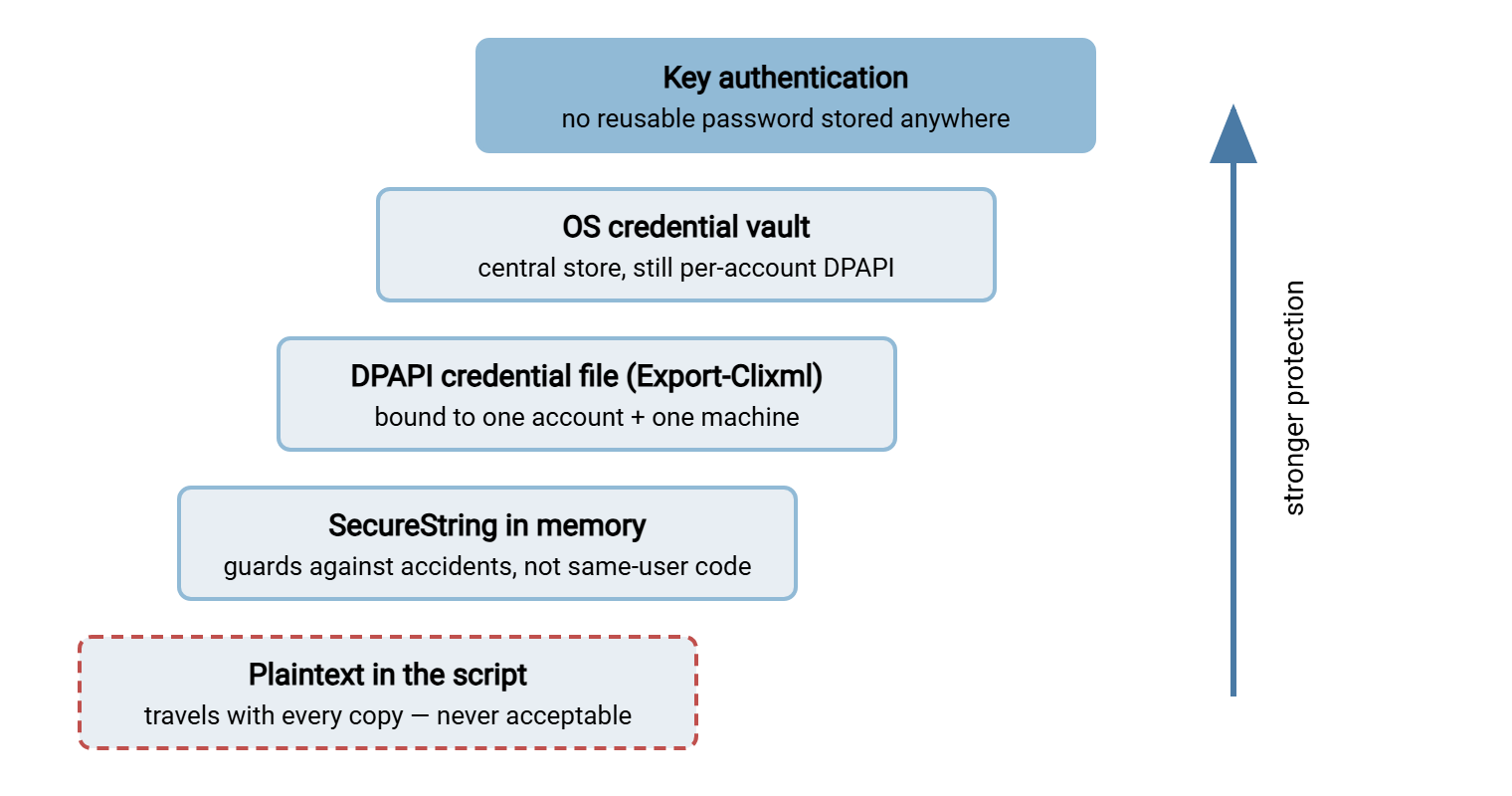
Windows Credential Manager: useful, with a catch
Windows also has a built-in credential vault — the one behind "saved passwords" in the OS. The command-line tool cmdkey writes to it (cmdkey /generic:sftp-job /user:transfer /pass prompts and stores). Entries are DPAPI-protected per account just like the Clixml file. The vault gives you a central place to inventory stored secrets. The catch for scripters: PowerShell ships no built-in cmdlet for reading a generic vault entry back into a PSCredential. Retrieval takes a community module or direct .NET interop — one more dependency to manage. That is why the Clixml file remains the most common script pattern: slightly less elegant, zero dependencies. If your team already manages modules deliberately, the vault route is a fine standard; if not, the file is the pragmatic choice. Either way the per-account, per-machine caveats above apply unchanged.
The Strongest Answer: Do Not Have a Password
Every stored password is a reusable secret that must be protected, rotated, and eventually leaked or forgotten. Key authentication removes the category. For SFTP, the job authenticates with a private key file; the server holds the matching public key; no password exists to store, type, echo, or commit. The practical notes that make it work unattended:
- Protect the key file with NTFS permissions — readable by the service account and administrators, nobody else. For unattended jobs the key usually has no passphrase (there is no human to type one). So file permissions and a least-privileged, single-purpose account carry the security weight. Generation and storage practice is covered in generating and storing SSH keys.
- Pair it with server-side restrictions. Ask the server's administrator to limit what the key may do — SFTP only, from your addresses — so a stolen key is a contained problem. The options are described in SFTP authentication methods.
- Rotation becomes graceful. Add a new public key on the server, switch the job to the new private key, remove the old public key. There is no simultaneous cutover, no midnight coordination with a password change.
Honesty requires one caveat: keys are an SSH-world answer. A partner offering only FTPS, or a legacy FTP device, still needs a stored password. That is exactly when the DPAPI file pattern, on a dedicated account, is the right tool rather than a compromise.
Keeping Secrets Out of Logs, Transcripts, and Command Lines
Storage is half the battle; leakage is the other half. Three habits close the common holes. First, never echo. A debugging line like Write-Output $cred.GetNetworkCredential().Password puts the secret into the console, the transcript from Start-Transcript, and any log that captures output. Transcripts are wonderful flight recorders precisely because they record everything, so give them nothing secret to record. Second, watch verbose streams: connection commands run with -Verbose can print more of their parameters than you expect. Leave verbose off in production jobs. Third — and most overlooked — keep passwords off external command lines. Arguments passed to a command-line client can be visible to other processes on the machine while the client runs and may be captured by process-auditing tools. Key files, configuration files with tight permissions, or the client's own secured connection store all beat --password on a command line. What your logs should contain instead is the subject of what to log.
Rotation Without 3 A.M. Surprises
Passwords change — policy demands it, partners force it, people leave. The trap with the credential-file pattern is subtle: after the remote password rotates, Import-Clixml keeps working flawlessly, decrypting and handing your job the old password. The job then fails at authentication, sometimes locking the account after enough retries, at whatever hour the schedule fires. So make rotation a two-step runbook, executed together. Change the password on the remote system and regenerate the credential file as the service account. Then trigger a verification run and watch it authenticate. Put the rotation date in your job inventory so the next expiry is an appointment, not an ambush. The full lifecycle discipline is in partner credential lifecycle. This is also a place where tooling honestly helps. In a task-based tool like Sysax FTP Automation, the credential lives inside the stored task definition. So rotation means updating one connection setting in one place rather than hunting down every script that embeds its own copy.
Inheriting a Script That Already Has a Password in It
Finally, the situation most readers are actually in: the plaintext password already exists, in a script written by someone long gone. Two points of order. First, that password is burned. It has been in backups, version history, and who knows whose home folder for years. No amount of editing the script un-shares it. The remediation is rotation. Change the password on the remote system (or better, switch the connection to key authentication). Only then wire the new secret in through one of the patterns above. Migrating the script while keeping the old password merely hides an already-leaked secret behind better plumbing. Second, search for siblings before you declare victory — hardcoded credentials travel in herds. The same string usually appears in the backup copy, the test version, and the "old_" folder nobody deleted. A quick Select-String across the scripts share for the account name finds the herd. Treat the cleanup as a small security incident with a checklist, not a code style fix.
What Good Looks Like
Pulling it together, a well-credentialed PowerShell transfer job has a dedicated, least-privileged service account. It has key authentication wherever the protocol allows, with the private key readable only by that account. It has a DPAPI credential file — created as the account, on the machine — for anything that still needs a password. It has nothing secret in the script, the transcript, or a command line. It has a written rotation step tested end to end. None of this requires new software. All of it survives the moment your script gets copied somewhere you did not expect — which it will. If maintaining that hygiene across many hand-written jobs is the part your team keeps dropping, that is a signal worth hearing too. A transfer automation tool such as Sysax FTP Automation keeps connections, schedules, and notifications in managed task definitions. It trades script flexibility for one fewer place secrets can sprawl.
Continue the series with real PowerShell transfer job patterns, where the credential file takes its place inside the complete nightly job. Continue with error handling and logging, which makes authentication failures loud instead of silent.
Frequently Asked Questions
Is SecureString actually secure?
Can I copy my exported credential XML file to another server?
Why does Import-Clixml work for me but fail in the scheduled task?
runas or a temporary scheduled task — and the import will work at night too.What happens to the credential file when the password changes?
Are SSH keys really safer than a stored password?
Is it OK to pass the password as a command-line argument to a transfer client?
From the Sysax team: we build secure file transfer software for Windows. Sysax Multi Server is an FTP, FTPS, SFTP, and HTTPS server. Sysax FTP Automation handles scheduled, scripted transfers. Free trials are on the download page.