
Windows Task Scheduler for Transfer Jobs, Properly
Every Windows administrator has lived this sequence at least once. A transfer script works perfectly when you run it by hand. You create a scheduled task for it, pick a time, and go home. The next morning the file never arrived, and nothing anywhere explains why. Task Scheduler did not malfunction — it did exactly what it was configured to do. The problem is that the defaults, and the settings most people click through without reading, are wrong for unattended transfer work.
This article is a complete, worked setup of a transfer job in Task Scheduler. It covers which account runs it and what that choice really means, the trigger, and the action. That includes the Start in field that causes more silent failures than any other single setting. Next come the conditions and settings tabs. Then comes the part most guides skip — testing the task the way the scheduler will actually run it. Finally, the article covers reading the history and Last Run Result codes when something goes wrong. It is part of our Scheduled Jobs series. Everything here applies whether your job pushes files by SFTP, pulls them by FTPS, or just shuffles them between folders.
What a Scheduled Task Actually Is
Task Scheduler stores each job as a task: a saved definition made of a few distinct parts. A trigger says when the task should start — at a time of day, at startup, when a specific event is logged. An action says what to run — for transfer work, almost always "Start a program" pointing at a script. The security options say which Windows account the task runs as and whether it can run with nobody logged on. Conditions are extra gates ("only if the network is available"), and settings cover the edge cases: missed starts, failures, overlapping runs.
The part that surprises newcomers is who does the running. It is not your desktop. The Task Scheduler service — a background program that is always on — watches the clock and launches the action itself. It uses a hidden, non-interactive session that has no desktop, no visible windows, and none of the conveniences of the session you tested in. Three consequences matter for transfer jobs:
- No mapped drives. Drive letters like
Z:belong to an interactive logon. In the task's hidden session they simply do not exist, so any script that touches them must use UNC paths (\\server\share\...) instead. - A different working directory. Unless you say otherwise, the task does not start "in" your script's folder — which breaks every relative path in the script. We will fix this properly in the action setup below.
- No one to answer prompts. A first-run dialog, an unverified host-key question from an SFTP client, a "press any key" — any of these hangs the job forever, invisibly.
Before the Scheduler: Make the Script Schedulable
Task Scheduler can only see one thing about your script when it finishes: its exit code, the number a process hands back to Windows when it ends. Zero means success by convention; anything else means failure. If your script swallows its errors and exits zero anyway, the scheduler will report success forever, no matter what actually happened. So before any scheduling, the script must honor a small contract: absolute paths only, its own log file, no prompts, and a nonzero exit on any failure. A minimal PowerShell shape:
# push-invoices.ps1 -- exits 0 on success, 1 on any failure
$ErrorActionPreference = "Stop"
$log = "C:\Jobs\InvoicePush\logs\push.log"
function Log($m) { "$(Get-Date -Format 'MMM dd HH:mm:ss') $m" | Add-Content $log }
try {
    Log "run started"
    # ... the transfer itself goes here ...
    Log "run finished OK"
    exit 0
} catch {
    Log "FAILED: $_"
    exit 1
}
The try/catch plus $ErrorActionPreference = "Stop" turns quiet problems into loud ones, and the explicit exit lines make the outcome visible to the scheduler. If you write your jobs in PowerShell, our PowerShell transfer automation series goes much deeper on script structure. If the job's real work is a transfer, the exit-code discipline is the piece Task Scheduler depends on.
The Worked Setup: A Nightly Push, Start to Finish
The example job for the rest of this article: every night at ten past two, a machine pushes the day's invoice files to a partner's SFTP server. The script is C:\Jobs\InvoicePush\push-invoices.ps1, it logs to a subfolder, and it should run with nobody logged on. Open Task Scheduler and create a folder called Transfers in the task tree. Keeping automation tasks out of the crowded root pays off the first time you have to find one. Create a new task — not a "basic task," which hides half the settings you need.
General tab: identity and the logged-off question
Name the task so a stranger understands it — something like invoice-push-nightly, with a description saying what it moves, where, and who owns it. Naming and documentation have their own disciplines, covered later in this series.
Then the two settings that decide everything. First, the account. Use a dedicated service account — an identity created for this job, not your own login. Run the job as yourself and it dies the day your password changes or your account is disabled when you leave. The full argument and setup is in service accounts for scheduled jobs. The short version is that the account needs the Log on as a batch job right. This is granted through local security policy or group policy — without it, the task's logon fails before your script even starts. The account should have only the permissions the transfer needs.
Second, select Run whether user is logged on or not. This is what makes the job truly unattended. Understand what you are agreeing to: Windows must be able to log the account on with no human present. So when you save the task it asks for the account's password and stores it for the scheduler's use. Two consequences follow. When that password is later changed, the task keeps trying the old one and fails at logon until someone updates the stored copy. That is a classic failure after routine rotations, covered with the rest of the secret-handling story in where scheduled jobs keep their credentials. And anyone who can edit tasks on the machine can run programs as that account — one more reason it should hold minimal rights. The nearby checkbox Do not store password avoids the stored secret but logs the account on in a limited way. That means no reaching network shares as that account, and no access to secrets Windows protects with the account's password. So for transfer jobs it usually removes more than it adds.
Run with highest privileges deserves an honest paragraph, because it is checked reflexively and rarely understood. It does not grant new rights. For an account in the Administrators group, Windows normally hands processes a filtered, non-admin version of its identity; this checkbox says "use the full, elevated version instead." For a standard, non-admin service account it changes effectively nothing. A well-scoped transfer job — reading a folder it owns, writing a log it owns, talking to a remote server — needs no elevation. So leave the box clear. Treat any job that seems to require elevation as a design smell worth questioning first.
Triggers: when it runs
Create a trigger: daily, at 02:10. Small choices worth making deliberately:
- Pick an off-peak minute, not the top of the hour. Half the scheduled world runs at :00. A few minutes off the hour avoids contending with backups and antivirus scans for disk and bandwidth.
- Repeating triggers ("repeat every fifteen minutes for a duration of one day") suit pickup-style jobs that poll a folder or a remote directory. For a once-nightly push, skip it.
- Stop the task if it runs longer than a sensible bound — say, two hours for a job that normally takes ten minutes. A hung transfer that holds a lock into the next business day is worse than a killed one.
Actions: the program, the arguments, and Start in
The action is "Start a program," and it has three fields that people fill in wrong constantly:
- Program/script: the interpreter, not the script —
powershell.exehere. Do not paste the whole command line into this field. - Add arguments:
-NoProfile -ExecutionPolicy Bypass -File "C:\Jobs\InvoicePush\push-invoices.ps1". The-NoProfilematters: profiles belong to interactive sessions and only add variables between "works for me" and "works for the scheduler." - Start in (optional): anything but optional. This sets the working directory. Leave it empty and the task starts in a system directory. Then every relative path in the script —
.\logs,config.ini,output\— resolves somewhere you did not intend, or fails. Set it toC:\Jobs\InvoicePush. And note the classic trap: this field must not be wrapped in quotation marks, even if the path contains spaces. Quotes here make the directory invalid and the task fails before your script runs.
Remember: the single most common "works by hand, fails on schedule" cause is a relative path plus an empty Start in field. The second most common is a quoted Start in path. If a freshly scheduled job fails instantly with a result code you have never seen, check this field first.
Conditions and Settings: the tabs nobody reads
On Conditions, review the power rules — by default a task may decline to run on battery. That matters if the "server" is somebody's desktop or a laptop in a drawer. "Start only if the following network connection is available" sounds perfect for transfer jobs but is a coarse check. It confirms some network exists, not that your VPN is up or the partner is reachable. Real readiness checks belong in the script, and we cover them in jobs that survive reboots and missed windows.
On Settings, three decisions matter for transfers. Run task as soon as possible after a scheduled start is missed is the catch-up switch. If the machine was down at 02:10, should the job run late, or not at all? For a push that downstream systems wait on, late usually beats never — check it. It is off by default. Its exact behavior is part of the missed-window story in the same article: the run happens shortly after the machine is back, not the instant it boots. If the task fails, restart every N minutes, up to K times gives you crude retry at the scheduler level. It is worth setting to something like every ten minutes, three attempts. Smarter retry logic lives inside the job (see our retry and error handling series). And keep the instance rule at Do not start a new instance. If last night's run is somehow still going, starting a second copy of a transfer job invites half-written files and doubled uploads.
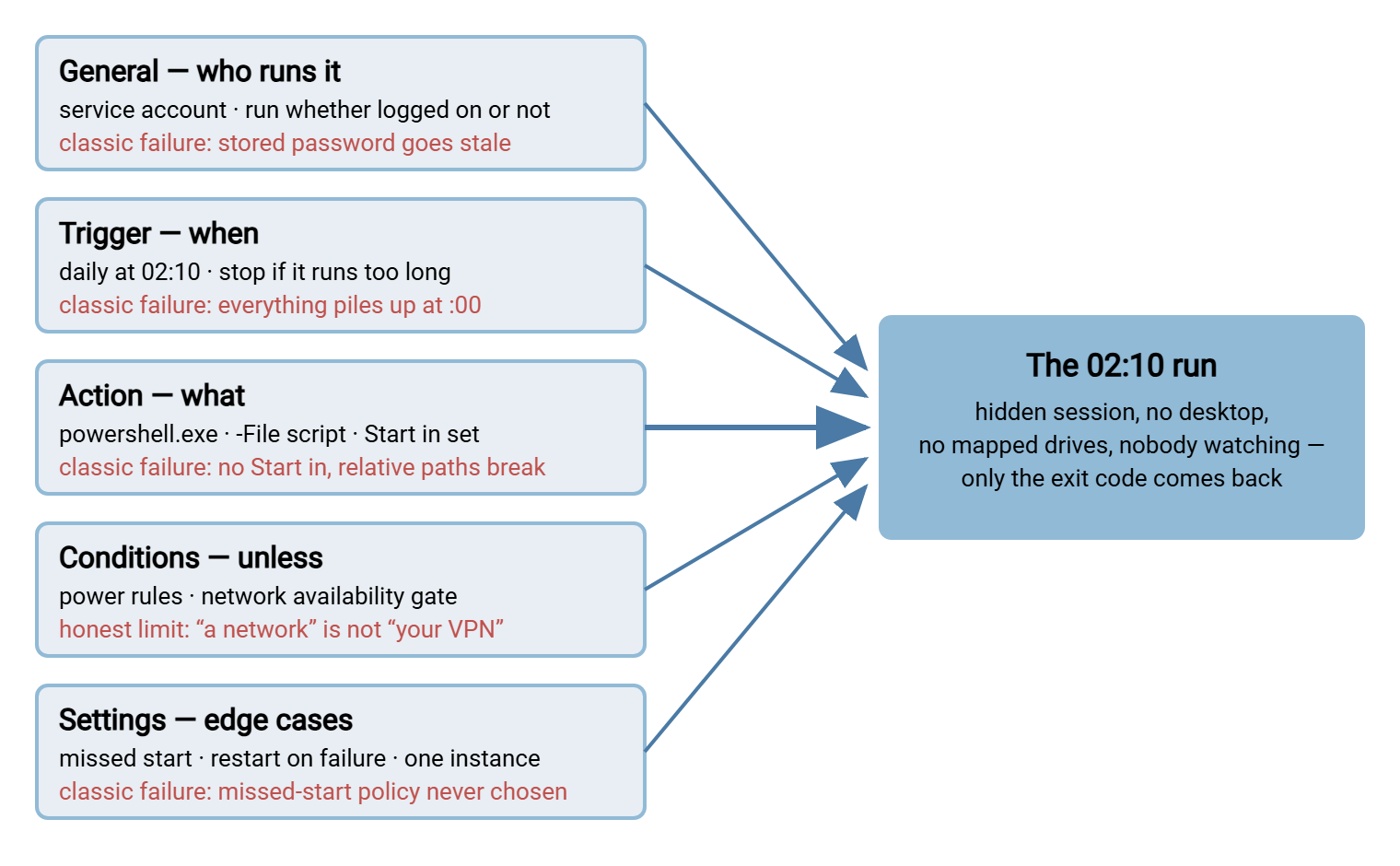
The diagram below shows the anatomy in one view — the five parts of the task definition, each with the way it classically goes wrong.
Test It the Way the Scheduler Runs It
"It ran when I clicked Run" is a weaker test than it looks, because a manual run still benefits from your logged-on session. Test in three escalating steps.
First, run the script as the service account, not as yourself. A runas /user:CORP\svc-invoicepush powershell.exe session is enough to reveal that the account cannot read the source folder, or has never accepted the SFTP server's host key. Second, fire the task on demand and read the result:
schtasks /run /tn "\Transfers\invoice-push-nightly"

schtasks /query /tn "\Transfers\invoice-push-nightly" /v /fo list | findstr "Result Status"
Last Result:    0
Status:         Ready
Third — the test that actually proves unattended operation — log off completely and let a real trigger fire (temporarily add one a few minutes out). Only this exercises the stored credential, the hidden session, and the logged-off environment together. Check the far end too, not just the exit code. If the remote side is your own server, its logs are the fastest confirmation. Sysax Multi Server, for instance, writes an activity log of logins and transfers to file or database. So the server-side view of your test run is one search away.
One honest limitation of schtasks: its create syntax cannot set the Start in directory. For scripted deployment, export a correctly built task as XML (schtasks /query /xml) and import that instead — the XML carries every field, Start in included.
History and Last Run Result: Reading What Happened
Task Scheduler keeps a per-task history — but on many systems it is disabled until you turn it on. Use "Enable All Tasks History" in the Actions pane. The events land in Event Viewer's Task Scheduler operational log. Enable it on any machine that runs unattended transfer work. History answers what the summary line cannot: did the trigger fire, did the logon succeed, when did the process start and end, what did it return.
The summary line's Last Run Result is a number, usually shown in hexadecimal, and reading it is a skill worth thirty seconds of study. The value is either a Windows status code or — the part people miss — your script's own exit code passed straight through. That is why the exit-code contract from earlier matters: it turns this column into a real signal.
| Last Run Result | What it means | First thing to check |
|---|---|---|
0x0 |
The process exited with code zero | Success — but only if the script exits nonzero on failure. Verify the files moved. |
0x1 |
The process returned 1 — the generic script failure | The job's own log; this is usually your exit 1 doing its duty. |
0x2 |
"File not found" (or your script's exit 2) | The action's program and script paths, character by character. |
0x41301 |
Task is currently running | Whether it should still be — long runs and hangs look identical here. |
0x41303 |
Task has not yet run | Trigger enabled? Task enabled? Machine on at trigger time? |
0x8007010B |
"The directory name is invalid" | The Start in field — a wrong path, or the quotation-mark trap from above. |
0x8007052E |
Logon failure — bad user name or password | The stored credential; almost always a password rotated since the task was saved. |
Treat every nonzero value as a failure until proven otherwise — including the ones that look administrative. A job stuck at 0x41301 for six hours is an incident wearing a status code.
Making Failures Loud
Everything so far makes failure visible; none of it makes failure loud. Task Scheduler will not email you, page you, or mention at standup that the invoice push has failed eleven nights running. Its old built-in email action is not something to build on. The scheduler is best treated as a launcher, nothing more. Loudness has to come from somewhere else, and you have three honest options.
First, put notification in the job: the script sends its own failure email or webhook in the catch block. Simple, but every job reimplements it, and a job killed mid-run notifies nobody. Second, monitor from outside: something else reads task states or checks that expected files arrived. Those are the approaches in our transfer job monitoring series. They catch even jobs that stopped being scheduled at all. Third, when the scheduled thing is a transfer, use a tool where scheduling and alerting live in the same product. In Sysax FTP Automation, a transfer task created in its wizard carries its own schedule, retries, and email notification on failure. There is no Task Scheduler wiring, no exit-code plumbing, no Start in field to forget. The trade is honest: it covers transfer jobs, not the rest of your scheduled estate. For that subset it removes exactly the failure points this article has been defusing.
Remember: a scheduled job that can fail silently eventually will. Decide at creation time how this job's failure becomes a human's problem — script-sent alert, external monitor, or a transfer tool that notifies on failure. Write that decision into the task's description.
The Ten-Point Setup Checklist
Everything above, compressed into the list to run down before you call a transfer task done:
- Script exits nonzero on every failure path, and writes its own log with timestamps.
- All paths absolute; UNC paths instead of mapped drives.
- Task runs as a dedicated service account with Log on as a batch job.
- Run whether user is logged on or not — and the stored-password consequence is documented.
- Run with highest privileges left unchecked unless truly required.
- Trigger offset from the top of the hour; a stop-after time limit set.
- Action split correctly: program, arguments, and Start in — unquoted.
- Missed-start, restart-on-failure, and single-instance settings chosen deliberately.
- Tested as the service account, then with a real trigger while logged off.
- History enabled, and a failure path that reaches a human.
Where to Go Next
A transfer job configured this way fails rarely, and — more importantly — fails visibly. The natural next steps in this series include cron and Task Scheduler compared if you run jobs on both platforms. They include service accounts for scheduled jobs to build the identity this article assumed. There is also surviving reboots and missed windows for what happens to that 02:10 trigger on patch night. For deciding what the job itself should record, what to log pairs well with the exit-code contract.
Frequently Asked Questions
Why does my script work when I run it manually but fail from Task Scheduler?
What does Last Run Result 0x1 mean?
Should I check "Run with highest privileges" for transfer jobs?
Where does my script's output go when Task Scheduler runs it?
Why did my task suddenly start failing after months of working?
From the Sysax team: we build secure file transfer software for Windows. Sysax Multi Server is an FTP, FTPS, SFTP, and HTTPS server. Sysax FTP Automation handles scheduled, scripted transfers. Free trials are on the download page.