
TFTP for Device Configs and Firmware: A Safe Operating Procedure
The first time most administrators use TFTP in anger, the stakes are already high. A switch needs a firmware upgrade during tonight's maintenance window. Or a router just lost its configuration and the only copy is the one you hopefully saved somewhere. TFTP is how a huge share of network gear moves these files. It is the one transfer protocol that essentially every switch, router, firewall, and access point speaks, all the way down to their recovery loaders.
The protocol itself is simple. The danger is in the procedure around it. A config restore silently merges instead of replacing. A firmware image arrives truncated. A backup was never actually verified and turns out to be empty on the night you need it. None of these are exotic failures. All of them are preventable with a routine that takes a few extra minutes.
This article is that routine — a safe operating procedure for config backups, config restores, and firmware upgrades over TFTP. It includes a sane way to organize the archive that grows out of it. It is part of our TFTP series. If you have not read how TFTP works yet, this article stands alone, but the mechanics there explain several of the gotchas here.
Who Is the Client Here? The Direction Trap
Let's clear the single most common point of confusion first. In device work, the network device is the TFTP client. The TFTP server runs on your side — a management server, a dedicated utility box, or in a pinch your laptop. You type commands on the device, and the device reaches out to your server. This feels backwards to people who expect to "upload to the switch" from their PC.
Both directions of work follow from that one fact. A config backup is the device pushing a file to your server — in protocol terms, a write request (WRQ). A config restore or firmware install is the device pulling a file from your server — a read request (RRQ). The diagram below shows both flows; notice that the device initiates in both cases, and the server just waits.
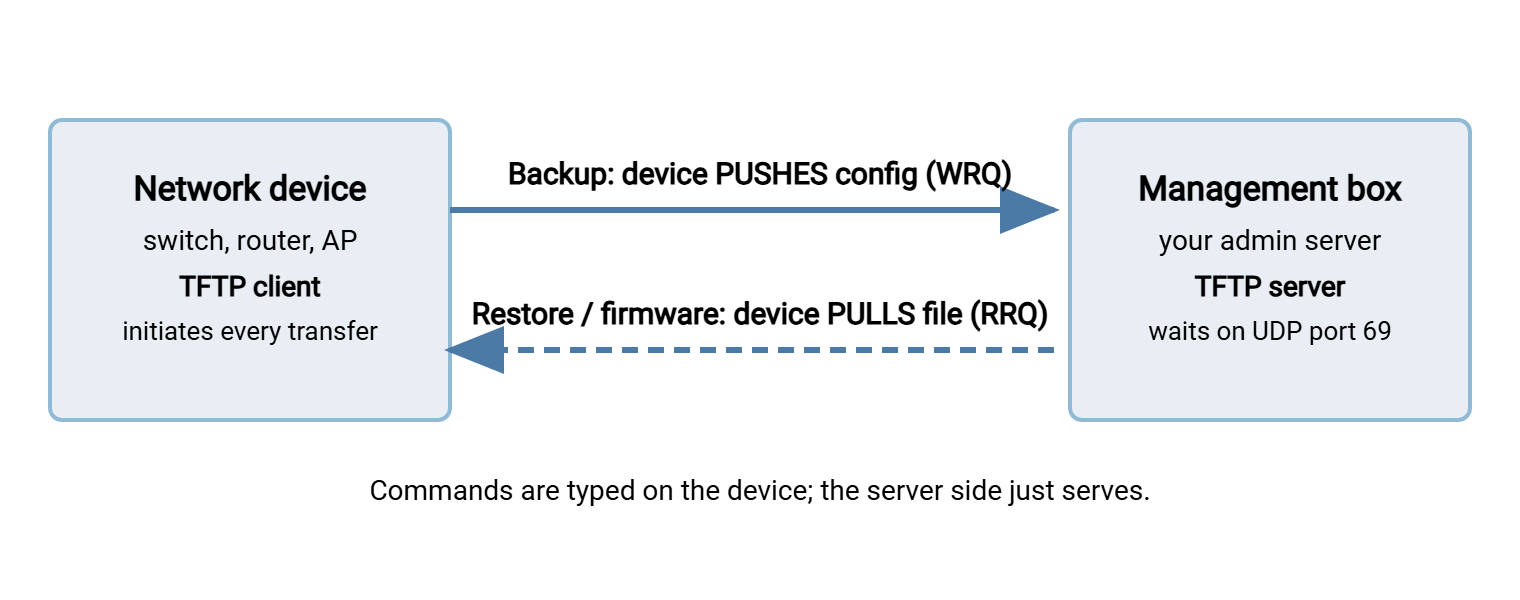
One practical consequence: for backups, your server must be willing to accept new incoming files. Many TFTP servers refuse uploads by default or only overwrite files that already exist. If your very first backup attempt fails with an "access violation" error, that server-side setting is almost always why. The details live in running a TFTP server properly.
| Operation | File moves | TFTP request | Server must allow |
|---|---|---|---|
| Config backup | Device → server | WRQ (write) |
Uploads / file creation |
| Config restore | Server → device | RRQ (read) |
Read access to the file |
| Firmware install | Server → device | RRQ (read) |
Read access to the image |
Before You Touch Anything: The Prep Checklist
Every procedure below starts with the same five minutes of preparation. The steps look almost insultingly basic, which is exactly why they get skipped. Skipping them is how routine maintenance becomes an incident. Run the list every time, even when you are sure:
- Confirm reachability from the device's side. Ping the TFTP server from the device, not from your desk. The device may use a different interface or routing table than your workstation does.
- Confirm the server is actually serving. Do a quick test fetch of a known file from another machine. Thirty seconds now saves a confusing timeout mid-procedure.
- Check disk space on both ends. Firmware images are the usual offender — a device flash partition that is nearly full will fail the copy late, not early.
- Know your exact filenames. TFTP has no directory listing: the device cannot browse the server, and one typo means "file not found." Copy and paste names; never retype them.
- For firmware work, have console access ready. If an upgrade goes wrong, the network interface you manage the device through may go down with it. The serial console is your lifeline; verify it before you need it.
- Know your rollback before you start. For a config change, that is the backup you are about to take. For firmware, it is the old image left on flash plus the boot setting that points at it. If you cannot describe the rollback in one sentence, you are not ready to proceed.
Backing Up a Config, Step by Step
The backup itself is short. The value is in doing every step, every time — especially the last two, which most people skip until the day they learn why not to.
! 1. On the device: save the live config to startup first,
!    so the device's own stored copy is current too
device# copy running-config startup-config

! 2. Push the running config to your TFTP server
device# copy running-config tftp://192.0.2.50/backbone-sw1-running.cfg
Address or name of remote host [192.0.2.50]?
Destination filename [backbone-sw1-running.cfg]?
!!
2193 bytes copied in 0.8 secs

! 3. On the server: confirm the file exists and has a sane size
admin$ ls -l /srv/tftp/backbone-sw1-running.cfg
-rw-rw-rw- 1 tftp tftp 2193 ... backbone-sw1-running.cfg

! 4. On the server: open it and check the LAST lines arrived
admin$ tail -5 /srv/tftp/backbone-sw1-running.cfg
The exact command syntax varies by vendor. Some platforms ask interactive questions as shown. Some take the whole URL-style path in one line. Some use an export or backup verb instead of copy. The shape is universal: name the source (the running config), the protocol, the server address, and the destination filename. Adapt the spelling to your platform and the procedure holds.
Step 4 matters more than it looks. TFTP has a nasty failure mode. If the transfer times out partway, some server and client combinations leave a truncated file in place. In those cases, there is no error you will ever see on the server side. A config that ends mid-line, missing its final section, is a backup that will betray you during a restore. Most platforms end their config with a recognizable final line — check that it is there. The reported byte count in step 2 should also match the file size in step 3 exactly.
Restoring a Config Without Surprises
Restores are where the direction trap has a second, sharper trap hiding inside it. On many platforms, copying a file onto the running config — the live configuration in memory — does not replace it. It merges: each line of the incoming file is applied as if you had typed it. Lines that exist in the running config but not in the file are simply left alone. Restore a clean config over a misconfigured device this way and the misconfiguration survives, now blended with your restore. The result can be a device in a state that matches neither the backup nor what you started with.
Remember: copy to running-config merges. The reliable full restore is copy to startup-config (the stored configuration the device loads at boot). Then reload the device so it boots cleanly from it. Merge behavior is occasionally what you want — pushing a small standard snippet to many devices. But for disaster recovery, restore-and-reload is the version that gives you back a known state.
So the safe restore procedure looks like this:
- Back up the device's current state first, even if it is broken — you may need to look at it later, and "broken" beats "gone."
- Pull the archived config onto the startup config:
copy tftp://192.0.2.50/backbone-sw1-running.cfg startup-config. - Inspect what arrived (
show startup-configor your platform's equivalent). Check the hostname, the last line, anything you can eyeball. - Reload the device in a maintenance window, watching from the console.
- After boot, compare running state against expectations — interfaces up, routing adjacencies formed, management reachable.
Firmware over TFTP: The Careful Version
Firmware raises the stakes because a bad image or interrupted write can leave a device unbootable. The procedure is longer, and every step earns its place:
- Read the release notes for the upgrade path. Some upgrades require an intermediate version or a bootloader update first. Five minutes of reading prevents the worst evening of your month.
- Verify the image on the server before anything moves. The vendor publishes a checksum — a short fingerprint computed from the file's exact bytes — alongside every download. Compute it locally and compare:
sha256sum image.bin(ormd5sumwhere that is what the vendor publishes). If it does not match, stop; the download is bad. - Check free space on the device and delete only what the release notes say is safe to delete. Keep the currently running image if space allows — it is your rollback.
- Transfer in octet (binary) mode. This is the default on modern platforms, but it is worth stating: a firmware image mangled by text-mode line-ending conversion is corrupt. (Our protocol article explains the two modes.)
- Verify the checksum again on the device. Most platforms have a built-in verify or checksum command. This is the step that catches a truncated or corrupted transfer — TFTP itself gives you no end-to-end integrity guarantee.
- Point the boot setting at the new image, save, and reload in the window — from the console, so you see every boot message.
- Confirm the running version afterward, then leave the old image in place for a comfortable interval before cleaning up.
If a firmware transfer is painfully slow, that is the protocol's lock-step nature. One block is acknowledged at a time. It is not a fault in your setup. Local placement of the server and negotiated larger block sizes both help; the details are in the server article.
Verify Every Transfer, Every Time
A theme runs through all three procedures, and it deserves to be said plainly: TFTP does not verify your file arrived intact — that job is yours. The protocol checks each block in transit, but nothing checks the whole file end to end. Nothing confirms the transfer actually reached the final block. The cheerful !! progress marks a device prints during a copy mean blocks are flowing, not that the file is complete or correct. Truncation, in particular, can pass silently. So the discipline is:
- Sizes must match. The byte count the device reports and the file size on the server are the same number, or something is wrong.
- Checksums for anything binary. Firmware gets a checksum comparison on both ends, no exceptions.
- Eyes on text. Configs get their final lines read by a human (or a script) before they are trusted.
- Test the archive occasionally. A backup that has never been restored is a hope, not a backup. Restoring a config to a lab device once in a while turns hope into knowledge.
Organizing the Config Archive
Run backups for a few months and you will have hundreds of files. Whether they are an asset or a junk drawer depends on decisions best made early. It helps to be clear about what the archive is for, because it is more than disaster insurance. A well-kept config archive is a change history. When a site starts misbehaving on Tuesday, comparing Tuesday's backup against Monday's with an ordinary diff answers "what changed?" in seconds. That does not depend on anyone's memory of what they touched. The archive is also documentation of record. The honest answer to "how is that office actually configured?" is the latest file in the archive, not the diagram from two reorganizations ago.
With that purpose in mind, the organizing rules almost write themselves:
- Name for the sleep-deprived. A filename should answer "which device, which config, when" at a glance:
backbone-sw1_running_<date>.cfg. Use the device's real hostname, spelled exactly as the network knows it, and an unambiguous date stamp. During an outage, nobody should be opening files to find out what they are. - One folder per device. A flat directory of five hundred files hides patterns; a per-device folder shows a device's whole history in one listing.
- Keep history, not just the latest. The question during an incident is often "what changed?" — and the answer is a comparison between the last two backups. Text configs diff beautifully; keep enough history to diff.
- Move the archive off the TFTP box. The TFTP root is a drop zone, not a vault. The protocol that wrote those files has no authentication, and configs contain password hashes and network detail. Sweep completed backups promptly into managed, access-controlled storage. A folder on an SFTP server such as Sysax Multi Server gives the archive encryption in transit, per-user access control, and an activity log. The TFTP drop zone can offer none of these. The security reasoning is laid out in TFTP security and containment.
- Back the archive itself up. The archive is now operational data. Treat it like any other data that must survive a bad day.
Automation Hooks: From Ritual to Routine
Everything above works as a manual ritual, and manual is the right way to learn it. But config backups only deliver their value if they happen every night, including the nights nobody remembers. Three pieces snap together into an automated pipeline:
- The device pushes on a schedule. Most network operating systems have a built-in scheduler or event system that can run a
copycommand nightly. It takes a one-time setup per device, after which each box delivers its own config to the drop zone unprompted. Alternatively, a small script on a management host connects to each device over SSH and triggers the push. That centralizes the schedule in one place instead of fifty. Adding a device to backups means adding one line to a list. - The server sweeps the drop zone. New files landing in the TFTP root get validated (size sane, final line present) and moved into the per-device archive. A folder-monitoring tool does this well. Sysax FTP Automation, for example, can watch the drop folder and move each new arrival to the archive server over SFTP on a schedule, with retries and error alerts. So a failed sweep is something you hear about rather than discover.
- Something checks the checkers. The most dangerous automation failure is silence: the job that stopped running in the spring and was discovered in an autumn outage. A simple daily report — which devices delivered a backup, which did not — closes the loop. An empty gap on that report is a page-worthy event.
The Procedure in One Paragraph
Prepare before you copy: reachability from the device, a serving server, disk space, exact filenames, console access for firmware. Back up by pushing from the device, then verify size and final lines on the server. Restore to startup config and reload — never trust a merge into the running config for recovery. Treat firmware with checksums on both ends, a kept rollback image, and a console session. Archive by device, keep history, and move files off the unauthenticated TFTP drop zone into managed storage quickly. Then automate the whole loop and monitor the automation.
To go deeper, running a TFTP server properly covers the server-side settings these procedures assume. Our article beyond TFTP shows how the same workflows look on modern gear that can use SCP, SFTP, or HTTPS instead. That is worth knowing before you automate too much around the old protocol.
Frequently Asked Questions
Does the TFTP server run on the switch or on my computer?
Why did my restored config keep old settings I wanted gone?
How do I know a firmware image transferred correctly?
Can TFTP resume a transfer that failed partway?
Is it OK to leave config backups sitting on the TFTP server?
Should I use netascii or octet mode for config files?
From the Sysax team: we build secure file transfer software for Windows. Sysax Multi Server is an FTP, FTPS, SFTP, and HTTPS server. Sysax FTP Automation handles scheduled, scripted transfers. Free trials are on the download page.