
A Transfer One-Liner Cookbook
Some knowledge you look up; some you carry. The dozen commands in this cookbook belong in the carried category. There is the upload, the download, the mirror, the newest-file grab, the cleanup — one memorable line each. They span the clients that are actually installed on the systems you manage. Between them they cover most of what an administrator moves in a normal week, with nothing but what the machine already has.
This is the closing article of our command-line client mastery series, and it is deliberately honest about what a one-liner is: a starting point. Each recipe below states when to use it and what its flags do. The article ends with the graduation rule — the specific signs that a line has earned promotion into a real script, or past scripts entirely. Memorize the recipes; respect the rule.
How to Read These Recipes
Three conventions keep the recipes short. First, hostnames and paths are placeholders — substitute your own. Second, credentials never appear on the command line. The sftp and scp recipes assume key authentication is set up and the server's host key is already accepted. That setup is walked through in the sftp client, mastered. The curl recipes assume a ~/.netrc file with locked-down permissions holds any FTP or FTPS logins. If a recipe "works" only after you paste a password into it, stop and fix the credential setup first. A password in a command line is visible in the process list and preserved in shell history.
Third, rehearse against a server you own before pointing anything at a partner. If you do not have a spare, a trial of Sysax Multi Server from the download page gives you a Windows server in a few minutes. It speaks SFTP, FTPS, FTP, and HTTPS. It is a safe place for every recipe here, including the ones that delete things.
Which Client for Which Job
The diagram below is the thirty-second version of this whole series: match the job's needs to the client whose strengths they are.
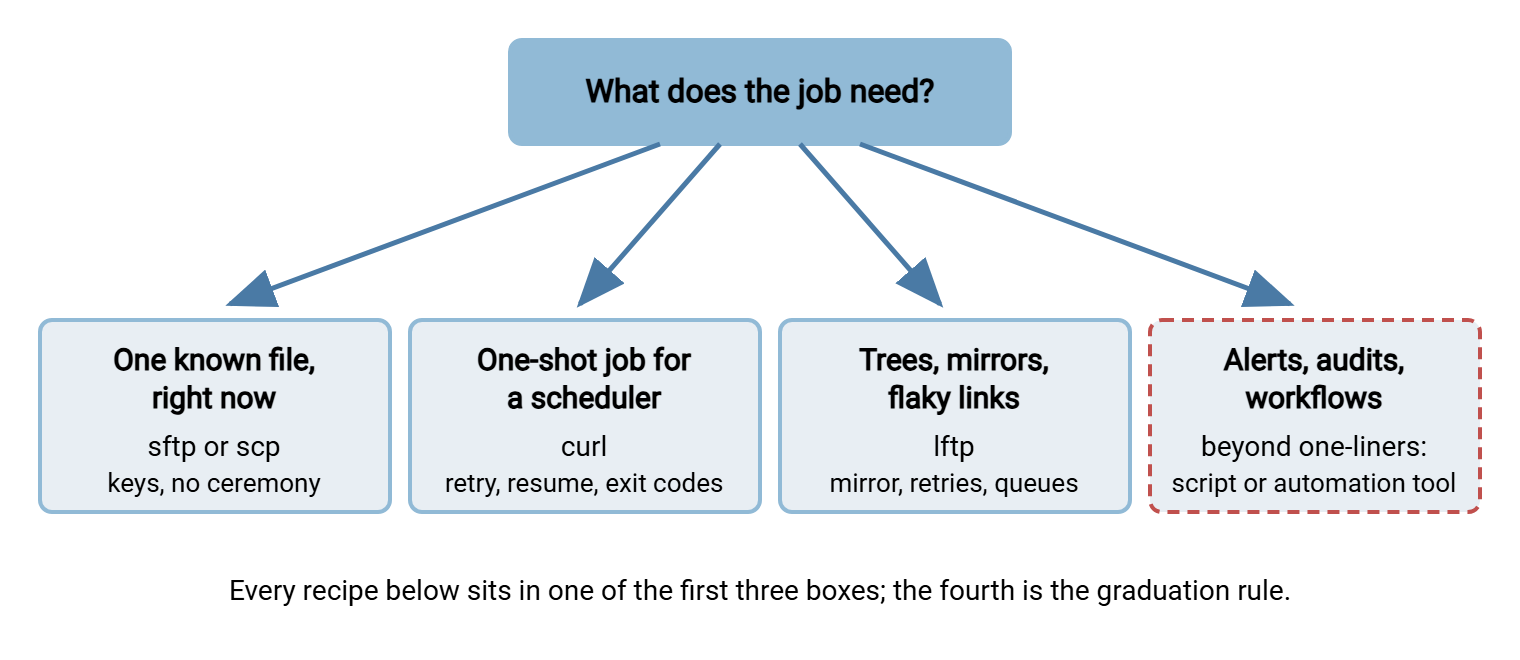
There are two refinements the picture cannot hold. On Windows hosts, curl is present by default while lftp is not, which often decides the question for you. And when both endpoints are machines you hold SSH access to (no transfer server involved), scp and sftp compete with rsync. That comparison is settled in how scp works and its companions.
The same decision, in table form, mapped to the recipes below:
| The job | Reach for | Why |
|---|---|---|
| Prove a new account works | sftp — recipe 1 | Tests credentials, host key, and path with an honest exit code |
| One file, known name, keys in place | sftp — recipes 2, 5 | Zero ceremony; installed everywhere OpenSSH is |
| Scheduled single transfer, FTPS, resume | curl — recipes 3, 6, 7, 8 | Retry flags, resume, required TLS, documented exit codes |
| Whole trees, changing names, flaky links | lftp — recipes 4, 9, 10, 11 | mirror, sortable listings, wildcard operations, built-in retries |
| Two SSH machines, no server between | scp — recipe 12 | Fastest point-to-point copy in the toolbox |
| Alerts, audit trails, multi-step workflow | None of the above | Graduate: a real script, or an automation product |
Download Recipes
Four ways to bring files toward you, ordered from the trivial to the honestly-stretching.
1. Prove the login works — sftp
printf 'pwd\nls -l\n' | sftp -b - -o BatchMode=yes deploy@sftp.partner.example
When to use: a partner says "the account is ready" and you want proof — credentials, host key, and starting directory. You want it in ten seconds from the machine that will run the job. -b - reads the piped commands as a real batch (abort on error, honest exit code), and BatchMode=yes turns any would-be prompt into a clean failure you can see.
2. Fetch one known file — sftp
sftp deploy@sftp.partner.example:/outgoing/report.csv /data/inbox/
When to use: the everyday grab — you know the file, you have keys, you want it here. Naming a remote file on the command line makes sftp download it and exit; no session, no batch file, exit code 0 only on success. Point it at a remote directory with -r in front and the whole tree comes down. Add -P for a nonstandard port and -p to keep the original timestamps, which downstream newest-file logic will thank you for.
3. Big download that survives a bad network — curl
curl -sS --netrc -C - --retry 5 --retry-delay 30 \
     -o /data/inbox/archive.tar.gz ftp://ftp.partner.example/outgoing/archive.tar.gz
When to use: a multi-gigabyte file over a link that drops. -C - resumes from wherever the last attempt died instead of starting over. --retry 5 --retry-delay 30 re-tries transient failures on a fixed cadence. -sS keeps the log quiet except for real errors. Add --ssl-reqd when the server speaks FTPS, and --connect-timeout 15 so a dead host fails in seconds. Resist the tempting --retry-all-errors: it re-tries permanent failures too, and five enthusiastic attempts at a wrong password is how partner accounts get locked.
4. Grab the newest file — lftp plus a little shell
f=$(lftp -c 'open sftp://transfer@sftp.partner.example; cls -1 -t /outgoing/*.csv' | head -1) \
  && lftp -c "open sftp://transfer@sftp.partner.example; get -O /data/inbox $f"
When to use: "always fetch the latest export" flows where the name changes daily. cls -1 -t lists bare names newest-first, head -1 keeps the winner, and the second command fetches it into /data/inbox (-O names the destination directory). This is honestly the edge of one-liner territory — two connections, and it breaks on filenames with spaces — which makes it a fine candidate for early graduation. Note the quoting: the second command string uses double quotes precisely so the shell can substitute $f into it. That is the expansion-on-purpose pattern from the heredoc article, compressed to one line.
Upload Recipes
Four ways to send files outward — including the two patterns, streaming and atomic publishing, that separate tidy flows from ticket-generating ones.
5. Push one file — sftp
printf 'put /data/out/results.csv /incoming/\n' | sftp -b - -o BatchMode=yes deploy@sftp.partner.example
When to use: the mirror image of recipe 1 — a keyed, prompt-free push whose exit code a script can trust. The same pipe carries more lines when the job grows: add a rename after the put and you have atomic publishing (recipe 8 shows the curl version). Because -b - aborts at the first failure, the line composes safely with shell logic — ... || alert_someone actually fires when the push fails.
6. Scheduled upload over FTPS — curl
curl -sS --netrc --ssl-reqd --ftp-create-dirs \
     -T /data/out/daily.csv ftp://ftp.partner.example/incoming/
When to use: the workhorse nightly push. -T uploads, and the trailing slash keeps the local filename. --ssl-reqd makes encryption mandatory rather than polite. --ftp-create-dirs builds missing remote directories instead of failing on the first of the month. On Windows hosts the same line works with the bundled curl — just remember the netrc file is named _netrc there. For implicit-FTPS servers, swap the scheme to ftps:// instead of adding the flag.
7. Stream a backup with no temp file — curl
tar czf - /srv/site | curl -sS --netrc -T - \
     "ftp://backup.example.com/backups/site_$(date +%Y%m%d).tar.gz"
When to use: archiving a directory to a server when local disk has no room for the archive itself. tar writes the compressed stream to standard output. -T - uploads straight from the pipe, and the shell stamps the name with today's date. Nothing ever lands on local disk. The honest cost of streaming: there is no local copy to compare afterward. So verify the upload by size or checksum before you trust it. That discipline is described in verifying transfers end to end.
8. Publish atomically — curl
curl -sS --netrc --ssl-reqd -T /data/out/daily.csv \
     ftp://ftp.partner.example/incoming/daily.csv.part \
     -Q "-RNFR incoming/daily.csv.part" -Q "-RNTO incoming/daily.csv"
When to use: whenever something on the far side watches the folder. The file uploads under a .part name, then the two quoted commands rename it server-side after the transfer completes — so no consumer ever reads a half-written file. If a recipe in this cookbook prevents an incident this quarter, it is this one. The sftp equivalent is a two-line batch (put then rename, as in recipe 5's extension). One caveat either way: some servers refuse to rename over an existing file. So delete or rotate the previous day's copy first if your flow reuses names.
Mirror Recipes
Two directions of the same idea: make one tree look like the other, moving only the difference.
9. Keep a local copy of a remote tree — lftp
lftp -c 'open sftp://transfer@sftp.partner.example; mirror --only-newer --verbose /outgoing/reports /srv/inbox/reports'
When to use: a partner maintains a folder of reports and you want yesterday's and today's without re-downloading last year's. mirror compares the trees and moves only what is new or changed; --verbose makes the log say exactly what it did. Put this line on a schedule and you have a working sync job; add --parallel=4 when the tree holds many small files and the nightly window feels tight.
10. Publish a tree upward — lftp
lftp -c 'open sftp://transfer@web.example.com; mirror -R --only-newer --dry-run /var/www/site /htdocs/site'
When to use: pushing a built site or document set to a server. -R reverses the mirror (local to remote), and --dry-run prints the plan without transferring — run it that way first, read the plan, then drop the flag. The full option set, including the respect that --delete demands, is in the lftp article. And --delete is exactly why the dry-run habit matters. A reversed or mistargeted mirror with deletion enabled destroys data at full speed.
Housekeeping Recipes
Transfers are half the job; the other half is leaving both ends tidy.
11. Prune old datestamped archives — lftp
lftp -c "open sftp://transfer@backup.example.com; mrm backups/site_$(date -d '-2 months' +%Y%m)*.tar.gz"
When to use: monthly cleanup where names carry their dates (site_YYYYMMDD.tar.gz). The shell computes the month to purge (GNU date's -d does the arithmetic), and mrm — lftp's wildcard remove — deletes that month's set. Honesty required: this prunes a month per run, not "everything older than N days". True age-based retention needs a listing, a comparison, and a loop. That is a script's job, and precisely the kind of policy a retention-aware tool handles as configuration. Preview before you purge: run the identical glob through cls first and read the list mrm is about to act on.
12. Copy between two SSH machines — scp
scp -i ~/.ssh/transfer_key /data/out/results.csv deploy@app.example.com:/srv/inbox/
When to use: no transfer server in sight — just two machines you hold SSH access to and one file that needs to be on the other one. It is the fastest ceremony-free copy in the toolbox; its honest limits (no resume, minimal semantics) are cataloged in scp's limitations. Like sftp, scp uses capital -P for the port and -r for whole directories, and it inherits every alias and key you have set in ~/.ssh/config.
Making a Recipe Job-Ready
Every recipe above assumes a human at the keyboard who notices failure. The first promotion — the moment a line gets a schedule — costs about four lines of wrapper, and they are the same four for every recipe here:
#!/bin/sh
LOG=/var/log/transfers/pull_reports.log
if ! lftp -c 'open sftp://transfer@sftp.partner.example; mirror --only-newer --verbose /outgoing/reports /srv/inbox/reports' >> "$LOG" 2>&1
then
    echo "pull_reports FAILED" >> "$LOG"
    exit 1
fi
The recipe is unchanged in the middle. Around it, output is captured with errors folded in, the exit code is checked, and failure is recorded and propagated so the scheduler can see it. That is the minimum uniform a one-liner wears before running unattended. Because every client in this cookbook returns honest exit codes, the same wrapper shape works for all twelve recipes. Scheduling it properly, under a service account with its own keys and credentials, is the subject of our scheduled jobs series.
The Legacy Line You Should Recognize
One non-recipe belongs in every administrator's reading vocabulary: ftp -n -i -s:commands.txt. That is the old Windows console ftp client running a command file — no encryption available, no abort on failure, and an exit code of 0 no matter what happened. Do not write it new; do learn to spot it, because it still lurks in inherited scheduled tasks. The built-in ftp clients article covers reading and retiring these jobs. That includes the low-disruption path of swapping in sysaxftp.exe, the drop-in secure replacement client that ships with Sysax FTP Automation. That way, the old batch-file shape survives while the protocol underneath becomes SFTP or FTPS.
The Graduation Rule
Every recipe above is one trustworthy line — and one line is exactly as much reliability as it looks like. The rule that keeps a toolbox honest: the moment a one-liner earns a schedule, it earns a script; the moment the script becomes infrastructure, it earns real automation. Concretely, promote a one-liner into a script — with logging, exit-code checks, and version control — when any of these appear:
- It runs unattended (cron, Task Scheduler) rather than under your eyes.
- It needs conditions: only if the file exists, only after the settle check, only on weekdays.
- It needs a record: someone will ask next week what transferred and when.
- It needs retry policy smarter than a flat count — backoff, budgets, give-up alerts.
- Someone else must run or maintain it. A one-liner in your head is a bus-factor of one.
The scripting rung is covered by our bash and cron automation series and the batch modes and command files article. The retry design that scripts inherit is in retry and error handling. And the second promotion comes when a script accumulates schedules, folder watching, encryption, notifications, and an audit trail. That is where a purpose-built product replaces a growing pile of shell. Sysax FTP Automation provides exactly that layer, with wizard-built scheduled tasks, folder monitoring, OpenPGP encryption, and email alerts on failure. The whole progression, rung by rung, is mapped in our automation ladder series.
Rule of thumb: a one-liner is for a human at a keyboard. The first time nobody is watching it run, wrap it in a script that logs and checks its exit code. When that script starts sprouting features, move the flow to real automation before it becomes the undocumented system everything depends on.
Carry the Dozen
Twelve lines cover the work. Prove the login, fetch the known file, survive the bad network, and grab the newest. Push one file, push on a schedule with required encryption, stream a backup, and publish atomically. Mirror down, mirror up, prune by datestamp, and copy machine-to-machine. Learn them until they type themselves — they are the daily currency of transfer work. Every one of them reports failure honestly, which is more than the tools they replaced could say.
If a recipe raised questions, its home article has the depth. Read sftp mastered for recipes 1, 2, and 5, and lftp for 4 and 9 through 11. The curl recipes' HTTP-side cousins live in the curl and wget cookbook.
Frequently Asked Questions
Why does a one-liner that works in my terminal fail in cron?
How do I use these recipes without putting passwords in the command?
Which client should I learn first?
Can I do "delete files older than 30 days" as a one-liner?
Do these recipes work on Windows?
When exactly should a one-liner become a script?
From the Sysax team: we build secure file transfer software for Windows. Sysax Multi Server is an FTP, FTPS, SFTP, and HTTPS server. Sysax FTP Automation handles scheduled, scripted transfers. Free trials are on the download page.