
The Built-In ftp Clients: Useful, Limited, Risky
On almost any machine you will ever administer, you can open a terminal, type ftp, and something answers. Windows has shipped ftp.exe for as long as anyone can remember; Unix and Linux systems have carried a classic ftp client for even longer. No install, no approval ticket, no download. That is exactly why these clients keep turning up in production scripts. Their authors needed to move a file right now and used what was already there.
This article is the honest assessment those clients rarely get. They are genuinely useful for a handful of jobs and sharply limited for everything else. They are actively risky in the one place they most often survive: unattended batch files that carry passwords and payroll data across networks in cleartext. By the end you will know exactly what the built-in clients can do, and the four traps that make them dangerous in automation. You will know how to read the inherited scripts that still use them, and the realistic migration paths off them.
This is the opening article of our command-line client mastery series. The rest of the series covers the tools you migrate to — this one covers the tool you are probably migrating from.
What Actually Ships Where
Start with an inventory, because "the built-in ftp client" is really a small family of programs that behave similarly but not identically.
- Windows ftp.exe lives in the System32 folder and has barely changed in decades. It is an interactive command interpreter for the FTP protocol with a script mode (
-s:) that made it the backbone of a generation of batch files. It speaks plain FTP only — no FTPS, no SFTP. Notably, it speaks only active mode, the older data-connection style that modern firewalls dislike. - The classic Unix ftp client is the BSD-lineage program found on Linux, BSD, and commercial Unix systems. Behavior varies slightly between builds. Some support the
passivecommand, and some read a~/.netrccredentials file automatically. But the core is the same interactive interpreter. On modern minimal Linux installs it is often not present until you install it, which tells you something about how the world has moved. - tftp clients sometimes get lumped in but are a different animal entirely: a stripped-down protocol for device firmware and boot images, with no login at all. If that is what you are dealing with, see how TFTP works instead.
Every member of the family implements the FTP protocol as it was originally designed, and nothing newer. That means a cleartext conversation on port 21 plus a separate data connection. Every capability and every risk in this article follows from that fact.
A Five-Minute Tour of What They Can Still Do
Used interactively, the built-in clients are perfectly serviceable. A session looks like this on either platform:
C:\> ftp ftp.example.com
Connected to ftp.example.com.
220 FTP server ready.
User (ftp.example.com:(none)): alice
331 Password required for alice.
Password:
230 User alice logged in.
ftp> binary
200 Type set to I.
ftp> cd /outgoing
250 CWD command successful.
ftp> get report.csv
150 Opening BINARY mode data connection.
226 Transfer complete.
ftp: 4523 bytes received in 0.12 seconds.
ftp> bye
221 Goodbye.
The numbered lines are the server's reply codes — three-digit status numbers defined by the protocol itself. Here, 2xx means success and 4xx/5xx mean failure. Learning to read them pays off across every FTP tool you will ever touch; our guide to FTP commands and reply codes decodes the whole set.
The command vocabulary is small and worth knowing. open connects, and user logs in. cd and lcd change the remote and local directories. ls or dir lists. get and put move single files. mget and mput move sets by wildcard. prompt toggles the per-file confirmation those two insist on. ascii and binary switch transfer type. quit or bye ends the session. A literal (Windows) or quote (Unix) command sends a raw protocol command for anything the client has no word for.
So where are these clients still genuinely the right tool?
- A quick login test. When a partner says "the account is ready," a thirty-second interactive session proves the credentials and path work before you touch any automation.
- Pulling a file from a legacy device on a closed network. Plenty of lab instruments, PLCs, and older network gear expose plain FTP and nothing else. On an isolated management VLAN, the built-in client is a fine match for them — see legacy devices that only speak FTP for how to contain that situation.
- Learning the protocol. Because the client is thin, you see the actual FTP conversation — which makes it a good teaching tool against a lab server, as in our FTP lab setup walkthrough.
Notice what all three have in common: a human is watching, the network is trusted or isolated, and nothing sensitive is at stake. Every problem in the rest of this article appears the moment one of those three conditions stops being true.
The No-Encryption Truth
Here is the sentence to remember: the built-in ftp clients cannot encrypt anything, ever. Not the password, not the file contents, not the directory listings. There is no flag to add and no setting to enable. The programs simply predate transport encryption. They were never extended to support FTPS (FTP wrapped in TLS) or SFTP (file transfer over SSH, a different protocol entirely).
What that means in practice: anyone positioned on the network path reads the entire session as plainly as you read this page. The position could be a compromised switch, a rogue Wi-Fi access point, or a packet capture on either endpoint. The username and password travel as literal text in the USER and PASS commands. The file itself follows on the data connection, equally readable.
The diagram below shows the difference between a plain ftp session and its secure replacements from an eavesdropper's point of view.
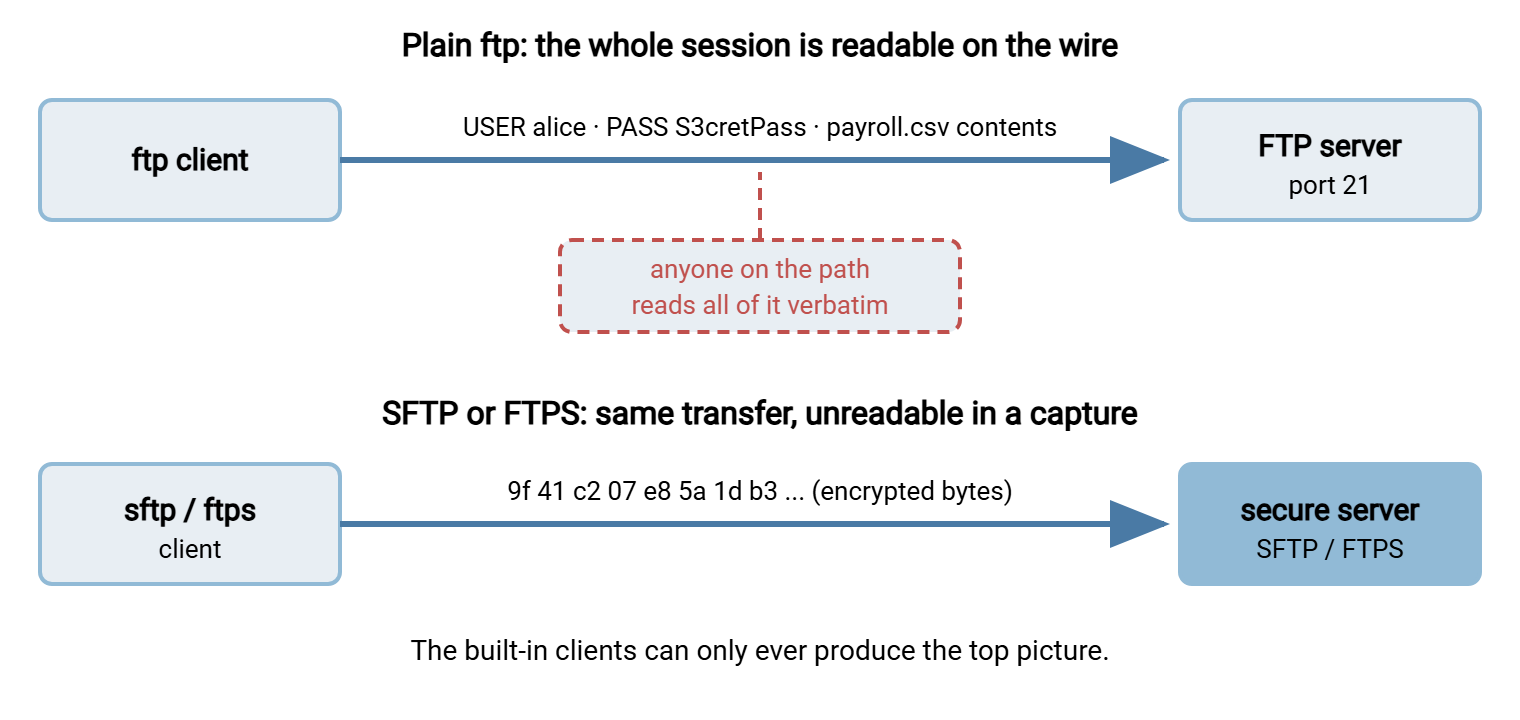
Two follow-on consequences make this worse than it first sounds. First, transfer credentials are often reused for other systems, so a sniffed FTP password can unlock more than the FTP server. Second, cleartext sessions are invisible failures: nothing errors and nothing logs a warning. The exposure continues for years until someone runs a capture and finds it. We walk through that discovery exercise in finding cleartext on your network. The full case for moving off the protocol lives in why retire plain FTP.
Remember: there is no way to make the built-in ftp clients encrypt. "Hardening" a script that uses them means replacing the client, not adjusting it. Any plan that keeps ftp.exe or classic ftp on a sensitive flow is a plan to keep sending passwords in cleartext.
Script Mode and Its Sharp Edges
The reason these clients still matter is not interactive use — it is the script mode that let administrators automate transfers long before better tools were common. On Windows the pattern is ftp -s:, which feeds a file of commands to the client as if a very fast human were typing them:
rem nightly_push.bat
ftp -n -i -s:commands.txt > C:\logs\ftp_last.log

rem commands.txt
open ftp.partner.example
user reports S3cretPass
binary
cd /incoming
put daily_export.csv
quit
The flags matter. -n suppresses the automatic login so the script's own user line can supply credentials. -i turns off the per-file prompting that would otherwise stall mget and mput forever with nobody there to answer. -s: names the command file. The Unix equivalent feeds the same commands through the shell — usually with a heredoc, a technique with its own traps that we cover in batch modes, heredocs, and command files.
Now the sharp edges. Four of them, and every one has caused a real outage or a real breach somewhere:
- The exit code lies. ftp.exe exits with code 0 whether your transfer succeeded or the server rejected the password outright. The scheduler that runs the batch file sees "success" either way. A classic ftp build on Unix is barely better. This single fact disqualifies the built-in clients from serious automation. A job that cannot report failure will eventually fail silently for weeks. Detecting failure means parsing the session log for reply codes — fragile, but shown below.
- ASCII is the default. Both clients start in ASCII transfer type, which "helpfully" rewrites line endings in transit. Text files survive; ZIP archives, images, and database dumps arrive subtly corrupted. Every script must say
binaryexplicitly, and many inherited ones do not. They simply never happened to move a binary file until the night they did. - Active mode only, on Windows. ftp.exe cannot request passive mode, so the server must connect back to the client for every data transfer. Modern firewalls block that pattern on sight. This is why an inherited script "works on the old server but hangs on the new one" after a network change. The mechanics are in active vs passive FTP explained.
- The password sits in a text file. The
user reports S3cretPassline is readable by anyone who can read the script — which, for batch files on shared drives, is often everyone. The credential is exposed at rest in the file and in transit on the wire: the same secret, leaked two ways.
Add the quieter limitations: no retry, no resume, no directory mirroring, no timestamp preservation, no meaningful timeout control. The honest verdict writes itself. The built-in clients automate transfers in the same way a doorstop automates a door.
Where These Scripts Linger
If the tools are this limited, why does every seasoned administrator still meet them? Because scripts outlive their authors. A batch file written years ago to push a nightly export still runs tonight, on a schedule nobody reviews, under an account nobody remembers creating. The most common hiding places:
- Scheduled tasks and cron entries created long ago and inherited through two reorganizations. Auditing them is part of basic scheduled job hygiene.
- Vendor-installed integrations — a point-of-sale system, an instrument PC, a building controller — where the vendor's installer dropped an
ftp -s:script and moved on. - "Temporary" fixes that stuck. A one-time file move that worked, got a schedule, and quietly became infrastructure.
Finding them is a search problem. On Windows, export the scheduled task list and search it, then sweep the disk for command files:
schtasks /query /v /fo LIST | findstr /i "ftp"
findstr /s /i /m "ftp -s" C:\Scripts\*.bat C:\Scripts\*.cmd
On Unix, grep crontabs and script directories for ftp invocations the same way. Every hit goes on an inventory: what it moves, where, on whose credentials, and who owns the flow. That inventory is the raw material for the migration section below, and for the broader program described in dealing with inherited FTP automation.
Reading an Inherited ftp Script
Before you can replace a script you must understand it, and ftp command files reward a careful read. The reference card for the flags you will meet on the Windows side:
| Flag | Meaning | Why it is there |
|---|---|---|
-s:file |
Run commands from a file | The automation itself; the file holds the whole session |
-n |
No automatic login | Lets the script supply credentials with a user line |
-i |
No per-file prompts | Keeps mget/mput from stalling unattended |
-v |
Verbose server replies | Makes the log worth parsing for reply codes |
-g |
Disable filename wildcards | Protects literal filenames that contain * or ? |
-A |
Anonymous login | Public-download flows; no credentials in the file |
Then read the command file itself and answer four questions: What credentials does it use, and where else do they work? What does it transfer, and is that data sensitive? Does it say binary? And what happens after it runs — is the transferred file consumed by another job that will now need the same migration? If the batch file checks %ERRORLEVEL% afterward, treat that check as decoration: as noted above, it is almost always 0. The only real failure signal is the session log, which you can scan for 4xx and 5xx reply codes:
findstr /r "^4[0-9][0-9] ^5[0-9][0-9]" C:\logs\ftp_last.log && echo TRANSFER PROBLEM
That one-liner — flag any line beginning with a 4xx or 5xx code — is the highest-value patch you can apply to an inherited ftp job you cannot replace this week. It does not fix anything, but it ends the silent-failure era.
Migration Paths Off the Built-In Clients
Every migration has two halves: the server must speak a secure protocol, and the client must be replaced with one that speaks it too. Assuming the server side offers SFTP or FTPS, you have three realistic client paths. If it does not, that conversation comes first. Here are the paths in increasing order of change:
Path 1: keep the batch-file shape, swap the client. If you have a rack of working ftp -s: jobs, the least disruptive move is a client that understands the same script-driven style but adds secure protocols. This is exactly the niche sysaxftp.exe — the command-line client that ships with Sysax FTP Automation — was built for. It works as a drop-in replacement for the Windows console ftp client. So an old batch job can move to SFTP or FTPS with minimal change to the surrounding script instead of a rewrite. For a fleet of inherited Windows jobs, that is usually the difference between a migration that happens and one that stays on the someday list.
Path 2: rewrite on a modern command-line client. Where you are writing fresh scripts anyway, go straight to the tools the rest of this series masters. Use the sftp client for SSH-based servers. Use curl when you want one tool for FTP, FTPS, and SFTP with honest exit codes. Or use lftp when the job needs retries and mirroring. All three report failure properly, which instantly fixes the worst trait of the clients they replace.
Path 3: move the flow into an automation tool. A transfer that has accreted scheduling, notification, and retry needs has outgrown loose scripts altogether. A purpose-built tool such as Sysax FTP Automation generates scheduled tasks through a wizard. It watches folders for arriving files and sends email notifications on failure. That is the operational wrapper an ftp batch file never had. Where a flow should sit on that spectrum is the subject of our automation ladder series.
Whichever path you take, test against a server you control before touching the partner connection. A trial install of Sysax Multi Server gives you a Windows server that speaks SFTP, FTPS, FTP, and HTTPS. So you can rehearse the old flow and the new one side by side on your own network.
Keep, Contain, or Replace?
Not every built-in-client use needs a project. A fair triage:
- Keep interactive use for login tests and lab work on trusted networks. It is the right tool there, and no data is at stake.
- Contain the flows you genuinely cannot change yet — the active-only appliance, the vendor box. Isolate them on their own network segment, give them credentials that work nowhere else, and put a review date on the exception.
- Replace every unattended script that crosses an untrusted network or carries data you would not print on a postcard. These are not edge cases; they are the main event, and each one is a cleartext credential on a timer.
Rule of thumb: the built-in ftp clients are acceptable exactly where a human is present, the network is trusted, and the data is harmless. Any flow missing one of those three properties belongs on the migration list. The exit-code trap means the list should be worked soon, because these are the jobs that fail without telling anyone.
The Bottom Line
The built-in ftp clients earned their long life honestly: always installed, simple to drive, scriptable before scripting transfers was common. But they encrypt nothing, and they cannot report their own failures. They default to a corrupting transfer mode, and the Windows one speaks a connection style modern firewalls reject. Respect them as a diagnostic and lab tool; retire them from automation.
From here, a natural next read is the sftp command-line client, mastered — the closest modern equivalent for scripted work. Another is batch modes, heredocs, and command files. It shows how to drive any of the modern clients unattended without inheriting the old traps. For the organizational side of getting plain FTP out of your estate, start with why retire plain FTP.
Frequently Asked Questions
Can I make ftp.exe use SFTP or FTPS?
Why does my ftp batch file report success even when the transfer fails?
Why do my downloaded ZIP files arrive corrupted?
binary command to the script before the first transfer.Why does ftp.exe hang at directory listings through the firewall?
Is it safe to keep using plain ftp inside our own network?
From the Sysax team: we build secure file transfer software for Windows. Sysax Multi Server is an FTP, FTPS, SFTP, and HTTPS server. Sysax FTP Automation handles scheduled, scripted transfers. Free trials are on the download page.