
Where Corruption Actually Comes From
You ran the verification. The digests do not match. The file is corrupt — and now the interesting question begins: how? Corruption is not random bad luck; it comes from a short list of specific, understandable causes, and each one leaves a recognizable fingerprint. Learn to read those fingerprints and a failed hash stops being a dead end. It becomes the first clue in a diagnosis you can actually finish.
This article is a field guide to the handful of things that damage files in transit and at rest. They are transfer-mode mangling, truncation, disk and memory errors, and resume bugs. You will learn what each one is, the symptom that gives it away, and the commands that confirm your guess. This is part of our Integrity Verification series. It is the troubleshooting companion to verifying a transfer end to end. That article tells you a file is broken — this one tells you why.
The Five Usual Suspects
Almost every corrupted transfer traces back to one of five causes. Keep this list in your head and you will recognize most problems on sight:
- Transfer-mode mangling — the transfer rewrote the file's bytes because it thought the file was text when it was binary (or handled line endings wrongly). The most common cause, and the most avoidable.
- Truncation — the file was cut short. The bytes that arrived are correct; there are just not enough of them.
- Disk errors — storage flipped or lost bits after the network delivered them perfectly, whether from bad sectors, aging media, or a controller fault.
- Memory errors — bad RAM corrupted the data as it passed through a machine, before it was ever written.
- Resume bugs — a restarted transfer stitched a partial file back together wrongly, producing a file of the right size and the wrong contents.
Notice they split into two families by symptom. Mode mangling and truncation change the file's size, so a size comparison catches them instantly. Disk errors, memory errors, and resume bugs typically leave the size right and the content wrong. They are sneakier, and the reason a byte-for-byte hash matters, because size alone would call them fine.
That second family is exactly why "the file sizes match, so we're good" is a dangerous habit. A size check is a useful first filter — it is fast and it catches the two most common causes. But it passes every one of the silent errors. A file can be the correct size to the byte and still be full of flipped bits from a bad disk. It can be scrambled by a bad resume, or wrong in a region a memory fault corrupted. Only a content hash inspects every byte. Treat size as the quick triage and the hash as the verdict; never let the triage stand in for the verdict on anything that matters.
Diagnosis by Symptom
Start here. Match what you see to the most likely cause, confirm it with the check in the third column, then apply the fix. The rest of the article explains each row in depth.
| Symptom | Likely cause | Confirm it | Fix |
|---|---|---|---|
| Text file, size off by roughly the line count | ASCII/text-mode line-ending translation | Size delta ≈ number of lines; file reports CRLF |
Force binary mode, re-transfer |
| Zip/JPG/binary won't open, size slightly off | Binary file sent in text mode | Compare sizes; inspect bytes for CR/LF changes | Force binary mode, re-transfer |
| Destination smaller, ends abruptly | Truncation | Compare sizes; inspect the tail | Check disk space / timeouts, re-transfer |
| Right size, wrong content, intermittent | Disk or memory error | Re-hash source (stable?) and dest twice (changes?) | Check hardware health, move off bad media |
| Right size, wrong content, after a resumed transfer | Resume/offset bug | Re-transfer fresh, no resume; compare | Disable resume or fix the client |
| Some batch files corrupt, others fine | Per-file transient glitch | Re-transfer only the failed files, re-verify | Retry; investigate if a pattern emerges |
Transfer-Mode Mangling: The Classic
This is the corruption you will meet most often, and it is entirely a creation of FTP's two transfer types. In binary mode (also called image mode), FTP copies bytes verbatim — what you send is what lands. In text mode (ASCII mode), FTP assumes the file is human-readable text and "helpfully" translates line endings to the destination's convention. Different systems mark the end of a line differently: some use a single line-feed byte, others use a carriage-return plus line-feed pair. Text mode rewrites between them.
For an actual text file, that translation is sometimes desirable. For a binary file — a zip, an image, a database, an executable — it is destruction. Any byte inside the binary that happens to match a line-ending value gets rewritten, scattering damage through the file. The file usually still transfers "successfully"; it simply will not open, unzip, or run on the far side.
The giveaway is the size. When text mode converts single-byte line endings to two-byte ones, it adds exactly one byte per line; the reverse removes one per line. So a text file that arrives larger than the source by almost exactly its line count was mangled in text mode. The diagram below shows the mechanism on a two-line file.
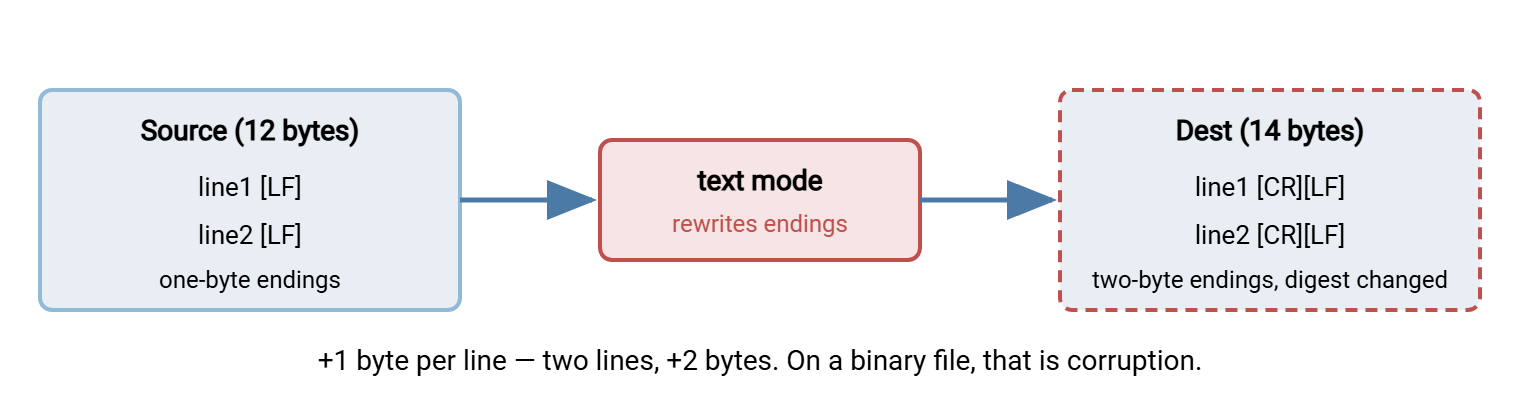
Confirm it directly. On Linux, the file command names the line-ending style, and comparing sizes shows the delta:
$ file report.txt
report.txt: ASCII text, with CRLF line terminators

$ wc -c < source.txt      # bytes in the original
41028
$ wc -c < report.txt      # bytes as received
42535
$ wc -l < source.txt      # lines in the original
1507
A 1,507-byte size difference across 1,507 lines is a confession: text mode added one byte per line. The fix is always the same — transfer in binary mode. Set your client to binary (many use the command TYPE I or a "binary"/"auto" setting). Or better, default everything to binary and only opt into text mode for genuine text you specifically want converted. The deeper mechanics of FTP's transfer types live in FTP failure modes. A broken data connection can compound the problem. So our Active vs Passive FTP series is a useful companion when transfers misbehave.
Remember: default to binary mode for everything and reserve text mode for files you know are text and want converted. Mode mangling is the one corruption source you can eliminate outright rather than merely detect.
Truncation: The File That Stops Short
A truncated file is simply incomplete — the bytes present are correct, but the tail is missing. The size is smaller than the source, sometimes by a little, sometimes by a lot. Truncation has a few reliable causes:
- The destination disk filled up mid-write, so the last bytes had nowhere to go.
- A process was killed — a crash, a reboot, a timeout — before it finished writing.
- The data connection dropped partway through. On FTP this often traces back to a firewall or mode issue on the data channel. Our Active vs Passive FTP material explains that. The control channel says goodbye politely while the transfer was actually cut off.
- The reader started too early, opening the file before the writer had finished — a race condition in a pipeline, not corruption of the source at all.
Truncation is easy to confirm because size comparison is decisive:
$ stat -c '%s %n' source.zip incoming.zip
5242880 source.zip
3145728 incoming.zip        ← 2 MB short: truncated
On Windows, (Get-Item incoming.zip).Length gives the same number. When you find truncation, look at the environment before re-transferring. Check free space on the destination, timeout settings for large files, and whether a downstream reader is grabbing files mid-write. The race-condition version is worth special mention because it fools people — the transfer was perfect, but something read the file too soon. The cure there is a write-then-rename or marker-file convention, so consumers only ever see a file that is fully written. We return to that pattern in building integrity checks into automated jobs.
Disk and Memory Errors: The Silent Kind
Here the size is right and the content is wrong, which makes these the errors a naive "did the size match?" check would miss entirely. Two hardware sources dominate.
Disk errors corrupt data after it is written. Causes include aging media, marginal sectors, a flaky drive controller, or the slow phenomenon often called bit rot, where stored bits degrade over time. The tell is intermittence and asymmetry: the source hashes the same every time, but the destination hashes differently. Sometimes the destination hashes differently on each read if the drive is failing actively. Checking a drive's SMART health data and watching the system logs for I/O errors usually confirms it. Filesystems that checksum their own data can catch and even repair this class of error, which is one reason they are favored for archival storage.
Memory errors corrupt data in flight, while it sits in RAM being copied through a machine. That machine may be a relay, a gateway, the sender, or the receiver. A single flipped bit in a buffer becomes a permanently wrong byte in the output. Because it happens before the write, no disk check will find it; the corruption is baked into the file. Server-grade error-correcting (ECC) memory exists precisely to catch and fix these flips, which is why it belongs in any box that moves data for a living. To confirm a suspected memory fault, re-run the same transfer through a different machine. If the corruption vanishes, the original box's memory (or its bus, or its controller) is suspect.
The shared diagnostic move for both is the double re-hash:
$ sha256sum source.dat            # on the source, twice - should never change
$ sha256sum source.dat
$ sha256sum incoming.dat          # on the dest, twice - a change means the disk is failing
$ sha256sum incoming.dat
A source digest that stays constant while the destination digest wanders is a dying disk caught in the act. A destination digest that is stable but simply wrong points instead to a one-time corruption. That could be in memory, on the wire above the transport, or during the write.
Prevention here is quieter than for mode mangling, because you cannot forbid hardware from failing — you can only catch it early. The practical defenses are worth naming. Run ECC memory and checksumming filesystems on the machines that move and store data. Watch drive SMART attributes and system logs so a failing disk announces itself before it takes a file with it. And — the habit most people skip — periodically re-verify archives against the digests you recorded when you stored them. Bit rot is slow. So a file that verified clean a year ago and fails today is telling you the storage is degrading. It is not telling you that the transfer was ever bad. Scheduled re-hashing of long-lived data turns silent decay into an alert you can act on while you still have a good copy to restore from.
Resume Bugs: Right Size, Wrong Insides
Resumable transfers restart an interrupted download or upload from where it left off, which is a great feature until it goes wrong. A resume bug produces a file of exactly the correct size whose contents are nonetheless wrong. The usual mechanisms:
- The source changed between the interruption and the resume, so the second half no longer matches the first half. The client appended new bytes onto a stale prefix.
- The offset was wrong, so the resume began a few bytes early or late. The two halves overlap or leave a gap that the file size still happens to cover.
- A partial temp file was mistaken for complete, and a later run "resumed" a file that was actually finished, doubling or scrambling a region.
Because the size looks perfect, only a content hash reveals the problem — which is exactly why you verify after resumed transfers, not just interrupted ones. To confirm a resume bug, transfer the file once more from scratch with resume disabled and compare. If the fresh copy verifies and the resumed one did not, the resume logic is your culprit. For unattended jobs that resume automatically, the safe posture is to verify every completed file regardless of how it got there. Re-fetch from the beginning on any mismatch.
A Diagnosis, Start to Finish
Put it together on a real failure. A nightly job reports that catalog.xml failed verification. Walk the ladder:
# 1. Is it a size problem (mode or truncation) or a content problem (hardware/resume)?
$ stat -c %s /src/catalog.xml /dest/catalog.xml
2048576 /src/catalog.xml
2050083 /dest/catalog.xml          ← 1507 bytes larger, same as the line count?

# 2. Check line endings - a CRLF report on an XML file screams text mode
$ file /dest/catalog.xml
/dest/catalog.xml: XML document text, with CRLF line terminators

# 3. Confirmed: text-mode mangling. Re-transfer in binary and re-verify.
$ sha256sum -c catalog.xml.sha256
catalog.xml: OK
Check size first, then line endings, then re-transfer and re-verify. Those three steps turned a red failure into a named cause and a clean fix in under a minute. When the size matches but the hash still fails, you skip straight to the hardware-and-resume branch. In that case, re-hash both ends twice, try a different machine, and re-transfer without resume.
The Version to Tell a Colleague
Corruption comes from five places: transfer-mode mangling, truncation, disk errors, memory errors, and resume bugs. Split them by symptom. If the size is wrong, suspect text-mode translation (size off by the line count) or truncation (file cut short). If the size is right but the content is wrong, suspect failing storage, bad memory, or a botched resume. Confirm with a size comparison, the file command for line endings, and a double re-hash of both ends. And remember the one you can prevent outright: default to binary mode, and text-mode mangling simply stops happening.
To keep these failures from reaching production, build the checks into your jobs — see building integrity checks into automated jobs. To verify whole batches at once so you catch the corrupt file among many, see checksum files and manifests. And for the verification habit these diagnoses assume, revisit verifying a transfer end to end.
Frequently Asked Questions
Why does my zip file arrive corrupt over FTP but fine over SFTP?
The file is the exact right size but still fails the hash. What now?
How do I tell truncation from text-mode mangling? Both change the size.
Can a network error corrupt my file without me knowing?
Does bit rot really happen, or is that a myth?
Should I disable resume to avoid resume bugs?
From the Sysax team: we build secure file transfer software for Windows. Sysax Multi Server is an FTP, FTPS, SFTP, and HTTPS server. Sysax FTP Automation handles scheduled, scripted transfers. Free trials are on the download page.