
FTP's Failure Modes: The Complete Field Guide
FTP fails in a small number of well-worn ways. That is genuinely good news. Once you have seen the whole catalog, almost every FTP incident you will ever face is a rerun of something in this article. The bad news is that the failures announce themselves confusingly. A firewall problem looks like a hung client, a corrupted transfer looks like a success, and a full disk looks like a permissions error. So the catalog is only useful if it is organized the way incidents actually unfold.
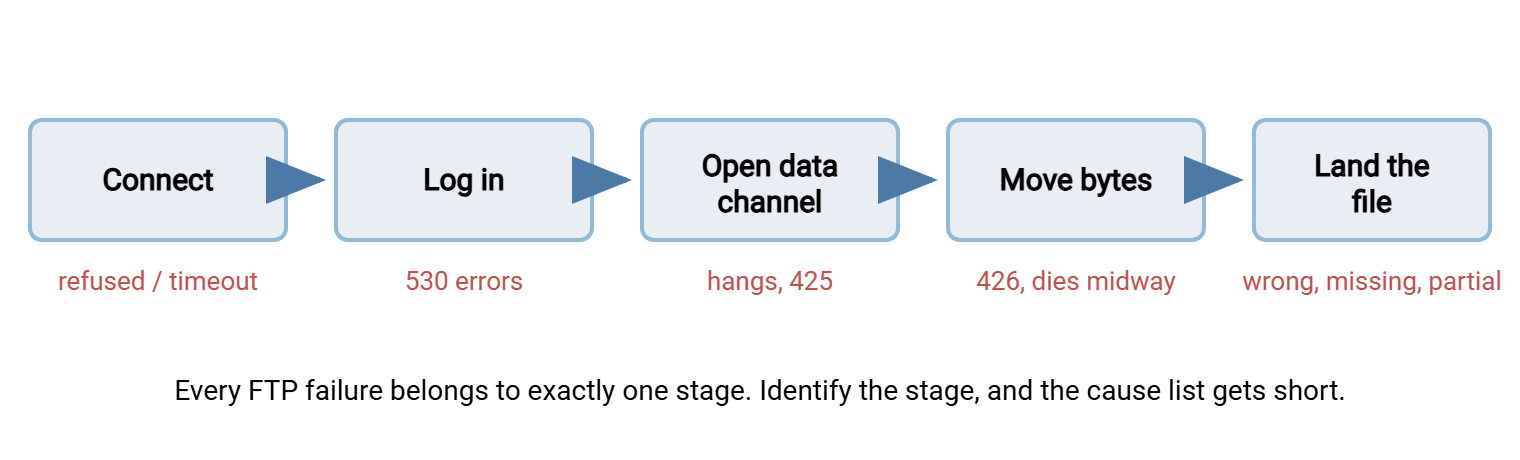
This guide is organized exactly that way: by stage. Every FTP operation passes through the same sequence — connect, log in, open a data channel, move bytes, land the file. Every failure belongs to the stage where the sequence stopped. Find your stage, and the guide hands you the short list of causes and the fix for each. It is written for mid-incident scanning: headings first, prose second. It is part of our The FTP Protocol series. It leans on two ideas that series builds — the two-channel architecture and the reply-code system — without re-explaining them.
The diagram below shows the stages every session passes through, and what a failure at each one looks like from the outside.
First: Localize the Failure in Five Commands
Before diving into any stage, run this short manual session from the affected machine (or as close to it as you can get). Each step exercises exactly one stage, so wherever the sequence breaks, you have found your section of this guide. Any command-line or graphical client works; shown here as the classic command-line flow:
ftp ftp.example.com          # Step 1 — fails here: Stage 1 (nothing connects)
user transferuser            # Step 2 — fails here: Stage 2 (login)
binary                       # Step 3 — always do this; prevents Stage 4 corruption
dir                          # Step 4 — hangs or 425 here: Stage 3 (data channel)
get smallfile.txt            # Step 5 — dies partway: Stage 5 (mid-transfer)
put testfile.txt             # Step 6 — refused here: Stage 6 (server-side surprises)
quit
One caution that trips people constantly: the Windows built-in ftp.exe only speaks active mode. So on a firewalled network it can hang at dir even when nothing is wrong with the server. Test with a passive-capable client before concluding anything. The reasons live in why firewalls block active FTP.
Stage 1 — Nothing Connects
Symptom: "connection refused," instantly. The machine answered and said no. The FTP service is stopped, crashed, or listening on a non-standard port. Fix: confirm the service is running, and confirm the port. The convention is port 21, but partners love non-standard ports and forget to mention them (our blog post What port is FTP? covers the conventions). A refused connection is oddly reassuring: the network path works.
Symptom: connection attempt hangs, then times out. Nothing answered. Either the address is wrong (stale DNS, wrong IP in the script) or the host is down. Or — most often — a firewall along the path is silently discarding the traffic. Fix: verify name resolution, then test basic reachability, then check firewall rules at both ends. Timeouts mean "no path," not "server said no."
Symptom: connects, then immediately drops with a 421. The service is alive but refusing service: its connection limit is full, or your address has been temporarily banned after failed logins. Fix: count concurrent sessions (leaked connections from an automation job are the classic cause), and check the server's ban list. Reply-code review: 421 is transient — the full decoding system is in commands and reply codes.
Symptom: the TCP connection opens, then the welcome banner takes ages to appear. A long stall between "connected" and the 220 greeting is classic name-lookup trouble. Some servers try to resolve each connecting client's address back to a name before answering. When that lookup has to time out first, every session starts with the same maddening delay. Fix: repair the server's DNS configuration or disable its reverse-lookup behavior. The tell is consistency — the delay is always the same length, for every client, and the session works perfectly afterward.
Stage 2 — Connected, but Login Fails
Symptom: 530 after the password. The possibilities, in rough order of likelihood, start with a wrong password (rotated, expired, or typo'd in a config file). Next, the account is disabled or locked. Or the account exists on a different system than you think. Many servers use virtual users defined in the server's own configuration, entirely separate from operating-system accounts. So "the Windows password works fine" proves nothing. The account models and their confusions get a full article: FTP account models.
Symptom: anonymous login refused. The server does not allow anonymous access, or allows it only from certain addresses. If a device or script was built assuming anonymous access, it fails the moment an administrator tightens the server — a common aftershock of security cleanups.
Symptom: login works interactively but fails from the script. Almost always a quoting problem: a password containing special characters that the script's language mangles, or trailing whitespace in a credentials file. Compare byte-for-byte what the script sends against what you type. The server's log settles disputes here, because it records the username it actually received.
Stage 3 — Login Works, Then Listings or Transfers Hang
This is the most famous FTP failure family, and it has its own dedicated series, so this entry is deliberately a signpost. The signature: authentication succeeds. Then dir or the first transfer hangs forever, fails with 425 Can't open data connection, or returns an empty listing from a folder you know has files. The control connection is healthy; the data connection — the separate second connection that carries listings and file contents — could not be established.
The causes are mode mismatch, firewalls, NAT, or a misconfigured passive setup, and the fixes are client-side mode switches or server-side passive-range repairs. Go straight to: active vs passive FTP explained for the model, diagnosing FTP mode failures for the decision tree, and configuring passive port ranges for the server-side fix. If you administer the server, note that the passive range is an ordinary setting in modern server software. In Sysax Multi Server the passive port range is configured in the server settings. Together with matching firewall rules, that resolves most Stage 3 tickets permanently.
Remember: in mode and firewall problems, login always works. Any failure that begins after a successful login and involves hanging or 425-class errors is a data-channel problem. In that case, spend your energy on firewalls and mode settings, not on credentials.
Stage 4 — Transfers "Succeed," but the Files Are Wrong
The most dangerous stage, because everything reports success. The reply log shows a clean 226 Transfer complete, and the file is garbage.
Symptom: binary files arrive corrupted — archives won't open, images are broken, installers fail — and the size changed in transit. Cause: the transfer ran in ASCII mode (TYPE A), which "helpfully" rewrites line-ending bytes for text portability. Applied to a zip or executable, that rewriting is corruption. The size change is the tell: ASCII translation adds or removes bytes. So a size mismatch between source and destination plus a working transfer equals ASCII mode almost every time. Fix: force binary (TYPE I; the binary command in most clients), and make it explicit in every script rather than trusting defaults.
Symptom: text files arrive as one long line, or gain ^M characters at every line end. The same machinery in the other direction: a text file moved in binary mode between systems with different line-ending conventions keeps the wrong convention. Fix: for the rare genuine text-between-unlike-systems case, ASCII mode is doing its intended job. More often, the modern answer is to transfer binary and let editors cope, since nearly all current tools read either convention.
Symptom: filenames arrive mangled — accented characters become gibberish. Client and server disagree about filename encoding. Fix: configure both ends for UTF-8 where supported; where not, keep exchanged filenames to plain unaccented characters, which is a wise partner-facing policy anyway.
Symptom: the file you uploaded "isn't there" — but the upload worked. Usually this is not a transfer problem at all. The file may have landed in a different directory than the one being checked. Accounts can have different home directories and isolated views of the filesystem. Or the listing hides files the account cannot see. Check with the same account, and read the account models article for how two users can truthfully see different contents in "the same" folder.
Symptom: every synced file re-transfers every night, or timestamps look shifted by hours. Downloaded files normally receive the local time of arrival, not the source file's modification time, unless the client explicitly preserves timestamps. Servers report times in whatever zone they were configured for. Any sync-style job that compares timestamps across those two facts will conclude everything changed and copy the world nightly. Fix: turn on the client's timestamp-preservation option if it has one, or compare by size and checksum instead of by clock.
Rule of thumb: a transfer that completes but changes the file's size was an ASCII-mode transfer of a binary file. Set binary mode explicitly in every client and every script, and verify important transfers by comparing sizes or checksums rather than trusting 226.
Stage 5 — Transfers That Die Midway
Symptom: 426 Connection closed; transfer aborted partway through. The data connection was established and then killed. The cause may be a flaky network link or an aggressive intermediate device cutting long-lived connections. Or a server or client timeout is set shorter than the transfer needs. Fix: retry first (a lone 426 is often just weather), then look for a pattern. Failures at a consistent byte count or duration point to a timeout or inspection device, not chance.
Symptom: very long transfers finish the data, then the session errors at the end. A signature worth knowing by heart. During a long transfer, the control connection sits completely idle, and an idle-timeout somewhere — often a stateful firewall — silently discards it. The bytes arrive; the completion handshake has nowhere to happen. So the client reports failure and the automation retries a transfer that actually succeeded, producing duplicates. Fixes: enable the client's keep-alive option (harmless NOOP commands during transfers), lengthen the idle timeout on the offending device, or split enormous files into smaller pieces.
Symptom: recurring midway failures on a WAN link. Use resume rather than restart: the REST mechanism lets a capable client continue from the last received byte instead of starting over. For unattended jobs, retry-with-resume converts an unreliable link from a nightly incident into an invisible annoyance. This is precisely the class of problem scheduled-transfer tools exist for. It is why Sysax FTP Automation builds retry and error handling into its transfer jobs rather than leaving failure handling to a batch file's imagination.
Stage 6 — Server-Side Surprises
Symptom: 550 Permission denied on upload or download. The account lacks rights on that file or folder. Verify the path (case matters on many servers), then the permissions, then the ownership — in that order. Path typos are more common than permission changes. A 553 variant means the target name is not allowed: illegal characters or a server naming policy.
Symptom: 452 or 552 on upload. Out of space: 452 is the disk, 552 is the account's quota. Both are found-money for monitoring — a disk-space alert on the server and a quota report per account prevent every recurrence.
Symptom: 450 File unavailable, intermittently. The file is locked — usually because another process is still writing it, or an antivirus scanner is holding it. Fix on the producing side: write files under a temporary name and rename them into place when complete. That way, consumers can never grab a half-written file. The annotated upload in the reply-codes article shows the exact command sequence.
Symptom: downstream systems process partial files. Same disease, observed from the other end: a watcher job picked up a file while it was still landing. Same cure: temporary-name-then-rename on the producer, or a completion marker file the consumer waits for.
The Mid-Incident Table
Everything above, compressed for the moment when something is down and nobody wants prose:
| Symptom | Most likely cause | Fastest fix |
|---|---|---|
| Connection refused | Service stopped or non-standard port | Start service; confirm port with the far end |
| Connection times out | Firewall drop or wrong address | Verify DNS/IP, then firewall rules both ends |
| 530 at login | Bad or expired credentials; wrong account system | Check the server's user store, not the OS's |
| Login OK, listing hangs or 425 | Mode/firewall/NAT — data channel blocked | Switch client to passive; fix passive range |
| File arrives corrupted, size changed | ASCII mode applied to binary file | Force binary mode in the client or script |
| 426 midway through transfers | Unstable link or timeout cutting data connection | Retry with resume; hunt consistent-length patterns |
| Long transfer completes, then session errors | Idle control connection dropped by firewall | Enable keep-alives; raise idle timeouts |
| 550/553 on a known-good path | Permissions, ownership, or name policy | Check case, then rights, then the filename |
| 452 / 552 on upload | Disk full / quota exceeded | Free space or raise quota; add monitoring |
| Downstream reads partial files | Consumer grabs files still being written | Upload to temp name, rename when complete |
When the Failure Is Silent
The failures above at least produce symptoms. The worst FTP failures produce none, because the automation around the protocol swallows them. The venerable Windows ftp.exe exits with a success code even when every transfer inside the session failed. So a batch job wrapped around it turns red incidents into green dashboards. Old scripts rarely check reply codes, rarely alert, and rarely log enough to reconstruct what happened.
The pattern plays out the same way everywhere: an upload account quietly hits its quota. The nightly job starts collecting 552 replies and the batch wrapper reports success anyway. The gap is discovered a week later by the person waiting for the files — who is never the person running the job. Every silent failure in this guide follows that shape: the error was visible on the wire the first night, and nothing was listening. Your environment may run jobs like that — and most do. In that case, the companion article reading the FTP automation you inherited shows how to find and defuse them before this field guide gets used in anger.
Closing the Loop
Stage-first thinking is the whole trick: connect, log in, data channel, bytes, landing. Find where the sequence stopped, and the cause list collapses to two or three suspects with known fixes. Two configuration habits prevent half of this article outright. Set binary mode explicitly in every client and every script. Prefer passive mode with a properly configured, properly firewalled passive range on the server. Add size-or-checksum verification for transfers that matter, and keep-alives for transfers that run long. Most of the remaining half disappears too.
Pair this guide with the reply-code reference for decoding what the server said. And — better — rehearse these failures before they happen. Nearly every entry in this article can be triggered deliberately and safely in the disposable environment from building an FTP lab. That turns this catalog from reading material into experience.
Frequently Asked Questions
Why does FTP log in fine but hang when I list files?
Why did my zip file get corrupted during an FTP transfer?
What does error 425 mean and how do I fix it?
Why do very large FTP transfers fail right at the end?
How do I stop another system from picking up half-transferred files?
Why does my FTP server take thirty seconds to show the welcome banner?
From the Sysax team: we build secure file transfer software for Windows. Sysax Multi Server is an FTP, FTPS, SFTP, and HTTPS server. Sysax FTP Automation handles scheduled, scripted transfers. Free trials are on the download page.