
How File Upload Works on the Web: Multipart, PUT, and Chunks Explained
Every administrator eventually gets the ticket: a user clicks "upload." The progress bar crawls to some point — sometimes 30%, sometimes a cruel 100%. The page shows an error nobody can interpret. Web upload feels like a black box because the browser hides all of it. One click becomes a carefully formatted network request. When it fails, the error message rarely says which of the half-dozen layers in the path refused it.
This article opens the box. You will see exactly what crosses the wire during an upload. You will learn the two encodings that carry files (multipart forms and raw bodies), and what PUT and POST actually promise. You will learn why size limits stack at every layer between browser and disk. By the end, an upload failure reads like a list of suspects you can interrogate one at a time.
Nothing here assumes prior web development experience — every term is defined as it appears. This is part of our HTTP/HTTPS File Transfer series, and it is the foundation the other articles in the series build on.
An Upload Is Just an HTTP Request with a Body
Start with the shape of the protocol itself. HTTP is a request-response protocol. The client (a browser, a script, a curl command) sends one request, and the server sends back one response. That exchange is the entire transaction. There is no separate "upload channel" and no long-lived session for the file. That makes HTTP simpler than FTP, where a second data connection has to be negotiated for every transfer. That is the source of the whole active-versus-passive mode saga.
Every HTTP request has the same anatomy. First comes the request line: a method (the verb — GET, POST, PUT), a path (/upload), and the protocol version. Then come headers — labeled lines of metadata such as Host, Content-Type, and Content-Length. Then a blank line. Then, optionally, the body: raw bytes, as many as the headers promised.
A download is a request with an empty body and a response with a full one. An upload is the mirror image: the request carries the file's bytes in its body, and the response is usually a short confirmation. That is the entire trick. Everything else — multipart, verb semantics, chunking — answers two practical questions: how are the bytes packaged inside that body, and what does the server do when they arrive?
Two headers matter constantly in upload work. Content-Type tells the server how to interpret the body ("this is a PNG image," "this is an encoded form"). Content-Length declares the body's size in bytes up front, so the server knows when the request ends. Importantly, every device in the path can decide before accepting the body whether it is willing to receive something that large. Keep that in mind for the size-limits section.
Multipart/form-data, Decoded
When a user picks a file in a web form and clicks submit, the browser almost always sends it as multipart/form-data. The name describes it literally: the request body is split into multiple parts, one per form field, and one of those parts carries the file.
Why the complexity? Because a form rarely contains only a file. It has text fields too — a description, a category, a hidden token. The browser needs to pack text values and raw binary bytes into a single body without them bleeding into each other. Multipart solves this with a boundary: a random string, chosen by the browser, guaranteed not to appear inside any of the values. Like the cardboard dividers in a moving box, the boundary is what lets the receiver split the body back into parts.
Here is a complete multipart upload request, trimmed only in the binary section. Read it top to bottom once; it is the single most useful thing to have seen when you debug uploads:
POST /upload HTTP/1.1
Host: files.example.com
Content-Type: multipart/form-data; boundary=----FormBoundary9x7Kd2
Content-Length: 12483

------FormBoundary9x7Kd2
Content-Disposition: form-data; name="comment"

Q3 network diagram, final version
------FormBoundary9x7Kd2
Content-Disposition: form-data; name="file"; filename="diagram.png"
Content-Type: image/png

<12,208 bytes of raw PNG data>
------FormBoundary9x7Kd2--
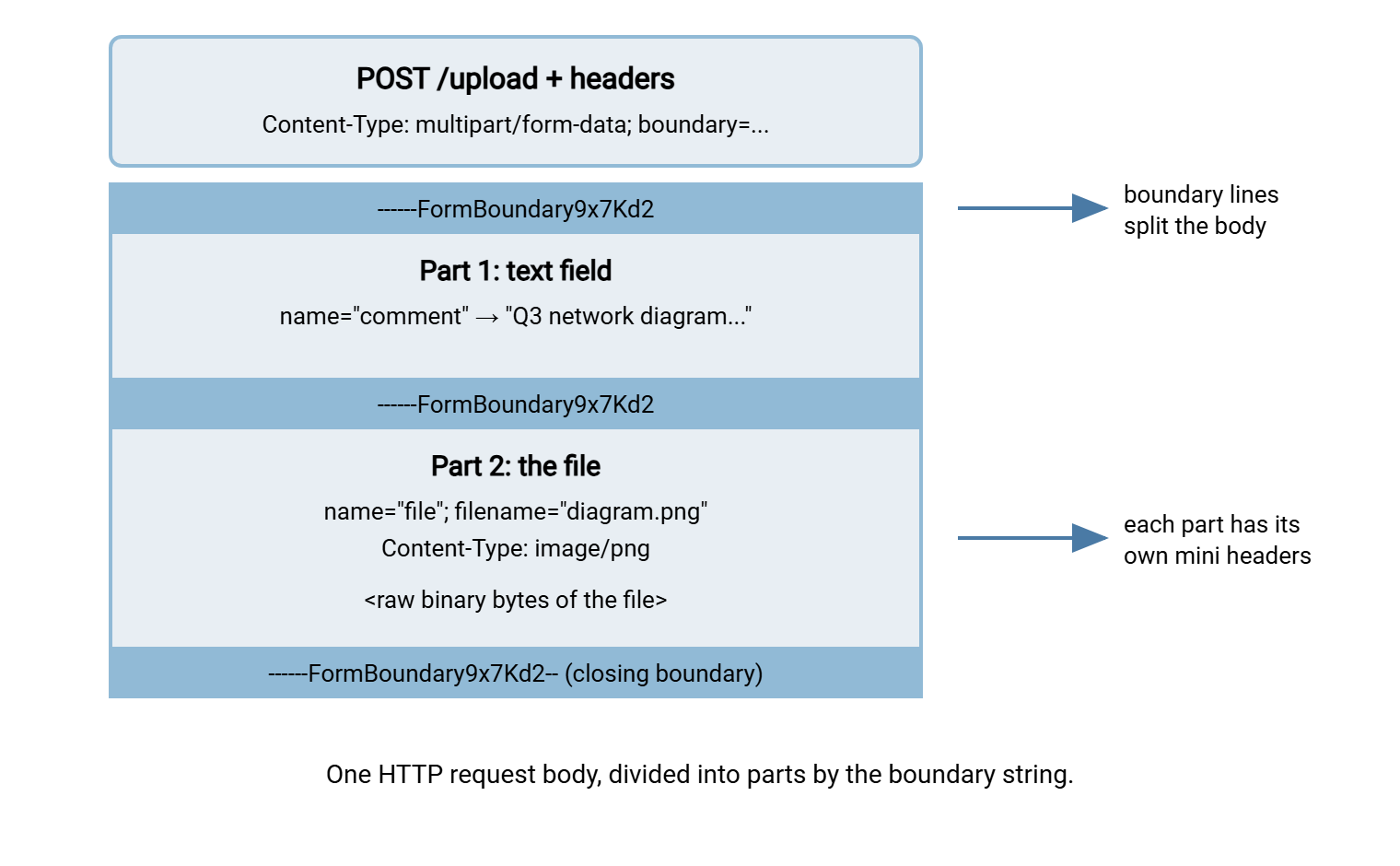
Walk through what you just read. The Content-Type header declares the encoding and announces the boundary string. In the body, each part begins with a line consisting of two dashes plus the boundary. That is why the separator lines show two more dashes than the header. This detail has confused generations of people writing upload code by hand. Each part then has its own miniature headers: Content-Disposition names the form field. For file parts it adds the original filename and a part-level Content-Type describing the file itself. After a blank line come the part's actual bytes. The final boundary carries two trailing dashes — the "no more parts" signal.
The diagram below shows the same structure visually: one request body, divided by boundary lines into a text part and a file part.
Two practical notes. First, multipart overhead is small and flat — a few hundred bytes of boundaries and part headers regardless of file size. The myth that browser uploads inflate files by a third confuses multipart with the base64 encoding used in email attachments; multipart carries binary as-is. Second, the filename the browser sends is a suggestion from an untrusted stranger, not an instruction. Well-built servers never use it as a disk path — a point that becomes critical if you ever build an upload endpoint yourself.
PUT vs POST: What the Verbs Actually Promise
Multipart answers "how are the bytes packaged." The method — the verb in the request line — answers a different question: what is the server being asked to do with them? The two verbs you will meet in upload work are POST and PUT, and the difference between them is about meaning, not mechanics.
POST means: "here is data — process it as you see fit." The URL identifies a handler (/upload), not the file's future location. The server decides everything: where the file lands, what it is named, whether a database row is created. Send the same POST twice and you may well get two copies, two records, two of whatever the handler creates. In protocol terms, POST is not idempotent — repeating it is not guaranteed to be harmless.
PUT means: "store this exact content at this exact URL." The URL is the file's address: PUT /backups/web01-config.tar.gz says "make it so that this path holds these bytes." Do it twice and the second call simply overwrites the first with identical content — the end state is the same. PUT is idempotent by definition, and that single property is why automation loves it. A retry after a network hiccup can never create a duplicate. A raw PUT also skips multipart entirely — the body is nothing but the file:
PUT /backups/web01-config.tar.gz HTTP/1.1
Host: files.example.com
Content-Type: application/gzip
Content-Length: 8388608

<8 MB of raw gzip bytes — the body IS the file>
So why do browsers use POST with multipart instead of this cleaner scheme? History and forms: HTML forms can only submit as GET or POST. A form usually carries text fields alongside the file, which multipart exists to combine. Machine-to-machine transfer has no such constraint, which is why REST APIs and object storage services lean on PUT. The term object storage services is the generic name for cloud services that store files as addressable objects behind an HTTP interface. REST APIs and these services often use presigned URLs that authorize exactly one PUT to exactly one path.
Here is the rule of thumb when you meet or design an endpoint. If the client knows the destination path and the operation should be safely repeatable, PUT fits. If the server assigns names, records metadata, or triggers processing, POST fits. Neither verb is "more secure" — security comes from TLS and authentication, not the verb.
"Chunked" Means Two Different Things
The word chunk causes real confusion in upload work because it names two unrelated mechanisms, one per layer.
The first is chunked transfer encoding, a wire-level HTTP feature. Normally a request declares its total size up front in Content-Length. But sometimes the sender does not know the size yet — it is generating data on the fly, or streaming from a source of unknown length. With the header Transfer-Encoding: chunked, the body is sent as a series of length-prefixed pieces, ending with a zero-length piece meaning "done." It is still one request; the receiver reassembles the pieces transparently. You mostly notice this feature when middleware dislikes it. Some proxies and older servers handle chunked request bodies poorly. A missing Content-Length defeats any device that wants to enforce size limits before the body arrives.
The second is application-level chunked upload. The client deliberately splits a large file into many pieces and sends each piece as its own separate HTTP request. Then it asks the server to reassemble them. This is not an HTTP feature at all — it is an application design pattern. It exists because a single giant request is fragile: one dropped packet at 97% and the whole transfer restarts from zero. That pattern, along with resumable downloads via Range requests, gets its own full treatment in large files over HTTP.
When someone says "chunked upload," check which one they mean. Nine times out of ten in admin conversations, they mean the second.
Size Limits Stack at Every Layer
Here is the section that explains most real-world upload tickets. Between the user's browser and the server's disk, an upload typically crosses four to six independent layers — and each layer enforces its own maximum body size. The effective limit is the smallest of them, and the error the user sees depends on which layer said no.
Trace the path. The browser reads the file and builds the request. At this layer the constraint is memory and the page's own JavaScript, which may balk at huge files or freeze the tab. The request then hits a reverse proxy or load balancer (a front-door server that forwards traffic to the real application). These almost always ship with a default body-size cap. The classic response when you exceed it is status 413, "Request Entity Too Large." Behind that, the web server hosting the application has its own request-body limit. Behind that, the application framework — the library the developers built the upload handler with — has yet another. That limit is usually the strictest, because frameworks default conservative to prevent memory exhaustion. Finally the file must land somewhere: a temp directory with finite space and possibly a quota.
| Layer | Typical symptom when it refuses | Where the knob lives |
|---|---|---|
| Browser / page JavaScript | Upload never starts; tab freezes; page's own "file too large" message | The web page's code — nothing an admin can tune |
| Reverse proxy / load balancer | 413 almost instantly — the size was rejected from Content-Length before upload |
Proxy configuration (body-size directive) |
| Web server | 413, or the connection resets partway through |
Server config (max request body setting) |
| Application framework | Error after the bar reaches 100% — often 400/413/500 |
Application settings file — usually a developer change |
| Disk / temp space on the server | 500 near the end; works for others, fails when disk is full |
Temp path location, free space, quotas |
This stacking is why "I raised the limit and it still fails" is such a common story. The admin raised one layer's limit while a different layer still held the old ceiling. When you inherit an upload problem, list every hop between browser and disk and find each hop's body-size setting. Remember that timeouts stack the same way. A proxy that allows a 2 GB body but cuts idle connections at 60 seconds will still kill a 2 GB upload over a slow line.
Remember: the effective upload limit of a system is the minimum of every layer's limit. The effective timeout is the minimum of every layer's timeout. Raising a limit only helps when you raise it at the layer that is actually saying no. The response code and its timing tell you which one that is.
Where Uploads Fail: Reading the Symptoms
With the anatomy and the layer stack in mind, the classic failure signatures become readable:
- Instant 413. The refusal arrived before any real data moved, which means a front layer read
Content-Lengthand rejected the size on paper. Suspect the proxy or web server limit, not the application. - Dies mid-transfer, different percentage each time. Something killed the connection while bytes were flowing: an idle or total-duration timeout, a flaky network, or a proxy buffering limit. Slow client links make this one worse — the same file that succeeds from the office fails from a hotel.
- Reaches 100%, then errors. The bytes all arrived; what failed came after. The progress bar measures sending. But the server still has to parse the multipart body, run validation, scan the file, and write it to permanent storage. Framework body limits, virus scanners, and full disks all announce themselves at this stage.
- Works with small files, fails above a suspiciously round threshold. A configured limit somewhere — find which layer's default matches the threshold.
- Fails only from scripts or only from browsers. When a browser page uploads via JavaScript to a different hostname, the browser first asks that server for permission using a preflight request. That is an
OPTIONSrequest under the CORS cross-origin rules. Scripts never send preflights, so an endpoint missing CORS headers fails browsers while curl works perfectly.
One habit ties all of these together: get the actual HTTP status code and timing. The browser's message ("upload failed") is a paraphrase; the status code is evidence.
Watch an Upload Yourself: A Ten-Minute Lab
The fastest way to make all of this stick is to watch a real upload in the raw. You need two terminals and no infrastructure. In the first, use netcat (nc, the network Swiss-army knife present on most systems) to listen on a port and print whatever arrives. In the second, send a multipart upload at it with curl:
# Terminal 1 — a fake server that just prints the raw request
nc -l 8080          # some netcat builds want: nc -l -p 8080

# Terminal 2 — a multipart upload, exactly like a browser form
echo "hello upload" > notes.txt
curl -F "comment=test run" -F "file=@notes.txt" http://localhost:8080/upload
Terminal 1 fills with the complete request: the POST line, the headers, the boundary, both parts, your file's bytes, the closing boundary. (curl will hang waiting for a response that never comes — Ctrl-C it; netcat is a listener, not a server.) Swap the curl line for curl -T notes.txt http://localhost:8080/notes.txt and watch the same file arrive as a bare PUT body with no boundaries at all. Ten minutes of this teaches more than any diagram, this article's included.
In a browser, the equivalent view is the developer tools Network tab: click the upload request and inspect its headers and payload. When you want the same narration from a script, curl's -v flag prints the whole conversation. A full set of upload, download, and retry recipes lives in our companion curl and wget cookbook.
One practical aside: you may be dissecting uploads because people keep needing to send files to you. In that case, you do not have to build or babysit a custom upload page at all. A file transfer server with HTTPS support — Sysax Multi Server is our Windows implementation — gives users browser-based upload and download against real user accounts. The parsing, storage, and logging are already handled. Understanding the mechanics remains valuable; hand-rolling them is optional.
Answering the Ticket
Back to the user with the failed upload. You now ask: what was the status code? How fast did it fail? An instant 413 points at a front-layer size cap. A mid-transfer death points at timeouts or the network. A failure at 100% points behind the web layer — parsing, scanning, disk. A browser-only failure smells of CORS. And if the file is simply enormous, the honest answer may be that a single-request upload is the wrong tool. The request-splitting strategies in large files over HTTP exist precisely for that case.
The mental model to keep: an upload is one HTTP request whose body carries the file. The file is packaged either as multipart parts split by a boundary, or as a raw PUT body. That request must pass a stack of layers, each with its own size ceiling and clock. Once you can see the request and name the layers, web upload stops being a black box and becomes ordinary plumbing. From here, a natural next read in this series is the curl and wget cookbook for the tooling. Another is files over REST APIs for how these same primitives get wrapped into designed interfaces.
Frequently Asked Questions
Why does my upload fail instantly with a 413 error?
What is the difference between multipart/form-data and a raw PUT upload?
Why did the upload fail after the progress bar reached 100%?
Is PUT more secure than POST?
Does uploading through a browser make the file bigger, like email does?
Why does the upload work from curl but fail from the browser?
From the Sysax team: we build secure file transfer software for Windows. Sysax Multi Server is an FTP, FTPS, SFTP, and HTTPS server. Sysax FTP Automation handles scheduled, scripted transfers. Free trials are on the download page.