
Deploying and Scheduling Python Transfer Jobs
Here is the moment this article exists for. The script is finished. It ran perfectly at your desk, twice. You schedule it for two in the morning, go home, and the next day discover it never really ran. The scheduler's log shows a one-line epitaph like python: command not found, or an import error for a library you know is installed. Nothing about the script is wrong. What failed is the deployment: the unglamorous layer between working code and code that works unattended, on a schedule, as somebody else.
Python jobs die in this layer more than any other, because Python brings something shell scripts do not. Its interpreter and packages must be findable by the scheduler, not just by you. This article is the complete tour — what a virtual environment is and why every job gets its own. It covers how to pin dependencies without turning into a full-time version chaser. It covers the exact way to invoke a job from cron and from Windows Task Scheduler. It includes a field guide to the python-not-found family of failures, and how to upgrade later without breakage. This article closes our Python Automation series, deploying the utility built in building a small transfer utility.
Why the Scheduler's World Is Not Your Desk
Every deployment mystery in this article has the same root: a scheduled job does not run in the world where you developed it. Four differences do nearly all the damage.
- A different user. The job runs as a service account, not you. It has a different home directory, different permissions, no access to your profile, your SSH agent, or anything owned by your account. (Why jobs deserve their own identity at all is covered in service account hygiene.)
- A minimal environment. Your interactive shell has a rich
PATHand environment variables assembled by login scripts. Cron famously provides almost none of that, and Task Scheduler provides the service account's environment, not yours. Commands that "just work" for you work because of that assembly. - A different working directory. The job starts in whatever directory the scheduler chooses — not your project folder. Every relative path in the script silently points somewhere new.
- Nobody watching. Prompts hang forever, errors scroll into nowhere unless captured, and the only signals that escape are the exit code and whatever you logged.
The rest of this article is really one principle applied four ways: make everything explicit — the interpreter, the packages, the paths, the environment. That way, the job depends on nothing that only exists at your desk. The same principle drives our bash and cron and scheduled jobs series; Python just raises the stakes.
One Job, One Virtual Environment
A virtual environment (venv) is a folder containing a private copy of the Python setup: its own python command and its own package directory. Install a library into a venv and it exists there and nowhere else. That isolation is what makes Python jobs survivable in production. The operating system's Python can be patched. Another job can upgrade its libraries. A teammate can experiment. Your job's environment does not move.
There is no magic inside the folder, and seeing that removes most of the fear. A venv holds three things. First, a bin directory (Scripts on Windows) holds the environment's own python and pip commands. Second, a site-packages directory holds installed libraries. Third, a small pyvenv.cfg file records which base interpreter the venv was built from. That last file is also the venv's one fragility — it hard-codes a path. That is why a venv cannot be copied to another location or another machine and is instead cheaply rebuilt wherever it is needed.
The rule that follows: one venv per job, living beside the job, in a stable path owned by the job's service account. Keep it out of your home directory (the service account may not read it, and it leaves when you do). Do not share it across unrelated jobs (an upgrade for one becomes a surprise for all). Creating one is a single command on each platform:
# Linux: the job lives in /opt/jobs/nightly-push
python3 -m venv /opt/jobs/nightly-push/.venv
/opt/jobs/nightly-push/.venv/bin/python -m pip install -r requirements.txt

:: Windows: the job lives in C:\Jobs\nightly-push
py -m venv C:\Jobs\nightly-push\.venv
C:\Jobs\nightly-push\.venv\Scripts\python.exe -m pip install -r requirements.txt
Notice what those install lines do: they run pip through the venv's own interpreter (-m pip), which guarantees the packages land inside that venv. Running a bare pip install from wherever your shell finds pip is how libraries end up installed into the wrong Python. That is the single most common cause of "it imports for me but not for the job."
Remember: scheduled jobs never need to "activate" a venv. Activation is a convenience for interactive shells — it just edits your prompt and PATH. Invoking the venv's python by absolute path is the activation, and it is the only form of it that works from a scheduler.
Pinning Dependencies Without Version-Chasing
A venv answers where packages live; a requirements file answers which packages, exactly. The file is a plain text list, one dependency per line. For a job — as opposed to a library other people build on — every line should pin an exact version:
# requirements.txt — every line pins exactly, in the form:
#   package==<pinned-version>
# recorded from the environment you actually tested (pip freeze),
# never left open-ended for a rebuild to reinterpret
The workflow is short. Build the venv, install what the job needs, and test the job. Then record the result with pip freeze into requirements.txt and commit it next to the script. From then on, that file is the environment: any machine, any rebuild, any teammate gets identical packages with one install command. Unpinned requirements do the opposite — a rebuild quietly picks up whatever is newest that day. The job changes behavior without a single edit to its code, which is among the most confusing failures in automation.
Pinning does not mean chasing versions. You are not obliged to update anything on any schedule except your own. The pins hold still until you deliberately change them (a process covered below). The only routine obligation is caring about security advisories for the few libraries you use. A transfer job typically has one direct dependency and a handful of transitive ones — this is minutes per quarter, not a hobby.
Invoking from cron, Correctly
With the venv built and pinned, the cron entry is one line — and every element of it is doing deliberate work:
10 2 * * * /opt/jobs/nightly-push/.venv/bin/python /opt/jobs/nightly-push/run.py --config /opt/jobs/nightly-push/job.ini >> /var/log/jobs/nightly-push.cron.log 2>&1
Reading left to right, you start with the schedule fields (minute 10, hour 2 — daily at 02:10). Next comes the absolute path to the venv's interpreter, which sidesteps PATH entirely. Then come the absolute path to the script and the absolute path to its config. Finally, a redirection appends both normal output and errors to a log file. That redirection matters more than it looks. Without it, output goes to cron's mail system — which on many servers is configured to deliver nowhere. In that case, the job's dying words are lost. Note what the line does not contain: no cd, no source activate, no bare python. Nothing depends on the environment cron fails to provide.
Before trusting the schedule, run the job once the way cron will — with the environment stripped:
env -i HOME=/home/svc-push /bin/sh -c \
  '/opt/jobs/nightly-push/.venv/bin/python /opt/jobs/nightly-push/run.py --dry-run'
env -i empties the environment, so anything your setup was silently providing is now missing — exactly as it will be at 02:10. A dry run under those conditions, exiting zero, is real evidence. Two smaller habits round out the cron side. Pick an off-peak, off-round-number minute — 10 2 rather than 0 2. The top of the hour is where everyone's jobs pile up, on your servers and your partners' alike. And if the invocation line grows unwieldy, move it into a three-line wrapper script and schedule that. The wrapper-plus-Python pattern was shown in the first article of this series, and it keeps the crontab readable. The wider craft of cron — locking against overlap, staggering starts, output discipline — is its own series at bash and cron automation.
Invoking from Task Scheduler, Correctly
Windows Task Scheduler splits the command line into three fields, and putting the right thing in each is most of the battle:
Program/script:   C:\Jobs\nightly-push\.venv\Scripts\python.exe
Add arguments:    run.py --config job.ini
Start in:         C:\Jobs\nightly-push
The Program field gets the venv's interpreter by absolute path — never bare python, whose meaning depends on the service account's PATH. The Start in field sets the working directory, which is why the arguments can use short relative names. Leave it blank and the job starts in a system directory, where run.py does not exist. Configure the task to run whether the user is logged on or not, under the job's service account. Check the Last Run Result column after the first scheduled run: 0x0 is success. Any other value is your script's exit code wearing hexadecimal clothes. The scheduler-side discipline — triggers, history, missed-run policy — is covered in our scheduled jobs series.
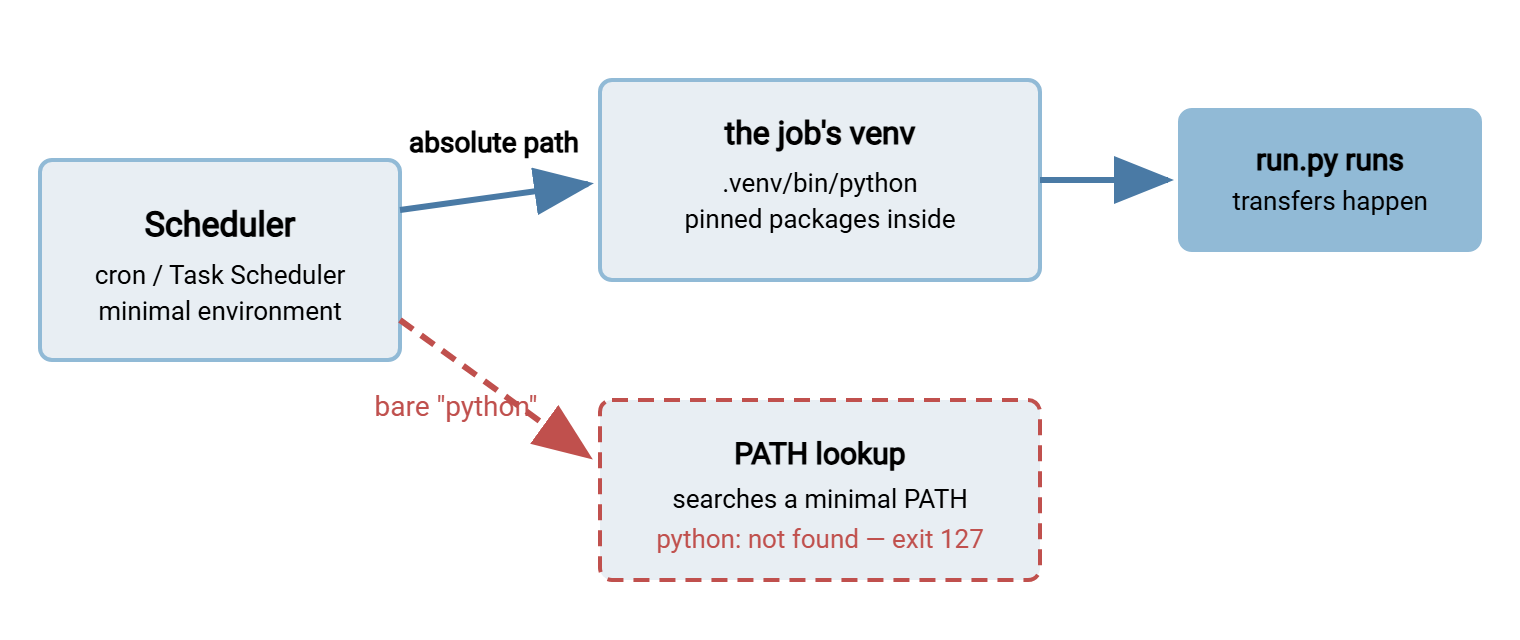
The diagram summarizes the invocation rule on both platforms. The solid path calls the venv's interpreter by absolute path and inherits its pinned packages. The dashed path asks a minimal environment to find "python" by name, and fails — or worse, finds the wrong one.
The "python: not found" Family of Failures
When a scheduled Python job fails to start, the message varies but the family is small. Six members cover nearly every case:
- The bare name. Cron mail or the log shows
python: command not foundand exit code127. The job invokedpythonby name and the minimalPATHhad no such command. Fix: absolute path to the venv interpreter, as above. - The name that differs. On many Linux systems the interpreter answers only to
python3, notpython— interactively you never noticed because of an alias or a convenience package. Fix: same as above; the venv's interpreter answers regardless. - The Windows Store alias. On Windows, a bare
pythoncan resolve to a stub that opens the app store instead of running anything — silent nonsense from a scheduled task. Fix: full path topython.exein the venv, or thepylauncher for setup work. - The wrong user. The interpreter or venv lives somewhere the service account cannot read — your profile, a mapped drive that only exists in your sessions. The message is often "access denied" rather than "not found." Fix: job and venv under a job-owned path (
/opt/jobs/...,C:\Jobs\...) readable by the service account. - The moved or orphaned venv. A venv records the base interpreter it was built from. Move the venv to another path or remove that base Python, and the venv's
pythonstops working. Fix: never copy venvs around — rebuild fromrequirements.txt, which pins make a two-minute, identical-result operation. - The right Python, wrong packages. The job starts and dies with
ModuleNotFoundError. The library was installed into some other Python — usually the system one — not the venv the job runs with. Fix: install with the venv's own interpreter:.venv/bin/python -m pip install -r requirements.txt, then prove it with the one-line import test.
The shared diagnostic for the whole family fits in two commands run as the job runs — same account, stripped environment:
/opt/jobs/nightly-push/.venv/bin/python -c "import sys; print(sys.executable)"
/opt/jobs/nightly-push/.venv/bin/python -c "import paramiko; print('imports ok')"
The first line prints which interpreter actually answered — if that path is not inside the job's venv, you have found the problem. The second proves the dependency is importable by that exact interpreter. Between them, they resolve the family's every member without guesswork.
Upgrading Without Breakage
Pinned environments eventually need deliberate change — a security advisory, a needed fix, a new base Python after an OS upgrade. The safe pattern is rebuild beside, test, then swap. Build a second venv (.venv-next) from an updated requirements file. Run the job against it with --dry-run — the rehearsal switch argued for in writing robust Python transfer scripts. Only when it passes, point the scheduler (or rename the directories) at the new environment. The old venv sits untouched for instant rollback, and the job's downtime is the seconds of the swap.
Two habits keep upgrades boring. Change one thing at a time — one library, or the base interpreter, never both in one swap — so a failure has one suspect. And write the current state down where the next person will look. The job's README from the utility article's handoff kit should name the interpreter path, the venv location, and where requirements live. Upgrades go wrong in proportion to how much of the setup exists only in someone's memory.
Knowing It Ran — and Noticing When It Didn't
Deployment ends with a feedback loop, not a leap of faith. The exit-code and logging discipline from earlier articles gives the scheduler honest signals; make sure something is listening to them. Give a newly scheduled job a week of deliberate attention — glance at the log each morning, confirm the exit codes, watch one run land. Do that before you let it fade into the background where good automation belongs. The failure mode to respect most afterward is the job that stops running at all — a disabled task, an expired account, a deleted crontab. That produces no error anywhere, only silence. The countermeasure is a freshness check: something that notices the log has not grown, or today's files never arrived, and says so. Building alerts from the logs you already have is covered in alerts from transfer logs.
It is also fair to say when this whole article's work is not worth buying. Suppose the flow is a standard scheduled transfer with no custom logic. A Windows tool like Sysax FTP Automation carries its own scheduler, folder monitoring, retry handling, and email notifications. In that case, there is no interpreter to find and no environment to rebuild, because there is no script. And whichever way the client side runs, the server side is independent evidence. If your transfers land on a server you operate, such as Sysax Multi Server, its activity log records each session your job opened. That is the cleanest possible answer to "did last night's run actually happen?"
Where to Go Next
Deployment, compressed to a checklist: keep one venv per job in a job-owned path. Pin requirements exactly and commit them. Have the scheduler invoke the venv's interpreter by absolute path with absolute arguments. Do a stripped-environment dry run before the first scheduled night. Add a freshness check for the silence that follows success and failure alike. With that, the series is complete — from deciding Python was the right tool, through protocols and robustness, to a utility that is now genuinely running itself. If a job misbehaves on schedule tonight, start with the two-line diagnostic above; it is the fastest route from mystery to fix.
Frequently Asked Questions
Do I need to activate the virtual environment in my cron job?
Why does the job work when I run it but fail from the scheduler?
Can several jobs share one virtual environment?
How often should pinned dependencies be updated?
Where should the venv live on Windows?
What does Task Scheduler's Last Run Result 0x1 mean?
From the Sysax team: we build secure file transfer software for Windows. Sysax Multi Server is an FTP, FTPS, SFTP, and HTTPS server. Sysax FTP Automation handles scheduled, scripted transfers. Free trials are on the download page.