
Migrating Scripts and Users from FTP to SFTP or FTPS
The trigger arrives eventually: an audit finding, a partner's security questionnaire, a penetration test that captured a password off the wire, or simply a long-postponed item reaching the top of the list. Plain FTP has to go. The protocol switch itself is the easy part — modern servers and clients speak SFTP and FTPS fluently. What actually breaks FTP migrations is everything attached to the protocol. There is the scheduled script nobody has opened in years, or the scanner in a branch office. There is the partner whose IT contact left, or the hardcoded ftp:// URL in a config file nobody documented.
This is the playbook for doing it without an outage. It runs in six phases. Inventory what exists. Choose each flow's destination. Stand up the new protocols alongside the old. Convert clients and scripts. Communicate with partners and users. Then cut over with a rollback you will probably never need but must have. Templates and checklists throughout are meant to be copied. This article is part of our SFTP vs FTPS vs FTP series.
Why FTP Migrations Go Wrong
Almost every failed migration follows the same script. Someone enables the new secure protocol, emails "please switch by Friday," and disables FTP at month-end. The following Monday, invoices stop arriving. The failure was never technical — it was discovery. FTP estates accumulate silently. A protocol that ran for years attracts scheduled jobs, device integrations, and partner habits. Nobody inventoried them because nothing ever forced anyone to. The fix is to treat migration as a discovery project first and a configuration project second. Phases one and three below do most of the real work. The cutover at the end should feel boring.
Phase 1: Inventory What Will Break
You cannot migrate what you cannot see, so the first job is a complete list of everything that touches FTP. Work through these sources in order — each one catches things the previous ones missed:
- The FTP server's own logs and account list. Every account, its last login, and the source addresses it connects from. Accounts with recent activity are live flows. Accounts with none are candidates to retire rather than migrate. A migration is the best pruning opportunity you will ever get.
- Firewall and network logs. Search for traffic to
port 21across your network, not just to the server you know about. This is how you find the second FTP server someone stood up years ago. - Scheduled tasks and scripts. On every server that automates anything, search scheduled jobs and script folders for
ftp.exe,ftp://, and FTP client executables. These are your conversion workload. - Devices. Multifunction printers with scan-to-FTP, lab instruments, controllers, backup appliances. Their web admin pages list their upload targets.
- People. A short note to team leads: "what do you upload or download, and with which program?" catches the manual workflows no log makes obvious.
Record every discovered flow in one table with the columns in this checklist — this table runs the rest of the project:
MIGRATION INVENTORY — one row per flow
---------------------------------------
[ ] Flow name:          e.g. "Nightly sales export to partner X"
[ ] Direction:          upload / download / both
[ ] Endpoint & account: server, username (dedicated or shared?)
[ ] Client software:    GUI client / ftp.exe script / device firmware /
                        library in an application
[ ] Owner:              a person's name, not a team name
[ ] Schedule & volume:  when it runs, how much it moves
[ ] Auth today:         password (where is it stored?)
[ ] Destination:        SFTP / FTPS / retire  (decided in Phase 2)
[ ] Conversion path:    settings change / script rewrite / bridge / replace
[ ] Status:             inventoried > converted > tested > cut over
Remember: the flows that break migrations are the ones that run rarely — the month-end report, the quarterly regulatory upload. Keep the old protocol observable (not just available) through at least one full business cycle. That way, every infrequent job either appears in the logs and gets migrated, or provably never runs and gets retired.
Phase 2: Choose Each Flow's Destination
SFTP or FTPS is a per-flow decision, not a single decree, and the two can coexist indefinitely. The short version of the reasoning (the long version is SFTP vs FTPS, the definitive comparison):
- Default to SFTP where you control or influence the client end: one firewall port, SSH key authentication for unattended jobs, no certificates to renew. Interactive users and modern automation tools all support it.
- Choose FTPS where the client end is FTP-shaped software that already supports TLS. Many legacy business applications and devices fall in this bucket. For them, FTPS is a settings change while SFTP is a replacement project.
- Partner-facing flows get the partner treatment: survey what the other side can actually run before deciding for them, using the framework in choosing a protocol for partner exchange.
- Truly immovable endpoints — the device whose firmware speaks only plain FTP — get contained behind an internal bridge instead of migrated, per the containment guide. Tie their exit to the device's replacement.
Phase 3: Stand Up the New Doors Beside the Old One
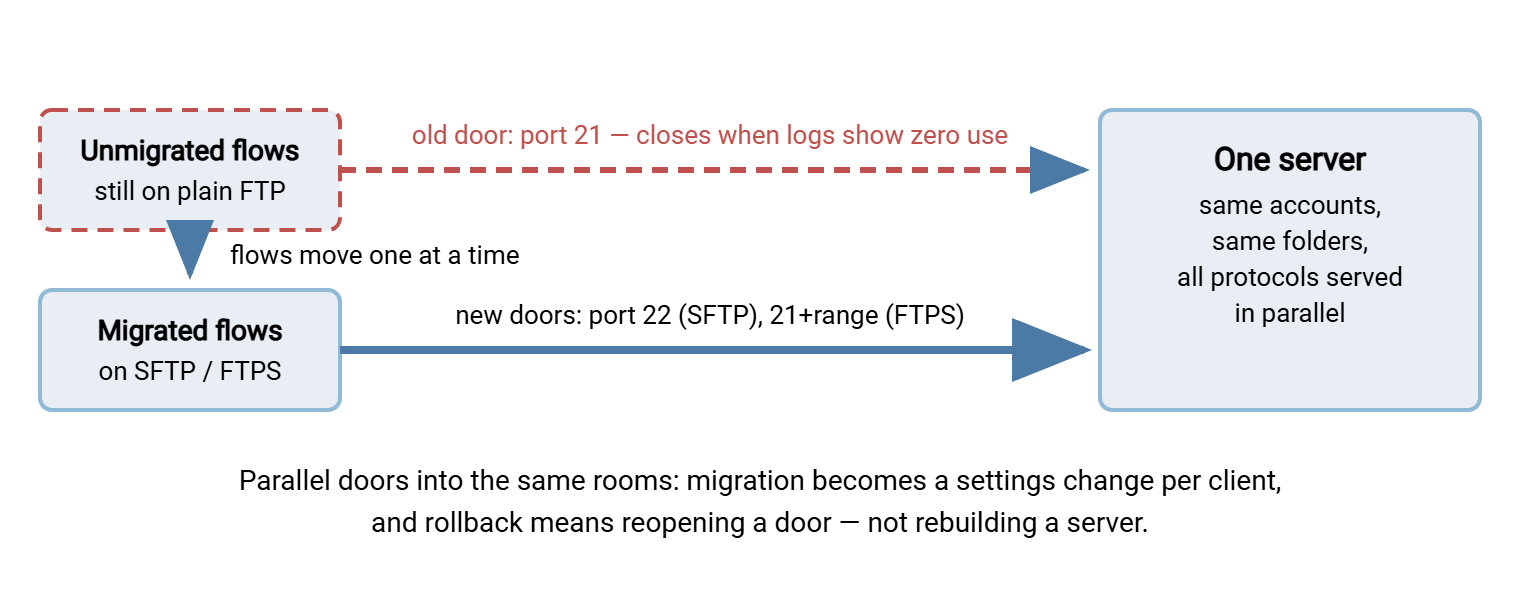
The single best structural decision is how you run old and new protocols. Run them in parallel on the same server, against the same folders and the same accounts. When the secure protocols are new doors into the same rooms, migration becomes a per-client settings change. Testing then requires no data reconciliation. Rollback means pointing a client back at the old door. When the new protocol lives on a different server with different accounts and copied folders, every one of those sentences becomes a project of its own.
Practically, that means enabling SFTP and FTPS on your existing transfer server if it supports them, or consolidating onto one that does. This is precisely the situation multi-protocol servers exist for. Sysax Multi Server serves FTP, FTPS, and SFTP simultaneously from one installation, one user database, and one folder tree. So the parallel-run phase is a configuration change rather than a second server to build and reconcile. Whatever server you use, three setup tasks make the new doors real:
- Firewall: open
port 22for SFTP. For FTPS, open port 21 and a passive port range that matches the server's configuration exactly. For FTPS, also set the announced external address if the server sits behind NAT. The reasoning is covered in the firewall's view of the three protocols. The FTPS specifics are in configuring passive port ranges. - Identity material: record the SFTP host key fingerprint for publication to users and partners. Install a TLS certificate for FTPS — with its renewal date in a calendar that outlives this project.
- Smoke test: from outside your network, log in over each new protocol, upload, download, and list, before inviting anyone else to.
The diagram below shows the shape of the whole migration. Both doors open during the parallel phase, and flows move one at a time. The plain FTP door closes only after the logs prove it is unused.
Phase 4: Convert Clients and Scripts
Work the inventory table row by row. Four conversion patterns cover nearly everything:
Interactive GUI users
The easiest population. In any mainstream graphical client, migration starts with the protocol dropdown. Change it to SFTP (or require explicit TLS for FTPS). Confirm the port (22 for SFTP), and reconnect. The one moment that needs your guidance is the first-connection prompt. SFTP clients show the server's host key fingerprint; FTPS clients may show the certificate. Users should compare it against the fingerprint you published rather than clicking through. Put the expected value in the announcement email, and you have turned a security ritual into a five-second check.
Scripted jobs built on ftp.exe
The Windows built-in ftp.exe is the classic migration blocker. It speaks neither SFTP nor FTPS. So every script that shells out to it must change tools, not settings. You have two sound replacement routes. The first is a scheduled-transfer tool. Rebuild the job as a profile in Sysax FTP Automation. It speaks FTP, FTPS, and SFTP through the same job definitions. So the transfer logic, schedule, retries, and error handling live in the tool. A later protocol change becomes a profile edit instead of another rewrite. The second is script-native command-line clients, if you prefer to stay in scripts:
BEFORE — ftp.exe with a command file (plain FTP only):
    ftp -s:upload.txt ftp.example.com

AFTER, option A — OpenSSH sftp in batch mode (key auth, no prompts):
    sftp -b upload_batch.txt transfer@sftp.example.com
    # upload_batch.txt:
    #   put report.csv /inbound/report.csv.tmp
    #   rename /inbound/report.csv.tmp /inbound/report.csv

AFTER, option B — curl over explicit FTPS (TLS required, then upload):
    curl --ssl-reqd -T report.csv ftp://ftps.example.com/inbound/
         --user transfer:PASSWORD-FROM-VAULT

Test any converted job manually once, then from its scheduler, before
trusting it unattended.
Notice the upload-then-rename in the batch file. Keep that pattern from your FTP days. It is how downstream systems know a file is complete, and it works identically on SFTP. For unattended SFTP jobs, switch the account to key authentication at conversion time. Key authentication removes the stored-password problem and is exactly what the protocol does best. Our SFTP pillar covers key setup in depth.
Whichever route you take, convert the credential handling at the same time as the tool. Passwords that used to sit readable inside ftp.exe command files should not simply move into the new script. Put them in a credential vault or the transfer tool's protected store. Or better, eliminate them with key authentication. And give every converted job a deliberate failure test before you trust it. Point it at a wrong port once and confirm it fails loudly where someone will see it. An unattended job that fails silently is worse than the plain FTP it replaced.
Applications with FTP libraries inside
Business applications that transfer files through an embedded FTP library usually offer one of: an FTPS checkbox ("require TLS"), an SFTP option in newer versions, or nothing. Check the vendor documentation before scheduling any rewrite — the FTPS checkbox route turns a development project into a configuration ticket. If the application offers nothing, decouple it. Let it write to a local folder and have a folder-monitoring transfer job carry the files onward securely. That is the same bridge pattern used for immovable devices.
Devices
Scanners, instruments, and appliances migrate by firmware capability. Current firmware often adds SFTP support (check first — this is the most commonly skipped step in the entire migration). What genuinely cannot speak a secure protocol gets the isolated-segment bridge treatment from the containment guide. It does not get a place on the open network.
Phase 5: Tell the Humans
Every external partner and internal user on the inventory gets told early, specifically, and twice. A partner email needs exactly these elements — copy and adapt:
Subject: [Action required] Secure transfer migration — [your company]

We are retiring plain FTP for file exchange and moving to SFTP
(recommended) or FTPS. Your account, folders, and schedules are
unchanged — only the connection settings change.

  New settings (SFTP):   host transfer.example.com, port 22,
                         username unchanged
  Host key fingerprint:  SHA256:xxxxxxxxxxxxxxxxxxxxxxxxxxxxxxx
                         (your client shows this on first connect —
                         please verify it matches)
  Alternative (FTPS):    explicit TLS on port 21 — tell us if you
                         need this instead
  Test window:           connect and send a test file any time from
                         [start]; we will confirm receipt
  Cutover date:          plain FTP closes end of day [date]
  Contact:               [name, email, phone] — we will help with
                         client settings if useful

Please reply confirming your planned switch date.
The reply-to-confirm line is not politeness — it converts your announcement into a tracking list. Partners who never reply are your Phase 6 chase list. For internal users, the same message shrinks to three lines and a screenshot-equivalent: new protocol, expected fingerprint, help contact.
Phase 6: Cutover and Rollback
Because the parallel-run did the heavy lifting, cutover is a monitoring exercise with a deadline:
- Move flows in waves, lowest risk first: internal GUI users, then internal scripts, then partners, then anything regulated. Update each row's status in the inventory as it lands.
- Watch the old door. The server's session logs now become a straggler detector. Every plain FTP login after a wave identifies, by account and source address, exactly who has not moved. Chase each one individually — a login is a better to-do list than a survey.
- Declare a quiet period. When plain FTP logins reach zero, wait one full business cycle — including month-end — to catch the rare jobs. Any FTP login during the quiet period resets it.
- Close the door reversibly. Disable plain FTP in the server configuration (or block port 21 at the firewall) rather than uninstalling anything. The secure doors, accounts, and folders are untouched.
- Hold the rollback for one more cycle. If a critical flow surfaces broken, re-enabling the FTP door is a two-minute change. That cheapness is the payoff of parallel doors into the same rooms. Fix the straggler properly, then close the door again.
- Finish the paperwork. Retire unused accounts discovered in Phase 1. Note the certificate renewal date and key inventory in your operational docs, and file the completed inventory table. It is now your transfer-flow documentation. Most teams never had that before the migration forced it into existence.
Rule of thumb: you are ready to close port 21 when three things are simultaneously true. The inventory table must show every row converted or retired. The server log must show zero plain FTP logins for a full business cycle. And every partner must have confirmed in writing. Two out of three means you are about to learn which flow you missed.
The Playbook on One Line
Inventory ruthlessly. Decide SFTP or FTPS per flow. Open the new doors beside the old on the same server, and convert clients pattern by pattern. Tell every human twice with fingerprints and dates. Close the old door only when the logs — not the plan — say it is unused. Teams that follow that sequence describe their FTP migration as boring, which is the highest compliment a migration can earn.
This article has three natural companions. Read SFTP vs FTPS for the per-flow destination decision. Read the partner decision framework for the flows you share with other organizations. And read the containment guide for the one device that refuses to move.
Frequently Asked Questions
How long should the parallel-run phase last?
Can we keep the same hostname and folder structure?
Do users and partners need new passwords for SFTP?
What do we do about hardcoded ftp:// URLs in applications?
What if one partner cannot migrate by the deadline?
What replaces ftp.exe in Windows scripts?
From the Sysax team: we build secure file transfer software for Windows. Sysax Multi Server is an FTP, FTPS, SFTP, and HTTPS server. Sysax FTP Automation handles scheduled, scripted transfers. Free trials are on the download page.