
SFTP Authentication: Passwords, Keys, and Combinations
Every SFTP deployment lives or dies on authentication. The encryption is automatic and nobody gets it wrong; the login design is where the real decisions hide. Choose passwords everywhere and you inherit brute-force noise, rotation headaches, and scripts with secrets pasted into them. Choose keys without understanding them and you get the other classic failures. Those include private keys emailed around like attachments, an authorized_keys file nobody dares touch, and a "temporary" shared account that outlives three administrators.
This tutorial covers the full menu. You will learn how SFTP authentication actually works (including the server-side half people forget). You will learn how to generate and install keys correctly the first time, and how to require a key and a password together. You will learn where multi-factor authentication fits, and the service-account patterns that keep unattended transfers both reliable and auditable. Everything here applies to SFTP specifically because SFTP borrows SSH's authentication wholesale. That is one of the practical gifts of the architecture described in how SFTP actually works. It is the foundation article of our SFTP In Depth series.
Two Authentications Happen in Every Session
A detail that saves endless confusion later: an SFTP login is not one identity check but two, in a fixed order.
First, the server proves itself to the client. During connection setup the server presents its host key — a cryptographic keypair that belongs to the server machine. The client compares it against the key it has on record for that hostname. On first contact there is no record, so the client shows a fingerprint (a short digest of the key). It asks a human to confirm the fingerprint matches what the server's administrator published. Once accepted, the key is remembered, and any future mismatch triggers the loud "REMOTE HOST IDENTIFICATION HAS CHANGED" warning. This half of authentication protects you from imposter servers, and it exists whether users log in with passwords or keys.
Second, the user proves themselves to the server. This is the half everyone means by "authentication," and it is where you have choices: passwords, keys, or combinations. The rest of this article is about those choices — but keep the two halves separate in your head. "The fingerprint prompt" is server authentication; "the login" is user authentication. They fail differently and are fixed differently.
Password Authentication: Familiar, and Fragile in Specific Ways
Password login needs no explanation to users, works from any client, and requires zero setup beyond creating the account. For a human user on an internal server, a strong password is a defensible choice. Its weaknesses are specific and worth naming rather than hand-waving:
- It is guessable at scale. Any SSH port reachable from the internet collects continuous automated password-guessing traffic. Strong passwords resist it, but the attempts still fill logs and consume attention, and one weak password on one forgotten account is all an attacker needs.
- It is phishable and shareable. A password can be typed into the wrong place, sent in an email "temporarily," or reused from a breached site. Nothing in the mechanism resists human nature.
- It is awkward for automation. An unattended job must store the password somewhere and feed it to a prompt designed for human fingers. Most of the ugly hacks in transfer scripts — plaintext credentials, wrapper tools that stuff passwords into prompts — descend from this mismatch. The non-interactive SFTP article shows this in detail.
This is the standard posture, and the one this series recommends. Passwords may be acceptable for interactive humans, ideally with lockout controls and strong-password policy. Unattended jobs and partner integrations should use keys.
How Public Key Authentication Works
Key authentication replaces "prove you know a secret word" with "prove you possess a secret object." The mechanism, in plain terms:
A user generates a keypair: two mathematically linked files. The private key is the secret half; it stays on the client machine and never travels anywhere. It can be additionally locked with a passphrase (a password that encrypts the key file itself, so a stolen file alone is useless). The public key is the shareable half; it is copied to the server and listed in the account's authorized keys. At login, the server sends a fresh random challenge. The client computes a signature over it using the private key. The server verifies the signature using the public key on file. A valid signature proves possession of the private key. The private key itself was never transmitted, so there is nothing for an eavesdropper or a fake server to capture and replay.
The diagram below shows the flow: the public key sits on the server in advance, and each login is a challenge-and-signature exchange.
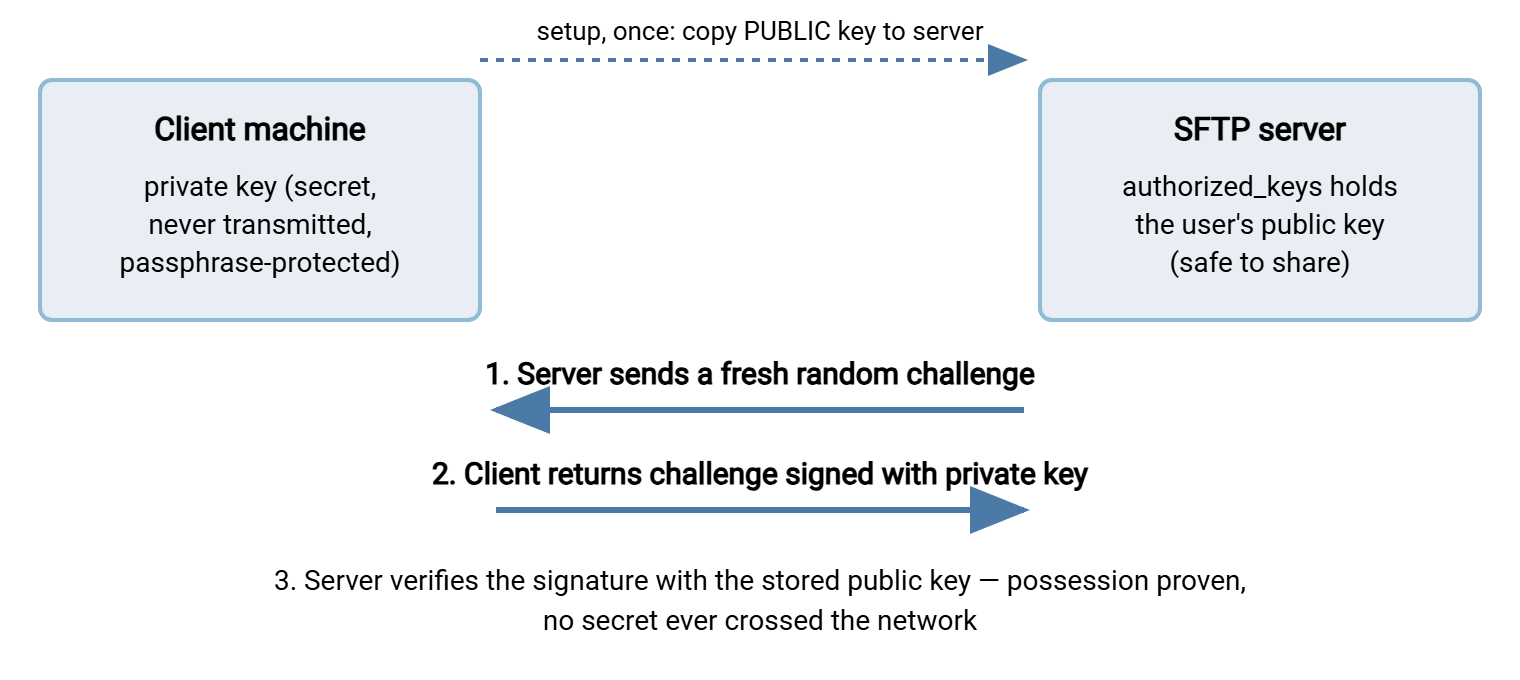
Two consequences follow. First, there is nothing to phish or intercept: no reusable secret crosses the wire. Second, revocation is surgical: remove one public key line from the server and that one client is out, without touching anyone else's access.
Generating a Key the Right Way
Key generation happens on the client — the machine that will initiate transfers. The tool is ssh-keygen, standard on Linux, macOS, and modern Windows:
# Preferred: an Ed25519 key (small, fast, modern)
ssh-keygen -t ed25519 -C "reports-job@appserver01" -f ~/.ssh/id_reports

# If a partner's older server only accepts RSA, use 4096 bits:
ssh-keygen -t rsa -b 4096 -C "reports-job@appserver01" -f ~/.ssh/id_reports_rsa

# You will be asked for a passphrase:
#  - human users: set one (protects the key file if stolen)
#  - unattended service accounts: usually left empty; compensate with
#    file permissions and server-side restrictions (see below)

# Result: two files.
#   ~/.ssh/id_reports      <-- PRIVATE key. Never leaves this machine.
#   ~/.ssh/id_reports.pub  <-- PUBLIC key. This is what you send/install.
Points that prevent later grief:
- Choose Ed25519 unless forced otherwise. It is the current best-practice type. RSA at 4096 bits is the compatibility fallback; anything labeled DSA is obsolete and should not be generated at all.
- Use the comment. The
-Ctext travels with the public key and is the only clue, months later, about which job or person a key belongs to. "reports-job@appserver01" is documentation; the default comment is not. - One key per purpose. Generate separate keys for separate jobs and machines rather than reusing a personal key everywhere. Revocation then removes exactly one thing.
- Know your formats. OpenSSH's key files are the lingua franca, but some Windows GUI clients use their own container format (
.ppk) and include a conversion tool. Converting formats is fine; what is never fine is "converting" by pasting a private key into a web form or an email. If a partner asks you to send a private key, the request itself is the red flag — they need your public key only.
Installing the Public Key on the Server
On an OpenSSH-style server, each account's accepted public keys live in one text file in that user's home directory: ~/.ssh/authorized_keys, one key per line. Getting a key there takes one command where password login is temporarily available:
# Easiest: let the helper append it and fix permissions
ssh-copy-id -i ~/.ssh/id_reports.pub transfer@files.example.com

# Manual equivalent (what ssh-copy-id does for you):
#   append the .pub line to ~/.ssh/authorized_keys on the server, then:
chmod 700 ~/.ssh
chmod 600 ~/.ssh/authorized_keys

# A finished authorized_keys line, with restrictions (explained below):
from="203.0.113.20",restrict ssh-ed25519 AAAAC3NzaC1lZDI1... reports-job@appserver01
Three server-side details cause most "keys don't work" tickets:
- Permissions are enforced, silently. If the home directory,
~/.ssh, orauthorized_keysis writable by anyone but the owner, the server ignores the file entirely (a safety feature called strict modes). In that case, the client quietly falls back to asking for a password. When key login inexplicably prompts for a password, check permissions first. - Per-key options are your friend. A prefix on the key's line restricts what it can do:
from="203.0.113.20"accepts the key only from that source address. The optionrestrictswitches off port forwarding and other SSH extras a transfer account never needs. For a file-transfer key,from=...,restrictis a sensible default. - Windows servers differ. On Windows OpenSSH builds, keys for administrator-group accounts are read from a shared
administrators_authorized_keysfile with strict system ACLs rather than the user's profile. That is a classic trap for admins testing with their own account. GUI-configured Windows servers sidestep file mechanics entirely. In Sysax Multi Server, SFTP (SSH2) accounts and their authentication settings are managed in the server's configuration interface rather than by editing dot-files.
Remember: the private key never moves. Not to the server, not to a colleague, not "just this once" through chat. Anything that needs to be sent anywhere is, by definition, the public key. A private key that has traveled should be treated as compromised and replaced.
Combining Methods: Key Plus Password, and Real MFA
By default, most servers accept any one configured method — key or password. For higher-value accounts you can demand several in sequence. On OpenSSH the directive is AuthenticationMethods:
# In sshd_config: require BOTH a valid key AND the account password
AuthenticationMethods publickey,password

# Or: valid key AND an interactive challenge (e.g. a one-time code)
AuthenticationMethods publickey,keyboard-interactive

# Relax the rule for automation accounts only:
Match Group transferbots
    AuthenticationMethods publickey
Reading it: a comma means "and then" — the client must pass every method in the list, in order. This "something you have plus something you know" pairing is a meaningful upgrade for human accounts. A stolen laptop (key) or a phished password alone no longer suffices.
Full multi-factor authentication — time-based one-time codes from an authenticator app, push approvals, hardware tokens — arrives through the keyboard-interactive method. That method lets the server ask arbitrary challenges. On Unix-style servers this is typically wired up through a pluggable authentication module; commercial SFTP servers expose equivalent options in their settings. There are two cautions from the field. First, MFA and unattended automation are natural enemies — nobody is awake to type the code at 2 a.m. So pair MFA-for-humans with key-only service accounts, separated by Match rules as above. Second, test lockout behavior before enforcing. An over-eager combination of MFA, low retry limits, and an impatient partner client can lock out legitimate transfers in ways that look like network failures.
Choosing a Method: The Comparison
| Method | Resists | Automation fit | Best for |
|---|---|---|---|
| Password only | Little beyond guessing, if strong | Poor — secret must be stored and fed to prompts | Interactive humans on internal systems |
| Public key only | Phishing, replay, guessing | Excellent — no prompts, surgical revocation | Service accounts, partner integrations |
| Key + password | Single-factor theft of either secret | Poor — reintroduces the prompt | High-value human accounts |
| Key + one-time code (MFA) | Most credential theft scenarios | None — by design needs a human | Administrator logins, sensitive interactive access |
Service-Account Patterns for Automation
Unattended transfers deserve their own design, because they combine the highest privilege longevity (keys that live for years) with the least day-to-day human attention. The patterns that hold up:
- One account per integration. The nightly finance export, the partner's inbound feed, and the backup sync each get their own account — never a shared "ftpuser." Shared accounts make logs unattributable and revocation all-or-nothing.
- One key per client machine. If the same job runs from two servers, each server holds its own key, both listed in the account's authorized keys. When one machine is retired or compromised, delete one line.
- Unattended keys: no passphrase, compensated. A passphrase-protected key needs a human or an agent process to unlock it, which scheduled tasks cannot rely on across reboots. The accepted trade is a passphrase-less key defended in depth. That means strict file permissions readable only by the job's own service account, plus
from=andrestrictoptions on the server side. It also means an account limited to the sftp subsystem with no shell — the lockdown built in the server configuration guide. - Rotate by overlap, not by outage. To replace a key, generate the new one and add its public half as a second authorized line. Switch the job, confirm success in the logs, then delete the old line. There is never a moment when the job cannot log in.
- Write the inventory down. A small table — account, key fingerprint, comment, client host, owner, purpose — turns "mystery key archaeology" into a two-minute lookup. Server-side activity logs complete the audit story by showing which account did what, when.
Client-side tooling should meet the same bar. A scheduled job in Sysax FTP Automation keeps its connection settings and credentials inside the job's stored profile rather than pasted into script text. Its logging records each run's outcome. Those are the two properties (no secrets in scripts, evidence of every run) that reviews of homegrown transfer scripts most often find missing. The broader craft of prompt-free, alert-friendly transfer jobs is the subject of non-interactive SFTP.
When Login Fails: Reading the Evidence
Authentication failures announce their causes clearly once you know where to look. Two vantage points cover nearly everything.
Client side, run with -v. The verbose output narrates the negotiation. It shows which methods the server offered ("Authentications that can continue: publickey,password"). It shows which key files the client tried ("Offering public key: ..."), and what the server said to each. If your intended key is never offered, the client does not know about it — point to it explicitly with -i ~/.ssh/id_reports. If it is offered and refused, the mismatch is server-side: wrong account, missing authorized line, or the permissions problem described earlier.
Server side, read the authentication log. Server logs distinguish "no such user," "failed publickey," and "accepted publickey" — three different problems that look identical from the client. On locked-down accounts, also confirm the account is allowed to authenticate at all (allow-lists and group rules are a common silent blocker).
One failure deserves special mention because it looks so unreasonable: "Too many authentication failures" before you typed anything. This happens when the client machine holds many keys (often via an agent) and offers them one by one. The server's retry limit is spent on the wrong keys before the right one comes up. The fix is to offer only the intended key — -i plus the option IdentitiesOnly=yes. That converts a "server is broken" ticket into a one-line change.
The Version to Tell a Colleague
SFTP authentication is SSH authentication: the server proves itself with a host key and a fingerprint, then the user proves themselves with a password, a key, or both. Keys beat passwords for anything unattended. Generate an Ed25519 pair with a meaningful comment, and install the public half in the account's authorized keys with tight permissions. Restrict it with from= and restrict, and never let the private half travel. Demand key-plus-password or MFA for humans where the stakes justify it. Keep service accounts key-only with one account per job and one key per machine. Rotate by adding the new key before removing the old.
Next steps in the series: lock the accounts down server-side in the SFTP server configuration guide. Then make the jobs run without prompts in non-interactive SFTP. If you are still untangling SFTP from its TLS-based lookalike — whose "certificates vs keys" contrast this article completes — see SFTP is not FTPS.
Frequently Asked Questions
Which file do I send to the server administrator — .pub or the other one?
Why does my client still ask for a password after I installed my key?
Should an automation key have a passphrase?
What is the difference between a host key and a user key?
Can I require both a key and a password for one account?
How do I revoke one person's access without disturbing anyone else?
From the Sysax team: we build secure file transfer software for Windows. Sysax Multi Server is an FTP, FTPS, SFTP, and HTTPS server. Sysax FTP Automation handles scheduled, scripted transfers. Free trials are on the download page.