
Your First Scripted Transfer, Done Right
Somebody has to do the Friday upload, and it is you, and it is Thursday afternoon. This is the moment most first transfer scripts get written: in about twenty minutes. The password is three lines down, paths exist on exactly one machine, and there is no record of what it was for. Mine was written that way. It worked, which is the dangerous part, because a script that works casually gets trusted casually. Years later it is still running with nobody able to say why. Done right, the same twenty minutes produce something quietly excellent. It is a small program that performs a boring task perfectly. It explains itself to strangers and is ready for the schedule it will eventually earn.
This article is the done-right version, walked end to end with a real example: a daily report uploaded to a partner's SFTP server. You will capture the manual procedure and pick the smallest tool that works. You will build the batch file and the wrapper script around it, and get the credentials out of the code. You will test the whole thing without endangering production, and write the three paragraphs of documentation that make the script survivable. Everything transfers directly to your own flows, whatever they move. This is the third rung of our Automation Ladder series — the step where the runbook becomes code, and the code stops being held together with hope.
Start From the Runbook, Not the Keyboard
The single biggest predictor of a good first script is what happens before any code is written. A script is a translation of a procedure, and you cannot translate what you have not captured. So the first step is unglamorous: perform the transfer by hand one more time, and write down every step as you do it. Include the small judgment calls you normally make without noticing. Which file exactly? What do you check before sending? What do you do with the local copy afterward? Who finds out if it fails? The case for this documented-before-scripted discipline is laid out in the maturity stages article. The finished shape of such a document is in runbooks per flow; here we just apply it. Every judgment call you skip capturing now comes back later as a ticket.
Our worked example, captured that way, comes out as: "Every weekday after the export finishes, upload report_YYYYMMDD.csv (today's date) from the outbox folder to the partner's SFTP server, into /inbound/reports. Before sending, confirm the file exists and is not empty. After a successful upload, move the local copy to the sent folder so it is never uploaded twice. Record what happened." Five sentences. Notice that three of them are not the transfer itself — they are checks and bookkeeping. Most first scripts fail by translating only the middle sentence.
Choose the Smallest Tool That Works
For a first script, resist anything exotic. The command-line sftp client that ships with the OpenSSH suite handles this job completely. It is present on essentially every Unix-like system and available on Windows as well. It speaks the SFTP protocol, supports key-based login, and has a batch mode designed exactly for scripting. Batch mode means you hand the client a text file of commands. It executes them top to bottom with no human present, exiting with a nonzero status if something fails. That exit status is the hook everything later on the ladder hangs from.
There are other good answers — PowerShell on Windows estates, lftp where you want built-in retries, curl for one-file jobs — and our command-line client series compares them honestly. The wrapper patterns below are written in bash for concreteness. The ideas (preflight checks, one job step per line, explicit failure handling) translate directly to PowerShell. The PowerShell transfer automation series shows that dialect. What matters for now: prefer a tool that is already on the machine, speaks a secure protocol, and reports failure through its exit code. An exotic tool is one more thing to explain to your successor.
The Batch File: Your Runbook in sftp's Language
The batch file is the heart of the script — the remote-side steps, one per line, in the order sftp should run them:
cd /inbound/reports
put /data/export/outbox/report_YYYYMMDD.csv
ls -l report_YYYYMMDD.csv
Three lines, each earning its place. cd moves to the partner's target folder first. So if the folder name is wrong or permissions are missing, the run fails before anything is uploaded, not after. put performs the upload. The closing ls -l lists the file we just sent, which serves as a cheap verification. The listing lands in our log with the remote file's size, giving tomorrow's troubleshooter evidence that the bytes arrived. In sftp batch mode, any failing command aborts the whole run with a nonzero exit status — exactly the behavior an unattended job needs. (If you ever want a command to be allowed to fail, such as deleting a file that may not exist, prefix that line with a -.)
One catch: a static batch file cannot compute today's date, and our file name changes daily. The standard solution is to let the wrapper script generate the batch file fresh for each run, filling in the day's file name. That is what the wrapper below does — and it is why the pattern scales to any flow where names carry datestamps. Every partner agrees on datestamps; no two agree on the format.
The Wrapper Script, Line by Line
The wrapper is the local half of the runbook: checks before, the transfer in the middle, bookkeeping after. Here it is in full — a working skeleton you can copy and adapt:
#!/bin/bash
# upload_daily_report.sh - send today's report to the partner SFTP server.
# Owner: infrastructure team. See runbook: docs/acme-daily-feed.md
set -euo pipefail

# ---- configuration: everything site-specific lives here ----
REMOTE_USER="acme-feed"
REMOTE_HOST="sftp.example.com"
REMOTE_DIR="/inbound/reports"
LOCAL_DIR="/data/export/outbox"
SENT_DIR="/data/export/sent"
KEY_FILE="/home/xfer/.ssh/id_acme_feed"
LOG_FILE="/var/log/transfers/acme_daily.log"
# ------------------------------------------------------------

TODAY_FILE="report_$(date +%Y%m%d).csv"
log() { printf '%s %s\n' "$(date '+%b %d %H:%M:%S')" "$*" >> "$LOG_FILE"; }

# preflight: the file must exist and must not be empty
if [ ! -s "$LOCAL_DIR/$TODAY_FILE" ]; then
    log "ERROR $TODAY_FILE missing or empty in $LOCAL_DIR - nothing sent"
    exit 1
fi

# build this run's batch file; remove it again on any exit
BATCH_FILE="$(mktemp)"
trap 'rm -f "$BATCH_FILE"' EXIT
{
  printf 'cd %s\n'  "$REMOTE_DIR"
  printf 'put %s\n' "$LOCAL_DIR/$TODAY_FILE"
  printf 'ls -l %s\n' "$TODAY_FILE"
} > "$BATCH_FILE"

log "START uploading $TODAY_FILE to $REMOTE_HOST"
if sftp -b "$BATCH_FILE" -i "$KEY_FILE" \
        -o BatchMode=yes -o ConnectTimeout=30 \
        "$REMOTE_USER@$REMOTE_HOST" >> "$LOG_FILE" 2>&1; then
    log "OK upload complete"
    mv "$LOCAL_DIR/$TODAY_FILE" "$SENT_DIR/"
    log "DONE local copy moved to sent/"
else
    rc=$?
    log "ERROR sftp exited with status $rc - local file NOT moved"
    exit "$rc"
fi
Now the tour of every load-bearing choice, because a script you cannot explain is a script you cannot trust.
set -euo pipefailis bash's strict mode. The-eoption stops the script on any unhandled failing command. The-uoption makes using an unset variable an error instead of an empty string. Andpipefailmakes a pipeline report failure if any stage fails. Together they convert "keeps going while wounded" into "stops and says so." The full story lives in our bash and cron series.- The configuration block is the parameterization step. Every hostname, path, and account name appears exactly once, at the top, where the next administrator can find and change it. Nothing site-specific is buried in the logic below. When this script is cloned for a second partner, only this block changes.
[ ! -s file ]tests "missing or empty" in one stroke —-sis true only for a file that exists with size greater than zero. This one line encodes the runbook's "confirm the file exists and is not empty" and prevents the classic automated mistake: proudly delivering a zero-byte file.mktempandtrap ... EXITcreate the per-run batch file safely and guarantee it is deleted whether the run succeeds or dies. Thetrapcommand runs the cleanup command on every exit path.-b "$BATCH_FILE"puts sftp in batch mode with our generated command file.-i "$KEY_FILE"selects the private key to authenticate with — credentials, next section.-o BatchMode=yesforbids all interactive prompting. If the key does not work, sftp fails immediately instead of sitting forever waiting for a password nobody will type.-o ConnectTimeout=30caps how long a dead network can stall the connection attempt, thirty seconds instead of the system default's long hang.- The
if sftp ...; thenshape handles success and failure explicitly. Only a confirmed-successful upload moves the local file tosent/. On failure the file stays put for the next attempt, and the exit status is logged. On that failure path, the script exits nonzero so any future scheduler can see the failure. Richer retry thinking comes later, in the retry and error handling series. - The log lines timestamp every event to one file. Even attended, this matters: the log is where the
ls -lverification output lands. Logging is the habit that makes the eventual jump to unattended runs painless.
Two quiet conventions are also doing work here. Paths and file names contain no spaces — batch files and quoting interact badly. Space-free names are the single cheapest reliability upgrade in transfer automation (the file naming series explains why). And the script does exactly one flow. Resist the temptation to make transfer_everything.sh; five small scripts with clear names beat one clever one. Nobody has ever been glad to inherit transfer_everything.sh.
Get the Credentials Out of the Script
The example authenticates with an SSH key file, and that is deliberate. The path of least resistance — a password pasted into the script — is a trap that costs more every month it survives. The password is readable by anyone who can read the script. It leaks into version control and backups, and rotating it means editing code. Key-based authentication solves the whole class of problems. The private key sits in its own file with tight permissions (chmod 600, owner-only). The script merely points at it, and the public half is registered on the partner's server. How keys work, how to generate them, and how to store them properly is covered in generating and storing SSH keys, and the server-side view in SFTP authentication.
Two companions to the key decision. First, run the flow as a dedicated account — a service account created for this job, not your personal login. That way, the transfer keeps working after you change roles, and the partner's logs show a meaningful name. The discipline is laid out in service account hygiene. Second, handle the host key — the server's own identity fingerprint — before the first scripted run. Connect once interactively, verify the fingerprint with the partner, and let it be recorded in known_hosts. Never "solve" host-key prompts by disabling checking; that switch turns off the protection against connecting to an impostor. The details are in host keys and known_hosts.
Kestrel Payroll's first transfer script is the reason this section is as long as it is. It uploaded the weekly payments file with a password on line three, and it worked without complaint for eleven months. Then the partner's password policy expired the credential on a Tuesday. The script, run by hand that morning, sat at a prompt waiting for a password nobody on the team knew. That was because the colleague who had typed it into the script had since moved to another department. Nothing was lost; the file went by hand that week while a key pair was generated and a service account created. The script had been quietly holding the only copy of the secret. It was, in that one respect, the most reliable thing on the server.
Remember: BatchMode=yes plus key authentication is the combination that makes a script honest. With it, authentication either works silently or fails loudly. Without it, your script has a hidden dependency on a human typing a password — which is not automation, just a slower human.
First-Run Safety: Testing Without Fear
A new transfer script should earn trust the way a new employee does: supervised at first, with limited authority, promoted on evidence. Concretely, that means a test sequence, not a heroic first run against production. Heroic first runs are exciting, which is not a compliment.
- Test the pieces before the whole. Run the preflight check alone with the file present, absent, and empty, and confirm each behaves as designed. Generate the batch file and read it — is today's name correct?
- Point the script at a harmless destination first. A test folder the partner provides, or better, an SFTP server you control. Spinning up your own target for rehearsal is easy on Windows. A server such as Sysax Multi Server runs as a service and gives you a private SFTP endpoint whose logs you can read from the other side. So you see the transfer as the partner would.
- Send a marked test file. First contact with the partner's real folder should be a file whose name says what it is (
test_connectivity_delete_me.txt), sent with the partner's knowledge, then removed. - Run the real flow in parallel for a week. The script uploads to production, and a human still verifies the result each day the way the manual runbook prescribed. A week of matching results is what "the script works" actually means. Only then does the human step back.
- Rehearse one failure on purpose. Rename the source file and run the script: you should get a clean ERROR line in the log and a nonzero exit, not silence. A script whose failure path has never executed does not have a failure path; it has a hope.
If you build the flow with a wizard instead of by hand, the same discipline applies unchanged. On Windows, Sysax FTP Automation generates upload and download tasks from prompts. Its script editor can step through the generated script line by line. The discipline is still: test destination first, marked test file, parallel week, one rehearsed failure. Tools change the typing, not the trust ladder.
Write Down What It Does
The script is not finished when it works. It is finished when a colleague who has never seen it can answer these questions in under a minute. What does this do, when should it run, what does it need, and what happens when it fails? That takes about ten lines, and the best place for them is the top of the script itself, where they cannot be lost:
# upload_daily_report.sh
# WHAT:  uploads today's report_YYYYMMDD.csv to the ACME partner
#        SFTP server (/inbound/reports), then moves it to sent/.
# WHEN:  weekdays after the accounting export completes (~06:30);
#        currently run by hand, intended for the scheduler later.
# NEEDS: key /home/xfer/.ssh/id_acme_feed (service account acme-feed);
#        source file in /data/export/outbox.
# FAILS: exits nonzero, logs ERROR to /var/log/transfers/acme_daily.log,
#        leaves the source file in place. Safe to rerun after fixing.
# OWNER: infrastructure team - see docs/acme-daily-feed.md
The header answers the four survival questions — what, when, needs, fails — plus the one that matters most in two years: who owns it. Keep the language literal and the paths absolute. Then make two entries elsewhere. Update the manual runbook to say "now performed by upload_daily_report.sh — see script header." Add one line to whatever list of automated flows your team keeps. If no such list exists yet, start it today with this one row. The habit it grows into is the subject of the automation inventory.
Documentation written at creation time takes ten minutes. The same knowledge reconstructed two years later, from a mystery script found on a retired server, takes days. That archaeology is common enough that inheriting undocumented transfer automation is one of the most-read pages in this library. I have done that archaeology more than once, and I did not enjoy it. Write the header.
What "Done Right" Looks Like
Step back and look at the shape of what you built. Every trustworthy transfer script — bash, PowerShell, or wizard-generated — has the same five-part anatomy, shown below. It has configuration collected at the top and preflight checks that refuse bad runs. Then come the transfer itself, verification that the bytes arrived, and bookkeeping that records the outcome and tidies up.
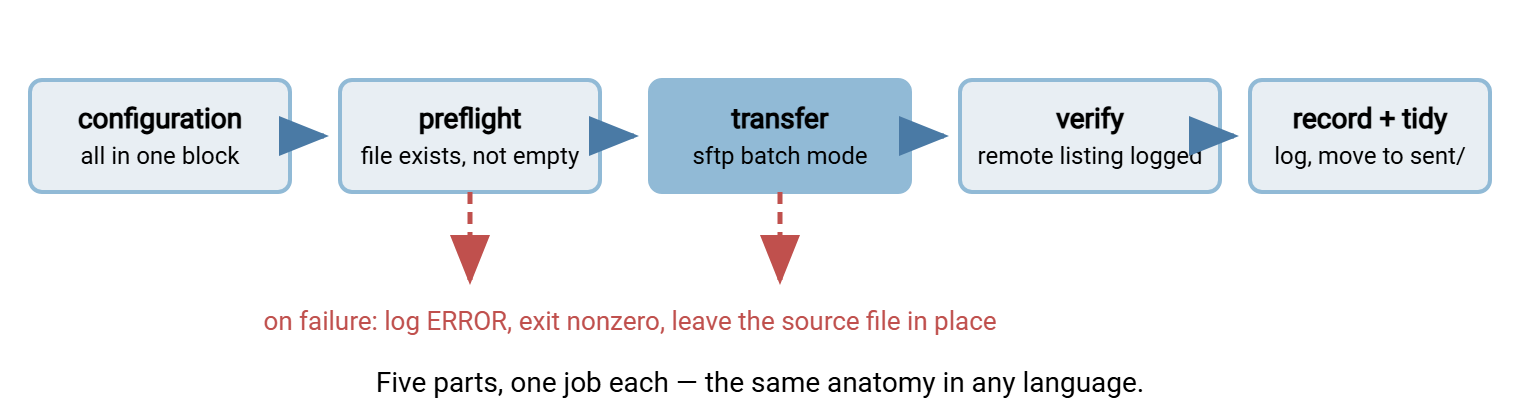
Before calling the job finished, walk the final checklist:
- The runbook was captured first, and the script covers all of it — checks and bookkeeping included, not just the upload.
- Everything site-specific lives in one configuration block; nothing is hard-coded twice.
- Credentials are a key file with owner-only permissions, used by a dedicated service account; the host key was verified once, on purpose.
- Prompting is impossible (
BatchMode=yes) and failure is loud: nonzero exit, ERROR in the log, source file left in place. - The failure path has been executed at least once, deliberately.
- The header documentation exists, and the flow is on the team's list.
Remember: a first script is "done right" when it is boring — same result every run, loud when it fails, explicable by its own header. Clever comes later, if ever. Boring is the achievement.
From here, two directions. If this script will run daily, its next step is a schedule. The unattended world has its own hazards. The article from script to schedule walks through them before the scheduled jobs series goes deep on the mechanics. And if your flow is a download rather than an upload, everything here still applies. In that case, swap put for get, keep every check. The broader patterns are in automating SFTP transfers.
Frequently Asked Questions
Why use sftp batch mode instead of typing commands interactively?
What does "sftp -b" do exactly?
Is it ever acceptable to put a password in the script?
How long should I keep doing the manual checks after the script works?
Should my first script retry automatically when the network fails?
From the Sysax team: we build secure file transfer software for Windows. Sysax Multi Server is an FTP, FTPS, SFTP, and HTTPS server. Sysax FTP Automation handles scheduled, scripted transfers. Free trials are on the download page.