
Installing Certificates and Getting the Chain Right
The certificate authority has done its part. Sitting in your download folder are a certificate and one or two files with "CA" or "intermediate" in their names. There is also — from earlier — the private key you generated. Now comes the step where most real-world certificate failures are manufactured. Not in cryptography, not at the CA, but in installation. A chain is assembled in the wrong order, or an intermediate is left out because the browser test worked anyway. A private key is parked somewhere readable, or a service was never reloaded and keeps presenting the old certificate.
This article is the installation discipline, end to end: which file is which, and how to assemble the full chain. It covers why the missing intermediate is the classic misinstall and how its symptoms give it away. It explains how to protect the private key like the credential it is. And — the habit that catches everything else — it explains how to verify your endpoint from the outside exactly the way a client would. It is part of our Certificate Management series. The vocabulary of leaf, intermediate, root, and SAN comes from certificates explained for transfer endpoints. The request-side steps live in getting certificates.
Know Your Three Files
Everything you install reduces to three logical pieces, whatever the file names say:
- The private key — generated by you, never sent anywhere, the secret that makes the certificate usable. Usually a
.keyor.pemfile beginning-----BEGIN PRIVATE KEY-----. - The leaf certificate — your certificate: your names in the SAN list, your public key, the CA's signature. Begins
-----BEGIN CERTIFICATE-----. - The intermediate certificate(s) — the CA's working certificates that connect your leaf to a root in the client's trust store. Same
BEGIN CERTIFICATEheader, different contents. CAs deliver them as separate files, or pre-bundled with the leaf as a "full chain" file.
Because the text headers look alike, identify certificates by content, not filename. Two commands settle any mystery file:
# Whose certificate is this, who signed it, and when does it expire?
openssl x509 -in mystery.crt -noout -subject -issuer -dates

# Does this private key match this certificate?
# Identical output from both commands = a matching pair.
openssl x509 -in server.crt -noout -pubkey | openssl sha256
openssl pkey -in server.key -pubout | openssl sha256
Reading the first command's output: if subject and issuer are different and the subject is your hostname, it is your leaf. If the subject is a CA name, it is an intermediate (or, if subject equals issuer, a root). The second pair of commands rescues you from the "three keys in one folder, which one is live" situation. A matching certificate and key produce identical public-key fingerprints.
One more format note for Windows-centric servers: PFX (PKCS#12) files carry key, leaf, and chain together in one password-protected container. Windows server software typically imports that single file. Build one from PEM pieces like this:
openssl pkcs12 -export \
  -inkey server.key -in server.crt -certfile intermediate.crt \
  -out server.pfx
Assembling the Full Chain
Recall the division of labor from the chain of trust: the client's trust store holds only roots. So your server must present the leaf plus every intermediate, letting the client link them to a root it already has. "Installing the certificate" therefore really means installing a bundle, and the bundle has rules:
- Order matters: leaf first. The convention TLS expects is your certificate first, then the intermediate that signed it, then any higher intermediate, in signing order. For PEM-based servers that is literally file concatenation:
cat server.crt intermediate.crt > fullchain.pem
- The root does not belong in the bundle. Clients must already hold the root; sending it wastes a little bandwidth and does nothing. (It is harmless — but a bundle that contains the root while missing an intermediate is still broken.)
- Use the intermediates your CA delivered with this certificate. CAs rotate their intermediates; a chain file scavenged from an old install or another server may no longer match your fresh leaf. Fresh leaf, fresh chain, every time.
Server software varies in how it takes the pieces — one full-chain file plus a key, separate leaf/chain/key fields, or one PFX. But the underlying requirement never changes: when a client connects, the server must send leaf and intermediates together. Every failure in the next section is a violation of exactly that.
The Classic Failure: The Missing Intermediate
Suppose you install only the leaf. Perhaps the CA's email attached it most prominently, the old server only had one certificate field, or the browser test passed. You have built the most common certificate misinstall in existence. What makes it a classic is not just frequency; it is that the failure hides.
The diagram below shows why the failure is partial. The client holds the root, the server presents only the leaf, and the link between them is simply absent. The link remains absent unless the client happens to repair it on its own.
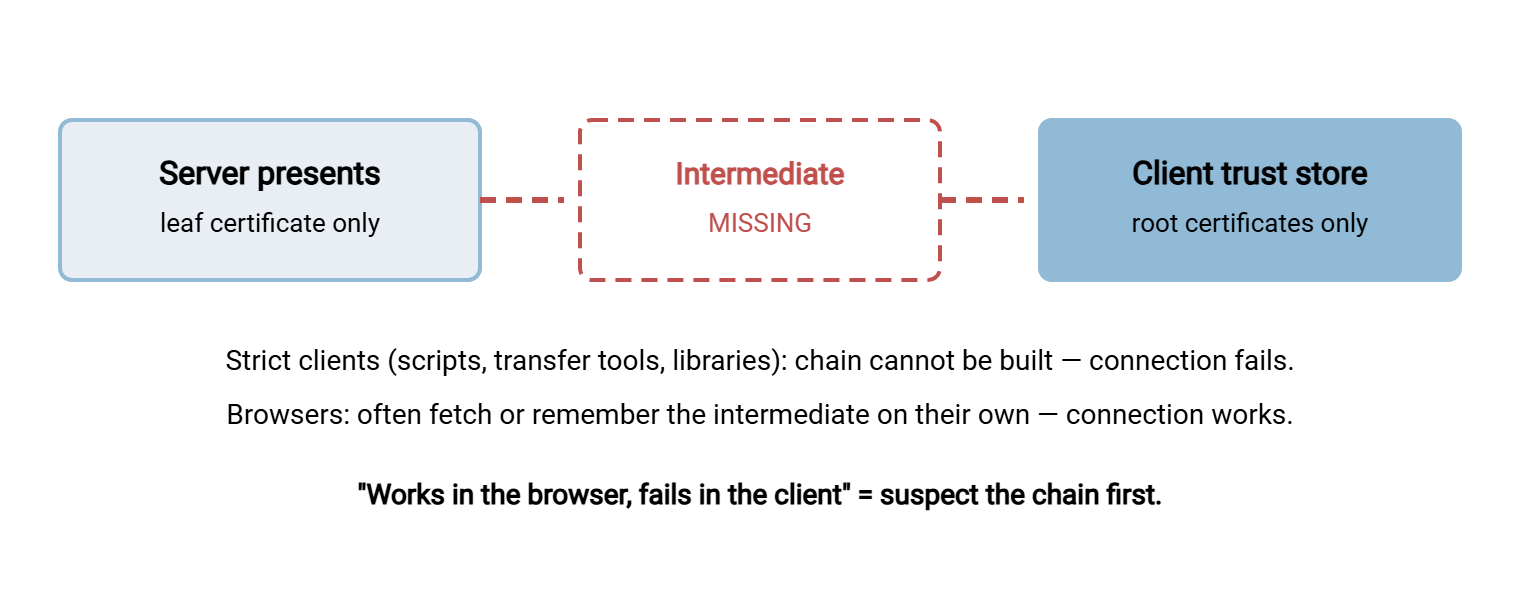
Why do browsers mask it? Two behaviors explain it. They cache intermediates seen on other sites that use the same CA. Many will fetch a missing intermediate from a URL embedded in the leaf. Both are conveniences of interactive browsing. Strict clients — transfer tools, scripting libraries, partner automation, embedded devices — do neither, on purpose: an unattended job should not wander the network collecting trust. So the misinstall produces a signature pattern:
- The endpoint "works" when you check it in a browser at your desk.
- Some partners connect fine (their client is tolerant or cached); others fail with errors like
unable to get local issuer certificate,unknown CA, or a bare handshake failure. - The failures feel random across clients, which sends people chasing firewalls and versions for a day before anyone reads the chain.
The fix is always the same and takes five minutes: assemble the full chain as above, reinstall, reload, and re-verify from the outside. The lesson worth internalizing is the diagnostic reflex — inconsistent-by-client certificate trouble is chain trouble until proven otherwise.
Protecting the Private Key
The private key is not configuration; it is a credential — the credential that lets a machine be ftp.example.com. Anyone who copies it, plus a position to redirect traffic, can impersonate your endpoint to every client that trusts the certificate. Treat it with password discipline, applied with file-system tools:
- Tight permissions, service-account access only. The key file should be readable by the account the transfer service runs as, and administrators — no one and nothing else. No world-readable staging folders, no
C:\temp, no leftover copies in a download directory. - Never in transit over chat, email, or tickets. The moment a key has traveled through a mail system it has an unknown number of copies. If a key must move between machines at all, move it over an encrypted channel between the two machines and delete staging copies. Better, generate the key where it will live so it never moves.
- Backups count as copies. A key inside an unencrypted backup is a key in a second, less-guarded location. Back up keys inside encrypted archives or an encrypted backup system, and remember the PFX password is guarding exactly this.
- Passphrase or not? A passphrase-encrypted key defeats unattended service startup, so server keys usually stay unencrypted on disk. The protection burden shifts to permissions and host hardening. That is one more reason the underlying server deserves the treatment in our hardening transfer servers series.
- Assume-compromised procedure. A key may have leaked — for example, it was in the wrong folder for a week, present on a compromised host, mailed by a well-meaning colleague. In that case, get the certificate revoked (the CA marks it withdrawn) and reissue with a brand-new key. Reissuing with the same key changes nothing that matters.
Binding the Certificate to the Transfer Service
With chain assembled and key protected, installation proper is short. The universal sequence, whatever the server software:
- Place the key and full chain (or the PFX) where the service expects them.
- Point the service's TLS settings at them — one certificate configuration can typically serve both FTPS and HTTPS if both names are in the SAN list.
- Reload or restart the service. Services load certificates at startup; a replaced file on disk changes nothing until the service re-reads it. The renewed-but-never-reloaded certificate is the second-classic misinstall after the missing intermediate.
- Confirm which ports now speak TLS. For HTTPS that is the standard web port; for FTPS it depends on mode. Explicit FTPS upgrades a plain connection on the normal FTP port. Implicit FTPS wraps TLS from the first byte on its own dedicated port. If that distinction is new, explicit vs implicit FTPS explains it; it decides which ports your verification step must test.
On a Windows server product such as Sysax Multi Server, which serves FTPS and HTTPS according to the certificate configuration you set, the same sequence applies. Install the certificate with its chain and key, apply the configuration, then verify each protocol's port from outside. The FTPS-specific error catalog in FTPS certificates is a useful companion when a client-side message needs decoding.
Two scheduling courtesies make the swap boring, which is the goal. First, do it inside a quiet window for the endpoint's traffic. The reload itself takes seconds, but if anything is wrong you want minutes of slack, not a partner's peak upload hour. Second, the certificate may replace one that partners have been told about (some B2B setups record or pin the exact certificate they expect). In that case, give those partners the new certificate details ahead of the change. A courteous week of notice prevents a morning of failed jobs on their side. Keep the old key and certificate on disk, out of the service's configuration, until the new one has verified cleanly. Rollback is then one configuration change instead of a scramble.
Remember: the certificate on disk is not the certificate being served. Between file and wire sit the chain assembly, the service configuration, and the reload — and any of the three can silently fail. The only truth that matters is what the endpoint presents to a connecting client, which is why verification is external or it is nothing.
Verify From the Outside, Like a Client Would
Never declare a certificate installed because the files look right. Connect to the live endpoint the way a client does and inspect what actually comes back. The openssl s_client tool is the standard instrument — it performs a real TLS handshake and prints the certificates received. Three variants cover a transfer estate:
# HTTPS endpoint (web file drop, portal, API)
echo | openssl s_client -connect files.example.com:443 \
       -servername files.example.com -showcerts

# Explicit FTPS: plain FTP port, upgraded to TLS via STARTTLS
echo | openssl s_client -connect ftp.example.com:21 \
       -starttls ftp -servername ftp.example.com -showcerts

# Implicit FTPS: TLS from the first byte on the dedicated port
echo | openssl s_client -connect ftp.example.com:990 \
       -servername ftp.example.com -showcerts
Four things to read in the output, in order:
- The certificate chain list. Near the top: numbered
s:(subject) andi:(issuer) lines. You want your leaf at position 0 and the intermediate(s) after it. A one-entry list where the issuer is not in any trust store is the missing intermediate, caught red-handed. - The verify result.
Verify return code: 0 (ok)means a full chain built to a trusted root. Code 21 (unable to verify the first certificate) is the missing-intermediate signature; code 10 is expiry; code 18 means self-signed. - The names. Pipe the leaf through a decoder and read the SAN list — every hostname clients use must be present.
- The dates. Confirm the endpoint serves the new validity window after a renewal — this is how you catch the missed reload.
# Compact health read of the live leaf: names, dates, issuer
echo | openssl s_client -connect ftp.example.com:21 -starttls ftp \
       -servername ftp.example.com 2>/dev/null \
  | openssl x509 -noout -subject -issuer -dates -ext subjectAltName
Two habits complete the ritual. Test every advertised name — ftp.example.com and files.example.com are separate checks. The -servername flag matters because servers can present different certificates per requested name. And test from outside your network at least once. An inside test can succeed against an internal interface while the outside world meets a different, older certificate on the public address. Verification against the outside interface is also a natural cross-check when the endpoint sits behind the address translation and firewall layers discussed elsewhere in this library.
Finally, make the external check a recurring one rather than a ceremony performed only on installation day. The same s_client commands, run on a schedule and compared against expectations, catch drift you would otherwise discover from a partner. For example, a certificate is quietly swapped by another administrator, a load balancer serves a stale copy on one node, or an expiry creeps into view. Turning that habit into monitoring with thresholds and owners is exactly where certificate expiry monitoring picks up.
Symptom to Cause, at a Glance
The troubleshooting patterns of this article, condensed into the table you will actually consult during an incident:
| Symptom | Most likely cause | Confirm with |
|---|---|---|
| Works in browser, fails in scripts or partner clients | Missing intermediate in the served chain | s_client chain list has only one entry; verify code 21 |
| "Hostname mismatch" / "not valid for this name" | Name absent from SAN list | Decode the leaf and read subjectAltName |
| Everyone fails at once, starting on a specific day | Expired certificate | -dates on the live endpoint |
| Renewed the certificate, clients still see the old one | Service never reloaded, or wrong file path updated | Compare on-disk dates vs live -dates |
| One protocol or port fine, another failing on the same host | Certificate bound to one service but not the other (or explicit vs implicit port confusion) | Run s_client per port, compare leaves |
| Single client rejects a certificate the world accepts | That client's trust store or clock is wrong | Check the client machine's time and CA bundle |
The Version to Tell a Colleague
Installation is bundle assembly plus proof. The server must present the leaf and every intermediate — leaf first — because clients hold only roots. The missing intermediate is the classic misinstall precisely because browsers repair it silently while transfer clients fail honestly. The private key is a credential: locked-down permissions, no travel through email or tickets, revoke and reissue on any suspected exposure. And nothing is finished until the live endpoint — every port, every name, from outside — shows the full chain, the right SANs, the new dates, and a clean verify. The file on disk is a hope; the handshake is the fact.
Next in the series: a certificate installed today is an outage scheduled for its expiry date unless renewal is systematic — certificate expiry monitoring builds that system. And if your endpoint must also verify clients with certificates, continue to client certificates and mutual TLS.
Frequently Asked Questions
What order do the certificates go in the chain file?
Why does my site work in a browser but fail from a script or partner client?
I replaced the certificate files but clients still see the old certificate. Why?
Is it safe to email the certificate to a partner?
How do I check an FTPS server's certificate when a browser can't open it?
From the Sysax team: we build secure file transfer software for Windows. Sysax Multi Server is an FTP, FTPS, SFTP, and HTTPS server. Sysax FTP Automation handles scheduled, scripted transfers. Free trials are on the download page.