
Building an FTP Lab: A Safe Environment for Learning and Troubleshooting
There are two kinds of administrators who work with FTP. One kind has read that directory listings travel on the data connection. The other has watched it happen in a packet capture they ran themselves. The second kind troubleshoots faster, argues from evidence, and stays calm during incidents. The difference between the two is an afternoon of setup. Production is the wrong place to acquire that experience. You cannot capture traffic freely, cannot break things on purpose, and cannot experiment while a partner's files flow through the same pipe.
The answer is a lab: a small, disposable environment. It has a server you control completely, a client you can misconfigure freely, and a capture tool watching everything. This article builds that lab from parts you already have and establishes a known-good baseline. Then it does the genuinely valuable part — a ladder of exercises that reproduce, on purpose, every classic FTP failure. So the first time you see each one is a quiet afternoon rather than a live incident. It is part of our The FTP Protocol series and is the hands-on companion to every other article in it.
What the Lab Is For
Three jobs, in increasing order of value:
- Learning by watching. The protocol's architecture — two channels, plaintext commands, numbered replies — becomes permanent knowledge the day you see it in your own capture instead of someone else's screenshot.
- Rehearsing failures. Every entry in our failure modes field guide can be triggered deliberately and safely here. Symptoms you have already met do not cost you an hour of confusion at 2 a.m.
- Reproducing production mysteries. When a real transfer misbehaves, the lab lets you rebuild the situation, test your theory, and prove the fix. You can do all that without touching the production server or waiting for a change window.
The property that makes all three possible is disposability. A lab you can wreck and rebuild in minutes is a lab you will actually experiment in. Fear of breaking the environment is the enemy of learning, and the entire design below is arranged to eliminate it.
The Shape of the Lab
Three roles, which need not be three machines:
- The server: an FTP server you fully control — accounts, passive range, timeouts, quotas, logging.
- The client: at least two, actually — a graphical client and a command-line one — because comparing their behavior is itself diagnostic.
- The observer: a packet capture tool positioned to see the traffic between them.
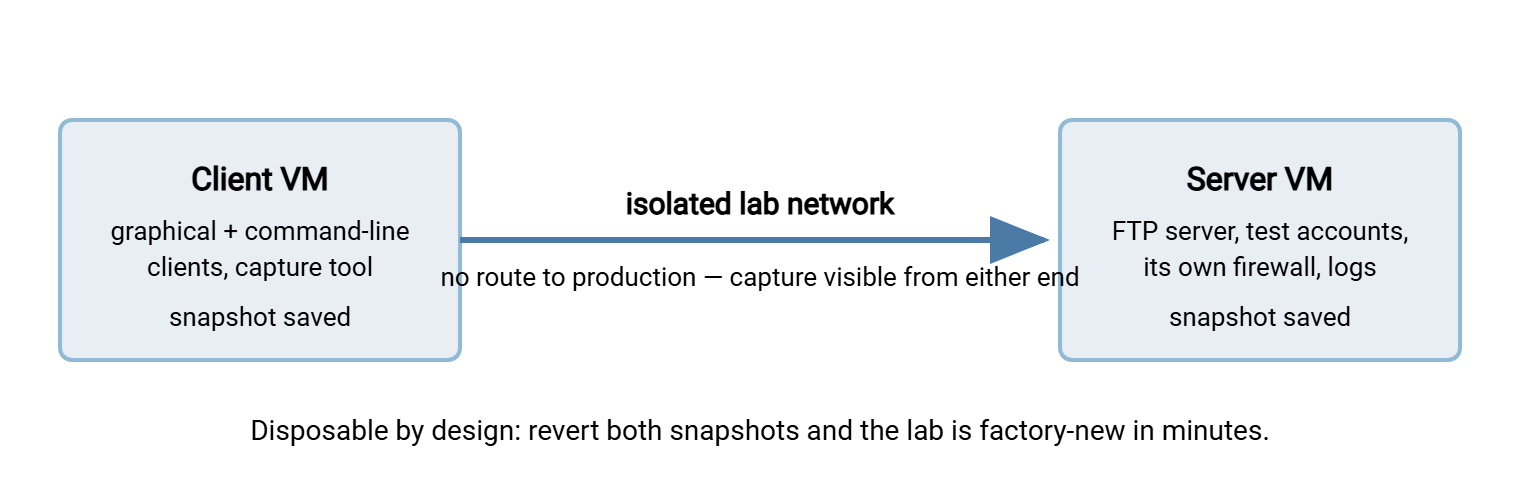
The minimal build is a single machine talking to itself over the loopback interface: server, client, and capture all in one place. It works, and it is enough for the protocol-watching exercises. The better build is two virtual machines on a host-only or otherwise isolated virtual network. One runs the server, the other the client, and either can capture. Two machines buy you the failures that only exist between machines — real firewall rules, real timeouts, a cable you can virtually pull. Take a snapshot of each VM once the baseline works, and "rebuild the lab" becomes "revert, two clicks."
The diagram below shows the two-VM shape with its capture points.
Choosing the Pieces
The server. Any FTP server you can configure will do, and the lab works identically whichever you pick. This series is about the protocol, not a product. What matters is the feature checklist: per-user accounts, a configurable passive port range, adjustable timeouts and quotas, and readable logs. The exercises below turn each of those knobs. On Linux, your distribution's packaged FTP servers cover this. On Windows, one easy route is Sysax Multi Server. The free trial from the download page installs quickly and exposes accounts, passive range, and logging in a graphical interface. That keeps the lab's focus on the protocol rather than on config-file syntax.
The clients. Install a graphical FTP client (any mainstream one) and find your OS's command-line client. On Windows, the built-in ftp.exe is famously active-mode-only — useless for modern transfers, but perfect for a lab. A guaranteed-active client lets you demonstrate active-mode failures on demand. That quirk turns a liability into a teaching instrument.
The observer. A packet capture tool: Wireshark where you have a desktop, tcpdump where you do not. You only need three skills, all learnable in the lab's first hour. Start a capture on an interface, filter to the server's address or port 21, and follow a TCP stream to read it as text.
Test cargo. Three files tell you almost everything. Use a small text file (readme.txt) and a zip archive (binary corruption shows instantly — a damaged zip refuses to open). Use one large file, a few hundred megabytes, generated with any tool, so transfers last long enough to interrupt.
Names and addresses. Give the lab machines fixed addresses. Add a hosts-file entry on the client so the server has a name (lab-server) as well as an IP. Connecting by name exercises the same resolution step production uses. Later, it lets you stage name-resolution failures on purpose by breaking the entry. That is exactly how "the hostname stopped resolving" incidents look in real life. Port-wise, keep the conventional port 21 for the control channel so your filters and instincts transfer directly to production. The background on the conventions is in our blog post What port is FTP?.
First Boot: Establish the Known-Good Baseline
Before breaking anything, prove the healthy state and save the evidence. Troubleshooting is comparison — a failing session diffed against a golden one — so the golden one must exist first.
Setup: create one test account (say labuser), jailed to its own folder, with the three test files in it. Start a capture. Then run this complete session from the client and keep the transcript:
ftp lab-server                # expect: 220 greeting
user labuser                  # expect: 331 then, after password, 230
binary                        # expect: 200 Type set to I — ALWAYS set this
dir                           # expect: 150, the listing, then 226
get readme.txt                # expect: 150 ... 226, byte count matching the server's copy
put upload-test.txt           # expect: 150 ... 226
dir                           # expect: the uploaded file now in the listing
delete upload-test.txt        # expect: 250 — leave the lab as you found it
quit                          # expect: 221 Goodbye
Stop the capture and save both artifacts — transcript and capture file — labeled baseline. Then collect the third view: the server's own log of the same session. Read the client transcript, the capture, and the server log side by side — three records of one conversation. That is the complete evidence set you will want in every future incident. So learn what all three look like when nothing is wrong. Every exercise below produces its own set to lay beside them. If the reply codes in the golden run are not all familiar, ten minutes with the commands and reply codes guide will fix that permanently.
Reading the Baseline on the Wire
Open the baseline capture and do three things. First, follow the TCP stream on port 21 and read the whole conversation. That means every command, every numbered reply, the password in plain sight. Second, find the 227 Entering Passive Mode reply and decode its port by hand (fifth number times 256 plus the sixth). Third, list the capture's TCP conversations and match each data stream to the listing or transfer that used it. You should find the exact pattern walked through in the two-channel architecture article: one long control stream, one short-lived data stream per listing or file.
That half hour is the highest-value half hour in this article. Everything FTP does afterward — including everything that goes wrong — is a variation on what you just read.
The Exercise Ladder: Breaking It on Purpose
Now the reason the lab exists. Each exercise reproduces one classic failure. For each: make the change, rerun the baseline session, save the transcript, observe the symptom, then revert the change before the next exercise. One variable at a time — that discipline is itself troubleshooting practice.
- Block the passive range. On the server's firewall, block the passive data ports while leaving 21 open. Result: login succeeds, then
dirhangs and dies with425 Can't open data connection. This is the single most common real-world FTP failure, now permanently recognizable. The server-side fix is the subject of configuring passive port ranges. - Force active mode. Repeat the session with the active-only command-line client (or your graphical client switched to active) with the client's firewall enabled. Watch the capture: the client sends
PORT, the server tries to connect back, the firewall eats it, the session hangs. You have just reproduced why firewalls block active FTP on demand. - Corrupt a file with ASCII mode. Transfer the zip with
asciiinstead ofbinary, then try to open the copy. It fails, and the sizes differ — the signature of line-ending translation applied to binary data. Undramatic in the lab; expensive in production. - Starve the session with a tiny idle timeout. Set the server's idle timeout to its minimum, log in, and wait. The server drops you — typically with a
421. That teaches you what "the transfer works but long sessions die" looks like from both the client's and the server's logs. - Fill a quota. Give
labusera quota smaller than the big file and upload. The transfer dies with452or552. You learn your server's exact wording, which is what you will grep for in production logs someday. - Revoke write permission. Make the account's folder read-only and try the upload:
550or553. Compare this transcript with the quota one — distinguishing "not allowed" from "no room" by reply code alone is a skill worth having. - Kill a transfer midway. Start the big-file transfer and disconnect the lab network (or stop the server service) partway. The client reports
426or a timeout; note which, and observe what half a file looks like on disk. Then test whether your client can resume rather than restart. - Announce the wrong address. If your server has an external or public address setting for passive mode, set it to a bogus address. Then watch the client faithfully try to open its data connection to a machine that does not exist. This reproduces the single most confusing NAT-era failure — the client's log shows it connecting somewhere other than the server. It teaches you to always read where the data connection is aimed, not just whether it failed.
The ladder in summary, for the wall above your desk:
| Exercise | Symptom you produce | Production lesson |
|---|---|---|
| Block passive range | Login OK, listing hangs, 425 | Data channel blocked; fix range + firewall |
| Force active mode | PORT sent, then silence | Client-side firewalls refuse callbacks |
| ASCII-transfer a zip | "Success," but the copy won't open | Size change = wrong transfer type |
| Minimum idle timeout | 421, session dropped | Idle limits kill quiet connections |
| Tiny quota | 452 / 552 on upload | Learn your server's out-of-space wording |
| Read-only folder | 550 / 553 on upload | Permission vs quota, told apart by code |
| Cut transfer midway | 426, partial file on disk | Why temp names + resume exist |
| Bogus external address | Client dials a stranger, times out | Check where the data connection is aimed |
Reproducing a Production Mystery
When something real misbehaves, the lab becomes an instrument. The method:
- Collect the facts from production: the client software and its mode setting, the exact error or reply code, the relevant log lines from both ends if you can get them.
- Rebuild the shape in the lab: an account with the same jail, rights, and quota (the patterns from FTP account models), the same transfer type, the same direction.
- Replay with the same kind of client and capture everything. If the symptom reproduces, you have converted a mystery into an exhibit — and the capture usually names the cause outright.
- Test the fix in the lab first, then take it to production with before-and-after transcripts as evidence. Change advisory boards approve "here is the failing capture, here is the fixed one" far faster than "we think it's the firewall."
If the symptom refuses to reproduce, that is information too. In that case, the difference between lab and production is now your prime suspect — an intermediate firewall, a NAT device, a different network path. Here, the mode-failure diagnosis guide covers the between-the-endpoints hunt.
The lab earns its keep doubly with inherited automation. An old batch script or scheduled job is far too dangerous to "just run and see" against production. But it can be pointed at the lab server, with a lab account mirroring its production account. There it can be executed, captured, and read line by line in complete safety. Watching what a mystery script actually sends over the wire answers questions its comments never will.
Lab Hygiene
Cheap rules that keep the lab an asset:
- Isolate it. The lab network should have no route to production systems. The point of a place where mistakes are free is that mistakes stay in it.
- No production credentials, ever. Lab accounts get lab passwords. FTP sends credentials in the clear and your captures record everything — a production password pasted into the lab now lives in a capture file.
- No production data. Test cargo is generated junk. Captures, snapshots, and transcripts get shared and copied; real data in them becomes a leak.
- Label and keep the artifacts. A folder of named transcripts and captures —
baseline,425-passive-blocked,ascii-corruption— becomes your team's reference library. It becomes the best onboarding material a junior admin will ever get. - Revert often. After each exercise, back to the snapshot. Accumulated experiments turn a lab into a second production environment: mysterious, fragile, and beloved by nobody.
Remember: the lab touches nothing real — no production servers, no production credentials, no production data. Its entire value is that everything in it is allowed to break. Guard that property and the lab stays useful for years.
An Afternoon Well Spent
Build the two machines, save the golden transcript and capture, climb the exercise ladder, and keep the artifacts. The result is an administrator who has personally seen every classic FTP failure. The result also includes a library of labeled evidence to compare incidents against, and a standing instrument for testing fixes before production ever feels them. From here, one natural companion is the failure modes field guide — the catalog your exercises just brought to life. Another is the two-channel architecture for the deep reading of what your captures show.
Frequently Asked Questions
How do I test whether my FTP server is reachable from outside?
Can I run the whole FTP lab on one machine?
Which FTP server should I use for the lab?
Do I need to know Wireshark before starting?
Is it safe to capture FTP passwords in the lab?
How do I reproduce a production problem without production data?
How often should the lab be rebuilt?
From the Sysax team: we build secure file transfer software for Windows. Sysax Multi Server is an FTP, FTPS, SFTP, and HTTPS server. Sysax FTP Automation handles scheduled, scripted transfers. Free trials are on the download page.