
The Partner Intake Form and Onboarding Checklist
Intake is the step where you learn what you need to know about a new partner before you build anything for them. Done well, it is one form, sent on day one, returned once. Done badly, it is a month of emails in which each answer reveals the next question. The connection guide tells the partner about your side; the intake form asks about theirs. The two documents travel together in the first message you send.
This article gives you the form, field by field, with the reason each field exists and the failure it prevents. Then it gives the internal checklist you follow once the form comes back, and a way to track a dozen onboardings without losing one. It also gives the handoff that turns a finished onboarding into a row in your flow inventory. It is part of our Partner Onboarding and Support Documentation series. It removes the biggest of the three loops described in why partner onboarding takes six weeks.
What You Must Learn Before You Build Anything
Everything you build for a partner depends on a fact only the partner has. The account depends on how they will authenticate. The firewall rule depends on where they will connect from. The pickup job depends on what they will call the files. The schedule depends on their time zone. Build before you know these things and you will build twice, which is what most undocumented onboardings do without noticing.
The facts fall into five groups, and the form is organized the same way. Who: the people on the partner's side who will actually run the connection and answer when it breaks. What: the files, their direction, their names, their size, their schedule, and whether they contain anything regulated. How: protocol, authentication method, the addresses connections will come from, and the software that will connect. When: test dates, go-live, and the partner's own change constraints. Agreements: retention, and who to tell when something on your side changes.
Notice that the "who" group asks for the technical contact separately from whoever signed the deal. The person who agreed the integration is rarely the person who will type the host name into a client. If the form goes to the wrong one it sits in an inbox until someone asks about it. (Someone will ask about it in week three.)
The Form That Asks It Once
The template below is the whole form. Hints under a field explain what a good answer looks like. The most common wrong answer to "what is your IP address?" is a private address from the partner's office network. A hint prevents it. Send the form as plain text or a simple document that can be filled in and returned by email. Nothing about it needs a portal.
ACME PARTNER INTAKE FORM                                           Form version: v3
Return to: transfer-support@example.com     Every field matters; "not applicable" is an answer.

A. WHO
A1  Partner organization name:
A2  Technical contact (name, mailbox, phone):
    Hint: the person who will set up and run the connection, not the account manager.
A3  Escalation contact (shared mailbox preferred):
A4  Your support hours and time zone:

B. WHAT
B1  Purpose of the files, in one line:
B2  Direction:  [ ] you send files to us   [ ] you collect files from us   [ ] both
B3  File name pattern(s) you will use (example: ORDERS_YYYYMMDD.csv):
B4  Typical file size, and the largest you expect:
B5  How often, and by what time of day (state the time zone):
B6  Does the content include personal or regulated data?  [ ] no  [ ] yes, describe:

C. HOW
C1  Protocol:  [ ] SFTP   [ ] FTPS   [ ] other (describe):
C2  Authentication:  [ ] SSH public key (attach the .pub file)   [ ] password
C3  Every public IP address your connections may come from:
    Hint: ask your network team. This is the address the internet sees, not your
    workstation's. Include failover sites and cloud egress addresses.
C4  Client software or platform that will connect (a name is enough):
C5  Will uploads use a temporary name, renamed on completion?  [ ] yes  [ ] no  [ ] cannot
C6  Will the connection be automated (scheduled job) or run by a person?

D. WHEN
D1  Earliest date you can run our test procedure:
D2  Target go-live date:
D3  Change-window constraints on your side (days, times, freeze periods):

E. AGREEMENTS
E1  How long may we keep delivered files before removal (days):
E2  Mailbox to notify about address, key, or certificate changes on our side:
E3  Completed by (name), on (YYYY-MM-DD):
When Meridian Parts returned this form, the answers were short. They were push, SFTP, key attached, one address, one file a day before 06:00 in their local time, automated, temporary names yes. That is fourteen facts that took one round trip. In the undocumented version of the same onboarding they took twelve round trips and three weeks. Two of those facts were wrong the first time.
The Questions That Prevent Specific Failures
Every field on the form is there because its absence causes a particular failure later. Knowing the failure helps you defend the field when someone suggests the form is too long. It is not too long. It is exactly as long as the list of things that go wrong.
| Field | Failure it prevents | What the partner would have seen |
|---|---|---|
| C3 source addresses | Allowlist missing their real address, or their failover address | Connection timed out |
| C2 authentication | Account built for a password when the partner's job uses a key | Permission denied (publickey) |
| C1 protocol | Partner brings an FTP-only device to an SFTP server | A hang, or a garbled banner |
| B3 file name pattern | Pickup job watching for a name the partner never sends | No error; the file sits unprocessed |
| C5 temporary names | Job picks up a half-written file | A truncated file processed as complete |
| B5 time and time zone | Cutoff set in your zone, file sent in theirs | A file that arrives after your cutoff |
| B6 regulated data | Personal data in a folder with the wrong retention or access | No error; found later by an audit |
| E2 change mailbox | Key rotation notice sent to someone who left | Host key verification failed |
Two of these deserve a sentence more. The source address question is the one partners get wrong most often, and the hint is the fix. "The address the internet sees" is a phrase their network team understands immediately. If you use an allowlist, the mechanics of maintaining it are in IP allowlisting and geo restrictions. The regulated-data question is the one partners skip most often. It is the one that decides which folder, which retention, and which access review the flow gets. The article recognizing personal data explains what counts.
Remember: a public key on the form is a file attachment, not a paste into the body. Email clients wrap long lines, and a wrapped key is a key that does not work. That produces "Permission denied (publickey)" and a round trip you thought you had removed.
The Internal Checklist That Follows
When the form comes back, the work on your side is the same every time. That is what makes it a checklist rather than a judgment. The list below is in the order the steps depend on each other. Keep it in the ticket, tick the steps there, and the ticket becomes the onboarding record without anyone writing one.
- Validate the form. Every field answered. C3 contains public addresses only, not
10.x,192.168.x, or172.16–31.x. If C2 is a key, the.pubfile is attached and is a public key, not a private one. Return the form with questions if anything fails; do not guess. - Open the tracker row. Partner name, stage "form received", waiting on us.
- Create the account to your naming standard (Meridian Parts becomes
meridian), with its home folder as the root the partner will see. - Create the folders from your per-partner template:
/inboxwith write and list but no delete,/outboxwith read, list, and delete. - Install the credential. Public key from C2, or a generated password delivered out of band to the A2 contact and never written into the ticket.
- Add every C3 address to the allowlist. If the firewall team owns it, raise their change now; it is usually the slowest step.
- Configure the pickup or delivery job for the B3 pattern, pointed at the test file name until go-live.
- Fill the connection guide from the form: partner name, source address, username, pattern, schedule. Record the guide version.
- Send the guide and the test procedure to A2, with the D1 date confirmed.
- Receive and verify the test evidence. Match the partner's transcript against the server log; confirm the job processed the test file.
- Create the inventory row (below) and file the form, the guide copy, and the evidence in the partner record.
- Confirm go-live on D2, check the first live file, close the tracker row.
Steps three to six are where a transfer server earns its keep. On a server with per-account home folders and per-address allow lists as ordinary settings, such as Sysax Multi Server, they are ten minutes of configuration. The form supplies every value and the checklist supplies the order. The credentials step has rules of its own that scale badly if you improvise them per partner. They are set out in partner credentials and security. The safe handling of a partner's public key is in distributing authorized keys.
I once skipped step one because the partner was small and the form "looked fine". The address in C3 was 192.168.1.40. I added it to the allowlist, sent the guide, and spent two days wondering why a private address was not reaching us from the internet. The form had done its job. I had not done mine.
Tracking Many Onboardings at Once
One onboarding is a ticket. Six at the same time, each waiting on a different person, is how partners get lost. The failure is not forgetting a partner; it is losing track of whose turn it is. An onboarding that is waiting on the partner looks identical, in your queue, to one that is waiting on you. The second kind ages silently until the partner asks what happened. The tracker exists to make "waiting on" visible.
A tracker needs five columns and no more: partner, stage, waiting on, since, next action. Stage is one of a fixed list: form sent, form received, built, guide sent, test passed, live. "Since" is the day the stage was reached. A row waiting on the partner for more than five working days gets a polite chase. A row waiting on you for more than two working days gets your attention. A spreadsheet is enough. A ticket board with one column per stage is better, because moving a card is a smaller act than editing a cell. Small acts get done.
| Partner | Stage | Waiting on | Since | Next action |
|---|---|---|---|---|
| Meridian Parts | Guide sent | Partner | Day 4 | Chase test evidence on day 9 if not received |
| Kestrel Payroll | Form sent | Partner | Day 1 | Chase form on day 6 |
| Bluewater Bank | Built | Us | Day 6 | Firewall change pending; fill guide meanwhile |
| Northgate Retail | Test passed | Us | Day 8 | Create inventory row; confirm go-live date |
Review the tracker once a week, in five minutes, looking only at the "since" column. That is the whole discipline. It replaces the alternative: a partner's account manager phones your account manager. Your account manager phones your manager, who asks you what happened to Kestrel. (Kestrel was waiting on their network team. Nobody had chased.)
The Handoff to the Flow Inventory
An onboarding ends by becoming a record. The flow inventory is the list of every file flow your organization runs, one row per flow. Each row has its partner, direction, protocol, account, folders, schedule, owner, and contacts. The inventory is the document that answers "what breaks if this server goes down?" and "who do we tell?" It is only as good as the discipline of adding a row every time a flow is created. The intake form makes that discipline easy, because nearly every column in the inventory is a field on the form.
The diagram below shows the mapping. The form feeds three things at once. They are the account and folders you build, the connection guide you fill, and the inventory row you create at the end. Nothing is typed twice, and nothing in the inventory came from memory.
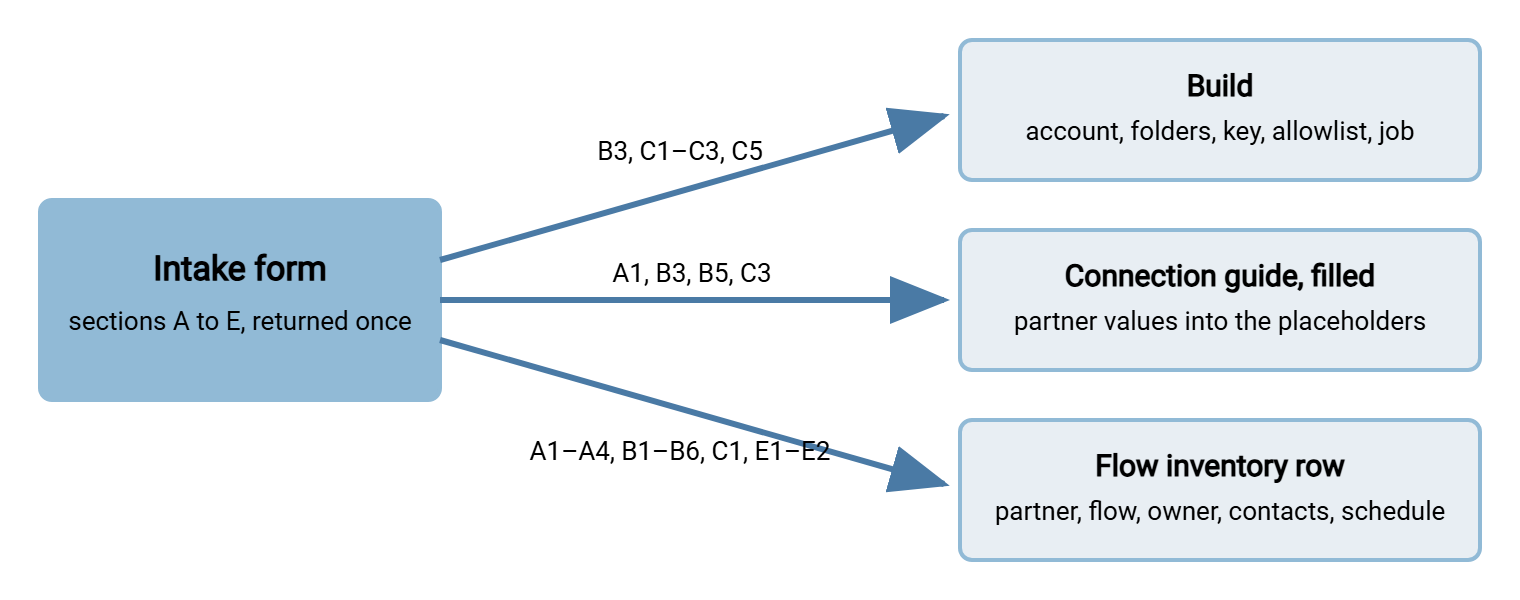
The inventory row also records who owns the flow on your side, which the form cannot supply and the checklist must. An owner is the person who is asked when the flow needs a decision: retire it, change it, tell the partner something. Without one, the flow belongs to whoever set it up, who will leave. The shape of the inventory and the rules for its columns are in the transfer inventory. The ownership question is in flow ownership and contacts. The account you created in step three now has a lifecycle of its own, reviewed and eventually closed. That is the subject of our transfer user lifecycle series.
A Short Story About the Failover Site
Northgate Retail onboarded Bluewater Bank without a form, because the bank's admin was responsive and everything went quickly. The bank's job ran happily for five months from the address the admin had given. In the sixth month the bank's scheduled failover test moved the job to their recovery site. The job connected from a different address, at five o'clock on a Sunday morning, and received "Connection timed out". The bank's on-call team escalated to Northgate's on-call team, who found nothing wrong with the server because nothing was wrong with the server. It took until Monday afternoon to learn the second address existed. Northgate's intake form now reads "every public IP address your connections may come from, including failover sites", and the hint is there because of that Sunday.
That is what a form field is: a failure that happened once, written down so that it does not happen to the next partner. Your form will grow the same way. Each new question is a scar, and a scar is cheaper than the wound.
Rule of thumb: if you had to ask a partner a question by email after the form came back, add the question to the form. If you asked it twice, add a hint as well.
The Version to Tell a Colleague
The intake form asks the partner everything you need, once, in five groups: who, what, how, when, agreements. Each field exists because its absence causes a specific failure, and a hint under the hard ones prevents the usual wrong answer. When the form returns, a fixed checklist turns it into an account, folders, a credential, an allowlist entry, a job, a filled guide, and a test, in that order. A five-column tracker keeps a dozen onboardings from stalling on "whose turn is it". The finished onboarding becomes a row in the flow inventory without anyone typing the facts twice.
The form is sent with the connection guide. When the form returns and the account exists, the next thing the partner receives is the self-serve test procedure. If you support both SFTP and FTPS and the partner leaves C1 blank, the way to settle it is in the partner protocol decision.
Frequently Asked Questions
Partners say the form is too long. Should I shorten it?
What if the partner does not know their public IP address?
Should the form be a web form or a document?
Where does the completed form live afterwards?
We are the partner. Should we fill in someone else's form or send our own?
From the Sysax team: we build secure file transfer software for Windows. Sysax Multi Server is an FTP, FTPS, SFTP, and HTTPS server. Sysax FTP Automation handles scheduled, scripted transfers. Free trials are on the download page.