
A Test Procedure Partners Can Run Without You
A self-serve test procedure is a numbered list of steps a partner follows, alone, to prove their connection to your server works end to end. It names the test file and says what will happen to it. It defines what a pass looks like and says exactly what to send you if a step fails. It is the document that turns "we tried it and it seems fine" into "steps one to ten passed, transcript attached". The difference between those two sentences is about a week of the calendar.
This article gives you the procedure as a complete artifact, written for a partner's junior administrator. That administrator has your connection guide, a client, and nothing else. The article shows the session transcript a partner sees on success and the fate of the test file on your side. It also shows the failure report that makes a broken step diagnosable in one reply, and the evidence you keep afterwards. It is part of our Partner Onboarding and Support Documentation series and assumes the partner already holds the connection guide.
What the Procedure Has to Do
The procedure has three jobs, and a procedure that does only the first is the reason partners report false passes. First, it walks the connection in the order the guide describes it. Reach the server, check its fingerprint, log in, find the folders, upload a file the agreed way. Second, it defines pass as a specific, observable event that the partner cannot mistake for anything else. Third, it tells the partner what to send when a step fails. That way, the failure email contains what you need rather than what they noticed.
Write it for the least experienced person who might run it. Assume they have never used SFTP and do not know what a fingerprint is. The guide defined those terms. But the procedure should not depend on the partner having read the guide closely. Assume they will run it once, at the end of a day, and stop at the first step that does not match. Each step therefore states the command, the expected result, and what to do if the result differs, in that order, every time.
Use the plain command-line client where you can. The OpenSSH sftp command ships with most current operating systems, Windows included. Its output is text the partner can copy into an email. Graphical clients work as well. A note at the end of the procedure maps the steps onto them. But a transcript is better evidence than a screenshot of a dialog box.
The Test File and Its Expected Fate
The test file is a small text file with an agreed name and one line of content. The name follows the live pattern with TEST in place of the business word, so MERIDIAN_ORDERS_YYYYMMDD.csv becomes MERIDIAN_TEST_YYYYMMDD.txt. That does two things: it exercises your naming rule, and it keeps the test file out of the live pickup pattern. That way, nothing downstream ever tries to process it as an order. The content is one line the partner writes themselves: their organization, their name, and the time. That makes the file recognizably theirs when you find it in a log later.
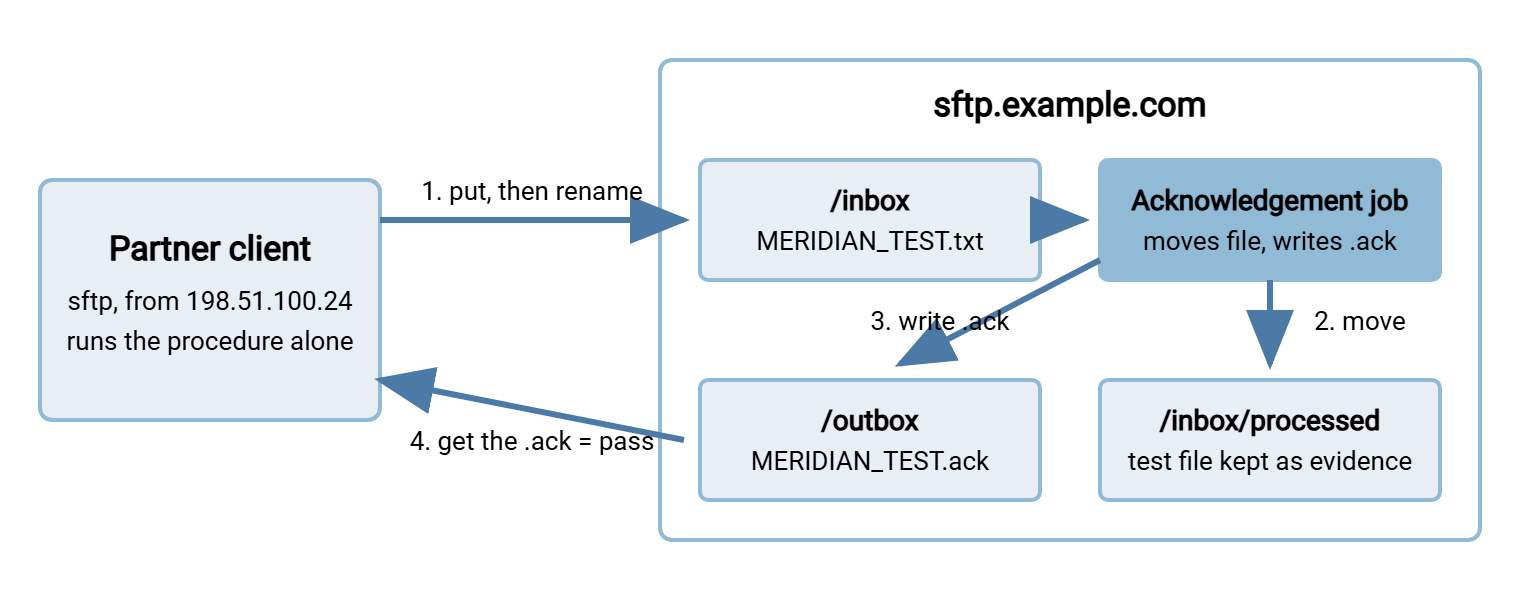
The expected fate is what your side does with the file, stated in advance. That lets the partner confirm the round trip without asking you. The best fate is an acknowledgement. A small job on your server watches /inbox for *_TEST_*.txt. It moves the file to a processed folder and writes MERIDIAN_TEST_YYYYMMDD.ack into /outbox. The acknowledgement contains the file name, its size in bytes, and the time the file was received. The partner downloads the acknowledgement, and that download is the pass. If you have no automation for this yet, the fate is "the file remains listed in /inbox and we confirm by email within one working day". That is honest but reintroduces a round trip. The acknowledgement job is worth an afternoon; the pattern is described in acknowledgment patterns.
The diagram below shows the round trip. The partner uploads the test file under a temporary name and renames it. The acknowledgement job on your side moves it aside and writes the .ack file. The partner downloads the acknowledgement and the loop closes without a human on your side.
The Procedure, as the Partner Receives It
Below is the document Acme sends to Meridian Parts with the filled connection guide. Every value in it comes from the guide. So the two documents cannot disagree unless one of them was changed alone. That is a maintenance rule for later. The commands are for the OpenSSH sftp client. YYYYMMDD is today's date in that format, and the partner replaces the key path with their own.
ACME PARTNER TEST PROCEDURE                          For: Meridian Parts     Guide version: v2
Run every step in order. Stop at the first step whose result does not match, and use the
"If not" instruction for that step. Allow 30 minutes. You need the connection guide, your
private key file, and a terminal.

STEP 1  Reach the server.
        Run:      nc -vz sftp.example.com 22
                  (Windows PowerShell: Test-NetConnection sftp.example.com -Port 22)
        Expect:   a line reporting success, such as "succeeded!" or "Connected to"
                  (PowerShell: TcpTestSucceeded : True)
        If not:   report "step 1", the exact output, the time in UTC, and the public IP
                  address of the machine you ran it from.

STEP 2  Connect and check the fingerprint.
        Run:      sftp -i /path/to/your/private/key meridian@sftp.example.com
        Expect:   a line reading "ED25519 key fingerprint is SHA256:l3Kq9ZtXpV4bLwE2nRcYhD8sJfUa0GiOx5MvNTeQ7k4."
                  This must match section 2 of the guide exactly. If it does, answer "yes".
        If not:   do not answer yes. Report "step 2" and the fingerprint you were shown.

STEP 3  Confirm login.
        Expect:   the prompt "sftp>" appears.
        Run:      pwd
        Expect:   Remote working directory: /
        If not:   report "step 3", the exact error text, the username you used, and the
                  output of: ssh-keygen -lf /path/to/your/public/key.pub

STEP 4  Find the folders.
        Run:      ls
        Expect:   inbox   outbox
        Run:      cd inbox
        If not:   report "step 4" and the listing you saw.

STEP 5  Create the test file on your machine (in a second terminal, or before step 2).
        Content:  one line: your organization, your name, today's date and time in UTC.
        Name:     MERIDIAN_TEST_YYYYMMDD.txt

STEP 6  Upload with a temporary name, then rename.
        Run:      put MERIDIAN_TEST_YYYYMMDD.txt MERIDIAN_TEST_YYYYMMDD.txt.tmp
        Expect:   a progress line ending in 100%
        Run:      rename MERIDIAN_TEST_YYYYMMDD.txt.tmp MERIDIAN_TEST_YYYYMMDD.txt
        If not:   report "step 6" and the exact error text.

STEP 7  Confirm the file is listed.
        Run:      ls -l
        Expect:   one line showing MERIDIAN_TEST_YYYYMMDD.txt and its size in bytes.
        If not:   report "step 7" and the listing.

STEP 8  Collect the acknowledgement. Wait up to 15 minutes, then:
        Run:      ls /outbox
        Expect:   MERIDIAN_TEST_YYYYMMDD.ack
        Run:      get /outbox/MERIDIAN_TEST_YYYYMMDD.ack
        If not:   wait the full 15 minutes, try once more, then report "step 8" with the
                  time of your upload in UTC.

STEP 9  Close the session.
        Run:      bye

STEP 10 Send the evidence to transfer-support@example.com.
        Subject:  Meridian Parts - test PASSED - YYYY-MM-DD
        Attach:   the full text of your terminal session, and the .ack file.
        The test has passed only when you hold the .ack file. Nothing else counts as a pass.

Graphical clients: the fingerprint in step 2 appears in a dialog on first connection; steps
6 and 7 are a drag into /inbox followed by right-click rename; step 8 is a refresh of /outbox.
Copy the client's log window as your transcript.
Two design choices in that document are deliberate. Every "If not" line asks for the step number first. So the subject of the partner's email tells you which section of the guide to open. And the last line of step 10 is the definition of pass. It is stated once, in plain words, at the end where a tired reader will still see it. "Nothing else counts as a pass" is not politeness. It is the sentence that prevents the war story below.
What Success Looks Like on the Partner's Screen
A partner who has never seen an SFTP session does not know what "it worked" looks like, so show them. The transcript below is what steps 2 to 7 produce on success. Include it in the procedure, or send it alongside, so the partner can compare line by line.
$ sftp -i ~/.ssh/acme_meridian meridian@sftp.example.com
The authenticity of host 'sftp.example.com (203.0.113.10)' can't be established.
ED25519 key fingerprint is SHA256:l3Kq9ZtXpV4bLwE2nRcYhD8sJfUa0GiOx5MvNTeQ7k4.
Are you sure you want to continue connecting (yes/no/[fingerprint])? yes
Warning: Permanently added 'sftp.example.com' (ED25519) to the list of known hosts.
Connected to sftp.example.com.
sftp> pwd
Remote working directory: /
sftp> ls
inbox   outbox
sftp> cd inbox
sftp> put MERIDIAN_TEST_YYYYMMDD.txt MERIDIAN_TEST_YYYYMMDD.txt.tmp
Uploading MERIDIAN_TEST_YYYYMMDD.txt to /inbox/MERIDIAN_TEST_YYYYMMDD.txt.tmp
MERIDIAN_TEST_YYYYMMDD.txt                          100%   47     2.1KB/s   00:00
sftp> rename MERIDIAN_TEST_YYYYMMDD.txt.tmp MERIDIAN_TEST_YYYYMMDD.txt
sftp> ls -l
-rw-r--r--    1 meridian  meridian        47 Mar  3 09:14 MERIDIAN_TEST_YYYYMMDD.txt
sftp> bye
Three lines in that transcript carry the proof. The fingerprint line proves they reached your server and not another. The Remote working directory: / line proves the login succeeded and the jail is correct. The ls -l line proves the upload landed in the right folder with the right name and a non-zero size. A partner can send you those three lines and you can verify the whole test from your desk. The .ack file adds the fourth proof, that your side saw it too.
Remember: a pass is the acknowledgement file in the partner's hands. "Connected fine" is step 3. "Uploaded fine" is step 7. Neither proves your side received anything, and neither is a pass.
What to Send When It Fails
A failure report is useful in proportion to how little you have to ask back. The procedure asks for the step number, the exact command, the exact output, and the time in UTC. For the early steps, it also asks for the partner's public address and key fingerprint. With those, most failures are diagnosable in one reply; without them, the first reply is a request for them. The table maps the step that failed to what you will do with the report.
| Step failed | Usual cause | What you check with the report |
|---|---|---|
| 1 (timed out) | Their address is not on the allowlist, or their outbound firewall blocks port 22 | Their reported public IP against the allowlist; your firewall log at that time |
| 2 (fingerprint differs) | Guide is stale after a key change, or they reached a different host | The fingerprint they saw against the server's current key |
| 3 (permission denied) | Wrong key, wrong username, or key installed with a wrapped line | Their key fingerprint against the one on the account; the auth log entry |
| 4 (folders missing) | Home folder or jail points at the wrong place | The account's home folder setting |
| 6 (upload refused) | No write permission on /inbox, or rename not permitted |
Folder permissions for the account |
| 8 (no acknowledgement) | Acknowledgement job not running, or watching a different pattern | The job's log; whether the test file was moved |
Notice that a step 8 failure is nearly always yours. The partner did everything right; the file is sitting in /inbox; your job did not collect it. That is the most valuable failure the procedure can produce, because it finds a problem on your side before a live file does. The error strings themselves, and what each one means, are decoded one by one in the partner FAQ and error decoder. The systematic way to work through a failure from the network up is the layered troubleshooting method.
The Evidence You Keep
When the pass email arrives, do not simply reply "great" and move on. Verify it and file it. Verification means opening your server's activity log and finding the session. Look for a login by meridian from 198.51.100.24 at the time on the transcript, an upload of the temporary name, and a rename. From the acknowledgement job's log, find the move and the write of the .ack file. If the transcript and the log agree, the test is real. If they disagree, one of them is describing a different session, and you want to know which before go-live.
Filing means putting four things in the partner record. They are the partner's transcript, the acknowledgement file, the matching lines from your server log, and the date. The record earns its keep later in three ways. When the partner's contact changes and the new person asks whether the connection was ever tested, you have the answer. When a live transfer fails months later, you have proof that this address, this key, and this folder worked on a known date. That narrows the diagnosis to what changed since. And when an auditor asks how partner access is verified before go-live, you have a procedure and evidence rather than a recollection. Reading the log lines is a skill in itself, covered in reading transfer logs. On a server that records logins, uploads, and renames per session, such as Sysax Multi Server, the activity log is the second half of the evidence. It takes a minute to extract.
Rule of thumb: the partner's transcript says what they did. Your log says what the server saw. Keep both, and keep them together.
When the Test Needs a Window
The procedure above is designed so that the partner can run it at any time without you. For most SFTP onboardings that is exactly right. Some tests do need coordination. Examples are a firewall change that must be watched from both sides, or a partner whose security policy requires a named person on a call. Another is a live-pattern rehearsal where your real pickup job runs against a real-looking file. Those are test windows, agreed periods where both sides are watching. Scheduling them is a subject of its own, in partner test windows. Send the self-serve procedure first anyway. A partner who has passed it arrives at the window with steps one to eight already proven. Then the window is spent on the one thing that needed it.
If the live pattern rehearsal needs a realistic file rather than a one-line text file, do not use a real one. Build a synthetic file with the right shape and harmless content; the method is in synthetic test files. And if your organization is the partner in someone else's onboarding, run their procedure, or this one adapted. In that case, use the same client profile your scheduled job will use. That way, the test proves the job's path and not just a person's. A scheduled client such as Sysax FTP Automation can run the upload and rename as its first task and log the result.
A Short Story About "Connected Fine"
Kestrel Payroll's admin reported "connected fine" on a Thursday. What had happened was step 3: a login, a prompt, and a pwd. Nobody ran steps 4 to 8, because the procedure at the time did not define a pass, and "connected fine" sounded like one. On payroll morning, at twenty to six, Kestrel's job uploaded the first live file. It received remote open("/inbox/KESTREL_PAY_YYYYMMDD.csv"): Permission denied. The write permission had been granted on the account's root folder rather than on /inbox, causing the error. The fix took ninety seconds. Finding someone awake to apply it took an hour and a half, which on payroll morning is a long time. The procedure gained step 10 the following week. The sentence "nothing else counts as a pass" was written by the person who had been woken up.
That is the whole argument for defining pass in writing. A partner will report the first encouraging thing they see, in good faith, because nobody told them what to look for. Tell them what to look for.
The Version to Tell a Colleague
A self-serve test procedure is ten numbered steps that follow the connection guide. Each has a command, an expected result, and an "if not" instruction. That instruction names the step and asks for the exact output. The test file follows the live naming pattern with TEST in it. It is uploaded under a temporary name and renamed. It is answered by an acknowledgement file your side writes automatically. The pass is the acknowledgement in the partner's hands; nothing else counts. You verify the pass against your own log, file both, and the partner arrives at go-live already proven.
The procedure is sent as soon as the account exists, in the same message as the filled guide. The sequence of who sends what, and when, is in the partner intake form and onboarding checklist. For the command-line client the procedure relies on, sftp CLI mastery covers everything the partner might want to do beyond these ten steps.
Frequently Asked Questions
Why upload with a temporary name and rename? It is only a test.
What if the partner uses a graphical client rather than the command line?
Do we really need the acknowledgement job? Can we just check the inbox ourselves?
The partner passed the test but the first live file failed. How?
How long should we keep the test evidence?
From the Sysax team: we build secure file transfer software for Windows. Sysax Multi Server is an FTP, FTPS, SFTP, and HTTPS server. Sysax FTP Automation handles scheduled, scripted transfers. Free trials are on the download page.