
Writing a Partner Connection Guide People Actually Read
A connection guide is the one page you hand a partner. It tells them everything they need to connect to your file transfer server. It explains where the server is, how to prove it is really you, and how to log in. It also says where to put files, what to call them, and who to ask when something goes wrong. It is the single most useful document in partner onboarding. It is also the one most often written badly. The person writing it already knows all the answers and cannot see which ones are missing.
This article shows you how to write one that a stranger's junior administrator can follow at four in the afternoon without phoning you. It gives the order the sections must go in. It explains each field and the commands that produce its value. It shows a complete guide filled in for a synthetic partner. It also lists the mistakes that turn a guide into a phone call. It is part of our Partner Onboarding and Support Documentation series. The series opens by counting the emails an undocumented onboarding costs. This is the first document that cuts them.
Who Reads the Guide, and When
Write for the least experienced person who will ever hold the document. That is not the partner's architect who agreed the integration. It is whoever gets the ticket "set up the Acme transfer" three weeks later. They may never have used SFTP. They will read the guide once, quickly, and copy values out of it straight into a client or a script. Every field therefore has to be exact, copyable, and impossible to misread.
The guide is also read at the worst possible moment: when something has failed. A partner whose upload has stopped working opens the guide looking for a contact address. If it is there, you get one clear email. If it is not, you get a call to whoever's name is on the purchase order. (That person will forward it to you, with a question mark.)
Keep it to one page. A three-page guide is a policy document with connection details hidden in it. Partners treat it accordingly: they skim, miss the port number, and phone. If your security team needs a longer document, write it separately and put the one page in front. The rules of the wider exchange program belong in the partner exchange standards, not here.
The Order That Matters
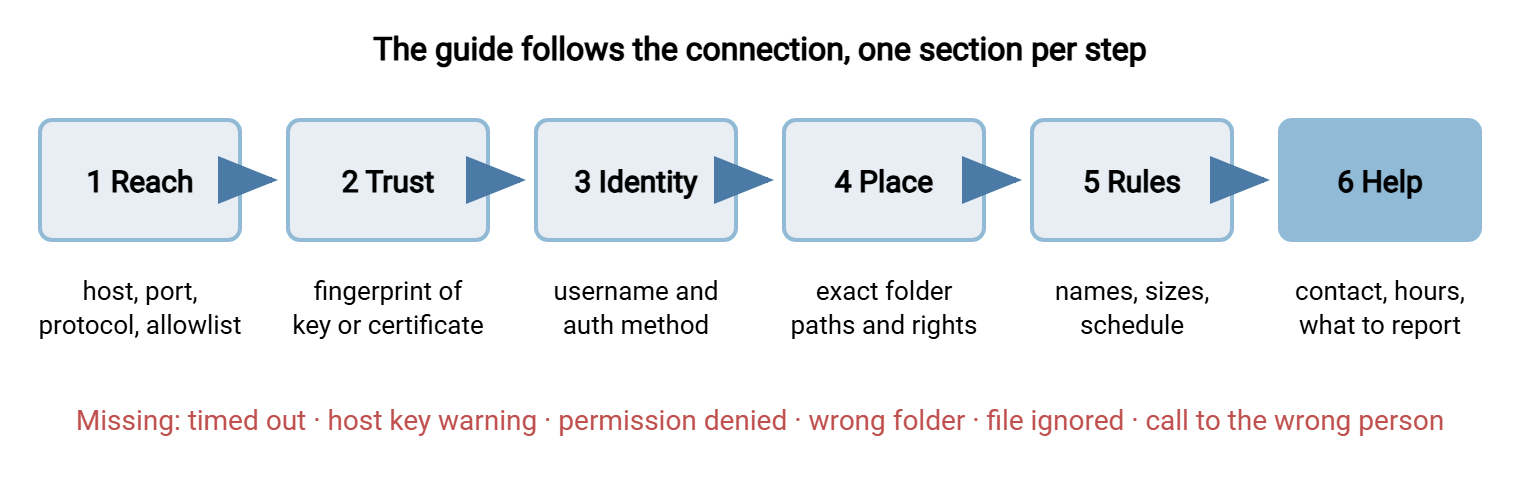
Put the sections in the order a connection happens. A client reaches the server, checks the server's identity, and presents its own. It lands in a folder and follows the rules there. It asks for help if any step fails. A guide in that order reads like a checklist. When a partner reports "we got as far as step three", you know which section to look at. The diagram below shows the six sections and the failure each one prevents.
Section 1: Reach
Reach is everything the partner's network needs to get a packet to your server. It lists the host name, the IP address it resolves to, the port, and the protocol, each on its own line. The protocol is the language the two ends will speak. SFTP runs file transfer over SSH on one port, usually 22. FTPS is FTP with TLS encryption added. It uses port 21 plus a range of high ports for data. Name it precisely and say what it is not. "FTP" on a guide that means SFTP costs a week, because partners will try an FTP client and get a connection that hangs.
Give the IP address as well as the host name, because the partner's firewall team works in addresses and their admin works in names. Tell them to connect by name and write rules by address. If you use an allowlist, say so. This is a list of source addresses your server or firewall accepts while refusing everything else. If you use one, print the address they gave you so they can confirm it. For FTPS, add the passive port range. This is the block of high ports the server hands out for data connections. The partner's firewall must permit outbound connections to all of them. The firewall conversation is a topic of its own; see firewalls and partner coordination.
Section 2: Trust
Trust is how the partner confirms they are talking to your server and not to something in between. An SFTP server identifies itself with a host key, a cryptographic key pair that belongs to the server. An FTPS server identifies itself with a certificate, a signed statement of the server's name and public key. In both cases the guide carries the fingerprint: a short hash of the key or certificate. It is written as SHA256: followed by a block of letters and digits. A human can compare it against what their client displays. The first time an SFTP client connects it shows this fingerprint and asks whether to trust it. A partner who has it on paper answers yes with confidence; a partner who does not answers yes anyway, which is worse.
Say which key type the fingerprint belongs to, because a server usually has several. Say what the partner should do if the fingerprint they see does not match: stop and contact you. That single sentence is the difference between a guide that supports security and one that decorates it. The client-side mechanics are in host keys and known_hosts; certificates for the FTPS case are explained in certificates explained for file transfer.
Section 3: Identity
Identity is the username and the authentication method. State the username exactly, in a monospaced font, with its case. State whether the account uses a password or an SSH public key. If it uses a key, confirm which key you hold ("the key you sent us on the intake form, fingerprint ending ...Q7k4"). If the account is password-based, the guide says so and says how the password was delivered. It never contains the password. Not once. Not "just for the initial setup". A guide is forwarded, printed, and pasted into tickets; a password in it is a password in all of those places.
Section 4: Place
Place is where the partner lands and where they may go. Give the folder they see on login and every folder they may use. Give the exact path of each and what they may do there: write, list, read, delete. Say whether paths are case-sensitive, because on most servers they are, and "Inbox" is not "inbox". Say there are no other folders, so nobody spends an afternoon looking for one. If the partner lands in a jail, tell them. This is a view of the server in which their home folder appears as the root. That way, /inbox on the guide matches /inbox on their screen. Folder conventions across all your partners are a design question, covered in our folder taxonomy series. The guide only reports the result.
Section 5: Rules
Rules are the agreements that make the files usable once they arrive. The file naming pattern, with the date format spelled out as YYYYMMDD rather than "the date". The maximum size. The schedule and the time zone. Whether the partner should upload under a temporary name and rename on completion, so your pickup job never grabs a half-written file. How long files in the outbox wait before removal. Each rule is one line; justification goes elsewhere. Naming conventions are their own subject, in naming convention design. The temporary-name trick is explained in temp names and atomic renames.
Section 6: Help
Help is who to contact, when they are available, and what to include. Use a shared mailbox, never a person's name, because people leave and mailboxes stay. State the hours and the time zone. Then list what a useful report contains: username, time of the attempt, the error text copied rather than described, and the file name. A partner who includes those four things gets an answer in one reply. A partner who writes "it isn't working" gets a reply asking for them. The loop the guide exists to prevent has opened anyway.
Remember: the guide follows the connection. Reach, trust, identity, place, rules, help. If a partner says they are stuck, ask which section they reached, and you will know where to look.
The Template, Filled In
Below is the whole guide as Acme would send it to Meridian Parts. The values are synthetic; the shape is the point. Keep a generic copy with placeholders in angle brackets and fill a copy per partner. That way, the partner-specific lines (their source address, their username, their naming pattern) are the only ones that change. Everything in monospace is meant to be copied exactly.
ACME FILE TRANSFER - PARTNER CONNECTION GUIDE
Partner: Meridian Parts          Guide version: v2          Last reviewed: YYYY-MM-DD

1. REACH
   Host name:        sftp.example.com
   IP address:       203.0.113.10   (for your firewall rules; connect by name)
   Port:             22
   Protocol:         SFTP (file transfer over SSH). Not FTP. Not FTPS.
   Your source IP:   198.51.100.24  (as supplied by you; only this address is permitted)

2. TRUST
   Host key type:    ED25519
   Fingerprint:      SHA256:l3Kq9ZtXpV4bLwE2nRcYhD8sJfUa0GiOx5MvNTeQ7k4
   Your client shows this fingerprint on first connection. If it shows anything else,
   do not continue; contact us using section 6.

3. IDENTITY
   Username:         meridian
   Authentication:   SSH public key. We hold the key you supplied (fingerprint ending Q7k4).
                     No password is set on this account.

4. PLACE
   On login you see:   /            (two folders, nothing else)
   Send files to:      /inbox       (you may write and list; you cannot delete)
   Collect files from: /outbox      (you may read, list, and delete after download)
   Paths are case-sensitive. Do not create folders.

5. RULES
   File name:        MERIDIAN_ORDERS_YYYYMMDD.csv   (YYYYMMDD = business date of the file)
   Upload method:    upload as MERIDIAN_ORDERS_YYYYMMDD.csv.tmp, then rename to .csv
   Maximum size:     200 MB per file
   Schedule:         one file per business day, before 06:00 UTC
   Outbox retention: files are removed 14 days after they appear

6. HELP
   Support mailbox:  transfer-support@example.com   (08:00-18:00 UTC, Monday to Friday)
   Urgent:           service desk, number on your partner contact sheet
   When reporting a problem, include: username, time of attempt (UTC),
   the exact error text, and the file name.
   Test procedure:   sent with this guide; please run it before your first live file.
Notice what is absent: no explanation of what SFTP is, no acceptable-use policy, no diagram of Acme's network, and no password. Everything the partner needs to connect is present; everything else is somewhere else, with a reference. That is what "one page" means in practice.
Getting the Values Right
Every value on the guide should come from the server, not from memory. The host name and port come from the configuration. The IP address comes from resolving the name from outside your network, because inside it may resolve to a private address. The fingerprint comes from the server's key. There are two ways to read it: from the key file on the server, or from outside, the way the partner will see it. Do both and compare.
# On a server that stores OpenSSH-style host keys
ssh-keygen -lf /etc/ssh/ssh_host_ed25519_key.pub
256 SHA256:l3Kq9ZtXpV4bLwE2nRcYhD8sJfUa0GiOx5MvNTeQ7k4 root@sftp (ED25519)

# From outside, exactly as a partner will see it
ssh-keyscan -t ed25519 sftp.example.com 2>/dev/null | ssh-keygen -lf -
256 SHA256:l3Kq9ZtXpV4bLwE2nRcYhD8sJfUa0GiOx5MvNTeQ7k4 sftp.example.com (ED25519)

# FTPS: the certificate fingerprint, explicit TLS on port 21
openssl s_client -connect ftp.example.com:21 -starttls ftp </dev/null 2>/dev/null \
  | openssl x509 -noout -fingerprint -sha256
SHA256 Fingerprint=3A:9F:0C:...:E1
If your server does not keep its keys in OpenSSH files, its administration interface will show the fingerprint. The ssh-keyscan method works against any SFTP server regardless. On a Windows server such as Sysax Multi Server, the passive port range and each account's folder assignments are ordinary settings in the administration console. That makes sections 1 and 4 a matter of reading them off rather than guessing. For the passive range itself, and why the firewall must match it, see configuring passive port ranges.
Then test the guide from outside. From a network that is not yours, log in with a test account using only the values on the page. Then upload a file. Every value you had to look up elsewhere is missing from the guide. Every value that was wrong is a phone call you have just prevented. Repeat after any change to the server, which is the subject of keeping partner documentation current.
SFTP and FTPS: What Changes on the Page
Most partners will be one or the other, and a few will be both. The structure of the guide is the same; the values in Reach and Trust differ. The table summarizes what to print for each.
| Field | SFTP guide | FTPS guide |
|---|---|---|
| Port | One port, usually 22 | Control port (21 for explicit TLS) plus the passive port range |
| Mode | Not applicable | Explicit or implicit TLS; passive mode required |
| Trust | Host key type and SHA256 fingerprint | Certificate SHA256 fingerprint, issuer, and expiry month |
| Identity | Username; password or public key | Username and password; client certificate if you require one |
| Common first failure | "Permission denied (publickey)": wrong key or username | "425 Can't open data connection": passive range blocked |
If a partner asks which protocol to use and you support both, the guide is not the place to argue it. In that case, point them at the partner protocol decision. Then print the guide for whichever they choose.
The Mistakes That Make Partners Phone Instead of Read
I have collected these from guides I have received, guides colleagues have forwarded in despair, and one or two I wrote myself before I knew better. Each turns a document into a conversation.
- "The usual port." There is no usual port. There is a number, and it goes on the page.
- Saying FTP when you mean SFTP. Different protocols, different clients. A partner who reads "FTP" will use an FTP client and report that your server is down.
- Screenshots of a client instead of values. The partner is not using your client. Print the values as text so they can be copied.
- Policy before facts. If the port number is on page four, the partner will phone before reaching it. Facts first; policy in a separate document.
- The password on the page. Covered above. It is the one rule with no exception.
- No fingerprint. The partner's security team will ask for it, three days after everything else is done.
- Ambiguous folder names. "The inbox" is not a path.
/inboxis a path. - A person's name as the contact. That person will be on leave during the partner's first outage. Use a mailbox.
- No version or review date. The partner cannot tell whether their copy is current, so they phone to ask.
- Untested values. A guide nobody has followed from outside is a rumor about the server, formatted nicely.
A Short Story About Fourteen Pages
Bluewater Bank sent Acme a document called the Secure Connectivity Standard when Acme became a supplier. It was fourteen pages. Page one was a revision history. Pages two to five described the bank's security principles. The port number appeared in a footnote on page nine. The port number was also wrong; it had been correct before a migration. Acme's admin read the whole thing twice, then phoned. Bluewater's admin read the right values from her own notes, which were accurate, current, and one page long. The notes were the connection guide. The standard was the ceremony around it.
The lesson is not that long documents are bad. It is that the page with the values on it must be its own page, tested, and in front. If your organization requires the ceremony, keep it, and staple the one page to the front of it.
Generic Copy and Partner Copies
Keep two things: a generic guide with placeholders, and one filled copy per partner. The generic guide is what you review after a server change; the partner copies are what you regenerate from it. Mark the partner-specific lines with placeholders like <PARTNER_SOURCE_IP> and <USERNAME>, so whoever fills the next copy knows which lines to touch.
Store the partner copies with the rest of the partner's record, next to the intake form and the test evidence. Note in your flow inventory which version each partner holds. When the fingerprint changes, that record tells you who needs a new copy. Sending the guide is also the moment to send the test procedure. That is the next document in the series: a test procedure partners can run without you.
Rule of thumb: if you had to explain any line on the guide in an email, the explanation belongs on the guide. That email was the draft.
The Version to Tell a Colleague
A connection guide is one page, in the order a connection happens: reach, trust, identity, place, rules, help. Every value is exact and copyable, taken from the server rather than memory, and tested from outside. It carries the fingerprint and never carries the password. It names a mailbox, not a person, and it tells the partner what to include when they write. Keep a generic copy with placeholders and fill one per partner. Do that, and the questions that used to arrive by phone arrive as nothing at all.
The guide answers the partner's questions; the intake form asks yours, and the two are sent together on day one. That form is built in the partner intake form and onboarding checklist. When a partner writes to say a step failed, the error they paste is decoded in the partner FAQ and error decoder.
Frequently Asked Questions
Is it safe to publish the host key fingerprint? Isn't that secret?
Why put the IP address on the guide if the partner should connect by name?
How do I deliver the password if it cannot be on the guide?
Should the guide explain what SFTP is?
What if the partner's client shows a different fingerprint from the guide?
From the Sysax team: we build secure file transfer software for Windows. Sysax Multi Server is an FTP, FTPS, SFTP, and HTTPS server. Sysax FTP Automation handles scheduled, scripted transfers. Free trials are on the download page.