
The Layered Method: Connectivity, Authentication, Permissions, Protocol, Content
"The SFTP job failed again." That is the whole ticket. There is no error text, no timestamp. There is no hint of which of the many things between a scheduled task and a partner's disk gave up overnight. There is a deadline attached to it like a note pinned to a coat. The deadline pushes you to start changing things: restart the service, reset the password, ask for a firewall change. Sometimes that works, and you never learn why. More often you spend an hour changing things that were fine, and the real cause is still there tomorrow, well rested.
There is a better way, and experienced administrators use it without thinking. That is why nobody ever wrote it down for you. A transfer can only fail in a handful of places. Each place leaves a different fingerprint. The places stack on top of each other in a fixed order. Test them in that order and the failure has nowhere to hide. This article, the first in our Systematic Troubleshooting of Failed Transfers series, teaches that method. It covers the five layers and the first five minutes of fact-gathering. It gives you the questions that point at the failing layer and the discipline of changing one thing at a time. The articles that follow each take one layer in depth. The method has one natural enemy, the deadline, and the deadline's favorite move is to skip layer one. Everybody skips layer one.
A Transfer Can Only Fail in Five Places
Every file transfer — FTP, FTPS, SFTP, HTTPS, it does not matter — goes through the same five stages. Each stage depends on the one before it. Think of them as a stack you climb from the bottom:
- Connectivity. The client turns a name into an address, opens a network connection to a port on the server, and the service on that port answers. If this fails, nothing else can start.
- Authentication. The server decides whether it believes you are who you claim to be: a password, an SSH key, a client certificate.
- Permissions. The server decides whether the account you logged in as may do the specific thing you asked: list this folder, read that file, write here, rename, delete.
- Protocol. Client and server must agree on how to carry out the operation. They must agree on which FTP mode to use for the data connection. They must agree on which encryption settings to negotiate and which SFTP subsystem to run. Everything is allowed, but the conversation itself breaks.
- Content. Every tool reports success — and the file that arrived is truncated, corrupted, mangled by a text-mode transfer, or simply the wrong file.
The diagram below shows the five layers as a stack. Each can only be tested once the layer beneath it works, and each leaves a recognizable fingerprint in the error message or the log when it fails.
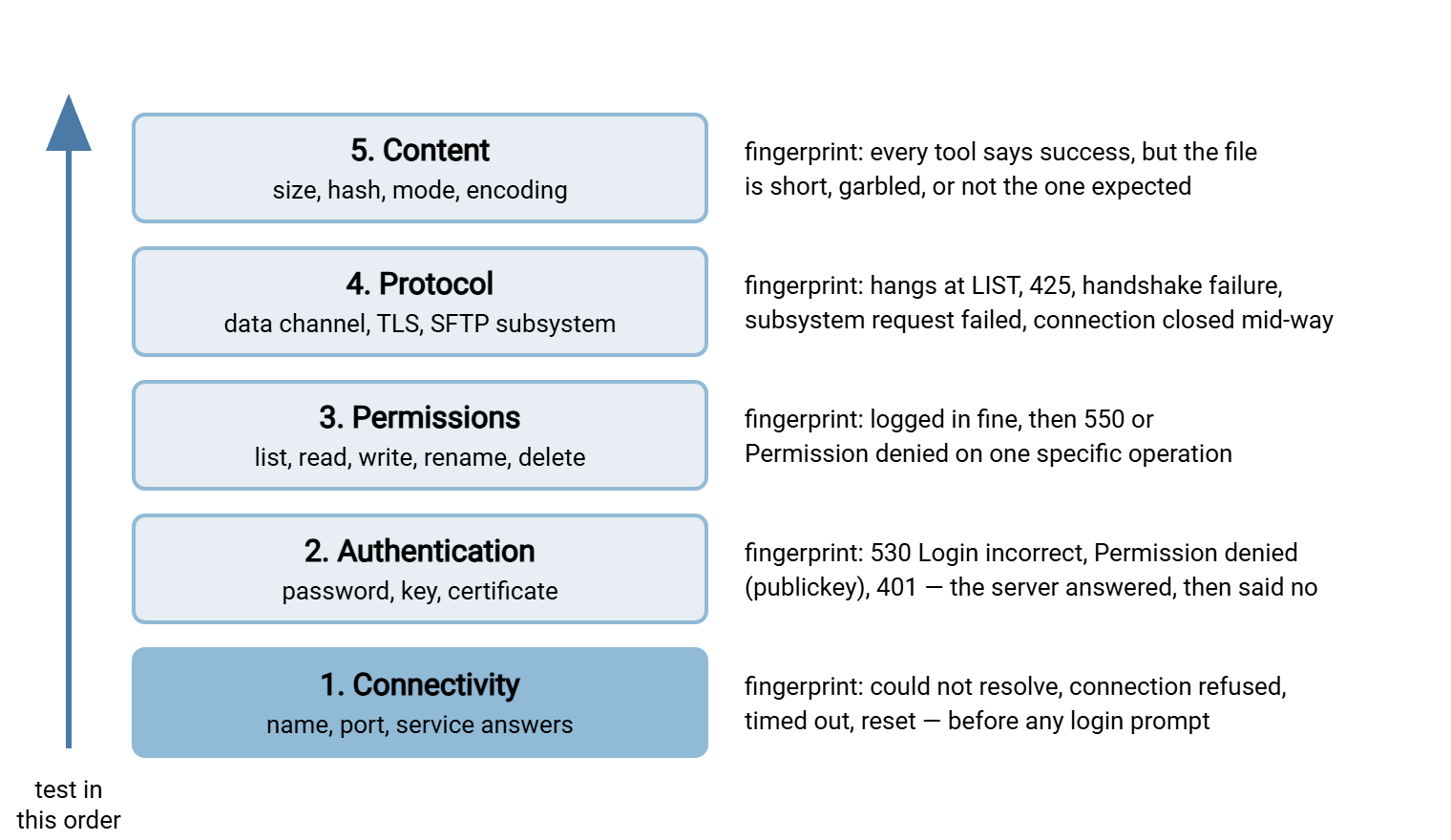
The reason order matters is dependency. A 530 Login incorrect can only be produced by a server you actually reached, so a login error proves layer one is fine. A 550 Permission denied after login proves layers one and two are fine. Every error message is therefore also good news: it tells you which layers you can stop worrying about. Small comfort at two in the morning, but comfort.
The reverse is where guessing goes wrong. Reset a password while the real problem is a blocked port and you have not tested authentication at all. The login never reached the server. You have added a second problem: a job with an old password stored somewhere, waiting patiently to lock the account the moment the port opens.
The First Five Minutes: Gather Facts Before Touching Anything
The most valuable habit in troubleshooting is to spend the first five minutes collecting facts and changing nothing. Do not restart the service, do not retry the job "just to see," do not ask for a firewall change. Every action taken before you understand the failure destroys evidence. Logs roll over. A retry succeeds by coincidence and hides an intermittent cause. A lockout timer resets. Do nothing, deliberately, and take notes while you do it.
Here is the fact sheet to fill in. Copy it into your ticket and fill every line, writing "unknown" where you do not know yet:
| Fact | Why it matters | Example |
|---|---|---|
| Exact error text, verbatim | The wording locates the layer. "Connection refused" and "Permission denied" are three layers apart. | ssh: connect to host sftp.acme.example.com port 22: Connection timed out |
| Source: machine, account, network | A job in the data center and a laptop on VPN take different paths. | jobsrv02 (192.168.20.14), service account svc_feed |
| Destination: host, port, protocol | "The FTP site" may be FTPS on 990, SFTP on 22, or FTP on 21. | sftp.acme.example.com, port 22, SFTP with key |
| Client software and how it is run | A GUI client and a script may use different settings, credentials, even protocols. | OpenSSH sftp -b batch file from a scheduled task |
| Last worked / first failed | The gap between the two is where the change happened. | Worked Mar 13 02:10, failed Mar 14 02:10 |
| What changed in that gap | Patches, password rotation, firewall change, partner maintenance, certificate renewal. | Partner sent a "planned migration" notice last week |
| Scope: one account or all, one file or all | One account failing suggests credentials or permissions; everyone failing suggests connectivity or the server. | Only this job; a colleague can log in interactively |
| Where in the sequence it fails | Before login, at login, after login, mid-transfer, or after "success". | Before any login prompt |
Two of these deserve emphasis. The first is verbatim error text. People paraphrase — "it says it can't connect" — and paraphrase erases exactly the distinction you need. Ask for a screenshot or a copied line; for a scheduled job, read the job's own log rather than the summary email. The second is what changed. Transfers that worked for months do not stop for no reason. Something changed — on your side, the far side, or the network between. It is almost always findable if you ask before you experiment. Ask around and nothing changed; open the change log and something did.
Remember: a retry is a change. Retrying "to see if it happens again" costs you a lockout attempt on the account. It gives you a fresh timestamp that buries the original log lines. And if the failure is intermittent, it gives you a misleading success. Read first, retry later, deliberately.
The Questions That Locate the Failing Layer
With the fact sheet filled, the failing layer is usually obvious from three questions, asked in order.
Did the client ever talk to the server? If the error mentions resolving a name, connecting, a timeout, a refusal, or a reset — and no login was attempted — you are at layer one. Every other layer requires the server to have answered.
Did the login succeed? If the server answered but rejected the credentials — 530 from an FTP server, Permission denied (publickey) or (password) from SSH, a 401 from an HTTPS endpoint — you are at layer two. If the client refused to proceed because the server's identity changed (the REMOTE HOST IDENTIFICATION HAS CHANGED warning), that is also layer two. It is caused by the client's caution rather than the server's refusal.
Did the operation start? If login succeeded and one specific operation was refused with a permission-style message — 550 Permission denied, Couldn't read directory: Permission denied, an HTTP 403 — you are at layer three. If the operation neither succeeded nor was refused — it hung, timed out, produced a negotiation error, or the session dropped mid-transfer — you are at layer four. If everything reported success and the complaint is about the file itself, layer five.
The table turns the most common error texts into a starting layer.
| What the error says | Start at | Already proven |
|---|---|---|
Could not resolve host, Non-existent domain, Name or service not known |
Layer 1 (name) | Nothing — no packet has left for the server. |
Connection refused, Connection timed out, No route to host, actively refused it |
Layer 1 (reachability) | The name resolved; the port or path is the problem. |
Connection closed by remote host before any banner, immediate Connection reset by peer |
Layer 1, then 2 (allowlist) | Port open; the server side rejected you before talking. |
530 Login incorrect, Permission denied (publickey,password), 401 Unauthorized, Host key verification failed |
Layer 2 | Full connectivity; the server is up and answering. |
550 Permission denied, remote open(...): Permission denied, 403 Forbidden, 553 Could not create file |
Layer 3 | Login worked; one operation on one path was refused. |
Hangs after login, 425 Can't open data connection, 426 Connection closed; transfer aborted |
Layer 4 (data channel) | Control connection and login fine; the second connection fails. |
handshake failure, no matching cipher, subsystem request failed, Received message too long |
Layer 4 (negotiation) | Reachable; the two sides cannot agree on how to talk. |
| No error; file is empty, short, garbled, or stale | Layer 5 | The whole stack worked; the payload is the problem. |
The table tells you where to start, not where you will finish. A hang after login is sometimes a firewall dropping the data connection — a network problem wearing a protocol costume. The method only promises that by testing upward you will not skip the guilty layer. The guilty layer, in my experience, is rarely the one the ticket accuses.
Reproduce It Yourself, From the Right Place
Once you know the starting layer, reproduce the failure with your own hands before diagnosing it. "Reproduce" has two parts people get wrong.
First, reproduce from the same place. If a scheduled job on jobsrv02 is failing, a successful login from your laptop proves very little. It uses a different segment, different credentials, probably a different client. Log on to jobsrv02 and become the service account. Use sudo -u svc_feed -i on Linux; on Windows, a shell or scheduled task launched as that account. Then run the command the job runs. That path, as that account, is the only one that matters. Your laptop is an excellent witness to your laptop.
Second, reproduce with a command-line client that shows its work. Graphical clients summarize; command-line clients can print every step. The flags are worth memorizing:
# SFTP / SSH — one -v shows the connection, key offer and auth result
sftp -v svc_feed@sftp.acme.example.com

# Plain FTP, explicit FTPS, or HTTPS with curl — -v prints every command and reply
curl -v ftp://ftp.acme.example.com/
curl -v --ssl-reqd ftp://ftp.acme.example.com/
curl -v https://drop.acme.example.com/upload/

# Windows PowerShell — is the port reachable at all?
Test-NetConnection sftp.acme.example.com -Port 22
Run the reproduction once, capture the complete output to a file, and read it from the top. The line you want is the last thing that succeeded followed by the first thing that failed. Everything above the failure is a layer you have just proven works. I read from the top every time, because the interesting line is never where I expect it. The Layer Four article in this series goes deep on reading verbose output.
Look at Both Ends
A transfer has two ends, and the client's error is only half the story. The other half is the server's log. The classic example is an SSH client reporting Permission denied (publickey). Alone, that means "the server did not accept my key" and could be any of six causes. Paired with this server-side line:
Mar 14 02:10:04 sftp01 sshd[4187]: Authentication refused: bad ownership or modes for directory /home/feed_acme
it becomes a five-minute fix: the home directory is group-writable, so the SSH daemon refuses to trust the authorized_keys file inside it. Without the server log you could rotate keys all afternoon and never get closer.
For every failure, find the server-side log and search it for the timestamp and source address from your fact sheet. On Linux that is the system journal or authentication log for SSH and SFTP, and the daemon's own log for FTP. On Windows, a transfer server keeps its own activity log. Sysax Multi Server, for example, records each connection, login attempt and file operation with the client's address. That is exactly the pairing you need. If the server log shows no entry at all at the failure time, that is itself the answer. The traffic never arrived, and you are at layer one whatever the client said. If the far end belongs to a partner, ask for their log lines at that timestamp — far more useful than "it looks fine from our side." (It always looks fine from our side.) Our guide to reading transfer logs covers the formats.
Change One Thing at a Time
Here is the discipline that separates diagnosis from thrashing. When you finally change something, change exactly one thing, test, and record the result before changing anything else. It sounds slow; it is the fastest thing you can do. Change three things and the transfer works, and you do not know which one fixed it. You cannot write it down or undo the two unnecessary changes. You will not recognize the same failure next month. Change three things and it still fails, and the original failure may now be masked by one you introduced. I have done this. The write-up was not my finest work.
Meridian Parts learned the discipline the slow way. A nightly upload to Northgate Retail failed with Connection timed out. By nine o'clock three people had each fixed it. One rotated the SSH key, one re-entered the stored password, and one asked the network team for a rule change. The job ran at half past nine, and nobody could say which fix had done it. It failed again the next night, because the rule had gone in for the wrong subnet. The morning's success had come from a manual run on a different server. The second morning started from zero, with two unnecessary credential changes to unpick before anyone could trust the test results. They keep a change log now, one line per action, and nobody fixes anything until the first line is written down.
Keep a simple change log as you go — a text file is fine: time, what you did, what you saw. It is the raw material for the write-up, and it makes rollback trivial when a change turns out to be wrong. Here is one for a path-specific timeout, diagnosed with two port tests and one question to the network team:
09:12  FACT   job log: "Connection timed out" at 02:10, same host/port as always
09:15  TEST   Test-NetConnection from jobsrv02 -> 203.0.113.10:22 = False
09:17  TEST   same test from mgmt01 (192.168.30.5) = True   => path-specific, layer 1
09:25  ASK    network team: any rule change for 192.168.20.0/24 since Mar 13?
09:50  FIX    (network team) rule re-added; re-test from jobsrv02 = True
09:55  DONE   sftp -v as svc_feed OK; job re-run, success; write-up filed
Rule of thumb: if you cannot say in one sentence what a change is meant to prove, you are not ready to make it. "Opening port 990 will tell us whether the job is really using implicit FTPS" is a test. "Let's open some ports and see" is not.
One more question belongs in the first five minutes: is this failure transient or permanent? A transient failure happened once and may not recur. A permanent failure will fail every time until something is fixed. Look at the last several runs, not just the last one. One 426 Connection closed; transfer aborted followed by a successful retry is a hiccup — note it, watch for a pattern. Three nights running with the same error is permanent. Failing most nights but not all is the hardest case. There the timestamps are the clue. Intermittent failures nearly always coincide with something — a backup window, a log rotation, peak load at the partner. See transient versus permanent failures for the full distinction, and diagnosing intermittent drops for the timestamp-matching technique.
A Worked Example, Start to Finish
Let us run the method once on a realistic case, deadline included.
The report. A ticket arrives at 08:40: "Nightly ACME upload failed. Please fix urgently, their cut-off is 10:00." No error text; the ticket form makes that field optional, and optional fields stay empty.
Facts. You open the job's own log on jobsrv02 rather than the summary email:
Mar 14 02:10:01 job[acme_upload] connecting to sftp.acme.example.com:22 as feed_acme
Mar 14 02:10:01 job[acme_upload] ssh: connect to host sftp.acme.example.com port 22: Connection refused
Mar 14 02:10:01 job[acme_upload] exit status 255, retry 1 of 3 in 300s
Mar 14 02:15:02 job[acme_upload] ssh: connect to host sftp.acme.example.com port 22: Connection refused
Mar 14 02:20:03 job[acme_upload] giving up after 3 attempts
Source: jobsrv02, account svc_feed, SFTP with key. Destination: sftp.acme.example.com port 22. Last worked: yesterday. What changed: the shared mailbox holds a partner notice — "we are migrating our SFTP service this week; the host name stays the same." Scope: only this job.
Locate the layer. Connection refused before any login: layer one. The name resolved (the client got as far as connecting), so this is the port, not the name.
Reproduce from the right place. On jobsrv02:
$ getent hosts sftp.acme.example.com
203.0.113.25    sftp.acme.example.com

$ nc -zv -w 5 sftp.acme.example.com 22
nc: connect to sftp.acme.example.com (203.0.113.25) port 22 (tcp) failed: Connection refused

$ nc -zv -w 5 sftp.acme.example.com 2222
Connection to sftp.acme.example.com (203.0.113.25) 2222 port [tcp/*] succeeded!
Two facts fall out. The address is now 203.0.113.25; your connection sheet says 203.0.113.10. And port 22 refuses while 2222 accepts. "The host name stays the same" was true, but not the whole story.
One change. The partner's contact confirms the new service listens on 2222. You change one thing — the port in the job's connection profile. Then you test as the service account: sftp -v -P 2222 feed_acme@sftp.acme.example.com. Login succeeds, the listing works, a test upload lands. The job re-runs at 09:20 with time to spare.
Write-up. Three lines in the ticket and one in the partner's connection sheet: new address, new port, date, who confirmed it. One follow-up: the address changed, so the outbound firewall allowlist for this partner needs reviewing. Twenty-five minutes, no guessing. Had the "obvious" fix — regenerate the key, ask for port 22 to be opened — been tried first, the morning would have been lost. The key was fine; it had spent the night being blamed for nothing.
Where to Go From Here
The method fits on an index card. Collect facts and change nothing. Read the error to find the starting layer. Reproduce from the same place with a verbose client. Check both ends. Change one thing at a time and write it down. What makes it powerful is the layer-by-layer knowledge underneath — the tests, tools and error messages of each layer on Windows and Linux. The rest of this series provides that knowledge. Print the card. Then, when the deadline tells you to skip layer one, read the card.
Start with Layer One: Is There Even a Path? for name resolution, port tests and the difference between refused, timed out and reset. Then read Layer Two: Why Authentication Fails for the six causes of a rejected login. Read Layer Three: Permission Denied, Decoded for the can-list-but-cannot-write family. Finally, read Layer Five: The Transfer Worked but the File Is Wrong, which also covers writing up the fix. If you are new to the protocols themselves, how file transfer works is the ideal background reading.
Frequently Asked Questions
Why not just restart the service first? It often works.
The error just says "transfer failed" with no detail. Where do I start?
How do I know whether the problem is on my side or the partner's?
Does this method apply to HTTPS uploads and cloud storage too?
From the Sysax team: we build secure file transfer software for Windows. Sysax Multi Server is an FTP, FTPS, SFTP, and HTTPS server. Sysax FTP Automation handles scheduled, scripted transfers. Free trials are on the download page.