
PowerShell for File Transfers: What Is Built In and What Is Not
Sooner or later, every Windows administrator asks PowerShell to move a file to another machine. And almost every one of them runs into the same surprise. PowerShell is superb at everything around a file transfer — selecting files, hashing them, logging, scheduling. But the moment the destination is an SFTP or FTPS server, there is no built-in command at all. No Send-SftpFile, no Get-FtpsItem, nothing. People discover this at the worst possible time: after promising that "we'll just script it in PowerShell."
This article is the honest inventory. By the end you will know exactly which transfer abilities genuinely ship in the box, which do not, and why the gap exists. You will also know the three realistic ways working teams bridge it. These are a community module, an external command-line client driven from the script, or .NET classes for the narrow cases where they truly apply. You will also know how to choose between them for your situation, which is the decision the rest of this series builds on. This is part of our PowerShell Automation series, and it is deliberately the first article, because every pattern that follows depends on picking the right bridge.
What PowerShell Genuinely Gives You
First, credit where it is due. PowerShell is a shell and scripting language built on .NET, Microsoft's application framework. Its commands — called cmdlets, small verb-noun tools like Copy-Item — pass structured objects to each other instead of raw text. That design makes it unusually good at the local half of a transfer job, which in practice is most of the job.
Local file operations, fully covered
Everything a transfer script needs to do on the local disk is native and excellent. Use Test-Path to check that a folder or file exists before touching it. Use Get-ChildItem to select exactly the files a job should send (by name pattern, age, or size). Use Copy-Item and Move-Item to stage and archive them. Use Get-FileHash to compute a checksum you can verify after the transfer. A taste of the idiom:
# Select yesterday's CSV exports and stage them for sending
$files = Get-ChildItem -Path 'D:\exports' -Filter 'report_*.csv' -File |
    Where-Object { $_.LastWriteTime -gt (Get-Date).AddDays(-1) }
$files | Copy-Item -Destination 'D:\staging'
The -Filter parameter narrows by name pattern, -File excludes directories, and the Where-Object stage keeps only files modified in the last day. This local half — selection, staging, verification, cleanup — is where most of a production job's logic lives. We give it a full article of its own: PowerShell file operations every transfer script needs.
HTTP and HTTPS, genuinely built in
PowerShell has real, native web transfer. Invoke-WebRequest fetches or sends anything over HTTP or HTTPS. Invoke-RestMethod does the same while automatically converting JSON responses into objects. If the other end of your transfer is a web endpoint — a REST API that accepts uploads, an internal HTTPS file drop, a vendor's download URL — no extra software is needed:
# Download over HTTPS to a local file
Invoke-WebRequest -Uri 'https://partner.example.com/feeds/prices.csv' `
    -OutFile 'D:\incoming\prices.csv'

# Upload a file to an API endpoint that accepts PUT
Invoke-RestMethod -Uri 'https://api.example.com/upload/report.csv' `
    -Method Put -InFile 'D:\staging\report.csv' -ContentType 'text/csv'
Here -OutFile writes the response body to disk instead of the console. -InFile streams a local file up as the request body. The backtick at each line end is PowerShell's line-continuation character. On Windows there is also Start-BitsTransfer, which hands an HTTP or SMB download to the Background Intelligent Transfer Service so it survives reboots — a niche tool, but a real one. For patterns on the web side, see file transfer through REST APIs.
The supporting cast
Beyond moving bytes, PowerShell natively provides the framework every unattended job needs. It provides try/catch error handling and Start-Transcript to record everything a run did. It also provides exit codes that Task Scheduler can read and clean integration with Windows scheduling and service accounts. There are even useful diagnostics: Test-NetConnection -ComputerName sftp.example.com -Port 22 tells you whether the server is reachable at all before a job wastes ten minutes timing out. Even when the actual transfer engine ends up being an external program, this framework is the reason PowerShell remains the right wrapper. That is worth saying plainly: the gap we are about to discuss does not make PowerShell the wrong tool — it makes PowerShell the coordinator rather than the engine.
What Is Missing: No Native SFTP or FTPS
Now the honest part. SFTP — the file transfer protocol that runs inside an encrypted SSH session — has no native PowerShell cmdlet and no native .NET client class. FTPS — classic FTP wrapped in TLS encryption — has no native cmdlet either. These are the two protocols that dominate business file exchange, the ones your partners and banks actually run. PowerShell simply does not speak them out of the box. If SFTP is new territory, our explainer on how SFTP works covers the protocol itself; this series covers reaching it from PowerShell.
Remember: there is no built-in SFTP or FTPS support in PowerShell or .NET. Any plan that says "PowerShell will handle the SFTP upload" has, knowingly or not, also committed to one of the three bridges described below. Choose it deliberately, not by accident on deadline day.
Three things routinely convince people the gap is not there. Each deserves a clear-eyed look, because each is genuinely useful — just not a native SFTP client.
- "Windows ships an OpenSSH client now." True: modern Windows includes
sftp.exeandscp.exe, and you can check withGet-Command sftp. But these are standalone console programs, not PowerShell cmdlets. Your script can absolutely drive them — that is bridge two, and it is a fine choice. But you are orchestrating an external tool, with exit codes and text output instead of objects. - "Copy-Item already copies to servers."
Copy-Itemto a path like\\server\shareuses SMB, the Windows file-sharing protocol. That works beautifully inside a LAN where the share is reachable and your account has rights. But it is not a transfer protocol you can safely run across the internet to a partner. The distinction matters enough that we wrote network shares vs file transfer about exactly this. - "PowerShell remoting can copy files." Also true:
Copy-Item -ToSessioncopies a file through an established remoting session to another machine you administer. It is handy for pushing a config to a server you manage. But it requires PowerShell remoting enabled and trusted on both ends — something you will never have to a partner's SFTP server. It solves an administration problem, not a file-exchange one.
Why the Gap Exists (and Why It Will Not Close Soon)
The short version: PowerShell inherits its abilities from .NET, and .NET never shipped an SFTP client class. SFTP grew up in the SSH ecosystem, which evolved outside the Windows world for most of its history. By the time OpenSSH became a Windows component, it arrived as the same standalone command-line tools Unix administrators had always used. It did not arrive as a .NET library. HTTP, by contrast, has always been central to .NET, which is why Invoke-WebRequest exists and is good.
Nothing suggests this will change. Treat the gap as a permanent design fact and plan around it — which is exactly what the three bridges do. Teams that accept this early write honest, stable automation. Teams that keep expecting a native cmdlet to appear end up with a different improvisation in every script.
Bridge One: A Community Module
A module is a package of extra cmdlets you install into PowerShell. The community has maintained SFTP-capable modules for many years — Posh-SSH is the long-standing example. Installing one gives you cmdlets that feel native: create a session to the server, upload or download through it, close it. Your script stays in PowerShell the whole time, works with objects, and gets structured errors it can catch.
The costs are operational rather than technical. A module is a dependency. It must be installed on every machine that runs the job, kept at a consistent version across them, and available when a server is rebuilt. This includes servers with no internet access, where Install-Module cannot reach the online gallery and you must stage the module files yourself. It is also third-party code that will run with your job's permissions and handle your credentials. So someone should consciously decide to trust it, the same way you would vet any software on a production server. None of this is disqualifying; all of it is real.
One habit softens the dependency problem considerably: make the script verify its own prerequisites. A guard near the top such as if (-not (Get-Module -ListAvailable -Name TheModule)) { throw 'Required module not installed' } turns a mysterious "cmdlet not recognized" failure at two in the morning into a clear, loggable message. That message says exactly what the machine is missing. The same idea applies to bridge two — check that the client program exists before the job depends on it.
Choose this bridge when your scripts do rich back-and-forth with the server — listing remote directories, deciding per file, downloading selectively. Your environment must also be able to manage module installation cleanly across every machine involved.
Bridge Two: Driving an External Command-Line Client
The second bridge keeps PowerShell as the coordinator and hands the actual protocol work to a proven external program. The script builds the command, runs it, and checks the result through $LASTEXITCODE — the automatic variable that holds the exit code of the last external program:
# Run an external transfer client and fail loudly if it failed
& sftp -b 'D:\jobs\upload.batch' transfer@sftp.example.com
if ($LASTEXITCODE -ne 0) {
    throw "SFTP client exited with code $LASTEXITCODE"
}
The & is the call operator — it runs the named program. The -b option points sftp at a batch file of transfer commands, so nothing waits for a human to type. The crucial habit is the exit-code check on the very next line. External programs do not throw PowerShell errors when they fail, so an unchecked call is a silent failure waiting to happen.
Which client? The sftp.exe that ships with Windows' OpenSSH is the obvious free choice for SFTP with key authentication. Vendor command-line clients are the other route. Take sysaxftp.exe, the command-line client included with Sysax FTP Automation. It was built as a drop-in replacement for the old console ftp client that adds SFTP and FTPS. So a script (or an inherited batch file) that once drove plain ftp can drive a secure protocol the same way. PowerShell calls the client like any other external command with an exit code to check.
Choose this bridge when your job's remote needs are simple and directional — upload these files, download that folder. Also choose it when you want zero PowerShell-level dependencies, or when FTPS is required (which the OpenSSH tools do not speak). It is the bridge we use for the worked examples later in this series, because it is the easiest to reason about in unattended jobs. The full patterns — batch files, session options, host keys — are in scripting SFTP transfers from PowerShell.
Bridge Three: .NET Classes for Plain FTP and HTTP
Because PowerShell can call any .NET class directly, and .NET has always included a client for plain, unencrypted FTP, there is a third, narrower bridge. The class is FtpWebRequest, and the shape looks like this:
# Plain-FTP download via .NET (legacy niches only)
$req = [System.Net.FtpWebRequest]::Create('ftp://10.0.5.20/config/backup.cfg')
$req.Method = [System.Net.WebRequestMethods+Ftp]::DownloadFile
$req.Credentials = New-Object System.Net.NetworkCredential('reader', $pw)
$resp = $req.GetResponse()
$stream = $resp.GetResponseStream()
# ... copy $stream to a local file, then close both
Be honest with yourself about where this belongs. Plain FTP sends credentials and file contents unencrypted, which is why the industry has spent years retiring it. The legitimate remaining niche is a legacy device on an isolated internal network segment that speaks nothing else. The class is also marked obsolete in newer .NET editions — it still works, but it is maintenance-mode code. It can technically be coaxed into explicit FTPS with its EnableSsl property, but certificate handling gets awkward quickly. Teams that genuinely need FTPS are better served by bridge one or two. Where .NET shines natively is HTTP and HTTPS — and there you should not touch classes at all, because Invoke-WebRequest already wraps them well.
Choose this bridge when you must reach a plain-FTP-only legacy system without installing anything, and the network path is contained. Otherwise skip it.
Choosing Your Bridge
The diagram below summarizes the decision: one missing capability, three legitimate ways to supply it, each with the situations it serves best.
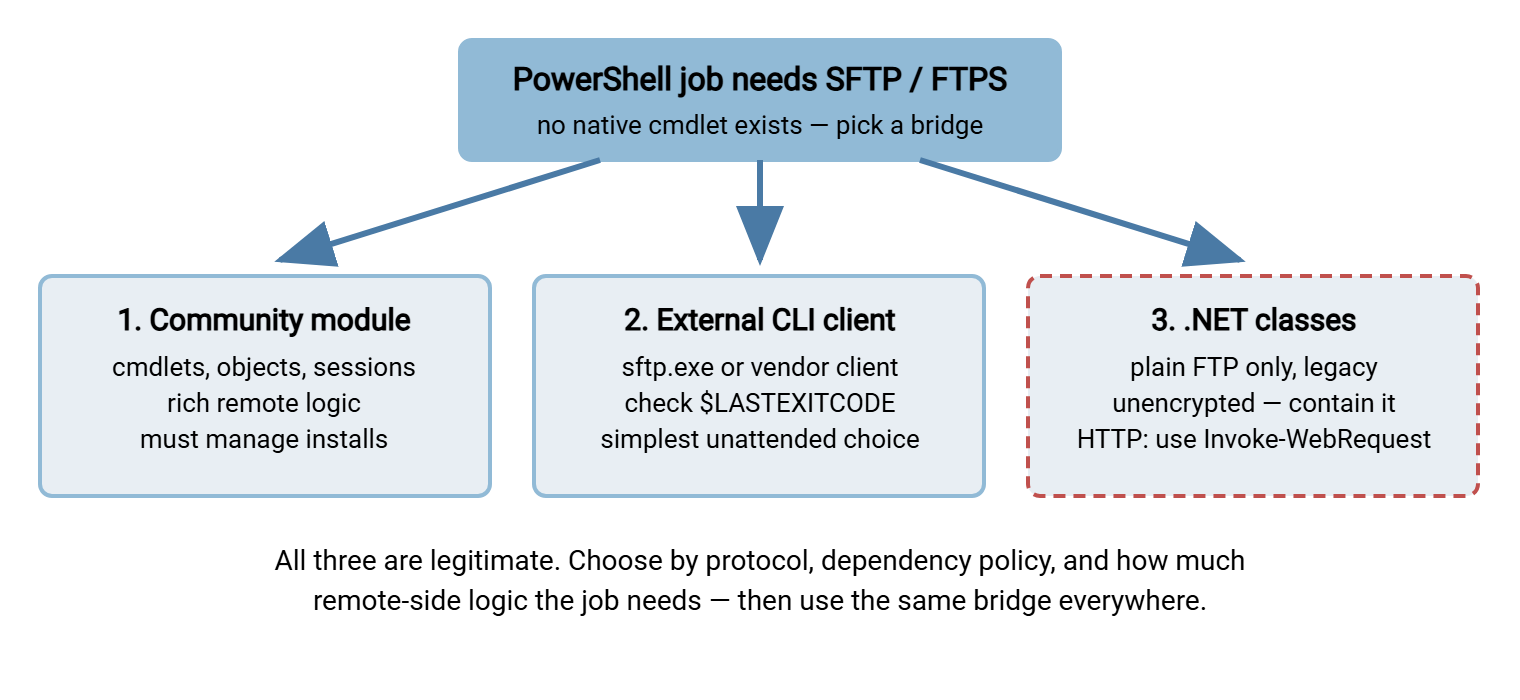
As a quick reference, here is the same decision as a table:
| Your situation | Best fit | Why |
|---|---|---|
| Nightly upload or download of a batch of files over SFTP | External CLI | Simple, no module dependency, clean exit codes for the scheduler |
| Script must list remote folders and decide file by file | Community module | Remote listings come back as objects you can filter and loop over |
| Partner requires FTPS specifically | External CLI with FTPS support | OpenSSH tools do not speak FTPS; a vendor CLI or FTPS-capable client does |
| Endpoint is a REST API or HTTPS URL | Built-in cmdlets | Invoke-WebRequest / Invoke-RestMethod are native and solid |
| Legacy device that only speaks plain FTP, isolated network | .NET class or CLI | Works without installing anything; keep it contained and plan retirement |
Rule of thumb: pick one bridge as your team standard and use it in every job. A shop where one script uses a module, the next drives sftp.exe, and a third calls .NET classes has tripled the knowledge needed to maintain any of them. Consistency is worth more than any single bridge's advantages.
The Fourth Option: Not Writing the Script at All
One more honest observation before you commit. You may only need "move these files, on this schedule, and tell me when it fails" — with no custom business logic. In that case, the script you are about to write is mostly plumbing, and plumbing has to be maintained. A dedicated transfer automation tool covers that ground without hand-written code. Sysax FTP Automation, for example, generates transfer tasks through a wizard and schedules them. It watches folders for new files and sends email notifications on failure, with SFTP and FTPS built in. The trade is flexibility for maintenance: scripts win when jobs have real logic in them; a tool wins when they do not. Knowing where your job sits on that line — and on the wider automation ladder — is half the architectural decision. There is no shame in either answer.
Where to Go From Here
The inventory in one breath: PowerShell natively covers local file operations, HTTP and HTTPS, and all the job framework — logging, error handling, scheduling. But it has no SFTP or FTPS of its own. You bridge that gap with a community module, an external command-line client, or (for plain FTP only) a legacy .NET class. Choose one bridge deliberately and standardize on it.
From here, the series builds the working job piece by piece. Start with the file operations every transfer script needs, because the local half is universal no matter which bridge you chose. Then scripting SFTP transfers from PowerShell makes the missing protocol work in practice. The article on handling credentials safely keeps the resulting job out of your next security audit. If you want the destination first, the complete worked nightly job lives in real PowerShell transfer job patterns.
Frequently Asked Questions
Can PowerShell do SFTP without installing anything?
sftp.exe client, so a script can drive that external program and check its exit code without installing anything extra. That is the "external CLI" bridge, and it is a perfectly respectable production pattern.Windows includes scp.exe and sftp.exe — doesn't that count as built-in SFTP?
$LASTEXITCODE to detect failure. Useful — but a different programming model than native cmdlets.Is Invoke-WebRequest good enough for real file transfers?
Should I use FtpWebRequest for new automation?
Does PowerShell remoting over SSH give me SFTP?
Copy-Item -ToSession can move files between machines that trust each other for remoting, but it will never connect to a partner's SFTP server.Which bridge should a beginner start with?
sftp or a vendor CLI. Move to a community module later if your scripts start needing rich remote-side logic like filtered directory listings.From the Sysax team: we build secure file transfer software for Windows. Sysax Multi Server is an FTP, FTPS, SFTP, and HTTPS server. Sysax FTP Automation handles scheduled, scripted transfers. Free trials are on the download page.