
Age-Based Cleanup Jobs That Do Not Bite
The script is called cleanup-old.sh, and it runs at two in the morning. Nobody has read it since the person who wrote it changed jobs. It has a variable for the folder, a number for the days, and one line with -delete on it. Every transfer server needs a job like this, because a server with no cleanup fills up. Every transfer administrator has heard the story about one that deleted the wrong files. A cleanup job is a program whose only purpose is to destroy data, run unattended, usually at night. It is dangerous by design. The question is not whether to run one but how to build one. When something about its environment changes, it must do no more than a bounded, logged, reversible amount of damage.
This article is the build guide. It starts with what "older than 30 days" actually means to each tool, which is less settled than it sounds. Then it takes the safety rails one at a time: dry runs, allowlisted roots, excluding files still being written, a minimum-age floor. It covers a two-phase move-then-purge design, a log of every deletion, a cap on how much one run may remove, and a rollback you have actually tested. It finishes with working scripts for Linux and Windows that have all of those rails built in, so that cleanup-old.sh can finally be retired.
It is part of our Quotas and Automated Cleanup series, and it deliberately starts after the hard decision. Which files may be deleted, and after how long, is a retention question answered elsewhere. The article on automated purge policies covers the policy side. The article on legal holds and exceptions covers the files that must never be touched. This article assumes that decision has been made and builds the machinery that carries it out.
What the Job Does, and the Words for It
An age-based cleanup job walks one or more folders, finds files whose age exceeds a threshold, and removes them. The threshold comes from the retention rule: "published files are removed 30 days after publication" becomes "delete files under the inbox older than 30 days." That sentence hides every way the job can go wrong, so a few terms first. The sentence is short; the list of ways it goes wrong is not.
- A file is in flight when something is still writing or reading it — an upload in progress, a collector halfway through a download. Deleting an in-flight file corrupts a transfer.
- A dry run is a mode in which the job prints what it would delete and deletes nothing. Every tool in this article has one.
- A safety rail is a check that limits what the job can do even when its configuration is wrong. Examples are a list of allowed paths, a cap on deletions, a refusal to run below a minimum age.
- A job is idempotent when running it twice has the same effect as running it once, so a re-run after a crash is safe.
The cautionary tale for this subject is our war story the deleted inbox. A nightly purge's path variable came up empty after a folder rename. So the delete ran against the wrong root and emptied a partner's inbox. Every rail below would have stopped it. Keep it in mind as the test case.
What "Older Than 30 Days" Actually Means
The three common tools measure age differently, and the differences bite at the boundary. Ask three tools what thirty days means and you get three answers.
Linux find -mtime +N compares the file's modification time with now, in whole 24-hour periods, with any fraction thrown away. -mtime +30 therefore matches files whose truncated age is greater than 30 — that is, at least 31 full days old. A file 30 days and 23 hours old is not matched. To catch "at least 30 days," write -mtime +29. When a day of slack matters, -mmin +43200 (30 days in minutes) is exact. Adding -daystart measures from midnight instead of from the current moment. That makes a job's results the same whether it runs at one in the morning or eleven at night.
Windows forfiles /D -30 compares dates, not times. It selects files whose last-modified date is on or before today minus 30 days. So a file modified at one minute to midnight thirty days ago is included. It is inclusive where find is exclusive, and ignores the time of day.
PowerShell compares exact instants: $_.LastWriteTime -lt (Get-Date).AddDays(-30) is true for anything modified before this precise moment thirty days ago, to the second.
Two more traps hide in the word "age." First, which timestamp? All three examples use the modification time, which is what you want for "this file has not changed since." Second, timestamps travel. A file restored from backup, or copied with a tool that preserves times, arrives with its original modification time. If that is older than the threshold, the cleanup job removes it on the next run, minutes after it was restored. I have watched a Friday restore become Saturday's cleanup candidates. That is one reason for the trash phase below.
The Safety Rails
Each rail addresses one specific way a cleanup job has hurt someone. None costs more than a few lines. I have added most of them after the fact, which is the wrong order.
Dry run first, and after every change
A dry run is not a one-time test at creation. Run it after every change to the script, the folder layout, the retention number, or the server, and read the output. In find, the dry run is -print where the real run has -delete. In forfiles, it is echo @path where the real run has del @path. In PowerShell, it is the -WhatIf switch. That makes Remove-Item and Move-Item print What if: Performing the operation "Remove File" on target "..." instead of acting.
# Linux: list, then (and only then) delete
find /srv/xfer/partners/acme/inbox -type f -mtime +29 -print
find /srv/xfer/partners/acme/inbox -type f -mtime +29 -print -delete

# Windows, forfiles: echo, then del
forfiles /P D:\xfer\partners\acme\inbox /S /M * /D -30 /C "cmd /c echo @path @fsize"
forfiles /P D:\xfer\partners\acme\inbox /S /M * /D -30 /C "cmd /c if @isdir==FALSE del @path"

# Windows, PowerShell: -WhatIf, then without
Get-ChildItem D:\xfer\partners\acme\inbox -Recurse -File |
    Where-Object { $_.LastWriteTime -lt (Get-Date).AddDays(-30) } | Remove-Item -WhatIf
Note the order of the find arguments. -delete must come last: find /path -delete -mtime +29 deletes everything under the path. That is because find evaluates left to right and the delete happens before the age test is reached. Keeping -print next to -delete also gives a free log of every removed file.
Allowlisted roots and a path guard
The job should carry a fixed list of the folders it may touch, and refuse anything else. Never build the path from a variable that could be empty — find $ROOT/ -delete with an unset ROOT becomes find / -delete. In bash, set -u makes an unset variable fatal and "${ROOT:?}" aborts if it is empty. In PowerShell, Set-StrictMode -Version Latest does the same, and a Test-Path on the root before anything else catches a renamed folder. This rail alone would have prevented the deleted-inbox incident.
Exclude in-flight files
Three cheap checks keep the job away from files still being written. Skip anything younger than a day regardless of the retention number — a file in flight is minutes old, not weeks. Skip the temporary-name patterns your uploaders use (*.part, *.tmp, *.filepart, names beginning with a dot). And skip anything that is open, which the next article shows how to detect. How uploads signal completeness is covered in size stability and settle checks.
A minimum-age floor
The script should refuse to run at all if its retention number is below a floor you hard-code — seven days is sensible. This protects against a typo (DAYS=3 instead of 30), or a configuration that failed to load and left the variable at zero. It also protects against someone "just testing" with a small number on production. A floor is not a policy; it is a fence around the policy.
Move, then purge
Instead of deleting, the job moves aged files into a trash folder on the same volume. A second phase purges trash older than a holding period — seven days is common. A move on the same volume is a rename: instant, no copy, no extra space. What it buys is a week in which any mistake is a move back rather than a restore from backup. The design gets its own section below.
Log every deletion
Every file the job moves or deletes gets a log line with the timestamp, run identifier, full path, and size. When a partner asks where a file went, the answer is a search of that log. The log is also what monitoring reads to count how much each run removed.
A circuit breaker on volume
Before moving anything, the job counts its candidates. If the count — or the total bytes — exceeds a cap, the job stops and alerts without touching a file. Suppose a cleanup normally removes forty files a night and suddenly finds four thousand. In that case, it has almost certainly been pointed at the wrong place, or the clock is wrong, or a restore just landed. Choose the cap from history: several times the largest normal run. A rate limit — a pause between deletions — is a weaker cousin that at least gives a human time to notice a runaway in progress.
A tested rollback
Know, before the job ever runs for real, how you would get a file back. Within the holding period, it comes from the trash folder; after that, it comes from backup. Prove it once on a test file and write the steps down; the section at the end walks through it.
Remember: a cleanup job is judged by its worst night, not its average one. Rails that seem paranoid on a normal run are exactly what limits the damage on the night the folder was renamed, the clock was wrong, or the restore landed.
The Two-Phase Design in Detail
The diagram shows the pipeline: aged files that pass the exclusions move into a per-run trash folder. A later run purges whole trash folders once they are old enough. At any point during the holding period, a file can be moved straight back.
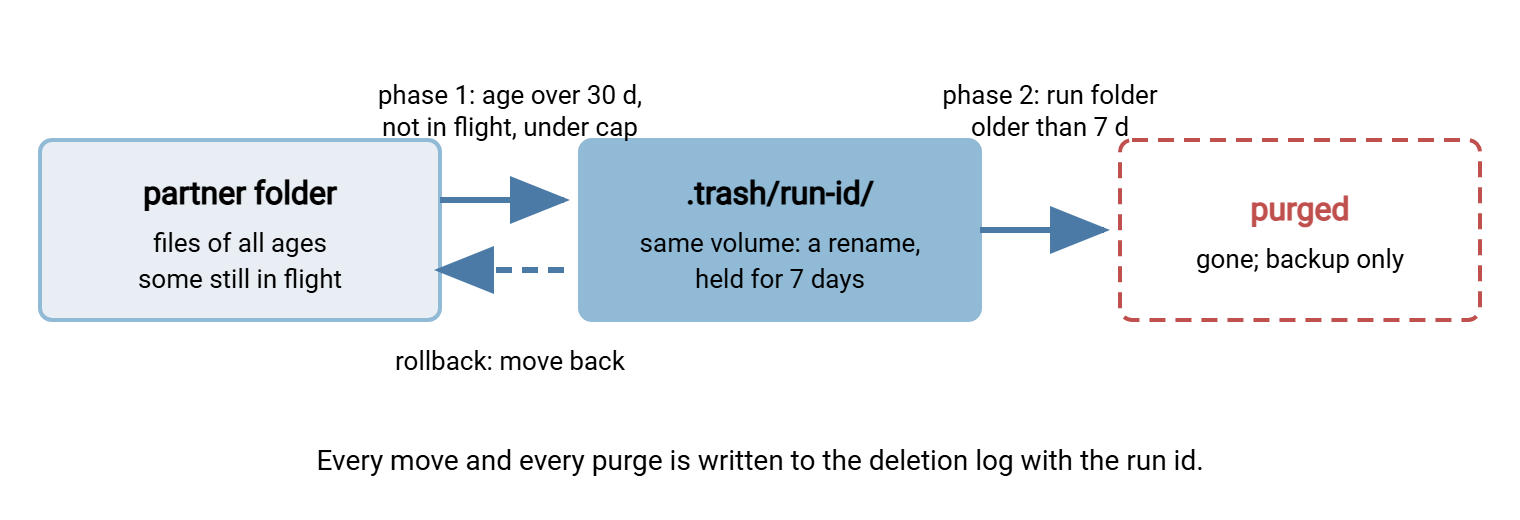
Three details make this work. The trash lives on the same volume as the data, so phase 1 is a rename and costs nothing. It lives under the partner's root, so the partner's quota still counts it. And each run gets its own subfolder, named with a run identifier. The reason is easy to miss: moving a file preserves its modification time. Suppose phase 2 purged trash by file age. A file that was 30 days old when moved would be purged the moment it landed, and the holding period would be zero. Purging by the age of the run folder — created at the moment of the run — gives the real seven days.
The Linux Version
The script below has every rail. It has strict mode and the path guard, an allowlist, the age floor, and in-flight exclusions. It also has the candidate cap, per-run trash, logging, and a dry run that is the default. Set DRY_RUN=0 in the environment to make it act.
#!/usr/bin/env bash
# cleanup-aged.sh  -  two-phase age-based cleanup. Dry run unless DRY_RUN=0.
set -euo pipefail

DRY_RUN="${DRY_RUN:-1}"
DAYS="${DAYS:-30}"            # move files at least this old
TRASH_DAYS=7                  # purge run folders older than this
FLOOR=7                       # refuse to run with DAYS below this
MAX_FILES=500                 # circuit breaker
ALLOWED=(/srv/xfer/partners/acme/inbox /srv/xfer/partners/northwind/inbox)
LOG=/var/log/xfer-cleanup.log
RUN="run-$(date +%m%d-%H%M)-$$"

log() { printf '%s %s %s\n' "$(date '+%b %d %H:%M:%S')" "$RUN" "$*" | tee -a "$LOG"; }

[ "$DAYS" -ge "$FLOOR" ] || { log "ABORT DAYS=$DAYS is below floor $FLOOR"; exit 2; }

for ROOT in "${ALLOWED[@]}"; do
    [ -d "${ROOT:?}" ] || { log "SKIP root missing: $ROOT"; continue; }
    TRASH="$ROOT/.trash"; mkdir -p "$TRASH"

    # Phase 1. -mtime +N counts whole days, so +(DAYS-1) means "at least DAYS old".
    mapfile -d '' FILES < <(find "$ROOT" -path "$TRASH" -prune -o -type f \
        -mtime +"$((DAYS-1))" ! -name '*.part' ! -name '*.tmp' ! -name '.*' -print0)
    COUNT="${#FILES[@]}"
    log "ROOT $ROOT candidates=$COUNT"
    [ "$COUNT" -le "$MAX_FILES" ] || { log "ABORT $COUNT candidates exceed cap $MAX_FILES"; exit 3; }

    for F in "${FILES[@]}"; do
        REL="${F#"$ROOT"/}"
        if [ "$DRY_RUN" = 1 ]; then log "WOULD-MOVE $F"; continue; fi
        mkdir -p "$TRASH/$RUN/$(dirname "$REL")"
        mv -n -- "$F" "$TRASH/$RUN/$REL" && log "MOVED $F size=$(stat -c %s "$TRASH/$RUN/$REL")"
    done

    # Phase 2. Purge whole run folders by the folder's age, not the files' ages.
    find "$TRASH" -mindepth 1 -maxdepth 1 -type d -mtime +"$((TRASH_DAYS-1))" -print0 |
    while IFS= read -r -d '' D; do
        if [ "$DRY_RUN" = 1 ]; then log "WOULD-PURGE $D"
        else rm -rf -- "$D" && log "PURGED $D"; fi
    done
done
A dry run prints lines like Mar 14 02:00:03 run-0314-0200-18211 WOULD-MOVE /srv/xfer/partners/acme/inbox/invoice_YYYYMMDD.pdf, one per candidate, plus a ROOT ... candidates=41 summary per folder. Read the summary first: if the count is wildly different from yesterday's, do not switch off the dry run until you know why. For the cron side — locking so two runs cannot overlap — see locking and overlap prevention and hardening bash transfer jobs.
Meridian Parts ran the script above in dry-run mode for a month before it moved a single file. The month paid for itself in week two. The first week's summaries were dull: about forty candidates a night per inbox. Then one inbox jumped to three hundred overnight, and the WOULD-MOVE lines were files the partner had uploaded that same morning. The partner had switched to a client that preserved modification times, so every invoice arrived already older than the threshold. A real run would have moved the day's uploads into the trash before the collector fetched them. They asked the partner to turn timestamp preservation off, watched the count fall back to forty, and only then set DRY_RUN=0.
The Windows Version
The PowerShell version uses the built-in SupportsShouldProcess mechanism, so -WhatIf works on the whole script. Run it as .\cleanup-aged.ps1 -WhatIf until the output is boring. Boring is the only good review a cleanup script ever gets.
# cleanup-aged.ps1  -  two-phase age-based cleanup. Run with -WhatIf first.
[CmdletBinding(SupportsShouldProcess)]
param([int]$Days = 30, [int]$TrashDays = 7, [int]$MaxFiles = 500)
Set-StrictMode -Version Latest
$Allowed = @("D:\xfer\partners\acme\inbox", "D:\xfer\partners\northwind\inbox")
$Floor   = 7
$Log     = "D:\xfer\admin\logs\cleanup.log"
$Run     = "run-{0}-{1}" -f (Get-Date -Format "MMdd-HHmm"), $PID
function Log($m) { $l = "{0} {1} {2}" -f (Get-Date -Format "MMM dd HH:mm:ss"), $Run, $m; Add-Content $Log $l; Write-Output $l }

if ($Days -lt $Floor) { Log "ABORT Days=$Days is below floor $Floor"; exit 2 }
$cutoff = (Get-Date).AddDays(-$Days)

foreach ($root in $Allowed) {
    if (-not (Test-Path -LiteralPath $root -PathType Container)) { Log "SKIP root missing: $root"; continue }
    $trash = Join-Path $root ".trash"
    $files = @(Get-ChildItem -LiteralPath $root -Recurse -File | Where-Object {
        $_.FullName -notlike "$trash*" -and $_.LastWriteTime -lt $cutoff -and
        $_.Extension -notin ".part", ".tmp", ".filepart" -and -not $_.Name.StartsWith(".") })
    Log "ROOT $root candidates=$($files.Count)"
    if ($files.Count -gt $MaxFiles) { Log "ABORT $($files.Count) candidates exceed cap $MaxFiles"; exit 3 }

    foreach ($f in $files) {
        $rel  = $f.FullName.Substring($root.Length).TrimStart('\')
        $dest = Join-Path (Join-Path $trash $Run) $rel
        if ($PSCmdlet.ShouldProcess($f.FullName, "Move to trash")) {
            New-Item -ItemType Directory -Force -Path (Split-Path $dest) | Out-Null
            Move-Item -LiteralPath $f.FullName -Destination $dest
            Log "MOVED $($f.FullName) size=$($f.Length)"
        }
    }
    # Phase 2: purge run folders by the folder's creation time.
    Get-ChildItem -LiteralPath $trash -Directory -ErrorAction SilentlyContinue |
        Where-Object { $_.CreationTime -lt (Get-Date).AddDays(-$TrashDays) } |
        ForEach-Object {
            if ($PSCmdlet.ShouldProcess($_.FullName, "Purge trash")) {
                Remove-Item -LiteralPath $_.FullName -Recurse -Force
                Log "PURGED $($_.FullName)"
            }
        }
}
With -WhatIf, each candidate produces What if: Performing the operation "Move to trash" on target "D:\xfer\partners\acme\inbox\invoice_YYYYMMDD.pdf". and nothing changes on disk. Schedule the real run through Task Scheduler with the service account described in scheduled job hygiene. You may prefer not to maintain a script for the routine cases. In that case, a scheduled task in Sysax FTP Automation can perform the file operations on a timer and send an email notification with the result. That covers the "did it run, and what did it do" question without extra plumbing.
The Rollback Test
Do this once before the job's first real run, and again whenever the script changes:
- Create a test file in an allowlisted folder and set its modification time back 40 days (
touch -d '40 days ago' testfileon Linux;(Get-Item testfile).LastWriteTime = (Get-Date).AddDays(-40)in PowerShell). - Run the job in dry-run mode. Confirm the test file, and only files you expect, appear as candidates.
- Run it for real. Confirm the file is under
.trash/<run-id>/and the log has aMOVEDline with the right path and size. - Move it back by hand to its original location and confirm it is intact. This is the rollback; write down the exact command.
- Set the trash holding period to zero on a copy of the script, run it, and confirm the run folder is purged and logged.
- Restore one file from the most recent backup, to prove the last line of defense is real and to learn how long it takes.
The checklist below is the whole article in a form you can paste into the runbook next to the script. It is shorter than the article and will be read more often.
AGE-BASED CLEANUP JOB  -  pre-flight checklist
[ ] Retention number and folder list come from the written retention policy.
[ ] Dry run is the default; the real run needs an explicit switch or variable.
[ ] Roots are an allowlist in the script; paths are never built from possibly-empty variables.
[ ] Strict mode is on (set -u / Set-StrictMode) and each root is tested before use.
[ ] Files younger than one day, temp-name patterns, and open files are excluded.
[ ] The script refuses to run below a hard-coded minimum-age floor.
[ ] Phase 1 moves to a per-run trash folder on the same volume, under the partner root.
[ ] Phase 2 purges by run-folder age, never by file age.
[ ] Every move and purge is logged with timestamp, run id, path, and size.
[ ] A candidate cap aborts the run before anything moves.
[ ] The job cannot overlap itself (lock file or Task Scheduler setting).
[ ] Rollback from trash and from backup has been tested and written down.
Wrapping Up
A cleanup job that does not bite is not a clever one; it is a bounded one. Know what "older than N days" means to your tool. Default to a dry run. Touch only allowlisted roots and guard every path. Leave in-flight files alone. Refuse to run below a floor. Move to a per-run trash folder and purge by the folder's age. Log everything. Cap each run. Test the rollback. Together these turn a dangerous job into a routine one. cleanup-old.sh had none of them and survived for years on luck.
The next article, cleaning up temp files, partials, and orphans, handles the leftovers that age alone cannot safely judge — abandoned uploads, temp names, empty directories. It includes how to tell whether a file is still open. Monitoring quotas and cleanup jobs covers the reports that tell you the job ran, what it removed, and when it removed far too much.
Frequently Asked Questions
Why does find -mtime +30 miss files that are exactly 30 days old?
Why move files to a trash folder instead of deleting them?
Why purge the trash by run folder age rather than by file age?
How do I choose the candidate cap?
From the Sysax team: we build secure file transfer software for Windows. Sysax Multi Server is an FTP, FTPS, SFTP, and HTTPS server. Sysax FTP Automation handles scheduled, scripted transfers. Free trials are on the download page.