
Automated Purge Policies That Actually Run
The ticket says "D: at 97%." It arrived at six in the morning. The person holding it is about to delete things from a nearly full volume in a hurry. That is manual cleanup in practice. Every transfer server that stays clean does so for the same reason: a scheduled job deletes old files without asking anyone. Every server drowning in years of leftovers is also the same story: cleanup depended on a person remembering. Manual cleanup is not a weaker version of automated cleanup. It is a different thing entirely. A retention rule enforced by memory stops being enforced the first quarter everyone is busy, and never starts again.
Automating deletion is scarier than automating almost anything else, and it should be. A backup job that misfires copies too much; a purge job that misfires destroys data. The difference between a purge you can trust and a purge that becomes a war story is design. It takes precise scope, the right clock, and a grace period. It takes a dry run before the first real deletion, a log of everything removed, and a watchdog that notices when the job silently stops. (Jobs stop silently far more often than they stop loudly. Loud is the good outcome.)
This article, part of our Retention & Deletion series, walks through that design element by element. It assumes someone has already decided how long each folder's files should live. If that decision has not happened yet, start with retention basics. A purge job is the enforcement arm of a retention schedule, not a substitute for one.
Why Manual Cleanup Always Fails
The manual approach dies in three specific ways, and each one maps to a design feature of the automated version.
Manual cleanup is triggered by pain, not policy. It happens when a disk fills, which means it happens under pressure, at speed, by whoever is on call. Deleting in a hurry from a nearly full volume is exactly when the wrong folder gets emptied. It is owned by a person, not a system. When that person changes roles, the habit leaves with them, and nothing announces its own absence. And it is unevidenced. Six months later, nobody can say what was removed or by what rule, which turns a routine audit question into an awkward shrug.
An automated purge inverts all three: it runs on schedule regardless of disk pressure. It survives staff changes because it is configuration rather than habit. It writes down what it did. The rest of this article is about earning the trust that inversion requires.
Anatomy of a Trustworthy Purge Job
Every purge rule, whatever tool enforces it, answers seven questions. Write them out for each folder before touching any scheduler:
- Scope: exactly which folder (and optionally which filename pattern) the rule covers. Scope should follow your folder inventory — one rule per row of the accumulation map described earlier in this series.
- Clock: which timestamp counts as the file's age. More on this below — it is the most common way purges go subtly wrong.
- Threshold: the age past which a file is eligible — the retention period from your schedule, expressed in days.
- Grace: extra slack beyond the threshold, so the job is never deleting anything anyone still considers current. A rule of "ninety days plus seven grace" deletes at ninety-seven and lets you honestly say nothing dies before ninety.
- Exclusions: named files, patterns, or subfolders the job must never touch — the mechanism that later makes legal holds implementable without rebuilding anything.
- Action: what "purge" means here — delete outright, or move to a holding area first (the two-stage pattern below).
- Record: where the job logs what it removed and who gets told about each run.
The clock problem: which timestamp is the file's age?
Windows keeps several timestamps per file, and picking the wrong one is the classic purge bug. Last-access time is unreliable — many systems update it lazily or not at all, so ignore it. Last-modified time (last write) sounds right and usually is. But transfers can preserve the source file's original modification date. So a file that arrived yesterday can carry a modification date from months ago. A purge keyed on modification time would delete a fresh delivery on arrival day. Creation time on the landing filesystem records when the file appeared there. That is usually what a retention rule for a transfer folder actually means: age since it landed. A file's birthday and its arrival date are different days, and only one of them is your business.
The robust pattern: use creation time as the primary clock, and require last-modified to also exceed the threshold before deleting. A file must be both "landed long ago" and "untouched for the period" to qualify — one extra condition, and both timestamp quirks are covered.
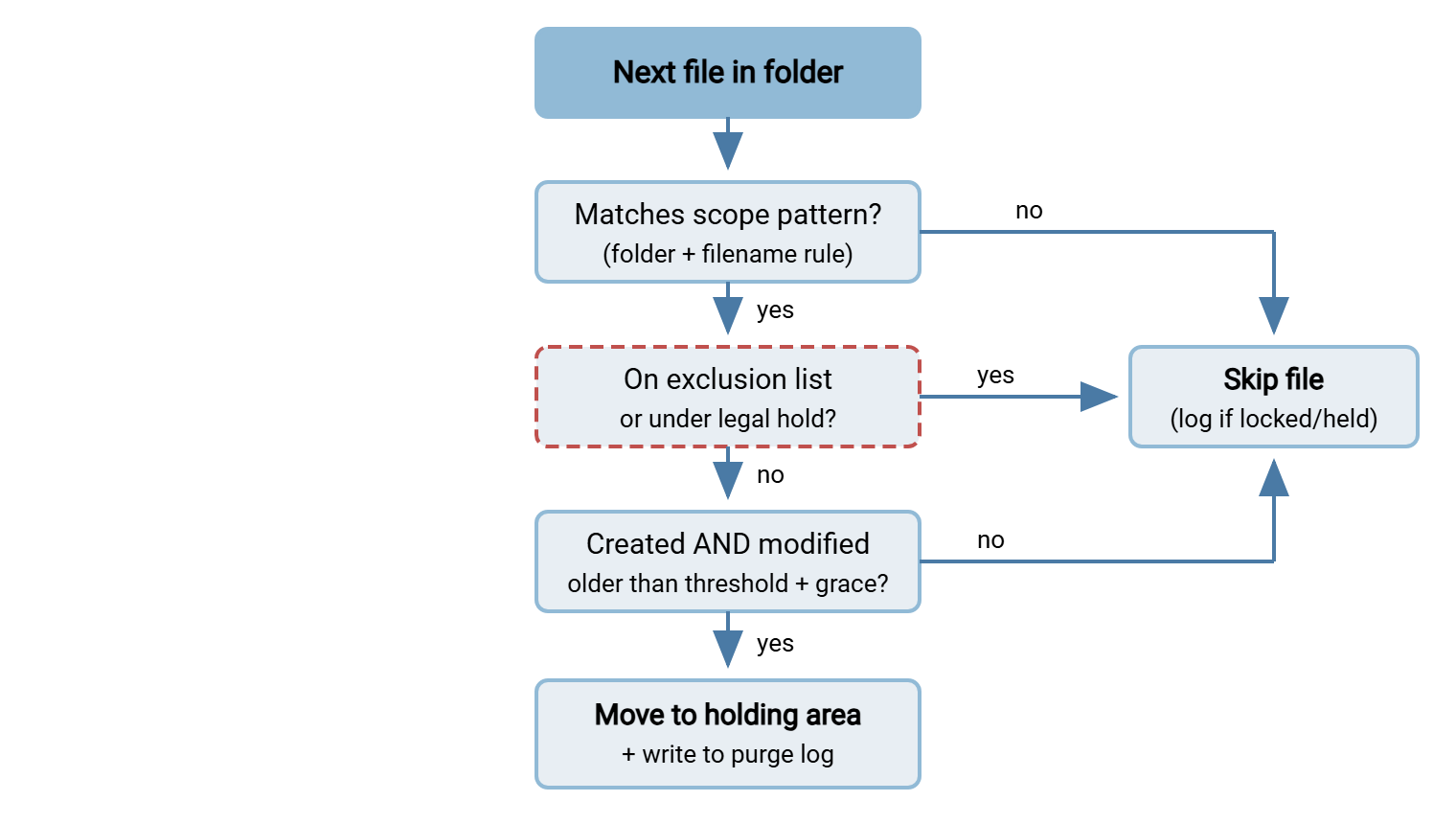
The flow below is the complete per-file decision an ideal purge makes. It reads top to bottom: scope first, exclusions and holds next, then the two-clock age test, then the action. Everything that gets removed also gets logged.
Per-Folder Rules, Not One Global Sweep
Resist the temptation to write one rule for the whole drive. Different folders hold different record classes with different periods. A single global threshold is guaranteed to be wrong somewhere. It will be too long for temp debris, too short for the folder that turns out to be a record archive. Scoping jobs per folder also buys you operational safety. When one folder needs its purge paused (a hold, a migration, a dispute), you disable one small job instead of performing surgery on a monolith. The mechanics of writing one such job are in age-based cleanup jobs. The discipline here is keeping them small.
A worked rule set for the inventory from earlier in this series might look like this:
| Folder | Threshold + grace | Action | Schedule |
|---|---|---|---|
inbox\acme |
Thirty days + seven | Hold area, then delete | Daily, early morning |
outbox\payroll |
Ninety days + seven | Hold area, then delete | Daily, early morning |
staging\edi |
Fourteen days + three | Delete (workflow debris) | Daily |
archive\sent |
One year + thirty days | Delete after monthly report | Weekly |
*.part, *.tmp anywhere |
Three days | Delete | Daily |
Notice the temp-file rule: short threshold, no ceremony, because partial and temporary files are workflow debris, not records. (Our article on cleanup of temp, partial, and orphan files goes deeper on that class.) Notice also that every rule's threshold traces back to a schedule row someone approved. The table is an implementation of decisions, not a set of them. That division matters: legal and records management own the "how long," you own the "how, reliably."
Rehearse, Then Arm: Dry Runs and the Holding Area
The dry run: rehearse the deletion
A dry run is the purge executed in report-only mode. It evaluates every rule, decides exactly what it would remove, and writes the list — deleting nothing. It is the single highest-value safety practice in this entire subject, and it is how every new rule should spend its first week. (The same habit shows up wherever deletion is automated — rsync users know it as the flag you always type first, as our rsync dry-run guide shows.)
Run the dry run on schedule for several days and read its output like a skeptic. A healthy report for one folder looks like this:
PURGE DRY RUN  rule=outbox-payroll  folder=D:\Transfer\outbox\payroll
threshold=90d grace=7d clocks=created+modified  exclusions=holds.txt

would delete   payroll_w03.zip    age 104d   2.1 MB
would delete   payroll_w04.zip    age  97d   2.2 MB
skip (locked)  payroll_w17.zip    in use by another process
skip (young)   payroll_w18.zip    age  2d
skip (excl)    payroll_w09.zip    matches holds.txt entry

RESULT: would delete 2 files, 4.3 MB
        keep 14, skip 1 locked, 1 excluded
        oldest surviving file after run: 96 days
Three questions for every dry-run report. Is anything on the delete list that surprises you? (Investigate before arming the job — surprises here are misconfigurations caught free.) Is anything missing that should be deleted? (A rule that matches nothing, often from a typo in the path, "runs" forever while accomplishing nothing.) And does the "oldest surviving file" number match what the retention rule promises? When the answers are boring for a week, arm the job.
Bluewater Bank received a hold covering one partner's inbound files on a Thursday afternoon. It added the folder to the exclusion list. Because the runbook said so, it flipped purge-inbox-acme back to dry-run mode for one cycle before trusting it again. Friday's report listed two of the held files under "would delete." The exclusion entry had been typed with the folder's old name from before a rename. So the job saw no match and carried on as usual. Correcting the entry took ten minutes; the dry run had cost one extra day of retention. Had the job stayed armed, the same typo would have moved the held files on Friday morning. The conversation with legal would have been about recovery instead of routine.
Remember: no purge rule goes straight to delete mode. First comes a dry run until its reports are boring, then two-stage mode with a holding area. Then — only once you have watched it behave — you may shorten the leash. Rushing this sequence is how automation earns its scary reputation.
Two-stage deletion: the holding area
Even after a clean dry-run week, do not let the job's first armed act be permanent destruction. Give it a holding area: instead of deleting, the job moves eligible files to a quarantine folder (say D:\Transfer\_pending_delete\, mirroring the source structure). A second rule deletes from the holding area after another interval — seven to thirty days, per your schedule. The move is instantly reversible; the delete happens later, calmly, to files nobody has missed in weeks.
This pattern is the file-server equivalent of a recycle bin, but one you control. It works for service-account deletions (which bypass the desktop Recycle Bin). It lives on the same volume so moves are instant, and its own purge rule keeps it from becoming a second archive. When a user reports "my file vanished," restoring from the holding area is a two-minute fix that costs nothing. Every restore request is data about a threshold set too tight. I built my first purge without one, and learned what a restore request feels like when the answer is no.
Building It as a Scheduled Job
Mechanically, a purge is a scheduled task that enumerates files, applies the tests, and performs moves or deletions — nothing more exotic. You can build it from PowerShell and the Windows task scheduler, and for a single folder that is a fine start. As the rule count grows, a dedicated automation tool pays for itself in the parts scripts always skimp on. Those include scheduling you can see, per-task logging, and notification when something fails. Sysax FTP Automation fits this shape well. Its scheduled tasks combine file and folder operations (the moves and deletes) with pre- and post-processing steps and email notification of each run's outcome. So the payroll-folder purge is a small, named, self-reporting task rather than a line lost in a script.
Whatever executes the job, run it under a dedicated service account whose permissions extend to the transfer folders and nothing else. A purge with domain-admin rights is a loaded weapon; a purge that can only touch D:\Transfer can only ever cause a D:\Transfer-sized problem. Our least privilege in practice article covers the account design.
Schedule purges for a quiet window, but not a blind one. Overnight is fine, mid-transfer-peak is not, and if your busiest partner uploads at midnight, purge at dawn. The job will meet in-use files either way, and a good one is polite about it.
Files That Fight Back
Real folders contain files that resist tidy rules, and a trustworthy purge handles each without drama:
- Locked and in-use files. A file open for writing — an upload in progress, a report being generated — will refuse deletion. The correct behavior is skip, log, and retry next run. Never force or loop on a locked file: the lock is telling you something is using it.
- Growing files. A file whose size is still changing between checks is mid-transfer even if its creation date is old (think week-long trickle uploads). The two-clock rule covers this — its modification time stays fresh — which is another reason to require both clocks to expire.
- Partials and orphans. Stale
.partand.tmpfiles whose transfer died deserve their own short-threshold rule, as in the table above. They are the one class where aggressive deletion is the conservative choice. - Permission failures. A file the service account cannot delete signals a permissions drift worth investigating, not suppressing. It should appear in the run log as an error, and errors should reach a human.
- Surprise subfolders. Decide explicitly whether rules recurse into subfolders and whether empty directories get removed. Both are fine choices; the bug is not choosing and discovering the job's opinion later.
Log What Was Removed — It Is Your Evidence
A deletion with no record is indistinguishable, months later, from data loss. Every purge run should write a log naming the rule, the run time, and each file removed with its size and age. It should also record every skip and error. Keep those logs like the compliance records they are. An auditor who asks "show me that expired data is actually deleted" is answered by three months of purge logs in a way no policy document can match. The purge log itself then appears as a row in your retention schedule, because logs have retention too.
Deletions that happen over transfer protocols leave a second trail. When users or partner systems delete files through the server, a product like Sysax Multi Server records those operations in its activity log. It is written to file or database, with rollover to keep log files manageable. So between the server's activity log and your purge job's log, every removal on the estate has a who, a when, and a why. What deserves logging across the whole transfer stack is a bigger subject, covered in what to log.
Monitoring: Catching the Purge That Quietly Stopped
The most dangerous purge failure is silence. It can start with a job disabled "temporarily" during an incident, a service account password change, or a folder renamed in a migration. The job either stops running or runs happily against a path that no longer receives files. Nothing errors. Disk usage creeps. Eighteen months later someone finds two years of payroll files behind a rule everyone believed was active. "Temporarily" is the longest word in the scheduler.
Success emails do not solve this, because humans stop reading routine success within a week; I have watched myself do it. Two mechanisms actually work:
- Alert on failure and on absence. Failure alerts come from the job's own error handling. Absence needs an independent check: a small watchdog task that verifies each purge job has logged a run within its expected interval. It raises a flag if not. Absence-of-evidence alerting is the same pattern used for transfer jobs generally — see alerts from transfer logs.
- Assert the outcome, not the activity. The strongest check ignores the job entirely and measures the folder. For example: "no file in
outbox\payrollmay be older than one hundred four days" (threshold plus grace plus slack). A weekly script walks each governed folder, finds the oldest file, and compares it to the promise. This catches every failure mode — disabled job, wrong path, broken exclusion logic — because it tests the thing you actually care about.
That oldest-file assertion doubles as your compliance self-test: run it before an audit and you are carrying proof, not hope.
When the Purge Must Pause
Two situations legitimately stop a purge. A legal hold is an instruction to preserve data for litigation or investigation. It overrides every rule the moment it arrives, and your design must make compliance fast. Per-folder jobs you can disable individually, and an exclusion list the jobs honor, let you freeze exactly what is named. You can do that without turning off retention everywhere else. The full runbook is in legal holds and exceptions. The second is the ordinary business exception — "keep this quarter's files until the migration ends." It should pass through the same mechanism with an owner and an expiry date. That way, exceptions expire instead of fossilizing.
One thing a purge job does not need to handle: making deleted data unrecoverable. An ordinary delete is the right disposition for almost all routine purging. What deletion actually does to the bytes, and when anything stronger is warranted, is the subject of secure deletion basics.
The Short Version
A purge you can trust is scoped per folder, aged on creation and modification time, padded with grace, and rehearsed as a dry run. It is armed through a holding area, logged file by file, and watched by a check that asserts "nothing here is older than the promise." Build it as small named scheduled jobs with notification. Run it under a least-privilege account, and give every rule a pause switch for the day a hold arrives. Do that, and retention stops being a policy document and becomes a property of your server. It is enforced at dawn, evidenced in the log, and boring in exactly the way compliance should be. Next in the series: what deletion really does to the data, and the one-page policy that ties all of it together. The six-in-the-morning ticket stops arriving, and nobody will notice, which is the highest praise a purge job gets.
Frequently Asked Questions
Why not just clean up when the disk gets full?
Which timestamp should a purge rule use?
What happens if a file is being downloaded when the purge runs?
Should the job delete files or move them somewhere first?
How do I know my purge job is still working months later?
From the Sysax team: we build secure file transfer software for Windows. Sysax Multi Server is an FTP, FTPS, SFTP, and HTTPS server. Sysax FTP Automation handles scheduled, scripted transfers. Free trials are on the download page.