
Bulk Moves Are Not Daily Transfers: Planning the Big Copy
Sooner or later the email arrives: the storage array is being retired, the department share is moving to a new server, or two file servers are being merged into one. Somebody has to move everything — every folder, every file, every permission — to a new home, and the somebody is you. If your instincts were trained on daily transfer automation, the nightly report push or the watch folder that feeds a partner, those instincts will mislead you here. A bulk move — a one-time relocation of an entire data set — is a different sport with different rules.
The difference is not just size. A daily job moves a bounded, predictable set of files and gets to try again tomorrow if it fails. A migration moves an unbounded accumulation of everything ever created, while users keep editing it, toward a cutover deadline that only happens once. Success is defined absolutely: nothing left behind, nothing silently different.
This article is the planning half of the job. By the end you will know why migrations punish daily-transfer thinking, and how to size the copy honestly before you promise a date. You will know the six-phase plan — inventory, seed, shrinking deltas, freeze, cutover, verify — that turns a scary weekend into a boring one. It is the opening article of our Bulk Internal Moves with Robocopy and Rsync series; the companion articles go deep on each phase and each tool.
Why the Big Copy Plays by Different Rules
Three properties separate a migration from every routine transfer job you run, and each one breaks an assumption that daily automation quietly relies on.
First, the volume is everything, not today's changes. A daily job touches the files produced since yesterday — a few hundred, maybe a few thousand, all recently written, all well-formed. A migration touches every file since the server was built. That includes the folder tree someone nested fourteen levels deep, and the file with a trailing space in its name. It includes the mailbox archive that has been open and locked every business day for years. It includes the hard-linked build outputs, and the orphaned permissions pointing at accounts that left long ago. Daily jobs never meet these files. Migrations meet all of them, because a migration by definition touches everything — the pitfalls article later in this series catalogs the damage they do.
Second, the source is alive. Users keep creating, editing, and deleting files while you copy. However fast the copy runs, the data set at the end of the pass is no longer the data set you started copying. This is the fundamental race of every migration, and no flag on any tool removes it. The only honest answers are the ones this series is built around. They are repeated delta passes that chase the changes down, and a final pass under a write freeze. That is a short window where the source is made read-only so the last copy runs against a target that holds still.
Third, the cutover happens once. A failed nightly job retries tomorrow and nobody notices. A failed cutover is visible to the whole company on Monday morning. And "run it again next weekend" costs another maintenance window, another round of communications, and a measure of trust. Daily automation optimizes for cheap repetition; migration planning optimizes for completeness and for a cutover night with no surprises in it.
One more distinction is worth naming because the vocabulary gets sloppy: a bulk move is a transfer with an end state, not a sync that runs forever. The move ends when the source is retired. If two locations need to stay aligned indefinitely, that is a synchronization problem. It is a different tool class with different rules, which we will come back to at the end. The distinction between transfer, sync, and share is unpacked in transfer vs sync vs share.
Do the Arithmetic Before You Promise a Date
Most migration schedule disasters are arithmetic failures, committed in a meeting, weeks before any command runs. The fix is to do three small calculations up front.
Bandwidth math. A gigabit link moves at most about 125 megabytes per second in theory; sustained real-world throughput on a shared network is more like 80 to 110. Four terabytes at 100 megabytes per second is roughly eleven hours of pure transfer — if the link is idle, the disks keep up, and nothing else competes. On a 100-megabit link the same four terabytes takes over four days of continuous copying. If the move crosses a WAN link to another site, the math gets worse and the link is shared with everything else the business does.
Small-file math. Throughput numbers assume large sequential files. Real shares are mostly small files, and every file costs fixed overhead — open, metadata, security descriptor, close — before a single content byte moves. At even five milliseconds of per-file overhead, three million files cost over four hours in overhead alone. Small-file copying rarely sustains a tenth of the headline rate. A share of four terabytes in three million files takes far longer than the same bytes in four thousand video files. Count files, not just bytes.
Churn math. Estimate how much data changes per day — your backup software's daily incremental size is a good proxy. Churn determines how long each delta pass will take and therefore how long the final freeze window must be. A share with two gigabytes of daily churn can be re-synced in minutes; one with two hundred gigabytes of churn needs a longer freeze or a faster link.
Remember: quote calendar time, not runtime. A seed copy that needs sixty hours of transfer cannot run flat out through business hours on a shared link, so it becomes a week of nights. Promise the week, and let the arithmetic — not optimism — set the cutover date.
The Six Phases of a Bulk Move
Every successful migration we have seen follows the same shape, whatever the tools. The diagram below shows the six phases on a timeline. Users work normally through the first three, and only the short freeze-and-cutover window at the end touches them at all.
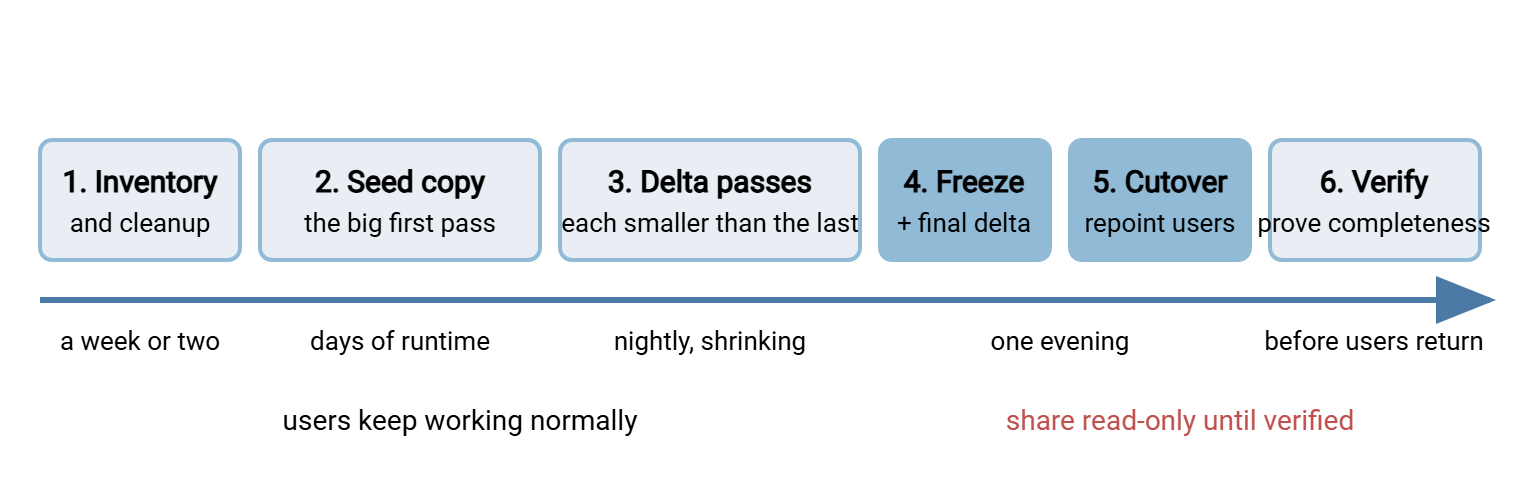
The phases are not bureaucracy; each exists because it removes a specific failure. Inventory removes surprises. The seed absorbs the volume while nobody is waiting on it. Deltas shrink the moving-target problem until it fits inside a short freeze. The freeze removes the race. Verification replaces hope with proof. Skip a phase and its failure mode comes back.
Phase One: Inventory — Know What You Are Moving
You cannot plan a copy you have not measured, and you cannot verify a copy against numbers you never recorded. Inventory produces four things. They are the size of the job, the shape of the data, the list of hazards, and — just as valuable — the list of things you will not move.
Record the raw numbers first: total files, total bytes, directory count, deepest path, largest files. These same numbers become your baseline for verification later, so save the command output, not just a summary in your head.
# Windows (PowerShell) - count and total bytes
Get-ChildItem \\oldserver\data -Recurse -File |
  Measure-Object -Property Length -Sum

# Windows - twenty longest full paths (long-path hazards)
Get-ChildItem \\oldserver\data -Recurse |
  Sort-Object { $_.FullName.Length } -Descending |
  Select-Object -First 20 -ExpandProperty FullName

# Linux - file count, total size, deepest directories
find /data -type f | wc -l
du -sh /data
find /data -type d | awk '{ print length($0), $0 }' | sort -nr | head

# Linux - how much is stale (untouched for two years)
find /data -type f -mtime +730 | wc -l
Then look for hazards: paths near the length limit, files locked around the clock, folders with hand-crafted permissions, anything with a name that only one application can parse. Each hazard found now is a log error you will not be chasing at midnight later.
Finally, make the garbage decision. Every long-lived share is partly landfill — abandoned home folders, installers, duplicate "final_v2_FINAL" trees, caches. Moving garbage costs transfer time, verification time, and storage forever. The migration is the one moment when "do we still need this?" gets answered. So put the question to the data owners with numbers attached ("this folder is 800 gigabytes and untouched in two years"). It is also the best moment you will ever get to fix a badly grown folder structure. The article on designing directory trees shows what a deliberate one looks like. Just make cleanup a separate, signed-off step — never silently skip data during the copy, or verification becomes guesswork.
Phases Two and Three: Seed, Then Shrinking Deltas
The seed copy is the big first pass: everything, copied once, while users work normally. Because the source is live, the seed is imperfect by design — files change behind it, locked files get skipped — and that is fine. The seed's job is to move the bulk of the bytes across without any time pressure. Run it at night and over weekends, throttled during business hours, and let it take the days it takes.
Then come the delta passes: re-running the same copy so the tool skips everything unchanged and carries over only what is new or modified. The first delta moves a few days of churn; the next moves a day's worth. Soon each pass moves only hours of changes and finishes in minutes. This convergence is the heart of the whole method, because the duration of your final pass is the length of freeze you will need. Both engines do this well — robocopy by comparing sizes and timestamps, rsync the same way with a checksum option in reserve.
Two honest caveats. Delta passes never converge to zero seconds. Even with nothing to copy, the tool still walks millions of directory entries on both sides. That scan has a floor — commonly tens of minutes on a large tree. And deltas only shrink if you run them regularly; a week-old delta is nearly as big as a week of churn. Measure the duration of your last few passes. When they are stable and small, you have the number the cutover plan is built on.
Phases Four Through Six: Freeze, Cutover, Verify
The endgame compresses into one evening. The freeze makes the source read-only — share permissions flipped, sessions closed — so the data finally holds still. The final delta then runs against a stable source and catches everything, including files that were always locked before. Verification compares source and target — counts, bytes, a difference report, sampled hashes — before any user touches the new location. Only then does the cutover repoint users and shares at the new server, with the old one kept intact and read-only as the rollback plan.
Each of these deserves its own article, and has one. The runbook, freeze mechanics, and rollback thinking are in seed, delta, freeze. The proof methods are in verifying nothing was left behind.
Non-negotiable: there is always a freeze, even a short one. A migration cut over without a freeze strands whatever users wrote during the last pass on a server you are about to retire. The whole point of shrinking deltas is to make the freeze short enough that nobody minds it.
A Realistic Timeline for a Real Share
Here is what the plan looks like for a concrete case: a departmental share of four terabytes in about three million files. It is moving to a new server over a gigabit link, with users who must not lose access during the working week.
| Phase | Calendar time | What actually runs | Users notice? |
|---|---|---|---|
| Inventory and cleanup | 1–2 weeks | Scripted scans, owner conversations, garbage sign-off | No |
| Seed copy | About a week | 2–4 days of transfer, run nights and weekend, throttled by day | No |
| Delta passes | About a week | Nightly pass: first 2–3 hours, shrinking to 20–40 minutes | No |
| Freeze + final delta | Cutover evening | Share read-only; last pass 30–60 minutes | Yes — read-only |
| Verify + cutover | Same evening | Counts, difference report, hash samples; repoint shares | Yes — brief outage |
| Observation | 1–2 weeks after | Old server kept read-only as safety net, then retired | No |
Scale the numbers to your data, but keep the shape: weeks of calm preparation buying one short, rehearsed window of user impact. Before you commit a date, this checklist should be all ticks:
MIGRATION READINESS CHECKLIST
[ ] Inventory recorded: files, bytes, deepest path, largest files, hazards
[ ] Garbage decision made and signed off by data owners
[ ] Engine chosen; exact command rehearsed on a test tree, flags understood
[ ] Seed complete; delta passes running nightly
[ ] Last three delta durations measured, stable, and small
[ ] Freeze mechanics tested (who flips the share read-only, and how)
[ ] Verification method rehearsed; baseline numbers saved
[ ] Rollback trigger and steps written down; source stays untouched
[ ] Communications drafted: advance notice, freeze notice, all-clear
[ ] Cutover-night roles named: driver, verifier, communicator
Choosing Your Engine — and Knowing What It Is Not
The engine question is less dramatic than it sounds, because the answer is usually decided by the platforms involved. Robocopy ships with Windows and is the native choice for Windows-to-Windows moves: it understands NTFS permissions, attributes, and ownership, restarts cleanly, and logs everything. Rsync is the native choice on Linux, on most NAS appliances, and for anything that crosses platforms or an SSH connection. Its delta discipline made the seed-and-delta pattern famous. Both are free, both are restartable, both skip unchanged files on repeat passes. Mixed environments simply use each tool where it is native. The two deep-dives — robocopy for migrations and rsync for bulk moves — turn each into a rehearsed migration command.
Know what these tools are not, though. They are movers, not keepers-in-sync. Suppose the "migration" turns out to be permanent — two sites that must stay aligned every night from now on. You have left bulk-move territory and entered scheduled synchronization, which needs job scheduling, retry behavior, alerting, and history. That class of work is what a tool like Sysax FTP Automation is for. Its wizard generates mirror, backup, and two-way synchronization tasks over SFTP, FTPS, or FTP, on a schedule, with email notification when a run fails. The line between one-time replication and a standing transfer job is drawn properly in replication vs transfer jobs.
Location matters too. Robocopy and rsync shine inside the building, on trusted networks. The move may cross an untrusted network — an acquisition's office reachable only over the internet, a data set headed to a hosting provider. In that case, do not expose SMB shares across that gap. Move the data through an encrypted channel instead: rsync over SSH, or a staged transfer through a secure server such as Sysax Multi Server. That server handles SFTP, FTPS, and HTTPS on Windows and keeps an activity log of every transfer. The reasons SMB should stay inside are laid out in securing SMB.
The Plan Is Most of the Migration
A bulk move is won before the big copy starts. Measure the data, do the bandwidth and small-file arithmetic in public, and walk the six phases in order — inventory, seed, shrinking deltas, freeze, cutover, verify. Daily-transfer thinking fails here not because the tools are different but because the assumptions are. Unbounded data, a live source, and a one-shot deadline demand a plan, not a script.
From here, go where your platform points. Read robocopy for server migrations for the Windows engine, and rsync for bulk moves for everything else. Then read the cutover runbook when the deltas start shrinking.
Frequently Asked Questions
How long does it take to move a few terabytes of files?
Can users keep working during a migration?
Is robocopy or rsync better for a migration?
What is a write freeze and do I really need one?
Should we clean up old data before or after the move?
From the Sysax team: we build secure file transfer software for Windows. Sysax Multi Server is an FTP, FTPS, SFTP, and HTTPS server. Sysax FTP Automation handles scheduled, scripted transfers. Free trials are on the download page.