
MFA and File Transfer: Where It Fits and Where It Can't
Sooner or later the question lands on your desk, usually from an auditor or a cyber-insurance form: "Is multi-factor authentication enabled on all accounts?" For most systems that is a yes-or-no box. For file transfer infrastructure it is a trick question. A transfer server's account list splits into logins where a human is present to answer a challenge, and logins where no human exists at all. The latter include scheduled jobs and partner systems. They include the automation that does most of the actual transferring at hours when everyone is asleep.
Answering the question well requires understanding both halves honestly. MFA is a genuinely decisive upgrade for the logins it fits — and structurally impossible, not merely inconvenient, for the logins it doesn't. Pretending otherwise leads to one of two failure modes: broken automation, or fake MFA. In fake MFA, the second factor is stored right next to the first and protects nothing.
This article — part of our Authentication on Transfer Endpoints series — maps where MFA belongs on transfer infrastructure. It explains the structural limit in terms you can repeat to an auditor. It details the compensating controls that give unattended logins equivalent protection by different means.
What MFA Actually Is
Multi-factor authentication means requiring evidence from two different categories before a login succeeds. The categories are something you know (a password), something you have (a phone, a hardware token, a key file), or something you are (a fingerprint). The categories are the point — two passwords is not MFA, because both are stolen the same way. The full comparison of methods and factors is in authentication methods compared; here we need just the forms MFA takes in practice:
- TOTP codes — a "time-based one-time password": an authenticator app holds a secret (called the seed). The app uses it to generate a six-digit code that changes every thirty seconds. The server holds the same seed and checks the code matches.
- Push approval — the login triggers a notification on an enrolled phone, and the human taps approve or deny.
- Hardware tokens — a physical key that must be plugged in or touched. This is the strongest common form, because the secret never leaves the device. The token checks which site is asking, which defeats look-alike phishing pages.
- SMS codes — a code texted to a phone. The weakest form: phone numbers can be hijacked and messages intercepted, so treat SMS as a fallback rather than a plan. It still beats a bare password.
Common to all four: a human is present at login time, reading a code, tapping a prompt, or touching a key. Hold that thought — it is the entire second half of this article.
What the Second Factor Actually Buys
Passwords fail in well-known ways: they get phished, guessed, reused across sites, and replayed from breach dumps. Every one of those attacks ends with the attacker knowing the password. MFA's blunt, valuable property is that knowing the password stops being enough. The phished password fails without the phone. The stuffed credential from someone else's breach fails without the token. For accounts exposed to the internet, that single property removes the most common compromise path outright.
Picture the standard incident without it: a portal user receives a convincing "your transfer account will be suspended" email. They follow the link to a look-alike page and type their password. The attacker replays it against your real portal within minutes and starts browsing the partner folders that account can reach. Now replay the same incident with MFA enrolled: the password lands in the attacker's hands exactly as before. The login still fails, because the phone in the user's pocket never lit up for the attacker. The user may not even know it happened; your log shows a failed second-factor challenge instead of a quiet success. That is the whole pitch in one scenario.
It helps to name precisely what the second factor proves, because this is what determines where it fits. MFA answers the question "is the human who enrolled actually present at this login, right now?" That is exactly the assurance you want for a person signing into a web portal or an administrator opening a management console. It is also a question that has no meaning for a scheduled job — which is where the structure of transfer infrastructure starts to matter.
Where MFA Fits on Transfer Infrastructure
Rank the candidates by payoff, and work down the list.
First: the admin console. The management interface of your transfer server — where accounts are created, permissions changed, and logs read — is the highest-value login in the building. A compromised user account leaks one folder; a compromised admin account hands over every account, every folder, and the ability to erase the evidence. If you enable MFA in exactly one place, this is the place. Pair it with reachability limits: the console should be accessible only from admin networks, never from the open internet.
Second: web-based user portals. If your server offers browser upload and download over HTTPS, that interface is MFA's natural habitat. Web logins accommodate a code prompt gracefully, and users already know the ritual from banking. Portal users are often external humans on networks you don't control. Interactive humans are the phishable population, so this is where the protection concentrates.
Third: interactive SSH and SFTP sessions. The SSH layer under SFTP has a mechanism called keyboard-interactive. It lets a server issue extra challenges, such as a TOTP prompt, to a human at a terminal. Support varies by server software, and it applies cleanly only to sessions where someone is actually typing. Where a human routinely SFTPs into a sensitive endpoint, it is worth having; the mechanics live in SFTP authentication.
Fourth: the approaches to the transfer estate. MFA on the VPN or remote-desktop path that admins cross to reach the transfer server protects the server indirectly. It is often the most practical first win in small shops. The VPN already supports MFA even when the transfer stack doesn't.
Why Unattended Jobs Structurally Resist MFA
Now the other half of the account list. It includes the nightly export job and the partner's system that connects every fifteen minutes. It includes the folder-watcher that pushes files as they appear. No human is present at those logins — that is the entire point of automation. Walk through what happens if you try to bolt MFA on anyway:
- A prompt breaks the job. A scheduled task cannot read a code off a phone at 3 a.m. The transfer hangs at the challenge and the files stop moving. This failure is at least honest — it announces itself.
- Storing the second factor fakes the control. The tempting workaround is to store the TOTP seed on the job's machine so a script can compute codes. But now the password and the seed are both things that machine has. A single theft of that machine's secrets captures both "factors" together. You have rebuilt a second password with extra steps, while your compliance paperwork claims MFA. This is worse than nothing, because it manufactures false assurance.
- Push approval becomes a human pager. Routing approvals for a job that runs every fifteen minutes to some admin's phone trains that admin to tap approve reflexively. Eventually, that includes the request that wasn't the job. Approval fatigue is a recognized attack condition, not a control.
The conclusion is structural, and it is worth stating the way you would to an auditor. MFA verifies human presence, and these logins have no human whose presence could be verified. The control is not weakly implemented here; it is out of scope by construction. The correct response is not to force it but to achieve the same protective properties by mechanisms built for unattended use — which is the next section.
The diagram below shows the two paths into the same server: the interactive path where MFA belongs, and the unattended path protected by its structural equivalents.
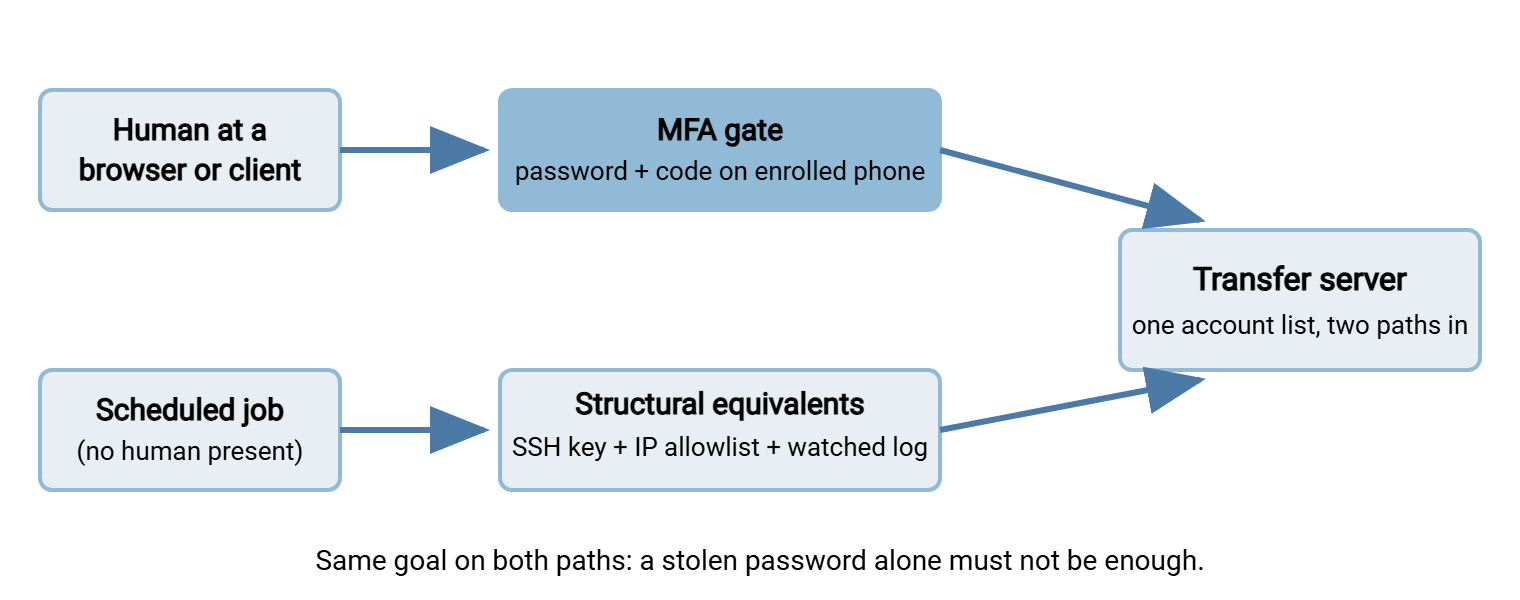
The Compensating Controls That Fill the Gap
A compensating control is an alternative measure that delivers the protection a standard control would have provided, where the standard control cannot apply. The honest way to design them is to name each property MFA gives an interactive login, then supply that property to the unattended login by other means:
| What MFA provides | Unattended equivalent | Why it is equivalent |
|---|---|---|
| A stolen password alone is not enough | SSH key instead of a password | A key is a true something-you-have: unguessable, never typed, never phished at a prompt, never transmitted |
| The attacker must control an enrolled device | Source IP allowlisting | Credentials only work from the job's known machines — stolen credentials fail from anywhere else |
| Unusual logins get challenged | Monitoring and alerting on the account | A service account off its schedule, source, or protocol is a fired alert instead of a silent success |
| A compromised login yields limited access | Least privilege, one account per job | The stolen credential opens one directory, one direction, one flow — not the estate |
Expanding each briefly. Keys first: replacing the password with an SSH key removes the guessable, phishable secret entirely. That is most of what MFA was defending against. Generation and inventory discipline is covered in our SSH key management series. Allowlisting second: restricting each service account to its known source addresses shrinks the population who can even attempt a login. That population goes from "the internet" to "the partner's gateway," and the restriction is usually one server or firewall rule. Allowlisting is a pillar of our brute force protection series. Monitoring third: a human notices a strange MFA prompt; for a machine, your log review has to be the noticing. Alert when a service account authenticates from a new address, at an odd hour, or over the wrong protocol. The practice belongs to transfer logging and audit. The server-side raw material is simply complete login records, such as the per-account activity logging a server like Sysax Multi Server keeps across FTP, FTPS, SFTP, and HTTPS. Scope last: one account per job, confined to its folder and direction, per service account hygiene.
Stack all four and an attacker who somehow obtains the credential still needs to operate from the partner's own network. They must operate against a single directory, under an alarm. That is a defensible position — and, stated in exactly these terms, one that auditors routinely accept when documented per account.
Remember: MFA answers "is the enrolled human present right now?" A login with no human cannot answer it, no matter what you bolt on. Give unattended logins a key, an allowlist, least privilege, and a watched log. Write those four down as the documented compensating controls for each exempt account.
The Protocol Reality Check
Where MFA can even be wired in follows the interface, not your wishes. HTTPS web portals: yes, naturally — web login flows were built for extra prompts. SSH and SFTP: yes for interactive humans via keyboard-interactive, where your server software supports it; no for the automated majority of SFTP traffic. Plain FTP and FTPS: effectively no — the protocol conversation has exactly a username step and a password step. The automated clients that speak it would choke on any extra challenge. AS2 and other B2B protocols: no, and by design — they are unattended end to end, authenticated by certificates instead.
One architectural note follows from this. Suppose you want more of your human traffic behind MFA than your current protocols allow. The lever is moving humans to interfaces that support it. Occasional human uploaders who today use an FTPS client could use the HTTPS portal instead. It is the same server and same folders, but a login flow that can carry a second factor. The automation stays on its protocol with its own controls; the humans migrate to where the protection is.
The practical consequence: "MFA coverage" on a transfer estate means the admin console, the web portal, and interactive human sessions. That is not a gap in your deployment; it is the shape of the technology. Your documentation should say so plainly rather than promising a number no transfer server can deliver.
Rolling It Out Without Breaking Transfers
The failure stories all start the same way: MFA switched on globally, Monday-morning confidence. By Tuesday the nightly jobs are dead or a bypass has been quietly built. Sequence instead:
- Inventory logins by the one question that matters: is a human present at login time? Sort every account into interactive, unattended, or (worst) mixed.
- Split any mixed-use accounts first. An account that a human uses interactively and a script uses at night cannot have a sane MFA policy. Give the job its own account per service-account hygiene, then policy becomes clean.
- Enable MFA on the admin console and enroll the small admin population. Highest value, smallest blast radius.
- Enable it for interactive portal users with notice, instructions, and an enrollment window. Provide a helpdesk path for lost phones that does not amount to "we turn it off on request."
- Exempt unattended accounts explicitly, each with its documented compensating controls, so the exception list is a deliberate artifact rather than an embarrassing discovery.
- Verify nothing automated is being prompted by watching for jobs newly hanging at authentication — and keep watching partner logins, whose owners will not read your announcement email.
Partners deserve their own sentence of caution. A partner's automated connection is an unattended login that happens to originate in someone else's building. It must never see an MFA challenge. A policy change on your side that accidentally prompts it will fail their job silently from your perspective and mysteriously from theirs. If a partner has humans who log in to your portal as well, treat those as ordinary interactive users. For those users, notify their contact, provide enrollment instructions, and stage the requirement with a grace window. That is the same way you would communicate any credential change in the partner credential lifecycle.
A pocket version of the sorting step, ready to copy into your runbook:
DOES THIS LOGIN GET MFA?
1. Is a human present at login time, every time?
     NO  -> No MFA. Apply compensating controls:
            key auth / IP allowlist / least privilege / alerting.
            Document them against the account and stop here.
     YES -> continue
2. Does the interface support a second factor?
     (web portal: yes | admin console: usually | interactive
      SSH/SFTP: server-dependent | FTP or FTPS: no)
     NO  -> Strong unique password + lockouts + source limits;
            consider moving this login to an interface that can.
     YES -> continue
3. Enable MFA. Prefer app or hardware token over SMS.
4. Admin or high-privilege account? Enroll it FIRST, and pair
   with network restrictions on where the console is reachable.
The Short Version, and Where to Go Next
MFA is the biggest single upgrade available for logins where a human is present. That means the admin console above all, then web portals, then interactive SFTP where supported. It is structurally out of scope for unattended logins, because it verifies human presence and there is no human. Storing the second factor beside the first only fakes the control. Fill that gap deliberately: keys, allowlists, least privilege, and monitoring, documented per account. An estate arranged this way is honest on the audit form and genuinely harder to break into, which are supposed to be the same thing.
From here: authentication methods compared places MFA among the other credential types. The article on service account hygiene builds out the unattended half of this article. The article on reading auth failures and designing lockouts turns the "watched log" compensating control into something that actually fires.
Frequently Asked Questions
Is SMS-based MFA worth using at all?
Can SFTP use MFA?
Why can't my scheduled job just store a TOTP seed and compute codes?
Will auditors accept compensating controls instead of MFA on service accounts?
Where should I enable MFA first?
What happens when a user loses the phone their MFA is on?
From the Sysax team: we build secure file transfer software for Windows — Sysax Multi Server, an FTP, FTPS, SFTP, and HTTPS server, and Sysax FTP Automation for scheduled, scripted transfers. Free trials are on the download page.