
Layer One: Is There Even a Path?
"It can't connect." That is the whole report, and by the time it reaches you the network team has already been copied in. It could mean any of a dozen things. The name may not resolve, the port may be blocked, or the service may be down. A firewall may be dropping packets in silence, or the server may be answering and then hanging up. All of them look the same from a graphical client: a spinner, then an error. On the command line they look completely different, and each one points at a different fix, and usually a different team.
This article is the connectivity layer of our Systematic Troubleshooting of Failed Transfers series. It is the bottom of the stack, the layer every other layer depends on. It is the one most often skipped on the grounds that "the network is fine." You will learn the three questions hidden inside "can't connect" and the commands that answer each one on Windows and Linux. You will learn the difference between refused, timed out and reset. You will learn how to check SSH and TLS handshakes, and how the same failure looks from the server's end. If you have not read the layered method yet, it explains why this layer comes first. The network is, in fairness, usually fine. Usually.
Three Questions Hide Inside "Can't Connect"
Connectivity is not one thing. Before a client can send a single command, three separate steps have to succeed, in order:
- Name resolution. The client turns
sftp.acme.example.cominto an IP address, using DNS or a local hosts file. If this fails, no packet is ever sent. - Port reachability. The client opens a TCP connection to that address on a specific port. The ports are 22 for SFTP, 21 for FTP, 990 for implicit FTPS, 443 for HTTPS. Every router and firewall on the path has to let the packets through, and something on the server has to be listening.
- The handshake. The service on that port answers in its own language. An FTP server sends a
220greeting. An SSH server sends a banner. A TLS service performs a cryptographic handshake. Until this happens, you have a connection but no conversation.
The phone analogy: looking up the number, the phone ringing, and someone saying hello. "Can't connect" could be a wrong number, a line that never rings, or a phone answered and immediately put down. You test them in that order because each depends on the one before. Retrying a wrong number harder does not make it ring.
Step 1: Does the Name Resolve?
Ask the machine that is failing — not your laptop — what address it gets for the host name. On Windows:
C:\> nslookup sftp.acme.example.com
Server:  dns01.corp.example.com
Address:  192.168.10.5

Non-authoritative answer:
Name:    sftp.acme.example.com
Address:  203.0.113.10
The first two lines tell you which DNS server answered; the last two are the answer. A failure looks like this:
*** dns01.corp.example.com can't find sftp.acme.example.com: Non-existent domain
On Linux, use two commands, because they check different things:
$ dig +short sftp.acme.example.com
203.0.113.10

$ getent hosts sftp.acme.example.com
203.0.113.10    sftp.acme.example.com
dig asks DNS directly. getent hosts asks the operating system's resolver. The resolver consults the local /etc/hosts file first and then DNS — which is what your transfer client actually does. If they disagree, someone has put an entry in the hosts file (on Windows, C:\Windows\System32\drivers\etc\hosts), and that entry wins. Stale hosts-file entries from an old migration are a classic cause of "it works from every machine except this one." The hosts file never forgets, and nobody remembers the hosts file.
Three results to recognize:
- No answer at all (
Non-existent domain,NXDOMAIN,Name or service not known). The name is wrong, the partner's record was removed, or your DNS server cannot reach the outside world. Try a second machine; if it fails everywhere, the record is the problem. - An answer, but a different one from another machine. This is split DNS: internal and external DNS servers giving different addresses for the same name, normal for a server behind NAT. It is a problem only when a machine gets the address it cannot reach.
- An answer that differs from your records. Compare with the partner's connection sheet. A changed address usually means a migration, and your outbound firewall allowlist probably still names the old one.
If the client is configured with an IP address rather than a name, skip this step — and note it in your write-up. A hard-coded address is why the job will break the next time the partner moves. Partners move. Hard-coded addresses do not.
Step 2: Is the Port Reachable?
Now test whether a TCP connection to the right port succeeds. "Right port" depends on the protocol, and getting it wrong is the first thing to rule out:
| Protocol | Port to test first | Also needed |
|---|---|---|
| SFTP (over SSH) | 22 (or a custom port such as 2222) | Nothing — one connection carries everything |
| FTP, explicit FTPS | 21 | The passive port range (e.g. 50000–50100) for data connections |
| Implicit FTPS | 990 | The passive port range |
| HTTPS upload / WebDAV | 443 | Nothing |
On Windows, PowerShell has a built-in tester:
PS C:\> Test-NetConnection sftp.acme.example.com -Port 22

ComputerName     : sftp.acme.example.com
RemoteAddress    : 203.0.113.10
RemotePort       : 22
InterfaceAlias   : Ethernet
SourceAddress    : 192.168.20.14
TcpTestSucceeded : True
TcpTestSucceeded : True is the line that matters: a TCP connection was opened and accepted. It also shows RemoteAddress (confirming step 1) and SourceAddress (which interface the traffic left by — useful on a machine with a VPN). On failure you get a warning such as WARNING: TCP connect to (203.0.113.10 : 22) failed and TcpTestSucceeded : False. Do not be misled by PingSucceeded: many servers answer ping while blocking the port, and many block ping while accepting the port.
On Linux, nc (netcat) with -z (just connect, send nothing) and -v (say what happened), plus a timeout so it does not hang:
$ nc -zv -w 5 sftp.acme.example.com 22
Connection to sftp.acme.example.com (203.0.113.10) 22 port [tcp/ssh] succeeded!

$ nc -zv -w 5 sftp.acme.example.com 2222
nc: connect to sftp.acme.example.com (203.0.113.10) port 2222 (tcp) failed: Connection refused

# no netcat installed? bash can open a TCP socket by itself
$ timeout 5 bash -c 'cat < /dev/null > /dev/tcp/203.0.113.10/22' && echo open || echo closed
open
Run the test from the failing machine first, then from a second machine on a different network segment. If the results differ, you have located the problem: it is on the path from the first machine, not at the server. I run the second-location test before anything else, because one command usually halves the list of suspects.
Refused, Timed Out, or Reset: Three Different Stories
When the port test fails, the way it fails is the most important fact you will collect at this layer. There are three outcomes, and they are produced by different things.
The diagram below shows the three at the packet level: the client's connection request answered with a rejection, answered with silence, or accepted and then torn down.
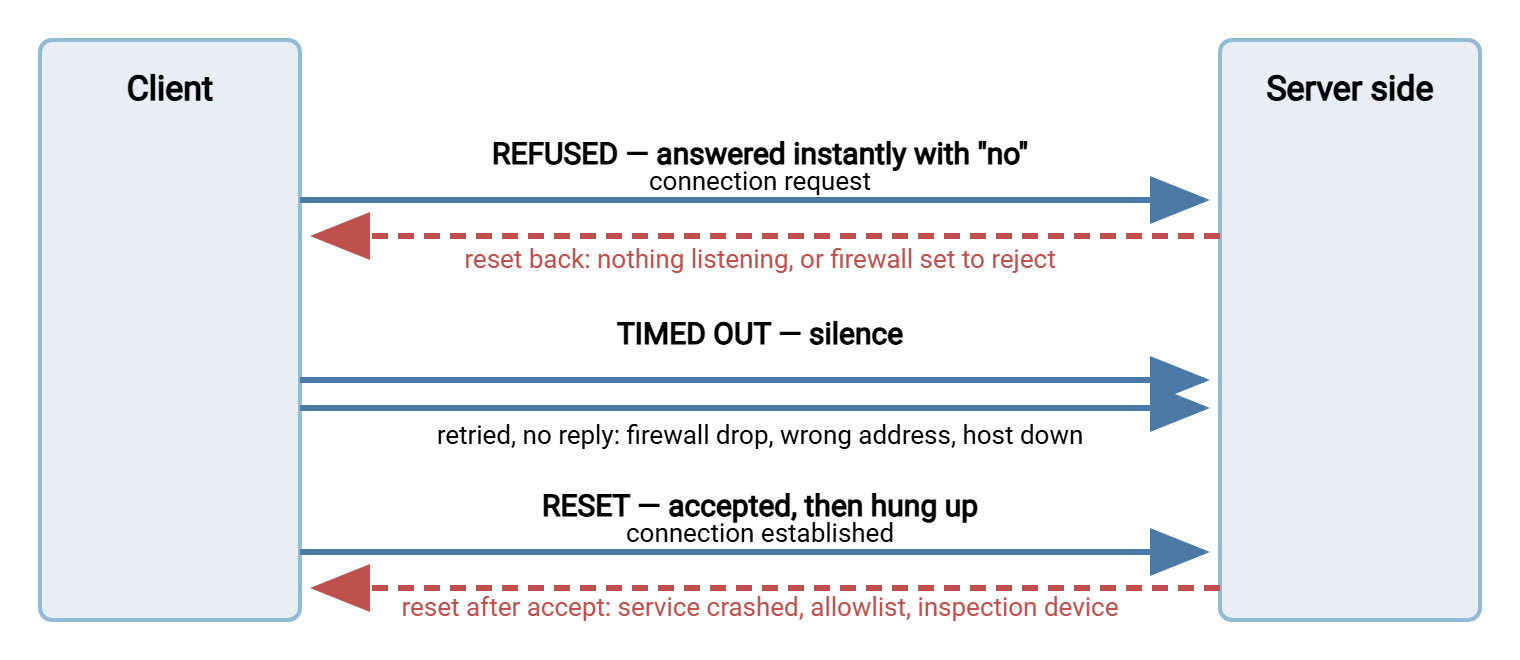
Refused means the packets reached a machine, and that machine answered "nothing here" — instantly. Either no service is listening on that port, or a firewall on the path is configured to reject rather than silently drop. No listener could mean the wrong port, a stopped service, or a service bound to a different address. Good news hides inside a refusal: the address is right and the route works. A refusal is rude, but it is prompt.
Timed out means silence. The client sent its request, retried, and never heard anything. This is the signature of a firewall that drops packets (the default on most corporate and cloud firewalls). It can also signal an address that belongs to nothing, a host that is powered off, or a routing problem. A timeout tells you the least, which is why the two-location comparison matters most here. Silence is the firewall's native language, though it is not the only speaker.
Reset means the connection was established and then abruptly closed by the far side. If it happens immediately, before any banner, suspect an allowlist, a connection limit, or an inspection device in the path. With an allowlist, the server accepted, looked at your source address, and dropped you. If it happens later, mid-session, it is usually a layer-four or timeout problem rather than a layer-one one. The article anatomy of a dropped session takes that case apart.
| Outcome | Windows wording | Linux wording | First suspect |
|---|---|---|---|
| Refused | No connection could be made because the target machine actively refused it | Connection refused | Wrong port, or service not running |
| Timed out | A connection attempt failed because the connected party did not properly respond after a period of time | Connection timed out | Firewall dropping, wrong address, host down |
| Unreachable | A socket operation was attempted to an unreachable host / network | No route to host | Routing, or a firewall configured to reject with an "unreachable" message |
| Reset | An existing connection was forcibly closed by the remote host | Connection reset by peer | Allowlist, connection limit, inspection device, crashed service |
SSH clients wrap these in their own phrasing, such as ssh: connect to host sftp.acme.example.com port 22: Connection timed out. A server that accepts and then closes before its banner produces kex_exchange_identification: Connection closed by remote host or, in older builds, ssh_exchange_identification: read: Connection reset by peer. With curl, exit code 6 is name resolution. Exit code 7 is "failed to connect" (refused or unreachable), and 28 is a timeout. The message alongside says which.
Remember: refused means "right address, wrong door." Timed out means "nobody is answering, and I don't know why." Reset means "the door opened and was slammed." Write down which one you got before doing anything else — it decides who you need to talk to.
Step 3: Does the Service Answer With a Handshake?
An open port only proves that something accepted the connection. A load balancer, a proxy, or the wrong service entirely can accept on port 22. The third question is whether the thing that answered speaks the protocol you expect. Each protocol has a cheap way to check.
SSH and SFTP. The first thing an SSH server sends is a one-line text banner. You can see it with ssh -v, or grab it directly with netcat (press Enter if nothing appears after a second):
$ nc -w 5 sftp.acme.example.com 22
SSH-2.0-OpenSSH_...

$ ssh -v feed_acme@sftp.acme.example.com
debug1: Connecting to sftp.acme.example.com [203.0.113.10] port 22.
debug1: Connection established.
...
debug1: Authenticating to sftp.acme.example.com:22 as 'feed_acme'
A banner beginning SSH- means an SSH server is really there. Suppose a port accepted the connection, but no banner arrives within a few seconds. You have reached something that is not SSH — or a server so overloaded it cannot greet you.
FTP and explicit FTPS. The server greets with a 220 line. curl shows the whole exchange, and with --ssl-reqd it also attempts the upgrade to TLS:
$ curl -v --ssl-reqd ftp://ftp.acme.example.com/
*   Trying 203.0.113.10:21...
* Connected to ftp.acme.example.com (203.0.113.10) port 21
< 220 ACME transfer service ready
> AUTH TLS
< 234 AUTH TLS successful
* SSL connection using ...
> USER anonymous
The 220 proves an FTP service answered; the 234 proves it accepts the TLS upgrade. A 500 or 502 after AUTH TLS means the server does not offer explicit FTPS on this port — a mismatch that belongs to Layer Four. If curl connects and then sits silently with no 220, something accepted on port 21 that is not an FTP server.
TLS services: implicit FTPS on 990 and HTTPS on 443. Here the very first thing that happens is the TLS handshake, and openssl s_client is the universal probe:
$ openssl s_client -connect ftps.acme.example.com:990 < /dev/null
CONNECTED(00000003)
depth=2 C = .., O = .., CN = Example Root CA
...
subject=CN = ftps.acme.example.com
issuer=C = .., O = .., CN = Example Issuing CA
...
Verify return code: 0 (ok)

# explicit FTPS on 21: ask s_client to send AUTH TLS first
$ openssl s_client -connect ftp.acme.example.com:21 -starttls ftp < /dev/null
Three things to read. CONNECTED confirms the TCP connection. The subject line shows which certificate the server presented. If the name does not match the host you asked for, you have reached the wrong server or a shared front door. Verify return code: 0 (ok) means this machine trusts the certificate chain. Any other code (unable to get local issuer certificate, self signed certificate, certificate has expired) is a certificate problem. Our certificate installation and chaining guide is the place to fix it. A handshake that fails outright — alert handshake failure, no protocols available — is a negotiation mismatch, Layer Four territory. For this layer the point is only this: a TLS service is there, and it is the one you expected.
The View From the Server End
Every test above ran from the client. If you also administer the server, or can ask the person who does, three checks from that side settle most cases in a minute.
Is anything listening on the port? On Linux, ss -ltnp lists listening TCP sockets with the process behind each. On Windows, netstat -ano plus a filter does the same and shows the process ID:
$ sudo ss -ltnp | grep ':22 '
LISTEN 0  128  0.0.0.0:22  0.0.0.0:*  users:(("sshd",pid=812,fd=3))

C:\> netstat -ano | findstr :990
  TCP    0.0.0.0:990    0.0.0.0:0    LISTENING    1476
The address matters. 0.0.0.0:22 means "all interfaces." If you see 127.0.0.1:22 instead, the service is listening only on the loopback address. It is unreachable from the network, however perfect the firewall is. No line at all means the service is not running, or is running on a different port — the cause of most "refused" results. A service bound to loopback is listening very carefully to itself.
Is the host firewall letting it in? A service can be listening behind a local firewall that blocks the port. On Linux, sudo iptables -L INPUT -n, sudo ufw status or sudo firewall-cmd --list-all, depending on the distribution. On Windows, ask which rules cover the port:
PS C:\> Get-NetFirewallPortFilter | Where-Object LocalPort -eq 22 |
    Get-NetFirewallRule | Select-Object DisplayName, Enabled, Direction, Action
No inbound allow rule for the port, or a rule that is disabled, produces a timeout from the client — the Windows firewall drops silently by default.
Does the server log show the connection arriving? This is the decisive test. Every transfer server logs an accepted connection before it logs anything else. Search the log for the client's source address at the failure time. Look for an SSH daemon's Connection from 198.51.100.7 port 51234 or an FTP daemon's connect entry. Or look for the connection line a Windows server such as Sysax Multi Server writes to its activity log. If a line is there, the path exists and the problem is higher up. If nothing is there, the packets never arrived, and no server-side change will help. The block is on the path or at the client.
The Path in Between
When the server is listening, its firewall allows the port, and the client still times out, the problem lives on the network between them. You usually cannot fix it yourself, but you can hand the people who can a precise finding, in the shape the firewall troubleshooting playbook describes. Hand them a finding, not a feeling.
Trace the route — tracert -d 203.0.113.10 on Windows, traceroute -n 203.0.113.10 on Linux — and note where the replies stop. The last hop that answers is roughly where the path breaks or a firewall starts dropping. Many firewalls also drop the trace itself while passing real traffic, so a trace that stops short is a hint, not a proof. The two-location comparison is stronger evidence. "Port 22 to 203.0.113.10 succeeds from 192.168.30.5 and times out from 192.168.20.14" tells a network administrator exactly which rule to look at.
Three common path problems are worth naming, because their symptoms are so consistent. A corporate egress firewall that allows web traffic but not port 22 or 21 produces timeouts from inside the office and success from home. A VPN with split tunneling sends traffic for the partner's public address directly rather than through the tunnel. So the traffic leaves from an address the partner has not allowlisted — an immediate reset or a silent timeout. And an outbound proxy that understands HTTPS but not SFTP accepts the connection and then does nothing useful with it. The result is an open port with no banner. Firewall design and the deeper diagnosis of these cases are the subject of our Firewalls, NAT, and File Transfer series. For the layer-one question, it is enough to prove where the path stops and who owns that piece.
Layer One Checklist
Run these in order from the failing machine, record each result, and stop at the first failure — that is your layer-one finding.
### Linux ###
getent hosts sftp.acme.example.com            # 1. name -> address, as the client sees it
nc -zv -w 5 sftp.acme.example.com 22          # 2. refused / timed out / succeeded
ssh -v feed_acme@sftp.acme.example.com        # 3. SSH banner + handshake
curl -v --ssl-reqd ftp://ftp.acme.example.com/   # 3. FTP 220 greeting + AUTH TLS
openssl s_client -connect host:990 < /dev/null   # 3. TLS handshake (implicit FTPS / HTTPS)
traceroute -n 203.0.113.10                    # 4. where does the path stop?

### Windows (PowerShell) ###
nslookup sftp.acme.example.com                # 1. name -> address
Test-NetConnection sftp.acme.example.com -Port 22    # 2. TcpTestSucceeded True/False
ssh -v feed_acme@sftp.acme.example.com        # 3. built-in OpenSSH client
curl.exe -v --ssl-reqd ftp://ftp.acme.example.com/   # 3. built-in curl
tracert -d 203.0.113.10                       # 4. where does the path stop?

### On the server ###
sudo ss -ltnp | grep ':22 '                   # listening on 0.0.0.0, not 127.0.0.1?
netstat -ano | findstr :22                    # Windows equivalent
# then search the server log for the client's address at the failure time
Note the curl.exe spelling on Windows. In PowerShell, plain curl is an alias for a different command. The .exe suffix makes sure you get the real tool.
What Layer One Tells the Next Layer
The checklist passes end to end when the name resolves to the expected address, the port accepts, and the service greets you in the right protocol. You have then proven there is a path, and every remaining problem is above this layer. When it fails, you have something far better than "can't connect." You have a specific outcome (refused, timed out, reset, no banner), the address and port, and whether it happens from one location or all. That is a finding a network team or a partner can act on in minutes. The network may still be fine. Now you can prove it.
Kestrel Payroll once spent two days on a "network problem" that passed every test on this page. A new partner's FTPS upload logged in cleanly and then hung on the first directory listing, so the ticket went to the network team. They showed that port 21 to the partner was open and sent it back. The server team showed the successful login in the log and sent it back again. The ticket made that round trip three times. Then somebody ran the layer-one checklist from the job server and it passed end to end, which was the finding. The control connection was fine. What was failing was the second connection, to the partner's passive port range. Nobody had asked the firewall to allow that range because nobody had known to ask. One rule for the range fixed it in an afternoon. Both teams had been right the whole time, which is the usual result of a blame loop and the least useful one.
The next article, Layer Two: Why Authentication Fails, picks up at the moment the banner arrives and the login begins. If your case involved an FTP data connection that fails after a successful login — the listing that hangs — that is a passive-mode question. It is covered in diagnosing FTP mode failures. And for the background on why these protocols use the ports they do, What port is FTP? is a short companion read.
Frequently Asked Questions
Ping works but the port test fails. What does that mean?
Ping fails. Does that mean the server is down?
Why does the connection work from my laptop but not from the job server?
The port test succeeds but my FTP client still cannot list files. Is that a connectivity problem?
From the Sysax team: we build secure file transfer software for Windows. Sysax Multi Server is an FTP, FTPS, SFTP, and HTTPS server. Sysax FTP Automation handles scheduled, scripted transfers. Free trials are on the download page.