
Layer Three: Permission Denied, Decoded
"But the account has full access." It does, on one screen. The login worked, and the directory listing came back. Then the upload failed with two words, permission denied, delivered with the confidence of a complete sentence. Permission problems are the most argued-about failures in file transfer, because everyone involved can point at a screen that says the permission exists. The trick is knowing that there are two screens, not one. The file system has opinions about directories, renames and deletions that nobody's access-request form ever mentions.
This is the third layer of our Systematic Troubleshooting of Failed Transfers series. You will learn the two gates every operation passes through and how to see the real path behind the one the client shows. You will learn how to read effective rights on Linux and Windows as the account that is failing. You will learn why yesterday's files behave differently from today's. You will also learn how to decode the whole family of "can do this but not that" errors from a single table. None of the checks involve granting anyone more access "to see if that fixes it." That experiment tends to succeed, which is the whole problem with it.
Two Gates, Not One
When a transfer client asks to write a file, the request passes through two independent checks before a byte lands on disk. The first is the server's own rule set. Most transfer servers maintain per-user or per-folder permissions of their own — read, write, list, delete, rename, create directory. These are configured in the server, independent of the operating system. The second is the operating system's file system permissions: the mode bits and ownership on Linux, the NTFS access control list on Windows. These apply to whatever account the server process uses when it touches the disk. Both gates must open. Either one can produce "permission denied," and the client cannot tell you which one said no. Both gates use the same two words, and neither signs its work.
The diagram below shows the two gates in sequence. A request that fails at the first gate never reaches the file system; a request that passes the first gate can still be refused by the second.
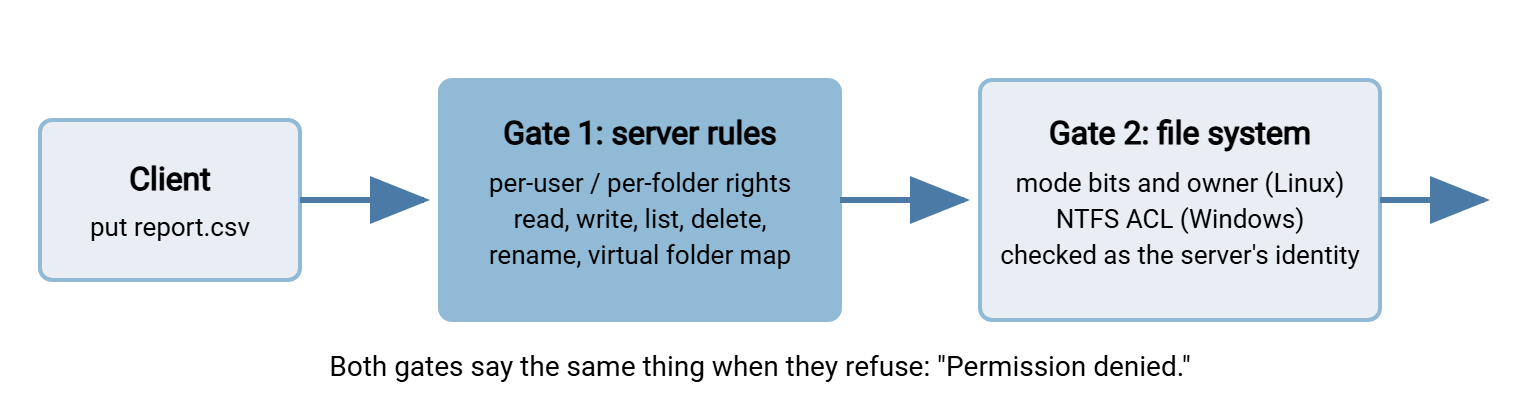
The identity at gate two is the detail that catches people. On Linux, an SFTP session usually runs as the operating-system user who logged in, so the file system sees feed_acme. But an FTP daemon may run as a dedicated account and map several virtual users onto it. A Windows transfer server may access the disk either as the service account it runs under or by impersonating the user who logged in. Before checking any file system permission, find out which account the server uses when it touches the disk for this user. That is the name you must test, not the name on the login prompt.
What Permission Errors Look Like
The layer is easy to recognize: authentication succeeded, and one specific operation on one specific path was refused. The wording per protocol:
- FTP and FTPS:
550is the workhorse —550 Permission denied,550 Failed to open file,550 Failed to change directory,550 Delete operation failed. There is also553 Could not create filefor an upload that cannot be created. Some servers use550for a file that simply does not exist too, so read the words, not just the number. - SFTP: the server returns a status code and the client translates it:
remote open("/upload/report.csv"): Permission denied,Couldn't read directory: Permission denied,Couldn't rename file "/upload/report.tmp" to "/upload/report.csv": Permission denied. WinSCP shows the same thing asPermission denied. Error code: 3. - SFTP's impostor: status code 4, shown as
Failure—Couldn't write to remote file "/upload/report.csv": Failure, or WinSCP'sGeneral failure (server should provide error description). Error code: 4. This is the server's catch-all for "something else went wrong." That could mean disk full, quota exceeded, a rename onto a file that already exists, or a directory that is not empty. It is not a permission problem, but it sits in the same place in the sequence, so check free space and quotas before you check rights. - HTTPS:
403 Forbidden— as opposed to401, which is authentication.
Notice what the messages have in common: each names an operation (open for write, read directory, rename) and a path. Those two facts are your whole investigation. Write them down exactly as the client printed them. "Cannot upload" might be a failed open, a failed write, or a failed rename at the end. Each has a different cause.
Where Am I? Home Directories and Jails
The path the client shows is frequently not the path on disk, and most permission mysteries begin with that gap. A jail is also called a chroot on Linux, or a virtual root or home folder on a Windows server. It confines the user to a subtree and presents that subtree's top as /. When the client says it is in /upload, the disk may say /srv/sftp/acme/upload or D:\Transfers\acme\upload. Checking permissions on the wrong directory, because you took the client's path literally, wastes more time than any other mistake at this layer. I have checked the wrong directory with great thoroughness.
Find the mapping in the server configuration: the user's home or root directory, plus any virtual folder mappings that graft other locations into the tree. Then confirm it from the inside. Log in as the user, run pwd, and upload a harmless probe.txt. Find where it landed on disk with find / -name probe.txt on Linux or a search on Windows. Now you have the real path.
Linux jails add a rule that produces one of the most common tickets in SFTP administration. The OpenSSH server requires the jail's top directory — and every directory above it — to be owned by root and not writable by group or others. If it is not, the server refuses the session entirely. It records fatal: bad ownership or modes for chroot directory component in its log. The client gets a bare Connection closed. Administrators fix that by making the top directory root-owned, and then the user cannot write at /, because it belongs to root. That is not a bug: the user must be given a writable subdirectory, such as /upload, owned by them. "Can list the root but cannot write into it" is the signature.
Remember: every permission test must be run on the real disk path, as the real disk identity. Get both wrong and every check will pass while the transfer keeps failing.
Reading Effective Rights on Linux
A file operation on Linux needs rights along the entire path, not just on the final directory. To reach /srv/sftp/acme/upload, the user needs the execute bit (x, "may pass through") on /, /srv, /srv/sftp and /srv/sftp/acme. Then they need the specific right on upload itself. The namei command shows the whole chain at once:
$ namei -l /srv/sftp/acme/upload
f: /srv/sftp/acme/upload
drwxr-xr-x root      root      /
drwxr-xr-x root      root      srv
drwxr-xr-x root      root      sftp
drwxr-xr-x root      root      acme
drwxr-xr-x root      root      upload
Read each line as: type and mode, owner, group, name. Here every directory is owned by root with mode 755 — readable and passable by everyone, writable only by root. The user feed_acme can list upload and read files in it, and cannot create anything. The last line grants write (w) to nobody but root. That is the jail-root mistake described above, one level down. The fix is chown feed_acme:sftpusers /srv/sftp/acme/upload (and, if a group should share it, chmod 775).
Acme's inbound feed from Meridian Parts is the version of this I use as a teaching case. Meridian's uploads began failing one Monday with remote open("/feeds/inbox/parts.csv"): Permission denied. The ticket bounced between the storage team, who had not touched inbox, and the transfer team. The transfer team could show that inbox was mode 775 with the right owner. Both were correct. A weekend clean-up had tightened the feeds directory one level up to 750. The feed account was not in that directory's group. So it could no longer pass through to a folder it had every right to write in. One namei -l from the top showed the whole chain in six lines, and one chmod on the parent fixed it. Nobody in the ticket had touched the folder that failed, which turned out to be the point.
Do not reason about it — test it, as the user. A service account with no login shell can still run a command through sudo:
$ sudo -u feed_acme test -w /srv/sftp/acme/upload && echo writable || echo NOT writable
NOT writable

$ sudo -u feed_acme touch /srv/sftp/acme/upload/probe.txt
touch: cannot touch '/srv/sftp/acme/upload/probe.txt': Permission denied
If the mode bits look right and the test still fails, look for the two things ls does not show. Access control lists: getfacl /srv/sftp/acme/upload prints any extra per-user or per-group entries, which can deny as well as grant. And mandatory access control: on a system with SELinux enforcing, a directory with the wrong security label refuses writes regardless of mode bits. The refusal appears in the audit log — ausearch -m avc -ts recent shows it. These are rarer, but when a server has been restored from backup or moved between disks, they are the usual reason "everything looks right and nothing works."
Reading Effective Rights on Windows
On Windows the file system check is against the NTFS access control list, and icacls shows it in a compact form:
C:\> icacls D:\Transfers\acme\upload
D:\Transfers\acme\upload CORP\svc_transfer:(OI)(CI)(RX)
                         CORP\acme_feed:(OI)(CI)(M)
                         BUILTIN\Administrators:(I)(OI)(CI)(F)
                         NT AUTHORITY\SYSTEM:(I)(OI)(CI)(F)
Each line is an account followed by inheritance flags and a right. (F) is full control, and (M) is modify (read, write, delete). (RX) is read and execute, (R) read only, (W) write only. (OI) means the entry applies to files inside, (CI) to subfolders, and (I) marks an entry inherited from the parent folder. In this example, suppose the transfer server accesses the disk as CORP\svc_transfer on behalf of every user. Uploads will fail — that account has read and execute only — even though acme_feed has modify. The identity question from the first section decides which line matters.
Because Windows rights can combine and conflict across groups, the reliable check is the operating system's own calculation. In Explorer, open the folder's Properties, then Security, Advanced, and the Effective Access tab. Select the account the server actually uses. The tab reports the resolved result for every right, including the ones a deny entry on a group has removed. There are two more Windows-only traps. If the transfer root sits on a network share, the share permissions are checked in addition to NTFS. The more restrictive of the two wins. And a transfer server running as a service cannot use a mapped drive letter. It needs the full UNC path and an account with rights on the far side.
Gate One: The Server's Own Rules
When the file system test passes as the correct identity and the client still gets "permission denied," the refusal came from gate one. The file system never saw the request. Open the user's settings in the server and look for a per-user or per-folder permission set. Common findings include an account created as read-only "for now" or a folder mapped with list-and-download rights but not upload. Upload may be allowed but delete and rename are not, which breaks the temporary-name-then-rename pattern most automation uses. Or a group policy in the server may override the individual account. ("For now" is the most permanent phrase in administration.) The server's activity log usually records exactly which rule refused which operation. Reading that is a great deal faster than reading the configuration. A Windows server such as Sysax Multi Server logs each file operation with the account and the outcome. So filtering the log by the account name shows the refused operation alongside the ones that succeeded a moment earlier.
Two Rights Everyone Forgets
Inheritance: why yesterday's file behaves differently
A permission problem that affects only some files in a folder is almost always about how those files were created. On Linux, the owner is the account that created the file. The mode comes from that process's umask — a default that strips rights from new files. A umask of 022 creates files readable by everyone; 077 creates files nobody but the owner can read. If the partner uploads a file and your processing job, running as a different account, cannot read it, the upload happened under a restrictive umask. SFTP servers let you set it per subsystem (OpenSSH's internal-sftp -u 0002, for example), and FTP daemons have an equivalent. Setting the setgid bit on the shared directory (chmod g+s) makes new files inherit the directory's group instead of the creator's. That is usually what a shared drop folder needs.
On Windows, new files inherit the folder's entries marked (OI) — unless inheritance was disabled on the folder at some point. A file moved into the folder from elsewhere on the same volume keeps its old ACL rather than inheriting. That is why files dropped in by a local script can be unreadable while uploaded ones are fine. A moved file brings its old rights with it, like luggage. Fixes for both platforms are in umask and inheritance gotchas.
Rename and delete belong to the directory, not the file
One fact resolves a large share of "I can upload but the job still fails" tickets. On Linux, renaming or deleting a file requires write and execute rights on the directory containing it. It requires no rights at all on the file itself. A user who owns a file but has only read access to its directory cannot delete or rename that file. A user with write access to the directory can delete files they do not own. The sticky bit (t in the mode, as on /tmp) changes the rule so that only a file's owner may delete or rename it. A shared upload folder with the sticky bit set will refuse a processing job that tries to rename another account's uploads.
Windows is closer to what people expect — Delete is a right on the file — but adds a second route. The Delete subfolders and files right on the folder allows deletion regardless of the file's own entries. A rename is treated as delete-plus-create, so it needs a delete right and the create-files right on the folder. Overwriting an existing file on either platform needs write access to that file, which a file created by another account may not grant.
Automation runs into this constantly because of the safe-upload pattern. Write to report.csv.tmp, then rename to report.csv so that readers never see a half-written file. The upload succeeds and the rename fails — Couldn't rename file: Permission denied, or Failure if the target already exists and the server refuses to overwrite by rename. Granting rename rights at gate one and directory-write rights at gate two fixes it; so does having the job delete the old target first, if delete is allowed. Rename is the last step, so it is the step the ticket calls "upload failed." The pattern itself and its trade-offs are described in temporary names and atomic renames.
The Can-List-But-Cannot-Write Family
Because each operation needs a different combination of rights, the exact shape of what works and what fails points at the missing right. Use this table with the real path and the real identity from the sections above:
| Works | Fails | Missing right (Linux) | Missing right (Windows) |
|---|---|---|---|
| Login | Listing the home folder | Read on the directory, or execute on a parent | List folder / read data on the folder, or server list rule |
| Listing | Changing into a subfolder | Execute on that subfolder | Traverse folder on that subfolder |
| Listing | Downloading a file | Read on that file (check its owner and umask) | Read on that file (check inheritance), or server download rule |
| Listing and download | Uploading a new file | Write on the directory (jail root is root-owned?) | Create files on the folder, or server upload rule |
| Uploading a new file | Overwriting an existing one | Write on that file (created by another account) | Write data on that file, or server overwrite rule |
| Uploading | Renaming or deleting | Write + execute on the directory; sticky bit set? | Delete on the file or folder, or server rename/delete rule |
| Everything, for one account | The same things, for another | Group membership, or an ACL entry for one account | A deny entry via group, or a server per-user rule |
Two rows deserve a second look. "Can upload but cannot overwrite" is the classic inheritance case. The existing file was created by a different account or under a strict umask. So the new writer lacks rights on that file even though the directory is fine. "Can upload but cannot rename" is the temporary-name pattern colliding with a server rule that never had rename ticked. Neither is fixed by giving the account more access to a folder it can already write to. More access to the wrong thing is still the wrong thing, only larger.
Closing the Layer
The layer-three routine, in one block you can paste into a ticket:
1. Operation + path from the client's exact error   (open / read dir / rename / delete, which path)
2. Real disk path                                    (jail root or home mapping + virtual folders)
3. Real disk identity                                (session user, daemon account, or service account)
4. Gate 2 test as that identity on that path         (namei -l, sudo -u ... test -w   |   icacls, Effective Access)
5. If gate 2 passes: gate 1 — server per-user rules  (read the activity log for the refused operation)
6. If only some files fail: creator, umask/inheritance, sticky bit, share vs NTFS
7. Fix ONE right, re-run the probe as the account, record it
The fix at this layer is almost always small — one chmod, one chown, one tick box in the server, one inheritance flag. The temptation is to make it large: full control, an administrators group, a world-writable folder. Resist it. A permission granted "to make it work" is a permission nobody will ever remove. How those accumulate is the subject of role changes and permission creep. The approach in least privilege in practice is easier to keep than to restore. When you write the fix up, name the operation, the path, the identity and the single right you changed. Full control is not a right; it is the absence of a decision.
With permissions cleared, the remaining failures are ones where everything is allowed and the conversation itself breaks: hangs after login, handshake mismatches, subsystem errors. That is Layer Four: Protocol-Level Failures. If your "permission denied" turned out to appear at login rather than after it, step back to Layer Two. And for designing directory trees that avoid these problems in the first place, see designing directory trees and per-partner folder structures. The account, for the record, did have full access. On one screen.
Frequently Asked Questions
The user has full control on the folder and still cannot upload. How?
Why can I create files but not delete or rename them?
SFTP says "Failure" instead of "Permission denied." Is that a permission problem?
Why can the partner read the files I upload, but not the files my script drops in?
Is it safe to fix this with chmod 777 for now?
From the Sysax team: we build secure file transfer software for Windows. Sysax Multi Server is an FTP, FTPS, SFTP, and HTTPS server. Sysax FTP Automation handles scheduled, scripted transfers. Free trials are on the download page.