
Building a Watch Folder Workflow, End to End
The rest of this series taught the parts: the four-room anatomy, the detection mechanics, the arrival contract, the error design. This article assembles them. We are going to build one complete, realistic watch folder workflow. A partner drops order files, a settle check passes, and validation runs. The transfer fires, the file archives, and the team hears about it. Nothing is waved away: the actual folder tree, the naming, the log lines, every failure path. We include the tests that prove it before it carries production traffic.
The build is deliberately tool-neutral. Every step is described as behavior. You can implement it as a script under a scheduler, or configure it in a folder-monitoring tool. The design — which is the part that matters — is identical either way. This build is the capstone of our watch folders and event-driven transfers series. It will make the most sense if you have at least skimmed the hot folder pattern first.
The Requirement, Written Down First
Every durable workflow starts as one paragraph of business fact, captured before any folders are created. Ours, in the flow-card format worth keeping in the runbook:
FLOW      : acme-orders (inbound)
SOURCE    : Acme Ltd, uploads over SFTP to our server, 1-3 files/day,
            usually before 06:00, typically under 5 MB each
FILES     : acme_orders_YYYYMMDD_NNN.csv   (NNN = 001, 002 ... per day)
DELIVER TO: ERP import folder via SFTP (host erp-sftp, /import/orders/)
DEADLINE  : each file reaches the ERP within 15 minutes of arrival
ON FAILURE: transfers team alerted within 15 minutes, file preserved
EVIDENCE  : originals kept 30 days; every step logged
OWNER     : transfers team (on-call rotation)
Every line on that card was a conversation, not an invention. The 15-minute deadline came from the ERP team, who import on a quarter-hour cycle. The 30-day evidence window came from the finance team, who occasionally dispute an order weeks later. The naming pattern was negotiated with Acme. Capturing the answers before building matters because each one becomes a design constraint later. The deadline sizes the polling and settle intervals. The evidence window sizes the archive retention. The naming pattern becomes the intake filter. A workflow built before this paragraph exists ends up with defaults where decisions should be.
Read the card against the fit criteria from earlier in the series. These are discrete files, arriving at times we do not control, each with an independent fate, at a volume a directory holds easily. This is squarely watch-folder territory — none of the strain signs from the beyond-folders article earlier in this series apply. Decision made; on to the build.
The Folder Tree
One flow gets one root, containing the four rooms plus a log directory, all on the same volume so every stage-to-stage move is an atomic rename:
D:\flows\acme-orders\
    in\        Acme's SFTP account lands here - and can see nothing else
    work\      claimed files being validated and transferred
    done\      delivered originals, renamed with an HHMMSS stamp, 30 days
    error\     parked failures, each with a .why.txt sidecar
    log\       acme-orders.log, one line per step, rotated monthly
Note that the root is per-flow, not shared. The directory D:\flows\ will eventually hold acme-orders\, globex-invoices\, and a dozen siblings, each a self-contained copy of this structure. The isolation pays everywhere. Permissions end at the flow boundary, and retention rules differ per flow without special cases. An incident in one partner's intake cannot touch another's. The log\ directory keeps the flow's diary beside its data for the same reason. When you archive or decommission the flow, its whole history travels with it in one folder.
Two access rules do a lot of quiet work here. Acme's SFTP account is confined to in\ — it cannot list, read, or write any other room. So a compromised partner credential can vandalize the inbox and nothing more. No sender ever "helpfully" edits a file we have already claimed. And the watcher's service account is the only identity that writes to work\, done\, and error\. Laying out trees so permissions fall along folder lines like this is a craft of its own — see designing directory trees for the general method.
Worth naming explicitly: the SFTP endpoint Acme uploads to is just a server we run — the receiving side of this workflow. On Windows, Sysax Multi Server is built for exactly that role (SFTP among its protocols, per-account access control). Its Pro and Enterprise editions add event triggers that can run actions on server events such as a completed upload. That is an alternative first hop that hands the workflow a protocol-level arrival fact instead of a filesystem inference. Our build uses folder watching so it works with any receiving arrangement. But if you operate the server anyway, that trigger is worth knowing about.
The Arrival Contract with Acme
Next, the handshake — negotiated once with Acme's technical contact and recorded in the runbook, following the arrival contract article:
- Naming:
acme_orders_YYYYMMDD_NNN.csv, sequenceNNNstarting at001daily. Anything else is parked, not processed. - Completeness: Acme uploads as
<name>.csv.partand renames to the final name when the upload completes. The watcher ignores*.partentirely. - Corrections: always a new file with the next sequence number — never a re-upload of an existing name. The ERP team treats a higher sequence as superseding.
- Acknowledgment: none built in; Acme can verify receipt by listing their drop folder (a processed file disappears from
in\). Failures on our side are our team's to chase, not Acme's.
Contracts get broken silently — a partner replaces their upload software and the .part convention quietly vanishes. Because of that, the watcher also keeps a defensive settle check: a file must hold the same size for 120 seconds before it is touched. With the rename convention working, this costs each file two minutes of a fifteen-minute budget. The day the convention breaks, the settle check is the only thing standing between the workflow and half a CSV. Belt and suspenders, priced and chosen deliberately. (Settle tuning and its honest limits are covered in depth in the partial-file safety series.)
The Workflow, Step by Step
The diagram shows the whole machine: the happy path snaking through the rooms, and both failure exits draining to the error area.
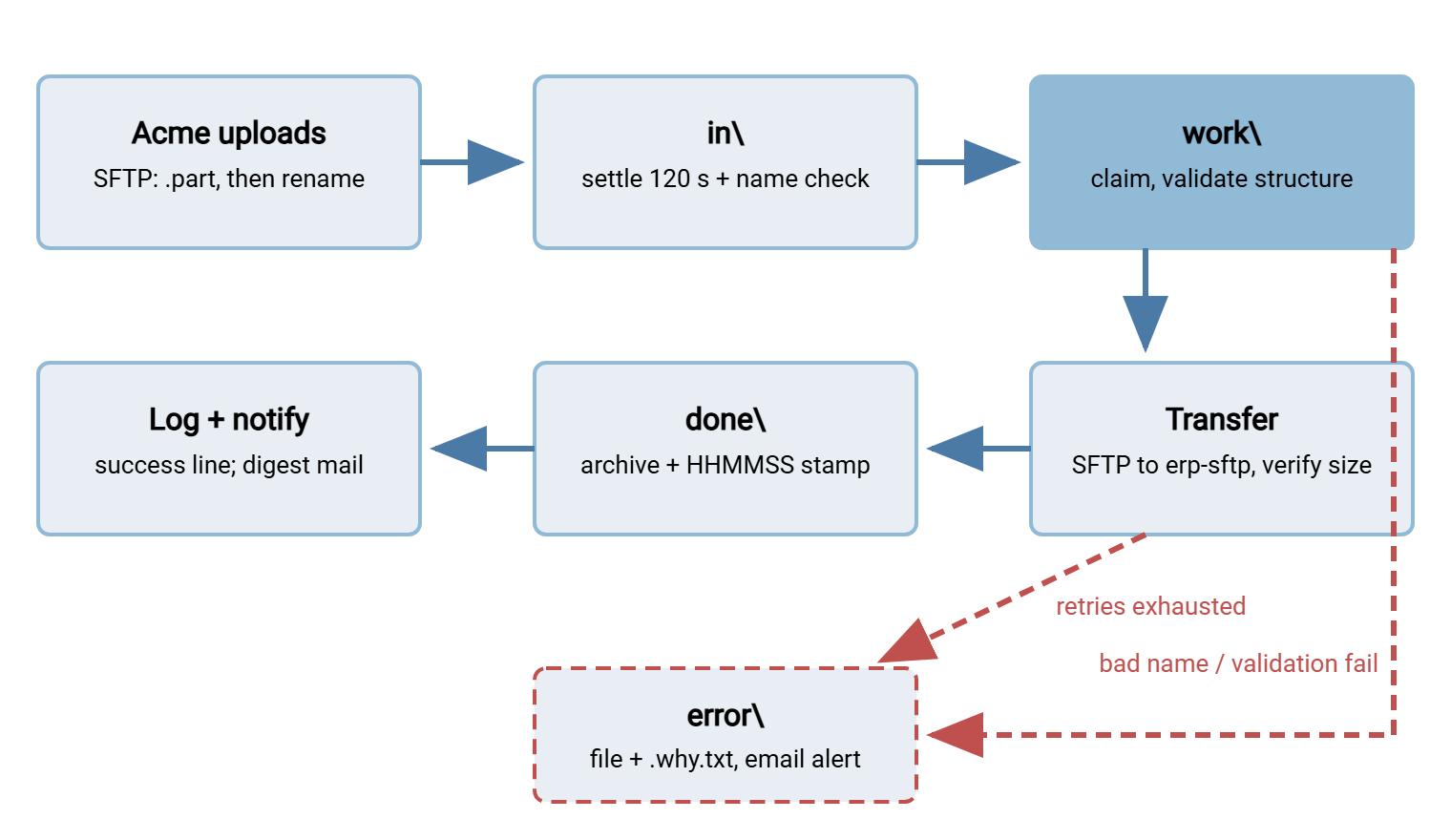
In prose, the six steps the watcher performs on each cycle:
- Detect. Scan
in\every 60 seconds — a plain poll, chosen per the detection article. One folder at this volume needs nothing fancier, and a poll survives restarts and bursts with no special handling. - Screen. Ignore
*.part. Check the remaining names against the pattern. A nonconforming file is parked immediately with a note, and the alert goes out — including to Acme's contact, since the fix is theirs. - Settle and claim. Once a file's size has held for 120 seconds, move it to
work\. From here, the sender cannot touch it and a second scan cannot re-find it. - Validate. Cheap structural checks: expected 9-column header, at least one data row, file not absurdly small or large for this flow. Failures park with the validator's message. Catching a bad file here costs seconds; catching it in the ERP costs a morning.
- Transfer and verify. Upload to
erp-sftp:/import/orders/— itself done safely. Upload under a temp name, rename on completion, then compare remote size to local. That way, our workflow honors the same arrival contract downstream that we demand upstream. Transient failures retry at 1, 5, 15, 30, and 60 minutes; the budget spent, the file parks. (Unattended SFTP details — keys, host-key pinning, exit codes — are in SFTP automation.) - Archive and record. Move the original to
done\asacme_orders_YYYYMMDD_NNN_HHMMSS.csv. The arrival stamp guarantees uniqueness even if the contract's no-reuse rule ever slips. Write the success log line, and count the file toward the morning digest. A nightly job prunesdone\past 30 days.
Remember: the deadline is guarded by monitoring, not by the retry schedule. Retries at 15 and 30 minutes have already blown a 15-minute promise — which is fine, because their job is recovery, not punctuality. The alert on first transfer failure is what starts the clock for a human. A freshness check on the ERP side (did today's orders arrive by 06:30?) backstops everything — see the transfer job monitoring series.
The Log That Tells the Story
One line per step, every line carrying the flow and filename, timestamps in local server time. A successful morning file reads like this in log\acme-orders.log:
Mar 14 05:41:52 acme-orders seen      acme_orders_YYYYMMDD_001.csv size=48213
Mar 14 05:43:55 acme-orders settled   acme_orders_YYYYMMDD_001.csv stable=120s
Mar 14 05:43:55 acme-orders claimed   -> work\acme_orders_YYYYMMDD_001.csv
Mar 14 05:43:56 acme-orders valid     header=ok rows=1204
Mar 14 05:44:19 acme-orders sent      erp-sftp:/import/orders/ bytes=48213 remote=48213
Mar 14 05:44:19 acme-orders archived  -> done\acme_orders_YYYYMMDD_001_HHMMSS.csv
Mar 14 05:44:19 acme-orders complete  elapsed=147s
And a failure — the ERP down for patching — reads like this, with the park and the alert visible:
Mar 14 05:44:02 acme-orders send-fail attempt=1/5 connect timeout erp-sftp:22
Mar 14 05:45:04 acme-orders send-fail attempt=2/5 connect timeout erp-sftp:22
Mar 14 05:45:04 acme-orders WARN      transfer struggling - alert sent to transfers team
...
Mar 14 07:31:12 acme-orders send-fail attempt=5/5 connect timeout erp-sftp:22
Mar 14 07:31:12 acme-orders parked    -> error\acme_orders_YYYYMMDD_001.csv (+why.txt)
Mar 14 07:31:13 acme-orders ALERT     parked after retry budget - email sent
Notice what the log is for: any person, mid-incident, can reconstruct a file's journey by searching its name. They can see when it appeared, when it settled, what validated, where it went, and how long each step took. The elapsed= figure quietly builds a performance baseline. The day it reads 900 instead of 150, you will want to know before the deadline does. This one-line-per-step discipline is the watch-folder application of the standard set out in what to log.
How the team hears about it
The notification design follows one rule: success is summarized, failure interrupts. Nobody receives an email per delivered file. Three mails a day that say "fine" train the team to filter the flow's address. The filter will still be there on the day the mail says "parked." Instead, successes accumulate into a one-line-per-file morning digest (files, sizes, elapsed times, yesterday's totals). Exactly three events interrupt in real time. They are the early WARN when a transfer starts struggling, the ALERT when a file parks, and the stuck-file and freshness alarms from the monitoring layer. Every interrupting message carries the same four facts as the why-note — flow, file, stage, error — plus the first diagnostic step. So the on-call person starts working the problem from the notification itself rather than from a login and a search.
The Failure Paths, Rehearsed
Per the error design article, every foreseeable failure gets a decided response before go-live, not during the incident. Ours, in one table:
| Scenario | Workflow response | Operator sees |
|---|---|---|
| Wrong filename | Park immediately; notify team + Acme contact | File and why-note in error\; one email |
| Validation fails | Park with validator message; no retries — the file will not heal | Why-note names the failed check |
| ERP unreachable | 5 retries over ~2 h; warn on attempt 2; park when budget spent | Early WARN mail, then park + ALERT if unresolved |
| File never settles | Age sweep flags anything in in\ older than 30 min | Stuck-file alert naming file and age |
| Watcher crashes mid-file | Scheduler restarts it; startup sweep runs; anything found in work\ is parked with a note (a resend to the ERP might duplicate an order) | Park alert referencing the restart |
| No file by 06:30 | Freshness check (separate monitor) alerts on absence | "Expected file missing" mail — folders cannot see silence |
The crash row deserves its footnote: we park rather than auto-resend because delivering the same order file twice is worse than delivering it late. If the ERP import were rerun-safe, auto-requeue would be the better policy. That judgment, and how to make reruns safe, is the territory of the duplicate detection and idempotency series.
Script It or Configure It
Everything above is behavior, and two implementations of it are equally legitimate. The scripted route is a PowerShell or Python job under the OS scheduler, running the scan every minute. The loop skeleton is in the detection article, and the transfer leg rides any scriptable SFTP client. You own every line, which is both the appeal and the ongoing cost.
The configured route: a folder-monitoring tool that already embodies the pattern. This flow maps directly onto Sysax FTP Automation. Folder monitoring watches in\ and fires the task when files arrive. The task transfers over SFTP with the tool's retry and error handling around it. Email notification covers the alerting. The tool's file operations handle the moves that implement claim and archive. Had the requirement included encrypting the payload before the hop or bundling multiple files, OpenPGP encryption and zip are in the same task vocabulary. If you would rather configure this pipeline than script and maintain it, that is precisely the trade such a tool exists to offer. The design in this article stays your responsibility either way. No tool can know what Acme promised or what your ERP can tolerate twice.
Proving It Before Go-Live
A workflow earns production traffic by passing rehearsals, not by looking right. The acceptance list — run every test, keep the log excerpts as evidence:
- Happy path: drop a sample file; confirm the full seven-line log story and the file's arrival in the ERP folder and in
done\. - Slow upload: trickle a large file in without the
.partconvention (simulate the broken contract); confirm the settle check holds off until the size stabilizes. - Bad name / bad content: drop
orders_final.csvand a 7-column file; confirm both park with correct why-notes and one alert each. - Destination down: point the transfer at a blocked port; confirm the retry cadence, the early WARN, the park, and the final ALERT.
- Crash and restart: kill the watcher mid-transfer; restart; confirm the work\ file parks with the restart note and nothing was double-sent.
- Backlog: stop the watcher, drop five files, restart; confirm all five process exactly once, oldest first.
- Silence: let the expected-file deadline pass in a test window; confirm the freshness alert actually fires and reaches a human.
Then write the one-page runbook and hand the whole thing over. Ours contains, in order:
- The flow card from the top of this article, verbatim — it answers "what is this?"
- The contract summary with Acme, including their technical contact and the no-reuse naming rule.
- The folder map and what each room's contents mean at a glance (in\ = backlog, work\ = in flight, error\ = your task list).
- Each alert's meaning and first diagnostic step, matching the alert texts word for word.
- The reprocess procedure: fix the cause, move the file back to
in\, watch it through the log todone\. - The owner rotation and the escalation path when a park involves Acme's side.
The measure of this build is that the person who did not build it can run it from that page. Test that claim periodically: hand the runbook to the newest team member during a quiet week and watch where they get stuck.
What You Now Have
Trace what got assembled. There is a folder tree whose layout is the state machine. There is an arrival contract with a named partner and a defensive settle check behind it. There is a six-step workflow whose every move is an atomic rename. There are logs that narrate each file's journey. There are failure paths decided in daylight and rehearsed before go-live. There is monitoring that catches the one failure no folder can show — silence. That is the whole pattern from this series, load-bearing at last. The article on the anatomy gave it rooms. The article on the contract guarded its front door. And the error design made its failures boring. Adapt the names, swap the protocols, keep the discipline. The next flow you build this way will be the quiet kind that runs for years.
Frequently Asked Questions
Why keep the settle check when the partner already renames from .part?
Why poll every 60 seconds instead of using filesystem events?
Why park files after a crash instead of just re-sending them?
What stops two files from colliding in the archive?
How do I adapt this build for multiple partners?
Which tests matter most if I can only run a few?
From the Sysax team: we build secure file transfer software for Windows. Sysax Multi Server is an FTP, FTPS, SFTP, and HTTPS server. Sysax FTP Automation handles scheduled, scripted transfers. Free trials are on the download page.