
Throttling Transfers at the Client and Server
The quickest fix for a transfer that is flattening the office link is to tell it to slow down. Almost every transfer tool has a switch for this, and some servers can enforce it per account. Both major operating systems can impose it on a process or a port without touching the tool at all. The catch is that the switches all use different units and sit at different places along the path. Each has a failure mode that only shows up after you rely on it.
This article goes through the throttles one by one. It covers what a rate limit actually does and the exact flags in the common command-line tools. It covers the kinds of limit a server can enforce and the operating-system throttles that work on anything. It includes a decision table for where each kind belongs. It closes with the tradeoffs that vendors' documentation leaves out. It is part of our Bandwidth Management series; if you have not yet read why bulk transfers crush the WAN, that article explains the damage a throttle prevents.
What a Throttle Actually Does
A throttle, or rate limit, is a ceiling on how fast a transfer may send. Without one, TCP probes upward until the link is full; with one, the tool stops itself short of that. The link keeps some headroom, the router's queue stays short, and everyone else's packets get through promptly. The transfer takes longer, and that is the entire cost.
Nearly every throttle is built on the same idea, the token bucket, and it is worth understanding because it explains the bursts you will see. Imagine a bucket into which tokens drip at a steady rate — say enough per second to pay for 3.75 megabytes. Every chunk of data the tool sends must spend tokens equal to its size. If the bucket has tokens, the chunk goes immediately; if it is empty, the tool waits until enough have dripped in. Over any long stretch the average rate cannot exceed the drip rate. But because the bucket holds a few seconds' worth of tokens, a tool that has been idle can send a short burst at full speed before it settles down. That is why a throttled transfer's speed graph looks like a spike followed by a flat line.
The other thing to fix in your head before touching a flag is units. Link speeds are in bits per second; most tool limits are in bytes per second, and a few are in bits. Eight bits make a byte. Some tools also count a kilobyte as 1024 bytes (a kibibyte, KiB) and others as a round thousand. That difference is under three percent and does not matter. The bits-versus-bytes difference is a factor of eight and matters enormously. A limit of "3600" that you believed was kilobits but was actually kibibytes lets the transfer run eight times faster than intended. That happens at exactly the moment you told everyone the problem was solved.
| Tool and option | Unit of the bare number | Roughly 30 Mbit/s |
|---|---|---|
rsync --bwlimit= |
KiB per second (suffixes k, m accepted) | --bwlimit=3600 |
curl --limit-rate |
Bytes per second (suffixes k, m, g) | --limit-rate 3600k |
wget --limit-rate= |
Bytes per second (suffixes k, m) | --limit-rate=3600k |
scp -l |
Kilobits per second | -l 30000 |
lftp net:limit-rate |
Bytes per second (suffixes K, M) | set net:limit-rate 3600K |
robocopy /IPG: |
Milliseconds of pause per 64 KB block | /IPG:20 (about 3 MB/s; measure it) |
| Windows QoS policy | Bits per second | 30000000 |
Linux tc tbf |
Explicit: mbit is megabits, mb is megabytes |
rate 30mbit |
The worked figure is the one from the previous article: a 50 Mbit/s branch link, with the daytime backup held to sixty percent of it. That is 30 Mbit/s or 3.75 MB/s. In binary kilobytes that is about 3,660 KiB/s, so a round 3600 is close enough for every tool that counts bytes.
Throttling at the Client: the Flags
Client-side throttling is the easiest to apply because you already own the command. Here are the common tools, each holding the same 30 GB backup to roughly 30 Mbit/s. At that rate the job takes about two hours and thirteen minutes instead of eighty; that is the trade.
# rsync over SSH: --bwlimit is KiB/s unless you add a suffix
rsync -av --bwlimit=3600 /data/backup/ backup@sftp.example.com:/inbound/

# curl upload to SFTP or HTTPS: --limit-rate is bytes/s, k = 1024
curl --limit-rate 3600k -T backup.tar sftp://backup@sftp.example.com/inbound/

# wget download: same convention as curl
wget --limit-rate=3600k https://files.example.com/pub/dataset.tar

# scp: -l is KILOBITS per second, so 30000 = 30 Mbit/s
scp -l 30000 backup.tar backup@sftp.example.com:/inbound/

# lftp: per-connection limit, or a total across all its connections
lftp -e "set net:limit-rate 3600K; set net:limit-total-rate 3600K; \
  put backup.tar -o /inbound/backup.tar; bye" sftp://backup@sftp.example.com

# robocopy to a share over the WAN: pause 20 ms after each 64 KB block
robocopy D:\backup \\filesrv.example.com\inbound /E /IPG:20
A few details behind each line. In rsync, --bwlimit applies to the whole transfer, checksum chatter included, and accepts suffixes such as --bwlimit=3.5m. Our rsync over WAN article covers the other flags that matter on thin links. In curl and wget the limit is enforced by pausing between reads and writes, so the average is accurate but the instantaneous rate wobbles. See curl for file transfer. In scp, -l is the odd one out — kilobits, not kilobytes — as its manual page states. The article on scp command mastery has the rest. In lftp, net:limit-rate limits each connection and net:limit-total-rate caps the sum. That matters because lftp opens several connections in its parallel modes. Download and upload limits can differ by writing 3600K:1200K. lftp power usage has the full list.
robocopy deserves a caution. Its /IPG (inter-packet gap) option does not set a rate; it inserts a pause of the given milliseconds after each 64 KB block. The resulting rate is roughly 64 KB divided by the pause, minus the time each block spends on the wire. So /IPG:20 gives about 3 MB/s on a fast link and less on a slow one. Treat it as a coarse knob: pick a value, measure the actual rate, and adjust. Our robocopy for migrations article covers its other behavior on the WAN.
Graphical clients have the same control under a different name. Look in the transfer settings for "speed limit" or "bandwidth limit," usually in kilobytes per second. Sometimes it has a schedule so it applies only during working hours. FileZilla, for example, has a speed-limits section. Set the limit in the saved site profile rather than the global default, so an exception for one destination does not slow every other transfer.
Where a Throttle Can Sit
The flags above all live inside the transfer tool, but that is only one of five places a limit can be applied. The diagram below traces a transfer from the client application to the server application and marks each point where a throttle can be imposed. The further left, the more cooperative the throttle (the sender chooses to obey it). The further right, the more it is enforced on senders whether they like it or not.
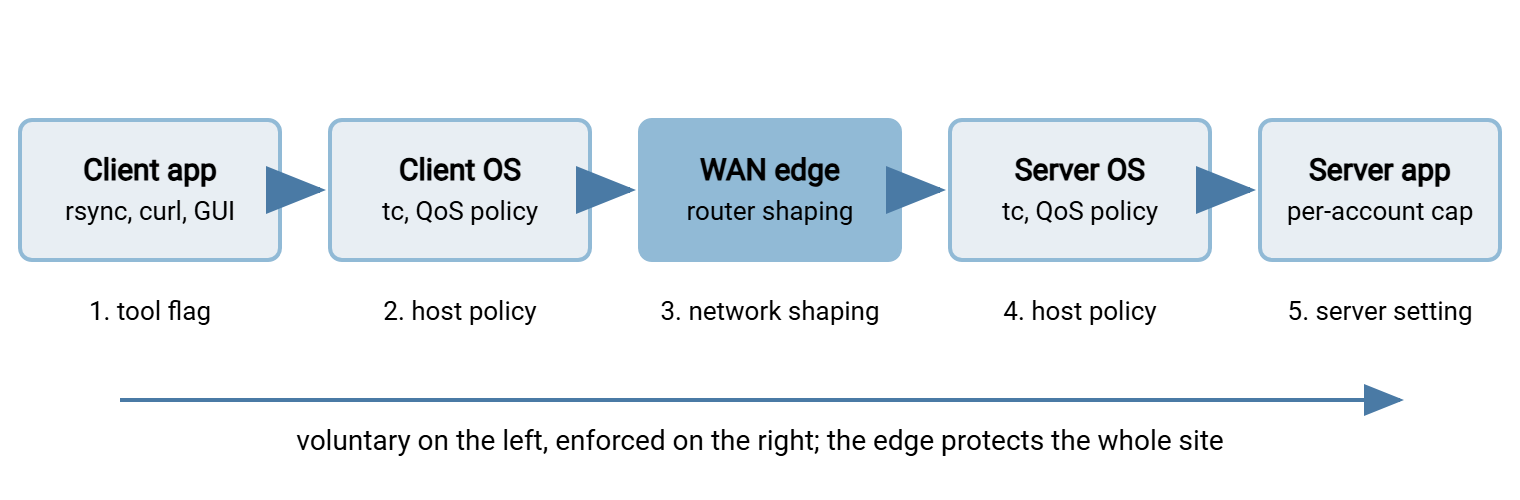
Points 1, 2, 4 and 5 are this article. Point 3, shaping at the WAN edge, is the network team's territory and has its own article, network-level shaping and QoS. Each point catches a different set of transfers. A tool flag catches one job, and a host policy catches every job on that machine. A server limit catches every client of that server, and the edge catches everything.
Throttling at the Server
Server-side limits apply to every client, including the partner you cannot reconfigure and the colleague who forgot the flag. They come in three shapes, and the difference matters more than it looks.
A per-connection limit caps each data connection separately. It is the most common kind and the weakest. Any client that opens several connections at once gets the limit multiplied by the number of connections. Examples include a graphical client set to four simultaneous transfers, or lftp with its parallel mode. A per-connection cap of 1 MB/s with eight connections is an 8 MB/s cap, which on a 50 Mbit/s link is no cap at all.
A per-account limit caps the total for a user regardless of how many connections they open. This is what you want for a partner or a service account, and it is the setting to look for first in your server's documentation. Some servers offer it directly. Others offer only a per-connection cap plus a maximum number of connections per account. Multiplied together, these give an effective per-account ceiling. That combination is covered from the capacity side in our Server Capacity and Concurrency series.
A global limit caps the server's total sending or receiving rate. It protects the server's own link from the sum of all clients, but it says nothing about fairness between them. One aggressive client can still take most of the global allowance. Global limits are a safety net, not a policy.
Where the settings live varies by server. Traditional FTP servers on Linux usually expose per-user rate directives in their configuration file. For instance, vsftpd has a local_max_rate value in bytes per second per session. OpenSSH's SFTP subsystem has no rate limit of its own, which surprises people. On an SFTP server built on OpenSSH the limit has to come from the operating system, covered next. On Windows servers, check the per-account or per-group settings in the management interface. If there is no rate setting, the operating-system policy below applies to any Windows server process.
Remember: a per-connection limit is not a per-account limit. Before you trust a server-side cap, open four connections from a test client and confirm the total stays under the number you set. If it does not, add a connection limit per account or move the throttle to the operating system.
Operating-System Throttles That Work on Anything
When the tool has no flag and the server has no setting, the operating system can impose a limit on a process, a port, or an interface. These throttles are enforced, not voluntary, and they cover every tool on the machine.
Windows: a QoS policy with a throttle rate
Windows has a built-in policy engine that can mark and throttle outbound traffic per application or port. It is managed with PowerShell or through Group Policy, and the throttle value is in bits per second, so 30 Mbit/s is written as thirty million:
# Throttle everything sftp.exe sends to 30 Mbit/s (value is BITS per second)
New-NetQosPolicy -Name "BulkSFTP" -AppPathNameMatchCondition "sftp.exe" `
  -ThrottleRateActionBitsPerSecond 30000000 -NetworkProfile All

# Or throttle by destination port instead of by program
New-NetQosPolicy -Name "BulkPort22" -IPProtocolMatchCondition TCP `
  -IPDstPortMatchCondition 22 -ThrottleRateActionBitsPerSecond 30000000

# Check, and remove when done
Get-NetQosPolicy
Remove-NetQosPolicy -Name "BulkSFTP" -Confirm:$false
The policy applies to traffic leaving this machine, which is the direction you normally need to control. Matching on the program path is convenient on a client; on a server, match the source port your service listens on instead. The same policy engine can also mark packets so the network gives them lower priority; that side is explained in the QoS article.
Linux: tc with a token bucket
On Linux the traffic-control tool tc attaches a queueing discipline to an interface. The simplest one, tbf (token bucket filter), is exactly the bucket described earlier, applied to everything the interface sends:
# Cap all outbound traffic on eth0 at 30 Mbit/s
tc qdisc add dev eth0 root tbf rate 30mbit burst 64kb latency 400ms

# See it working (bytes sent, packets dropped or delayed)
tc -s qdisc show dev eth0

# Remove it
tc qdisc del dev eth0 root
Here rate is the drip rate. The burst value is the bucket size in bytes (kb means kilobytes; kbit would mean kilobits). The latency value is the longest a packet may wait before tc drops it. This throttle caps the entire interface, so it belongs on a dedicated transfer host. Limiting one port or destination while leaving the rest alone needs classes and filters, which the QoS article shows with a short example. Note too that tc shapes only what the interface sends; to slow what a Linux box receives, throttle at the sending end.
Where Each Throttle Belongs
With five places to put a limit, the question is which one to use. The decision table below matches the common situations to the throttle that fits.
| Situation | Best place for the throttle | Why |
|---|---|---|
| One scripted job you control | Tool flag in the script | Cheapest, visible in the job, easy to change per run |
| Several jobs on one transfer host | Host policy (Windows QoS, tc) | One cap covers every tool and every future job on that machine |
| Partners uploading to your server | Per-account limit on the server | You cannot configure their client; the account is the handle you own |
| Users with graphical clients on laptops | Server per-account limit, then network shaping | Client settings will be changed or forgotten; enforce where they cannot |
| Many tools, many hosts, one thin link | Shaping at the WAN edge | The only point that sees everything; needs the network team |
| Job must finish by a deadline | Reschedule off-peak instead of throttling | A throttle makes it slower; a window lets it run flat out when nobody minds |
Two patterns cover most sites. Scripted jobs get the flag, because it documents itself: anyone reading the script sees the limit. Everything else gets enforced where you own the control — the account on your server or a policy on the host you administer. When jobs run from an automation tool such as Sysax FTP Automation, they all originate from one Windows machine. So a single host policy there covers every scheduled transfer it runs, whichever protocol each uses.
The Honest Tradeoffs
Throttling is simple, and its problems are simple too. They are worth knowing before you promise anyone a result.
A static limit wastes idle capacity. A cap of 30 Mbit/s is right at two in the afternoon and absurd at two in the morning, when the other 20 Mbit/s sits unused. If a throttled job also runs overnight, give it two profiles (a daytime flag and a night-time one, chosen by the scheduler). Or move that job into an off-peak window and drop the throttle. The article on off-peak scheduling covers how. Network shaping avoids this problem because it only bites when the link is actually contended, which is the strongest argument for it.
Client-side limits are voluntary. A flag in a script is obeyed until someone edits the script, copies the command without it, or uses a different tool. A per-account server limit or a host policy survives all of those. Use the flag for convenience and something enforced for anything that matters.
Per-connection limits are multiplied by parallelism. Covered above, and easy to forget when the client is a partner who has just discovered their tool's "simultaneous transfers" setting. The fairness problems this creates — one partner starving the rest — are the subject of fairness between flows.
A slower job is a longer job. The 30 GB backup that took eighty minutes now takes over two hours. If other jobs wait behind it, the throttle can push the chain past its deadline. Check the window arithmetic before you slow anything that has successors.
Throttles are in bytes; links are in bits; both drift. The tool counts payload bytes; the link carries payload plus packet headers, plus encryption overhead for SFTP and FTPS. A 3.75 MB/s throttle produces a little more than 30 Mbit/s on the wire. That is a few percent, not a factor to worry about. But it is why a cap set at exactly the link speed still saturates the link. Set the cap at sixty to seventy percent of the link, not ninety-five.
The limit is only as good as your measurement. Follow every throttle with a check. Read the interface counters or the router graph while the throttled job runs. Confirm the rate is what you think and that latency for other users has come down. Measuring transfer impact shows how to make that routine.
The Version to Tell a Colleague
A throttle is a ceiling on a transfer's sending rate, built on a token bucket that allows a short burst and then a flat average. Every tool has one. There is --bwlimit in rsync, --limit-rate in curl and wget, and -l in scp (kilobits). There is net:limit-rate in lftp and /IPG in robocopy. Servers can cap per connection, per account, or globally, and only the per-account kind survives a client that opens several connections. When neither has a setting, a Windows QoS policy or Linux tc caps a process, a port, or an interface. Put the limit where you own the control, and set it at sixty to seventy percent of the link. Remember it wastes capacity at night, and measure the result.
From here, read network-level shaping and QoS for the throttle that only bites when the link is busy. Read off-peak scheduling for the option that needs no throttle at all.
Frequently Asked Questions
Is rsync's --bwlimit in kilobits or kilobytes?
Why does my throttled transfer start fast and then slow down?
Can I limit the speed of an SFTP server built on OpenSSH?
My server has a per-connection limit. Is that enough?
What percentage of the link should a daytime throttle allow?
From the Sysax team: we build secure file transfer software for Windows. Sysax Multi Server is an FTP, FTPS, SFTP, and HTTPS server. Sysax FTP Automation handles scheduled, scripted transfers. Free trials are on the download page.