
Why Bulk Transfers Crush the WAN (and Who Notices First)
The complaint never arrives as "the file transfer is too fast." It arrives as "the phones sound like a robot," "my remote desktop keeps freezing," or "the website is down" — and the website is not down. Somewhere a single job is moving a large file across the office's connection to the outside world, and everyone else is paying for it. The job's owner is usually the last to know, because from where they sit the transfer is going beautifully.
This article explains the mechanics behind that complaint. It covers what a WAN link is and why it is the one place a transfer can hurt other people. It explains how one connection claims the whole link without being told to. It shows why the damage shows up as delay rather than "slow downloads," and which users feel it first. Then we put real numbers on the backup that starts at four in the afternoon, and finish with the measurements to take before you change anything. It is the opening article of our Bandwidth Management series; the other five are the toolkit, and this one is the problem they solve.
What a WAN Link Actually Is
A WAN (wide area network) link is the connection that joins one site to the rest of the world. It is the circuit from a branch office to head office, or from the building to the internet. Inside the building, the LAN (local area network) is fast and cheap — switch ports run at a gigabit per second or more. The WAN link differs in three ways that matter for this whole series.
First, it is slow relative to everything behind it. A branch office might have a 50 megabit per second circuit shared by forty people whose laptops each have a gigabit port. Any one of those laptops can generate twenty times more traffic than the link can carry.
Second, it is shared. Every phone call, video meeting, web page, remote desktop session, and file transfer leaving the building squeezes through the same pipe. There is no separate lane for "important" traffic unless somebody builds one — the subject of network-level shaping and QoS.
Third, it is often asymmetric: many business connections offer far more download capacity than upload. A "100 down, 20 up" circuit receives at 100 megabits per second but sends at only 20. Bulk transfers that leave the building — backups, partner uploads, replication to another site — travel on the narrow upload side. That is why an upload can cripple a site whose download graph looks half empty.
A note on units, because it matters constantly. Link speeds are quoted in bits per second (Mbit/s). File sizes and most transfer tools speak in bytes (MB). There are eight bits in a byte, so divide a link speed by eight to get the byte rate. A 50 Mbit/s link carries at most 6.25 megabytes per second, a little less after packet overhead. Half the arguments about bandwidth are two people using different units.
How One Transfer Takes the Whole Link
Nobody configures a transfer to be greedy. It is greedy by design, because of how TCP decides how fast to send. TCP is the transport protocol underneath SFTP, FTP, FTPS, HTTPS, rsync, and almost everything else you use to move files.
TCP has no idea how big the link is. It finds out by probing. A new connection starts slowly, then increases its sending rate step by step until something goes wrong: a packet is lost, or the delay starts climbing. It treats that as the signal that it has hit the limit, backs off a little, and starts creeping upward again, for the life of the connection. For a transfer with a big file behind it, the result is a connection that sits permanently at the top of whatever the link will carry. It is not misbehaving; filling the available capacity is exactly what it was built to do. The deeper physics — windows, round-trip time, long-distance links — are in our article on the bandwidth-delay product. You do not need them here.
Now put that connection on a shared link. The web browsers, phone calls, and remote desktops sharing it are all interactive: they send a little, wait for a reply, send a little more. They never have enough data queued to probe the link the way the bulk transfer does, so they do not really "compete." The bulk transfer expands until the pipe is full, and everyone else gets the leftovers — plus a new problem worse than the lost bandwidth.
Saturation and Bufferbloat, in Plain Words
A link is saturated when more traffic wants to leave than the link can carry. The router at the edge of the building cannot send faster than the circuit allows. So packets that arrive faster go into a queue — a waiting line in the router's memory. When the queue is full, new packets are dropped, which is how TCP finds out it has gone too far. A little dropping is normal and healthy.
The trouble is the size of the queue. Network equipment tends to have very large buffers, on the theory that storing a packet is better than losing it. When a bulk transfer keeps that buffer full, every packet from every user waits in line behind the transfer's backlog before it can leave. A packet that used to cross the link in a few milliseconds now waits hundreds of milliseconds first. This condition is called bufferbloat. The link is technically working, but everything is delayed because oversized buffers are permanently full. Bufferbloat is why a saturated link feels "broken" rather than "busy". Bandwidth is only somewhat reduced, but latency (the time a packet takes to get across) explodes. Interactive applications live and die by latency.
A second effect on asymmetric connections catches people out. When the narrow upload side is saturated, downloads suffer too, even though the download side is nearly idle. Every download depends on a stream of tiny acknowledgment packets traveling back up the link to confirm what arrived. When those are stuck in the bloated upload queue, the sender on the far side slows down waiting for them. So "the backup is only uploading" is not the reassurance it sounds like.
Remember: a saturated link does not fail loudly. Throughput drops a little; delay rises a lot. When users say the network is "down" but every monitoring check is green, look for a full queue, then for the one flow keeping it full.
Who Notices First
Because the damage is delay rather than lost bandwidth, the people who notice first are those whose applications are most sensitive to delay. The order is remarkably consistent:
- Voice and video calls. A phone call needs each small packet to arrive promptly and evenly. Two hundred milliseconds of extra queueing delay, varying from moment to moment (that variation is called jitter), turns speech into stutter and freezes video. Voice users complain within seconds.
- Remote desktop and virtual desktops. Every keystroke and mouse movement is a round trip. Add three hundred milliseconds to each and typing becomes unbearable.
- Thin clients and point-of-sale terminals. Anything that talks to a server for every screen — tills, warehouse scanners, clinical terminals — slows to a crawl. These users report that "the system is slow."
- Cloud and web applications. A web page is dozens of small requests, each paying the queue delay. It eventually loads, so people tolerate it longer, but the helpdesk queue is filling.
- Other file transfers. A second bulk transfer competes on roughly equal terms with the first and simply runs at half speed. Its owner often notices only that a job overran.
- Overnight batch jobs. These notice last — as a missed deadline the next morning, with nobody connecting it to an afternoon transfer that finished hours earlier.
The loudest complaint is the best early-warning system you have, but a poor guide to the cause. The person on the frozen video call cannot know that the cause is a file. That connection has to be made by whoever runs the transfers — you.
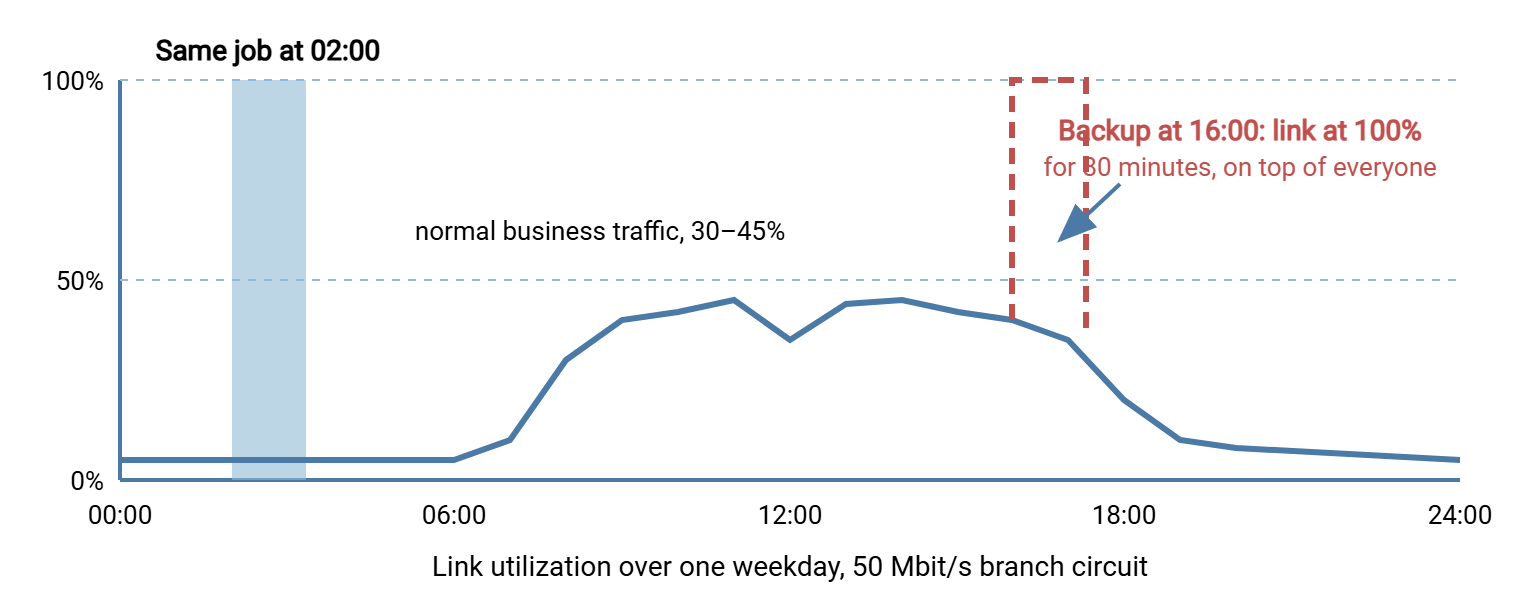
The diagram below shows a typical weekday on a 50 Mbit/s branch link. Business traffic sits at thirty to forty-five percent of capacity. A backup started at four in the afternoon pins the link at one hundred percent for eighty minutes, on top of the busiest part of the day. The same job at two in the morning fills the link with nobody else on it.
The Four-in-the-Afternoon Backup, Costed
Numbers turn "the network was slow" into a decision. The scenario: a branch office with a 50 Mbit/s circuit, forty staff, and a 30 GB nightly backup that someone rescheduled to 16:00 "so it finishes before people go home."
Start with the link. 50 Mbit/s is 6.25 MB/s. A 30 GB backup is 30,000 MB. At the full link rate it takes 30,000 ÷ 6.25 = 4,800 seconds, which is 80 minutes. For those 80 minutes the transfer holds the link at capacity and interactive traffic pays the queue delay on every packet.
Now the people. Forty staff for 80 minutes is over 53 person-hours of degraded work. Not all of it is lost, but a phone-heavy team or anyone on a hosted desktop is effectively stopped. Add three or four helpdesk tickets and a network engineer pulled off something else to "check the circuit." Occasionally, add a call to the carrier about a fault that does not exist. Then multiply by every working day.
Now the same job with a modest limit. Suppose the backup is throttled (held to a fixed maximum rate) at sixty percent of the link — 30 Mbit/s, or 3.75 MB/s. It then takes 30,000 ÷ 3.75 = 8,000 seconds, about two hours and thirteen minutes. That leaves 20 Mbit/s free for everything else. Slower, but the phones work. Moved to 02:00 instead, it runs at full speed, finishes in 80 minutes, and costs nobody anything. Here is the arithmetic as a worksheet to reuse with your own figures.
| Line | How to fill it in | Example |
|---|---|---|
| Link speed in the transfer's direction | Upload rate for outbound jobs, download for inbound, in bits per second. | 50 Mbit/s |
| Byte rate | Divide by eight. | 6.25 MB/s |
| Job size | Bytes moved on a typical run, in MB. | 30,000 MB |
| Time at full link | Job size ÷ byte rate, in seconds; ÷ 60 for minutes. | 4,800 s = 80 min |
| Time at a 60% cap | Byte rate × 0.6, then the same division. | 8,000 s ≈ 133 min |
| People affected × minutes | Staff on the link × run length, ÷ 60 for person-hours. | 40 × 80 ÷ 60 ≈ 53 person-hours |
| Cost of moving it off-peak | What is lost if the data lands at 03:20 instead of 17:20. Often nothing. | None |
The last line is the one people skip. Most bulk transfers have no real deadline within the working day. They were scheduled at a convenient time by someone who did not think about the link. When a transfer genuinely must run during business hours — a partner cut-off at noon, a file the warehouse needs by two — throttling or a reserved slice of bandwidth is the answer. Confirm the constraint is real before you engineer around it.
Measure Before You Change Anything
It is tempting to jump straight to a fix. Resist for one day. A little measurement tells you which transfer is responsible and how bad the saturation is. It gives you a "before" picture to compare against once you have changed something. Without it you can never prove the change worked, and someone will eventually move the backup back to four o'clock.
Watch the link itself
The most direct evidence is the utilization of the WAN interface, ideally from the router or firewall at the edge of the site. If the network team has a monitoring system, ask for that interface's graph for the past week. The spike will line up with the complaint times. Otherwise, read the counters on the transfer server itself, twice, ten seconds apart, and turn the difference into a rate:
# Bytes sent on eth0 now, again after 10 seconds, then the rate in Mbit/s
a=$(cat /sys/class/net/eth0/statistics/tx_bytes); sleep 10
b=$(cat /sys/class/net/eth0/statistics/tx_bytes)
echo "$(( (b - a) * 8 / 10 / 1000000 )) Mbit/s outbound"

# Windows PowerShell equivalent
$a = (Get-NetAdapterStatistics -Name "Ethernet").SentBytes; Start-Sleep 10
$b = (Get-NetAdapterStatistics -Name "Ethernet").SentBytes
"{0:N1} Mbit/s outbound" -f (($b - $a) * 8 / 10 / 1MB)
If the transfer server is pushing 48 Mbit/s onto a 50 Mbit/s circuit, you have found your culprit. (The PowerShell version divides by a binary megabyte, so it reads about five percent low; fine for this purpose.)
Measure the delay other people feel
Utilization tells you the link is full. Latency tells you how much it hurts. Ping something on the far side of the WAN link — the head-office gateway, or the first router beyond your edge. Do it once while the transfer is idle and once while it runs:
# Linux / macOS: 20 pings to the far end of the link
ping -c 20 10.20.0.1

# Windows
ping -n 20 10.20.0.1

# Typical result, idle:     time=18 ms, steady
# Typical result, saturated: time=240 ms to 410 ms, wandering
A round trip that goes from twenty milliseconds to several hundred, and jumps around from ping to ping, is bufferbloat made visible. That comparison is often enough to convince a skeptical colleague, because it is exactly what the phone system is experiencing.
Identify the flow
Sometimes the transfer server is obvious. Sometimes "the backup" turns out to be three things. On the server, list the connections that are moving data. On Linux, ss -tni shows every TCP connection with its current sending rate and queue. On Windows, Get-NetTCPConnection -State Established lists connections and Resource Monitor's network tab shows bytes per second per process. Write down the process, destination, port, and time; you will need all four later.
Write it down
Record a short evidence pack; it is the difference between a fix and an argument:
- Link speed in each direction, from the contract or the router, not from memory.
- The utilization graph or counter readings, with times.
- Idle and saturated ping results to the far side of the link.
- The flow: server, job, destination, port, start time, and duration.
- The complaints: who, what application, what time, lined up against the flow.
- The job's real deadline, from its owner, in writing.
Ongoing measurement — graphs you keep, per-flow accounting from server logs, and a weekly report — is the subject of measuring transfer impact on the network. If your problem is the opposite one — a transfer slower than it should be, with nobody else complaining — see our Diagnosing Slow Transfers series.
The Fixes, in the Order to Try Them
With the evidence in hand, the fixes fall into a natural order, cheapest first. Each has its own article.
- Move it. If the job has no daytime deadline, schedule it into a window when the link is idle. This costs nothing, needs no network changes, and solves most cases outright. Off-peak scheduling covers choosing windows, time zones, and overruns. In a scheduling tool such as Sysax FTP Automation, the window is a property of the job. So once the window is set, the job runs there every night without anyone remembering.
- Slow it. If it must run during the day, cap its rate so it leaves room for everyone else. Most tools have a flag for this; some servers can enforce it per account. See throttling at the client and server.
- Fence it. Suppose there are many transfers from many tools and you cannot chase every flag. In that case, the network can put bulk traffic in a lower-priority queue so voice and interactive traffic go first. That is network-level QoS; it needs the network team, but protects the whole site at once.
- Share it. When transfers or partners collide with each other rather than with users, the answer is fairness between flows: parallel-stream limits, priority classes, and admission rules.
Most sites need the first two. Sites with many partners, several branches, or thin links need all four. See also distributing over thin and unreliable site links, which approaches the same arithmetic from the distribution side.
The Version to Tell a Colleague
A file transfer is built to fill whatever link it is on. A WAN link is the one place where filling it takes something from everyone else. The damage is not mainly lost bandwidth; it is delay, because the transfer keeps the router's queue full and every other packet waits behind it. That is why phones and remote desktops break first and the transfer's owner notices last. Measure the link, the latency, and the flow before you touch anything. Then apply the fixes in order: move it, slow it, fence it, share it.
Next reads: throttling at the client and server for the quickest hands-on fix, and off-peak scheduling for the cheapest one.
Frequently Asked Questions
Why does one file transfer slow the whole office when it is only one connection?
The backup only uploads. Why are downloads and web pages slow too?
What is bufferbloat, in one sentence?
How do I prove the transfer is the cause and not the carrier?
Is throttling always better than rescheduling?
From the Sysax team: we build secure file transfer software for Windows. Sysax Multi Server is an FTP, FTPS, SFTP, and HTTPS server. Sysax FTP Automation handles scheduled, scripted transfers. Free trials are on the download page.