
The Two-Channel Architecture: FTP's Control and Data Connections, Explained with a Packet Capture
Ask a room of administrators how many network connections an FTP session uses, and most will say one. That guess is wrong, and it is behind a remarkable share of FTP trouble tickets. Every FTP session is at least two separate TCP connections: one carries the conversation, one (or more) carries the goods. Firewalls, NAT devices, and troubleshooting admins all have to account for both, and anything that accounts for only one eventually breaks something.
This article takes the two-channel architecture apart properly. You will see what each connection actually carries (including one thing that surprises almost everyone) and why the protocol was designed this way. Then comes the centerpiece: a full session walked through as it appears in a packet capture, line by annotated line. By the end, a raw session log will read like plain English.
This is the foundation article of our The FTP Protocol series. Everything else in the series — reply codes, failure modes, account models — builds on the mental picture we assemble here.
One FTP Session Is Two TCP Connections
A quick definition first: a TCP connection is the reliable, two-way byte stream most internet protocols are built on. It is identified by four numbers — source address and port, destination address and port. When we say FTP uses two connections, we mean two fully independent TCP streams. Each has its own handshake, its own port pair, and its own lifetime. The everyday FTP vocabulary, from FTP site to FTP link, is defined in FTP terms in plain English.
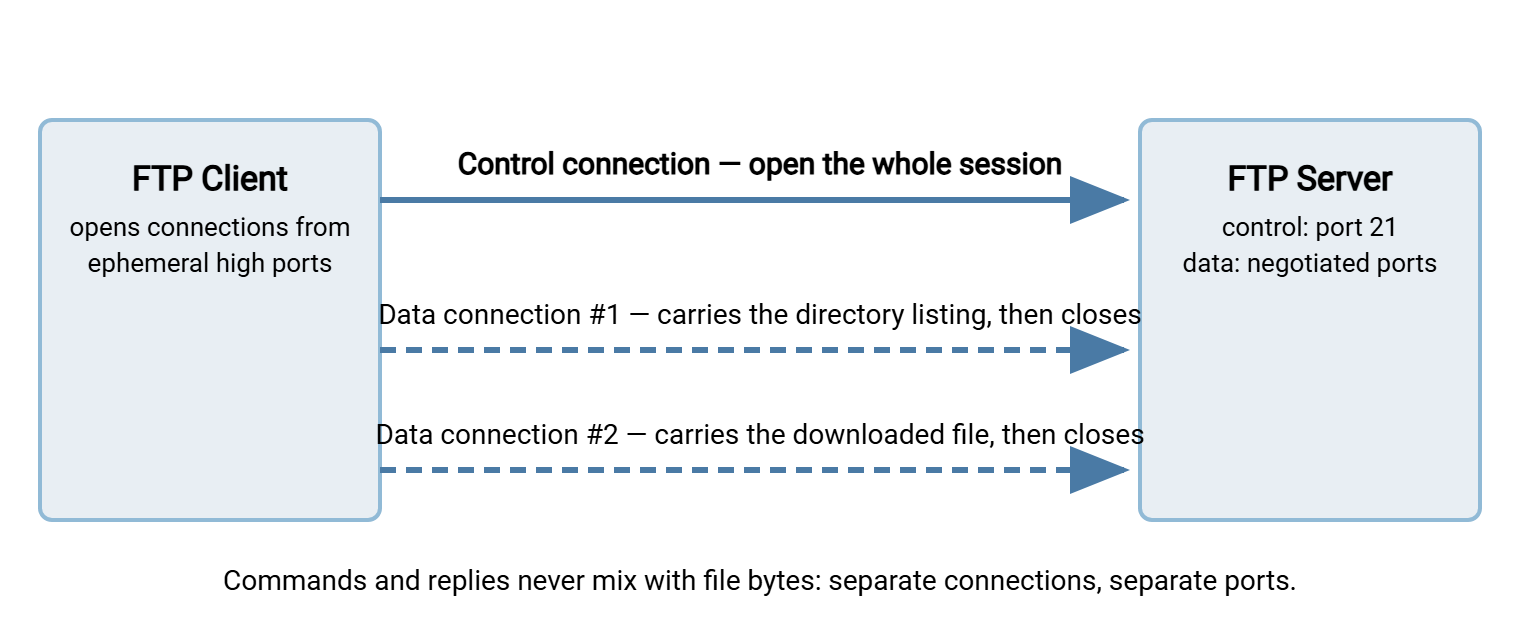
The first is the control connection. Your FTP client opens it to the server — normally to port 21 — the moment you connect. It stays open for the entire session. It carries only small lines of text: the commands your client sends and the numbered replies the server returns. Login, changing directories, requesting a file — all of it is negotiated here. What never travels on the control connection is the file itself.
The second is the data connection. This one carries the payload: the bytes of the file you upload or download. And — here is the surprise — it carries the output of directory listings too. When your client shows you the contents of a folder, that listing arrived over a data connection, not the control connection. A data connection is temporary by design: a fresh one is negotiated for each transfer or listing, used exactly once, and closed.
An analogy that holds up well: think of a lumber yard. The front counter is the control connection — you stand there the whole visit, asking questions and placing orders. The loading dock is the data connection — every order comes out through the dock on its own forklift trip. Counter and dock are physically separate paths, and a problem at the dock does not stop you from talking at the counter.
The diagram below shows the shape of a real session: one long-lived control connection. There is also a separate short-lived data connection for each listing or transfer the session performs.
Why Split Commands from Data at All?
Modern protocols mostly do the opposite — HTTP sends the request and the response body down the same connection. So FTP's split can look like needless complication. It was actually a deliberate design with real benefits, and knowing them makes the architecture feel less arbitrary.
- The control channel stays responsive during transfers. Because commands do not queue up behind file bytes, a client can talk to the server in the middle of a long transfer. Most usefully, it can send
ABOR, the abort command, or ask for status. With a single shared connection, a request to cancel a transfer would be stuck in line behind the very bytes it is trying to cancel. - End of file is dead simple. In FTP's normal stream mode, the sender signals "that was the whole file" by closing the data connection. No length headers, no chunk framing, no delimiters that might appear inside the file. A connection that exists for exactly one transfer can use its own closure as the end marker.
- Each channel suits its traffic. The control connection carries tiny, bursty lines of text; the data connection carries sustained bulk streams. Separating them meant either could be handled, routed, or even relayed differently.
- Third-party transfers were possible. A client could hold control connections to two servers and have one send a file directly to the other. The data connection ran between the servers, touching the client not at all. Most servers ship with this disabled today as an abuse vector, but it shows how thoroughly independent the two channels are.
The cost of the split arrived later, when firewalls and NAT changed the rules of the network. A firewall that permits port 21 has only permitted the conversation. The data connection is a second stream on a different port, and someone must open a path for it too. Which side opens it, and toward whom, is the entire subject of active versus passive mode. We leave that story to its own series, starting with active vs passive FTP explained. Here it is enough to know that the data connection's endpoints are negotiated fresh, over the control connection, before every transfer.
The Command Conversation on Port 21
The control connection speaks one of the friendliest wire formats in networking: plain, human-readable lines of text. Each ends with a carriage return and line feed. A command is a short keyword, usually three or four letters, optionally followed by an argument. A reply is a three-digit number followed by explanatory text. That is the whole grammar. You could conduct an entire FTP session by hand over a raw TCP connection, typing commands yourself. In the FTP lab article we do exactly that as an exercise.
One habit to build immediately: the words your client shows you are not the words on the wire. When you type ls in a command-line client, the client sends LIST. When you type get report.csv, the client sends RETR report.csv. Client conveniences sit on top of a small, fixed protocol vocabulary. The core of that vocabulary:
USERandPASS— present a username, then a password, which crosses the wire as readable text, as we will see shortly.CWD,CDUP,PWD— change directory, go up one level, print the current directory.TYPE— choose the transfer type:TYPE Afor text with line-ending translation,TYPE Ifor an exact binary copy. Choosing wrong corrupts files, a classic covered in the failure modes field guide.PASV/PORT(and their modern successorsEPSV/EPRT) — negotiate where the next data connection will be made. These are the mode commands, decoded fully in the four data-connection commands.LISTandNLST— request a directory listing, detailed or names-only. The request goes over control; the listing comes back over data.RETRandSTOR— retrieve (download) and store (upload) a file, by far the two most consequential commands.QUIT— end the session politely.
Replies deserve — and get — their own article: FTP commands and reply codes. For today's walkthrough you only need the first digit. A 2 means success. A 3 means "fine so far, send the next piece." A 1 means "starting work, more to follow." And 4 or 5 mean failure, temporary or permanent.
One more property of the control connection matters operationally: it is mostly silent. After login, it carries a few short lines around each transfer and nothing in between. During a two-hour upload, the control connection sits idle the entire time. Idle TCP connections are exactly what aggressive firewalls like to quietly discard. That idleness explains a famous failure pattern we will meet at the end.
What Really Travels on the Data Connection
Three kinds of content, and only these three, ever cross a data connection:
- File contents going down — the response to a
RETR. - File contents going up — the payload of a
STORorAPPE. - Directory listings — the response to
LIST,NLST, or the machine-readableMLSD.
That third item is the one to tattoo onto your troubleshooting instincts. Because listings ride the data channel, a broken data channel does not just break transfers. It breaks the innocent act of viewing a folder. The signature symptom of a data-channel problem is therefore "login works, then the file list hangs." That points you at firewalls and mode negotiation rather than at passwords. The systematic diagnosis lives in diagnosing FTP mode failures.
Remember: directory listings travel on the data connection, not the control connection. If login succeeds but listing a folder hangs or fails, the control channel is healthy and the data channel is not. In that case, start your troubleshooting there, not at the password.
Each data connection lives for exactly one job. Client and server negotiate endpoints (via PASV or PORT). The connection opens, the bytes flow, and the connection closes. The server confirms completion on the control channel with a 226 reply. Ask for ten files and you will see ten data connections, each with its own handshake. In passive mode, each has its own server-side port drawn from the server's configured passive port range. That is the pool of high ports set aside for this purpose (sizing and firewalling it is covered in configuring passive port ranges).
The TYPE setting also does its work here. In ASCII type, line endings are translated as the bytes cross the data connection. In image (binary) type, the bytes pass through untouched. The control connection is unaffected either way — it is always plain text lines.
The Capture: A Full Session, End to End
Now the centerpiece. The setup: a client at 192.0.2.50 connects to a server at 203.0.113.10, logs in, lists a directory, downloads one file, and disconnects. A packet capture runs on the client. What follows is that capture, reduced to what matters and annotated line by line. The annotations after the # marks are ours, not the protocol's.
First, the opening moments at the packet level. Notice this is an ordinary TCP handshake to port 21, and notice who speaks first once it completes:
192.0.2.50:52144  ->  203.0.113.10:21    TCP  SYN                # client asks to connect
203.0.113.10:21   ->  192.0.2.50:52144   TCP  SYN, ACK           # server agrees
192.0.2.50:52144  ->  203.0.113.10:21    TCP  ACK                # control connection is up
203.0.113.10:21   ->  192.0.2.50:52144   FTP  220 FTP service ready.   # server speaks first
From here on, showing individual packets adds noise, so we switch to the view every capture tool offers: the reassembled text of the control stream. Server replies begin with a three-digit code; lines without a code are the client talking.
220 FTP service ready.
USER alex                              # client offers a username
331 Password required for alex.        # 3xx: fine so far, send the next piece
PASS hunter2                           # the real password, fully readable on the wire
230 User alex logged in.               # 2xx: success — authentication is done
SYST
215 UNIX Type: L8                      # client asks what kind of system this is
TYPE I
200 Type set to I.                     # I = image = binary: bytes will pass untouched
CWD reports
250 CWD command successful.            # now sitting in the reports directory
PASV                                   # "tell me where to connect for data"
227 Entering Passive Mode (203,0,113,10,195,80).   # server's answer — decoded below
LIST
150 Opening data connection for LIST.  # 1xx: starting work — watch the OTHER stream now
226 Transfer complete.                 # the listing was delivered (elsewhere!)
PASV                                   # a NEW negotiation for the next job
227 Entering Passive Mode (203,0,113,10,195,81).   # note: a different port this time
RETR daily-summary.csv
150 Opening data connection for daily-summary.csv (18452 bytes).
226 Transfer complete.                 # file delivered — again, not on this stream
QUIT
221 Goodbye.                           # server closes the control connection
Two lines here repay close reading. The PASS hunter2 line is the security story of plain FTP in one glance. Anyone positioned to capture this traffic has the password, no cracking required. And the 227 reply is a small puzzle worth solving by hand. The six numbers are the server's IP address (first four) and the data port (last two, encoded as high byte and low byte). Here, 195 × 256 + 80 = 50000. The server is saying: "for this one transfer, connect to me at 203.0.113.10, port 50000."
And the client did. The capture contains not one TCP stream but three, and the tool's conversation summary makes the architecture visible in a single screen:
Stream 0   192.0.2.50:52144 -> 203.0.113.10:21      control    all the lines shown above
Stream 1   192.0.2.50:52150 -> 203.0.113.10:50000   data       892 bytes — the LIST output
Stream 2   192.0.2.50:52151 -> 203.0.113.10:50001   data       18452 bytes — daily-summary.csv
Read the three streams against the control transcript and the choreography clicks into place. Stream 1 was born just after the first PASV/227 exchange, carried 892 bytes of listing text, and died. Its closure is what prompted the server's first 226 Transfer complete. Stream 2 repeated the dance on a different port for the file itself. The file's 18,452 bytes appear nowhere in stream 0; the control connection spent the transfer doing nothing at all.
What the Two-Channel Model Explains
Hold that capture in your head and a family of everyday FTP mysteries stops being mysterious:
- "Login works, listing hangs." Stream 0 is fine; stream 1 could not be established. Something between client and server — a firewall, a NAT device, a misconfigured passive range — refused the second connection. Our companion piece why firewalls block active FTP explains the most common culprit in depth.
- "Error 425 or 426." These are the server saying, on the control channel, that the data channel could not be opened (
425) or died mid-job (426). The complaint arrives on stream 0, but the problem lives on what would have been stream 1. - "The two-hour upload finished, then the session errored anyway." The data connection was busy for two hours; the control connection was idle for two hours. An idle-connection timeout somewhere quietly dropped the control connection. The bytes arrived; the confirmation had nowhere to go. The failure modes guide covers the fixes.
- "The firewall needs what opened, exactly?" Port 21 plus a path for data connections — which depends on mode and passive range. One rule is never enough, and now you can explain why.
The model matters double for unattended transfers. A human retries a hung listing; a scheduled job at 3 a.m. just fails, and a naive script fails silently. This is why purpose-built automation tools treat data-channel failure as an expected event. Sysax FTP Automation, for example, builds in retry and error handling. So a transient data-connection failure becomes a retried transfer rather than a missing file discovered at 9 a.m.
How to Watch a Session Yourself
Nothing cements this model like seeing your own traffic. The safe way is a small lab — a disposable server and client where you can capture, break, and repeat freely. Our FTP lab guide builds one step by step. The short version:
- Start a packet capture on the client (or the server, or both), filtered to the server's address.
- Run one complete session: connect, log in, list, download one file, quit.
- Stop the capture and open the conversation or stream view. Find the port-21 stream and read it top to bottom — it will look exactly like our annotated transcript.
- Find each data stream, note its ports, and match it to the
PASVreply that announced it. Decode the port math by hand once; you will never forget it.
The server keeps its own record of the same conversation. Any serious FTP server logs each session's commands and outcomes. On Windows, Sysax Multi Server records session activity in its logs. That is the server's view of the same exchange the capture shows from the client side. When a partner says "your server dropped us," comparing the two views settles the question in minutes.
Quick Reference: Control vs Data
| Property | Control connection | Data connection |
|---|---|---|
| Carries | Commands and numbered replies | File contents and directory listings |
| Server port | 21 (by convention) | Negotiated per transfer (e.g. passive range) |
| Lifetime | The whole session | One listing or one transfer |
| How many per session | Exactly one | Zero to many |
| Typical failure signature | Cannot connect or log in at all | Login fine; listings and transfers hang, 425/426 |
The Model to Keep
FTP is a conversation on one connection that arranges deliveries on others. The control connection, on port 21, is a long-lived exchange of text commands and three-digit replies. Every listing and every file travels on a separate, single-use data connection whose endpoints are negotiated fresh each time. Login problems live on the control channel; hanging listings, stalled transfers, and 425-class errors live on the data channel. One glance at which stage failed tells you which connection to investigate.
From here, one natural next step in this series is FTP commands and reply codes, which turns you loose on the full control-channel vocabulary. Another is the FTP lab guide, where you can capture all of this yourself. For the mode question we deliberately set aside — who opens the data connection, and toward whom — start with active vs passive FTP explained. And if you just want the port numbers in one place, our blog post What port is FTP? is the quick companion read.
Frequently Asked Questions
What is the FTP port, and is it 20 or 21?
Is port 20 the FTP data port?
Why does FTP open a new data connection for every file?
Do directory listings really use the data connection?
Can someone really read my FTP password in a capture?
What does the 227 Entering Passive Mode reply mean?
Does the control connection do anything during a long transfer?
From the Sysax team: we build secure file transfer software for Windows. Sysax Multi Server is an FTP, FTPS, SFTP, and HTTPS server. Sysax FTP Automation handles scheduled, scripted transfers. Free trials are on the download page.