
GUI Clients vs Command-Line Clients: Who Needs What
"Which SFTP client should I use?" lands in the queue about once a week, and it sounds like a question with one answer. It has at least four, because the person asking is one of several very different people. This week it was a finance clerk who uploads one spreadsheet to an auditor twice a year. Last week, it was a developer who moves builds around all day. Somewhere in the scheduler there is also a job that runs at three in the morning with nobody watching, and it "needs a client" too. Give all three the same one and all three are unhappy. The clerk is frightened by the developer's tool. The developer is hobbled by the clerk's. The scheduled job cannot click "OK" on anything.
A persona is a type of user described by what they need rather than by their job title. This article sorts the people behind the requests into six personas. It describes the four classes of client that exist (not two) and matches each persona to the class that fits. By the end you will be able to answer the question properly: "it depends who you are, and here is the table". You will have the persona map the rest of our Client Standardization series uses when it chooses and deploys the organization's standard clients.
Four Client Classes, Not Two
The title says GUI versus command line, because that is how the argument is usually held. In practice four classes of tool move files on behalf of a person or a process. The two the argument forgets are the ones that solve the most problems.
- The graphical client (GUI). A desktop application with two panes, local files on one side and remote on the other, drag-and-drop, saved connection profiles, and a transfer queue. It is what most people picture when they hear "FTP client".
- The command-line client (CLI). A program run from a terminal or console. It has two modes. One is interactive, where a person types commands like
putandgetat a prompt. The other is batch, where it reads commands from a file so it can run without anyone typing. The OpenSSHsftpprogram that ships with every modern operating system, including Windows, is the common example. SFTP command-line mastery covers using it; this article covers who should. - The browser. When a server offers an HTTPS web interface, a person can upload and download through any web browser with nothing installed. This is a client class, and for one persona it is the best one.
- The automation engine. A tool built to run transfers on a schedule or in response to events, with its own retry, logging, and credential handling. It is not a client a person uses; it is a client a process uses. Scripting languages with transfer libraries occupy the same slot for teams that prefer code.
Keep all four in mind as the personas go by. The mistake this article exists to prevent is picking one class and issuing it to everyone. It is a popular mistake, because it takes one meeting.
The People Behind the Requests
Six personas cover nearly every request you will receive. They differ in how often they transfer, what breaks when they get it wrong, and whether there is a human present at all.
The occasional uploader
Sends or receives a file a few times a year: the year-end pack to the auditor, a scan to a regulator, a large design file to a printer. Between uses they forget everything. Every prompt is new to them, so every prompt is a support call, and a host-key warning is indistinguishable from a virus alert. They need nothing to install, nothing to remember, and no security decision to make. The right class is almost always the browser, a web page over HTTPS that looks like every other upload form they have used. If there is no browser path, the fallback is a graphical client with a single preconfigured profile and everything else hidden. What this persona needs from the service side is in ad-hoc sharing requirements. What they do when it is missing is in why shadow sharing happens, and it is not "raise a ticket".
The daily operator
Pulls partner files every morning, pushes reports every afternoon. Same servers, same folders, forever. They know their routine cold and nothing outside it. They need a graphical client with saved profiles, a transfer queue, and ideally directory synchronization. They need it to behave identically every day. The classic failure is a client update that moves a button. The second classic failure is that the operator's "routine" is an unofficial batch job that should have been automated years ago. Watch for the person who does the same six clicks at the same time every day: that is the automation persona in disguise.
Kestrel Payroll had one. Every morning at 07:40 an operator called Dev pulled the bank's return file, renamed it, and dropped it in the payroll share: six clicks, four years, never missed. Then he took two weeks' leave. The return file sat on the bank's server for three days before anyone asked why the reconciliation report was empty. The colleague covering for him had never opened the client. Scheduling it properly took an afternoon, and it has not needed Dev at 07:40 since. He reports the coffee is better at 08:15.
The power user
Developers, analysts, engineers. They move files constantly, to many places, and they want keys, an SSH configuration file, tab completion, and the ability to script. They will use a command-line client for most work and a graphical client when they want to browse. They do not need hand-holding; they need the standard tools to stay out of their way. The risk with this persona is not incompetence but sprawl. Left alone, each power user installs a different favorite, and the organization ends up supporting nine clients. That is the subject of the client sprawl problem. Give them a capable standard and an honest exceptions process, and most will stay inside the lines.
The administrator
You, and your colleagues who run servers or answer tickets. This persona uses a client as a diagnostic instrument. They reproduce the user's problem, read the protocol conversation, and confirm that a partner's server really does reject the cipher it claims to support. The tool that fits is a command-line client with verbose output, since sftp -v shows the entire SSH negotiation. This persona also needs a graphical client with a good log pane for reproducing what the user saw. This persona also needs the same client the users have, so that "click Connect in the standard client" means the same thing on both ends of the call. Reading transfer logs pairs well with this role.
The automation job
No user at all. A scheduled task at three in the morning, a folder that must be swept whenever a file lands, a nightly push to a partner. This persona cannot answer a prompt, cannot type a password, and cannot notice that something went wrong. It needs a batch-mode command-line client or an automation engine. It needs non-interactive authentication, pre-established host-key trust, exit codes, retries, and a log a human can read the next morning. The anti-pattern is a graphical client driven by a scheduled task. It runs in a session nobody is logged into, pops a dialog nobody sees, and hangs, patiently, until someone reboots. I have watched one wait eleven days for a click that never came. The path from a hand-run script to a properly scheduled job is in from script to scheduled. The credentials question, where a job with no human keeps its password or key, is in job credentials storage. On Windows, a wizard-driven engine such as Sysax FTP Automation fits this persona directly. Tasks are generated by a wizard rather than hand-written. They are scheduled and can be triggered by folder monitoring. That is what most automation requests turn out to be once you strip away the word "script".
The external partner
Not your user, not your machine, not your standard. A partner's operator will use whatever client their own organization issued, and you cannot change it. Your job for this persona is compatibility. That means a server that behaves correctly with mainstream clients and a connection sheet with the host, port, protocol, and fingerprint. It also means awareness of the compatibility traps, FTPS session reuse and passive ports chief among them, as explained in FTPS client compatibility. This persona earns its row because partners generate a disproportionate share of "the client doesn't work" tickets. None of them are solved by changing your standard.
The diagram below maps each internal persona to the client class that fits. The arrows are not one-to-one: the power user gets two classes, and the graphical client serves two personas.
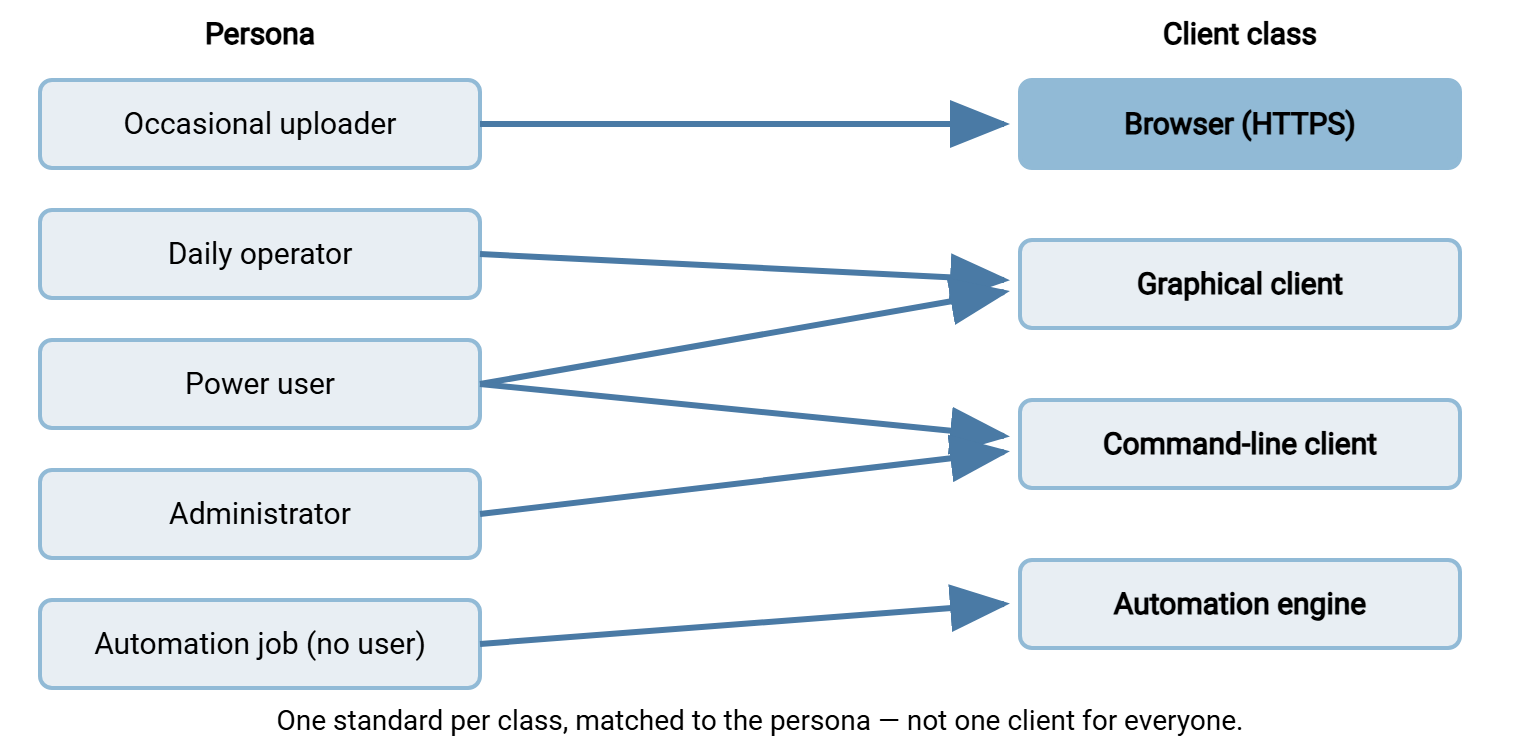
The Persona Table
Here is the mapping as a table you can paste into your own standards document and adjust. The last column is the one to keep in front of stakeholders: it says what actually happens when a persona is issued the wrong class.
| Persona | Frequency | Needs | Recommended class | When mismatched |
|---|---|---|---|---|
| Occasional uploader | A few times a year | Nothing to install or remember; no security decisions | Browser over HTTPS; else a locked-down GUI profile | Every use is a support call; falls back to email attachments |
| Daily operator | Daily, same servers | Saved profiles, queue, sync, stable behavior | Graphical client (the standard) | Routine breaks on every change; hidden manual "jobs" never get automated |
| Power user | Constantly, many places | Keys, config files, scripting, no obstacles | CLI standard plus GUI standard | Installs a personal favorite; sprawl begins |
| Administrator | On demand, diagnostic | Verbose output, protocol trace, same client as users | CLI with verbose mode; GUI standard for reproduction | Cannot reproduce user problems; guesses instead of reading logs |
| Automation job | Scheduled or event-driven, unattended | Non-interactive auth, pre-seeded trust, exit codes, retries, logs | Automation engine or batch-mode CLI | GUI in a scheduled task hangs on a dialog nobody sees |
| External partner | Their schedule | A compatible server and a clear connection sheet | Whatever they have; not yours to choose | Tickets you cannot fix by changing your own standard |
Where Graphical Clients Win, and Where They Fail
A graphical client wins on discoverability. A person who has never used one can usually work out drag-and-drop in a minute. The two-pane layout makes "where am I, and where is the file going" visible in a way a command prompt never will. It wins on visual trust prompts: a dialog with a fingerprint is at least something a person can be trained to read. And it wins on the transfer queue, which turns "move these three hundred files" into one drag and a progress bar.
It fails in three places. It is a poor automation tool: a GUI has no meaningful exit code. Driving it from a scheduled task produces the hung dialog described above. Its friendliness is also its danger: a "Yes" button on a security warning gets clicked. A saved password ends up wherever the client puts it. And graphical clients are what people install on their own, so they are the main vector for sprawl. None of these is a reason to avoid GUIs. They are reasons to standardize on one, configure it, and keep it well away from the scheduler.
Where Command-Line Clients Win, and Where They Fail
A command-line client wins on composability: it fits in a script, a pipeline, a scheduled task, a remote session. It wins on precision, a batch file that says exactly which file goes where, with an exit code that says whether it did. It wins for the administrator, because -v shows the whole negotiation. And it is usually already installed: the OpenSSH sftp and scp clients ship with the operating system. That makes "the CLI standard" a much smaller decision than "the GUI standard".
It fails for anyone who does not live in a terminal. Quoting rules, paths with spaces, and error messages written for programmers all turn into tickets. It fails when a script is handed to someone who does not understand it and then stops working. And on Windows there is a specific trap. The built-in console ftp client is plain FTP only and active mode only. That makes it both insecure and prone to hanging behind firewalls. Yet a great many inherited batch files still call it. Our honest look at built-in FTP clients covers that history. And batch modes and heredocs shows what the unattended forms of modern CLI clients look like. For choosing which CLI becomes the Windows standard, see choosing the organization's standard clients. That includes whether a drop-in replacement for those batch files is the right move.
The Browser as a Client
The client class most administrators forget is the one every user already has. If a transfer server exposes a web interface over HTTPS, the occasional uploader needs no client at all. They open a link, sign in, and use an upload form. Nothing is installed. Nothing is configured. The trust question is handled by the certificate authorities the operating system already trusts. So there is no fingerprint dialog to explain. (There is no dialog at all, which for this persona is the feature.)
The limits are real and worth stating plainly. Browser uploads are awkward for very large files or whole directory trees. There is no synchronization. Nothing about a browser session can be scripted for an unattended job. It is the right answer for one persona, not for all of them. Within that persona, though, it removes an entire category of support work. On the server side, this is one reason to prefer a server that speaks HTTPS alongside SFTP and FTPS. Sysax Multi Server, for instance, offers web-based transfers over HTTPS in addition to the file transfer protocols. So the person who uploads twice a year can do it from any browser with nothing to install. Meanwhile, the daily operator and the automation job use the protocols and clients that fit them. How web upload works under the hood is covered in how web upload works.
Remember: the goal is not to decide whether GUIs or command lines are better. It is to give each persona the class that fits, then standardize on one tool within each class. One graphical standard, one command-line standard, one browser path, one automation engine: that is the whole answer to "which client should I use?"
Matching Without Forcing
Put the pieces together and a simple rule emerges. Sort every request by persona before you answer it, which takes three questions.
- How often? A few times a year points to the browser; daily points to the graphical standard; constantly points to the power-user pair.
- Is there a human at the keyboard when it runs? If not, it is the automation persona no matter who is asking, and the answer is never a graphical client.
- Do you control the machine? If not, it is a partner, and the deliverable is a connection sheet, not a client.
With the persona known, the class follows. Occasional uploaders get the browser path, or a locked-down profile if there is none. Daily operators get the graphical standard, preconfigured. Power users get both standards and an exceptions process they can actually use. Administrators get the verbose CLI and the same GUI as everyone else. Automation jobs get the automation engine or a batch-mode CLI, never a GUI in a scheduled task. Partners get a connection sheet and a compatible server.
Two habits keep the rule honest. When a daily operator's routine turns out to be a manual batch job, migrate it to the automation persona rather than optimizing the clicks. Dev at Kestrel would tell you the same. And when a power user asks for a client outside the standard, treat it as a signal. Either the standard is missing something worth adding, or the request is preference. The exceptions lane in the standards article tells the two apart.
Where This Fits in the Series
The persona map is the middle piece of three. Before it comes transfer client features that actually matter, which tells you how to score candidates once you know which class you are choosing for. After it comes choosing the organization's standard clients, which turns "one standard per class" into a written decision. Then comes supporting the standard client, where the persona split pays off again. The one-page guide for operators (built in writing user-facing transfer guides) and the connection sheet for partners are different documents. Knowing that in advance saves writing the wrong one. The short version to carry with you: nobody needs "an SFTP client". They need the class that fits who they are, and you need exactly one standard in each.
Frequently Asked Questions
Can we just give everyone one graphical client and be done?
Is a command-line client more secure than a graphical one?
What is a batch mode, and why do automation jobs need it?
Does the browser really count as a file transfer client?
Our partners use clients we have never heard of. Should we care?
From the Sysax team: we build secure file transfer software for Windows. Sysax Multi Server is an FTP, FTPS, SFTP, and HTTPS server. Sysax FTP Automation handles scheduled, scripted transfers. Free trials are on the download page.