
Writing User-Facing Guides: One Page, No Jargon
The vendor manual is a hundred and forty pages. The intranet has a "File Transfer Procedures" document with a table of contents. Neither has ever been opened by a person with a file to send. That person has ninety seconds and one question: how do I do this? A quick-start guide answers that question, on one page, in the words the person would use themselves. It is the most-used piece of training material you will ever produce.
This article shows how to write one. You will learn which guides to write and which to skip, and the rules that keep a guide to one page. You will learn how to describe a screen in words so the guide survives the next software update. You will get a template you can fill in this afternoon and learn how to test the guide on a real person. You will also learn where to put it so it is found at the moment of need. It is part of our Training & Adoption series. The guides here sit on top of a standard client and a portal. Choosing and deploying that client is covered in choosing the standard client, and this article assumes it is done.
One Guide Per Task, Not One Guide Per Tool
A guide is organized around what the reader is trying to do, not around the software. "Using the Transfer Portal" is a manual. "How do I send a file to someone outside the company?" is a guide. The difference is that the second title is the exact sentence someone types into the intranet search or says to the service desk. They use it at the moment they need help.
Most organizations need about six guides, matching the tasks from the gap audit in why your policy is being ignored. The guides cover how to send a file to someone outside the company, receive one, and send something too big for email. They cover how to ask for a new recipient or account and connect with the standard client for the first time. They also cover what to do when a transfer fails. Six pages. If you find yourself writing a seventh, check whether it is a task or a feature; features go in the manual.
Each guide has one reader in mind, and it is not you. It is the person who has never seen the portal, does not know what a host is, and would like to go home. Write for them and the technical users will cope. Write for the technical users and everyone else will ring the service desk, which is what the guide exists to prevent.
The Rules: One Page, No Jargon
Jargon is any word the reader has not been taught. It is not a property of the word; "folder" is jargon to nobody and "directory" is jargon to most of the building. The test is whether the reader would use the word themselves. If not, translate it, and the table below has the usual suspects.
| What the manual says | What the guide says |
|---|---|
| Authenticate; enter your credentials | Log in with your usual username and password |
| Upload to the SFTP endpoint | Send the file to the portal |
| Navigate to the target directory | Open the folder called Outbox |
| Verify the host key fingerprint | The first time, the program shows a long code. Check it matches the code at the bottom of this page, then click Yes |
| Generate a share link with an expiry policy | Click Get link. The link stops working after 7 days |
| Permission denied (error 550) | "You don't have access to that folder." Contact the service desk with the folder name |
| Passive mode; port 22; TLS | (Nothing. Set these in the standard client before it is deployed; the reader never sees them) |
Beyond vocabulary, ten rules keep the guide to one page. They are the same every time, so once you have written one guide the rest take an hour each.
- The title is the question, in the reader's words.
- Numbered steps, one action per step. "Click Send" is a step. "Choose the recipient and click Send" is two.
- Every step says where to look, what it looks like, and what it says. "Top right, a blue button labeled Send."
- Quote button and menu text exactly, in the capitalization the screen uses.
- Every step that changes the screen says what the reader should now see.
- The last step is what success looks like: the confirmation message, the email, the tick.
- A short "If something goes wrong" section: the three most common failures and the fix for each.
- One contact line: who to ask, and how long an answer takes.
- A footer with the guide's name, the date it was last tested, and who owns it.
- Nothing else. No history, no reasons, no options the reader did not ask about. Reasons live in the training; the guide is for the moment after.
Describing Screens in Words
Screenshots feel like the obvious tool and they age worse than anything else in the guide. The vendor moves a button and the screenshot is wrong. A colleague has a smaller monitor and the screenshot is wrong. A reader uses a screen reader and the screenshot is silent. A guide made of screenshots is accurate for one software version on one screen, which is a strange property for a document meant to outlast both.
Describe the screen instead. Each instruction names four things: where on the screen, what the element looks like, what it says, and what happens when you act on it. "Near the top of the page, in the row of tabs, click the tab labeled Send. The page changes to show a large dotted box with the words Drop files here." That sentence survives a button moving from the left to the right, and it reads aloud correctly. Add a screenshot as a supplement if it helps, but never as the only cue. Never let the words depend on it ("click the button shown below").
The vocabulary for positions is small and worth using consistently. The terms are top left, top right, the row of tabs, the left-hand list, the main area, a pop-up window. The vocabulary for appearance is smaller still: a button, a link, a box you can type in, a tick box, a drop-down list. Choose one word for each and never vary it. Readers do not notice consistent vocabulary. They notice inconsistent vocabulary as a vague feeling that the guide is wrong.
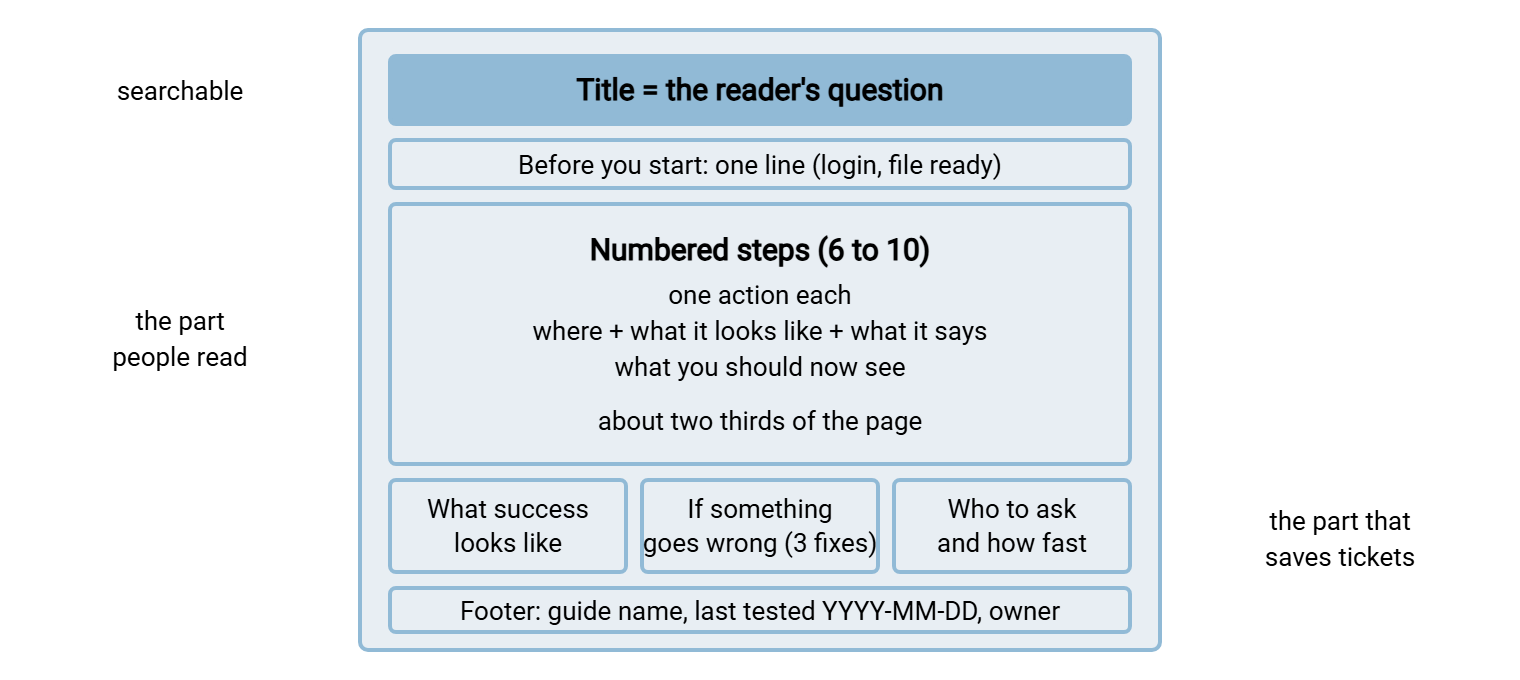
The diagram below shows the anatomy of a one-page guide, top to bottom, with the proportions that tend to work. The guide has a question for a title, the steps taking most of the page, and three short blocks at the end.
The Template: Sending a File Outside the Company
Here is a complete guide for the most common task, written for a browser-based portal. Copy it, replace the address and button labels with your own, and test it as described below. It never uses the words upload, authenticate, or SFTP.
HOW DO I SEND A FILE TO SOMEONE OUTSIDE THE COMPANY?

Before you start: you need your usual username and password, and the
file saved somewhere you can find it. Sending takes about two minutes.

 1. Open your web browser and go to https://transfer.example.com
    You see a page with the company logo and two boxes: Username and
    Password.
 2. Type your usual username and password, then click the blue button
    labeled Log in.
    You see a page with a row of tabs across the top: Send, Received,
    My files.
 3. Click the tab labeled Send.
    The main area shows a large dotted box with the words Drop files here
    or click to choose.
 4. Drag your file into the dotted box, or click the box and pick the
    file from the window that opens.
    The file name appears under the box with a small green tick.
 5. In the box labeled To, type the other person's email address.
    Read it back before moving on: the name and the company name.
 6. Leave the box labeled Link expires after at 7 days unless you have
    been told otherwise.
 7. Click the blue button labeled Send, top right.
    The page shows "Sent" with a green tick, and you receive a
    confirmation email within a minute.

What success looks like: the green tick, and the confirmation email.
The other person receives an email with a link that works for 7 days.

If something goes wrong
 - "Username or password not recognized": click Forgot password under
   the Log in button. A reset email arrives within five minutes.
 - The file name shows a red cross and "too large": the limit is shown
   under the dotted box. For anything bigger, see the guide "How do I
   send something too big?"
 - "Sent" appears but no confirmation email: check your junk folder,
   then contact the service desk with the time you clicked Send.

Who to ask: servicedesk@example.com or ext. 2121, answered within
one working day.

Guide TA-01 | Last tested YYYY-MM-DD on the live portal | Owner: IT Service Desk
Two details are doing quiet work. Step 5 builds the read-it-back habit from the habits article into the procedure, so the guide teaches the check without mentioning it. And the footer carries a "last tested" date rather than a version number. The reader cares whether the guide still matches the screen, not which release it was written against.
The guide is short partly because the portal is simple. A browser-based transfer page has no client to install and no connection settings to explain. That is the case for HTTPS transfers in Sysax Multi Server: a non-technical user needs only a browser and a login. Each account sees only its own folders, so the guide never has to explain which folder is theirs. Where users must run a client, the guide gets longer, and the next section keeps it under control.
The Second Template: First Connection With the Standard Client
Technical users and some partners will use the standard client rather than the browser. Their guide has one extra hazard, the host key warning, and it needs careful words. The honest instruction is "check the code, then say yes". A guide that just says "click Yes" teaches people to accept anything. The mechanics are in host keys and known hosts; the guide gives the reader only the check.
HOW DO I CONNECT WITH THE TRANSFER PROGRAM FOR THE FIRST TIME?

Before you start: the transfer program is already installed on your PC.
You need your username and password. About three minutes the first time.

 1. Open the transfer program from the Start menu.
    You see a window with a list of saved connections on the left.
 2. In the list on the left, double-click the entry called Company
    Transfer Server. The address and settings are already filled in.
 3. A pop-up window asks for your password. Type it and click OK.
 4. FIRST TIME ONLY: a window appears with the title "Unknown server"
    and a long code of letters and numbers. Compare it with this code:

      SHA256:tK2m9x0dV3hQ7rLp1nZs8wYe4bJc6fGa5uHo2iRkTqA

    If every character matches, click Yes. If it does not, click No and
    contact the service desk immediately. Do not click Yes to make the
    window go away.
 5. The window shows two lists: your PC on the left, the server on the
    right. The right-hand list shows your folders: Inbox and Outbox.

What success looks like: the two lists, and "Connected" bottom left.

Guide TA-05 | Last tested YYYY-MM-DD | Owner: IT Service Desk
The connection entry in step 2 is pre-filled because the standard client was deployed with the address, port, and settings already in it. That is the point of standardizing; see deploying standard configs. A guide that asks the reader to type a host name, choose a protocol, and set a port is not a guide. It is a support ticket with numbered steps.
Remember: the guide can only be as simple as the service behind it. If a guide needs more than ten steps, the fix is usually in the portal or the client configuration, not in the writing. Take the step count to the service owner before you take it to the thesaurus.
Testing the Guide on a Real User
A guide has not been written until someone who has never done the task has completed it using only the page. This is the hallway test, and it takes fifteen minutes. Find a person from outside IT who has not used the portal. Hand them the guide and a test file. Say nothing. Write down every place they pause, re-read, look up, or ask a question. Each is a defect in the guide, not in the person.
Fix every defect, then test again with a different person. The pass criterion is two people in a row completing the task without asking anything. It usually takes three rounds. At Acme the first tester stopped at step 4 because the guide said "click Upload" and the button said "Add files". The second stopped at step 5 because the guide said "recipient" and she was looking for a box called To. Both fixes took thirty seconds and would otherwise have arrived as tickets, repeatedly, forever.
Test with the least technical willing person you can find, not the most. If the guide works for someone who has never opened the portal and has no wish to, it works for everyone. That person will find the ambiguity your colleagues would have skated over. Thank them properly. They have just done more for the ticket queue than most projects do.
Where to Put Guides So People Find Them
A guide is found or it is useless. It is found at the moment of need: the second the person realizes they do not know what to do. That moment is not a browse of the intranet. It is when the attachment bounces, when the login fails, when the partner asks for a file. Put the guide in each of those places.
- The bounce message. When the mail system rejects a large attachment, its rejection text links to the "too big" guide. The highest-value placement you have, because attention is total.
- The portal's login page and its error messages. "Forgot password" links to the guide. "File too large" links to the guide. A link in a page footer takes the portal owner minutes.
- Intranet search. The page title is the question, so a search for "send file" finds it. Test the search yourself; if the guide is on page two, rename it until it is on page one.
- The service desk reply. Every ticket about the task gets a reply with the guide's link first and the answer second. Over a few months, the link teaches people to look before they ask.
- The welcome pack and the five-habits card. New starters get the link on day one, beside the card from the habits article.
- Not a document library. A folder called "Guides" three clicks deep, containing a file called "Transfer_Procedure_FINAL.docx", is where guides go to be preserved rather than used.
Keep exactly one copy of each guide, at one address, and link to it from everywhere else. Attached copies fork: the one in the welcome pack is updated, but the one in the service desk macro is not. A new starter and a ticket reply now disagree about which button to click. A link cannot fork. The wider discipline of keeping documentation from rotting is in keeping documentation current. The short version for guides is one owner, one address, re-test on every portal change, and update the footer date when you do.
A Short War Story: The Fourteen-Page Guide at Meridian Parts
Meridian Parts had a transfer guide: fourteen pages, thirty-one screenshots, written with care by a contractor two portal updates ago. The first screenshot showed a button labeled Upload that had since been renamed Add files and moved to the other side of the page. Every new user stalled at step one, concluded the guide was for a different system, and rang the service desk. The desk logged the same ticket thirty-two times in one month. The rewrite was one page, no screenshots, and described the dotted box in words. The next month the ticket count for that task was two, both from people who had not found the guide. That was the next problem to fix.
One Page, Tested, Where They Will Look
A quick-start guide is a small document with a large effect: one task, one page, screens described in words. It is tested on a real person and placed where the need arises. It carries the training out of the meeting room and onto the desk at the moment it is needed. Six of them, kept current, will absorb most of the questions your service desk currently answers by hand.
The modules that introduce the guides are in designing a training program. Whether the guides are actually used shows up in the numbers in measuring adoption and closing the gaps. For the guide you write for an outside partner rather than a colleague, a different reader with different questions, see our partner onboarding documentation series. The fourteen-page version, wherever it is, can stay there.
Frequently Asked Questions
Are screenshots really that bad? Users seem to like them.
How do I keep a guide to one page when the task has many steps?
Who should own the guides once they are written?
Should the guide explain why the portal must be used?
What is the "last tested" date for, and why not a version number?
From the Sysax team: we build secure file transfer software for Windows. Sysax Multi Server is an FTP, FTPS, SFTP, and HTTPS server. Sysax FTP Automation handles scheduled, scripted transfers. Free trials are on the download page.