
Latency or Bandwidth? Telling Them Apart
Ask three people why a transfer across the WAN is slow and two of them will say "not enough bandwidth." Sometimes they are right. Just as often the link is nearly empty and the transfer is slow anyway. That is because the far end is a long way off and a single connection cannot keep a long pipe full. Those two situations feel identical to the user and need opposite fixes: one wants a wider link or a quieter hour, the other wants more data in flight. Buying bandwidth for a latency problem is the most expensive mistake in this whole subject.
This article gives you three tests you can run in the field. They are a round-trip measurement, a raw throughput check that bypasses disks and encryption, and a single-stream-versus-parallel comparison. The article explains what each result means. By the end you will be able to look at a slow WAN transfer and say, with numbers, which of the two it is. We continue the case from the triage article: a 2 GB file crawling at 2.4 MB/s over a 100 Mbit/s link with a 41 ms round trip. This is part of our Diagnosing Slow Transfers series.
Two Different Things That Feel the Same
Bandwidth is how much data a link can carry per second — its width. It is quoted in megabits per second, and it is what you buy from a carrier. Latency is how long a packet takes to get from one end to the other — the link's length in time. Measured out and back, it is the round trip time (RTT), quoted in milliseconds. A highway analogy holds up well: bandwidth is the number of lanes, latency is the distance to the exit. Adding lanes does nothing for a driver who has to cover three hundred miles.
The reason latency limits a transfer at all comes down to how TCP — the transport under FTP, SFTP, FTPS, and HTTPS — moves data. The sender transmits a batch, called the window, and then waits for the receiver's acknowledgement before sending the next batch. One connection therefore delivers at most one window per round trip, so its ceiling is window ÷ RTT. To keep a link full, the window has to be at least bandwidth × RTT, a figure called the bandwidth-delay product. That is the two-sentence version; the full treatment, with the numbers for common links, is in our bandwidth-delay product article. Here we only need the consequence: a long path starves a single connection even when the link is idle.
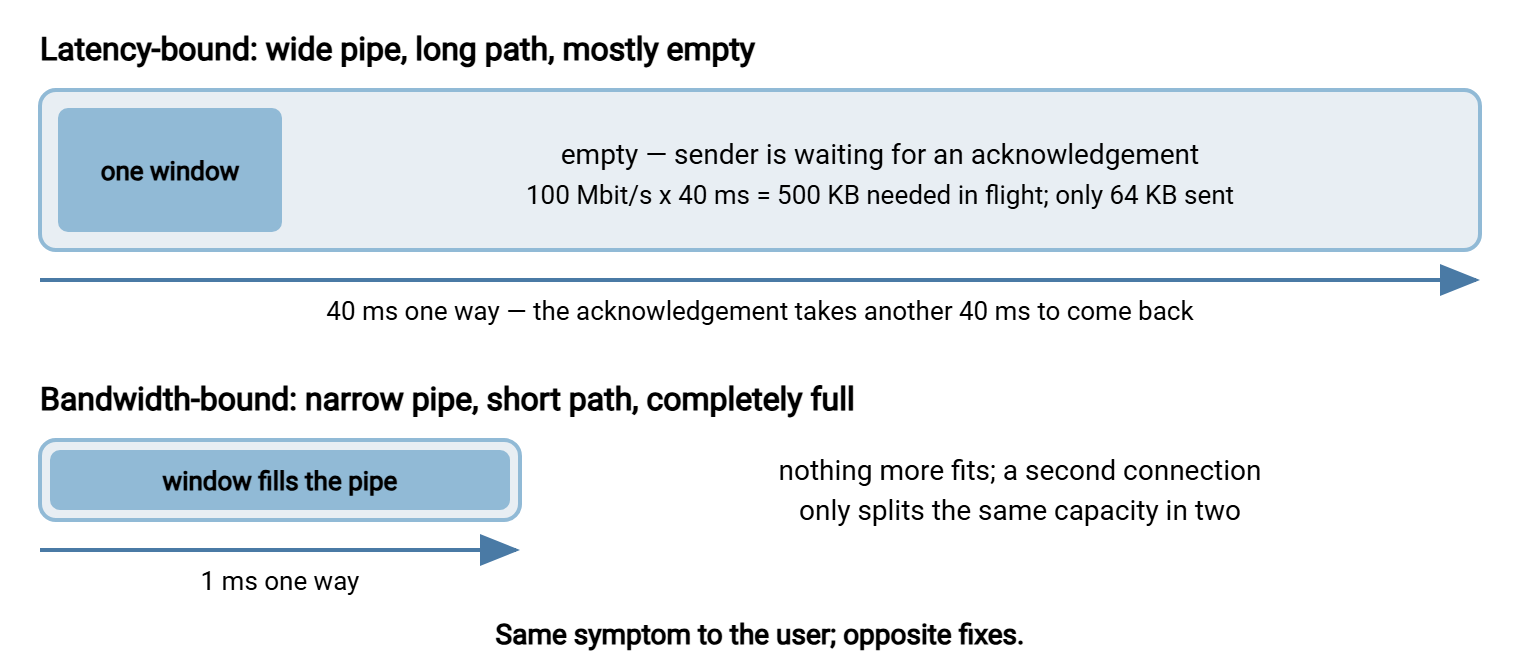
The picture below shows the two cases side by side. In the latency-bound case the pipe is wide but long, and a single connection's window covers only a small stretch of it. Most of the pipe is empty at any moment. In the bandwidth-bound case the pipe is short but narrow, and the window fills it completely; nothing more can be pushed in.
Modern operating systems grow the window automatically, so a plain connection between two well-configured, recent machines often fills a long pipe on its own. But old defaults, conservative server settings, some VPN clients, and inspection devices that rewrite connections all pin windows small in practice. That is why latency-bound transfers are still an everyday sight. The three tests find out whether yours is one.
Test One: Measure the Round Trip
ping gives the RTT directly. Send ten probes and read the average from the summary — on Windows, ping -n 10 host; on Linux or macOS, ping -c 10 host. The triage article shows the output in full; the number we need from our case is an average of 41 ms with a small spread and no loss.
Interpret the average on a simple scale. Under 5 ms, latency is not your problem. At that RTT, a single connection with even a modest window fills any ordinary link. You should look at bandwidth, disks, CPU, or protocol overhead instead. Between 5 and 20 ms, latency starts to matter for gigabit-class links but rarely for 100 Mbit/s ones. Above 30 ms, latency is a serious suspect for any link, and above 100 ms it is the leading suspect until proven otherwise.
If the RTT is high, tracert (Windows) or traceroute (Linux, macOS) shows where the distance accumulates. Each line is one router on the way, with the round trip to that router:
C:\> tracert sftp.partner.example.com

  1     1 ms     1 ms     1 ms  10.20.0.1
  2     2 ms     2 ms     2 ms  10.0.255.1
  3     3 ms     3 ms     4 ms  192.0.2.17
  4    19 ms    18 ms    19 ms  192.0.2.65
  5    38 ms    37 ms    39 ms  198.51.100.9
  6    41 ms    40 ms    41 ms  198.51.100.20
Read it for the jumps. Hops one to three are your own building and your provider's edge, a few milliseconds. The jump to 19 ms at hop four is a long-haul link — the path leaving your region. The jump to 38 ms at hop five is another. Those jumps are geography, and no setting will remove them. What you are checking for is a jump that should not be there: a VPN concentrator that sends traffic to another continent and back, or a proxy in a distant data center. If the trace shows 40 ms to a partner in the same city, the path is taking a detour, and slowdowns along the path is where that investigation continues.
Remember: bandwidth is how wide the pipe is; latency is how long it is. A transfer can starve on an empty link if the link is long enough and the window small enough. Neither ping nor a carrier's contract tells you which you have — only the next two tests do.
Test Two: A Raw Throughput Check
The second test asks a different question: forgetting SFTP, disks, and encryption, how much can this path actually carry between these two machines right now? The standard tool is iperf, a small open-source program that runs on both ends and simply streams dummy data from one to the other, reporting the rate. Because it reads nothing from disk and encrypts nothing, its result is the network alone.
It works like this. On the far machine — the server, or a helper next to it — you start iperf in server mode. It listens on a port (5201 by default) that must be reachable through any firewalls between you. On the near machine you run it in client mode, naming the far host and a duration; twenty seconds is enough. It prints one line per second of interval, bytes transferred, and rate, then a summary:
far end:    iperf3 -s
near end:   iperf3 -c 198.51.100.20 -t 20

[ ID] Interval           Transfer     Bitrate
[  5]   0.00-20.00  sec  48.7 MBytes  20.4 Mbits/sec   sender
[  5]   0.00-20.00  sec  48.2 MBytes  20.2 Mbits/sec   receiver
The summary line is the whole result: this path, one TCP connection, carries about 20 Mbit/s, or 2.5 MB/s. Compare it to two things. First, to the link ceiling: 100 Mbit/s here, so a single raw connection is using a fifth of the link. Second, compare to the slow transfer itself: SFTP managed 2.4 MB/s, so SFTP is not the problem. It was getting essentially everything the path gave a single connection. Disks, ciphers, and the server are all cleared in one stroke, and the search narrows to the network.
Had the raw result come back at 90 Mbit/s while SFTP crawled at 20, the conclusion would flip. In that case, the path is fine and the endpoints or the protocol are eating the difference. That is the case finding the bottleneck works through. And a raw result equal to the link ceiling — say 94 Mbit/s on a 100 Mbit/s link — says the pipe is simply full, and everything further is a bandwidth conversation.
Two practical notes. Run the test in both directions — iperf's reverse option sends data from server to client. That is because asymmetric links and asymmetric problems are common. A slow upload with a fast download is a clue in itself. And if you cannot install anything at the far end, there is a rough substitute: download a large file from the far server over plain HTTPS with curl, discarding the data. curl -o /dev/null https://files.partner.example.com/big.bin (on Windows, -o NUL) prints an average speed on completion. It includes the server's disk and TLS work, so it is a ceiling on the network only in one direction. But it is far better than nothing; our curl guide covers its options.
Test Three: One Stream Versus Several
This is the test that separates latency from bandwidth outright, and it is nothing more than running several transfers at once. The logic starts with a single connection starved by a small window over a long path. In that case, four connections each carry their own window. So four times as much data is in flight and the total climbs toward the link's real capacity. But if the pipe was already full, four connections just divide the same capacity four ways, and the total does not move.
With iperf, add the parallel option — -P 4. It opens four connections and prints a per-stream result for each plus a [SUM] line with the total. Without iperf, start four copies of the real transfer at the same time — four SFTP sessions each moving a different large file. Then add up the rates the clients report. A scheduled-transfer product like Sysax FTP Automation can run several tasks concurrently. In such a product, four parallel tasks against the same server give the same comparison from the job log without anyone watching a screen.
near end:   iperf3 -c 198.51.100.20 -t 20 -P 4

[  5]   0.00-20.00  sec  47.9 MBytes  20.1 Mbits/sec   sender
[  7]   0.00-20.00  sec  48.3 MBytes  20.3 Mbits/sec   sender
[  9]   0.00-20.00  sec  46.8 MBytes  19.6 Mbits/sec   sender
[ 11]   0.00-20.00  sec  47.5 MBytes  19.9 Mbits/sec   sender
[SUM]   0.00-20.00  sec   190 MBytes  79.9 Mbits/sec   sender
Read the result against the single-stream number:
- Total scales up — four streams at about 20 Mbit/s each, 80 in total, four times the single-stream 20. The pipe had room; each connection was individually starved. Latency-bound. That is our case.
- Total stays flat — four streams at about 5 Mbit/s each, 20 in total, the same as one stream. The pipe was full; adding connections only shared it out. Bandwidth-bound.
- Total climbs, but less than fourfold — say 50 Mbit/s. Partly both: the connections were starved, and the link ran out at 50, which is either its real width or a shaper's limit. Note the number; it is the next question's starting point.
Parallel streams appear here as a diagnostic, not a recommendation. Whether to run production transfers this way, and how many streams are sensible before they start hurting other users, is the subject of our parallel streams article. The fairness question belongs to bandwidth management.
Gotcha: a web speed-test site tests a different path — your browser to the tester's nearest server, usually a few milliseconds away. It opens many connections at once. A glowing speed-test result says nothing about a single SFTP session to a partner 40 ms away. Test the path you actually use.
Reading the Three Results Together
Each test on its own can mislead; together they pin the diagnosis down. The table below gives the common combinations. "Ceiling" means the narrowest link's rated bandwidth.
| RTT | Single raw stream | Four streams | Verdict |
|---|---|---|---|
| High (30 ms+) | Far below ceiling | Scales up | Latency-bound. Bigger windows, more streams, or acceleration will help; more bandwidth will not. |
| Any | Near ceiling | Flat | Bandwidth-bound. The link is full. Schedule, throttle competitors, compress, or widen the link. |
| Any | Far below ceiling | Flat, well below ceiling | A limit in the path — a shaper, a congested hop, or a proxy — capping total throughput at that figure. |
| Low (under 5 ms) | Near ceiling | Flat | Network is fine. If the real transfer is still slow, the endpoints or the protocol are the cause. |
| High, with loss or jitter | Erratic | Erratic | Loss-bound. TCP is backing off after every dropped packet. Find the lossy hop before tuning anything. |
The last row deserves a sentence, because loss is the third thing people forget. TCP treats a lost packet as a sign of congestion and halves its sending rate, then climbs back slowly. On a long path the climb takes many round trips. A path with 40 ms RTT and one percent loss behaves far worse than the window arithmetic alone predicts. If ping showed any loss at all, or a wide gap between best and worst RTT, that is the lead to chase first.
Why the Far End's Distance Beats Its Link Speed
Partners like to reassure you that their side is on a gigabit connection. It is usually true and usually irrelevant. Compare two partners for the same 2 GB file:
Partner A:  1 Gbit/s link, 150 ms away (another continent)
  64 KB window:   64 KB / 0.15 s   =  0.43 MB/s   =  3.4 Mbit/s  -> 2 GB in ~80 min
  1 MB window:    1 MB / 0.15 s    =  6.7 MB/s    =  53 Mbit/s   -> 2 GB in ~5 min

Partner B:  50 Mbit/s link, 5 ms away (same region)
  64 KB window:   64 KB / 0.005 s  =  12.8 MB/s   -> capped by link at ~6 MB/s
  link ceiling:   50 Mbit/s         =  ~6 MB/s     -> 2 GB in ~6 min
Partner B's modest link, close by, beats Partner A's gigabit link at any realistic window, because Partner B's path is short enough that even a small window fills it. Partner A's link is twenty times wider and delivers less, until the window is made very large. A very large window is exactly the setting that old systems, VPN clients, and inspection devices tend not to allow. Distance, not rated speed, is the first number to ask a partner for. The second is the round trip you measure yourself, since the partner's server may sit in a cloud region far from the partner's office.
This is also why moving a server "to the cloud" sometimes makes every transfer slower for no visible reason. The RTT from your office to the new region went from 3 ms to 60. Every single-stream transfer found a new, lower ceiling overnight. The fix is not a faster server; it is bigger windows, more streams, or moving the workload closer.
Closing the Case, and What Comes Next
Our worked example is now settled. A 41 ms round trip with no loss; a single raw stream carrying 20 Mbit/s on a 100 Mbit/s link, almost exactly what SFTP achieved; four streams carrying 80. Latency-bound, beyond reasonable doubt, and the server, disks, and cipher are all exonerated. The date clue from triage — slow since a VPN change — fits too. A VPN client that caps the window would produce exactly this picture, and the path article shows how to prove it.
What to do about it is the subject of fixes ranked by effort. Check the window settings on both ends first, because the cheapest fix is often a setting that was never tuned. That is explained in TCP tuning first. Then consider parallel streams, and only for very long, very fat paths, an accelerated protocol. If instead your tests said bandwidth-bound, the remedies are scheduling, throttling competitors, and compression, and the bandwidth management series is your next stop. And if the raw network test came back healthy while the real transfer stayed slow, the network was never the problem — finding the bottleneck is where you go next.
Frequently Asked Questions
If I upgrade to a faster internet link, will my transfers to a distant partner speed up?
Do I need to install iperf on the partner's server?
Why does one big transfer get slower when I open a second one, if the link is not full?
What round-trip time counts as "high"?
Is packet loss a latency problem or a bandwidth problem?
From the Sysax team: we build secure file transfer software for Windows. Sysax Multi Server is an FTP, FTPS, SFTP, and HTTPS server. Sysax FTP Automation handles scheduled, scripted transfers. Free trials are on the download page.