
Slowdowns Along the Path: Proxies, Inspection, and Congestion
When both ends of a transfer have been cleared — the disks are quick, the processors are idle, the file is one big archive — the remaining suspect is everything in between. Between a client and a server on different networks there may be a VPN concentrator, a firewall with intrusion detection, and a web proxy. There may be a traffic shaper, a device that opens encrypted sessions to inspect them, and a dozen routers. Any of these can slow traffic without producing a single error. These devices are collectively called middleboxes: anything in the path that does more than forward packets.
The difficulty is that middleboxes are usually owned by another team, invisible to a transfer client, and quick to deny involvement. This article is about proving where a slowdown lives with comparative tests. The same transfer is run from different vantage points and with different variations. That way, the device responsible is identified by evidence before anyone blames the server. This article covers proxies, inspection devices, shapers, VPN overhead, MTU trouble, and the plain congestion of busy hours, with the signature of each. It is part of our Diagnosing Slow Transfers series. It picks up the case that triage and the latency tests left pointing at a VPN change.
The Method: Move the Vantage Point
The single most useful technique in this whole article is to run the identical transfer from several places along the path and compare. Use the same file, same protocol, same server. Each vantage point includes one more stretch of the path than the last. The point at which the speed drops names the stretch, and therefore the device, responsible. The diagram shows a typical path and the four vantage points to test from.
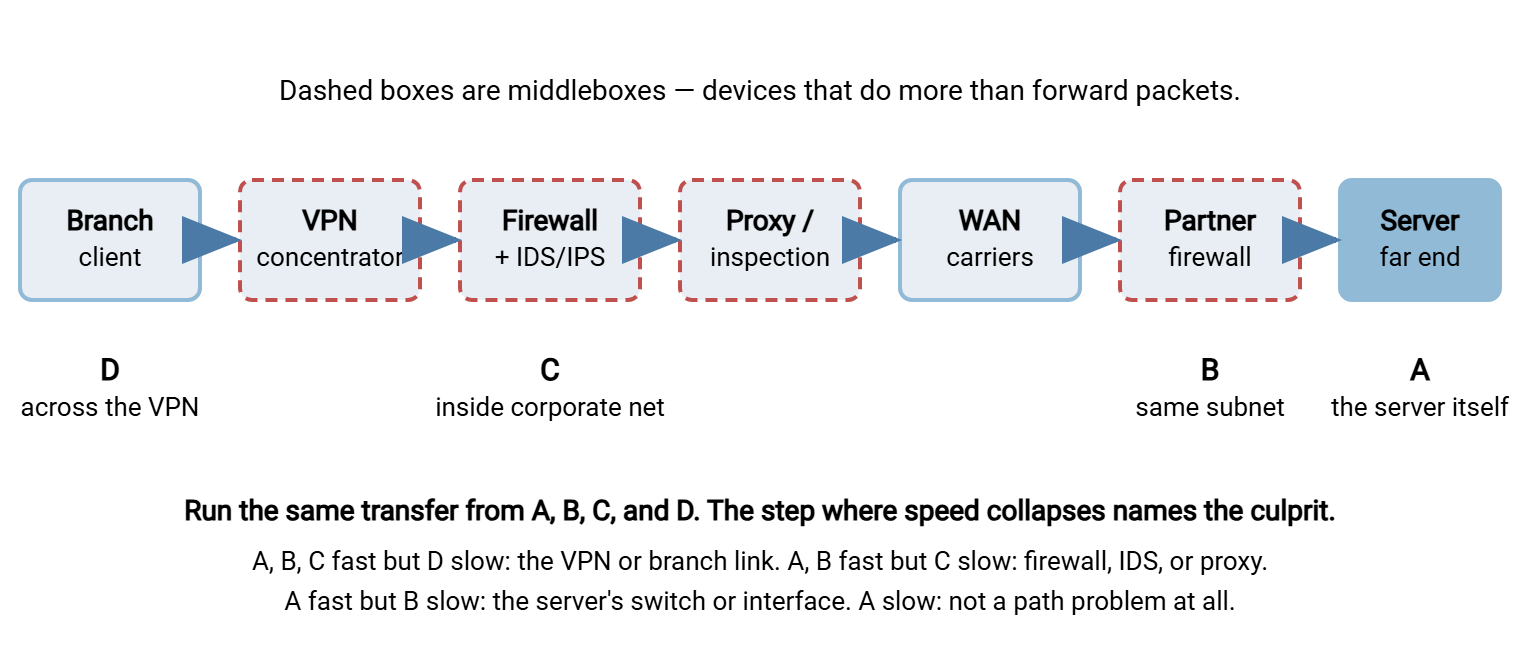
In practice you rarely have a machine at every point, and you rarely need one. Three vantage points — the far end's own subnet (ask the partner), somewhere inside your network that does not use the VPN, and the actual client — usually bracket the problem. Add a fourth only to split the remaining stretch.
The vantage-point ladder has a companion: vary one thing at a time from the same vantage point. Run the same transfer over HTTPS and over SFTP. Run it on the standard port and on an alternative port the server also listens on. Run it through the proxy and with a temporary bypass agreed with the network team. Run it over the VPN and over a direct path. Each pair isolates a device that treats the two variants differently, and inspection devices in particular treat protocols very differently.
The Signatures, Device by Device
Every kind of middlebox slows traffic in its own way, and the way it slows traffic is how you recognize it.
Traffic shapers and rate limits
A shaper deliberately caps throughput for a class of traffic — a port, a protocol, a destination — usually to protect other users. Its signature is a flat top at a suspiciously round number: a transfer that runs at exactly 10 Mbit/s or 25 Mbit/s no matter what. The decisive sign is a parallel test in which four streams together still total the same round number. That flat-under-parallel result is what separates a shaper from latency, as the latency-or-bandwidth tests explain. A shaper is not a fault; it is a policy, and the conversation to have is about whether transfer traffic is in the right class. That conversation, and what to ask for, is the subject of our bandwidth management series.
Proxies
A proxy terminates the client's connection and opens its own to the server; the client never talks to the server directly. Two signatures give it away. First, the server's log records the proxy's address as the client, not the real one. A server with per-session activity logs, such as Sysax Multi Server, shows every partner session arriving from the same internal address when a proxy is in the way. Second, the transfer shows store-and-forward behavior. An upload runs quickly to one hundred percent, then hangs while the proxy scans or forwards the whole file. Or a download shows nothing for a long time and then arrives at once. The proxy's own buffer size and window settings also replace the client's, so a client tuned for a long path loses its tuning at the proxy. Reverse proxies for transfers explains what proxies can and cannot do per protocol.
TLS inspection and deep packet inspection
A TLS inspection device is a proxy that decrypts HTTPS or FTPS sessions, examines the content, and re-encrypts them. It deliberately does what an attacker in the middle would do, with the organization's consent, as our article on trust failures describes. The device is processor-bound, so it slows every inspected session under load and tends to cap each one individually. Its signature is the certificate: connect to the server with a browser or openssl s_client and look at who issued the certificate presented. If it is the organization's own certificate authority rather than the partner's real one, the session is being inspected. The comparative test is protocol. SFTP cannot be decrypted by such a device, so a partner that offers both SFTP and HTTPS makes an ideal experiment. If HTTPS crawls and SFTP flies on the same path, inspection is the answer. Note the reverse case too: some inspection policies slow or throttle traffic they cannot read, so SFTP can be the one that suffers. The firewall's view of the protocols explains what each looks like to a device in the middle.
Intrusion detection and prevention
An IDS watches traffic for attack patterns; an IPS sits inline and can drop what it dislikes. Inline inspection adds a little latency to every packet — a millisecond or two, which matters little. But under load the device falls behind and starts dropping packets. That matters a great deal, because TCP halves its speed on every loss. The signature is loss and jitter that appear only when the device is busy. A ping through it at a quiet hour is clean. At a busy hour, it shows occasional timeouts and a wide spread between minimum and maximum. Bulk transfers themselves can trigger it — some signatures fire on high-rate flows and add per-packet work precisely when the transfer is going well.
VPN overhead
A VPN slows a transfer in three distinct ways, and it helps to name them separately. The first is encapsulation: every packet gains extra headers, which costs five to ten percent of raw throughput and nothing more — a modest, constant tax. The second is the concentrator's capacity: it encrypts every tunnel on one box, and a busy concentrator caps each tunnel at whatever it can spare. The third, and the one that catches everyone, is the detour. A branch office's VPN terminates at headquarters, so traffic to a partner in the branch's own city travels to headquarters and back first. That adds tens of milliseconds of round trip, and a longer round trip shrinks every single connection's ceiling. Only tracert or traceroute shows it, and it looks like this from the branch:
C:\> tracert sftp.partner.example.com

  1     1 ms     1 ms     1 ms  10.40.0.1          branch router
  2    31 ms    30 ms    31 ms  10.1.250.2         VPN concentrator at HQ
  3    32 ms    31 ms    32 ms  10.1.0.1           HQ core
  4    33 ms    33 ms    34 ms  192.0.2.17         HQ internet edge
  5    41 ms    41 ms    42 ms  198.51.100.20      partner (same city as the branch)
Thirty milliseconds appear at hop two, before the traffic has gone anywhere useful. A direct path from the branch to the partner would be about 8 ms. That is the case from triage: the VPN upgrade moved the tunnel's endpoint. The round trip to the partner went from 8 ms to 41, and every single-stream transfer found a new ceiling. The fix is a routing one — a split tunnel that sends partner traffic directly, or a concentrator nearer the branch — not a server one.
Remember: a middlebox almost never produces an error. It produces a ceiling, a stall, loss at busy hours, or a detour, and each of those has a signature you can measure from the client. Collect the signature before opening a ticket with the network team; "throughput flat-tops at 25 Mbit/s under four parallel streams" gets a shaper looked at, while "SFTP is slow" does not.
MTU and Fragmentation: The Tunnel's Hidden Tax
VPNs and other tunnels also cause a slowdown that deserves its own section, because it is common, baffling, and easy to test for. The MTU (maximum transmission unit) of a link is the largest packet it will carry, normally 1,500 bytes. A tunnel wraps each packet in extra headers, so the largest packet that fits inside it is smaller — 1,400 bytes is typical. A sender that does not know about the tunnel keeps sending 1,500-byte packets. The tunnel may break each one into two (fragmentation, which doubles the packet count and the work at both ends). Or it drops them and sends back a message asking for smaller packets. A firewall along the way may block that message. This is very common, because it is an ICMP message and ICMP is often filtered wholesale. When that happens, the sender never learns and keeps sending packets that are silently dropped. It retransmits, and the transfer crawls or hangs.
The signature is distinctive: small transfers and directory listings work perfectly, and logins succeed. Large transfers stall or run at a fraction of the expected rate, because only full-sized packets are affected. The test takes a minute. Send a ping that is not allowed to be fragmented, at a size that adds up to 1,500 bytes with its headers:
Windows:   ping -f -l 1472 sftp.partner.example.com
Linux:     ping -M do -s 1472 sftp.partner.example.com

healthy path:        Reply from 198.51.100.20: bytes=1472 time=41ms TTL=52
tunnel, ICMP open:   Packet needs to be fragmented but DF set.     (Windows)
                     From 10.1.250.2: Frag needed and DF set (mtu = 1400)   (Linux)
tunnel, ICMP blocked: Request timed out.   -- the silent case that stalls transfers
The -f (Windows) and -M do (Linux) options set the "don't fragment" flag; 1,472 bytes of payload plus 28 bytes of headers is 1,500. A "needs to be fragmented" reply tells you the tunnel's MTU outright. A plain timeout at 1,472 from a host that answers a normal-sized ping is the dangerous case: the packet is being dropped and nobody is saying so. Either way, reduce the size until a reply comes back — 1,372 succeeds on a 1,400-byte tunnel. The largest size that works, plus 28, is the path's real MTU. The fix belongs to whoever runs the tunnel. One option is MSS clamping, a setting on the VPN or firewall that quietly tells both ends to use smaller segments. The other is a lowered MTU on the tunnel interface. Once applied, the same transfer often jumps from a crawl to full speed with no change at either end. Firewalls, NAT, and file transfer covers the ICMP filtering that causes this in the first place.
Congestion: The Time-of-Day Problem
The last cause on the path is nobody's device and everybody's traffic. Congestion is what happens when a link carries more than it can hold. Packets queue in the routers on either side, and the round trip grows. When the queues overflow, packets are dropped. A transfer that runs through a congested hour sees a longer RTT (so a lower single-connection ceiling), jitter, and loss (so TCP keeps backing off), all at once.
The signature is the clock. Pull the job's duration by start hour from its history — most job logs give you this in minutes — and lay it beside a ping summary taken at a quiet hour and at a busy one:
job duration by start time (same 2 GB file, past two weeks)
  02:00   4 min   4 min   4 min   4 min   5 min
  09:00   4 min   5 min   4 min   4 min   4 min
  17:00  19 min  22 min  18 min  21 min  20 min     <-- backups and end-of-day sync

ping summary, 10 probes
  02:10   min 39 ms   avg 41 ms   max 44 ms   loss 0%
  17:10   min 40 ms   avg 63 ms   max 210 ms  loss 2%
A transfer on the same path, with the same file, is five times slower at five in the afternoon. The ping tells you why: the minimum RTT is unchanged (the path is no longer). But the average and maximum have ballooned (queues) and two percent of probes are lost (overflow). This is not a fault to repair; it is a schedule to change or a link to protect. Moving the job to a quiet hour is the zero-cost fix. Reserving capacity for transfer traffic is the network team's version. Both are covered in bandwidth management. If the congestion is the transfer's own doing — a bulk job crushing the link for everyone else — the same series covers throttling it.
One warning about congestion that looks like something else: a session that stalls completely at busy hours and then drops with a timeout is often a middlebox's state table expiring, not congestion. That has its own signature and its own fixes in timeouts, keepalives, and dropped sessions.
A Comparative Test Plan
Here is the plan in copyable form. Run each pair from the same client with the same file, note both rates, and the rows with a large difference name the device. Agree any bypass with the team that owns the device first, and run the tests at the hour the real job runs.
| Compare | Large difference points to | Confirming evidence |
|---|---|---|
| From the server's subnet vs from your client | The path as a whole; go on to the rows below | Rungs of the vantage ladder between the two |
| One stream vs four streams | Flat total: a shaper or a full link; scales: latency | Flat top at a round number |
| HTTPS vs SFTP to the same server | TLS inspection (HTTPS slow) or an unreadable-traffic policy (SFTP slow) | Certificate issued by your own CA |
| Through the proxy vs proxy bypass | The proxy's buffering, scanning, or window | Server log shows the proxy's address; store-and-forward stalls |
| Over the VPN vs direct | Detour, concentrator capacity, or MTU | Traceroute jump at the concentrator; don't-fragment ping fails at 1,472 |
| Quiet hour vs busy hour | Congestion, or an IDS falling behind under load | Ping average and maximum rise, loss appears, minimum unchanged |
| Small file vs large file | MTU (large stalls, small fine) or per-file overhead (small slow, large fine) | Don't-fragment ping; round-trip counting |
Gotcha: a bypass test that improves things does not by itself mean the bypassed device is misconfigured. It may be doing exactly what policy requires, at the cost of transfer speed. Bring the evidence to its owners as a question about the transfer's classification, not as an accusation. Security devices are rarely removed from a path; they are frequently tuned for a specific flow once someone shows the numbers.
Closing the Path Investigation
The middle of the path is where slow transfers go to be blamed on someone else. The only defense is evidence gathered in pairs: from here and from there, with this protocol and with that one, at this hour and at that one. Each pair either shows no difference — clearing a stretch of path — or a large one, naming a device and, with the signature tests above, usually the mechanism too. For our running case, the pairs told a clean story. The transfer was fast from headquarters and slow from the branch, with a 30 ms jump at the VPN concentrator. A don't-fragment ping failed at 1,472 bytes. Two fixes belonging to the network team — a split tunnel for partner traffic and MSS clamping on the tunnel — and the 2 GB upload went back to three minutes.
If the path has been cleared as well as both ends, what remains is the transfer's own shape, which when the protocol is the problem covers. And once the diagnosis is complete, whichever suspect it named, fixes ranked by effort puts every remedy in one ordered list.
Frequently Asked Questions
How can I tell whether there is a proxy in the path at all?
Why do small files and listings work fine over the VPN but big transfers stall?
Can a VPN be slow even when its link is fast?
The network team says the shaper is not touching my traffic. How do I show otherwise?
Is inspection of encrypted transfers normal, and should I ask for it to be removed?
From the Sysax team: we build secure file transfer software for Windows. Sysax Multi Server is an FTP, FTPS, SFTP, and HTTPS server. Sysax FTP Automation handles scheduled, scripted transfers. Free trials are on the download page.