
How a File Transfer Actually Works: Everything Between “Send” and “Received”
The progress bar reached 99% at ten past two and has not moved since. You clicked "upload" on one machine, and the file was supposed to exist on another machine somewhere else in the world a moment later. Between those two moments a surprising amount of machinery runs. Names get resolved, connections get negotiated, the file is sliced into thousands of pieces, and every piece is tracked, acknowledged, and reassembled. When it all works, nobody thinks about any of it. When it fails (a timeout, a hang at 99%, a half-written file), the invisible part is the only place the answers live.
This article slows the whole journey down and walks through it step by step. It covers who plays which role, what a connection and a session are, and the layered stack every file crosses. It traces a single real transfer end to end in an annotated capture. Nothing here assumes prior networking depth; every term is defined as it appears. It is the opening article of our File Transfer Fundamentals series. It is the mental model every later article, and every protocol you will ever meet, builds on. I spent my first year in this trade without that model, restarting things in the wrong order. It went about as well as that sounds.
Every Transfer Has Two Roles: Client and Server
Every file transfer, no matter the protocol or product, involves exactly two roles. The client is the side that starts the conversation. The server is the side that waits to be contacted. The word for either end of a transfer, generically, is an endpoint.
A shop analogy holds up well: the server is the shop. It sits at a fixed, published address and keeps its door open during business hours. The client is the customer — it walks in whenever it has business to do. The shop never goes knocking on customers' doors; it just has to be findable and open. Most "the server is down" tickets are the shop failing at one of those two.
The "address" has two parts. The first is the machine's network address (its IP address, or a name that resolves to one, like ftp.example.com). The second is the port — a numbered doorway on that machine, so one machine can run many services at once. FTP servers traditionally listen on port 21, SFTP on port 22, HTTPS on port 443. "Listening" is the literal term: server software asks the operating system to hand it any connection that arrives at its port. Our blog post What port is FTP? covers the port numbers themselves in more detail. The FTP-specific words, from FTP site to FTP link, are in the FTP definitions guide.
Two clarifications save a lot of later confusion:
- Client and server are roles, not machines. The same Windows box can run server software that partners upload to. It can also run a nightly script that acts as a client to fetch files from somewhere else. One machine, two roles, two different flows.
- The client is not necessarily the sender. The client starts the conversation, but data can then flow in either direction — a client can upload (send) or download (fetch). Who initiates and which way the file moves are two independent questions. Untangling them is the whole subject of our push vs pull article.
A "client" is also not necessarily a human at a keyboard. A scheduled job that wakes at 2 a.m. and uploads yesterday's exports is a client. It is a client in exactly the same sense as a person with a graphical FTP program. The machinery below applies identically to both. The scheduled job is also the more punctual of the two.
First a Connection, Then a Session
Before any file can move, the client needs a working line to the server, and then it needs to be recognized on that line. Those are two separate achievements, and transfers fail differently depending on which one broke.
Step one is usually a name lookup. Humans configure ftp.example.com; networks route by number. DNS (the domain name system) is the phone book that turns the name into an IP address. If DNS is wrong or unreachable, the transfer fails before a single byte heads toward the server. The classic symptom is "could not resolve host." DNS gets blamed more often than it deserves, and deserves it fairly often.
Step two is the connection. Nearly all file transfer protocols run over TCP, the transport protocol that provides a reliable two-way pipe between two endpoints. A TCP connection is established with a three-step exchange called the handshake. The client sends a request to connect (a SYN). The server answers "yes, and I'm ready" (a SYN-ACK), and the client confirms (an ACK). Three small packets, and both ends now agree a channel exists and start counting every byte that crosses it. If nothing is listening on the port, or a firewall discards the attempt, you get "connection refused" or a timeout — the connection stage failed.
Step three is the session: the authenticated conversation that lives inside the connection. This is where the client identifies itself (username and password, or a cryptographic key). Both sides also keep track of context — which directory you are in, which options you negotiated, which transfer settings apply. A rejected password is a session failure on a perfectly healthy connection; the distinction tells you where to look. The network, for once, is innocent.
Remember: "connection refused" and "login incorrect" are failures at different layers. The first means you never reached the service (wrong address or port, nothing listening, or a firewall in the way). The second means the network path is fine and the service is up — your credentials or account are the problem. Reading errors this way is the fastest triage habit you can build.
The Stack Your File Crosses
Here is the fact that makes network behavior make sense: your file never travels as a file. It travels as thousands of small pieces, each wrapped in several layers of addressing and bookkeeping, sent individually, and reassembled at the far end. The layers form what network people call the protocol stack, and each layer has one job.
| Layer | Examples | Its one job |
|---|---|---|
| Application | FTP, SFTP, HTTPS | The meaning: logins, commands, file names, "store this," "list that" |
| Transport | TCP | Reliability: slices data into segments, numbers them, confirms arrival, resends losses |
| Network | IP | Delivery across networks: wraps each segment in a packet with source and destination addresses |
| Link | Ethernet, Wi-Fi | The next hop: carries each packet as a frame to the next device on the path |
The classic analogy is postal: your file is a long letter, cut into numbered pages (segments). Each page is sealed in an addressed envelope (packet). Each envelope is carried in whatever mailbag and truck (frame) covers the next leg of the trip. No truck carries the whole letter, and the trucks neither know nor care what the letter says.
The diagram below shows the journey. The file descends the stack on the sending side, crosses the network as many individual packets, and climbs back up the stack on the receiving side. There, TCP reassembles the pieces in order.
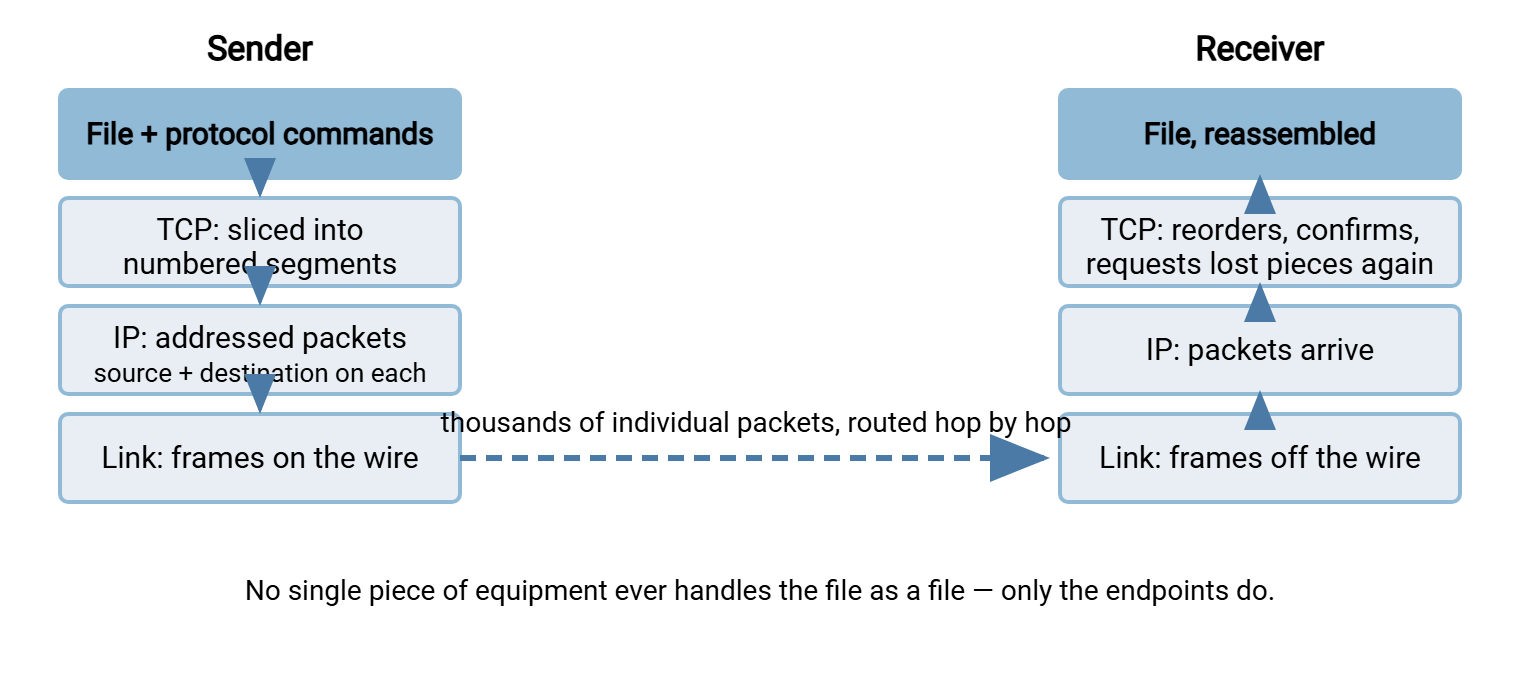
Two consequences of this design are worth pausing on, because they explain behavior you will see constantly:
- Reliability is built in — per piece. TCP numbers every segment and the receiver acknowledges what arrived (an ACK, a small "got it" message flowing back). Anything lost is resent automatically. A transfer that "stalls" mid-file is usually this machinery grinding through packet loss. Pieces are being resent, slowly, and the progress bar sits still while it happens.
- The network never sees your file. Routers along the path forward individual packets; they have no idea ten thousand of them make up
report.csv. Only the two endpoints hold the whole picture. That is why end-to-end checks like file sizes and checksums (covered in our reliability article) can only be done at the endpoints.
One Upload, Traced End to End
Here is every stage happening in one real transfer. The scenario: a client uploads report.csv to an FTP server at ftp.example.com, using passive mode (the standard mode, where the client opens every connection). The trace below is simplified but faithful. The lines marked with arrows are what you would see in a packet capture or a client log. The comments explain each stage.
# Stage 1 — name lookup: the client turns the name into an address
client > dns      query : ftp.example.com ?
dns    > client   answer: 203.0.113.10

# Stage 2 — TCP handshake: three packets open the control connection
client > server   SYN        ("may I open a connection to port 21?")
server > client   SYN-ACK    ("yes — ready when you are")
client > server   ACK        (connection open; both sides now count bytes)

# Stage 3 — the session begins inside the connection
server > client   220 FTP server ready
client > server   USER alex
server > client   331 Password required
client > server   PASS ********
server > client   230 Login successful

# Stage 4 — negotiating a second connection for the data
client > server   PASV
server > client   227 Entering Passive Mode (203,0,113,10,195,87)
client > server   [new TCP handshake to port 50007]

# Stage 5 — the transfer itself
client > server   STOR report.csv
server > client   150 Opening data connection
client > server   [report.csv flows in ~1460-byte segments, each acknowledged]
server > client   226 Transfer complete

# Stage 6 — goodbye
client > server   QUIT
server > client   221 Goodbye
Every idea from the earlier sections is visible here. Stages 1 and 2 build the connection. Stage 3 is the session being established inside it. Stage 5 is the stack at work — the file crossing as segments, invisible to everything but the endpoints. And stage 4 shows something FTP-specific: FTP moves files over a separate, second connection, negotiated per transfer. That two-connection design is FTP's defining quirk and the source of most of its firewall grief. Our active vs passive FTP explainer tells that story in full, including how to decode the six numbers in that 227 reply.
Other protocols arrange the plumbing differently (SFTP runs everything through one connection, HTTPS opens one per request). But the stages are always the same: resolve, connect, authenticate, transfer, confirm, close. Six verbs. Every protocol you will ever meet is a rearrangement of them.
Watch a Transfer Yourself
Reading a trace is good; producing one is better. The quickest way is curl, a command-line transfer client present on modern Windows, Linux, and macOS. The -v (verbose) flag prints every command and reply as it happens:
# Download over FTP, showing the whole conversation
curl -v ftp://ftp.example.com/pub/readme.txt -o readme.txt

# Upload a file, authenticating as a real user
curl -v -T report.csv ftp://ftp.example.com/inbox/ --user alex

# The same journey over SFTP — -v shows the SSH setup steps too
sftp -v alex@sftp.example.com
Run one of these against any server you legitimately use, and match what scrolls past to the six stages above. Graphical clients show the same conversation in their log or message pane. Find that pane in whatever client you use, because it is the first place to look when something misbehaves. I found mine in my third year, by accident, while looking for something else.
The server keeps its own record of the same events from the other side. A Windows server such as Sysax Multi Server writes an activity log of connections, logins, and transfers. Comparing the client's view with the server's log is one of the oldest and best troubleshooting techniques. Suppose the client says it uploaded and the server never logged a STOR. You know the problem sits in the network between them. Two logs that disagree are worth more than one log that is confident.
Arrival: Buffers, Disk, and What “Complete” Means
The last leg of the journey happens inside the receiving machine, and it explains a whole family of confusing symptoms.
Arriving segments land first in a memory buffer — a holding area the operating system fills as packets arrive. The server application drains it as it writes to disk. Disk writes themselves are often deferred a moment for efficiency. This is why a progress bar can sprint to 99% and then sit. The sender has handed everything to the network, but the receiver is still draining buffers and flushing to disk. The final acknowledgment comes only after the last pieces are accepted. Ninety-nine percent is the network's number, not the disk's.
Suppose the server has written the last byte and the protocol conversation confirms it (226 Transfer complete in FTP, a success status in other protocols). The transfer is then complete in the protocol's eyes. Note carefully what that does and does not mean. It means every byte the client sent was received. It does not prove the file is what the sender intended. A transfer interrupted halfway leaves a smaller, truncated file on disk with no completion message at all. That partial file can look real to any process that finds it. A quick sanity check is comparing byte counts at both ends. The robust versions of that check — checksums, temp-name-then-rename patterns, and completion markers — are the subject of the anatomy of a reliable transfer.
Remember: a completion message means "all the bytes I was sent have arrived." It says nothing about whether those bytes were all of the file, or whether another process grabbed the file while it was still growing. Reliable workflows add their own end-to-end verification on top of the protocol's word.
When the Journey Breaks
Because the journey has stages, failures have addresses. Matching the symptom to the stage turns a vague "FTP is down" into a specific, checkable hypothesis:
- "Could not resolve host" — stage 1. DNS is wrong, missing, or unreachable. The transfer never left the building.
- "Connection refused" or a connect timeout — stage 2. Wrong address or port, the service is not running, or a firewall is discarding the attempt.
- "Login incorrect", "permission denied" — stage 3. The network is fine; credentials or account configuration are not.
- Login works, then listing or transfer hangs — stage 4 or 5. In FTP this is the signature of a blocked data connection while the control connection sits healthy. Firewalls and NAT are the usual culprits; why firewalls block active FTP dissects the mechanics.
- Transfer starts, then dies mid-file — stage 5. Packet loss the retransmission machinery could not outrun, an idle or session timeout on a device in the path, or a connection reset. Long transfers through stateful firewalls are especially prone to timeouts on quiet control connections.
Acme's nightly upload to a distributor stopped working the week after a firewall upgrade, and the ticket said "FTP is down." It was not down. The client log showed a clean login every night, then a STOR that hung until the job gave up. The server's log, when someone finally pulled it, had every login and no STOR at all. That put the fault squarely in the network between them. The rule allowing the server's passive port range had not survived the upgrade. Naming the stage took twenty minutes. The three days before that had gone on restarting the client, the server, and the job, in that order, twice.
You do not need to memorize fixes yet. The habit to take away is the question: which stage did this fail at? Every error message above names its stage once you know the stages exist. The article on the layered troubleshooting method turns that one question into a full procedure.
One Model, Every Protocol
This article opens the series because the model transfers cleanly to every protocol you will meet. The differences between protocols become small, learnable variations:
- FTP follows the model twice: a long-lived control connection for the session, plus a fresh data connection per transfer. Almost everything distinctive (and troublesome) about FTP flows from that split — see our FTP protocol series.
- SFTP runs the entire session — authentication, commands, and file data — through a single encrypted connection on one port. That is why firewalls find it so agreeable. The SFTP series goes deep.
- HTTPS transfers are short, self-contained request/response exchanges: connect, authenticate, send or fetch, done. That shape is covered in the HTTP/HTTPS file transfer series.
In every case the skeleton is identical. A client initiates, a server listens, a connection carries a session, and the file crosses the stack in pieces that only the endpoints ever see whole. Automation does not change the skeleton either. A scheduled tool like Sysax FTP Automation is a client. It runs the same six stages on a timer, with retry logic for the stages that can fail, instead of a human clicking through them. It also does not get tired at stage four.
The Mental Model to Keep
If you remember one paragraph, make it this one. A file transfer is a client contacting a listening server. A name becomes an address, a handshake opens a connection, and credentials open a session inside it. The file crosses the network sliced into acknowledged, reassembled pieces. Then a completion message confirms the bytes arrived, and anything stronger than that is your job to verify. Every protocol arranges these steps slightly differently; none of them escapes the steps.
From here, a natural next read in this series is push vs pull, which decides who should initiate each of your flows. Another is the anatomy of a reliable transfer, which picks up exactly where "transfer complete" leaves off. The working glossary pins down every term this article introduced and the rest of the vocabulary you will meet in documentation.
Frequently Asked Questions
Is the client always the machine that sends the file?
What is the difference between a connection and a session?
Does the file really travel in pieces?
Why does a transfer sometimes freeze at 99%?
Does "226 Transfer complete" guarantee the file is intact?
Why do FTP transfers hang after a successful login?
From the Sysax team: we build secure file transfer software for Windows. Sysax Multi Server is an FTP, FTPS, SFTP, and HTTPS server. Sysax FTP Automation handles scheduled, scripted transfers. Free trials are on the download page.