
The Anatomy of a Transfer Pipeline
Most automated file transfers start life as one script. It fetches the export, checks that the file is not empty, zips it, uploads it, and emails somebody. All of that happens in a single block of code that grew one line at a time. It works, and it keeps working, right up until the night it fails at 2 a.m. Then the questions start: which part failed? Did anything get sent? Is it safe to run again, or will the partner receive the same invoices twice? A script that does everything gives you no way to answer any of that.
The fix is not a smarter script. It is a different shape: the pipeline. A transfer is treated as a short assembly line of small stages, each with exactly one job, connected by deliberate hand-offs. Pipeline thinking is not enterprise tooling; it works identically whether the stages are three batch files, one automation tool, or a rack of servers. What changes is only how much each stage costs to build.
This article is the map. By the end you will know the seven stages almost every transfer pipeline contains and what actually passes between them. You will know why separate stages beat one mega-script in every way that matters at 2 a.m. You will also know how to draw the pipeline hiding inside any flow you already run. This is the opening article of our pre- and post-processing series. Everything else in the series hangs off the skeleton described here.
The Transfer Is the Middle of the Job, Not the Whole Job
Two terms first, because the whole series rests on them. Pre-processing is everything that happens to a file after it exists but before it moves: checking it, reshaping it, packaging it, naming it. Post-processing is everything that happens after it arrives: confirming it, unpacking it, delivering it to the system that consumes it, telling people it came. The transfer — the part everyone watches, the part with the progress bar — is one stage in the middle.
A parcel is the honest analogy. Nobody describes shipping a product as "the truck." Somebody picks the item, checks it against the order, packs it, labels it. The truck moves it. Somebody signs for it, unpacks it, and shelves it. The truck leg is the most visible and usually the most reliable part. The mistakes that generate angry phone calls — wrong item, wrong address, crushed contents — happen in the steps around it.
File transfers fail the same way. When a partner calls about a bad delivery, the transfer itself usually worked perfectly: the bytes that left arrived. The file was wrong before it left — wrong encoding, half-written, yesterday's data — or it was mishandled after it arrived — unpacked into the wrong folder, processed twice. Those failures live one stage away from the transfer. That is exactly why a pipeline names those stages and gives each one a place to fail loudly.
The Seven Stages of a Transfer Pipeline
Almost every real transfer pipeline is built from the same seven stages: acquire, validate, transform, transfer, verify, route, notify. The diagram below shows them in order, grouped into pre-processing, the move itself, and post-processing. One realistic flow, a nightly sales feed, is mapped underneath so you can see what each stage does in practice.
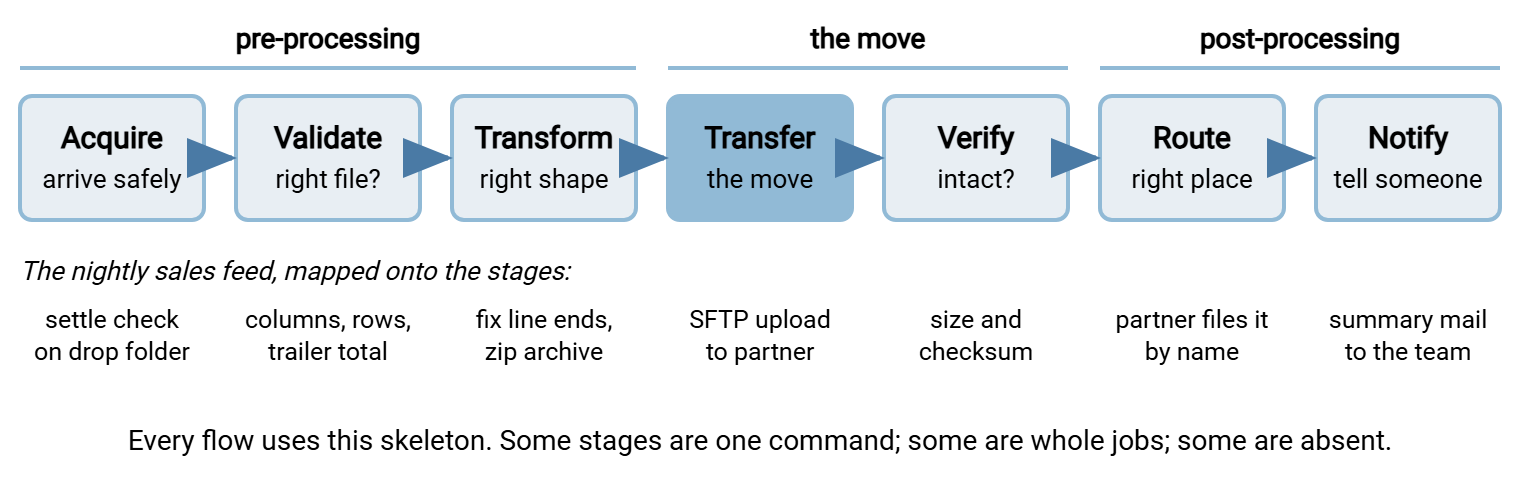
Here is what each stage owns, and what goes wrong when it is missing:
- Acquire — get the file into the pipeline's hands, safely. That might mean watching a drop folder, collecting an application export, or downloading from a source system. The classic acquire failure is grabbing a file that is still being written. The defenses — settle checks, temp names, atomic renames — are the subject of our partial-file safety series. The drop-folder mechanics live in the watch folders series.
- Validate — decide whether this is the file you expect before spending anything else on it: right name, right structure, plausible contents. This is the cheapest moment in the entire flow to reject a bad file. That is why it gets its own article, validating files before they leave.
- Transform — change the file's shape to what the destination needs: encoding, line endings, delimiters, headers. Packaging steps belong here too — compression, and encryption with the recipient's key as described in our encrypt-before-send guide. Reshaping is covered in transforming files between systems.
- Transfer — the move itself, over SFTP, FTPS, HTTPS, or whatever the destination speaks. Deliberately boring: this is the stage your transfer client or automation tool does well. It is also the one place retry logic clearly belongs — see the retry and error handling series.
- Verify — collect proof that the destination copy is complete and intact: compare sizes, compare checksums, confirm the remote listing. Hope is not a stage. The techniques are in verifying transfers end to end.
- Route — deliver the file to the exact folder, system, or partner that consumes it. Routing often runs on the receiving side, sorting one inbox into many destinations. It is the subject of the routing article in this series.
- Notify — tell people and systems what happened. Success gets a quiet summary; failure gets a loud, specific alert. Silence is the enemy — a pipeline that fails without telling anyone is covered by the job monitoring series.
Not every pipeline has all seven, and that is fine. A flow between your own servers may have nothing to route; a tiny internal copy may collapse validate and transform into one script. Some flows add stages — a malware scan between acquire and validate is common where files come from outside. Our guide to scanning integration points shows where it slots in. The skeleton is a checklist, not a quota. The value is in consciously deciding "we do this here" or "we genuinely don't need it" for each stage. That beats discovering a missing one during an incident.
Why Stages Beat the Mega-Script
The mega-script and the pipeline can contain the very same commands. The difference is structure, and the structure pays off in four specific ways.
- Failures get an address. When a staged pipeline breaks, the failure names its stage: validation rejected the file, or the upload timed out, or verification found a size mismatch. When a mega-script breaks, you get one exit code and an archaeology project.
- You can rerun the right part. If the transfer failed but validation and transformation succeeded, a pipeline resumes from the transfer. The prepared file is still sitting in its hand-off folder. A mega-script starts over from the top, and every earlier step runs again whether that is safe or not. Rerunning "send the invoices" twice is exactly how partners receive duplicates. That is why rerun safety gets its own series on duplicate detection and idempotency.
- You can test one stage at a time. Feed the validation stage a deliberately broken sample file and watch it reject. Feed the transform stage a known input and compare the output byte for byte. Testing a mega-script means running the whole flow against production systems and hoping.
- Change stays contained. When the partner announces a new file layout, you touch the transform stage and nothing else. When you switch protocols, you touch the transfer stage. In a mega-script, every change is open-heart surgery on the whole flow.
A fifth benefit shows up later: stages are reusable. Teams that think in pipelines end up with a small library of stage-shaped parts every new flow can borrow. Teams that think in mega-scripts end up with five slightly different copies of the same thousand lines.
Remember: the mega-script is not wrong because it is one file — it is wrong because a failure anywhere means starting over everywhere. Stages give every failure a place to land, a name in the log, and a safe point to resume from.
What Passes Between Stages
Two things travel down a pipeline: the file itself, and facts about the file. Get the hand-off of both right and the pipeline almost runs itself.
The file: hand-off folders
The simplest reliable interface between stages is a folder per stage. Each stage reads from its input folder, does its one job, writes the result to the next stage's folder, and is done. The file's location is its status: anything in 30_ready has, by definition, been validated and transformed. No database required — the filesystem is the state machine. A working layout looks like this:
D:\flows\sales-feed\
  10_drop\        source app writes here (temp name, then rename)
  20_validated\   passed structure and reconciliation checks
  30_ready\       transformed and zipped, cleared to send
  40_sent\        transfer confirmed and verified; kept two weeks
  error\          rejected files, each with a reject report
  work\           scratch space for in-flight processing
  log\            one log file per run
The numbered prefixes make the order self-documenting — a stranger can read the flow's shape from a directory listing. The error and work folders deliberately sit outside the numbered sequence. error is where any stage parks a file it rejects. And work is scratch space so that half-finished output never sits in a folder another stage reads.
That last point is the one rule that keeps hand-off folders honest: a file must appear in a stage folder only when it is complete. The standard trick is to write output into work and then move it into the next folder. On the same volume, a move is a rename, which is effectively instantaneous. So no stage ever sees a half-written file. The reasoning, and the caveats about moves across volumes and network shares, are covered properly in the partial-file safety series.
The facts: names and sidecars
Facts about the file travel two ways. The first is the file name itself — the pipeline's passport. A name like sales_YYYYMMDD_HHMMSS.csv carries the flow, the business date, and uniqueness in one string that every stage can parse. Naming is load-bearing enough in automation that it has its own series on file naming and datestamping.
The second is the sidecar file — a small companion file that rides along with the data file. That might be a checksum file for verification, a manifest listing what a batch contains, a control file with row counts and totals. Sidecars are how one stage leaves evidence for a later stage (or for the partner) without modifying the data file itself. The formats and conventions are in our guide to checksum files and manifests. When a run spans many steps and you need a running account of what happened, that becomes workflow state. It is the subject of the orchestration article later in this series.
The Nightly Sales Feed, Stage by Stage
The diagram earlier sketched a real flow along the bottom. Here is the same pipeline expanded into a table you can steal the shape of. The scenario: a finance application exports sales_YYYYMMDD.csv around 01:30 each night. A processing partner must have it, zipped and clean, before their 06:00 batch window.
| Stage | What actually happens | If it fails |
|---|---|---|
| Acquire | Watch 10_drop for a file matching the expected name; require its size stable for 60 seconds before touching it |
No file by 03:00 — raise a "feed missing" alert; nothing downstream runs |
| Validate | Header row matches the agreed contract; every row has 14 columns; row count matches the trailer record's count | Move file to error with a reject report; alert the feed owner; stop |
| Transform | Convert line endings to what the partner's system expects; strip the trailer row; zip the result | Stop and alert; nothing has been sent, so a rerun after the fix is safe |
| Transfer | SFTP upload to the partner's inbox, using a temp name remotely, renamed on completion | Retry with backoff; if still failing at 04:30, page a human with the client's error text |
| Verify | Compare the remote file size to the local one; upload a checksum sidecar the partner can check independently | Treat as a failed transfer: delete the remote copy if possible, retry, alert |
| Route | Runs on the partner's side — their intake sorts by file name, which is why the name is part of the contract | Our defense is a correct, agreed name; theirs is an unmatched-file hold area |
| Notify | Success: one summary mail with file name, row count, and duration. Failure: alerts fired by earlier stages | A missing success mail by 06:00 is itself the signal something died silently |
Two things are worth noticing. First, only one row of that table is the transfer — the part most people would have called "the job." Second, every row's failure column names a destination and an action. Nothing fails into limbo; that property, more than any individual check, is what makes a pipeline trustworthy unattended.
Where the Stages Run: Sender, Receiver, or Both
Pipelines mirror each other across a transfer. Your post-processing is the flip side of someone's pre-processing. Every inbound flow you receive begins with an acquire stage that is simply someone else's upload landing on your server. When you negotiate a new flow, walk the seven stages with the other party and agree who owns each. Agree who validates, who unpacks, who verifies, what the file name will carry. Most inter-company transfer incidents trace back to a stage both sides assumed the other one owned.
On the sending side, this stage structure is exactly what transfer automation tools are built to generate. In Sysax FTP Automation, the task wizard chains the stages of a flow — folder monitoring to acquire, zip compression and OpenPGP encryption as packaging. The chain includes the transfer itself, file operations to archive what was sent, and an email notification at the end. The tool's script editor, with line-by-line debugging, is where a custom validation or transform step of your own gets inserted into the generated sequence. The tool supplies the skeleton and the scheduler; the checks specific to your data remain your script, run at the right stage.
On the receiving side, the acquire-and-route half of the pipeline can hang off the server itself. Sysax Multi Server can fire event triggers (in the Pro and Enterprise editions) when a file arrives. That is a natural place to start your post-processing — kick off the unpack or the routing script the moment the upload completes. Its activity logging to file or database provides the independent arrival record your verify stage and your auditors both want.
How to Draw Your Own Pipeline
Every flow you run today already is a pipeline — the only question is whether it is drawn deliberately or exists as accidental code. The exercise below takes about twenty minutes per flow and is the single highest-value audit in this series. Pick one flow, draw seven boxes, and answer one question per box:
- Acquire: how does the flow learn a new file exists, and how does it know the file is complete rather than still being written?
- Validate: what would a bad file look like here, and what — specifically — stops it from continuing?
- Transform: what must change between the shape the source produces and the shape the destination accepts?
- Transfer: what moves the file, over which protocol, with what retry behavior when the network blinks?
- Verify: what proof exists, after the move, that the destination copy is complete and intact?
- Route: how does the file end up in the exact folder or system that consumes it — and where does it go if that cannot be determined?
- Notify: who finds out on success, and who finds out — faster and louder — on failure?
Write the answers under the boxes. Where the answer is "it doesn't" or "nobody knows," you have found a missing stage. Missing stages are where the next incident is already scheduled. You need not fix everything at once. Acquire safety and validation come first (they stop bad data at the cheapest point), then verification, then notification. Transform and route usually exist already, or the flow would never have worked.
Remember: the drawing is not documentation theater. A pipeline you can draw is a pipeline you can reason about at 2 a.m. You can work out which stage failed, what state each folder is in, and where it is safe to resume.
The Version to Tell a Colleague
A file transfer is an assembly line, and the transfer itself is only the middle of it. Before the move: acquire the file safely, validate it while rejection is still cheap, transform it into the destination's shape. After the move: verify the copy, route it to its consumer, and notify someone either way. Build each stage to do one job. Hand files between stages through folders whose location is the status. Then every failure gets a name, a landing place, and a safe resume point — everything the 2 a.m. mega-script can't give you.
From here, the series drills into one stage at a time. Start with validating files before they leave — the highest-return stage to add to an existing flow. Then read transforming files between systems for the reshaping work. When your flows start chaining stages together, orchestrating multi-step workflows covers keeping the whole machine honest.
Frequently Asked Questions
What is pre-processing in a file transfer?
Do I need special software to build a transfer pipeline?
What is the difference between validating and verifying?
How many stages should my pipeline have?
Why use a separate folder for each stage?
Is a pipeline overkill for one small daily transfer?
From the Sysax team: we build secure file transfer software for Windows. Sysax Multi Server is an FTP, FTPS, SFTP, and HTTPS server. Sysax FTP Automation handles scheduled, scripted transfers. Free trials are on the download page.