
Connection Limits and Per-User Caps: Protecting a Transfer Server From Its Own Users
Most transfer servers ship with their connection limits set to "unlimited" or to a number so large it might as well be. That feels generous. It is also the single most common reason a busy server goes from "fine" to "unusable for everyone" in the space of a minute. A limit is not a restriction on your users; it is a fuse. One partner's script might open fifty sessions by mistake, or three hundred partners might arrive at once. In either case, a well-chosen limit decides who waits briefly instead of letting the operating system decide that everyone fails.
This article is part of our Capacity & Concurrency series. It walks through the limits most servers expose — global, per-user, per-IP, login rate, and the FTP passive port range that acts as a hidden cap. It shows how to pick real numbers from your own usage instead of guessing. It also covers what a polite refusal looks like on the wire, so you can recognize one in a log and explain it to a partner. If you have not read how transfer servers handle load, that article is the reasoning behind every number here.
Why "Unlimited" Is the Dangerous Setting
An unlimited server does not have infinite capacity. It has exactly the capacity its memory, CPU, disk, and network provide — the limit still exists, you just have not chosen it. "Unlimited" really means the failure will be chosen for you by whichever resource runs out first, and those failures are ugly. Memory exhaustion makes the whole machine swap. File handle exhaustion makes the server refuse connections with confusing errors while looking healthy. A saturated disk queue slows every session, including the ones that were nearly finished. So nothing completes and clients time out and retry, adding still more load. That last pattern has a name, congestion collapse: the server is busier than ever and getting less done.
A configured limit replaces that with a clean edge. Sessions inside the limit run at full speed; the session beyond it gets a fast, clear refusal and comes back in a minute. The three hundred partners who got in finish on time; the three hundred and first loses sixty seconds. The rest of this article is about placing that edge in the right spot.
Remember: a limit does not reduce capacity; it decides how the server behaves at the edge of it. Refusing one connection cleanly is far kinder than accepting it and slowing four hundred others to a crawl.
The Five Limits Most Servers Expose
The names vary between products, but nearly every FTP, SFTP, and HTTPS server offers some version of these five controls. Each protects a different resource, and they work best together.
Global maximum connections (or sessions). The total number of clients the server will serve at once. This is the fuse for memory, file handles, and the disk queue. It should be derived from measured resources, which the sizing article covers. It is the one limit that must never be left unset.
Per-user (per-account) cap. How many simultaneous sessions one login may hold. This is the fairness control. Without it, a single partner can occupy a large share of the global limit while everyone else is refused. That partner's client might be set to ten parallel uploads, or their script might loop without disconnecting. Our article on the blast radius of one account makes the same argument for permissions; the per-user cap is the capacity version.
Per-IP cap. How many connections may come from one source address. It catches runaway clients that use several accounts, and it slows scanners. The caveat is NAT: a partner whose whole office shares one public address needs a per-IP cap comfortably above their per-user cap multiplied by their account count.
Login rate limit. How many connections may be in the "connected but not yet authenticated" state at once, or how many new logins per minute the server accepts from one source. This protects the CPU, because the key exchange and password check at the start of every session cost more processor time than minutes of steady transfer. OpenSSH expresses it as MaxStartups 10:30:60: up to 10 unauthenticated connections are accepted freely. Above that a growing share (starting at 30 percent) are dropped. At 60 all new ones are refused until some finish logging in. OpenSSH's similarly named MaxSessions is not a per-user cap; it limits how many channels one SSH connection may multiplex.
The passive port range. This is the hidden one. Every passive-mode FTP data connection borrows a port from the range you configured. It holds that port for the length of the transfer, and often for a minute or two of TIME_WAIT afterward. A range of fifty ports is therefore a cap of roughly fifty simultaneous transfers — sometimes thirty in practice — regardless of the global limit. When it is exhausted, clients see 425 Can't open data connection after a healthy login. The passive port range guide covers the firewall side.
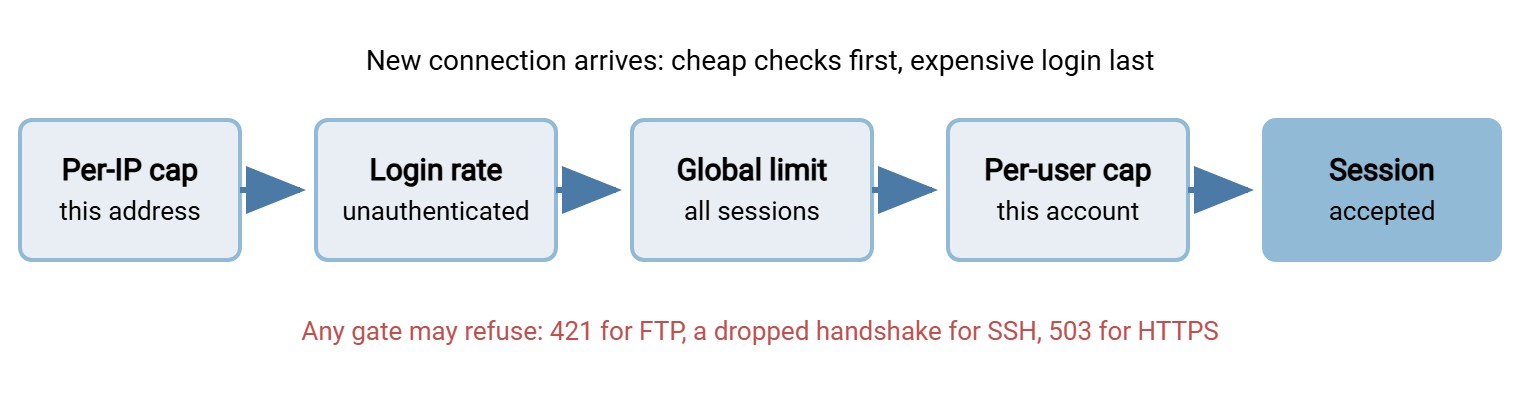
The diagram below shows the gates a new connection passes through. The order matters: the cheapest checks come first, so a refused connection costs the server almost nothing.
Queueing Versus Refusing: How a Well-Behaved Server Says No
When a limit is reached, a server can hold the new connection in a queue until a slot frees, or refuse it immediately. Almost every transfer server refuses, and that is the right design. A queue on the server ties up a socket and memory for a client that is doing nothing. The client cannot tell whether it is next in line or fortieth. A fast refusal costs nothing and says exactly what happened. Queueing is the client's job: wait, back off, try again. That etiquette is covered in our article on retry strategies and backoff, and it is worth pointing partners at it.
What the refusal looks like depends on the protocol, and recognizing each one in a log saves misdiagnosis.
FTP and FTPS use reply code 421, which means "service not available, closing control connection." Servers attach their own text, so you will see variants of:
220 ftp.example.com ready
USER partner-acme
421 Too many users, please try again later.
Connection closed by remote host.
A 421 before or right after USER is a global or per-IP limit. One that arrives after the password is accepted is usually a per-user cap. Some servers report that one as 530 instead. A 425 on the first transfer of a healthy session is the passive range running dry. Our FTP reply code reference lists the rest.
SFTP has no reply code for this, because the SSH server refuses before the protocol conversation starts. The client sees the connection closed during the handshake, typically reported as kex_exchange_identification: Connection closed by remote host or a bare "connection reset." A firewall drop or a crashed daemon produces the same message. That is why the SSH server's own log is the only reliable way to tell a limit from an outage. It records something like "exceeded MaxStartups" there.
HTTPS upload portals answer with 503 Service Unavailable, ideally with a Retry-After header telling the client how many seconds to wait. Automated clients should honor that header.
Below all of these sits one queue that does exist on the server: the TCP listen backlog. This is the short line of connections the operating system has completed but the server has not yet picked up. Under a login storm that line fills, and clients see plain connection timeouts with no reply at all. On Linux, ss -ltn shows the current length (Recv-Q) and the maximum (Send-Q) for each listening port. A Recv-Q that regularly approaches Send-Q means the server is not accepting connections as fast as they arrive. That is usually a CPU or login-rate problem rather than a network one.
Sizing Limits From Real Usage
The right numbers come from two measurements: what the server can carry (from the resource math in the sizing article) and what your users actually do. The second one is easy to collect and almost nobody does it. Sample the session count once a minute for a month, including at least one month-end, and you have everything you need.
# Linux: append "Mar 14 02:10 297" once a minute
while true; do
  printf '%s %s\n' "$(date '+%b %d %H:%M')" \
    "$(ss -Htn state established '( sport = :22 )' | wc -l)" >> /var/log/sftp-sessions.log
  sleep 60
done

# Windows PowerShell equivalent
while ($true) {
  $n = (Get-NetTCPConnection -State Established -LocalPort 22 -ErrorAction SilentlyContinue).Count
  "{0} {1}" -f (Get-Date -Format 'MMM dd HH:mm'), $n | Add-Content C:\logs\sftp-sessions.log
  Start-Sleep -Seconds 60
}
Then find two numbers: the maximum and the p95. The p95 (95th percentile) is the value that 95 percent of your samples fall below — the "normal busy" level with the rare extremes removed. Sort the counts and read the entry 95 percent of the way down the list:
$ awk '{print $4}' /var/log/sftp-sessions.log | sort -n \
    | awk '{a[NR]=$1} END {print "p95=" a[int(NR*0.95)], "max=" a[NR]}'
p95=184 max=311
Here normal busy is 184 sessions and the month-end peak was 311. Now combine that with the resource ceiling. Suppose the sizing worksheet says the server can hold about 600 sessions before memory becomes the wall. The worksheet below turns those three figures into settings; the example column is the 300-partner SFTP server used throughout this series.
| Setting | Rule of thumb | Example |
|---|---|---|
| Global maximum sessions | About 70% of the resource ceiling, and at least 25% above the measured peak | Ceiling 600, peak 311 → 400 |
| Per-user cap | Twice the parallelism a normal client needs, minimum 2 | Partners send 1–2 files at a time → 4 |
| Per-IP cap | Per-user cap × accounts expected behind one address, plus 2 | Most partners 1 account → 6; the hub partner with 4 accounts → 18 |
| Unauthenticated connections at once | Enough for a burst of logins to queue briefly, not enough to pin the CPU | 8 cores → start dropping at 20, refuse all at 60 |
| Passive port range (FTP) | Expected simultaneous transfers × 2, to cover TIME_WAIT |
100 transfers → 200 ports, e.g. 50000–50199 |
| Idle timeout | Longer than the slowest legitimate pause, shorter than a forgotten session | 10 minutes |
Two things about the global figure. First, 400 sits well below the 600 ceiling on purpose: the remaining 200 sessions' worth of memory is headroom. That reserve keeps the server responsive while it is refusing. It also absorbs the day the peak is 350 instead of 311. Second, 400 is far enough above the measured peak that ordinary growth does not trip it next quarter. If the peak and the ceiling are close together, that is not a limits problem. It is a sizing problem, and the answer is more memory or a second server.
Per-User Caps: Fairness and Runaway Clients
The per-user cap deserves more thought than the others, because it is the one partners notice. Set it too low and a partner's perfectly reasonable client, configured to send three files in parallel, gets a refusal on the third. Set it too high and one partner's stuck loop, opening a session every ten seconds and never closing any, eats the global limit in an hour.
The rule of thumb — twice normal parallelism, minimum two — comes from how sessions leak. A client that crashes mid-transfer leaves a ghost session behind until the idle timeout reaps it. With a cap of one, the partner's next attempt is refused for ten minutes for no reason they can see. With a cap of two or more, the retry succeeds while the ghost expires quietly. Batch accounts that legitimately run many parallel streams should get a higher per-account value rather than a higher default for everyone. Most servers allow the cap to be set per account or group for exactly this reason.
The per-user cap and the idle timeout are a pair: a shorter timeout lets you run a tighter cap. Change them together. When a partner reports refusals, check the server's session list for their account before assuming the cap is wrong. Three of their four slots are often ghosts from an earlier failure.
Per-IP Caps and Login Rate Limits
These two are frequently confused with brute-force protection, and they overlap with it, but their purpose is capacity. A per-IP cap stops one source from holding many sessions. A login rate limit stops one source, or all sources together, from making the server do expensive authentication work faster than the CPU can keep up. Brute-force auto-blocking — refusing an address for a period after repeated failed logins — is a security control with a different trigger, covered in our lockout and throttling design article. A server such as Sysax Multi Server combines IP allow and block lists with automatic blocking of addresses that fail repeatedly. On a partner-facing server, that auto-block also happens to keep scanners from consuming your login-rate budget. So the security setting doubles as a capacity setting.
The NAT caveat is the one that bites. If a large partner puts twenty branch offices behind one public address, a per-IP cap of six will refuse them during their own busy hour. Meanwhile, the server has capacity to spare. Keep a short list of such partners and give their addresses a higher cap, or, where the server supports it, exempt allow-listed addresses from the per-IP limit entirely. When a partner reports intermittent refusals that do not match their session count, ask what their public address is and check whether other accounts share it.
Setting Partner Expectations
A limit that partners do not know about generates support tickets; a limit they were told about at onboarding generates well-behaved retry logic. Publish the numbers in the same document that carries the hostname and the port. A short paragraph is enough:
Connection limits for sftp.example.com
- Up to 4 simultaneous sessions per account; up to 6 per source address.
- If you are refused (FTP reply 421, or an SSH connection closed during
  the handshake), wait at least 60 seconds before retrying, double the
  wait on each further refusal, and stop after 6 attempts.
- Sessions idle for more than 10 minutes are disconnected.
- Please schedule bulk uploads outside 01:30-03:00, our busiest window.
Those four lines prevent the two behaviors that turn a small overload into a large one. Those are instant retries in a tight loop, and clients that open a new session for every file. Those four lines also make the refusal explainable when it happens. The partner expectations article covers folding this into a service agreement. The next article in this series, on handling burst load, covers busy-window scheduling in detail.
If your organization runs the client side of an exchange with a scheduling tool such as Sysax FTP Automation, the same expectations apply in reverse. In that case, its retry and error-handling settings are where your queue lives. So configure a sensible wait between attempts rather than hammering the partner's server the moment it refuses.
Checking That a Limit Is Doing Its Job
A limit you never hit is either well sized or too high; a limit you hit daily is too low or is catching a misbehaving client. The only way to know is to count refusals. Every server logs them — as 421 replies, "MaxStartups" lines, or a refusal event — and a weekly count per account and per address is the whole review:
$ grep -c ' 421 ' /var/log/ftp/xferlog
37
$ grep ' 421 ' /var/log/ftp/xferlog | awk '{print $6}' | sort | uniq -c | sort -rn | head -3
     29 203.0.113.44
      5 198.51.100.7
      3 192.0.2.19

PS C:\> (Select-String -Path C:\logs\ftp\*.log -Pattern ' 421 ').Count
37
Thirty-seven refusals in a week, twenty-nine of them from one address, is not a capacity problem. It is one partner's client that needs its parallelism turned down, and an email fixes it. Thirty-seven refusals spread evenly across partners at the same hour each night is the global limit doing its job during a burst. The question becomes whether to raise it, spread the burst, or add capacity. Our reading transfer logs article covers the log formats themselves.
Gotcha: raising a limit because partners complained about refusals is only correct if the resource counters were healthy at the time. If the disk queue or CPU was already saturated, the limit was protecting you. In that case, raising it moves the failure from a clean refusal to a slow collapse.
What to Take Away
"Unlimited" is not a capacity; it is an unchosen failure mode. Set a global limit from the resource ceiling with headroom. Set a per-user cap from real client parallelism, a per-IP cap that respects NAT, and a login rate limit that protects the CPU. Set an FTP passive range with room for TIME_WAIT. Let the server refuse fast and clearly — 421, a closed handshake, 503 — and make queueing the client's job with a published retry rule. Then count refusals weekly and adjust.
The numbers in this article assume you know the server's resource ceiling; sizing a transfer server shows how to calculate it. The capacity tuning checklist collects these settings, along with the operating-system limits beneath them, into one review you can run each quarter.
Frequently Asked Questions
What does "421 Too many users" actually mean?
Why does my SFTP client just say "connection closed" instead of a clear error?
Should the per-user cap be 1 so each partner uses only one session?
Is a per-IP limit the same as brute-force blocking?
How does the passive port range limit concurrency?
From the Sysax team: we build secure file transfer software for Windows. Sysax Multi Server is an FTP, FTPS, SFTP, and HTTPS server. Sysax FTP Automation handles scheduled, scripted transfers. Free trials are on the download page.