
Sizing a Transfer Server: CPU, Memory, Disk, and Network
Ask how big a transfer server should be and you will get answers ranging from "whatever the standard VM template is" to "as big as the budget allows." Neither is sizing. Sizing is arithmetic. Take what you know about the files and the partners. Work out what each of the four resources has to carry at the busiest moment, and add a deliberate margin. The arithmetic is not hard. A junior admin with a calculator can do it in an afternoon — but only if someone shows them which numbers to multiply.
This article is that worksheet. It is part of our Capacity & Concurrency series and assumes you have read how transfer servers handle load, which explains what a session costs. Here we turn those costs into a server specification, resource by resource, using one running example: 300 partners and month-end uploads. The SFTP server has to survive the night everyone connects at once. By the end you will have a filled-in worksheet you can defend, and a clear idea of which resource will give out first.
Start From the Flow Inventory, Not the Hardware Catalog
Every sizing number is derived from a small set of facts about the workload. Collect them before touching a hardware or VM configuration page:
- Accounts and partners: how many distinct logins exist, and how many are active in a typical day and on the busiest day.
- Peak concurrent sessions: measured if the server already exists (the sampling loop in the connection limits article gives you p95 and maximum), estimated from partner counts and their windows if not.
- Volume per window: total bytes in and out during the busiest window, and how long that window is.
- File sizes and counts: a few large files and ten thousand small ones cost the server very differently.
- Protocol mix: what share of traffic is encrypted (SFTP, FTPS, HTTPS) versus plain FTP.
- Growth: how fast partner count and volume have grown over the past few review periods.
If you have no inventory, our file flow census article explains how to build one; it is the foundation for every capacity decision, not just this one. For the running example the facts start with 300 partner accounts, all SFTP. The month-end window runs from half past one to three in the morning. During that window, 300 files averaging 200 MB (60 GB in total) arrive, with a measured peak of 311 concurrent sessions. There is a nightly 20 GB of outbound downloads on ordinary days. Partner count is growing about twenty percent a year.
Network Math: The Ceiling You Can Compute Exactly
Network is the easiest resource to size because the arithmetic is exact. Two conversions do most of the work. Network speeds are quoted in bits per second and file sizes in bytes, so divide by eight: a 1 Gbit/s link moves 125 MB/s. Then subtract protocol overhead — TCP and IP headers, acknowledgments, encryption framing — which costs eight to ten percent. That leaves about 115 MB/s usable on a gigabit link and about 1.1 GB/s on ten gigabit.
The demand side is volume divided by window: 60 GB in a ninety-minute window is an average of only 11 MB/s. But partners do not arrive evenly. If three hundred scheduled jobs fire within the same fifteen minutes, half the night's volume may land in that quarter hour. That is 30 GB in 900 seconds, or 33 MB/s. Size for the peak quarter hour, not the average. When you have no measurement, the rule of thumb is that the busiest fifteen minutes carry a third to a half of the window's volume.
At 33 MB/s the server's gigabit interface is nowhere near its ceiling, which is the usual finding: the server's network card is rarely the limit; the internet uplink is. A 200 Mbit/s business connection carries about 23 MB/s. And 60 GB takes forty-three minutes to cross it at full rate, with every other user of that link squeezed to nothing. That is a bandwidth-management problem rather than a server-sizing one, and our bandwidth management series covers throttling and scheduling around it.
One more network fact affects sizing indirectly. A single session's speed is bounded by latency. A partner 150 milliseconds away whose client uses a 64 KB window cannot exceed roughly 430 KB/s no matter how idle your server is. That is because the client waits for an acknowledgment before sending the next 64 KB. Our article on bandwidth-delay product explains the arithmetic. The sizing consequence is that aggregate throughput comes from many concurrent sessions. So a server that serves distant partners needs more concurrent sessions — more memory, more workers — to fill the same pipe.
CPU: The Encryption Rule of Thumb
Plain FTP needs almost no processor: the server moves bytes from the network to the disk and back. Every encrypted protocol makes the CPU touch every byte, and the cost depends on one hardware feature: whether the processor has built-in AES instructions. Nearly every modern server CPU does; some virtual machines hide it. On Linux, check with grep -m1 -ow aes /proc/cpuinfo, which prints aes if the instructions are available. On Windows, look up the CPU model's feature list.
With hardware AES, a conservative planning figure is one core per gigabit per second of encrypted traffic. That is deliberately pessimistic — a modern core can encrypt several times that in a benchmark. But the SSH or TLS stack adds copying, integrity checks, and system calls on top of the cipher. Pessimism here is cheap. Without hardware AES, plan one core per 100 to 200 Mbit/s instead, and treat replacing the hardware as the fix rather than adding cores.
Remember the per-session ceiling from the load basics article: one SSH session's encryption runs on one core, so no single transfer goes faster than one core can encrypt. Sizing for many partners is about having enough cores for the sessions that run at once. Sizing for one very fast partner is about the speed of a single core. Our SFTP performance article covers the per-session side and cipher choice.
Three other CPU costs belong in the budget:
- Login bursts. Key exchange and authentication cost a few milliseconds to a few tens of milliseconds of one core per login, depending on the algorithms. Three hundred logins in ten seconds is a visible spike, not a sizing driver, unless logins arrive continuously.
- Processing on the same box. Malware scanning of arriving files, on-the-fly hashing, PGP decryption, compression, and database logging each want a core of their own at peak. Budget one per such task, or move the task to another machine.
- SSH compression. If it is enabled, disable it. It burns a core per session for almost no gain on files that are already compressed.
For the example: 33 MB/s of SFTP at peak is about 0.27 Gbit/s, so encryption needs a fraction of one core; round to one. Add one core for the operating system and the server's own housekeeping. Add one for the malware scanner that inspects every arriving file, and a quarter more for headroom. Four cores is the floor, and eight leaves room for growth and for the login spike. Notice that the CPU answer came out small. That is typical, and it is why the money in a transfer server usually belongs in the disk.
Memory: Sessions Times Cost, Plus Cache
Memory has three components: the operating system's own needs, the per-session cost multiplied by the peak session count, and the file cache. The cache is the memory the operating system uses to keep recently read files ready. That makes repeated downloads of the same files fast without touching the disk. The formula:
memory = OS baseline
       + (peak sessions x 1.5) x per-session cost
       + socket buffers (active transfers x 2-4 MB)
       + file cache (as much as you can afford; 4 GB minimum)
       + any other service on the box (scanner, database, agent)
The per-session cost is the figure you measured on your own server: roughly 16 to 20 MB for a process-per-connection SFTP daemon, a few megabytes for a thread-per-connection Windows server. The factor of 1.5 on the peak is headroom against the month the peak is 450 rather than 311. For the example, allow 2 GB for the OS. Then 450 sessions at 20 MB is 9 GB. And 300 active uploads at 3 MB of socket buffer is about 1 GB. Another 4 GB of file cache brings the total to 16 GB. That figure also gives you the resource ceiling the limits article uses. Letting the file cache shrink under pressure leaves about 12 GB for sessions at 20 MB each. So the server holds about 600 before it swaps, and a global limit of 400 leaves the right margin.
Memory is the resource with the ugliest failure. A server that runs out of CPU slows down; a server that runs out of memory starts swapping, and then every resource looks saturated at once. Watch Available MBytes on Windows and the si/so swap columns of vmstat on Linux. Any sustained non-zero swap activity on a transfer server means the memory row of the worksheet was wrong.
Disk: Why Storage Is the Usual Ceiling
Storage is where transfer servers actually run out of capacity. It is the row most people size by capacity in gigabytes when the number that matters is operations per second. Recall the two disk ceilings: throughput (MB/s) and IOPS (separate read or write operations per second). One client writing one file is sequential and cheap. Three hundred clients writing at once interleave their writes, and to the disk that is random I/O, paid for in IOPS.
The estimate is: concurrent transfers, times the per-stream rate, divided by the write size the server uses. Take the example at its peak: 300 concurrent uploads sharing 33 MB/s is about 110 KB/s each. If the server writes in 64 KB chunks, that is roughly two writes per second per stream. That makes about 550 write operations per second in total. When a faster uplink lets the same 300 partners deliver 110 MB/s, the figure becomes about 1,800. Compare that with what storage actually delivers:
| Storage | Rough random write IOPS | Notes |
|---|---|---|
| One spinning disk | 100–200 | Sequential MB/s is fine; concurrency kills it |
| Mirrored pair of spinning disks | 100–200 | Mirroring adds redundancy, not write IOPS |
| Eight-disk striped mirror (RAID 10) | 400–800 | Each write lands on two disks |
| Controller with battery-backed write cache | Thousands, in bursts | Absorbs peaks until the cache fills |
| Solid-state disks | Tens of thousands | The usual right answer for the data volume |
| Virtual disk with an IOPS quota | Whatever the quota says | Often far below the underlying hardware; check it |
The example server on a mirrored pair of spinning disks fails at month-end even at 550 IOPS, and fails badly at 1,800. On solid-state storage neither figure registers. This is the sizing decision that matters most, and it is cheap compared with getting it wrong.
Two refinements. First, small files multiply the count: each file costs a create, several writes, a close, and often a rename and a log line. So ten thousand small files can cost fifty thousand operations while moving almost no data. The many-small-files problem article has the details. Second, separate the volumes. The operating system, the server's logs, and the transfer data should live on different disks or virtual disks. That is because every session writes log lines, and a log volume that fills or slows takes the server down with it. A server that logs to a database as well as to files, as Sysax Multi Server can, gives the database its own volume too. Capacity in gigabytes — how fast the data volume fills — is a separate question, covered in our storage growth series.
Once the server exists, verify the row with the counters. On Linux, use iostat -x 5 and its aqu-sz and w_await columns. On Windows, use Avg. Disk Queue Length, Disk Transfers/sec, and Avg. Disk sec/Transfer under PhysicalDisk. A transfer time above about 20 milliseconds on spinning disks, or above a few milliseconds on solid-state, during the peak means the row was undersized.
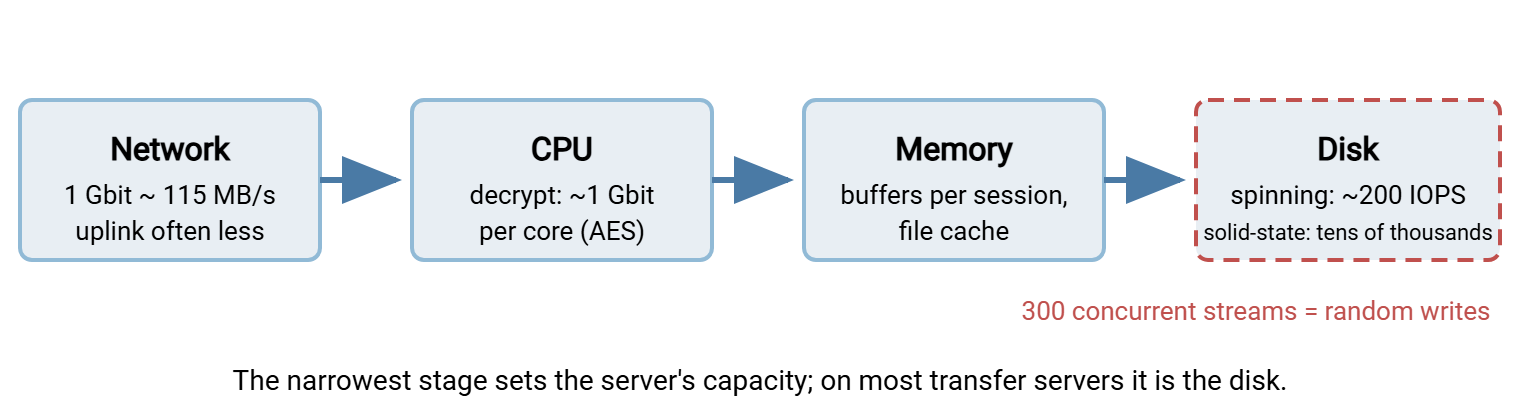
The diagram below shows the path a byte takes through the server and the rough ceiling at each stage for the example machine. The narrowest stage sets the capacity, and on most transfer servers that stage is the disk.
Headroom for Growth
Headroom is the gap between the peak you sized for and the ceiling you bought. It is not waste. It is what keeps the server responsive during the peak instead of merely surviving it. It absorbs the partner who doubles their volume without telling you. It buys time when growth arrives faster than the procurement cycle. Two rules cover most cases:
- Size every row for 1.5 times the measured peak, or for the peak you expect at the end of the hardware's planned life at the observed growth rate, whichever is larger. Twenty percent annual growth doubles the load in under four years, which is roughly a server's lifetime.
- Plan to run at no more than 70 percent of any ceiling during the normal peak. Above that, queues form faster than intuition suggests: a resource at 90 percent busy has waits roughly nine times longer than the same resource at 50 percent.
Suppose the worksheet says one server cannot carry the peak with headroom. The choice is scaling up (a bigger machine) or scaling out (more machines behind a load balancer or split by partner group). Scaling up is simpler and is usually right for the first few doublings. Scaling out is the subject of our high availability series. The burst load article in this series covers the cheaper option of moving the peak instead of buying for it.
Remember: the disk row is where transfer servers actually fail. The network row is usually limited by the uplink rather than the card. The CPU row is almost always smaller than people expect. Spend the money in that order.
The Sizing Worksheet
Everything above, in one table you can copy into a document and fill in. The example column is the 300-partner server.
| Row | How to compute | Example |
|---|---|---|
| Peak throughput | Busiest 15 minutes' volume ÷ 900 s | 30 GB ÷ 900 s = 33 MB/s |
| Network | Peak × 1.5 ≤ 70% of usable link; check the uplink too | 50 MB/s needed; 1 Gbit card fine; uplink is the limit |
| CPU cores | 1 (OS) + 1 per Gbit/s encrypted + 1 per processing task, × 1.25 | (1 + 1 + 1) × 1.25 ≈ 4; buy 8 |
| Memory | OS + (peak sessions × 1.5 × per-session MB) + buffers + cache | 2 + 9 + 1 + 4 = 16 GB |
| Disk IOPS | Concurrent transfers × (per-stream rate ÷ write size), × 1.5 | 300 × (110 KB/s ÷ 64 KB) × 1.5 ≈ 800; solid-state |
| Disk layout | Separate volumes for OS, logs, data (and database if any) | 3 volumes |
| Session ceiling | Memory available for sessions ÷ per-session MB | 12 GB ÷ 20 MB = 600 (set the limit at 400) |
A Note on Virtual Machines
Most transfer servers today are virtual, and three things change. A vCPU is often half a physical core, shared with neighbors, so the CPU row should be read in vCPUs at roughly twice the count. Virtual disks frequently carry an IOPS quota set by the platform, far below what the underlying storage could do. The quota is what you are sizing against — find it before assuming "it's on flash" means fast. And the hypervisor may hide the AES instructions from the guest; run the /proc/cpuinfo check inside the VM, not on the host. None of these change the worksheet; they change which numbers you put in it.
What to Take Away
Sizing a transfer server is four short calculations from one inventory. Network: peak quarter-hour volume against the usable link, remembering the uplink. CPU: one core per encrypted gigabit, plus the OS, plus any processing on the box. Memory: sessions times per-session cost, plus buffers and cache. Disk: concurrent streams times operations per stream, which almost always points at solid-state storage on its own volume. Add headroom to every row, and write the worksheet down so the next review starts from numbers rather than memory.
The worksheet's session ceiling feeds directly into connection limits and per-user caps. Before trusting any row, prove it with the method in load testing a transfer server safely. A worksheet is a prediction, and a load test is the measurement that confirms it.
Frequently Asked Questions
How many cores does an SFTP server need?
Why is disk usually the bottleneck when the server has a fast RAID array?
Should I size for the average load or the peak?
How much memory does the file cache need?
Does a bigger network card make transfers faster?
From the Sysax team: we build secure file transfer software for Windows. Sysax Multi Server is an FTP, FTPS, SFTP, and HTTPS server. Sysax FTP Automation handles scheduled, scripted transfers. Free trials are on the download page.